
Chromebooks boast excellent integration with Android apps, yet they fall surprisingly short when screen mirroring Android to Chromebook out of the box. Sure, Google provides the Phone Hub to sync notifications or share recent photos, but it completely lacks a native, zero-latency system to mirror your entire active screen. Why can't you simply hit a button on your phone and expect it to stream to ChromeOS? The native ecosystem simply isn't built for it.
That is why browser-based mirroring is a far superior choice. Ditching dedicated apps saves precious storage and avoids version conflicts or permission bottlenecks. Because a web-based receiver processes the incoming stream through standard web protocols, it drastically reduces computational strain on lighter ChromeOS hardware. Who actually enjoys downloading heavy software updates when a single browser tab can handle the heavy lifting?
Why Native Android Cast Does Not Always Work Well with Chromebook
Can you cast Android to Chromebook like a traditional TV? Usually not, and that is where many users hit a wall. TVs with Chromecast support are built specifically to receive incoming media streams through dedicated casting hardware or Miracast-compatible firmware. A Chromebook works differently. ChromeOS is designed more as a sender than a true wireless display receiver, so Android's built in Cast feature often struggles to recognize it properly.
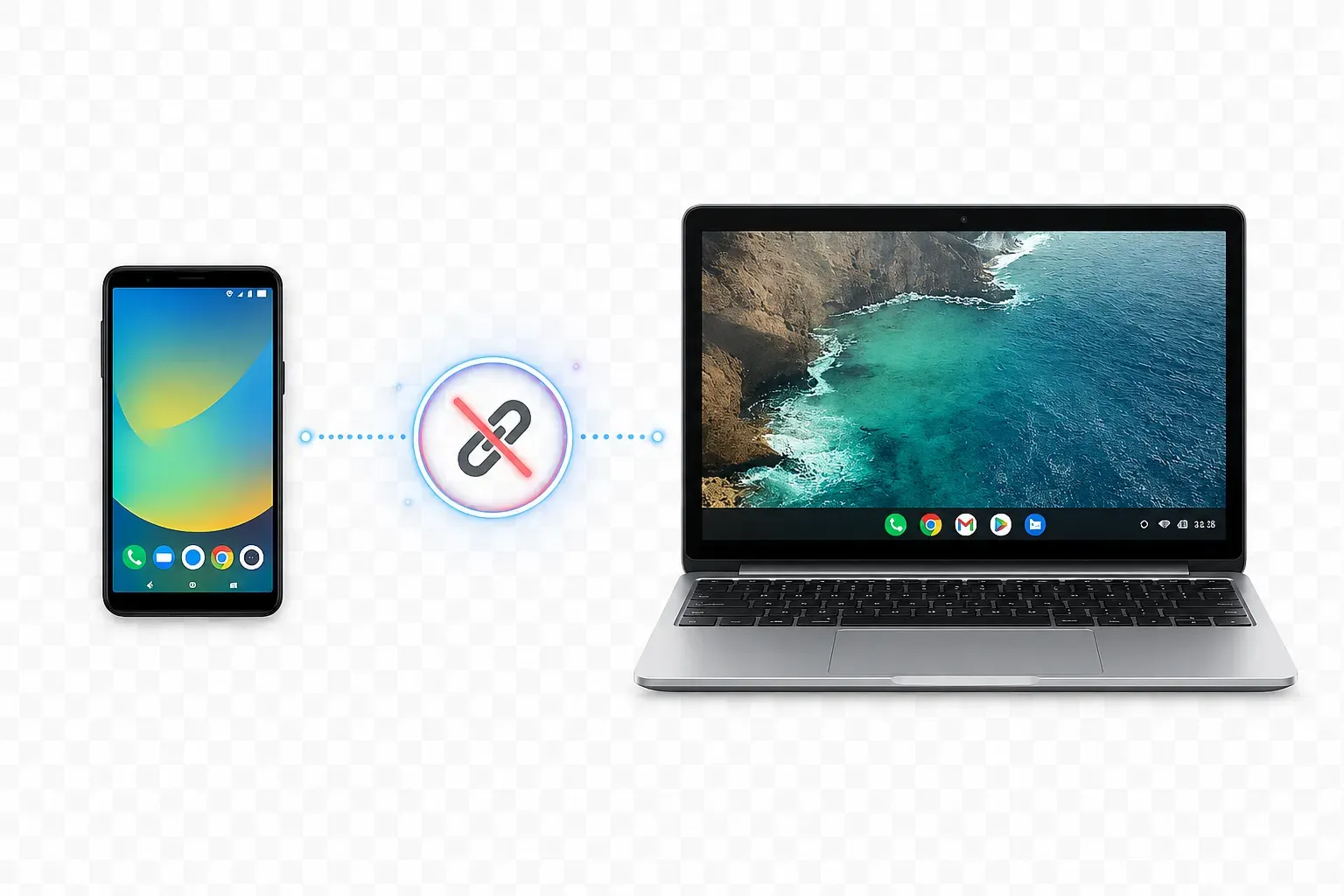
In real use, this leads to familiar headaches:
- Greyed out Cast menus
- Endless “searching for devices” loops
- Random connection drops
- Audio without video
- Mirroring that works once, then never again
The problem becomes even messier when people confuse Google Cast with Miracast. Chromebooks do not fully support native Miracast receiving the way many Windows laptops or smart TVs do. If you want a deeper breakdown of those limitations, this guide on Miracast for Chromebook explains why compatibility remains inconsistent across ChromeOS devices.
And honestly, Android users are not alone here. Apple users run into nearly identical restrictions. That is why trying to natively mirror iPhone to Chromebook often ends up requiring the same browser-based workaround instead of relying on AirPlay or direct wireless casting.
What You Need Before Mirroring Android to Chromebook
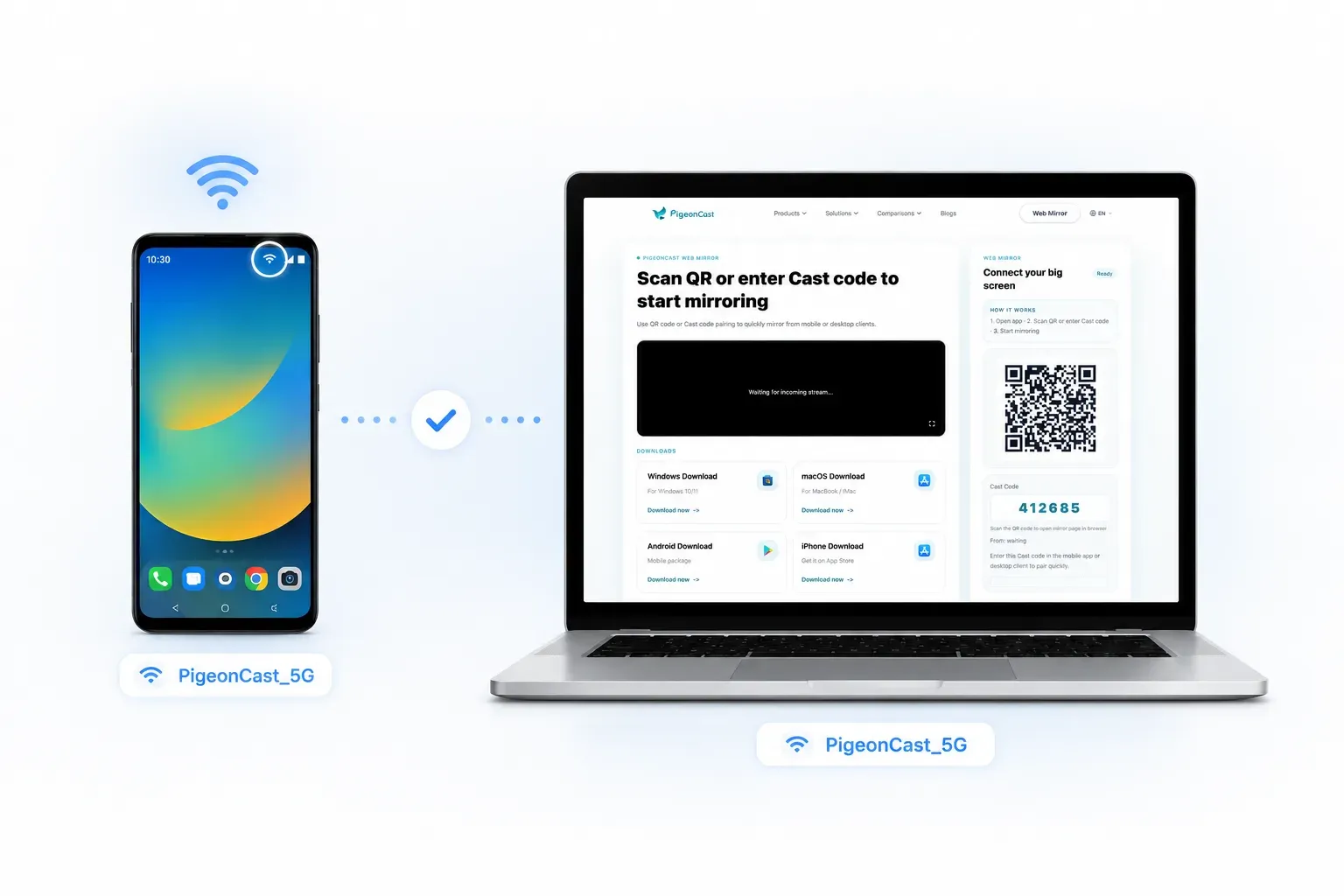
First, do Android and Chromebook need to be on the same Wi-Fi? Yes, absolutely. Most local streaming setups demand a shared wireless network to establish a secure, direct handshake. Keeping both devices on the same Wi-Fi subnet ensures data packets move locally between your phone and your laptop rather than traveling out to distant, sluggish external servers. This local routing drastically cuts down on visual delay and keeps your personal data safely within your immediate space.
Second, you might wonder if you need to install a heavy app on the Chromebook itself. The beauty of a modern web-based approach is that you do not need to install a single thing on ChromeOS. The pre-installed Google Chrome browser functions as a fully capable, high-performance receiver. By leveraging universal web standards, your Chromebook transforms into an interactive external monitor using nothing more than a specific session URL.
How to Screen Mirror Android to Chromebook with PigeonCast
When you want to showcase a live mobile application demo, guide an online classroom, or browse photo albums on a larger canvas, standard casting hacks often feel incredibly clumsy. Online screen mirroring tools like PigeonCast simplify this interaction entirely. It bridges your Android device and Chromebook through a secure browser window without requiring specialized hardware additions or complex debugging.
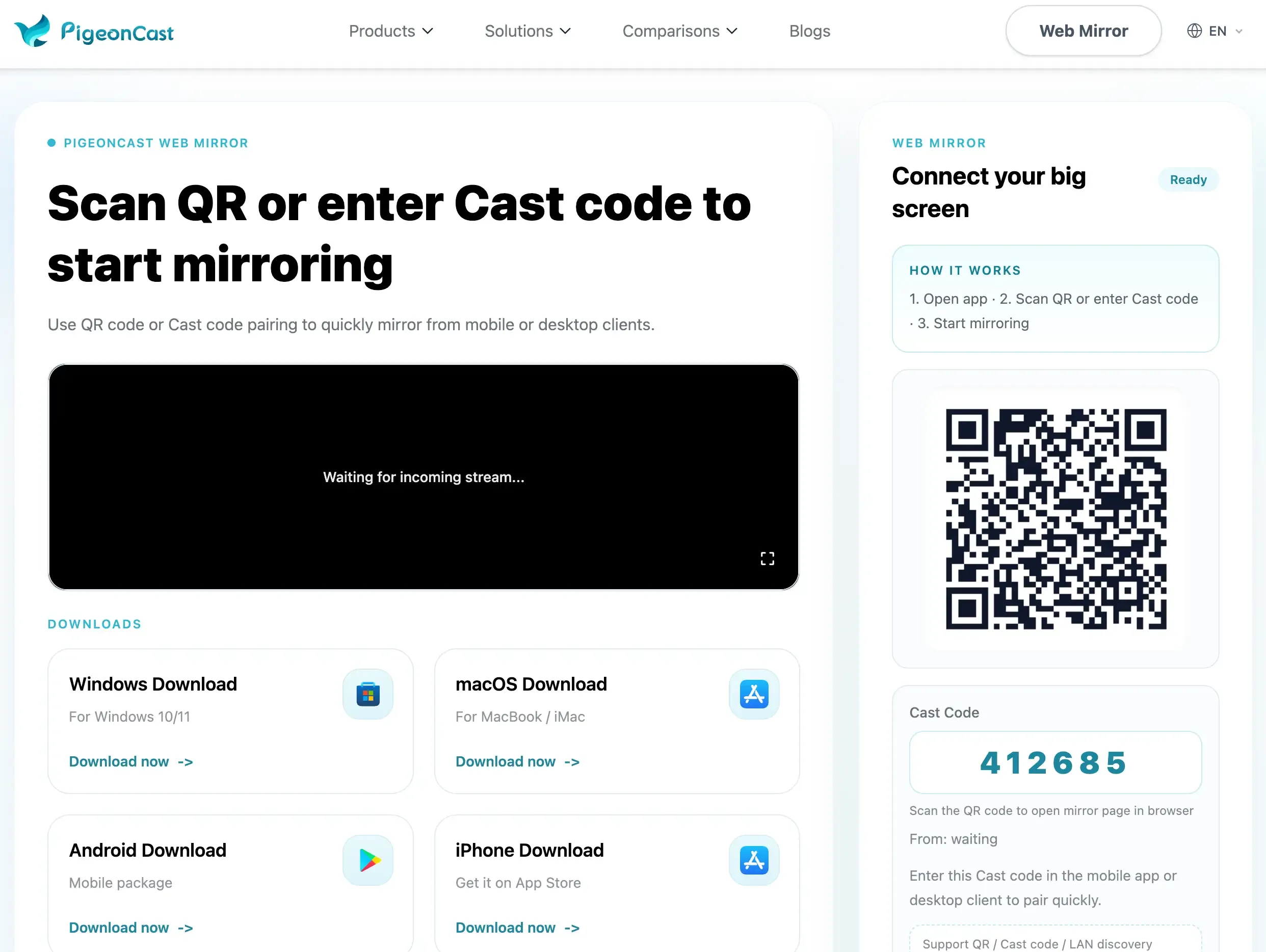
Step 1: Open PigeonCast Web Mirror on your Chromebook
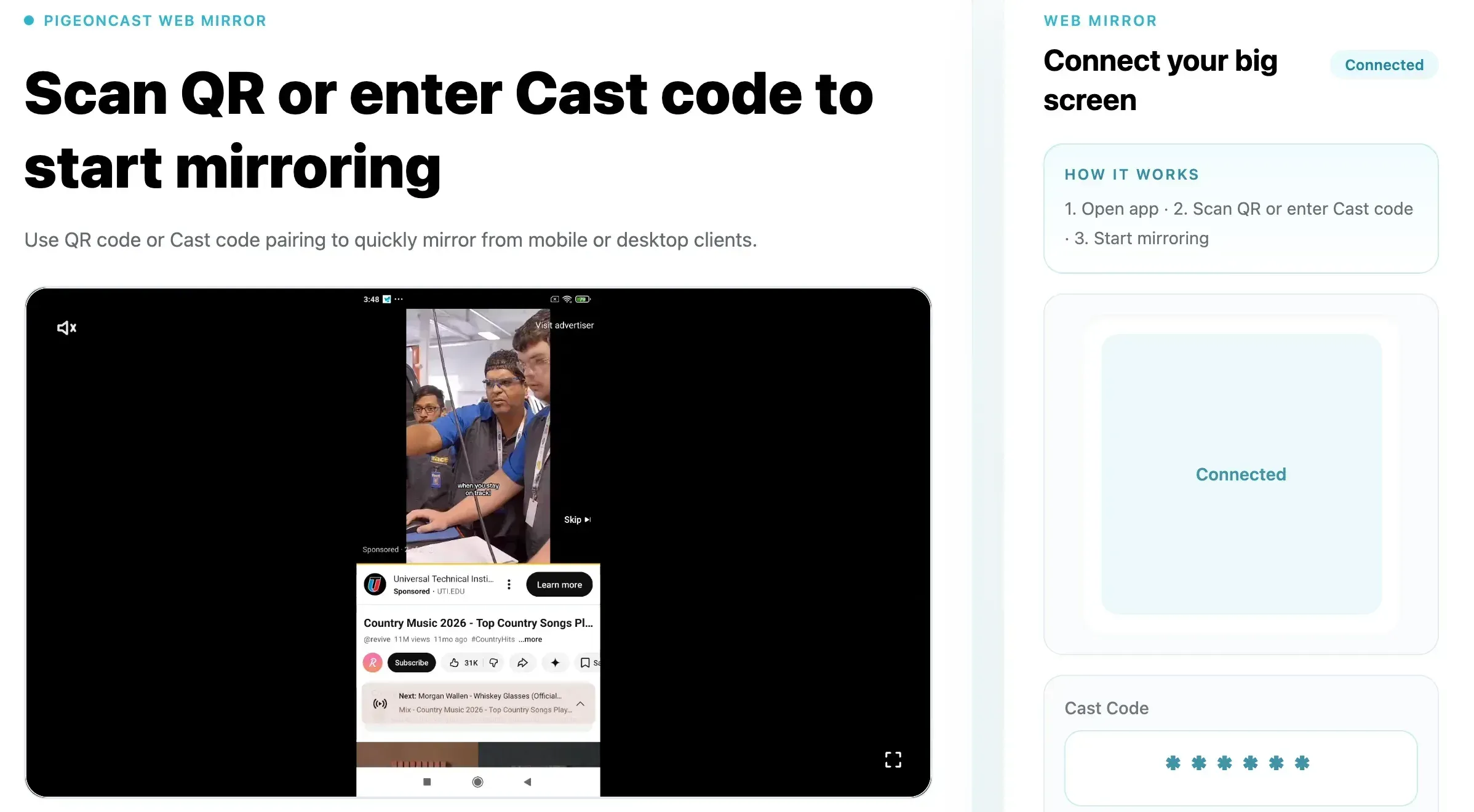
Launch Chrome on your Chromebook and navigate to the official PigeonCast Web Mirror portal. The webpage will immediately generate a clean dashboard displaying a unique, time-sensitive pairing code alongside a visual QR option.
Step 2: Open PigeonCast on Your Android Phone
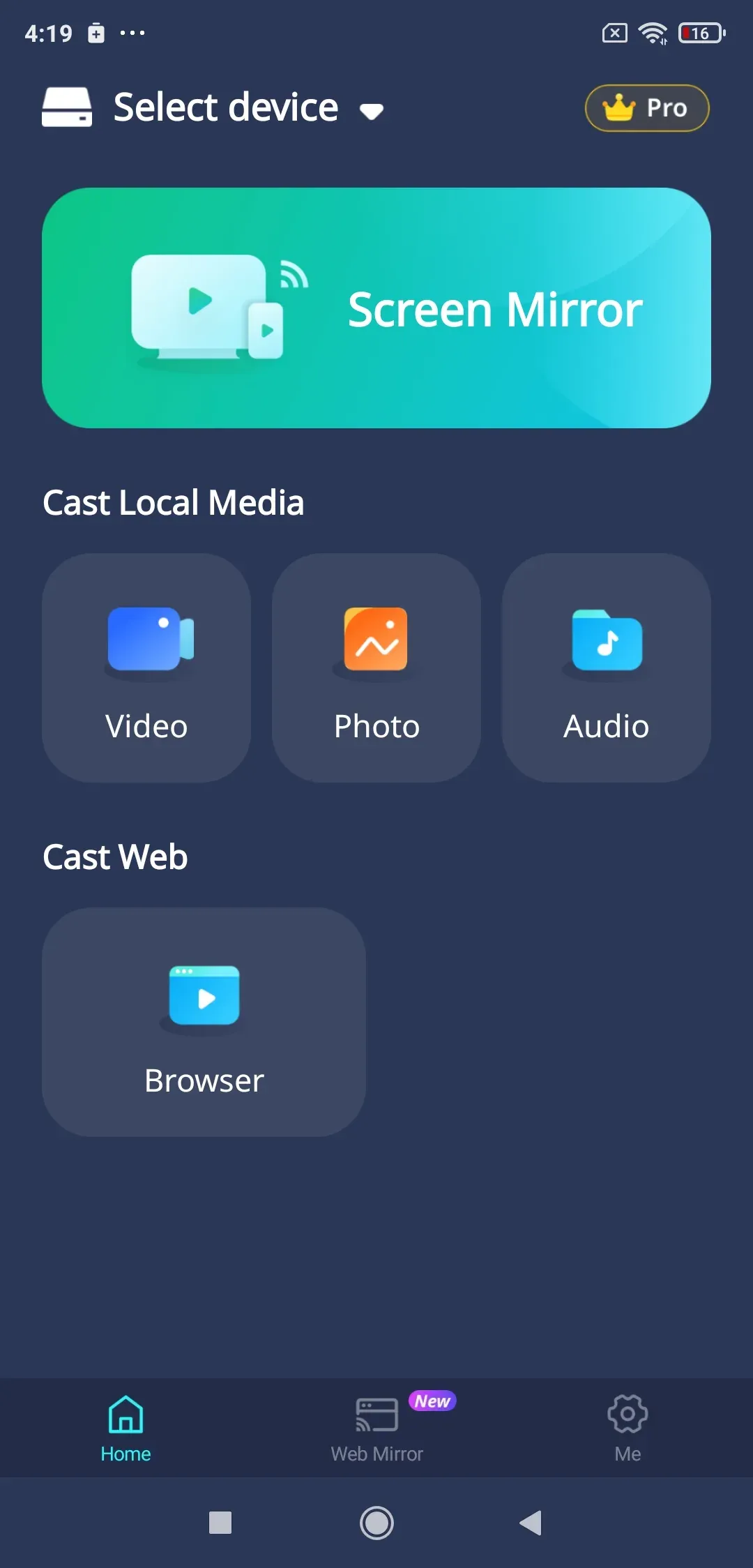
Unlock your mobile device and open the lightweight PigeonCast for Android Mirroring app. Grant the necessary system capture permissions if prompted, as Android requires explicit user consent before sharing real-time display data.


Overall Rating:


Step 3: Connect Your Android to the Chromebook Browser
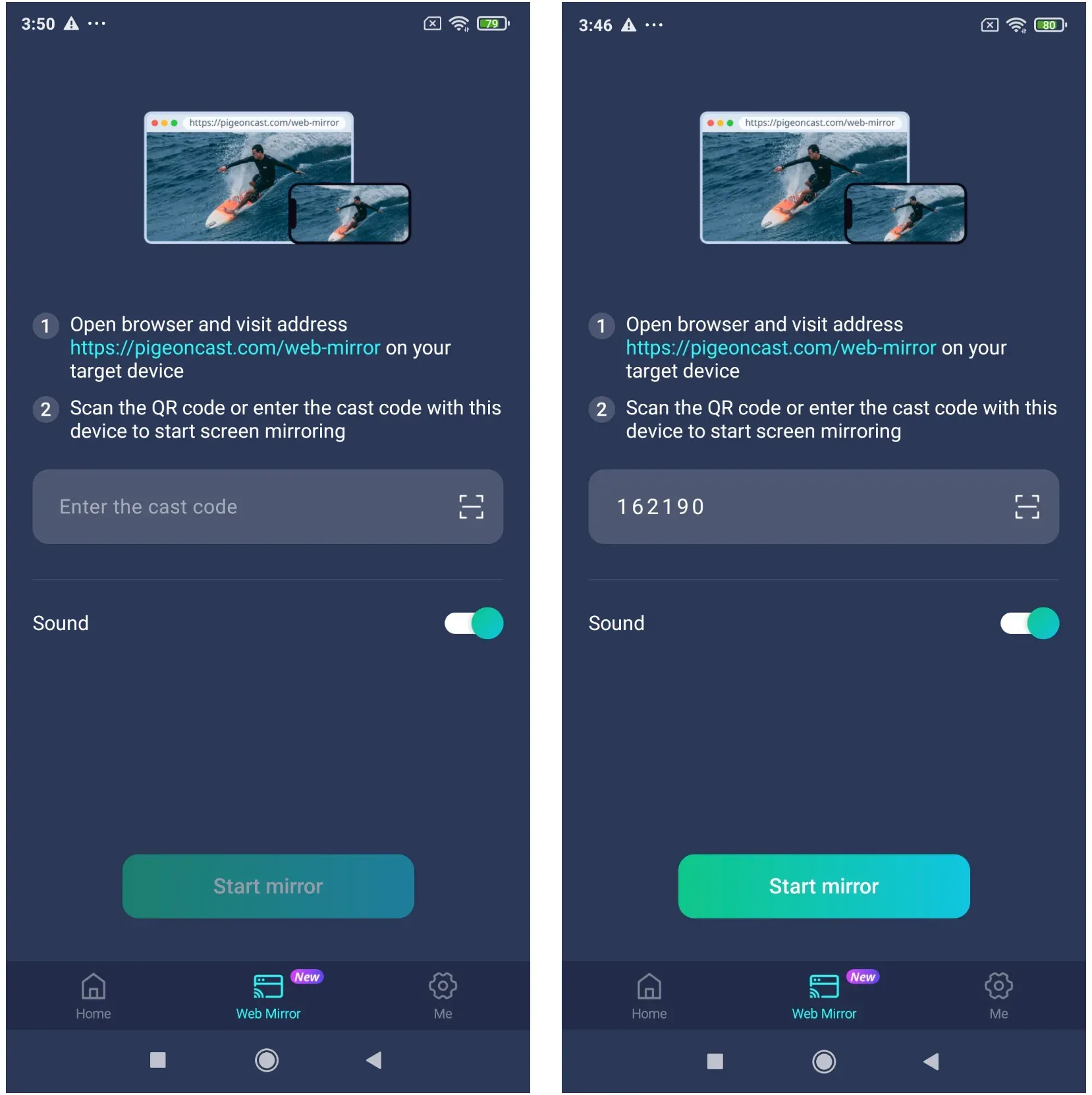
Switch to the Web Mirror tab, and point your phone camera at the QR code displayed on the Chromebook screen, or manually type the numeric code into the app input field. This pairs the two devices securely over your local connection network.
Step 4: Start Mirroring Your Android Screen
Tap the Start mirror option within the phone interface. Your mobile home screen will instantly materialize inside the Chromebook browser tab, updating in real time as you swipe, scroll, or rotate your device.
Step 5: Adjust Viewing for Demos, Classes, or Browsing
Maximize the browser window or toggle full-screen mode on ChromeOS. This setup provides an ideal layout for presentations, allowing you to focus purely on your content without desktop distractions cluttering the periphery.
Go Beyond Chromebook: The Ultimate Cross-Platform Mirroring Solution
While PigeonCast makes ChromeOS streaming effortless, its true strength lies in its universal versatility. You are not tethered to just one ecosystem. The exact same app sitting on your phone can wirelessly project your screen to a MacBook, a Windows PC, or even your living room Smart TV without skipping a beat.
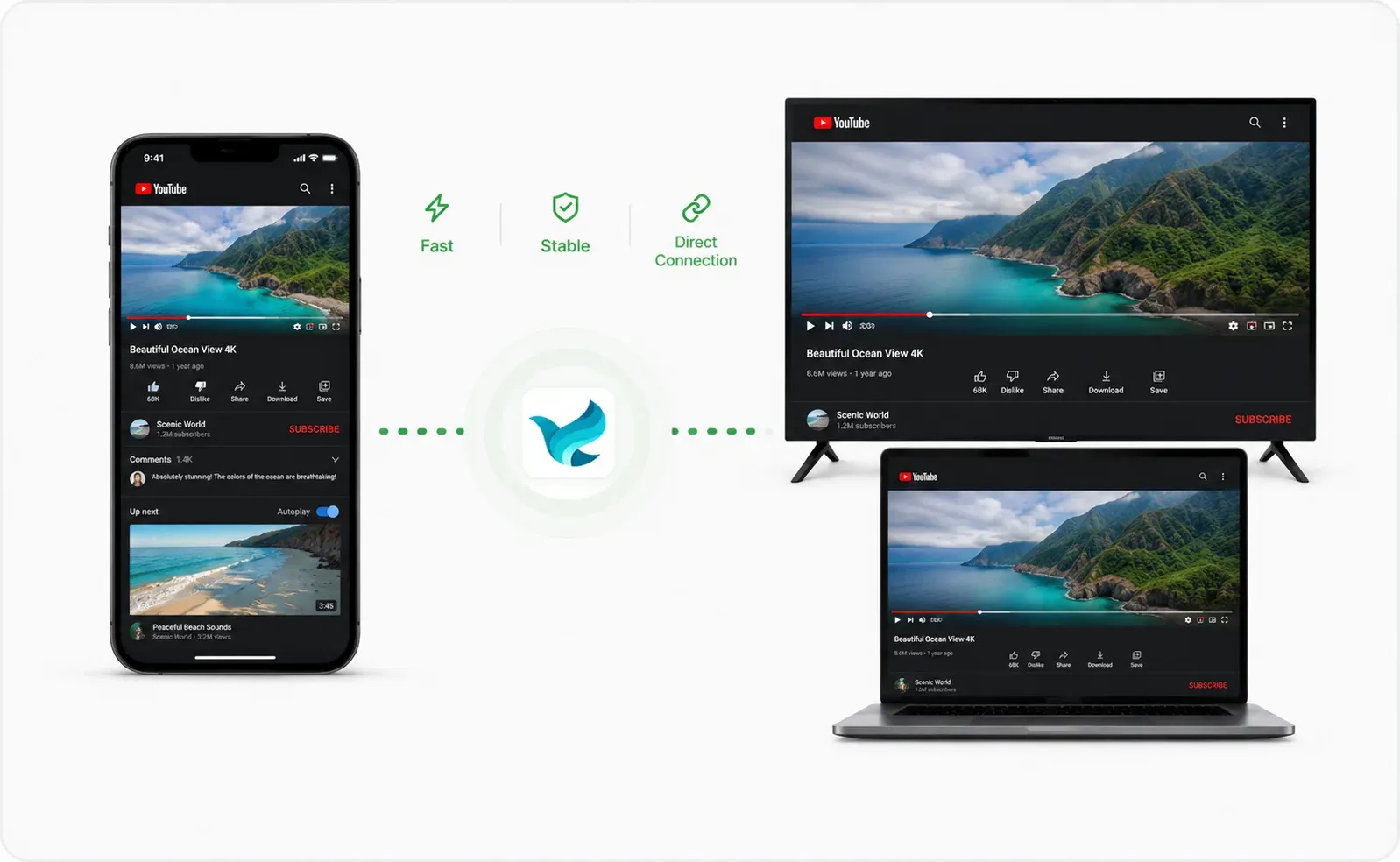
Engineered with an optimized data pipeline, it delivers crisp, high-definition visuals paired with a fluid, lag-free performance that handles fast transitions smoothly. Whether you are switching devices between a morning boardroom meeting on a PC or an evening entertainment stream on a massive television screen, the app adapts instantly, making messy hardware dongles obsolete.
Overall Rating:


Other Ways to Mirror Android to Chromebook
As we have seen, web-based tools provide an excellent escape route from Google's hardware dependencies. These third-party web clients eliminate the necessity of buying an expensive physical dongle, transforming your laptop display into an ad-hoc monitor through software optimization alone.
Is USB mirroring worth trying as an alternative? Wired options do deliver incredible latency performance, but they require a tedious, user-unfriendly setup process. You must unlock Developer Options on Android, turn on USB Debugging, and configure terminal commands within the Linux development environment on ChromeOS. Why deal with cable clutter and complicated code scripts when a simple browser window achieves the same basic wireless result in seconds?
Conclusion
Sharing your Android screen with a Chromebook shouldn't involve a complex maze of cables or frustrating system menus. While built-in casting options remain surprisingly restricted, browser-based tools offer an elegant, platform-agnostic escape hatch. Utilizing a direct web utility like PigeonCast Web Mirror cuts out unnecessary installation hurdles, allowing you to showcase apps, present lectures, or view mobile media with minimal fuss. Keep your devices on a clear 5 GHz wireless network, remove power-saving restrictions, and enjoy a clean, wireless desktop mirroring experience.
Screen Mirroring Android to Chromebook FAQ
Can I Mirror My Phone to My Chromebook?
Yes, you absolutely can. While ChromeOS doesn't feature a one-click native button to duplicate your mobile screen, you can easily bypass this limitation using web-based tools like PigeonCast Web Mirror or wireless streaming utilities. This allows you to view your entire phone interface, run mobile-only apps, and handle presentations directly on your Chromebook display.
Can I screen mirror Android to Chromebook for free?
Yes, modern web utilities and local network projection tools allow users to stream their smartphone displays to ChromeOS windows without purchasing premium software or subscription licenses.
Do I need Chromecast to mirror Android to Chromebook?
No, you do not need external Chromecast hardware. Browser-based solutions pass data packets locally between your devices, entirely bypassing the need for media streaming dongles.
What is the easiest way to mirror Android to a Chromebook?
The fastest, cleanest route involves opening a web-based portal like PigeonCast Web Mirror on your Chromebook and scanning the generated connection pattern with your Android phone app.
Mia Clarke is a technology editor specializing in screen mirroring and casting solutions across multiple platforms. Mia provides clear, practical guides and in-depth insights to help users seamlessly connect their devices. Passionate about enhancing digital experiences, Mia is dedicated to keeping readers updated on the latest trends and tools in cross-platform screen sharing. Whether you’re looking to mirror your smartphone, laptop, or smart TV, Mia’s content delivers reliable, user-friendly advice to simplify your tech setup.