
Yes, you can connect your Chromebook to your TV to enjoy big-screen entertainment. There are four ways you can adopt: wired or wireless. From an HDMI cable, Chromecast, the Chrome browser to a third-party app, all can help you easily mirror or cast your Chromebook to TV. Let's dive into how to connect Chromebook to TV.
How to Connect Chromebook to TV with HDMI?
The HDMI solution securely connects your laptop to the TV for stable and high-quality screen mirroring. To set up Chromebook HDMI to TV, you need a working HDMI cable. An HDMI adapter is also a necessary accessory if your Chromebook doesn't have an HDMI port.
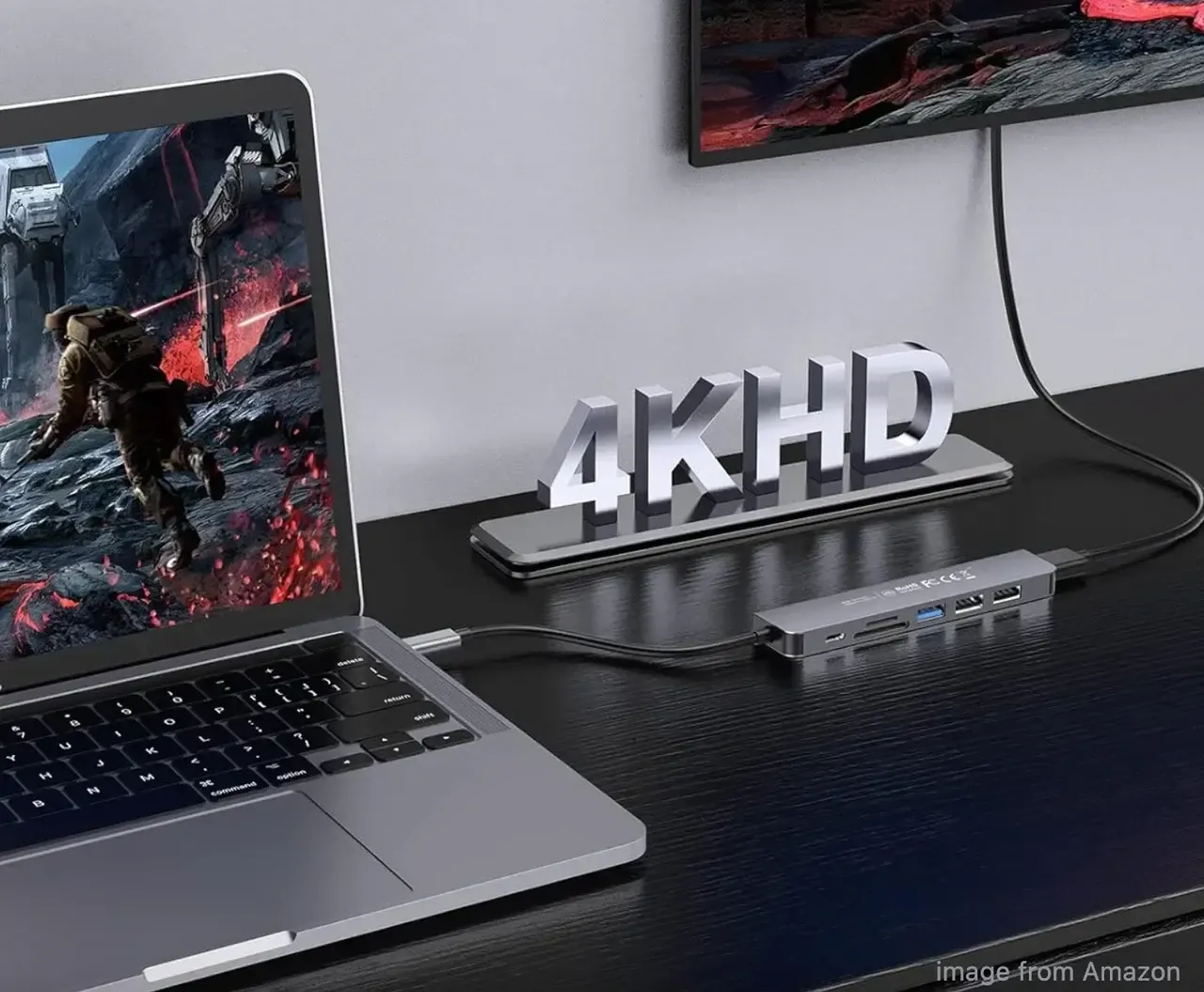
Once you've located the HDMI port on your laptop or prepared the needed accessories, follow the tutorial on how to screen mirror on Chromebook to TV via HDMI:
Step 1. Connect one end of the HDMI cable to your TV, and the other end to your Chromebook.
Tip: If you're using an HDMI adapter, insert the HDMI cable into the HDMI ports on the adapter and the TV, then insert the adapter into the USB-C port on your Chromebook.
Step 2. Turn on your Chromebook and go to the Settings menu.
Step 3. Click the Device tab on the left side of the menu and choose Displays.
Step 4. Check the box next to Mirror Built-in Display or Mirror Internal Display.
Step 5. Turn on your TV, press the Input/Source button on your remote, and choose the proper HDMI input as your TV signal.
HDMI allows screen mirroring from a Chromebook and screen extending on the laptop. How to extend screen on Chromebook? The steps are similar:
Step 1. Connect your Chromebook and TV via the HDMI cable.
Step 2. Turn on the laptop and go to the Settings menu.
Step 3. Switch to the Device tab and choose Monitor.
Step 4. Change the Screen setting to Extended display.
Connecting via an HDMI cable makes it easy to share your Chromebook's screen with your TV. However, it lacks convenience and flexibility. Don't worry; there are alternative methods to connect Chromebook to TV without HDMI.
How to Connect Chromebook to TV Wirelessly
If you don't want to deal with cables, you can still connect your Chromebook to your TV wirelessly. This is a flexible option that lets you mirror your screen or cast specific content without being tied to one spot. Wondering how to connect Chromebook to TV without HDMI? You have a few simple methods.
Preparation: Ensure Your TV Is Chromecast-Enabled
Chromebooks primarily use Google Cast for screen mirroring, which is the same protocol behind Chromecast. This means you can connect directly to any TV with built-in Chromecast or a Chromecast device plugged in. So, before trying to connect your Chromebook to a TV, you should ensure:
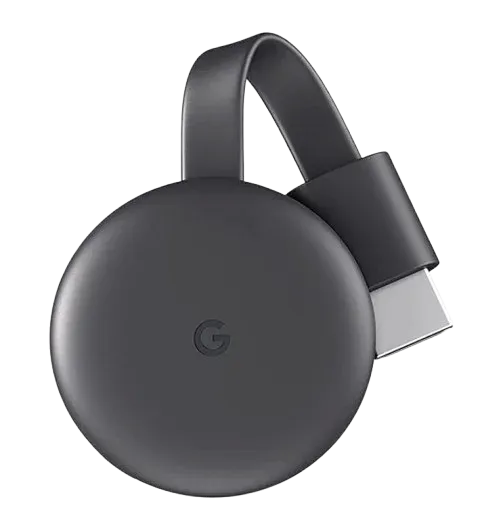
- Your TV is Chromecast built-in.
- You've connected a Chromecast device to your TV and powered it on.
No Chromecast device or feature? Try our free PigeonCast solution. PigeonCast is a free streaming app that lets you cast from your phone or laptop to your TV. It supports AirPlay, Google Cast, DLNA, and its own proprietary solution, making cross-platform streaming simple and seamless.

How to cast Chromebook to TV wirelessly without PigeonCast? Download and install the PigeonCast app on your Android TV or Apple TV and launch it. Your TV has Google Cast support and is ready to receive content from compatible devices like a Chromebook.

PigeonCast Screen Mirroring

Official Download



Method 1. Use Chromebook's Cast Feature
How to cast screen on Chromebook? Connecting Chromebook to TV is easy:
Step 1. On your Chromebook, choose the time at the bottom right.
Step 2. Make sure Wi-Fi and Bluetooth are turned on.
Step 3. Choose Cast devices available.
Step 4. Choose your Chromecast or TV.
Step 5. Choose what you want to share.
Tip: You can cast a video from YouTube and Google Drive.
Step 6. Click Share. The window will appear on your TV screen.
Step 7. To disconnect, select the time at the bottom right and choose Stop next to Casting screen.
Method 2. Use Google Chrome Browser
How to connect a Chromebook to a TV? The Chrome browser has a built-in Cast feature that allows you to connect your Chromebook to a Chromecast device or compatible TV.
See how to connect Chromebook to TV without HDMI:
Step 1. Open Google Chrome on your Chromebook.
Step 2. Click More (three-dot icon) at the top right and choose Cast, Save, and Share > Cast.
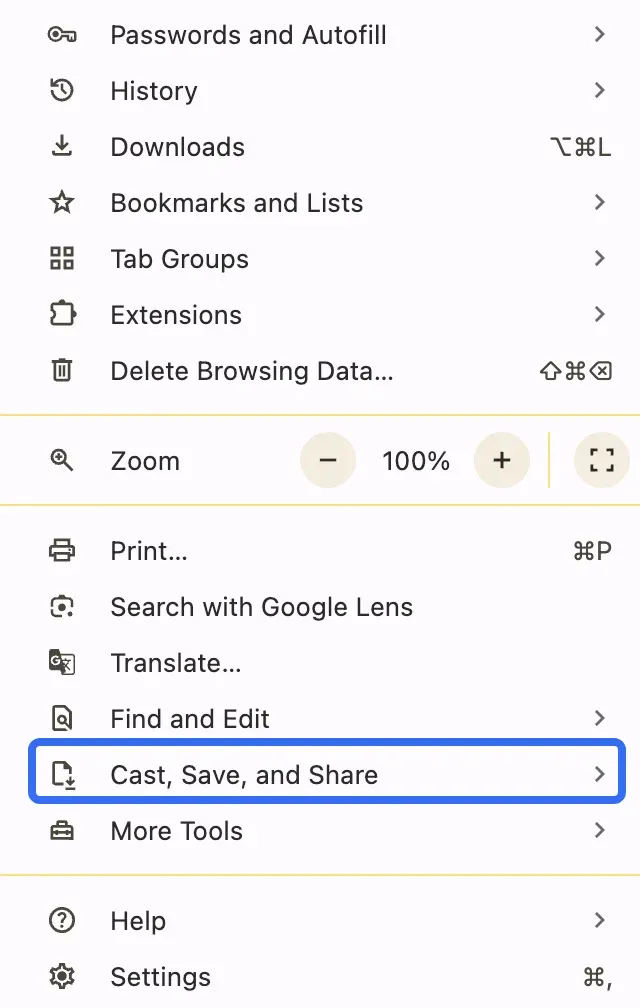
Step 3. Choose whether you'd like to share your current tab in Chrome (Cast tab) or your whole desktop screen (Cast desktop).
Step 4. Choose your Chromecast or TV from the available list.
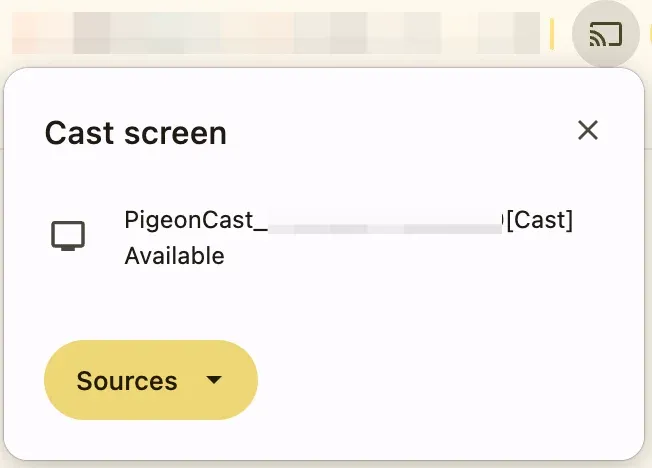
Step 5. Your tab or desktop will appear on your TV screen. To disconnect, choose Stop.
Wireless casting may not be quite as stable as HDMI, but it's much more convenient. It allows you to move around freely while enjoying videos, slideshows, or web browsing on the big screen.
Final Words
Connecting your Chromebook to a TV is easier than most people think. Whether you prefer the stability of an HDMI cable or the flexibility of wireless casting, there's a method that fits your setup. If your TV supports Chromecast, the process is seamless. But even if it doesn't, third-party apps like PigeonCast make cross-platform streaming possible. Now you know how to connect Chromebook to TV without HDMI or with it, you can enjoy movies, shows, or presentations on the big screen anytime.
How to Connect Chromebook to TV FAQs
How to connect Chromebook to Roku TV?
Roku uses Miracast, which Chromebooks don't support natively. To connect, use an HDMI cable (or USB-C to HDMI adapter). For wireless mirroring, set up a Chromecast device on your Roku TV to bridge the gap.
How to connect Chromebook to Samsung TV?
For most Samsung Smart TVs, you can use the built-in Chromecast feature (on newer models) or connect via HDMI.
How to connect Chromebook to projector?
If your projector has an HDMI port, just use an HDMI cable (or an adapter if your Chromebook only has USB-C). For wireless projection, plug a Chromecast or similar casting device into the projector's HDMI port, then cast from your Chromebook as you would with a TV.
How do I connect my Chromebook to my Apple TV?
Apple TV doesn't support Google Cast, so Chromebooks can't connect directly. To mirror, use a third-party app like PigeonCast on your Apple TV, or connect your Chromebook via HDMI for a wired setup.
How do I mirror my Chromebook to my TV?
You can mirror with an HDMI cable (or USB-C to HDMI adapter) for a stable connection, or wirelessly using the Chromebook's Cast feature with a Chromecast-enabled TV. If your TV doesn't support Chromecast, third-party apps like PigeonCast make wireless mirroring possible.
Can I connect Chromebook to TV without Wi-Fi?
Yes. Use an HDMI cable or a USB-C to HDMI adapter for a direct wired connection.
Why is my Chromebook not casting to my TV?
- Your Chromebook and TV aren't on the same Wi-Fi network.
- The Chromecast feature isn't enabled on your TV.
- Outdated Chrome OS. Update your Chromebook and try again.
Can I use Bluetooth to connect Chromebook to TV?
No, Chromebooks don't support screen mirroring over Bluetooth. Bluetooth can only be used for peripherals like speakers, headphones, or keyboards.
Mia Clarke is a technology editor specializing in screen mirroring and casting solutions across multiple platforms. Mia provides clear, practical guides and in-depth insights to help users seamlessly connect their devices. Passionate about enhancing digital experiences, Mia is dedicated to keeping readers updated on the latest trends and tools in cross-platform screen sharing. Whether you’re looking to mirror your smartphone, laptop, or smart TV, Mia’s content delivers reliable, user-friendly advice to simplify your tech setup.