
Setting up a Chromecast device for TV is easier than many people think. Whether you just bought Google Chromecast or want to start casting content from your mobile or laptop, this guide will show you exactly how to connect Chromecast to TV and start streaming in minutes. We'll also introduce an alternative if you don't have a Chromecast or need a more flexible casting option.
What You'll Need for Chromecast Setup on TV
Before you try connecting a Chromecast device to a TV, it's important to gather everything you'll need. Having all the tools ready ensures a smoother setup and avoids interruptions halfway through. Here's what you should prepare:
- A Chromecast device for TV, including Chromecast with Google TV or standard Chromecast.
- A TV with an available HDMI port. Some older TVs may have only HDMI 1.4, which works but limits 4K streaming.
- A stable Wi-Fi network with enough bandwidth for streaming HD or 4K content.
- A mobile device (Android or iPhone) or a computer for Chromecast setup.
- Optional: a wall outlet for Chromecast power (recommended for stable performance).
How to Connect Chromecast to TV
Connecting your Chromecast is straightforward once you understand the flow. First, we'll handle the hardware, then move to the app setup. This ensures the device is powered, detected, and ready to link with your Wi-Fi network. Here's how to get Chromecast on TV:
Plug in Your Chromecast
Start by connecting your Chromecast physically to your TV. These steps might seem simple, but following them carefully prevents connection errors later. Here's how to connect Chromecast to TV with HDMI:
Step 1. Insert the Chromecast device into an available HDMI port on your TV.
Tip: Note which HDMI port you're using. If you have multiple devices connected, labeling ports can save time later.
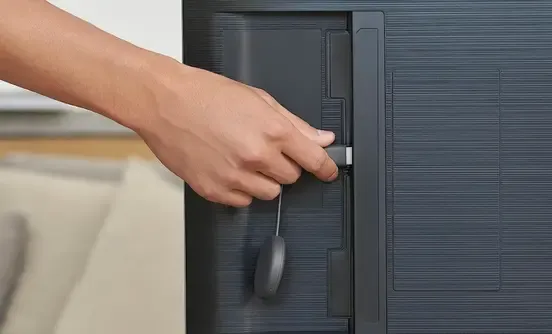
Step 2. Connect the USB power cable. While you can use the TV's USB port, plugging into a wall outlet is preferred for better performance, especially for 4K streaming.
Step 3. Turn on your TV and switch to the corresponding HDMI input.
Once you see the Chromecast welcome screen, the device is ready for setup. At this point, your hardware is ready, and it's time to move on to the software side.
Download the Google Home App
How to connect Chromecast to TV from mobile? To connect Chromecast to TV, you need the Google Home app on your mobile device. This app communicates with your Chromecast and walks you through connecting it to your Wi-Fi network.
If you're using an Android phone, download the app from the Google Play Store, while going to the App Store on your iPhone.
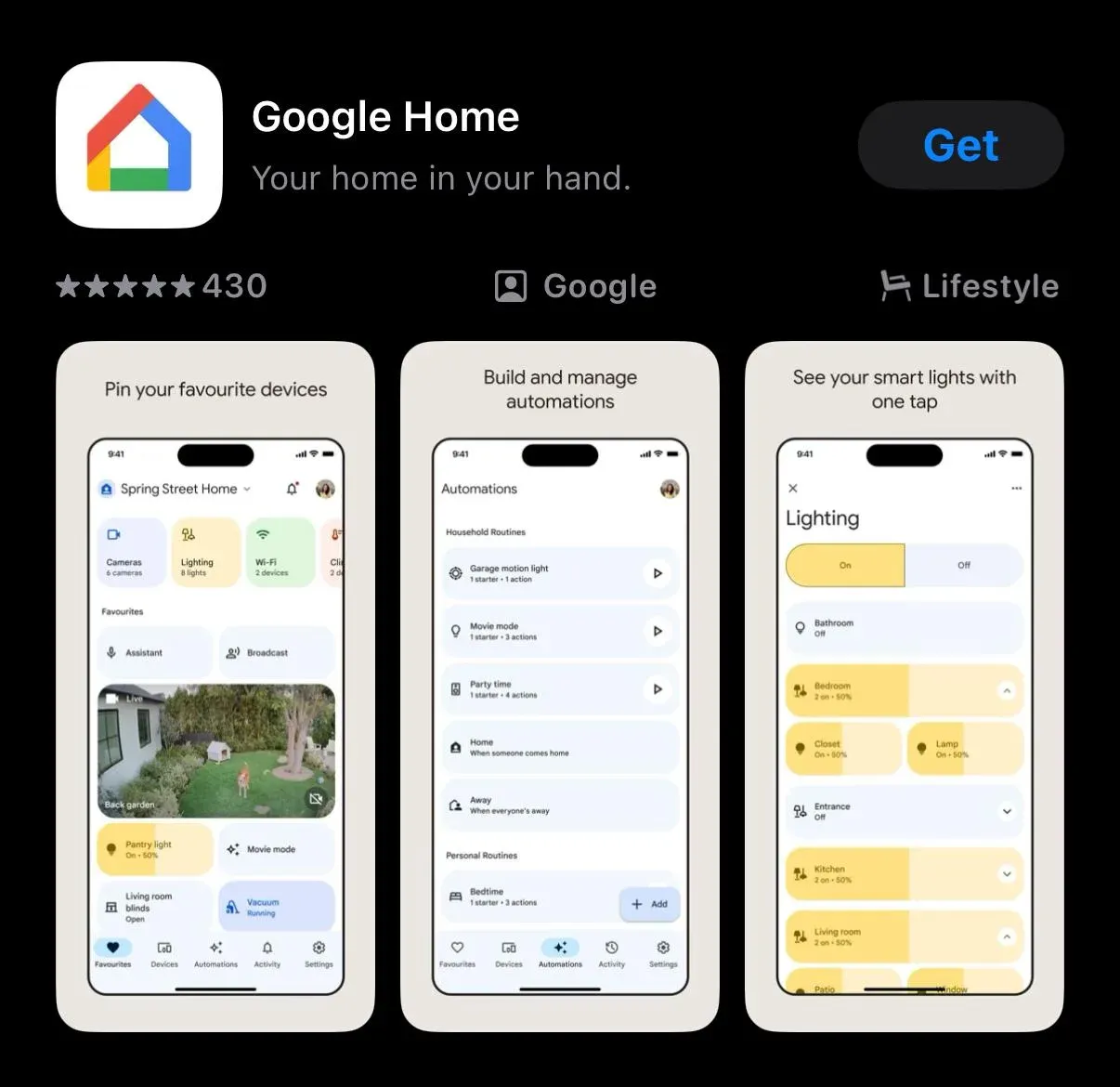
Make sure your phone is connected to the Wi-Fi network you plan to use for your Chromecast. This ensures the app can detect your device during setup. Once installed, we're ready to link the Chromecast.
Set Up Chromecast via Google Home
How to set up Chromecast? Now that the app is ready, the setup process is guided and simple:
Step 1. Open Google Home and tap the plus icon to add a new device.
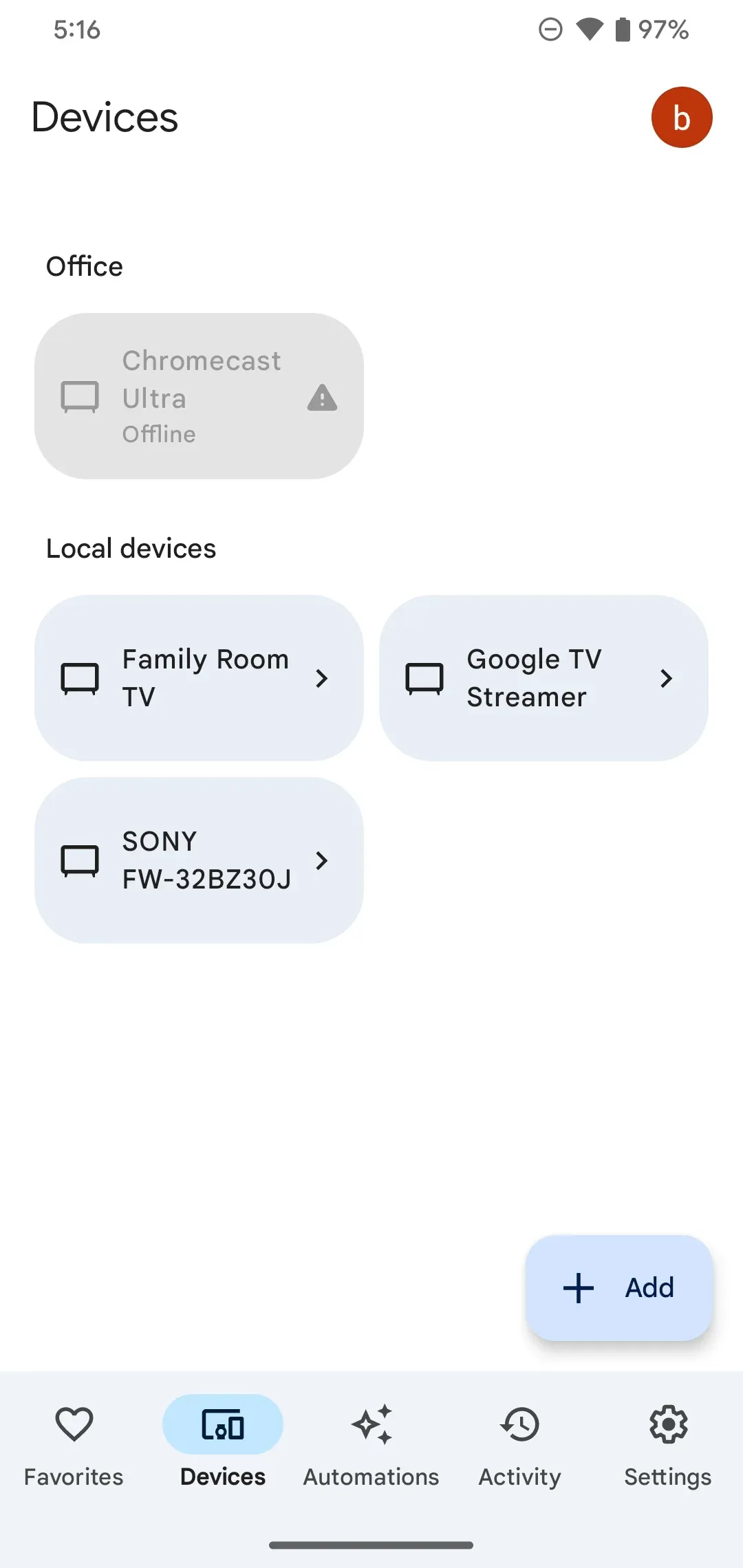
Step 2. Choose Set up device and Set up new devices in your home.
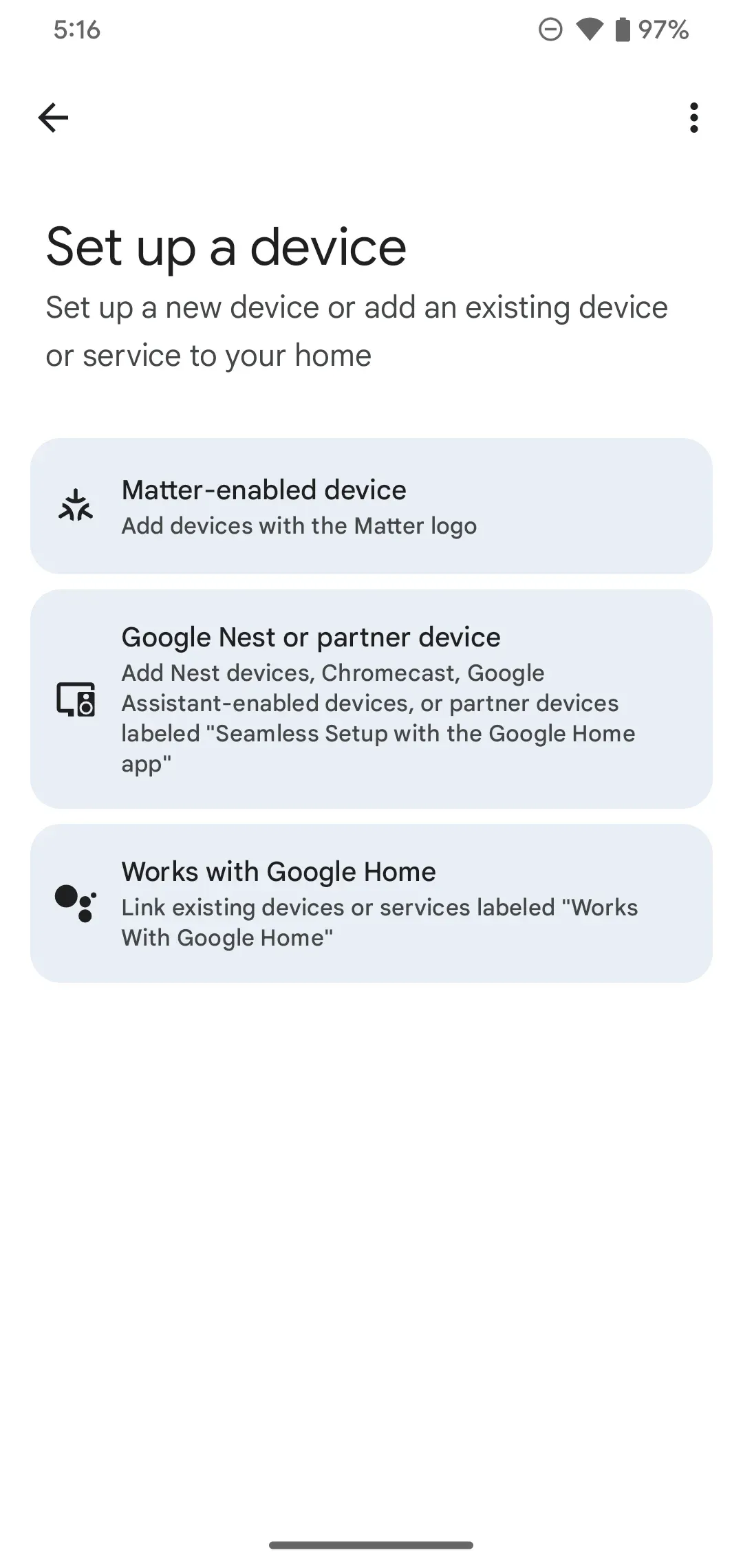
Step 3. The app will automatically detect your Chromecast. Tap Next to connect.
Step 4. Follow the prompts to link your Chromecast to your Wi-Fi network and Google account.
Step 5. You may be asked to update the Chromecast firmware. Allow it to update to ensure smooth streaming.
After completing these steps, your Chromecast is fully connected to your TV and ready to receive content. Next, we'll cover how to actually cast media.
How to Use Chromecast on TV
Once your Chromecast is set up, using it is quick and intuitive. You can cast content from supported apps, mirror your device screen, or even connect your laptop to the TV, depending on what you want to watch or share. If you are ready to cast to Chromecast from a phone, browser, or computer, make sure the sending device and Chromecast are on the same Wi-Fi network first.
Method 1. Cast a Video to Chromecast
Casting a video is the most common way to use Chromecast. Chromecast-supported apps include YouTube, Netflix, Disney+, Spotify, and many others. Here's how to do it:
Step 1. Open a Chromecast-supported app on your mobile device or tablet.
Step 2. Tap the Cast icon, usually located in the top-right corner of the app.
Tip: Some apps allow you to cast multiple items into a queue. For example, you can create a playlist on YouTube and control it entirely from your mobile device.
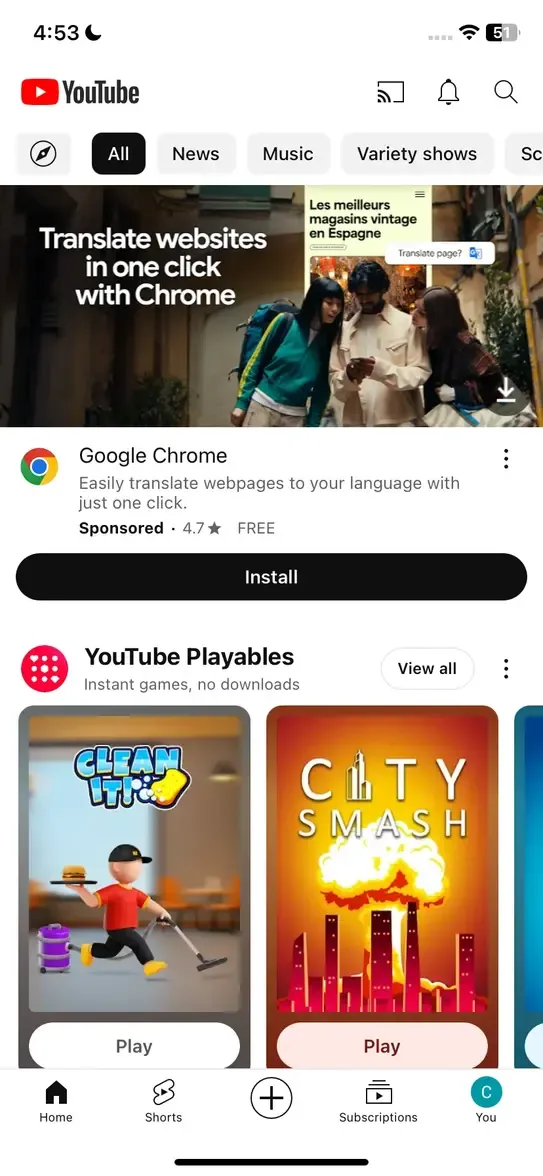 Step 3. Select your Chromecast device from the list.
Step 4. The content will appear instantly on your TV. You can control playback (pause, skip, or adjust volume) directly from your phone.
Method 2. Mirror Android Screen to Chromecast
Screen mirroring lets you display exactly what's on your device, perfect for presentations, apps without built-in casting, or sharing photos. However, full-device screen mirroring only works on Android:
Step 1. Open Google Home on your Android device.
Step 2. Select your Chromecast device, and tap Cast my screen > Cast screen.
Step 3. Your entire Android screen will appear on the TV.
iOS does not support full-device screen mirroring to Chromecast natively. You can only cast content from Chromecast-supported apps. To mirror your iPhone screen to TV, you need an alternative like PigeonCast for iPhone app, which supports mirroring iPhone to Chromecast.
Method 3. Cast Google Chrome on Laptop to TV
You can also use Chromecast to cast content directly from your Windows or Mac laptop. This is especially useful for streaming from websites, presentations, or apps that don't have a mobile casting feature.
Step 1. Make sure your laptop and Chromecast are on the same Wi-Fi network.
Step 2. Open Google Chrome on your laptop and go to the website or app you want to cast (e.g., Disney+, YouTube, or a presentation).
Step 3. Click the three-dot menu in the top-right corner of Chrome, then select Cast.
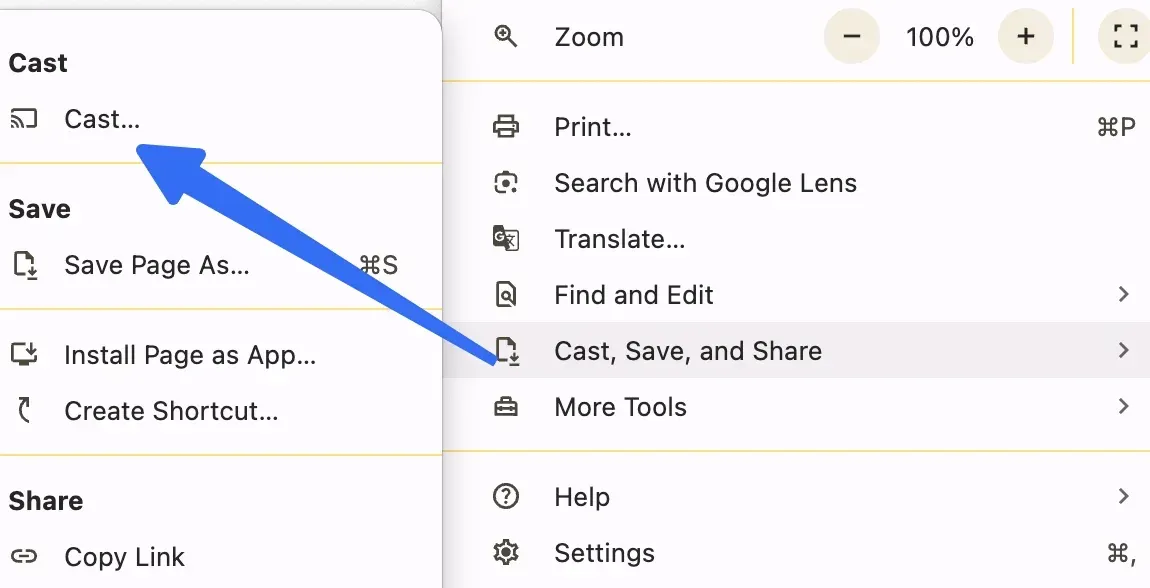
Step 4. Choose your Chromecast device from the list.
Step 5. Select Cast Tab to cast only the current browser tab or Cast Desktop to mirror your entire laptop screen.
Step 6. Your content will appear on the TV. You can control playback from your laptop.
How to Cast to TV Without Chromecast
Not everyone owns a Chromecast, and sometimes the Chromecast does not work. In that case, we recommend PigeonCast. Pigeoncast is a free third-party application compatible with many devices, including Android TV and Apple TV, as well as mobile devices and laptops.
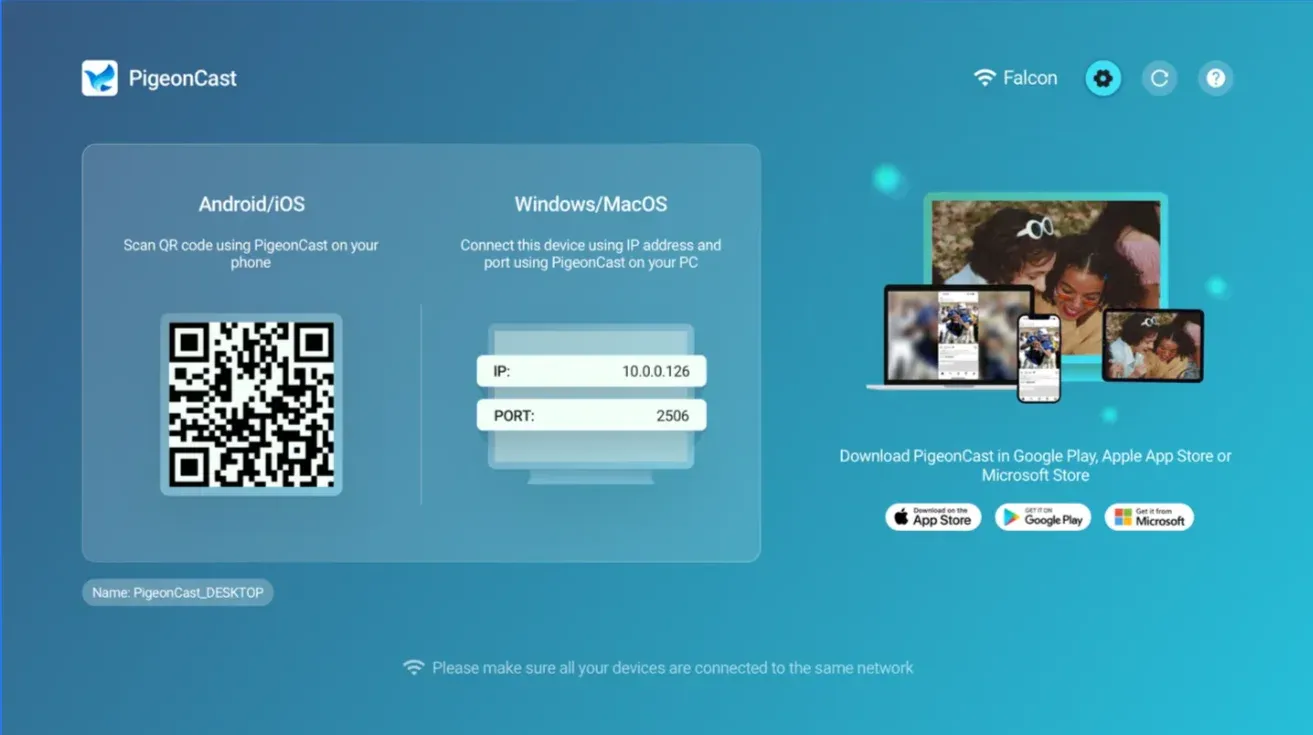
The app allows you to mirror your screen or stream content wirelessly from your phone or laptop to your TV without relying on Chromecast:
Step 1. Download and install the PigeonCast app on your TV and launch it.

PigeonCast Screen Mirroring

Official Download



Step 2. Ensure your phone or laptop and TV are on the same Wi-Fi network.
Step 3. On your phone or laptop, open a Chromecast-enabled app or Google Chrome.
Step 4. Play a video you wish to watch and enable the Cast function.
Step 5. Choose your TV from the device list.
Step 6. Once connected, you can watch the video on your TV.
For a better streaming experience, you can install Pigeoncast on both your devices. This ensures a direct connection, reducing lag and improving video quality. PigeonCast also supports full-screen mirroring, so you're not limited to apps that have a Cast button.
Final Words
How to connect Google Chromecast to TV? Setting up Google Chromecast on TV is simple: plug in the device, follow the guided setup in Google Home, link it to Wi-Fi, and start casting. Whether streaming movies, music, or mirroring your device, Chromecast makes it easy.
If you don't have a Chromecast or need more flexibility, PigeonCast provides a reliable alternative for casting to TV without Chromecast, supporting multiple devices and protocols for smooth, hassle-free streaming.
How to Connect Chromecast to TV FAQs
Q: How to set up Chromecast if it's not detected?
Make sure your TV input is correct, the Chromecast is powered, and your mobile device is on the same Wi-Fi network. Restart devices or try using a different USB power source.
Q: Can I cast to TV without Chromecast?
Yes! Apps like PigeonCast let you mirror or stream content to smart TVs or Apple TV without a Chromecast, offering a reliable alternative for any setup.
Q: How do I Chromecast from my phone to my TV?
First, make sure your phone and Chromecast are on the same Wi-Fi network. Open a Chromecast-supported app, like YouTube, Netflix, or Disney+, and tap the Cast icon. Select your Chromecast device from the list, and the content will appear on your TV. You can control playback directly from your phone.
Q: Why is Chromecast not connecting to TV?
Chromecast may fail to connect if your devices aren't on the same Wi-Fi network, if the Chromecast isn't powered properly, or if the app or firmware is outdated. Restarting your TV, Chromecast, and phone usually fixes the issue. Make sure you're using a supported app and check your Wi-Fi signal strength.
Q: Can an iPhone connect to Chromecast?
Yes, an iPhone can connect to Chromecast, but with a limitation: you can only cast content from apps that support Chromecast (like YouTube or Netflix). Full-device screen mirroring isn't supported natively on iOS. For mirroring your entire iPhone screen, consider a third-party solution like PigeonCast, which works with TVs and smart devices without Chromecast.
Q: Can I screen mirror to Chromecast?
Screen mirroring is natively supported only on Android devices via the Google Home app. On Android, open Google Home, select your Chromecast, and tap Cast my screen → Cast screen. On iPhone or iPad, full-device mirroring to Chromecast isn't supported; you'll need a third-party app like PigeonCast to mirror your screen.
Mia Clarke is a technology editor specializing in screen mirroring and casting solutions across multiple platforms. Mia provides clear, practical guides and in-depth insights to help users seamlessly connect their devices. Passionate about enhancing digital experiences, Mia is dedicated to keeping readers updated on the latest trends and tools in cross-platform screen sharing. Whether you’re looking to mirror your smartphone, laptop, or smart TV, Mia’s content delivers reliable, user-friendly advice to simplify your tech setup.