
Chromecast is a popular device for cross-platform screen mirroring. However, Chromecast issues like Chromecast not showing up prevent many people from stepping into the world of easy streaming. Whether it's Google Chromecast not showing on phone or Chrome or Chromecast not working, these frustrating issues can stop you from casting your content to the big screen. Fortunately, most of these issues can be solved with simple troubleshooting steps. In this guide, we'll walk you through various reasons why your Chromecast might not be working and provide clear, actionable steps to fix it.
Fix 1: Ensure Chromecast Connections Are Secure
Loose or faulty connections are one of the most common causes of Chromecast not connecting. If your Chromecast isn't properly plugged into your TV's HDMI port or is powered by an unreliable source, it won't function correctly.
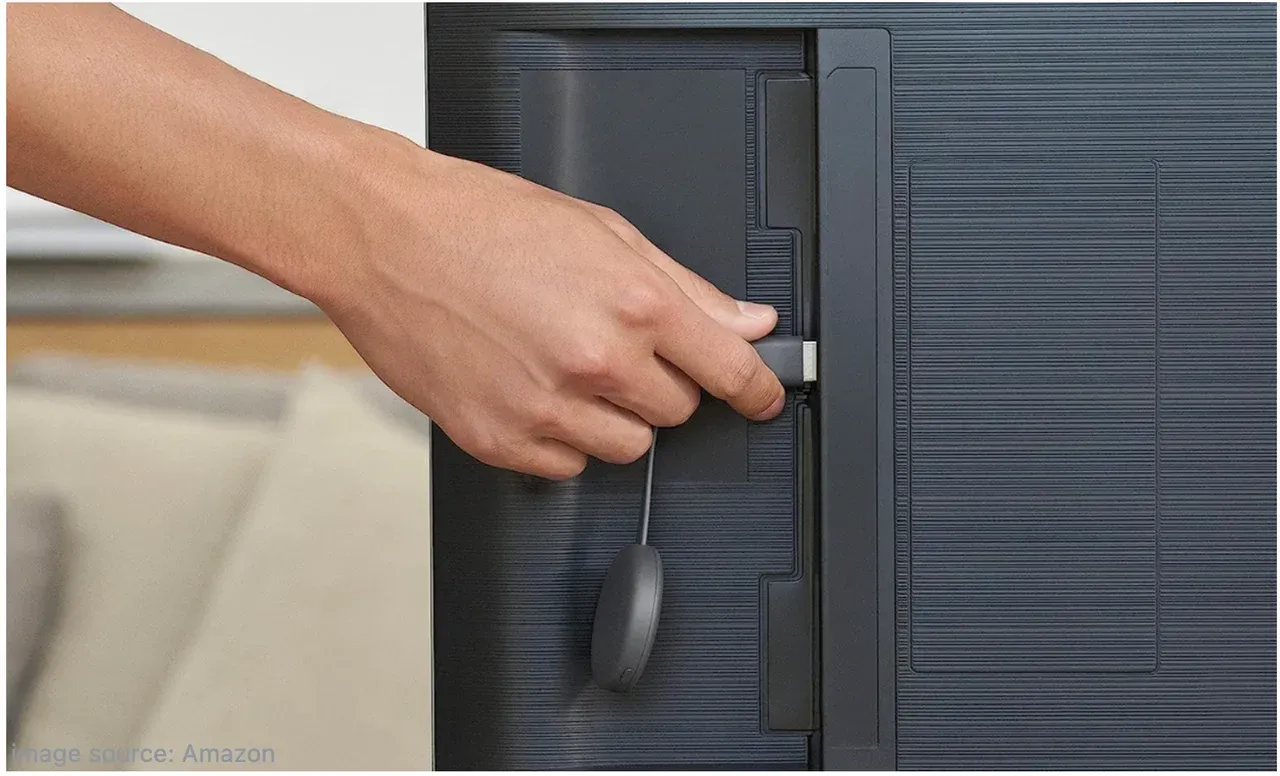
A weak or intermittent connection can also result in your Chromecast device not showing up, especially if the Chromecast isn't getting enough power or the HDMI signal is disrupted.
How to fix Chromecast not showing up:
Step 1. Unplug your Chromecast from the HDMI port of your TV and plug it back in (try using a different HDMI port if available).
Step 2. Ensure the power cable is securely connected to the Chromecast and the power outlet.
Tip: If you're using a USB port on the TV for power, try using the provided adapter instead. The TV's USB port may not provide enough power.
Step 3. Ensure that the Chromecast isn't blocked by other devices or objects that might interfere with the HDMI connection or Wi-Fi signal.
Step 4. Try casting iPhone to Chromecast again. If the Chromecast not showing up on iPhone error appears, continue with the following fixes.
Fix 2: Check Your Wi-Fi Network
If the Chromecast not showing up on Chrome or Netflix issue happens, it's often because the Chromecast and your casting device are on different Wi-Fi networks. Chromecast requires both devices to be connected to the same Wi-Fi network to work properly; otherwise, no devices found Chromecast.
Additionally, Wi-Fi signal strength plays a crucial role in ensuring that the connection is stable enough to support casting.
How to fix Google Chromecast not showing up on phone or laptop:
Step 1. Open the Google Home app, select your Chromecast, and check the Wi-Fi network it is connected to.
Step 2. Ensure both your Chromecast and casting device (phone or computer) are connected to the same Wi-Fi network.
Step 3. Move your router closer to the TV and Chromecast. This is useful when the Wi-Fi signal is weak or intermittent.
Tip: Avoid using Wi-Fi extenders or repeaters that might cause connection issues.
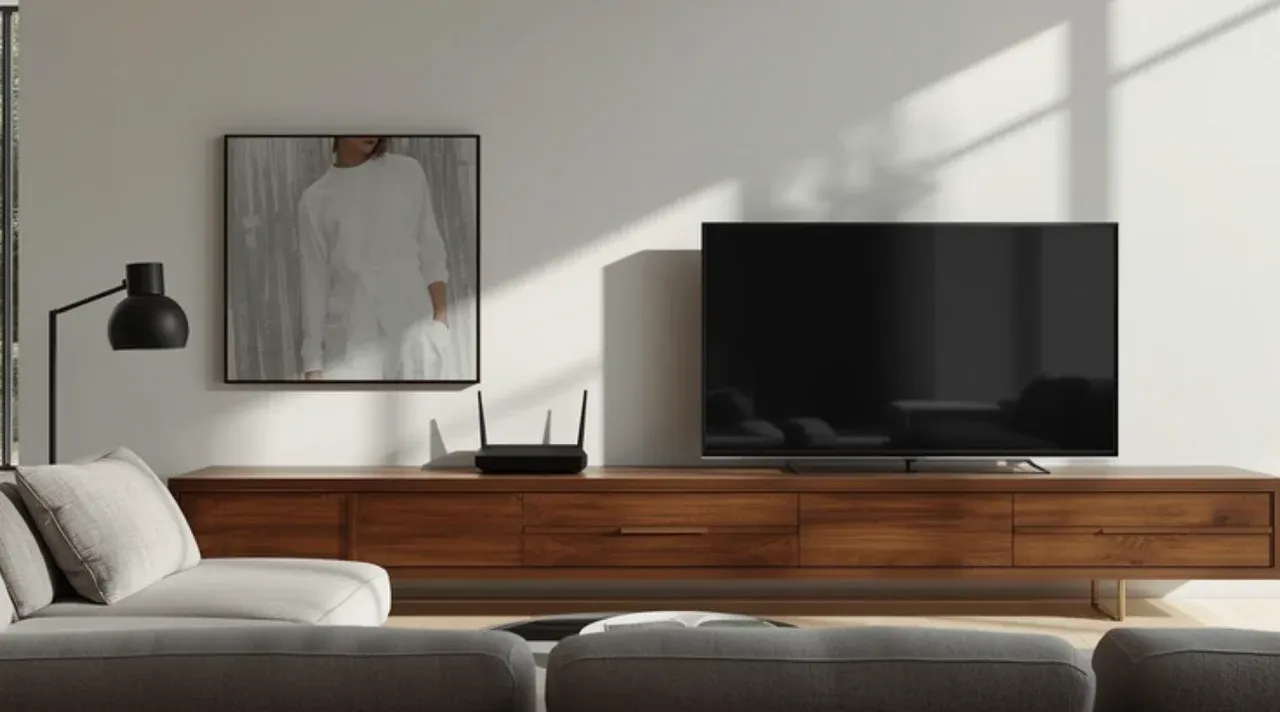
Step 4. Power cycle your router by unplugging it for 10 to 20 seconds and plugging it back in. This can help solve any network-related issues that might prevent the issue that Google Home can't find Chromecast.
After verifying your network connection, is Netflix Chromecast not working? If you're still experiencing Chromecast issues, continue with the following troubleshooting steps.
Fix 3: Restart Chromecast and Your Devices
Temporary software glitches or network inconsistencies can lead to Chromecast not working on TV or other connection errors. Restarting both the Chromecast and the casting device refreshes the connection, clears any temporary issues, and gives everything a fresh start, often resolving the problem.
If you're unable to cast to Chromecast, try these steps:
Step 1. Unplug your Chromecast from both the HDMI port and the power source.
Step 2. Wait for about 10-20 seconds to allow the device to fully reset.
Step 3. Power cycle your phone, tablet, or computer by turning it off and on again.
Step 4. Plug your Chromecast back into the TV and power it on.
Step 5. Try connecting through the Google Home app and checking if it shows up.
Fix 4: Update Chromecast and Apps
Outdated apps and firmware can cause compatibility issues between your Chromecast and casting device, especially when you're using older versions of Google Home, Netflix, or the Chromecast device's firmware.
These updates are necessary to keep everything working smoothly, as they often include bug fixes and improvements that help your Chromecast work properly with newer operating systems and devices.
Therefore, do updates to fix the Google Chromecast not working issue:
Step 1. Open the App Store or Google Play Store and search for Google Home.
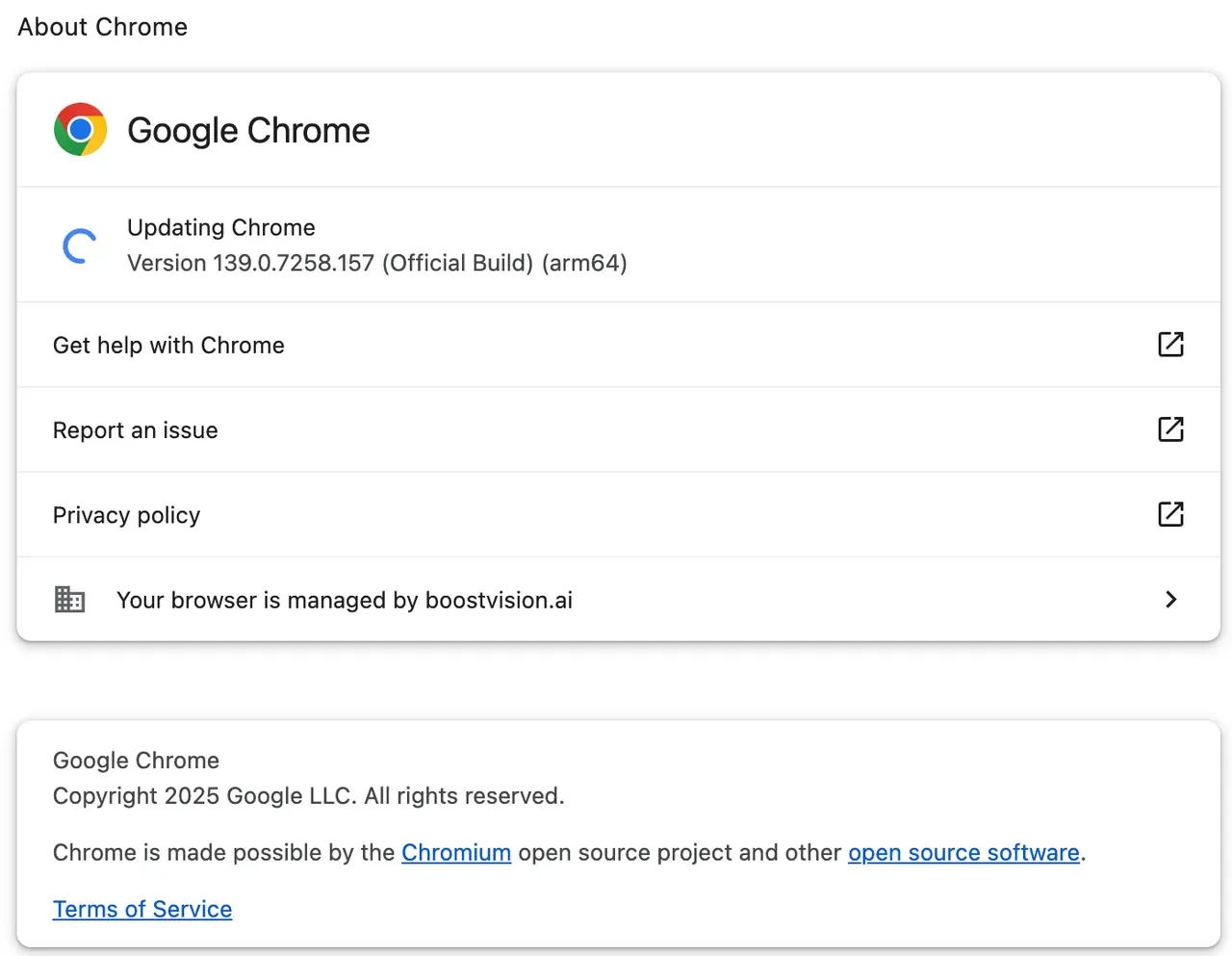
Tip: Does Chrome not find your Chromecast? Go to Settings on the browser and click About Chrome. The browser will update itself automatically when an update is available.
 Step 2. Check if there is an available update. If there is, tap Update.
Step 3. Open the Google Home app and choose your Chromecast device.
Step 4. Tap Device settings, scroll down, and check for any available firmware updates.
Step 5. Once updates are complete, restart our Chromecast and casting device to ensure everything is synced and the update is applied correctly.
Fix 5: Factory Reset Your Chromecast
A factory reset is a more drastic measure to resolve persistent issues like Chromecast not showing up on Google Home. If the Chromecast still isn't working after trying all other steps, a reset restores the device to its original settings, clearing out any misconfigurations or software bugs that might be causing the Chromecast not showing up error.
How to factory reset Chromecast:
Step 1. Find the small reset button on your Chromecast (usually near the micro-USB port).
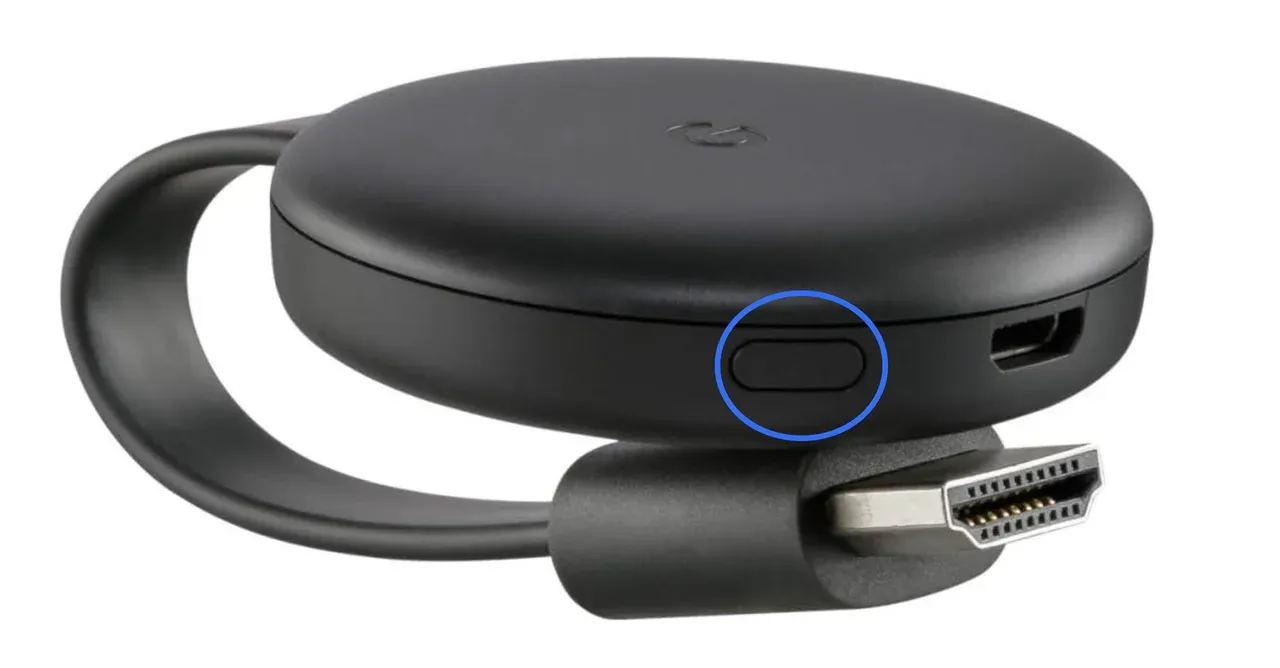
Step 2. Press and hold the button for about 25 seconds. The LED on your Chromecast will start flashing, indicating that it's resetting.
Step 3. Once the reset is complete, follow the on-screen instructions in the Google Home app to set up your Chromecast again.
Fix 6: Troubleshoot App-Specific Issues
Sometimes, the issue lies not with your Chromecast, but with the apps you're using to cast. Netflix Chromecast not working or issues with YouTube casting can often be resolved by addressing app-specific bugs, outdated versions, or corrupt data. Ensuring your apps are up-to-date can resolve most issues related to app-based casting.
If you can't use a Chromecast-enabled app for casting, like Netflix or YouTube, you can try:
Step 1. Open the App Store or Google Play Store and check for updates for the app you're casting from.
Step 2. If the app is up to date but still causing issues, uninstall and reinstall it. This can resolve bugs or corrupted files that prevent casting.
Step 3. Close the app completely (swipe it away from your recent apps list), then open it and try casting.
How to Cast Without Chromecast
If you've tried all these troubleshooting steps and still find your Chromecast device not showing up, or if you simply want an alternative solution, PigeonCast offers a reliable way to cast media.
PigeonCast is a third-party screen mirroring solution. Similar to Chromecast, it enables you to stream content between different platforms, such as screen mirroring Android to Apple TV without external hardware. Unlike Chromecast, PigeonCast offers broader device compatibility and multi-protocol support, including Google Cast. This flexibility makes it a convenient option for households or offices with mixed devices.
How to cast without Chromecast:
Step 1. Download the PigeonCast app for your device (available for Android, iOS, Windows, Mac, Android TV, and Apple TV).

Step 2. Follow the setup instructions to connect your devices, ensuring that your devices are on the same Wi-Fi network.
Step 3. Once PigeonCast is set up, you can start casting your media from one device to another without Chromecast.
To Sum Up
Dealing with a Chromecast with Google TV not showing up issue can be frustrating, but following these step-by-step Chromecast troubleshooting fixes should help resolve most problems. From checking connections to updating apps and resetting your device, there are many solutions to get your Chromecast back in action. However, if you're still facing issues or want a more versatile solution, PigeonCast offers an excellent alternative for easy and reliable media casting.
Chromecast Not Showing Up FAQs
Q: How to make a Chromecast device discoverable?
To make your Chromecast discoverable, ensure it is powered on and connected to the same Wi-Fi network as your casting device. Open the Google Home app and select Set up device > New device. Sometimes restarting your Chromecast or router also helps it appear in the app.
Q: Why is my Chromecast not showing up?
Common reasons include network issues, device mismatches, outdated apps, or faulty connections. Make sure both your casting device and Chromecast are on the same network, the device firmware is updated, and all cables are secure.
Q: Why is my Chromecast not working anymore?
Chromecast can stop working due to software glitches, outdated firmware, or app compatibility problems. Restart your Chromecast, update the Google Home app, and check for firmware updates. If issues persist, a factory reset may be required.
Q: How do I reconnect Chromecast?
Open the Google Home app, select your Chromecast device, and tap Reconnect or Forget and Re-add Device. Ensure both devices are on the same Wi-Fi network and the Chromecast is powered on.
Q: What replaced Chromecast?
While Chromecast is still available, Google has introduced alternatives like Chromecast with Google TV, which adds a remote and interface. Third-party casting solutions like PigeonCast also offer more versatile screen mirroring across devices.
Q: Does the old Chromecast not work anymore?
Older Chromecast models still work for most apps but may lack features like 4K streaming or Google TV interface. Firmware updates continue to support them, but some apps may eventually drop support.
Q: What's the lifespan of a Chromecast?
Most Chromecast devices last 3–5 years, depending on usage, firmware updates, and app compatibility. Proper care, avoiding overheating, and keeping software updated can extend the device's life.
Mia Clarke is a technology editor specializing in screen mirroring and casting solutions across multiple platforms. Mia provides clear, practical guides and in-depth insights to help users seamlessly connect their devices. Passionate about enhancing digital experiences, Mia is dedicated to keeping readers updated on the latest trends and tools in cross-platform screen sharing. Whether you’re looking to mirror your smartphone, laptop, or smart TV, Mia’s content delivers reliable, user-friendly advice to simplify your tech setup.