
How to Chromecast from iPhone? Streaming content from your iPhone to your TV is easier than ever, especially with the help of Chromecast. Whether you want to watch YouTube videos, play music, or mirror your screen, Chromecast offers a simple and effective way to get your content onto the big screen. This guide explains everything you need to know about using Chromecast with iPhone, from basic setup to troubleshooting.
Can You Chromecast from iPhone?
Yes, you can Chromecast from iPhone, even though iPhones don't have native Google Cast support like Android devices. Instead of Google Cast, iOS relies on AirPlay. It is Apple's proprietary streaming protocol designed to work with Apple TVs and other AirPlay-enabled devices. Because of this, the screen mirroring feature found in your iPhone's Control Center cannot connect directly to Chromecast.
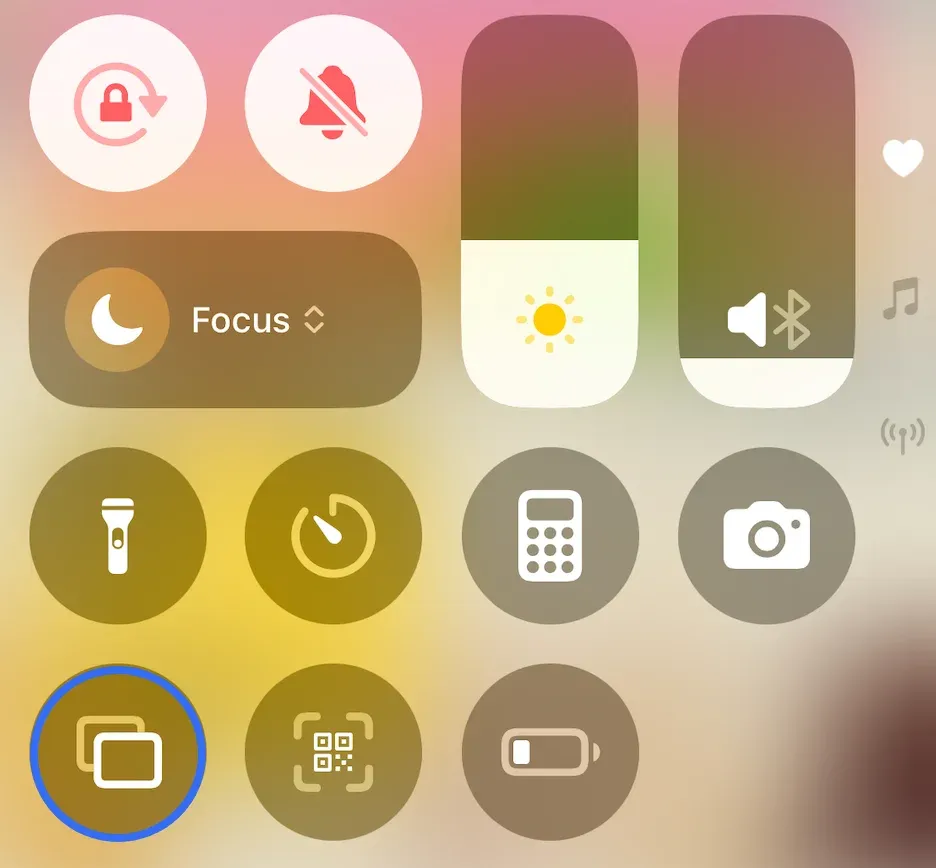
So, does Chromecast work with iPhone? It does, but not through the system-wide mirroring tool. Well, how to Chromecast on iPhone? Connect your iPhone to a Chromecast-enabled device with an app.
Is there a Chromecast App for iPhone?
There is no app called "Chromecast" on the App Store, but you can Chromecast from your iPhone through some apps. Many popular iOS apps, such as YouTube, Netflix, Spotify, and Disney+, have built-in Chromecast support. These apps allow you to tap a Cast icon and stream content directly to your Chromecast-connected TV, with no extra hardware or setup needed.
If you're looking to mirror your iPhone screen or stream local files, there are also dedicated mirroring apps, including PigeonCast app, TV Cast for Chromecast, and Replica, that provide additional flexibility. These apps are designed to bridge the gap between iOS and Chromecast, giving you more flexibility for presentations, gaming, or sharing photos and videos from your device.
How to Chromecast from iPhone to TV?
There are a few ways to Chromecast iPhone to TV, depending on what you want to cast. Whether you're streaming from a compatible app or mirroring your entire screen, here are two practical options.
Method 1. Using a Streaming App
Many streaming apps on iOS include built-in Chromecast support, and YouTube is one of them. Here's how to use Chromecast with iPhone through a streaming app, like YouTube (the steps are similar for Netflix, Disney+, and others):
Step 1. Ensure your iPhone and Chromecast are connected to the same Wi-Fi network.
Step 2. Open the YouTube app on your iPhone.
Step 3. Play a video you want to watch on a big screen.
Step 4. Tap the Cast icon (a rectangle with Wi-Fi waves) in the top corner.
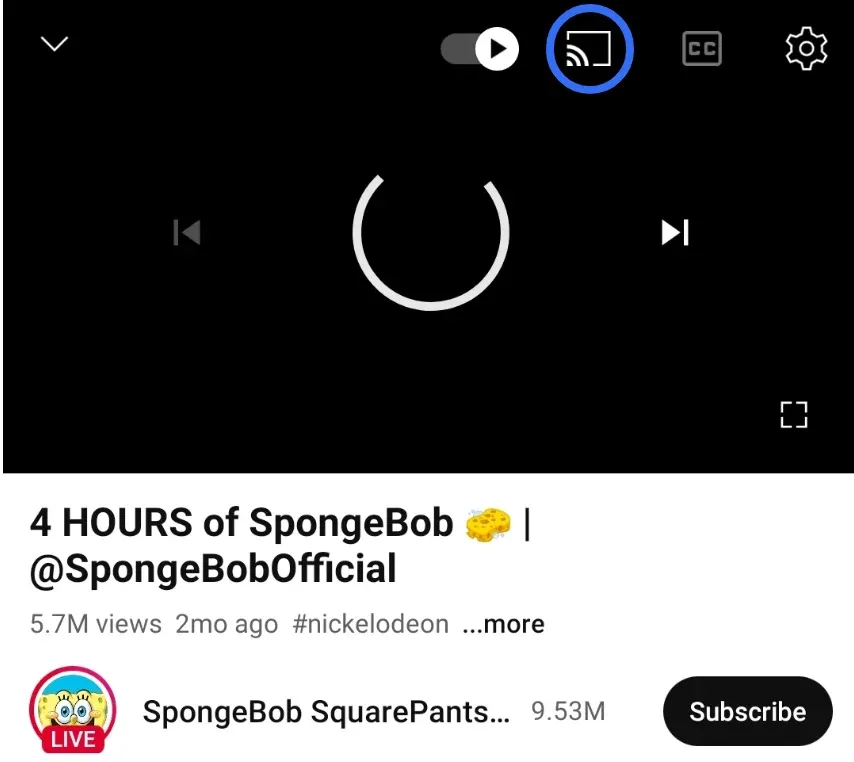
Step 5. Choose your Chromecast device from the list.
Step 6. The video will start playing on your TV, and you can control playback directly from your iPhone.
This method is quick, seamless, and doesn't require any extra apps once Chromecast is set up. If you also cast from Android, Chrome, Windows, or Mac, the steps to cast to Chromecast may look slightly different on each device.
Method 2. Using PigeonCast for iPhone
PigeonCast for iPhone is a free third-party screen mirroring app. Once it is set up on your iPhone, you can connect your iPhone to other devices wirelessly, including Chromecast, as the app supports many popular mirroring protocols, from AirPlay to Google Cast and DLNA.
This app allows you to mirror your entire iPhone screen and apps that don't support Chromecast:
Step 1. Download and install the PigeonCast for iPhone app from the App Store.

PigeonCast Screen Mirroring

Official Download


Step 2. Launch the app and ensure your iPhone and Chromecast are connected to the same Wi-Fi network.
Step 3. The app should start detecting available devices. Once your Chromecast is on the list, tap it.
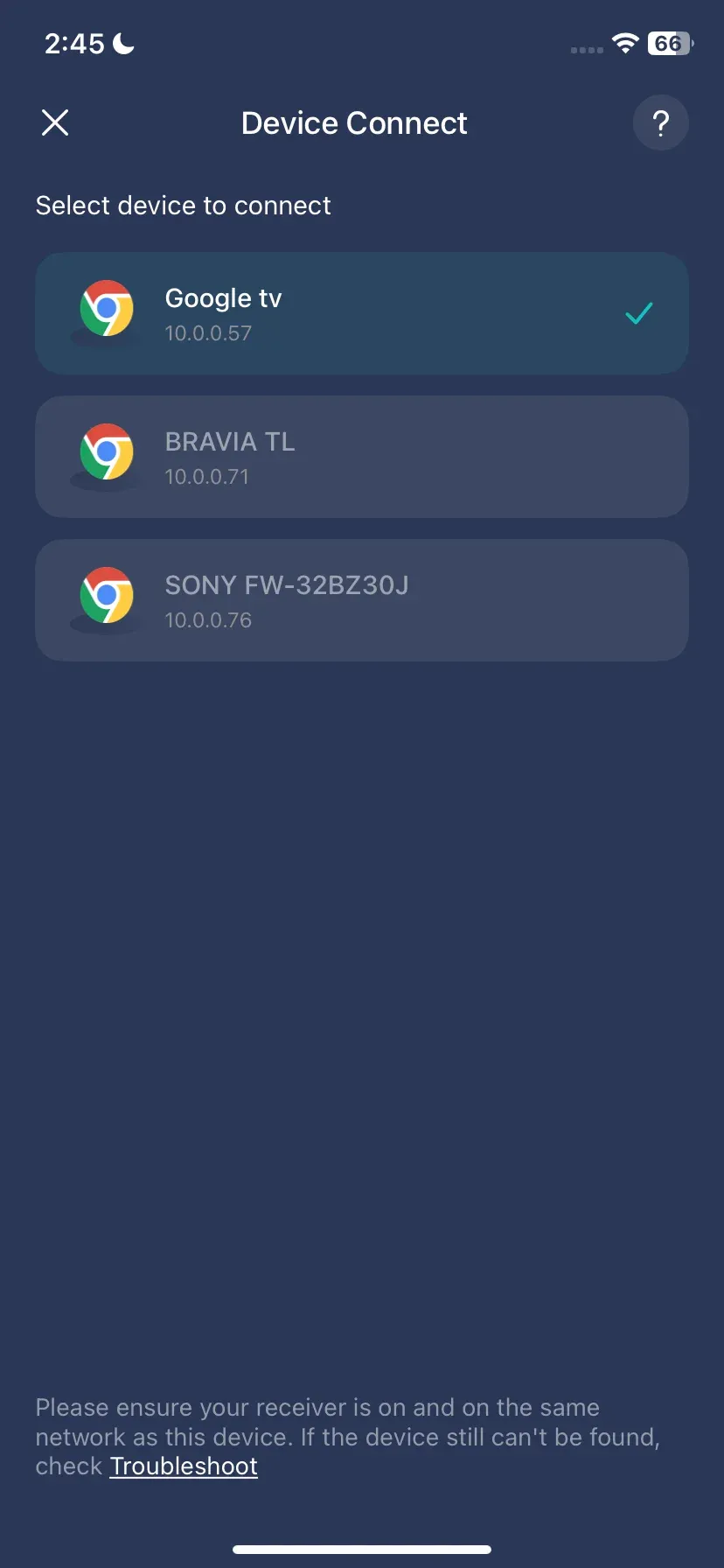
Step 4. Once connected, tap the Screen Mirror button on the app and follow the on-screen instructions to mirror iPhone to Chromecast.
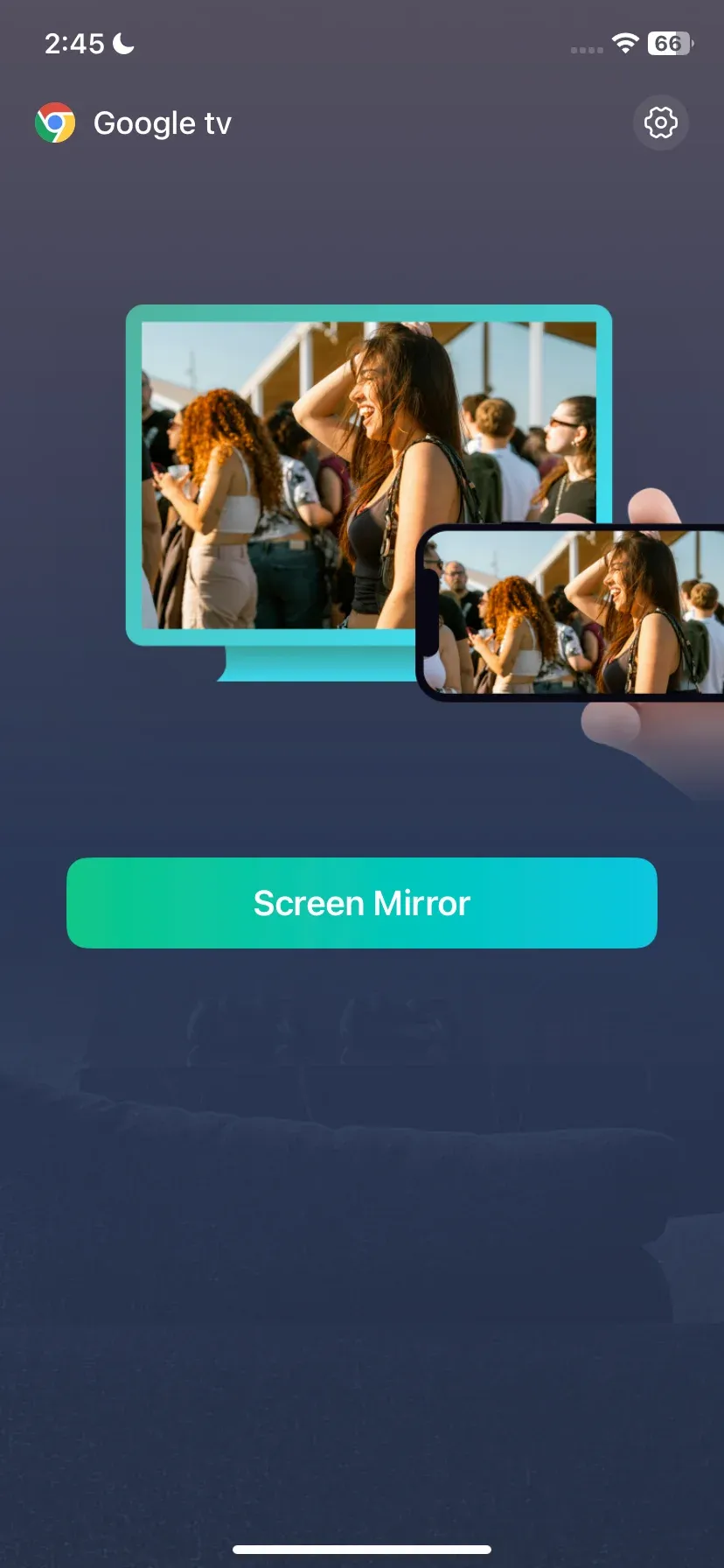
PigeonCast is especially useful for situations where native app casting isn't available or when you want to share your entire screen experience with others.
How to Fix Chromecast Not Working on iPhone
That's how to cast iPhone to Chromecast. If you're having trouble trying to Chromecast from iPhone using the above two methods, connection issues are common and often easy to fix. Here are some of the most effective troubleshooting steps you can take.
Fix 1. Check Wi-Fi Connection
Whether you use the built-in Cast feature on a streaming app or the PigeonCast app, ensure your iPhone and Chromecast are connected to the same Wi-Fi network. Note that if the two devices are on different network frequency bands (for example, one is on 2.4GHz and the other on 5GHz), they won't be able to see each other.
Fix 2. Restart Devices
Still can't Chromecast from iPhone? Try restarting your iPhone, Chromecast, and Wi-Fi router. A quick reboot can often resolve detection or casting issues. When the three devices fully reboot, try using YouTube or PigeonCast app again.
Fix 3. Update Your Apps and iOS
Make sure the app you're using to cast is updated to the latest version available in the App Store. Outdated apps may have bugs or lack compatibility with newer Chromecast firmware. Additionally, check for iOS system updates in your iPhone settings. Running the latest iOS ensures better performance, security, and compatibility with casting technologies.
Fix 4. Reinstall the App
If you're using a third-party screen mirroring app like PigeonCast and it's not working properly, uninstalling and reinstalling the app can often solve the issue. This helps clear any corrupted settings or cached data that may be causing glitches. After reinstalling, open the app, grant the necessary permissions, and try connecting to Chromecast again.
Fix 5. Reset Chromecast
When all other solutions fail, a factory reset may be necessary. Locate the small button on your Chromecast device, press and hold it for about 10–15 seconds until the LED light begins flashing. This will restore the device to its default settings. You'll then need to go back into the Google Home app and set it up again as if it were new, reconnecting it to your Wi-Fi network.
The End
iPhones rely on AirPlay by default, but they can still work seamlessly with Chromecast through the app-based cast feature or third-party tools such as PigeonCast for iPhone. From watching videos and playing music to sharing presentations or mobile games, Chromecast from iPhone gives you full control over how and where you view your content.
How to Chromecast from iPhone FAQs
Is it possible to Chromecast from an iPhone?
Yes, it is possible to Chromecast from an iPhone. While iPhones use AirPlay by default, many iOS apps like YouTube, Netflix, and Spotify include built-in Chromecast support. You can also use third-party screen mirroring apps, such as PigeonCast, to mirror your iPhone screen to a Chromecast-enabled TV.
How to connect iPhone to smart TV without Chromecast?
If you don't have a Chromecast, you can connect your iPhone to a smart TV using AirPlay (if the TV supports it). Some smart TVs from brands like Samsung, LG, and Sony offer native AirPlay or proprietary casting features compatible with iPhones. Alternatively, a compatible HDMI cable, or a third-party app that supports AirPlay, Google Cast, or DLNA can bridge the gap without compatibility issues.
How do I cast my iPhone screen to Google TV?
To cast your iPhone screen to a Google TV device, you can use a third-party screen mirroring app such as PigeonCast for iPhone. These apps support Google Cast and allow you to mirror your entire iPhone screen. Simply connect both devices to the same Wi-Fi network, open the app, and select your Google TV to begin mirroring.
How to cast phone screen to Chromecast?
The steps depend on the phone you're using. If you have an Android phone, you can use the built-in Cast feature in the Quick Settings panel to mirror your entire phone screen to a Chromecast-connected TV.
If you have an iPhone, the device uses AirPlay instead of Google Cast. To mirror the iPhone screen to Chromecast, download a third-party screen mirroring app like PigeonCast for iOS. Then, launch the app and select your Chromecast to begin mirroring.
What is the difference between Chromecast and screen mirroring?
Chromecast uses app-based casting, where supported apps stream content directly to your TV, allowing your phone to act as a remote. Screen mirroring, on the other hand, duplicates your phone's entire display in real-time. Mirroring shows everything on your screen, including non-castable apps, while Chromecast is usually limited to supported apps with built-in Cast functionality.
Does Chromecast mirror your iPhone?
Not by default. The iPhone's native screen mirroring feature (AirPlay) is not compatible with Chromecast. However, you can mirror your iPhone screen to Chromecast using third-party apps like PigeonCast, which enable full screen sharing with Chromecast-enabled devices.
Do I need Chromecast to cast?
Not always. If your TV has built-in Google Cast (such as Android TV or Google TV), you can cast without a separate Chromecast device. For iPhones, some smart TVs also support AirPlay, allowing casting without Chromecast. However, if your TV doesn't support either, a Chromecast or a compatible device is required.
What are the disadvantages of Chromecast?
Some common drawbacks of Chromecast include:
- Limited native screen mirroring from iPhones without third-party apps.
- Requires a stable Wi-Fi connection for consistent performance.
- No physical remote control (except with Chromecast with Google TV).
- Some older TVs may need additional setup or power sources.
- Privacy concerns if guests can access the same network and see casting devices.
Mia Clarke is a technology editor specializing in screen mirroring and casting solutions across multiple platforms. Mia provides clear, practical guides and in-depth insights to help users seamlessly connect their devices. Passionate about enhancing digital experiences, Mia is dedicated to keeping readers updated on the latest trends and tools in cross-platform screen sharing. Whether you’re looking to mirror your smartphone, laptop, or smart TV, Mia’s content delivers reliable, user-friendly advice to simplify your tech setup.