
Mastering how to mirror iPhone to Haier TV starts with one simple pre-check: ensuring your TV's AirPlay or mirroring mode is enabled. Instead of struggling with iPhone settings alone, this guide walks you through a seamless connection process. We’ll start with a quick compatibility check, move directly to the wireless setup steps, and provide a reliable wired fallback to ensure you get your screen on the big screen in minutes.
3-Step Quick Start: Mirror iPhone to Haier TV
Before diving into advanced settings you should follow this universal baseline flow to get connected instantly.
-
Sync Networks: Connect both your iPhone and Haier TV to the same Wi-Fi network.
-
Enable Receiver: Navigate to your TV settings and ensure AirPlay or Screen Mirroring mode is turned on.
-
Start Mirroring: Open your iPhone Control Center then tap Screen Mirroring and select your Haier TV. Enter the on-screen pairing code if prompted.
How to Mirror iPhone to Haier TV
Streaming your iPhone screen to a Haier TV is a straightforward process when both devices are configured correctly. By following the right sequence you can enjoy photos videos and apps on a much larger display without technical lag.
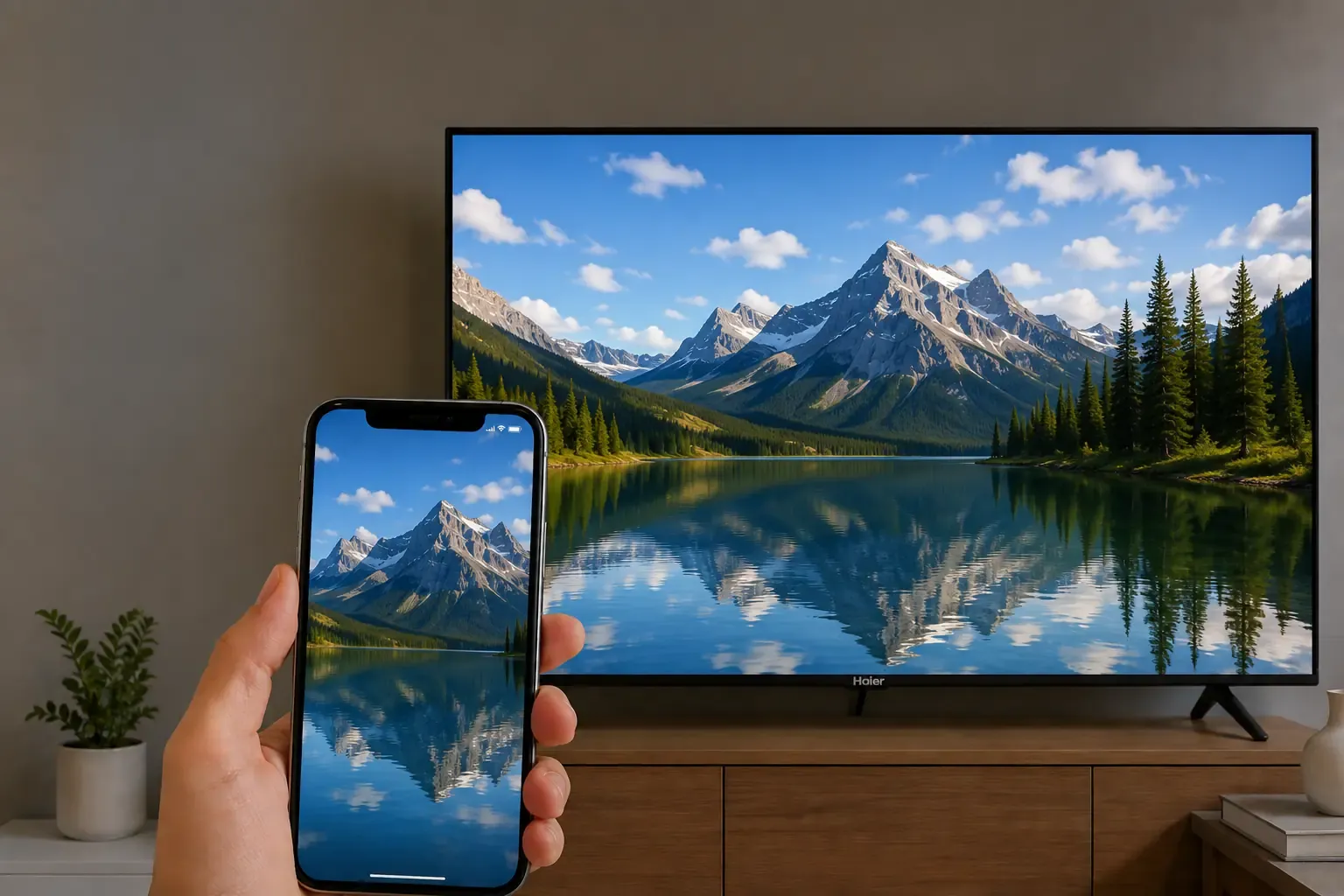
Check Compatibility Before You Start
Clarifying your hardware capabilities early removes most guesswork and prevents connection failures. Before attempting to link your devices you should verify these four critical factors to ensure a smooth mirroring experience.
1) Haier Model Capability
Not every Haier TV supports native AirPlay. You should check your TV menu for a screen receiver or AirPlay option first. If these settings are missing you will likely need to skip directly to a wired fallback or a third party app solution.
2) Network Environment
Both devices must reside on the same Wi-Fi segment to communicate. Be aware that guest networks or AP isolation settings on your router can block discovery even if both devices appear to be connected to the same internet source.
3) Pairing Permissions
Keep your Haier TV on the active receiver screen during the initial setup. This ensures that the security pairing prompt is visible and the TV is actively broadcasting its availability to your iPhone.
4) Content Validation
Some streaming apps use digital rights management that might cause a black screen during mirroring. You should test with the Photos app or Safari first to verify that the base mirroring function is working correctly before trying protected video content.
You may find: How to Cast Photos from iPhone to TV: 2 Methods
Mirror Your iPhone to Haier TV Step by Step
Once you have verified compatibility you can execute the connection process. Follow these specific actions to establish a stable link between your devices.
Step 1. On your Haier TV open the AirPlay or screen receiver settings and toggle the function to enabled.
Step 2. Connect your iPhone and Haier TV to the exact same Wi-Fi network.
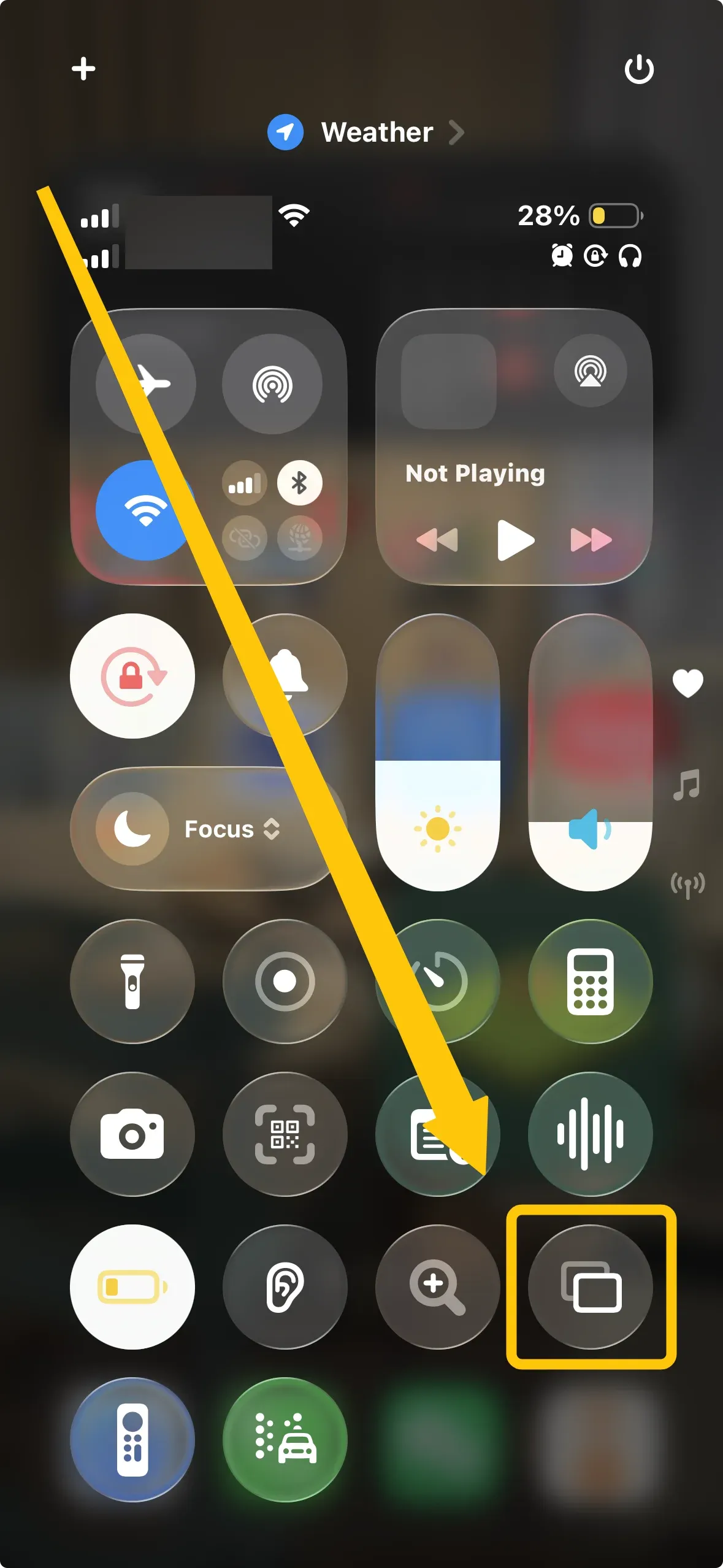
Step 3. On your iPhone swipe down from the top right corner to access your Control Center then tap the Screen Mirroring icon which appears as two overlapping rectangles.
Step 4. Choose your Haier TV from the list of available hardware and enter the passcode shown on the TV screen if the system prompts you for security.
Step 5. When you finish the connection you can then enjoy the large screen with an immersive experience.
How to Mirror iPhone to Haier TV Without AirPlay
If your Haier model is an older version or does not feature native AirPlay support you can still achieve a high quality connection using alternative methods. These solutions provide versatile compatibility beyond the Apple protocol to ensure every Haier owner can enjoy screen mirroring.
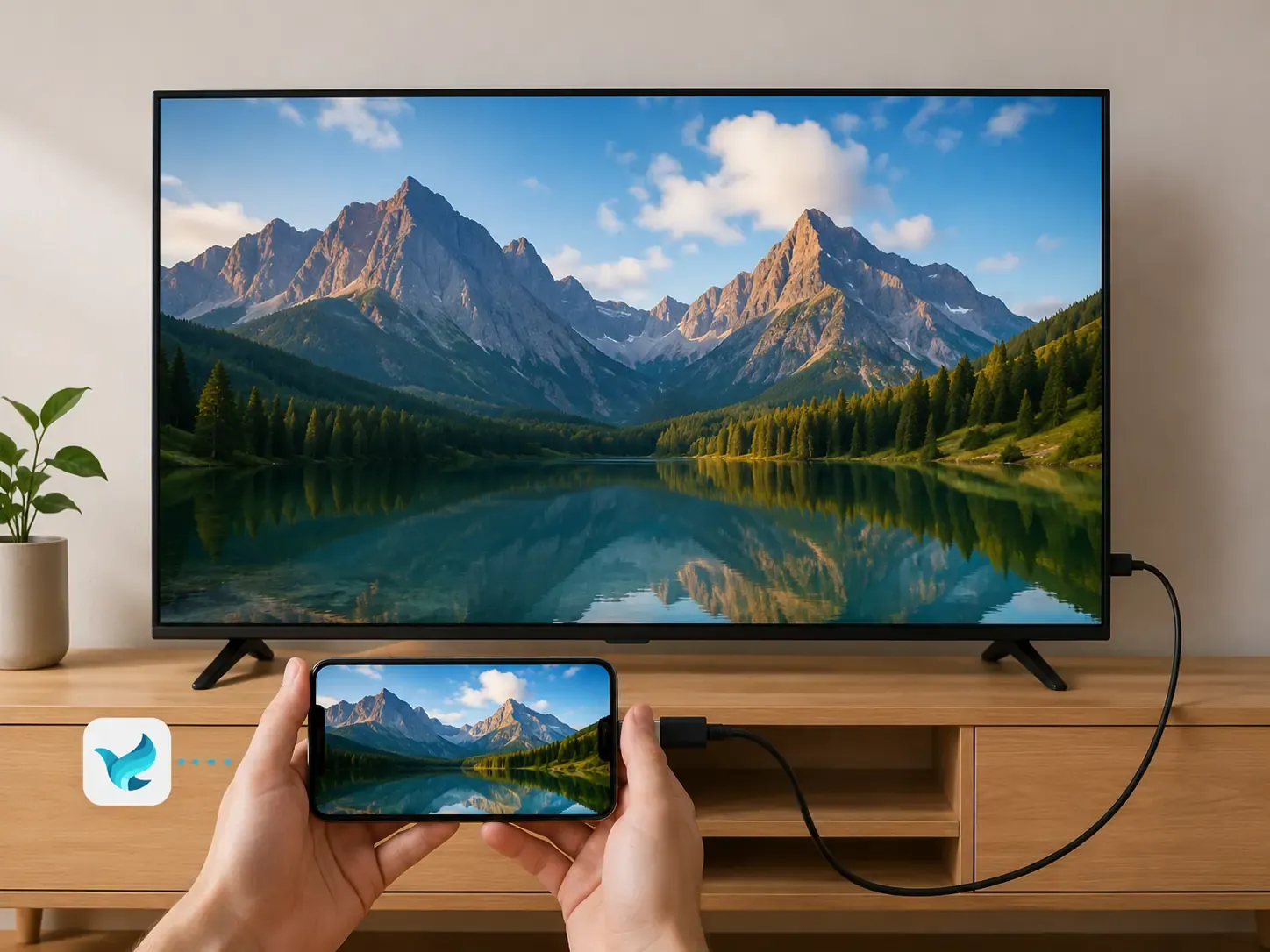
Use PigeonCast for Seamless Mirroring
For a superior wireless experience, you can use PigeonCast which is a premier screen mirroring solution designed specifically for cross platform compatibility. It offers free high definition streaming up to 4K resolution and supports AirPlay, Google Cast and DLNA protocols effortlessly.
- Connect your iPhone and Haier TV to the exact same Wi-Fi network to enable cross platform communication.


Overall Rating:



- Download the PigeonCast app from the Apple App Store on your iPhone and you can install it on your Haier TV if available.
-
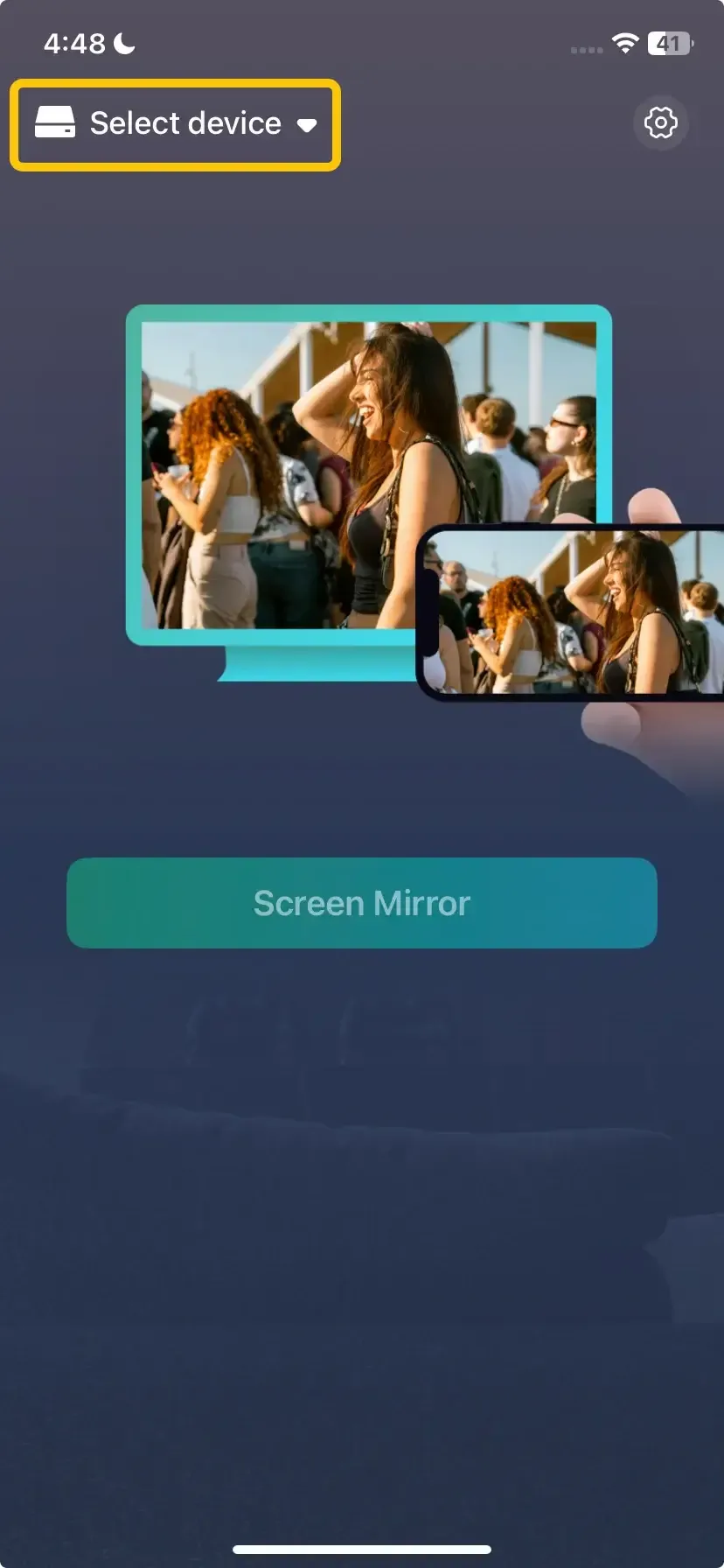
Open the app, tap Select device to choose your Haier TV from the device list.
-
Enter the prompted PIN code to confirm the pairing process.
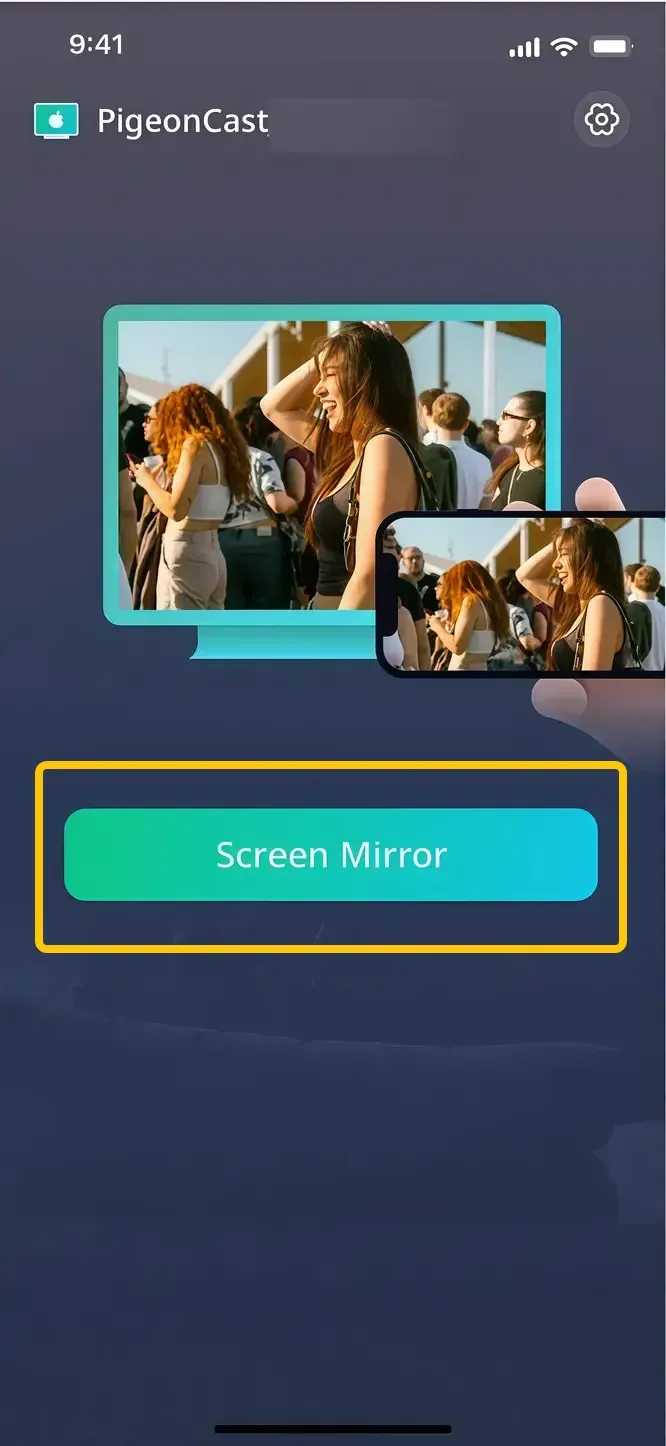
- Once the connection succeeds, you can tap Screen Mirror to begin the mirroring activities.
Establish a Wired HDMI Connection
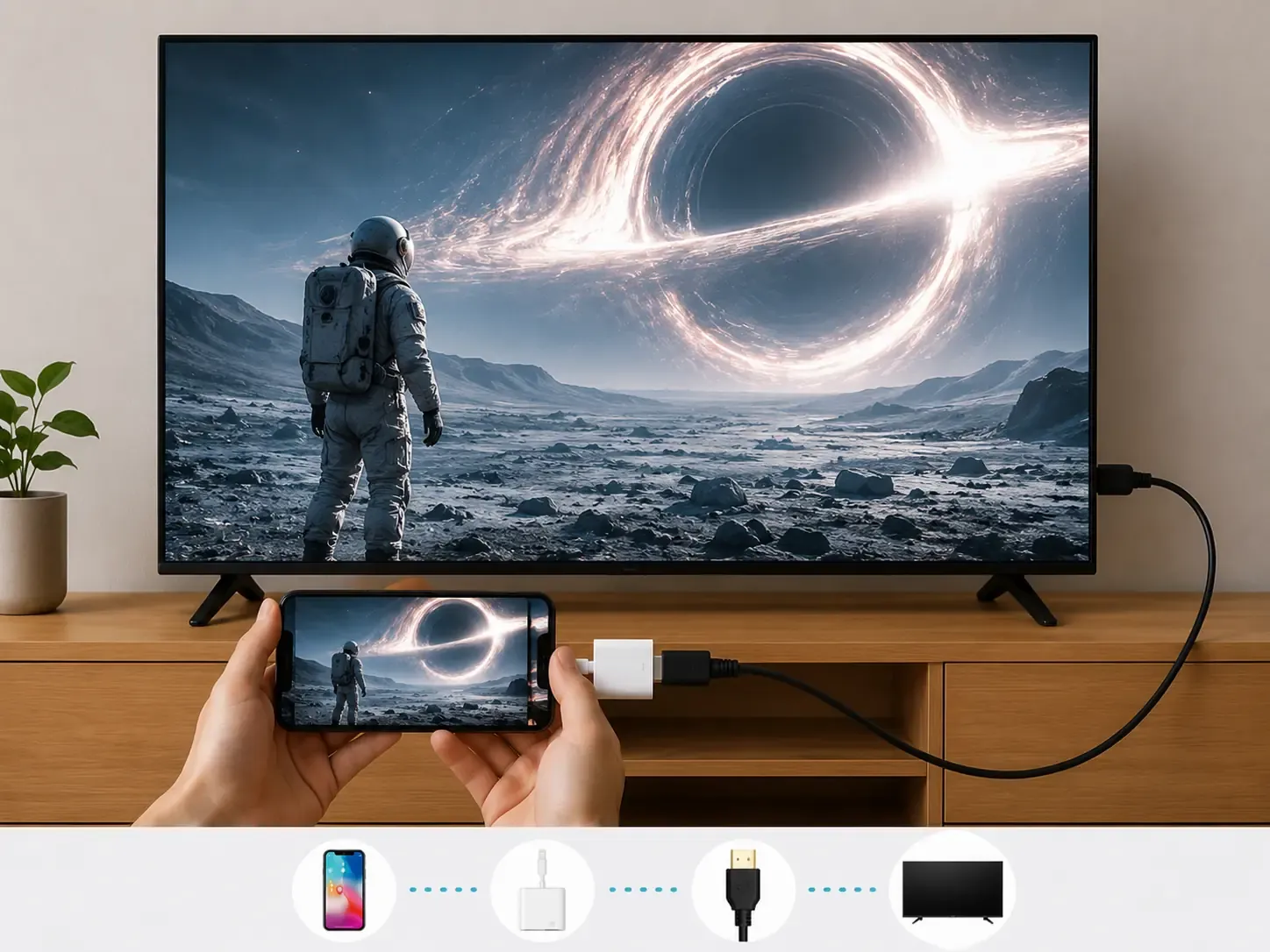
For environments without stable Wi-Fi or for users who require zero lag a physical cable remains the most reliable fallback. This HDMI mirroring method works on all Haier TVs equipped with an HDMI port regardless of their smart features or software version and provides the most stable signal for gaming or high definition video.
-
You need a Lightning adapter for older models or a USB C to HDMI adapter for the iPhone 15 series and newer.
-
Connect one end of a high speed HDMI cable into the adapter and plug the other end into an available HDMI port on the back or side of your Haier TV.
-
Insert the adapter into your iPhone charging port and connect a charging cable to the extra port on the adapter if you plan to stream for a long duration.
-
Use your Haier TV remote to press the Source or Input button then navigate to the specific HDMI label that matches the port you used.
-
After finalizing the link you can simply sit back and enjoy your mobile content on the large display with the clarity and reliability that only a physical cable provides.
Troubleshooting Common Mirroring Issues
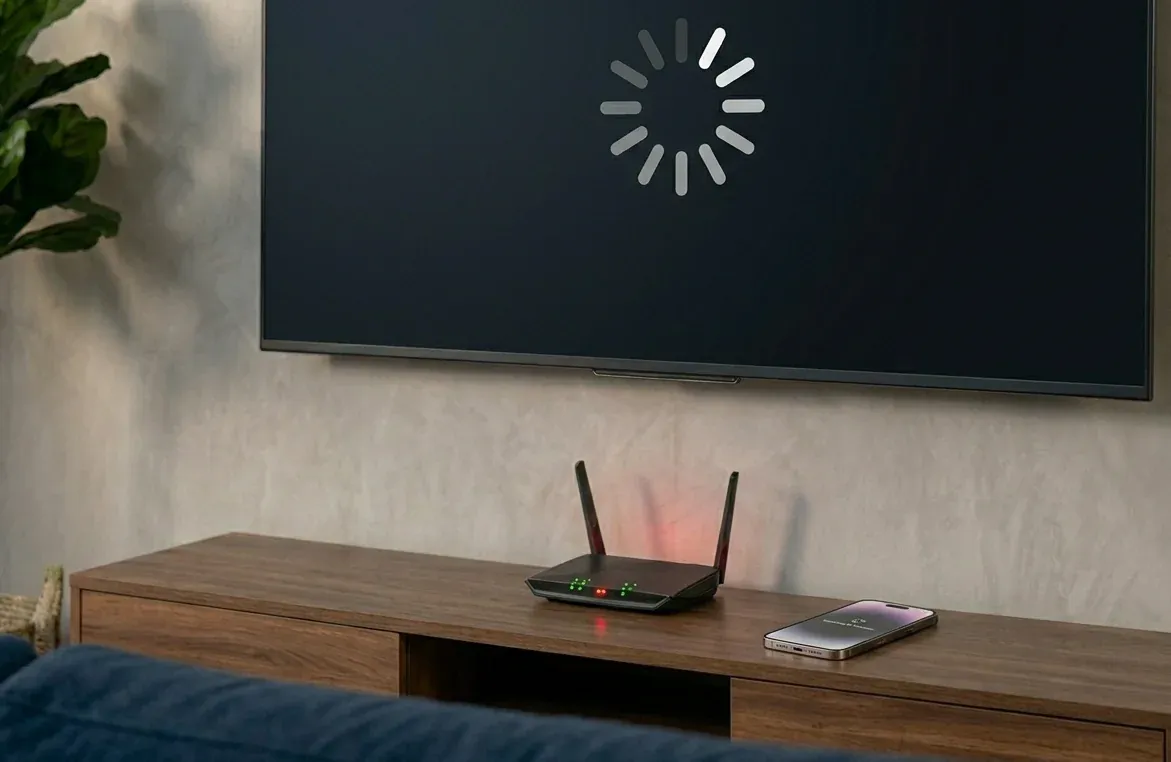
If you encounter common phone casting issues after following the steps above you should check these factors to restore the connection. Most problems stem from minor network glitches or software bugs that are easy to resolve.
-
Restart Your Hardware: Power cycle both your Haier TV and your iPhone to clear any temporary system cache that might be blocking the discovery signal.
-
Check Network Frequency: Verify that both devices are on the same 5GHz Wi-Fi band if your router supports dual bands as this reduces interference and improves mirroring stability.
-
Update System Software: Ensure your iPhone is running the latest iOS and check the Haier TV settings menu for any pending firmware updates that could improve AirPlay compatibility.
-
Reset Network Settings: If the TV name still does not appear you should reset the network settings on your iPhone to refresh all wireless communication protocols.
-
Clear TV Storage Space: Haier Smart TVs often run on Android which requires sufficient free storage to buffer mirroring data. You should uninstall unused apps or clear the system cache in the TV settings if you notice the screen lagging or freezing during the connection.
-
Adjust AirPlay Permission Settings: Navigate to the AirPlay and HomeKit menu on your Haier TV and change the Require Code setting to First Time Only. This prevents your TV from asking for a security passcode every time you connect which can reduce repeated pairing failures on older models.
-
Disable VPN and Proxy: Active VPN services or custom DNS settings on either your iPhone or TV will create a virtual barrier that hides your devices from each other. You must disable all proxy software to ensure the local network discovery works as intended.
-
Check for App Restricted Content: If you see a black screen while the audio still plays it usually means the streaming app you are using has active copy protection. You should try mirroring a standard website or your photo library to confirm the hardware connection is functional.
To Sum Up
By mastering these wireless casting methods and backup hardware solutions you can enjoy seamless screen sharing on any Haier model. Whether you prefer the flexibility of third party apps or the reliability of direct display connectivity following these best practices ensures a high quality viewing experience. You are now ready to project your mobile content to the big screen with confidence and ease.
How to Mirror iPhone to Haier TV FAQ
Why is my Haier TV not appearing on iPhone?
The absence of your Haier TV from the iPhone mirroring list typically stems from one of the following underlying causes:
-
Network Isolation
-
Disabled Receiver Protocol
-
Protocol Incompatibility
-
Active VPN Interference
-
System Cache Glitches
Can I mirror iPhone to Haier TV without internet?
Yes, you can mirror your iPhone to a Haier TV without an active internet connection by using a physical HDMI cable and adapter. Alternatively, some mirroring protocols can function over a Local Area Network (LAN) created by a router even without internet access, as long as both devices are communicating through the same offline Wi-Fi signal.
Is AirPlay required for iPhone mirroring?
No, AirPlay is not strictly required for iPhone mirroring. While it is the native wireless protocol for Apple devices, you can achieve the same results through alternative hardware or software pathways.
How to screen mirror iPhone to Haier Android TV?
To mirror your iPhone to a Haier Android TV you should first check for a native AirPlay option in the system settings and enable it before selecting the TV from your iPhone Control Center.
If native support is unavailable you can install the PigeonCast app on your iPhone to bridge the connection via shared Wi-Fi protocols. For the most stable experience without software configuration you can simply use a Digital AV adapter to link the two devices via a standard HDMI cable.
How to mirror iPhone to Haier TV via Bluetooth?
You cannot mirror an iPhone to a Haier TV via Bluetooth because the technology lacks the bandwidth for video streaming. Bluetooth is only used for device discovery while the actual mirroring requires a Wi-Fi connection or an HDMI cable. To share your screen you must use the AirPlay or Screen Mirroring feature over a shared network for a functional video link.
Why is there no sound when mirroring to my Haier TV?
The absence of sound while mirroring to a Haier TV is typically caused by:
-
Silent Mode Activation
-
Independent TV Volume Settings
-
Digital Rights Management Restrictions
-
Audio Driver Glitches
-
App Specific Settings
Clara Rossi is an experienced technology editor and a seasoned expert in screen mirroring and casting technologies. With a keen eye for detail and a deep understanding of how to seamlessly connect devices, Clara excels at optimizing user experiences for effortless sharing and streaming. Whether you're seeking quick fixes or advanced tips, her expertise and responsiveness ensure that every query is met with a well-informed and efficient solution.