
Apple TV makes iPhone screen mirroring easy, but what if you don't have one? How to mirror iPhone to TV without Apple TV? The good news is that you can still enjoy your favorite videos, photos, and apps on a big screen without Apple's set-top box. Whether you want to mirror wirelessly or with a cable, there are several reliable methods to make it work.
How to Screen Mirror on iPhone Without Apple TV
Not everyone has an Apple TV, but that doesn't mean you can't mirror your iPhone to a bigger screen. There are several practical alternatives available, and the next section will guide you through how to screen mirror with iPhone without Apple TV. Some modern TVs already support AirPlay, making the process seamless, while others may require a simple wired adapter or a reliable third-party app.
Way 1. Use AirPlay on Supported Smart TVs
Many modern TVs, including Samsung, LG, Sony, Roku, and Vizio models made after 2018, come with AirPlay 2 built in. If you own one of these, you don't need extra hardware to mirror your iPhone. This is the easiest wireless option and works seamlessly for streaming both video and audio.
Step 1. Connect your iPhone and TV to the same Wi-Fi network.
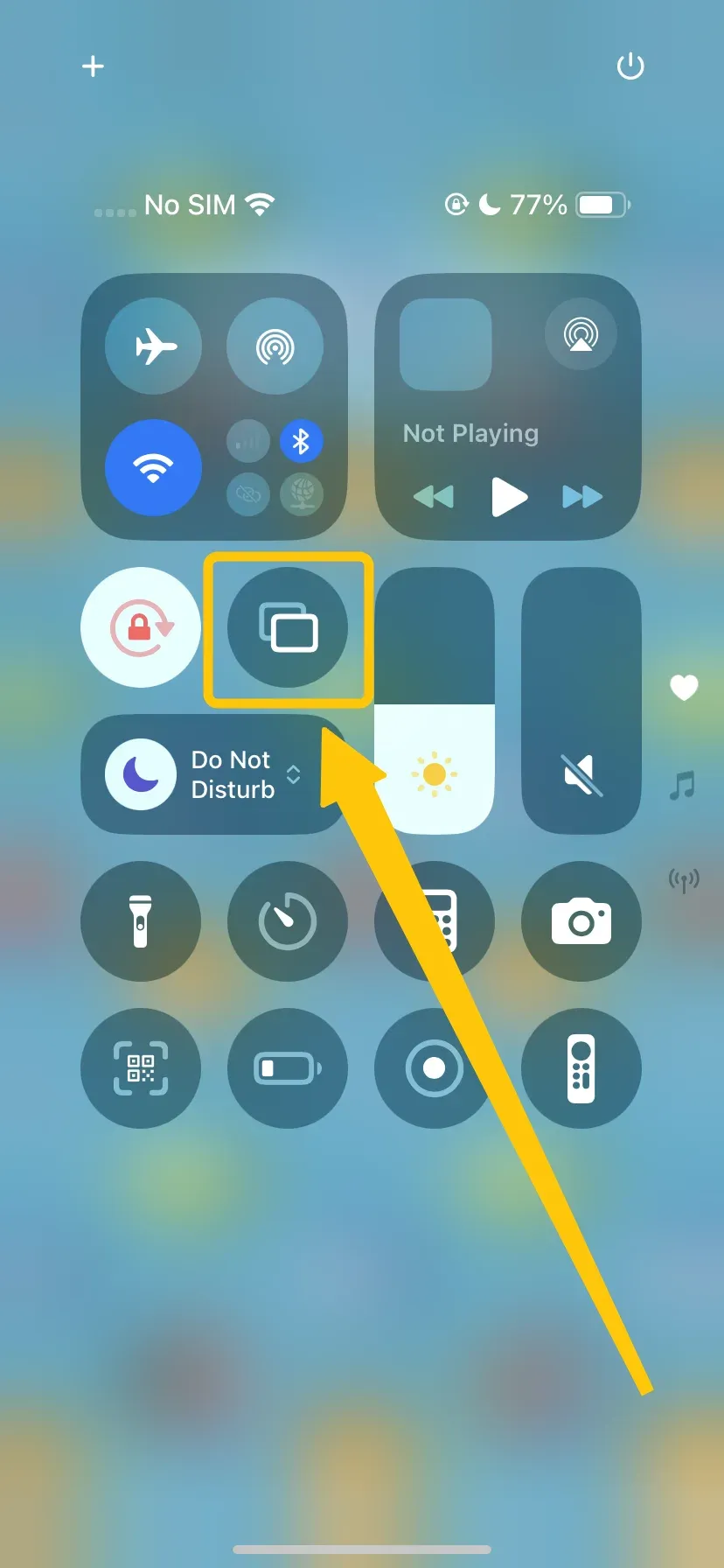
Step 2. On your iPhone, open Control Center (swipe down from the top-right on iPhone X or newer, swipe up on older models).
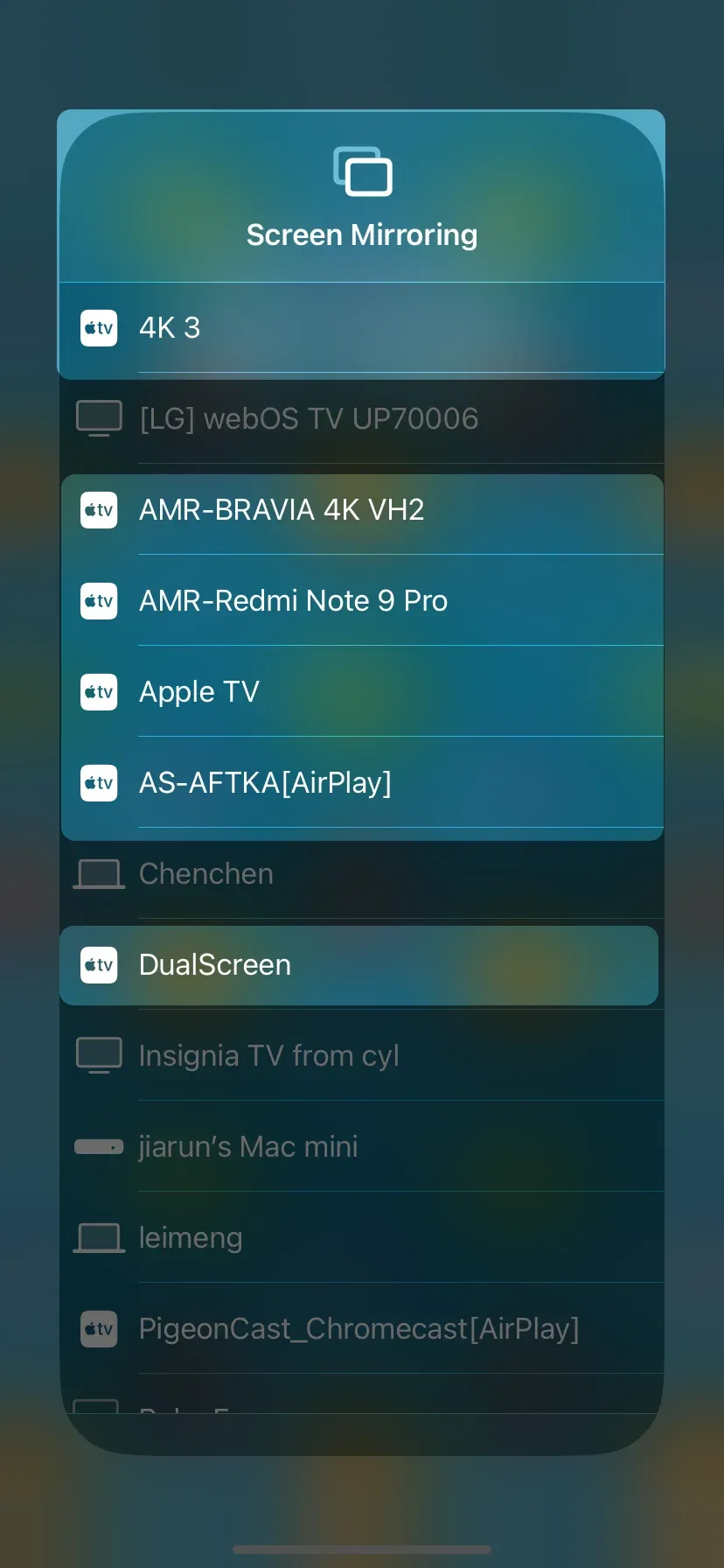
Step 3. Tap Screen Mirroring and select your AirPlay-compatible TV from the list.
Step 4. If prompted, enter the AirPlay code shown on your TV.
Once connected, your iPhone screen will mirror instantly to your TV. You can watch videos, browse photos, play games, or share presentations on a bigger screen. To make the display fit better, adjust iPhone screen mirroring to full screen and reduce unwanted black borders during mirroring.
Way 2. Use PigeonCast for Wireless Screen Mirroring
How to mirror iPhone to TV without Apple TV for free? If your TV doesn't support AirPlay, you can still mirror your iPhone using a third-party screen mirroring app like PigeonCast screen mirroring app.
It provides a simple way to connect iPhones with different types of smart TVs, including Philips TVs, Samsung, LG, Sony, TCL, and other models that may not have built-in AirPlay support. PigeonCast also supports mirroring to PCs and Chromecast devices, making it a flexible option when native screen mirroring compatibility is limited.
With PigeonCast, you can start screen mirroring your iPhone without Apple TV easily while keeping your connection private and secure.
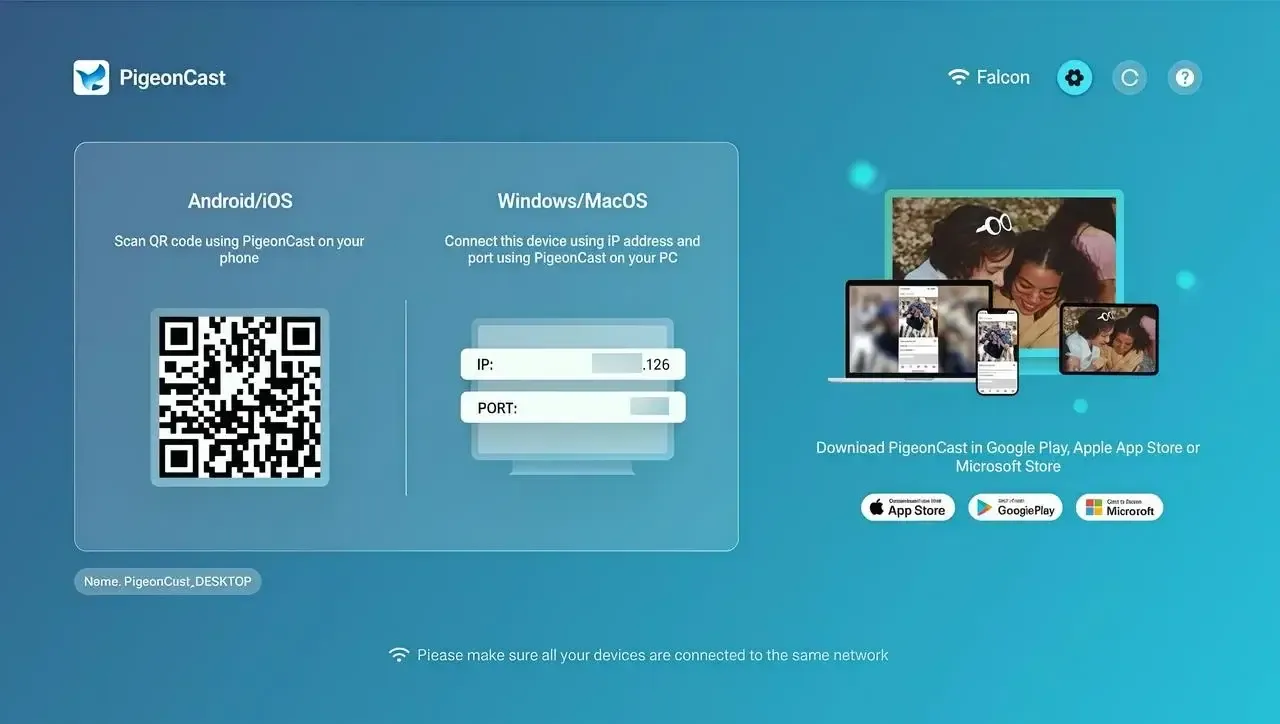

PigeonCast Screen Mirroring

Official Download


Step 1. Connect your iPhone and TV to the same wireless network.
Step 2. Install the PigeonCast screen mirroring app on your compatible TV or streaming device, then open the app.
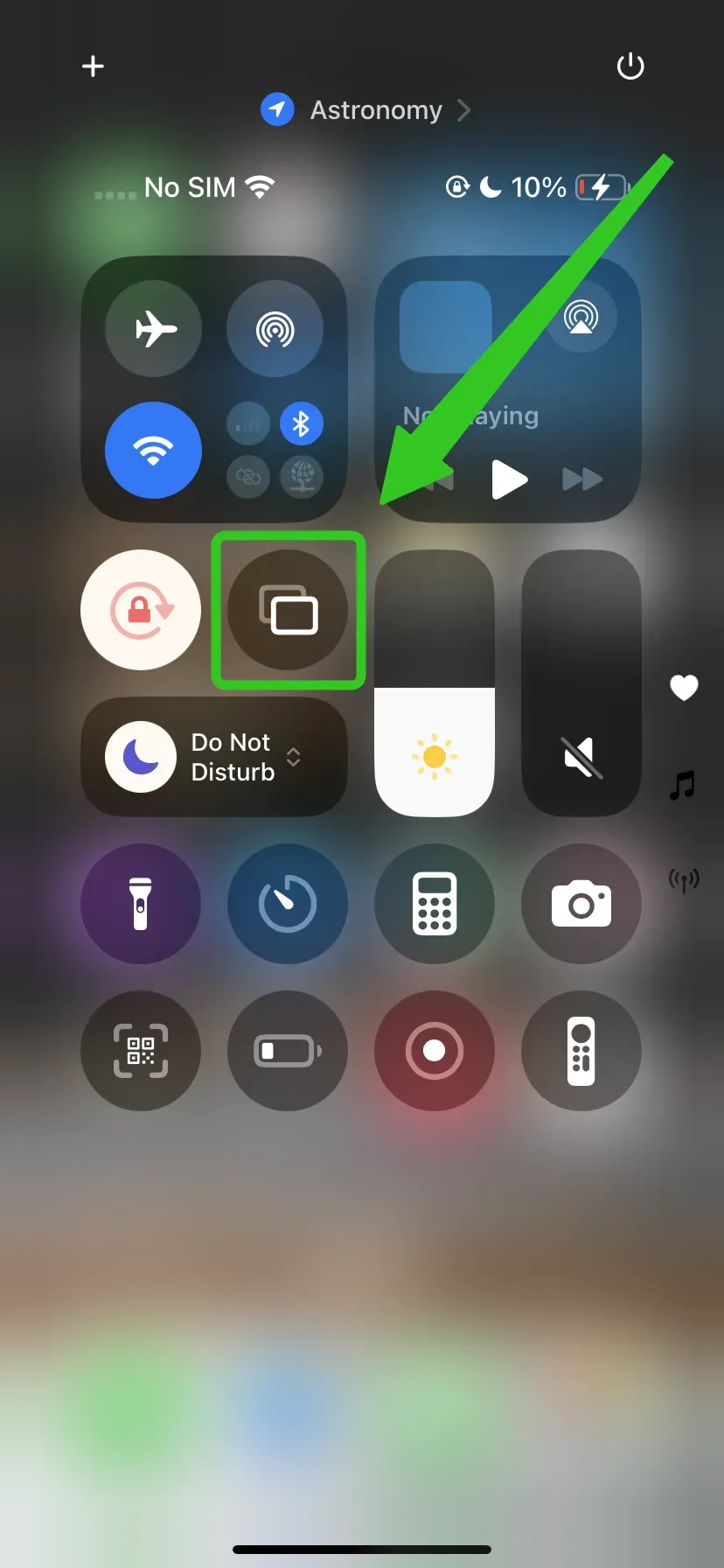
Step 3. Open Control Center on your iPhone and tap Screen Mirroring to find your TV or connected device.
Tip: For a more stable connection, we recommended you also use PigeonCast on your iPhone. You just need to launch the app, scan the QR code on your TV, and screen mirroring starts.
Step 4. Enter the on-screen code to confirm the connection.
Step 5. Once connected, your iPhone screen will appear on your TV with wireless mirroring enabled.
Way 3. Use HDMI Adapter
How to mirror iPhone on TV without Apple TV? Apple's Lightning Digital AV Adapter or USB-C to HDMI adapter provides a reliable wired connection. This method is ideal when Wi-Fi is weak, unstable, or unavailable, ensuring smooth video and audio playback.
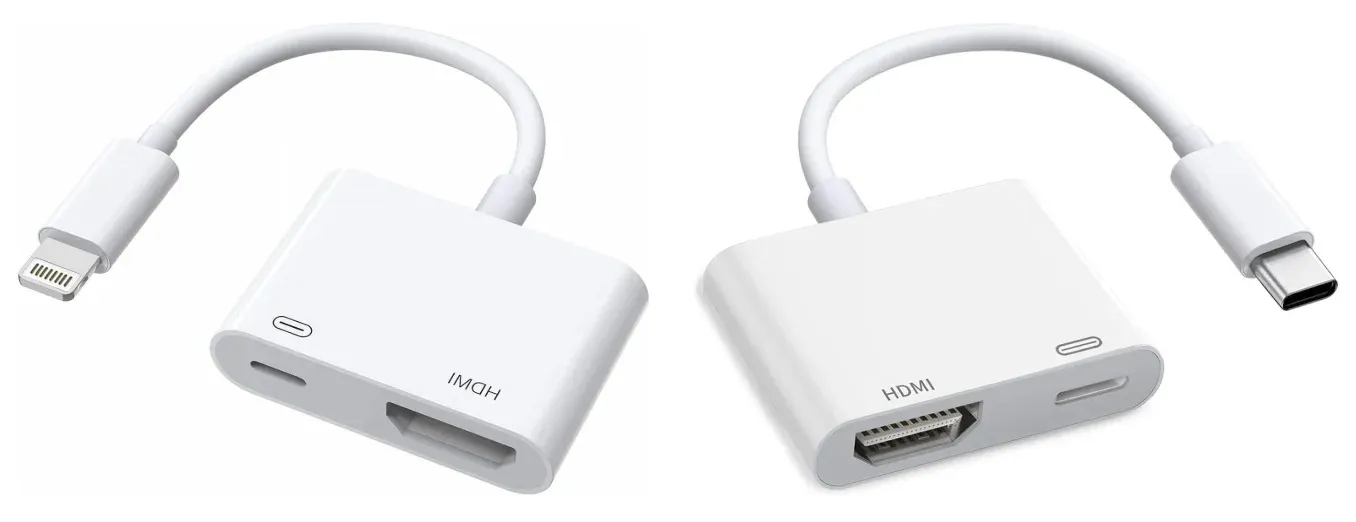
Step 1. Plug the Lightning Digital AV Adapter or USB-C to HDMI adapter into your iPhone.
Step 2. Connect an HDMI cable from the adapter to your TV.
Step 3. Select the correct HDMI channel on your TV.
Step 4. Your iPhone screen will mirror instantly, with both video and audio.
Why Choose the PigeonCast iPhone-to-TV Mirroring App
If you're looking for a simple, reliable way to mirror your iPhone to a TV without Apple TV, PigeonCast is a great option. Unlike other methods that rely on specific TV models or cables, PigeonCast works across multiple platforms and devices, offering wireless mirroring with high-quality video and audio.
- Supports AirPlay, Google Cast, and its own solution for easy streaming.
- Supports reverse control after casting, allowing you to control your device from the TV.
- Stream up to 2K resolution with an adjustable frame rate for smooth playback.
- Protects your privacy, ensuring no data leakage during mirroring.
- Cast YouTube videos or browser tabs directly from your phone.
Final Verdict
How to mirror my iPhone to my TV without Apple TV? If you own a newer AirPlay-compatible TV, you can mirror directly with no extra equipment. For TVs without AirPlay, apps like PigeonCast or a compatible adapter are excellent alternatives. All options let you enjoy an immersive screen mirroring experience with smooth video and audio.
How to Mirror iPhone to TV Without Apple TV FAQ
How do I mirror my iPhone to my TV?
If your TV supports AirPlay, this is the easiest method. If your TV doesn't support AirPlay, you can use a screen mirroring app like PigeonCast. For a wired connection, Apple's Lightning Digital AV Adapter provides a reliable solution.
Do you need Apple TV to screen mirror?
No. Many modern smart TVs, including Samsung, LG, Sony, Roku, and Vizio models, come with AirPlay 2 built in, allowing you to mirror your iPhone directly without extra hardware. If your TV doesn't support AirPlay, you can still mirror your iPhone using a screen mirroring app like PigeonCast. Alternatively, a wired connection with a compatible adapter and an HDMI cable lets you mirror your iPhone to almost any TV reliably.
Can you mirror without AirPlay?
Yes, you can mirror your iPhone without AirPlay. If your TV doesn't support AirPlay, there are still reliable options. You can use a screen mirroring app like PigeonCast, which works across multiple platforms and devices, allowing you to wirelessly cast your iPhone screen to most smart TVs, Android TVs, and even PCs. Or use a wired connection with a compatible adapter and an HDMI cable.
Why won't my iPhone let me AirPlay to my TV?
If your iPhone won't let you AirPlay to your TV, common reasons include:
- Devices aren't on the same Wi-Fi network
- AirPlay is disabled on the TV
- TV or receiver isn't AirPlay 2 compatible
- Software is outdated
- Temporary network issues
- Firewall or network restrictions
- Device visibility settings
What devices support iPhone mirroring?
iPhone mirroring (via AirPlay) is supported by a variety of devices, including:
- Apple devices: Apple TV (all models with tvOS 11 or later), Mac computers (for AirPlay to Mac feature in macOS Monterey or later).
- Smart TVs with AirPlay 2 support: Samsung TVs (2018 or newer), LG TVs (2019 or newer), Sony TVs (2019 or newer), Vizio Smart TVs (2016 or newer, with updated firmware). For other TV brands, the available method depends on the operating system and receiver support. For example, the best way to mirror iPhone to Skyworth TV may vary depending on whether the model supports AirPlay, Android TV apps, or HDMI input.
- Third-party AirPlay receivers: PigeonCast and similar AirPlay 2 receivers, Roku devices (select models from 2018 onward), Fire TV devices (with apps like AirScreen).
- External AV receivers or speakers with AirPlay 2 support: Brands like Denon, Marantz, Yamaha, Sonos, and others.
Clara Rossi is an experienced technology editor and a seasoned expert in screen mirroring and casting technologies. With a keen eye for detail and a deep understanding of how to seamlessly connect devices, Clara excels at optimizing user experiences for effortless sharing and streaming. Whether you're seeking quick fixes or advanced tips, her expertise and responsiveness ensure that every query is met with a well-informed and efficient solution.