
If you want to know how to mirror iPhone to Skyworth TV, there are several easy ways to do it, including AirPlay, screen mirroring apps, and HDMI adapters. Whether your Skyworth TV supports AirPlay or not, this guide will show you the fastest methods to connect your iPhone and fix common screen mirroring problems.
Can You Mirror iPhone to Skyworth TV
Yes, you can mirror an iPhone to a Skyworth TV, but the method depends on the casting protocol supported by your TV. Some newer Skyworth TV supports Apple AirPlay, while many models mainly use Chromecast or Miracast, which are not fully compatible with iPhone screen mirroring. To check if AirPlay is available on your Skyworth TV, follow these steps:
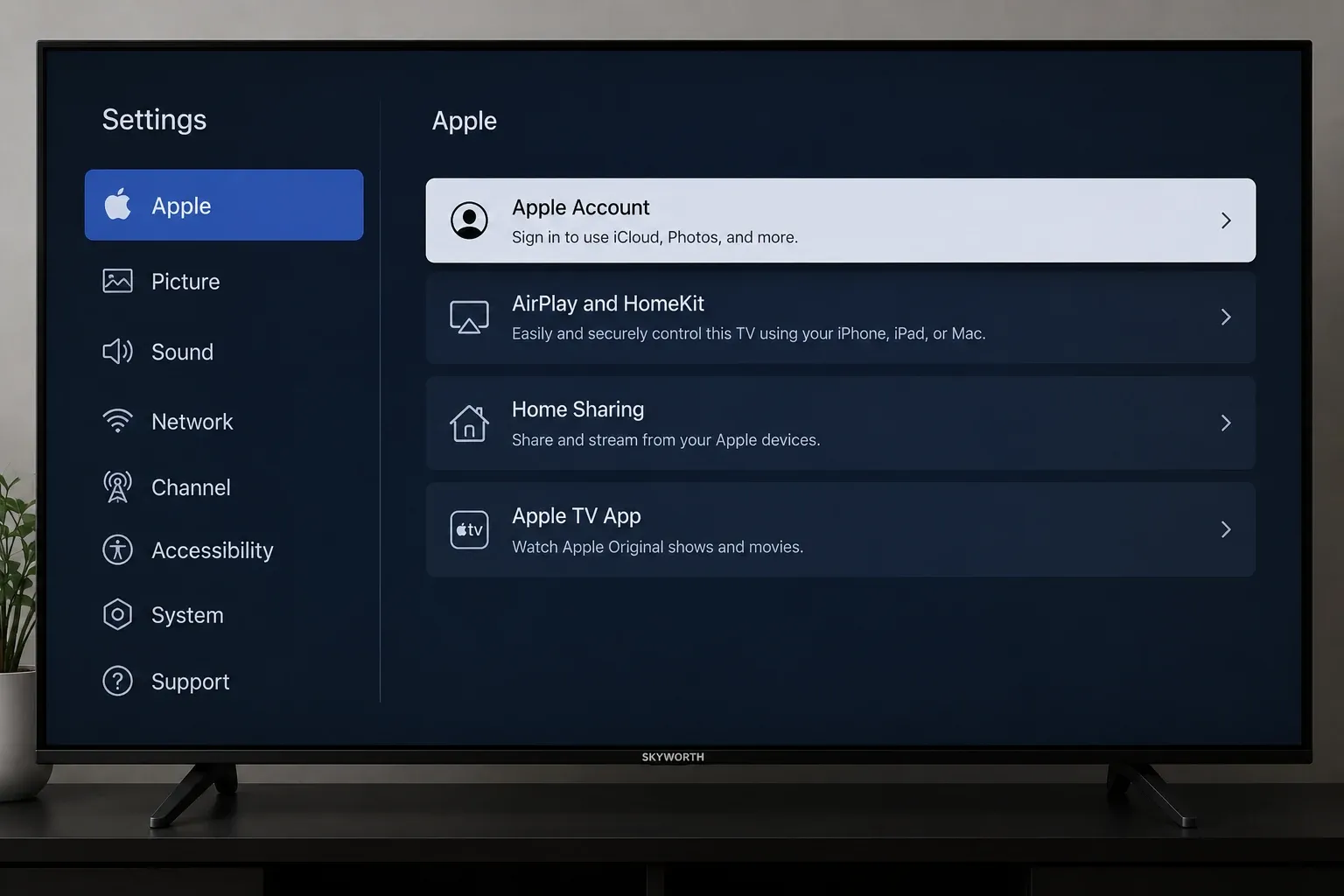
Step 1. Turn on your Skyworth TV and make sure it is connected to the internet.
Step 2. Press the Home button on your remote control, go to Settings > Network, Connection, or Device Preferences. The exact name may vary depending on your TV model.
Step 3. Look for an option called AirPlay, Apple AirPlay, AirPlay and HomeKit, or Screen Mirroring.
Step 4. If you see the AirPlay option, open it and make sure AirPlay is turned on.
Step 5. Connect your iPhone and Skyworth TV to the same WiFi network.
Step 6. On your iPhone, open Control Center and tap Screen Mirroring to see whether your Skyworth TV appears in the device list.
How to Mirror iPhone to Skyworth TV
There are several ways to mirror an iPhone to a Skyworth TV, including AirPlay, screen mirroring apps, and HDMI adapters. The best method depends on whether your Skyworth TV supports AirPlay and whether you want a wireless or wired connection.
Method 1. Mirror iPhone to Skyworth TV with AirPlay
If your Skyworth TV supports AirPlay, this is the easiest way to mirror your iPhone wirelessly. Since AirPlay is built into iPhone, you do not need to install extra apps or use additional hardware.
Step 1. Connect your iPhone and Skyworth TV to the same Wi-Fi network.
Step 2. On the TV, turn on AirPlay from the Settings menu.
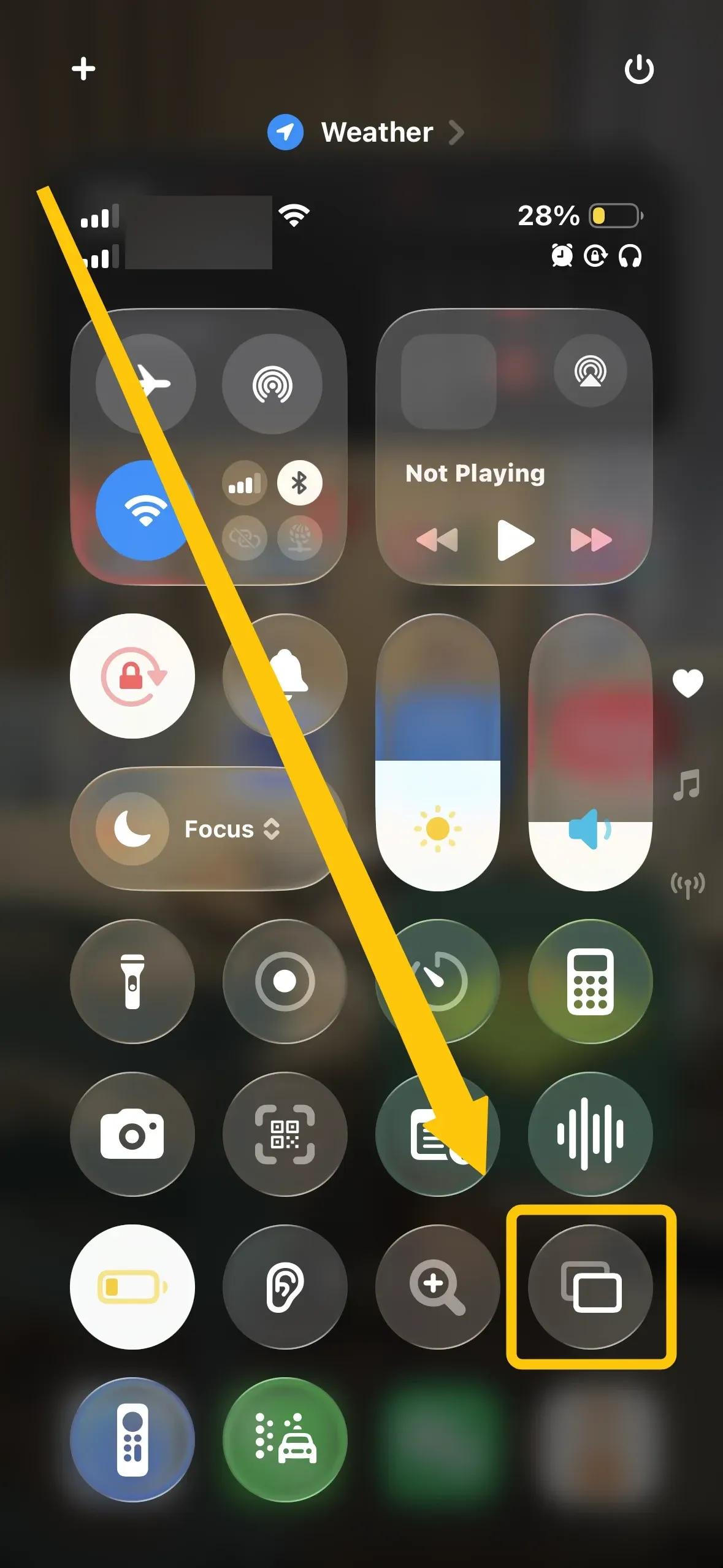
Step 3. On iPhone, open the Control Center on your iPhone.
- On iPhone X or later, swipe down from the top-right corner.
- On iPhone 8 or earlier, swipe up from the bottom of the screen.
Step 4. Tap Screen Mirroring to select your Skyworth TV from the device list.
Step 5. Select the TV and enter the AirPlay passcode if it appears on the screen.
Step 6. Enter the AirPlay code displayed on your TV screen if prompted. After connecting, your iPhone screen will appear on the Skyworth TV automatically.
Method 2. Mirror iPhone to Skyworth TV with PigeonCast
If your Skyworth TV does not support native AirPlay, you can still mirror your iPhone using PigeonCast. Unlike standard screen mirroring apps, PigeonCast supports multiple casting protocols, including AirPlay, Google Cast, DLNA, and its own wireless casting technology, making it compatible with more Skyworth TV models.
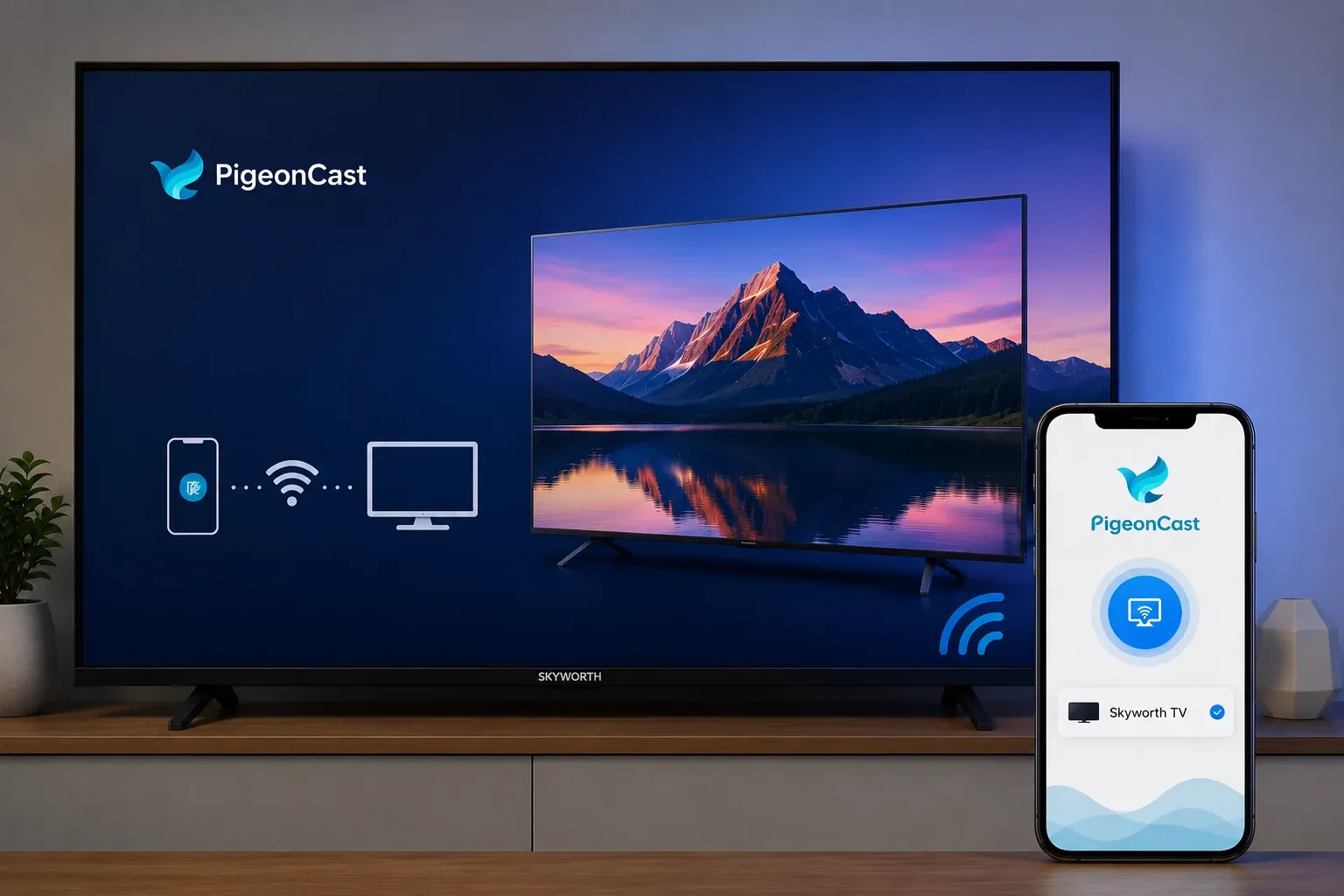
Step 1. Connect your iPhone and Skyworth TV to the same wireless network.
Step 2. Install PigeonCast on the iPhone from App Store and the TV from app shop if available.
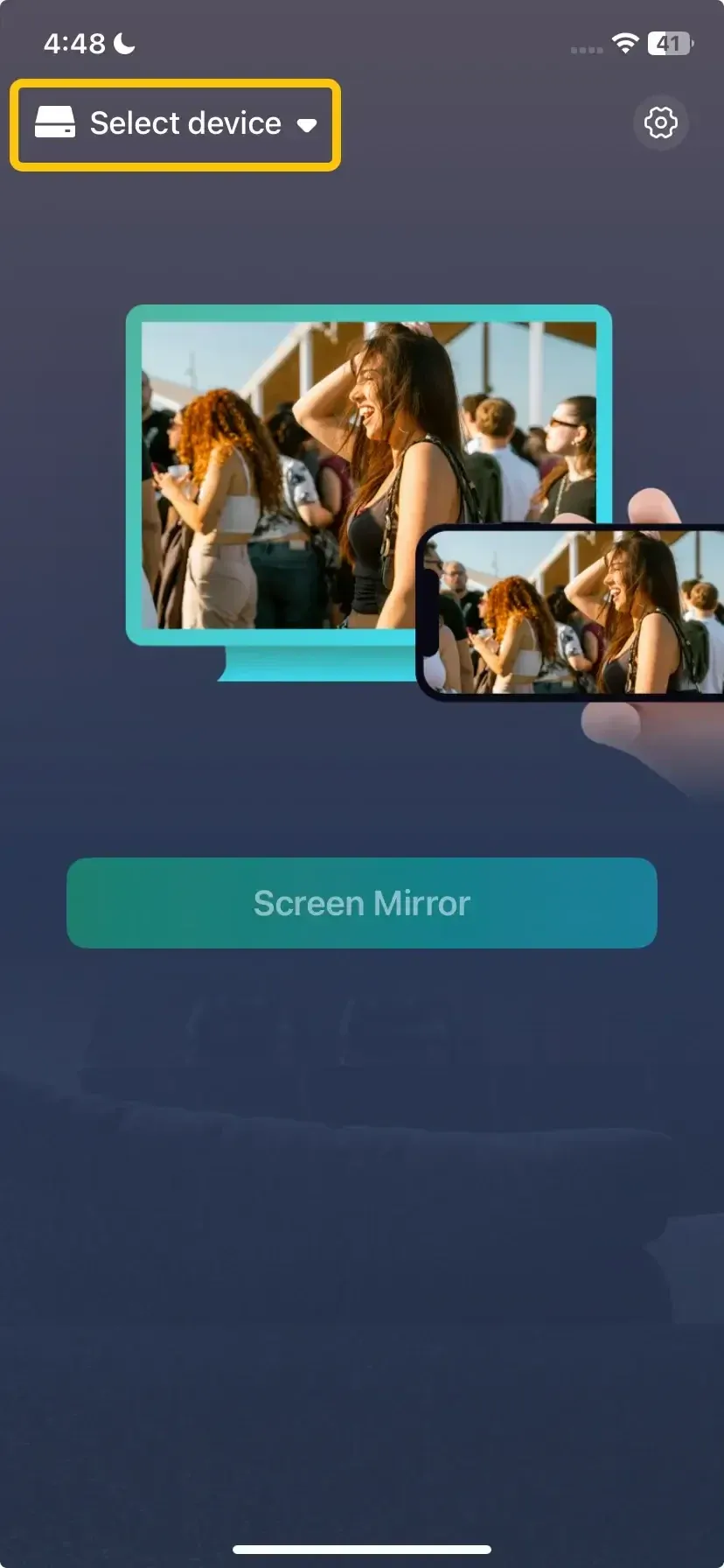
Step 3. Open PigeonCast on your iPhone, tap Select device to choose your Skyworth TV from the available list.
Step 4. Enter the onscreen request to confirm the pairing process.
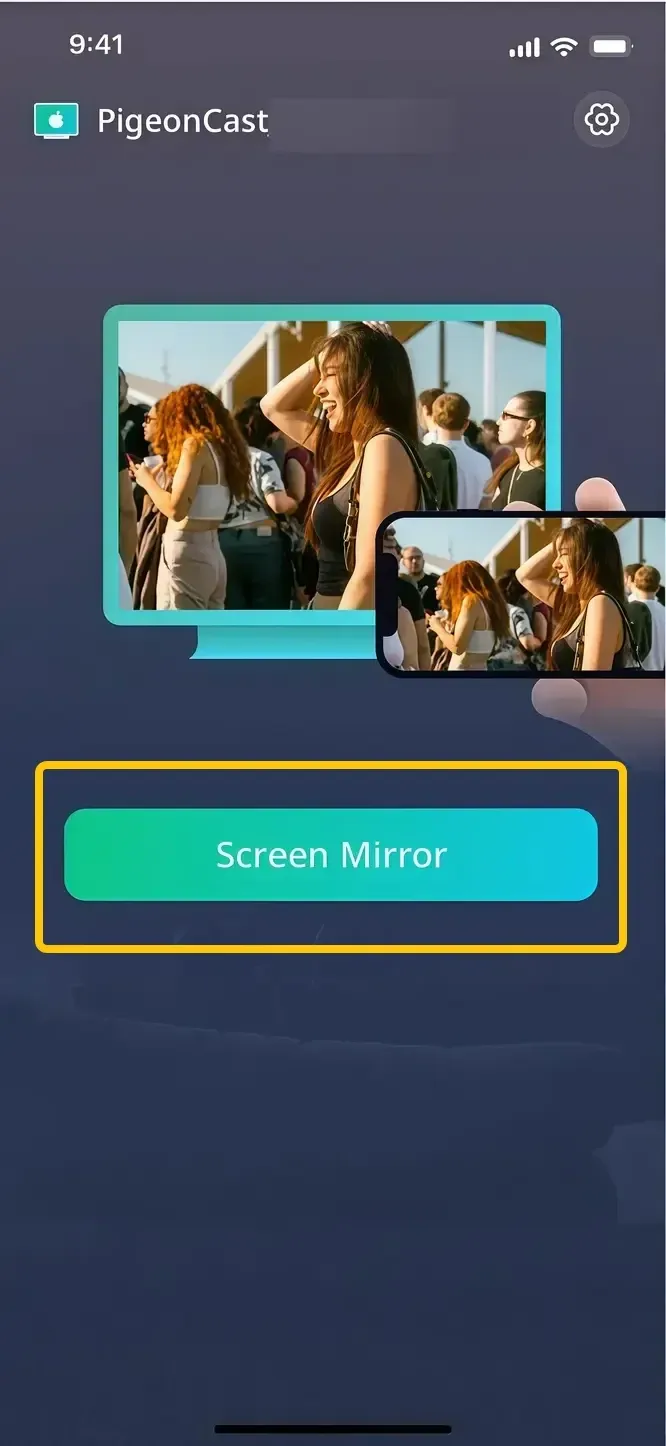
Step 5. When you finish the connection, tap Screen Mirror to start screen mirroring from your iPhone.
Method 3. Mirror iPhone to Skyworth TV with HDMI
If your Skyworth TV does not support AirPlay or you want a more stable connection, using an HDMI cable is a reliable option. Unlike wireless screen mirroring, an HDMI connection does not depend on WiFi and usually delivers lower latency for gaming, streaming, and presentations. Before you start, make sure you have the correct adapter for your iPhone model:
- iPhone 15 series and newer: USB-C to HDMI adapter
- iPhone 14 series and older: Lightning to HDMI adapter
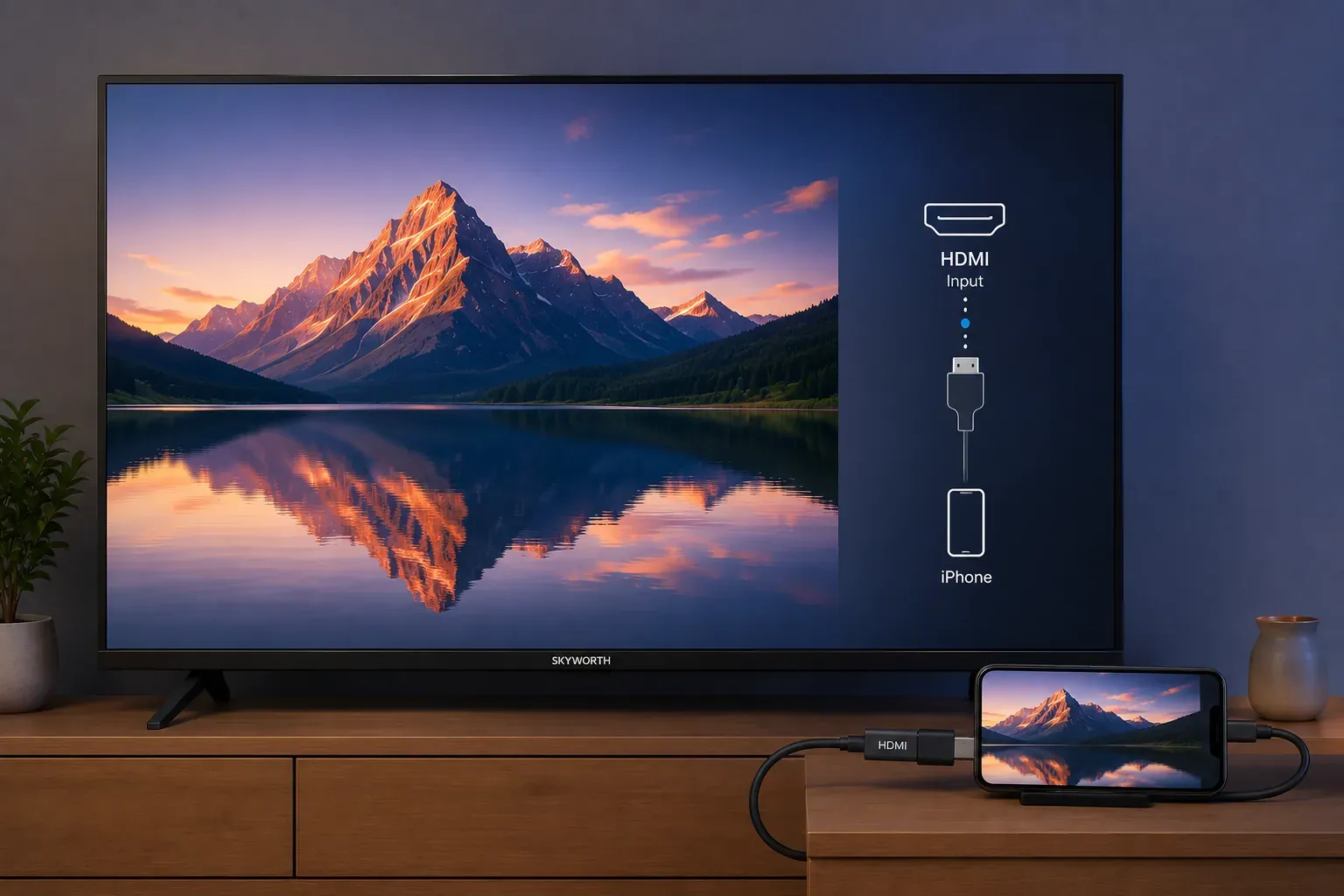
Step 1. Connect the HDMI adapter to your iPhone.
Step 2. Plug one end of the HDMI cable into the adapter and connect the other end to your Skyworth TV.
Step 3. Turn on your Skyworth TV and press the Input or Source button on the remote control.
Step 4. Select the HDMI input source connected to your iPhone.
Step 5. Wait a few seconds for your iPhone screen to appear on the Skyworth TV automatically.
Once connected, everything displayed on your iPhone screen will be mirrored to the TV in real time. This method works well for watching videos, playing games, and screen sharing without wireless connection issues.
If iPhone Screen Mirroring to Skyworth TV Is Not Working
If your iPhone cannot detect your Skyworth TV or AirPlay screen mirroring keeps failing, the problem is usually related to AirPlay settings, WiFi connection, or compatibility issues. Below are the most common fixes you can try.
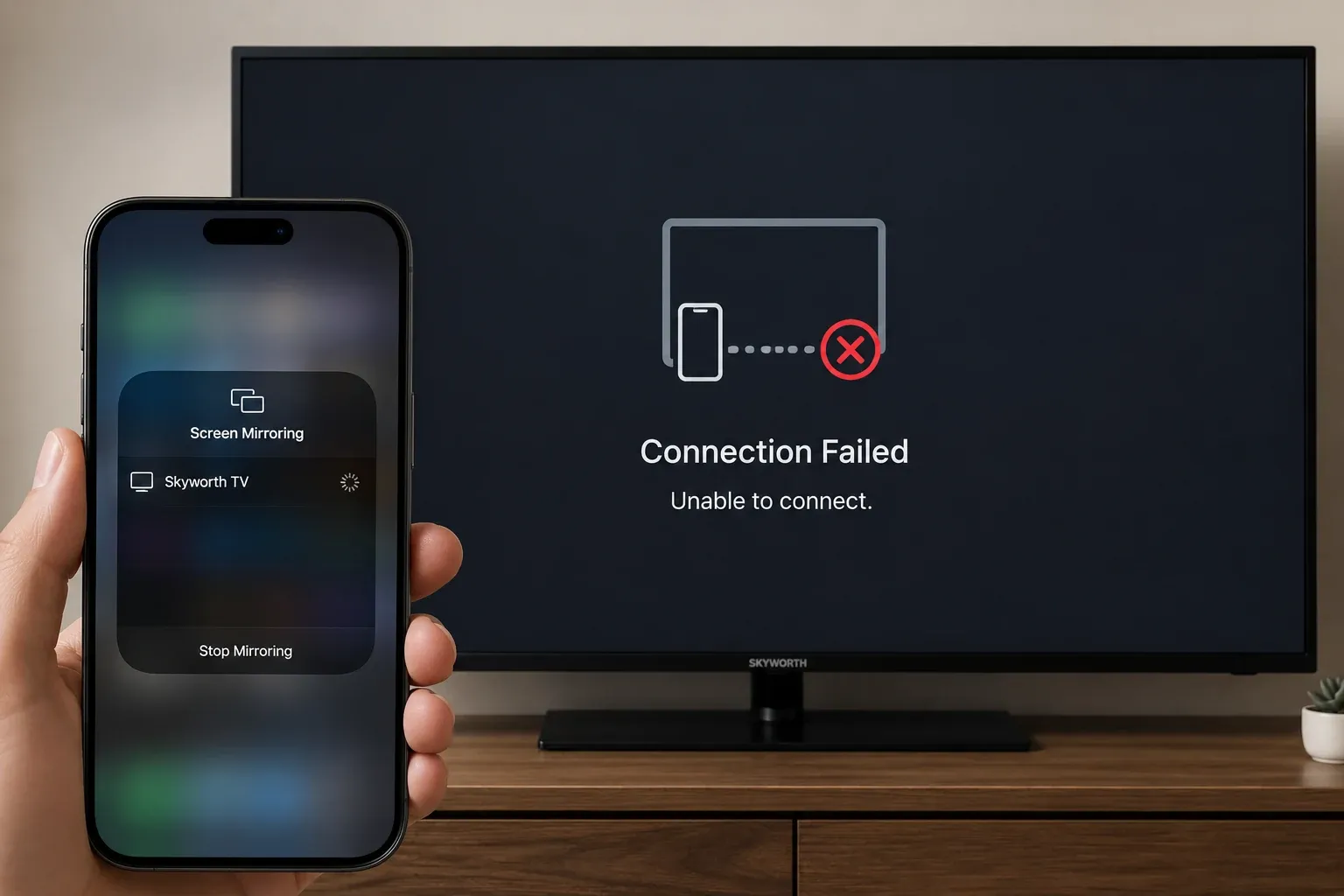
- Skyworth TV not showing up on iPhone or unable to connect with AirPlay:
Make sure your iPhone and Skyworth TV are connected to the same WiFi network and that AirPlay is enabled on the TV. You should also disable VPN services on your iPhone because VPN connections may interfere with AirPlay detection.
- Screen mirroring keeps disconnecting or is laggy:
Restart your iPhone, router, and Skyworth TV, then reconnect the devices. Moving your iPhone closer to the router may also improve wireless stability.
- AirPlay option missing on Skyworth TV:
Your TV model may not support native AirPlay because many Skyworth TVs mainly use Chromecast or Miracast. In this case, try using PigeonCast or an HDMI connection instead.
- Black screen or no sound during screen mirroring:
Update your iPhone and Skyworth TV to the latest software version, reconnect the devices, and make sure the correct audio output is selected on your iPhone and TV.
To Sum Up
There are several ways to mirror an iPhone to a Skyworth TV, including AirPlay, screen mirroring apps, and HDMI connections. If your Skyworth TV supports AirPlay, it is usually the easiest wireless option. If AirPlay is unavailable or unstable, PigeonCast can help improve compatibility across different Skyworth TV models. For users who want the most stable connection, using an HDMI adapter is still a reliable choice.
How to Mirror iPhone to Skyworth TV FAQ
Why won't my iPhone connect to my TV through screen mirroring?
If your iPhone cannot connect to your TV through screen mirroring, the issue is usually related to network settings, AirPlay compatibility, or device configuration. Common reasons include:
-
Your iPhone and TV are connected to different WiFi networks
-
AirPlay is disabled on the TV
-
The TV does not support AirPlay
-
The iPhone or TV software is outdated
-
The WiFi connection is unstable
-
The TV is too far from the router
-
Temporary system glitches on the iPhone or TV
Can an iPhone mirror to a non-Apple TV?
Yes, an iPhone can mirror to a non-Apple TV if the TV supports AirPlay or uses a compatible screen mirroring app. Many smart TVs, including some Skyworth, Samsung, LG, and Android TV models, support wireless screen mirroring through AirPlay, Chromecast-based apps, or HDMI connections.
How to Mirror iPhone to Skyworth TV Without WiFi via Bluetooth?
No, you cannot directly use Bluetooth. iPhone screen mirroring mainly relies on AirPlay or HDMI connections instead of Bluetooth. Bluetooth on TVs is usually used for audio devices like speakers or headphones, not full screen mirroring. To mirror your iPhone to a Skyworth TV, you should use AirPlay, a screen mirroring app like PigeonCast, or an HDMI adapter.
Can I use Chromecast to mirror iPhone to Skyworth TV?
Yes, you can use Chromecast with a Skyworth TV to cast videos and media from an iPhone, but iPhone does not support native Chromecast screen mirroring like Android devices do. To mirror the entire iPhone screen to a Chromecast-enabled Skyworth TV, you usually need a compatible screen mirroring app such as PigeonCast.
How to mirror iPhone to Skyworth TV without WiFi?
You can mirror an iPhone to a Skyworth TV without WiFi by using an HDMI connection. This method provides a stable screen mirroring experience and does not require an internet connection.
- iPhone 15 series and newer: Use a USB-C to HDMI adapter
- iPhone 14 series and older: Use a Lightning to HDMI adapter
Connect the adapter to your iPhone, plug the HDMI cable into your Skyworth TV, then switch the TV input source to the correct HDMI port. Your iPhone screen should appear on the TV automatically.
Does PigeonCast work on all Skyworth TV models?
PigeonCast works with most Skyworth TV models that support Android TV, Google TV, or compatible casting receivers. Since Skyworth TVs use different systems and casting protocols depending on the model and region, compatibility may vary. PigeonCast supports AirPlay, Google Cast, DLNA, and its own casting protocol, which helps improve support across more Skyworth TVs.
Clara Rossi is an experienced technology editor and a seasoned expert in screen mirroring and casting technologies. With a keen eye for detail and a deep understanding of how to seamlessly connect devices, Clara excels at optimizing user experiences for effortless sharing and streaming. Whether you're seeking quick fixes or advanced tips, her expertise and responsiveness ensure that every query is met with a well-informed and efficient solution.