
To learn how to mirror phone to TV, you must align the phone's protocol with the TV's receiver. This guide eliminates the guesswork by matching specific connection methods to your device and environment. If wireless fails, use the wired fallback or skip to the symptom-based troubleshooting below.
Quick Answer: Mirror Phone to TV in 3 Steps
Wireless discovery requires a shared Wi-Fi band and active Bluetooth. Ensure your TV is set to a discoverable input mode before starting this sequence.
-
Connect phone and TV to the same local network.
-
Open your phone screen mirroring or cast menu and choose the TV.
-
Accept pairing on TV and run a 15 second test clip.
Stop repeating the same action if discovery fails twice. Continuous retries rarely fix a protocol mismatch. In these cases, move to compatibility checks or use a wired fallback immediately.
Choose Your Connection Strategy Before Setup
Success depends on choosing the right mode and validating your hardware prerequisites. Most mirroring attempts fail not because of a wrong step but because of a fundamental mismatch in settings.
Cast vs Mirror: Choose the Right Mode
-
Screen Mirroring: Duplicates your entire phone screen in real time. Use this for app demos, presentations, or browsing photos.
-
Casting: Sends only the media file to the TV, leaving your phone free as a remote. Use this for movies or long YouTube sessions to save battery and prevent notification interruptions.
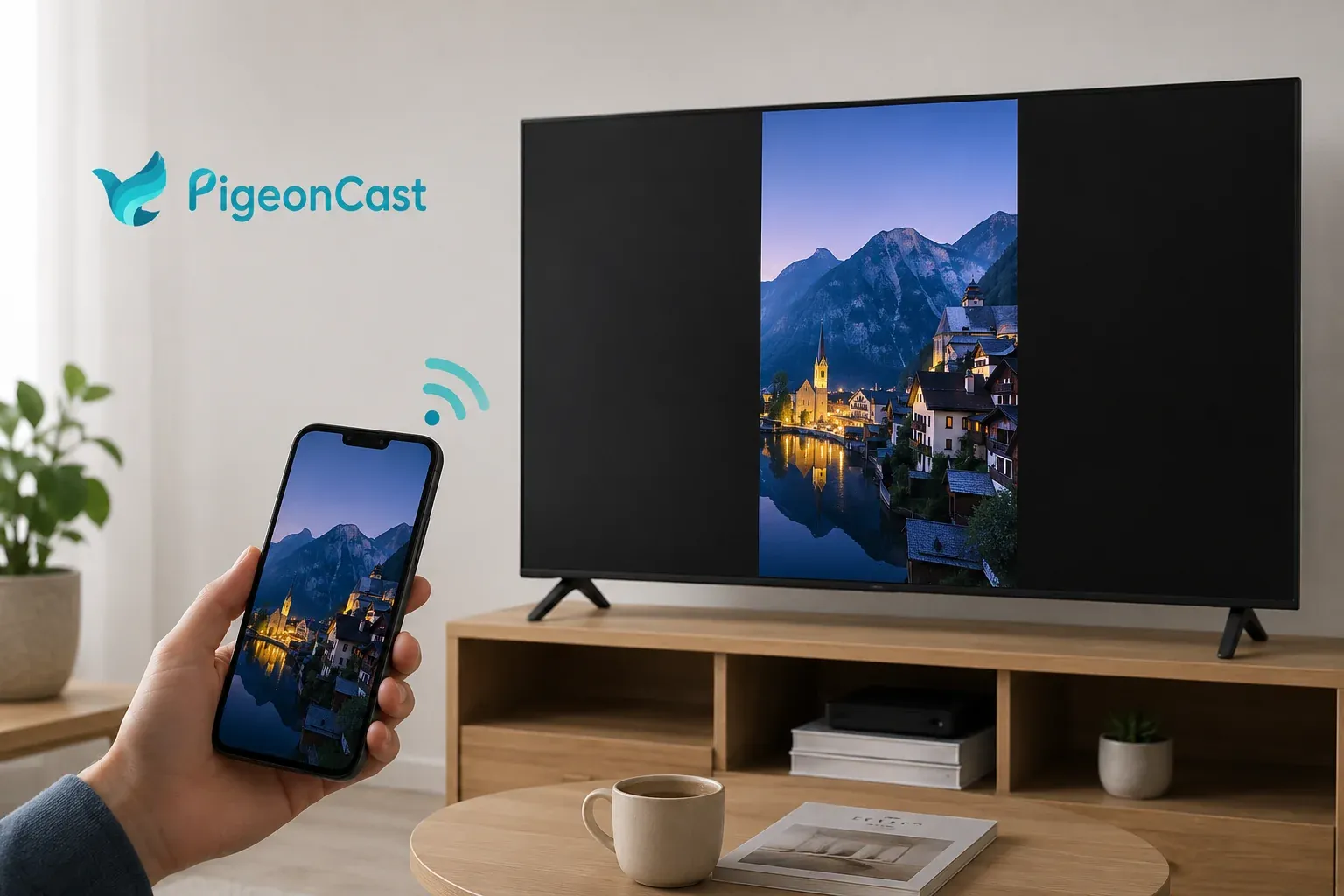
Bonus: If your native system mirroring feels laggy or fails to discover the TV, a dedicated hub like PigeonCast is the most effective fix. Unlike standard OS tools that rely on a single protocol, this free mirroring app uses a self-developed high-speed protocol that bridges the gap between iOS (AirPlay) and Android (Google Cast).


Overall Rating:



By installing the receiver on your TV or on your mobile device, you can force a 4K, 60fps link that bypasses the discovery glitches and bitrate limits of built-in mirroring.
The Four Pillars of Connectivity
Verify these requirements before troubleshooting software settings:
-
Receiver Support: Ensure your TV receiver mode is active in the system settings or the phone will never discover the device.
-
Network Visibility: Both devices must be on the same Wi-Fi segment. Guest networks often use client isolation which hides the TV from your phone.
-
Permission Prompts: Many Smart TVs require first time pairing approval. Keep your TV screen visible to accept the authorization code.
-
Content Limits: Streaming apps with DRM may block full screen mirroring. Test your link with a browser video first to confirm the base connection.
How to Mirror iPhone to TV
Apple's AirPlay 2 protocol is now standard on most Samsung, LG, Sony, and Vizio Smart TVs (2018 or later), as well as Roku and Fire TV devices. To use it, you'll need an iPhone 5s or newer running at least iOS 12. Wireless iOS connections work best when the network is clear; to ensure success, close data-heavy apps and follow this sequence:
-
Connect iPhone and TV to the same network.
-
Enable AirPlay mode in your TV Settings menu.
-
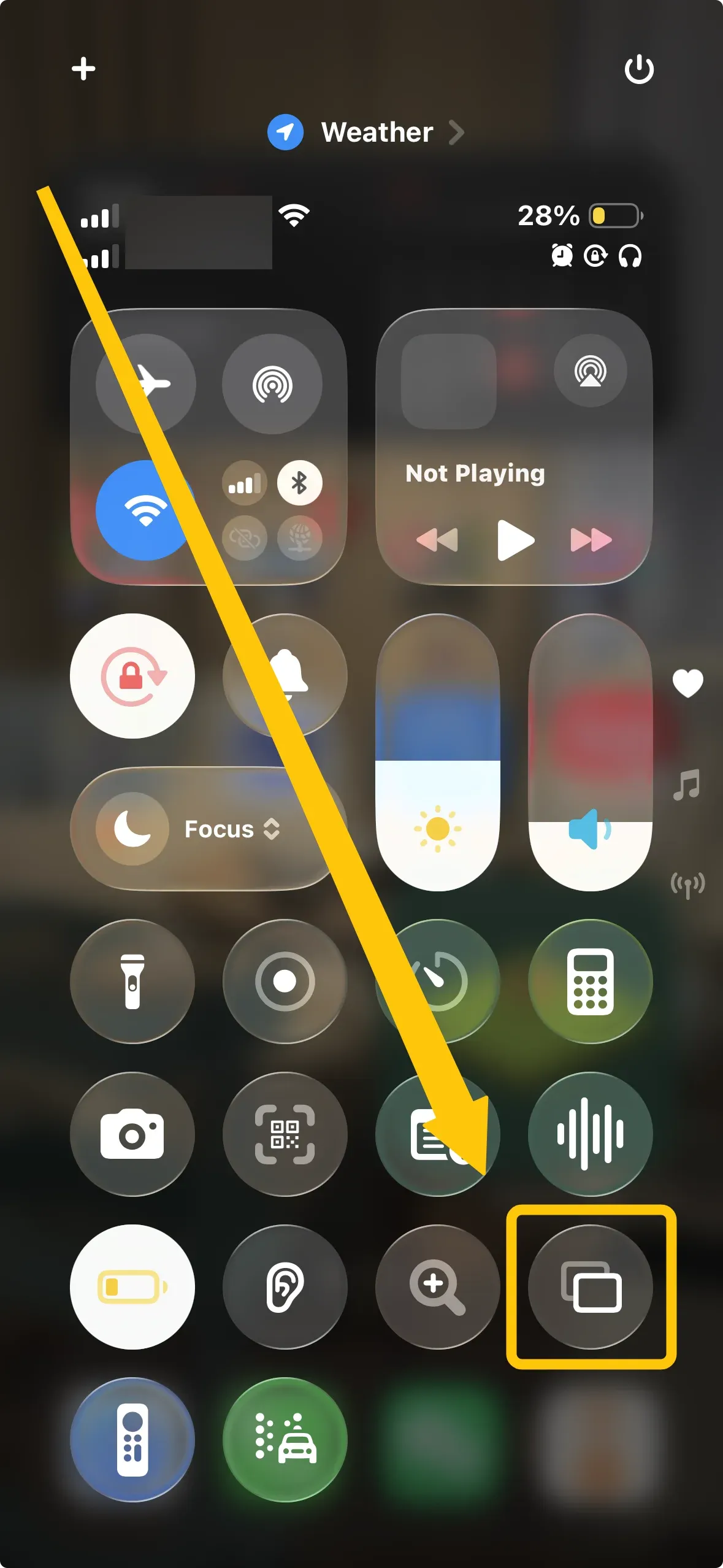
Open Control Center on your iPhone, tap Screen Mirroring, and select your TV.
-
Enter the pairing code from the TV screen if prompted.
If the iPhone identifies the TV but fails to sync, toggle the TV receiver mode off and on again to refresh the link. For persistent connection errors, see the troubleshooting section below.
How to Mirror Android to TV
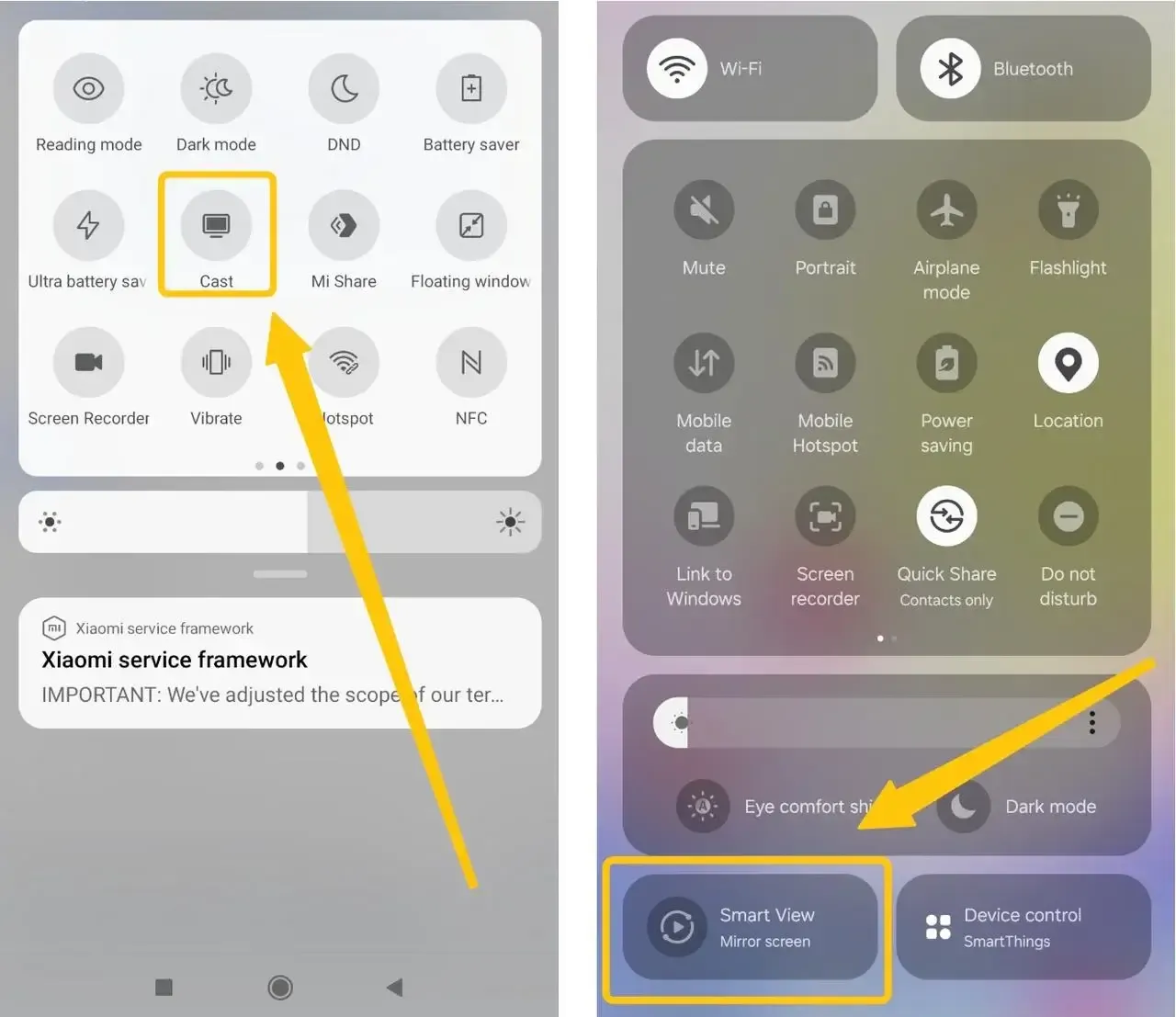
Most Android phones released within the past five years support wireless screen mirroring, including Samsung Galaxy, Google Pixel, and Xiaomi devices. However, the underlying technology varies by brand. Samsung phones commonly use Smart View over Miracast, while Google Pixel phones primarily connect through Google Cast. Other manufacturers may label the feature Cast, Screen Cast, or Wireless Display.
On Xiaomi devices, the feature is generally found under Cast in the connection settings. The steps to mirror a Xiaomi phone to a TV may vary slightly depending on the MIUI or HyperOS version. When the mirroring shortcut is missing from Quick Settings, search for Cast in the main Settings app.
-
Connect Android and TV to the same network.
-
Enable the Screen Mirroring mode in your TV settings.
-
Open Quick Settings on your Android phone and tap your mirroring icon.
-
Select your TV from the scan list and confirm the prompt on the screen to mirror your Android on the TV.
If the stream drops or stutters, disable battery saver and any active VPNs immediately. For persistent connection errors, see the troubleshooting section below.
How to Mirror Phone to TV Without Standard Wi-Fi
You can bypass internet restrictions using local-only paths. These are reliable solutions for hotels, classrooms, or offices where public Wi-Fi isolation prevents devices from seeing each other.
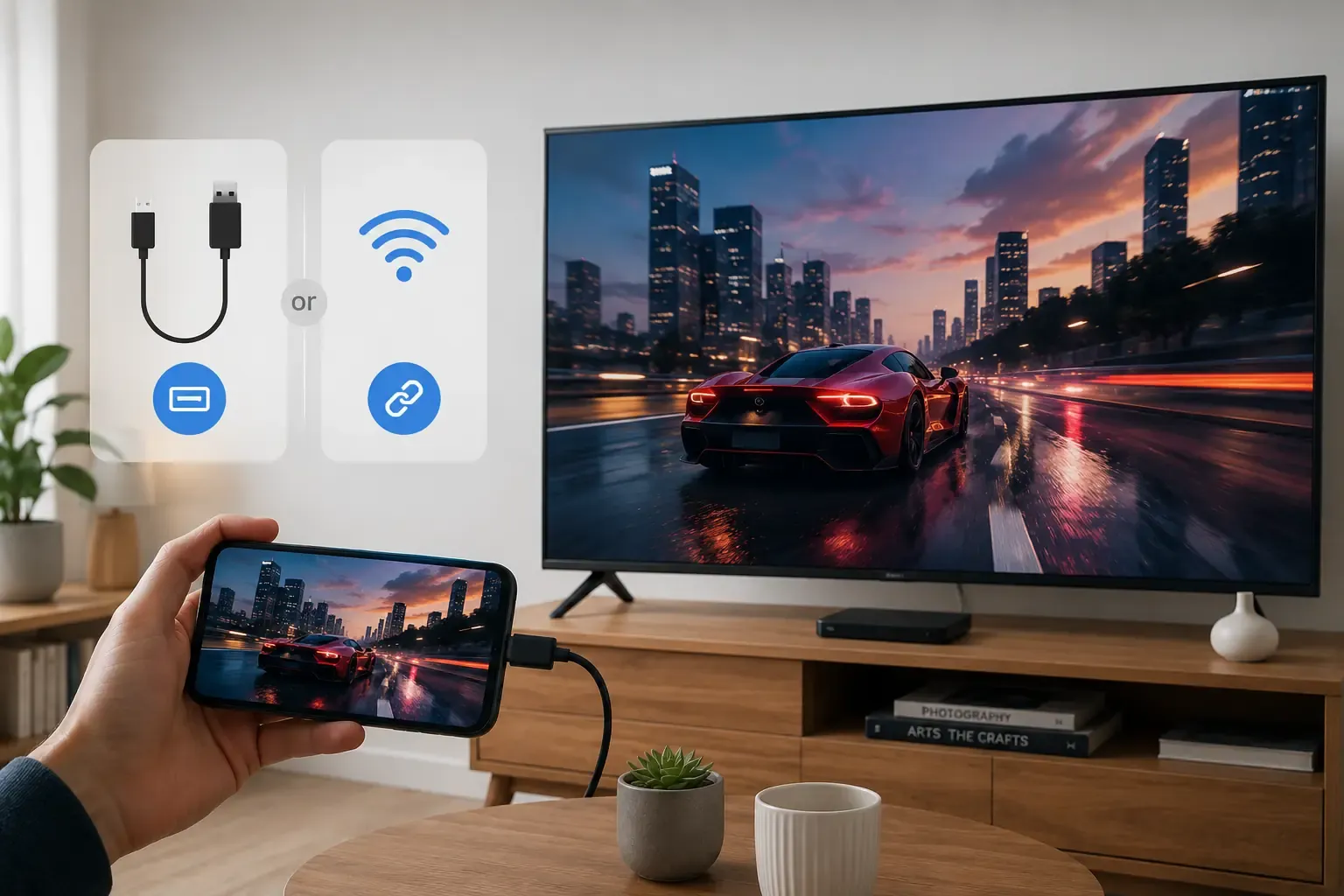
Wired Adapter Path
A physical HDMI mirroring connection is the only 100% reliable fix for high-stakes environments. It ignores network congestion and eliminates wireless sync errors.
-
Plug a USB-C to HDMI (Android/iPhone 15+) or Lightning to HDMI adapter into your phone.
-
Connect a standard HDMI cable from the adapter to an open port on your TV.
-
Switch the TV Input to the corresponding HDMI source.
-
Your phone screen will appear instantly without any pairing codes or Wi-Fi settings.
Local Wireless Bridge (Hotspot)
If building Wi-Fi blocks discovery, use your phone's hotspot to create a private network segment. This forces the TV and phone to see each other.
-
Turn on the Mobile Hotspot in your phone settings.
-
On your TV, go to Network Settings and connect to your phone's hotspot signal.
-
Once both are on the same hotspot, open the Mirroring/Cast menu on your phone.
-
Select your TV as you would on a normal home network.
This bridge method bypasses guest network firewalls and is the fastest way to fix discovery issues in hotels or shared workspaces.
Troubleshooting Phone-to-TV Mirroring by Symptom
When a mirroring connection fails, avoid random settings changes. Use the symptom-based guide below to isolate the root cause and apply the correct fix order.
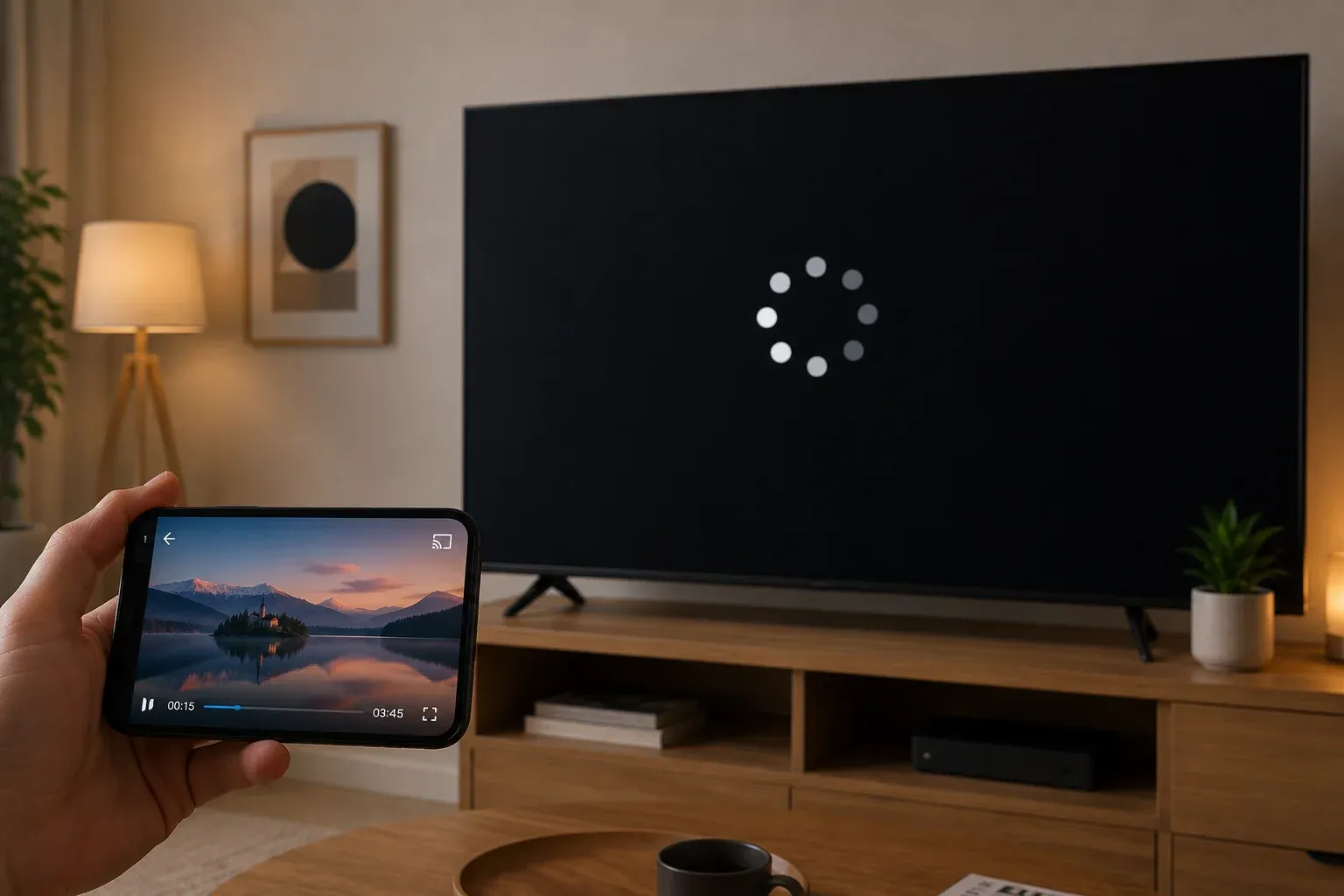
TV Name Does Not Appear on Phone
This usually indicates a visibility block rather than a hardware failure. Most discovery issues stem from network isolation or disabled receivers.
-
Fix 1 Confirm both devices share the same Wi-Fi name and frequency band (e.g., both on 5GHz).
-
Fix 2 Toggle the receiver mode off and back on within the TV settings menu.
-
Fix 3 Restart your phone Wi-Fi to force a fresh scan of the local network.
Connection Starts Then Immediately Drops
Frequent disconnects are typically caused by power-saving triggers or network congestion.
-
Fix 1 Disable Battery Saver or Power Mode on your phone.
-
Fix 2 Move your phone closer to the router to reduce signal jitter.
-
Fix 3 Turn off VPNs or proxy settings that might be rerouting your local traffic.
Black Screen with Audio Only
A black screen usually means the connection is active but the content is restricted or the sync is stuck.
-
Fix 1 Test with local photos or a web browser to rule out DRM (protected content) blocks from apps like Netflix.
-
Fix 2 Close the mirroring session and restart the TV receiver app.
-
Fix 3 If wireless fails twice, switch to a wired HDMI adapter to bypass software blocks.
Video and audio out of sync
Lag or stuttering happens when the network cannot handle the stream bitrate or the phone is overheating.
-
Fix 1 Close all background apps on your phone to free up processing power.
-
Fix 2 If the TV supports it, use Casting instead of Mirroring for longer video sessions.
-
Fix 3 Reduce the source video quality (e.g., from 4K to 1080p) to lower the data load.
For a deeper technical checklist on display failures, see screen mirroring black screen checklist.
Summary
Successful mirroring requires matching your connection mode to your network environment. Use wireless paths for convenience and wired adapters for guaranteed stability. If discovery fails, verify your TV receiver is active and both devices share the same Wi-Fi band before retrying. Prioritize casting for long videos and mirroring for interactive tasks to ensure a fast, lag-free experience.
How to Mirror Phone to TV FAQ
Why is my TV not showing up for screen mirroring?
-
Frequency Band Mismatch
-
Disabled Receiver Mode
-
AP Isolation (Access Point Isolation)
-
Device Sleep States
-
Incompatible Protocols
-
VPN or Proxy Interference
-
Pending Firmware Updates
Where is screen mirroring in your settings?
To find screen mirroring quickly, use the search bar in your Settings app and type "Cast", "Mirror", or "Wireless Display". If searching doesn't work, check these locations:
-
iPhone: Swipe down from the top-right corner to open Control Center and tap the two overlapping rectangles icon.
-
Samsung: Swipe down twice from the top to open the Quick Panel and tap Smart View.
-
Android (Google/Pixel): Go to Settings > Connected devices > Connection preferences > Cast.
-
Other Androids: Go to Settings > Connection & Sharing > Screencast.
Tip: If the icon is missing from your swipe-down menu, tap the Pencil/Edit icon to drag the hidden "Cast" or "Mirror" button into your active tray.
How to mirror iPhone to Samsung TV?
Most Samsung TVs (2018+) support AirPlay 2 natively. Follow these steps:
-
Go to Settings > General > Apple AirPlay Settings and set AirPlay to On.
-
Ensure your iPhone and Samsung TV are on the same Wi-Fi network.
-
Open Control Center on your iPhone, tap the Screen Mirroring icon (two rectangles), and select your TV.
-
Type the 4-digit code shown on the TV into your iPhone.
Can I mirror my phone to a TV via Bluetooth?
No. Bluetooth bandwidth is too low to stream video. It is only used for audio or helping devices "find" each other during the initial setup. To mirror your screen, you must use Wi-Fi or a Wired connection:
-
Wi-Fi: Use AirPlay (iPhone) or Cast/Smart View (Android). Bluetooth should stay ON to help with discovery, but Wi-Fi handles the video.
-
Wired: Use a USB-C to HDMI adapter for a direct, non-wireless connection.
-
Bluetooth Only: This will only work for audio streaming (playing music from your phone through TV speakers).
How do I stop phone notifications from appearing on TV?
-
iPhone: Turn on Focus Mode or Do Not Disturb before mirroring.
-
Android: Go to Settings > Notifications and enable "Hide notifications while mirroring" (available on most modern versions).
Can I mirror my phone while using other apps?
It depends on whether you are Mirroring or Casting:
-
Mirroring: No. Your TV acts as a duplicate of your phone screen. If you switch apps or open a chat, everyone watching the TV will see it.
-
Casting: Yes. When you use the "Cast" icon (e.g., in YouTube or Netflix), only the video is sent to the TV. You can text, play games, or even lock your phone without interrupting the movie.
Clara Rossi is an experienced technology editor and a seasoned expert in screen mirroring and casting technologies. With a keen eye for detail and a deep understanding of how to seamlessly connect devices, Clara excels at optimizing user experiences for effortless sharing and streaming. Whether you're seeking quick fixes or advanced tips, her expertise and responsiveness ensure that every query is met with a well-informed and efficient solution.