
If you want to HDMI screen mirror, connect the right cable or adapter, switch to the correct TV input, and set the output mode on your device. In most homes, this wired path is the quickest way to get stable video with lower delay than wireless casting.
This guide covers iPhone, Android, Windows, and Mac in one flow, so you can choose the right branch fast. You will also get a troubleshooting order, a switch rule, and a wireless method when HDMI is blocked by hardware limits.
What HDMI Screen Mirror Means
HDMI screen mirroring means sending your phone or computer display to a TV through a physical HDMI connection. The TV shows the same screen in real time, including both video and audio, without relying on wireless discovery.
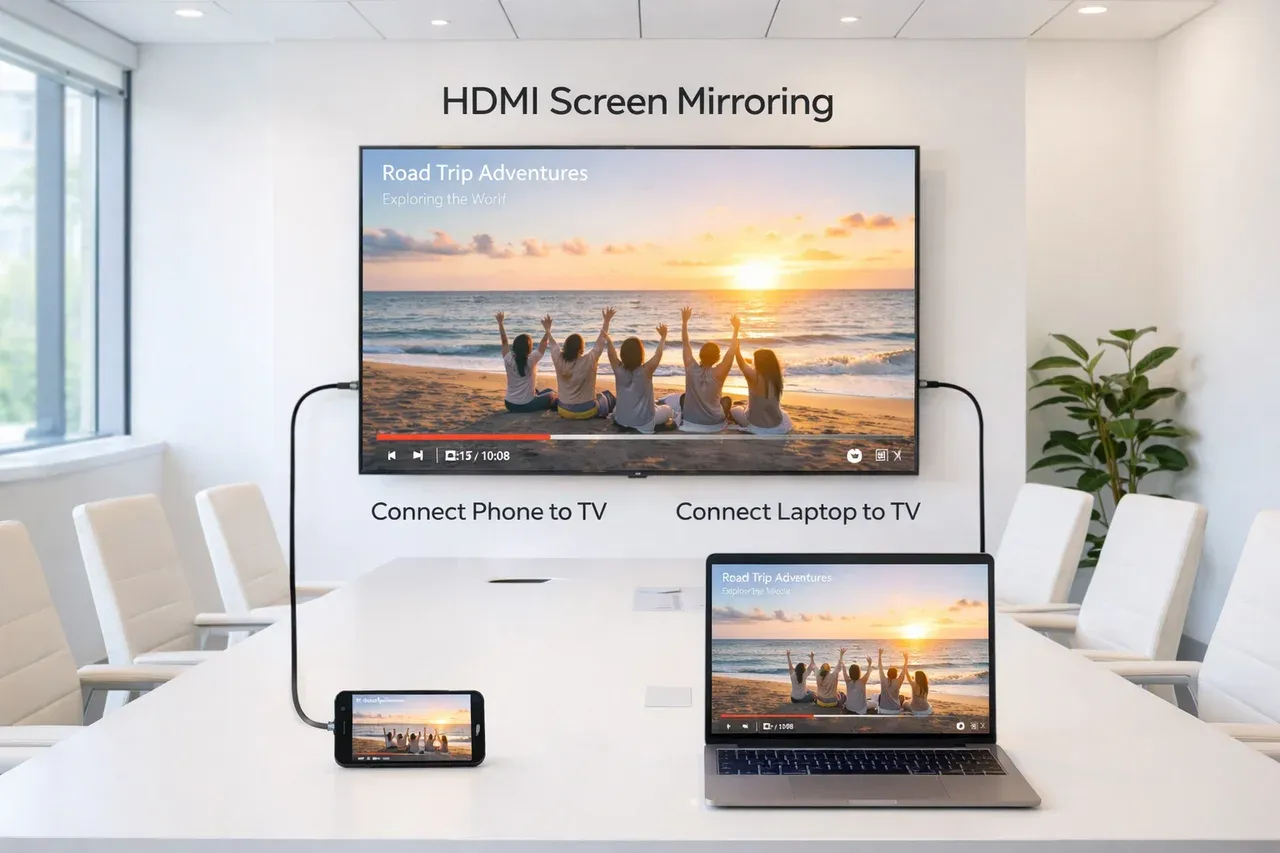
The main advantage of HDMI screen mirroring is stability. A wired connection usually gives lower latency, fewer disconnects, and more consistent picture quality than wireless casting. It is especially useful for presentations, gaming, live demos, and long viewing sessions where smooth playback matters.
HDMI screen mirroring is also simple to control. Once the cable and input are set correctly, the connection is direct and predictable, which makes it a strong first-choice method for many home and office setups.
When to Use HDMI for Screen Mirroring
-
Use HDMI screen mirroring when you need a stable full-screen output with minimal delay.
-
Use HDMI first for presentations, gaming, or live demos where drops are unacceptable.
-
Use wireless casting first only when you must move around freely and can accept occasional lag.
-
If wireless disconnects more than once in 10 minutes, move to HDMI and finish setup before testing anything else.
Prerequisites and Compatibility Checks Before Mirroring with HDMI
Most failures happen before the first cable is connected, usually from adapter mismatch or incorrect input selection. That causes no signal errors even when every device seems powered on. Run this short checklist once, then start setup without guessing.
-
Identify your phone or laptop video port:
-
iPhone: Lightning (older models) or USB-C (newer models).
-
Android: USB-C with video output support.
-
Laptop: HDMI, USB-C, Mini DisplayPort or Thunderbolt.
-
-
Confirm your TV has a free HDMI port and note the exact port number (HDMI 1, 2, or 3).
-
Choose the correct adapter:
-
iPhone Lightning to HDMI adapter, or USB-C to HDMI for USB-C iPhones.
-
USB-C to HDMI for Android and many modern laptops.
-
-
Use a reliable HDMI 2.0 cable if you plan 4K30/60 output.
-
Open TV input/source menu and preselect the same HDMI port.
-
HDCP caveat: some streaming apps show black video on unsupported adapters or capture paths, even when menus appear normally.
How to Screen Mirror Phone to TV with HDMI
Phone mirroring fails most often because users skip adapter authentication or choose charge-only USB-C hubs. The result is either no image or unstable output after a few seconds. Pick your phone branch below and complete all steps in order.
iPhone to TV (Lightning or USB-C)
For most Apple users, the iPhone HDMI adapter screen mirroring is the most direct way to get stable video and audio on a TV. The key is using a video-capable adapter, selecting the correct HDMI input, and confirming trust prompts before troubleshooting app-level playback behavior.
How to mirror iPhone to TV with HDMI:
Step 1. Connect the Apple-compatible Lightning-to-HDMI or USB-C-to-HDMI adapter to your iPhone.
Step 2. Connect HDMI cable from adapter to TV.
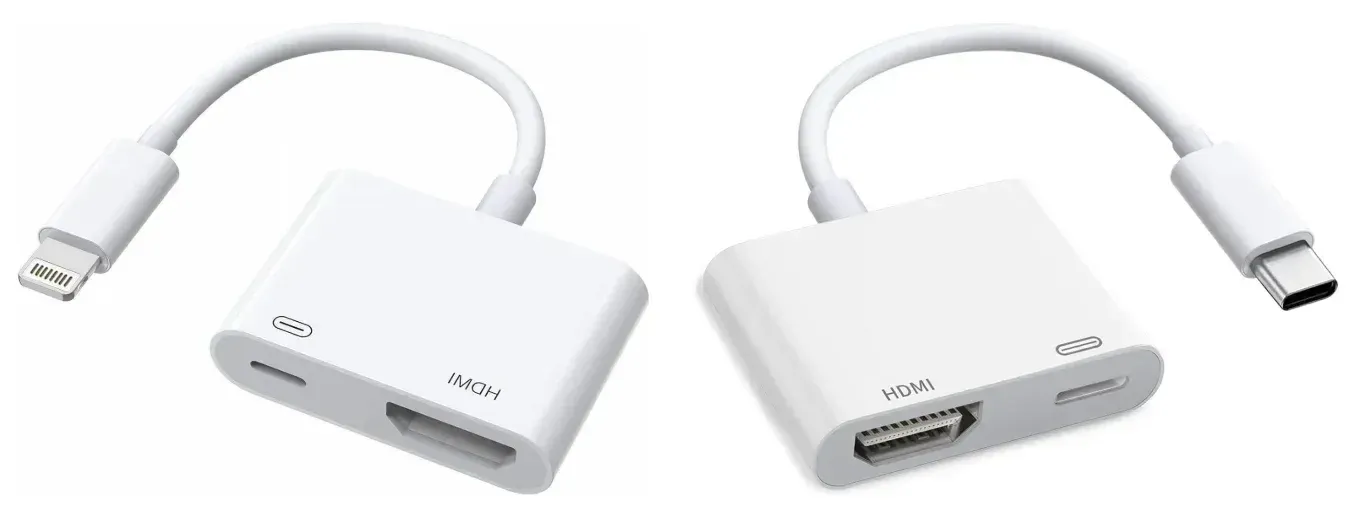
Step 3. Switch TV to the matching HDMI input.
Step 4. Unlock iPhone and confirm any trust or accessory prompt.
Step 5. If image is cropped, change TV picture mode to Just Scan/Screen Fit.
Step 6. If specific apps show black video, test a local photo or non-DRM clip to confirm signal path.
-
Best for: quick playback, slides, and app demos on most TVs.
-
Not ideal for: long sessions with low-quality third-party adapters.
Android to TV (USB-C to HDMI)
In most compatible models, Android USB-C to HDMI mirroring gives a stable wired mirror without relying on wireless discovery. Your main check is whether the phone supports video output over USB-C, then you can complete setup in a few steps.
How to mirror Android to TV with HDMI:
Step 1. Check your phone specs for DisplayPort Alt Mode or desktop output support.
Step 2. Connect USB-C-to-HDMI adapter, then connect HDMI cable to TV.
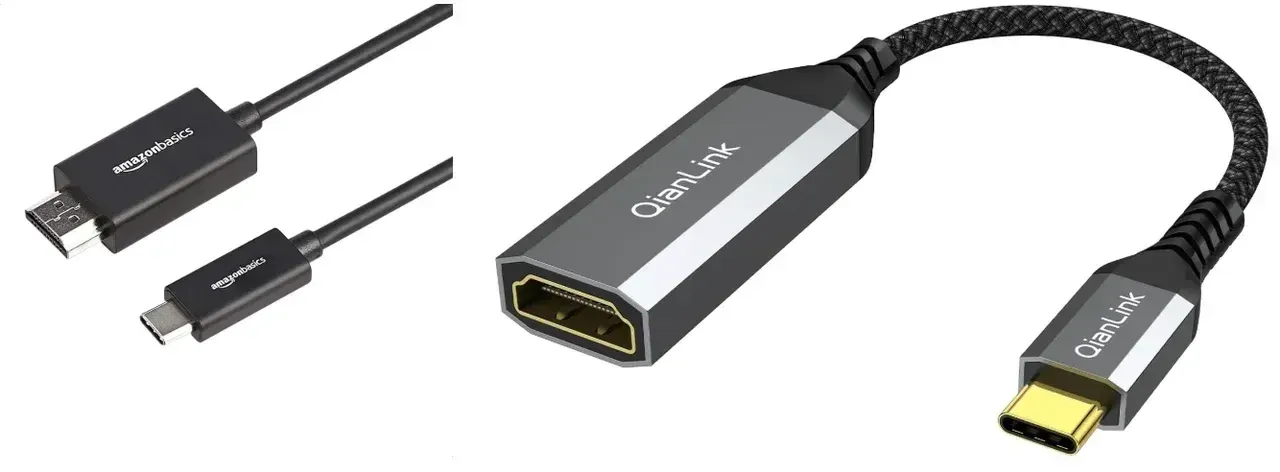
Step 3. Switch TV to the correct HDMI source.
Step 4. On Android, confirm any external display prompt and select mirror mode.
Step 5. Set phone resolution to Auto or 1080p if the TV flickers.
Step 6. If nothing appears, test with another USB-C adapter certified for video output.
-
Best for: wired screen sharing on phones that support video output over USB-C.
-
Not ideal for: budget devices with USB-C that only supports charging/data.
How to Screen Mirror PC to TV with HDMI
On computers, laptop to TV HDMI setup usually breaks at display mode selection, not cable connection. You may see a connected TV that stays blank because output mode is wrong. Set the cable first, then choose display mode immediately to complete the handshake.
Windows PC to TV
Windows mirroring is straightforward once the TV input and Win + P mode are aligned. If the screen stays blank, adjust resolution and refresh rate before replacing hardware.
How to mirror Windows computer to TV with HDMI:
Step 1. Connect HDMI cable from PC to TV.
Step 2. Set TV input to the matching HDMI port.
Step 3. Press Win + P and choose Duplicate for mirroring.
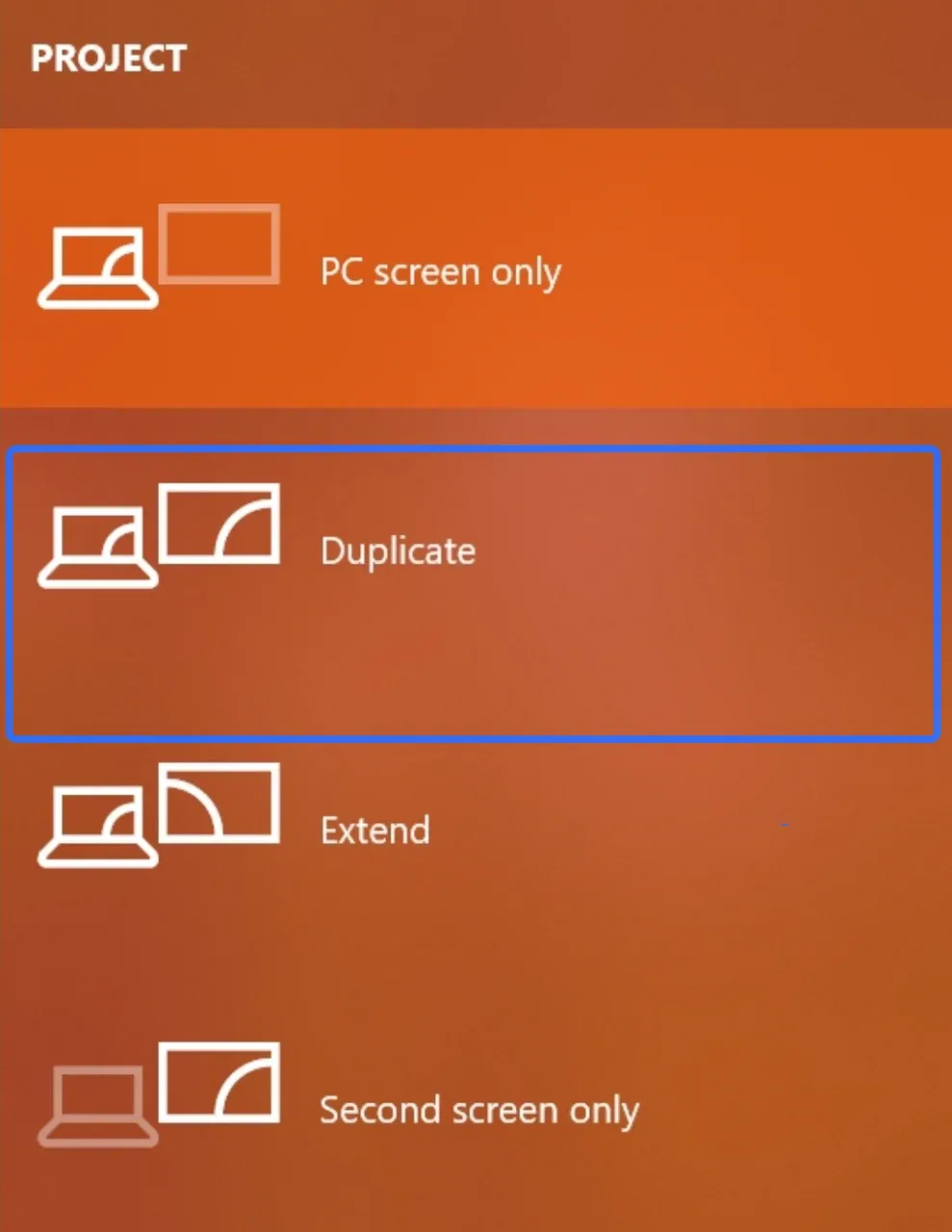
Step 4. If needed, open Settings > System > Display and set output resolution to 1080p.
Step 5. Open Advanced display and set refresh rate your TV supports.
Step 6. Test audio output under Sound settings and choose TV as output device.
-
Best for: meetings, browser demos, office work, and local media playback.
-
Not ideal for: very old GPUs or adapters with unstable driver support.
MacBook to TV
MacBook HDMI mirroring works best when display and audio output are both configured right after connection. This avoids the common case where video appears but audio remains on the Mac.
How to mirror MacBook to TV with HDMI:
Step 1. Connect Mac to TV with HDMI or USB-C/Thunderbolt to HDMI adapter.
Step 2. Open System Settings > Displays.
Step 3. Click the Main display, then select Mirror to duplicate your screen.
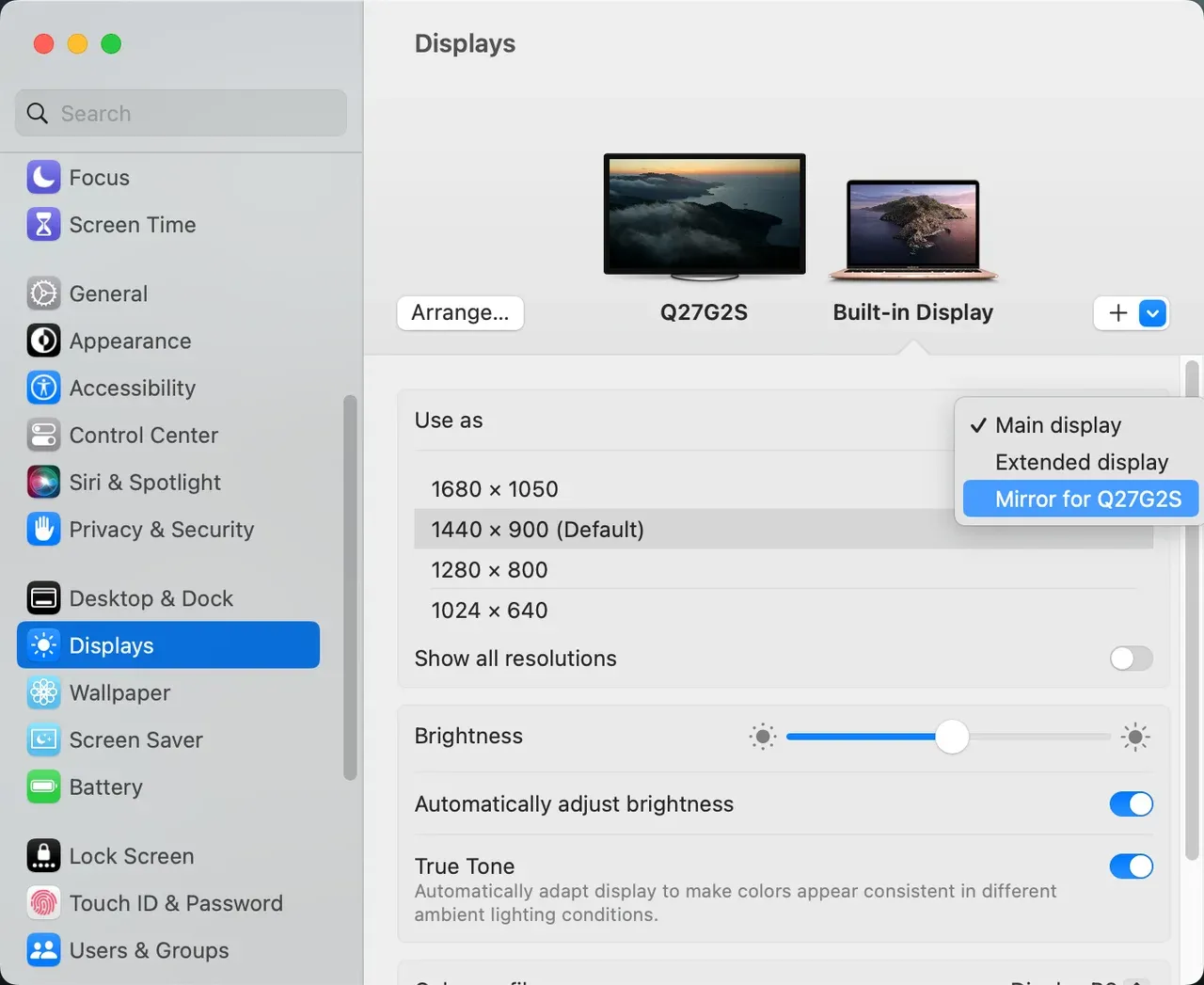
Step 4. Choose suitable resolution and refresh rate.
Step 5. Open Sound settings and set TV/HDMI as audio output.
Step 6. If text looks blurry, disable overscan on TV and retest at 1080p.
-
Best for: stable presentation and media output on HDMI-capable TVs.
-
Not ideal for: hubs that overheat or underpower multi-port accessories.
Troubleshooting HDMI screen mirror Not Working
When HDMI fails on Windows PC or other devices, the fastest method is diagnose first, then repair in a fixed order. Run this sequence once before buying new hardware.
No signal on TV:
-
Re-seat both cable ends.
-
Confirm TV source matches exact HDMI port.
-
Try a different HDMI port and cable.
Black screen but device is detected:
-
Lower resolution to 1080p and refresh rate to 60Hz or 30Hz.
-
Test non-DRM content to isolate HDCP restrictions.
Video works but no audio:
-
Set HDMI/TV as audio output on phone or computer.
-
Reconnect cable after changing output.
Image cut off or wrong aspect ratio:
-
Set TV to Screen Fit/Just Scan.
-
Disable overscan and retest.
Frequent dropouts or flicker:
-
Replace long/cheap cable with certified short cable.
-
Avoid loose adapters or overloaded hubs.
If you still fail after one complete pass through steps 1 to 5, stop repeating cable tests and move to a wireless method below.
Tip: Connect Phone or Computer to TV with HDMI
Some setups cannot complete HDMI mirroring due to port damage, unsupported phone output, or strict DRM behavior. In those cases, PigeonCast can be a practical backup screen mirroring app for cross-platform streaming.


Overall Rating:



Step 1. Install PigeonCast on your source device and launch it.
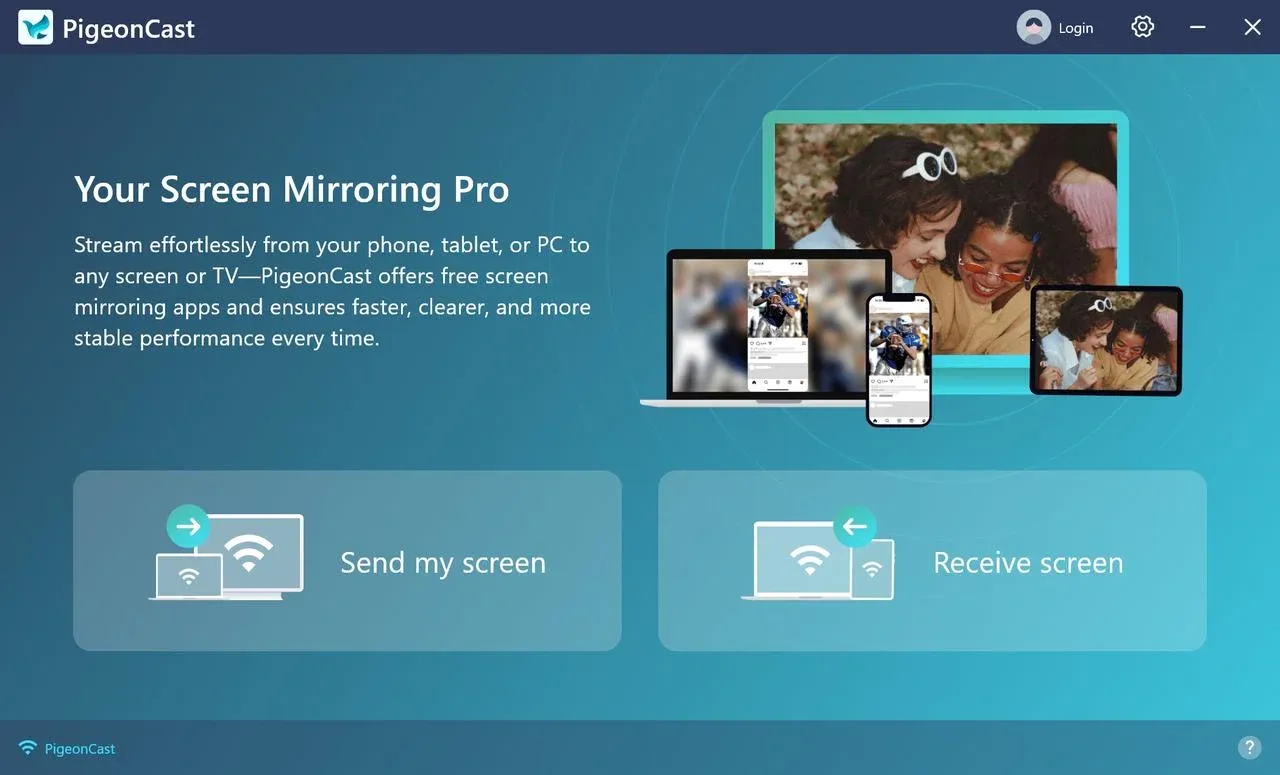
Step 2. Ensure TV and source device are on the same local network.
Step 3. Select your TV from the device list and start mirroring.
Step 4. If quality drops, reduce output quality one level and retest.
Step 5. If your TV is not found, restart app discovery and verify router isolation settings are off.
The End
HDMI screen mirroring is still the most reliable first choice when you want stable video, low delay, and simple full-screen output. It works well for presentations, classes, local media playback, and any case where you cannot risk wireless disconnects.
At the same time, HDMI screen mirroring has practical limits. Adapter compatibility can be inconsistent, some phones do not support video output, HDCP can block protected content, and cable setup is less flexible when you need mobility. You may also run into no signal, black screen, audio routing, or refresh-rate issues.
If those issues continue after one full troubleshooting pass, use PigeonCast as an alternative path. It is a practical solution for cross-platform screen mirroring when native HDMI setup is blocked by hardware limits or unstable behavior.
HDMI Screen Mirror FAQ
What is the fastest way to start HDMI screen mirror on any TV?
Connect the correct adapter and cable, switch TV to the matching HDMI input, then set mirror mode on your device. Most failures come from wrong input or unsupported adapter, so those two checks should be first.
Do I need Wi-Fi for HDMI screen mirroring?
No. HDMI is a wired video path and does not require Wi-Fi for the signal itself. You may still need internet for streaming apps, but not for the cable connection.
Why do I get a black screen in some streaming apps?
This is often an HDCP or content-protection limitation. Test with local photos or non-DRM video first; if those work, your HDMI path is fine and the app limitation is the cause.
Which adapter should I buy for iPhone or Android?
Match the adapter to your exact port and confirm video output support. iPhone needs Lightning-to-HDMI or USB-C-to-HDMI (model dependent), while Android usually needs USB-C-to-HDMI with DisplayPort Alt Mode support.
Should I choose Duplicate or Extend on a laptop?
Choose Duplicate when you want the TV to show exactly what is on your laptop. Choose Extend only when you want a second workspace and not a mirrored view.
When should I stop troubleshooting HDMI and switch methods?
If one full troubleshooting pass still fails, switch methods instead of repeating the same checks. An alternative such as PigeonCast is appropriate when ports, adapters, or repeated handshake failures block stable output.
Mia Clarke is a technology editor specializing in screen mirroring and casting solutions across multiple platforms. Mia provides clear, practical guides and in-depth insights to help users seamlessly connect their devices. Passionate about enhancing digital experiences, Mia is dedicated to keeping readers updated on the latest trends and tools in cross-platform screen sharing. Whether you’re looking to mirror your smartphone, laptop, or smart TV, Mia’s content delivers reliable, user-friendly advice to simplify your tech setup.