
If you're looking for a convenient way to enjoy content from your laptop on a larger screen, learning how to project laptop to TV wirelessly can greatly enhance your viewing experience. Whether you want to share a presentation, stream a movie, or play a game, projecting your laptop screen to a TV without the clutter of cables provides flexibility and ease. In this guide, we'll explore several wireless methods that allow you to share your laptop screen to a TV, each of which is easy and safe.
Why Project Laptop to TV Wirelessly
You're probably wondering how to display your computer on TV wirelessly. Projecting your laptop to a TV without cables not only keeps your setup tidy but also comes with several key advantages:
- Mobility and Convenience: Wireless projection allows you to move around freely, whether you're giving a presentation or simply lounging on the couch watching a movie. No need to worry about getting tangled in cables.
- Reduced Cable Clutter: With fewer wires to manage, your setup stays cleaner and more organized, perfect for both home and office environments.
- Multiple Device Compatibility: Wireless methods like Chromecast, PigeonCast, and Miracast allow you to connect multiple devices to your TV, making it easier to switch between laptops, phones, or tablets without additional cables.
- Flexible Setup: Wireless projection doesn't require specific ports or adapters, making it a more flexible option for users with various devices. Whether you're using a Windows PC, Mac, or even a mobile device, wireless options provide universal compatibility.
How to Project Laptop to TV Wirelessly
There are several methods for broadcasting your laptop to a TV wirelessly, each with its own advantages and requirements. Whether you're looking for a simple solution or something more advanced, let's break down the most popular options for how to broadcast laptop to TV wirelessly and enjoy a seamless viewing experience.
Use PigeonCast (for both Windows PC and Mac)
PigeonCast is a free, excellent cross-platform tool for projecting your PC screen to your TV wirelessly, and it's compatible with both Windows PCs and MacBooks. With PigeonCast, you can effortlessly cast from your laptop to TV without needing any cables.
How to project laptop to TV wirelessly with PigeonCast:
Step 1. Download and install PigeonCast on your Windows PC or MacBook.


Overall Rating:



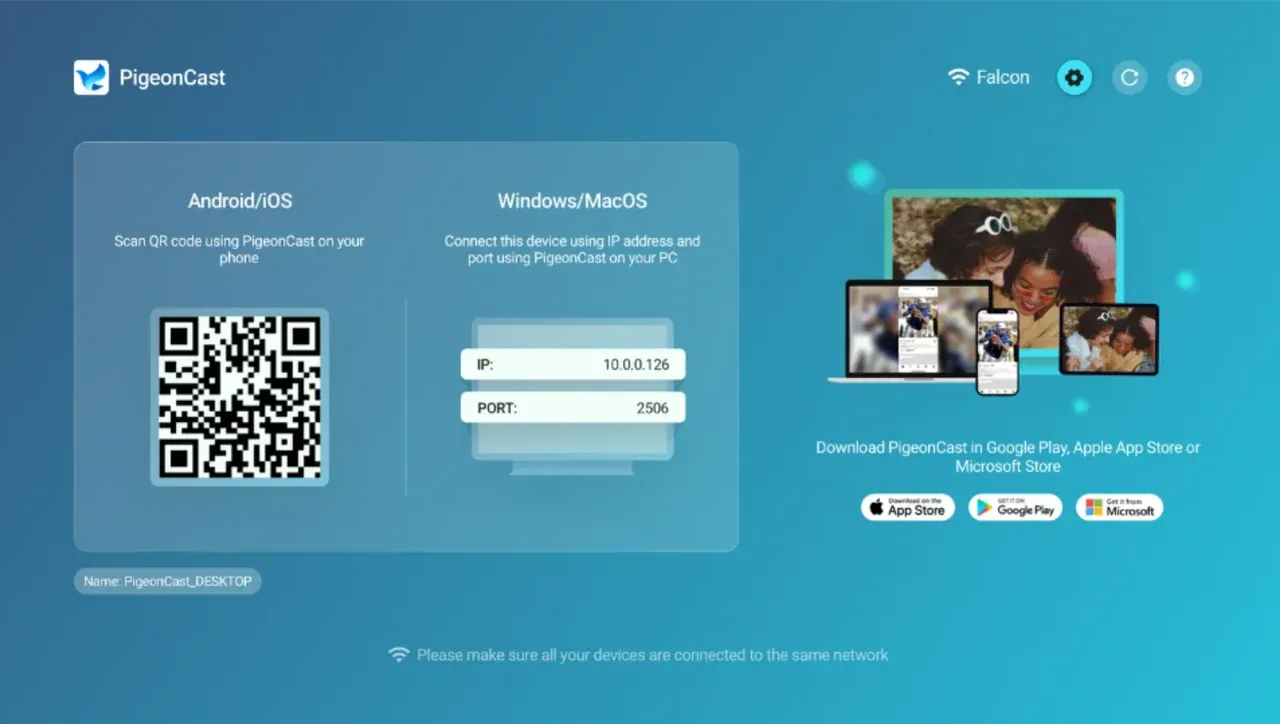
Step 2. If you have an Android TV or Apple TV, go to the app store and download PigeonCast on your TV.
Note: Having PigeonCast on both your laptop and smart TV ensures a seamless projecting process.
Overall Rating:

Step 3. Ensure both your laptop and TV are on the same Wi-Fi network, then launch PigeonCast on your laptop and TV.
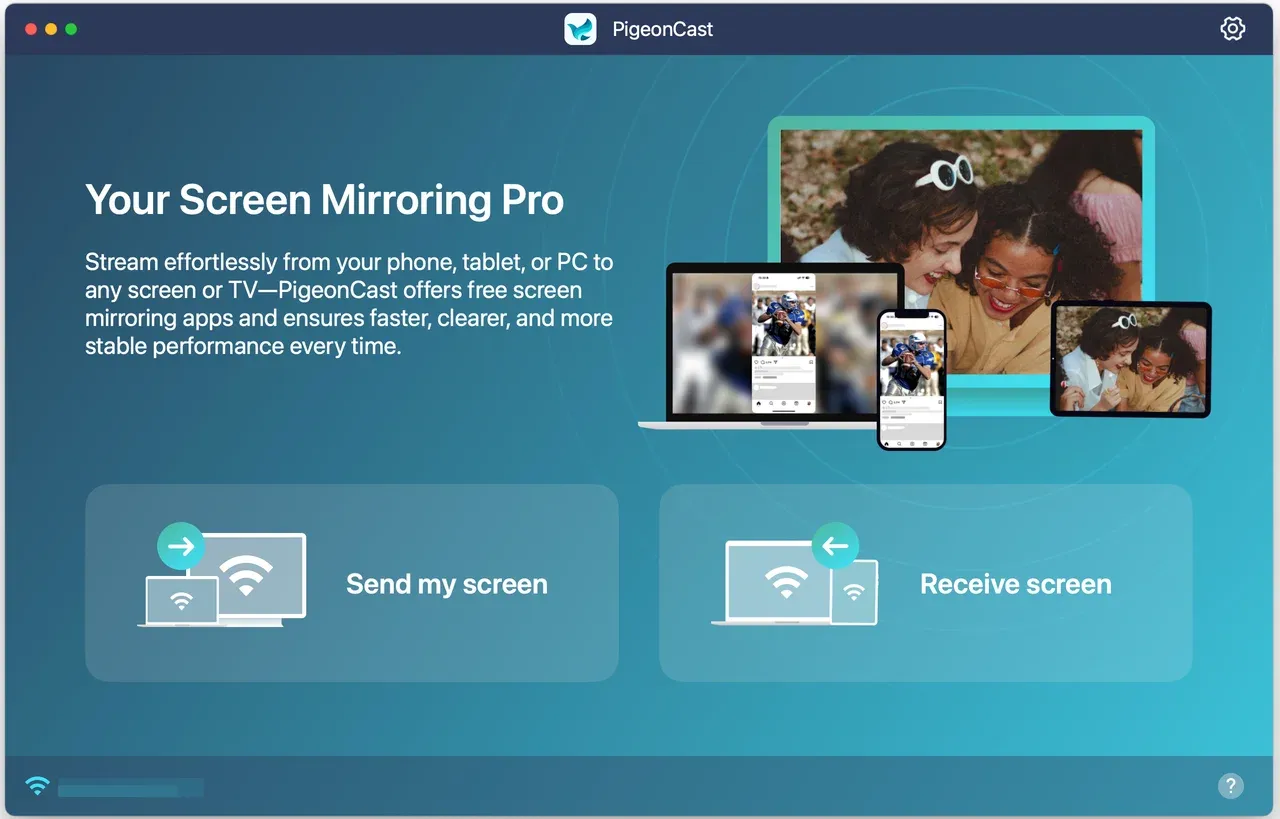
Step 4. Click the Send my screen option on your Windows PC or MacBook.
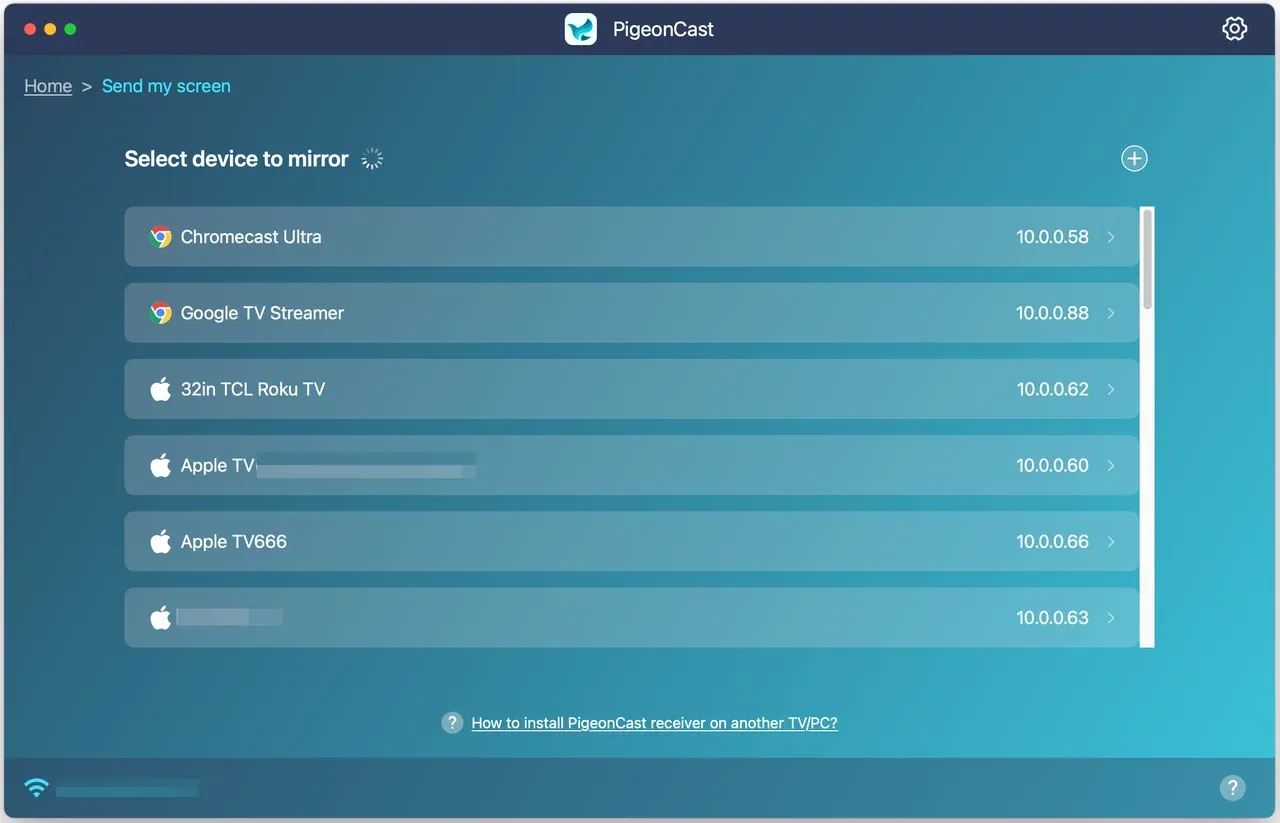
Step 5. Choose the TV you want to project your laptop to from the device list
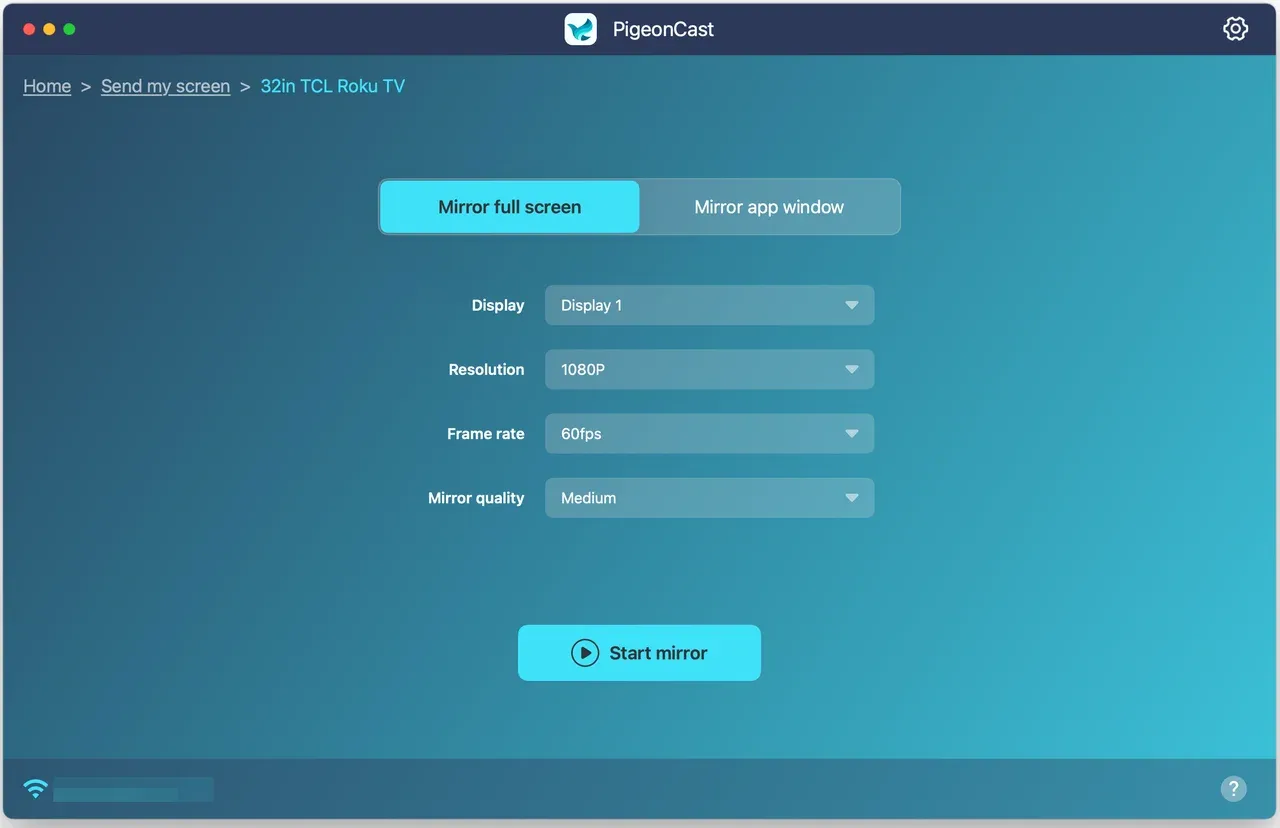
Step 6. Once PigeonCast connects your laptop to TV, you can choose whether Mirror full screen or Mirror app window, and click Start mirror.
That's all about how to share computer screen to TV via PigeonCast. The free screen mirroring app offers high-quality performance and supports multiple devices, making it a great all-around solution for wireless screen sharing.
Use Chromecast (for both Windows PC and Mac)
How to display laptop on TV without cables? Google Chromecast is another reliable method for casting your laptop screen to your TV wirelessly. Chromecast works well with both Windows PCs and Macs via the Chrome browser, provided you have a Chromecast device plugged into your TV or your TV is Chromecast-enabled.
Let's see how to stream from laptop to TV via Chromecast:
Step 1. Plug the Chromecast into your TV or enable the Google Cast feature on your TV.
Step 2. Ensure your TV or Chromecast connects to the same Wi-Fi network as your laptop.
Step 3. Launch the Google Chrome browser on your laptop.
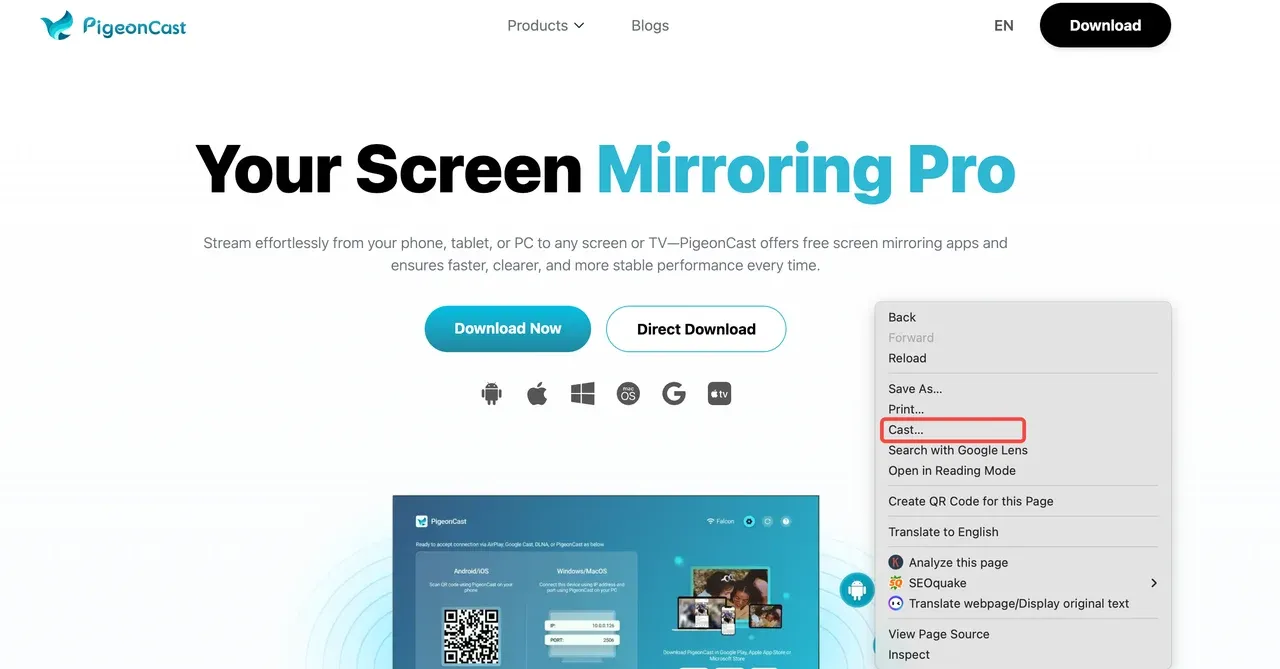
Step 4. Open the page you want to project to a TV, right-click it, and choose the Cast option.
Step 5. Choose your Chromecast device from the list.
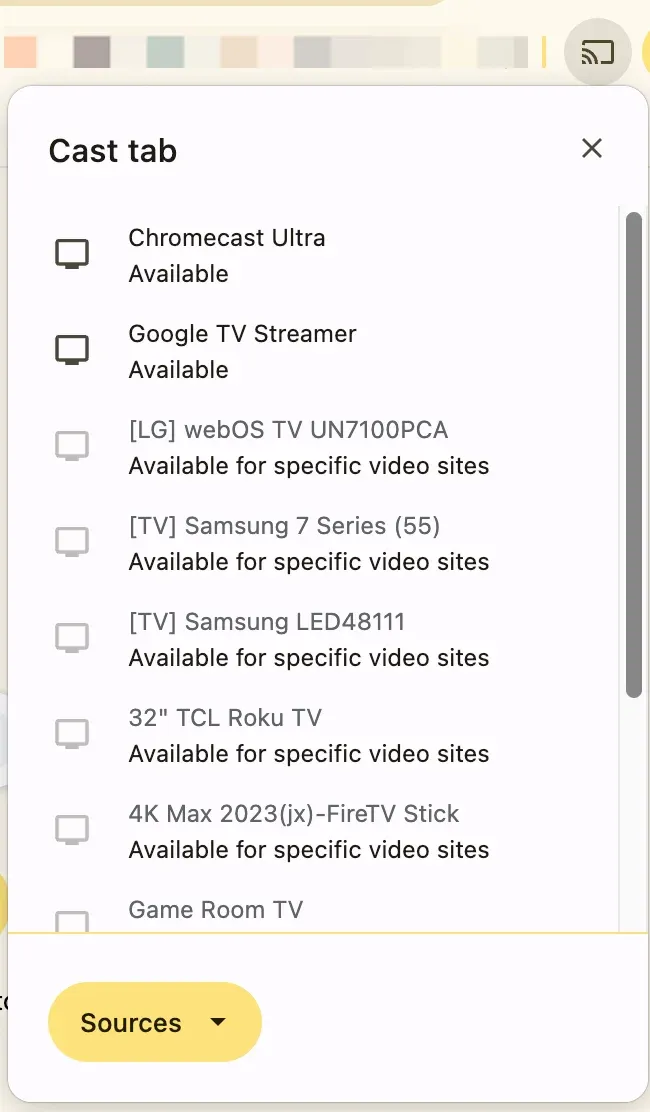
Step 6. A Chrome tab or your laptop screen should be displayed on your TV screen. To end this, click the Cast button again.
Chromecast is perfect for streaming videos and casting browser tabs. With its integration into Google Chrome, you'll never wonder how to stream from computer to TV. For optimal performance and stability, however, it's best to use a high-speed Wi-Fi connection.
Use Miracast (for Windows PC)
How to stream to TV from PC Windows without any app? Try Miracast. Miracast is a wireless display standard that works well for Windows PCs. If your Windows laptop supports Miracast, you can easily project your screen to a Miracast-compatible TV without needing a third-party app. For a Lenovo model, the steps to connect Lenovo laptop to TV wirelessly are usually similar to other Windows laptops.
How to share laptop screen with TV wirelessly via Miracast? Only a few steps are required:
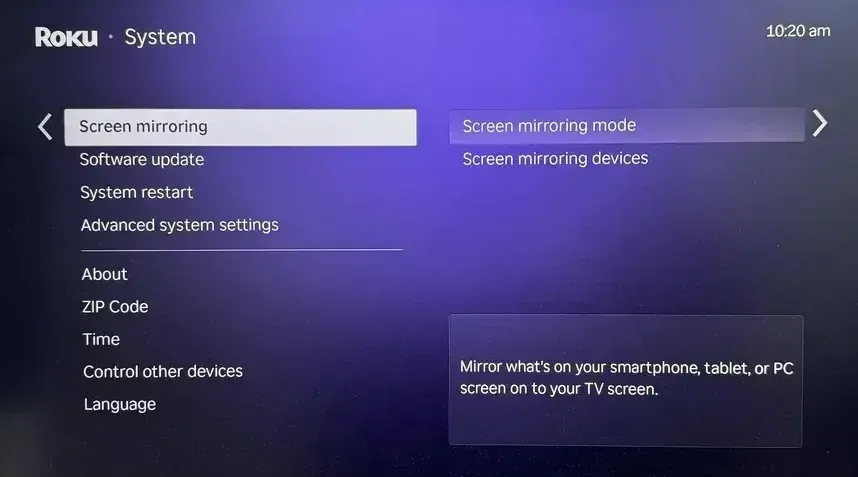
Step 1. On your TV, go to the Settings menu and enable Screen Mirroring or Wireless Display feature.
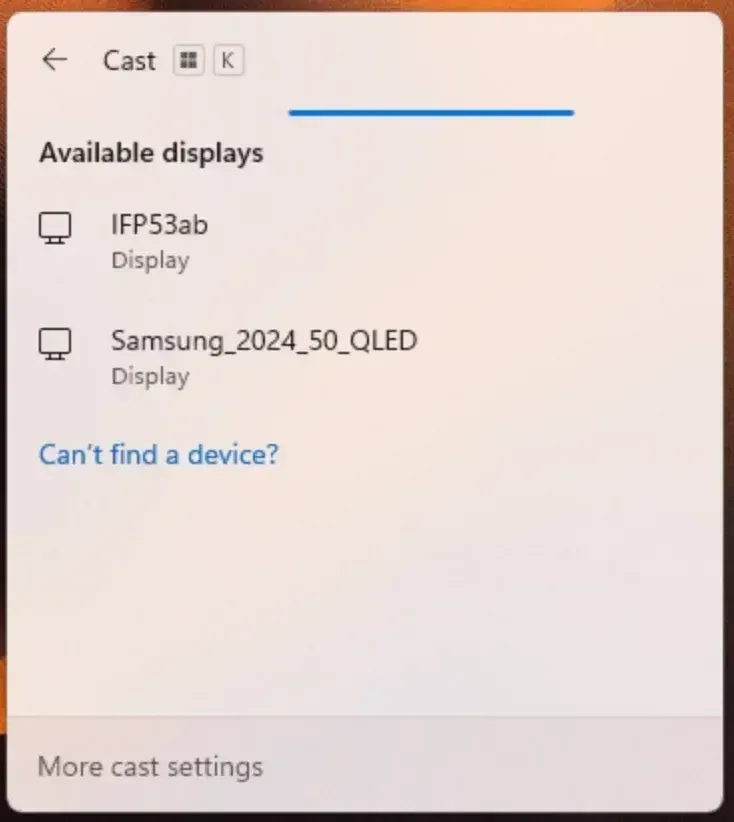
Step 2. On your Windows laptop, press the Windows + K keys to launch the Cast option.
Step 3. Choose your TV from the list of available devices.
Step 4. Your screen will now be mirrored to your TV wirelessly.
Miracast provides a straightforward method for how to project computer to TV without requiring an internet connection, making it a perfect solution for users who need to display local files.
Use Apple AirPlay (for Mac)
For Mac users, Apple AirPlay is the go-to solution for wirelessly sharing your laptop's screen to a TV, especially if you have an Apple TV or a smart TV that supports AirPlay.
How to project from laptop to TV via Apple AirPlay:
Step 1. Both your Mac and Apple TV (or AirPlay-enabled TV) need to be on the same Wi-Fi network.
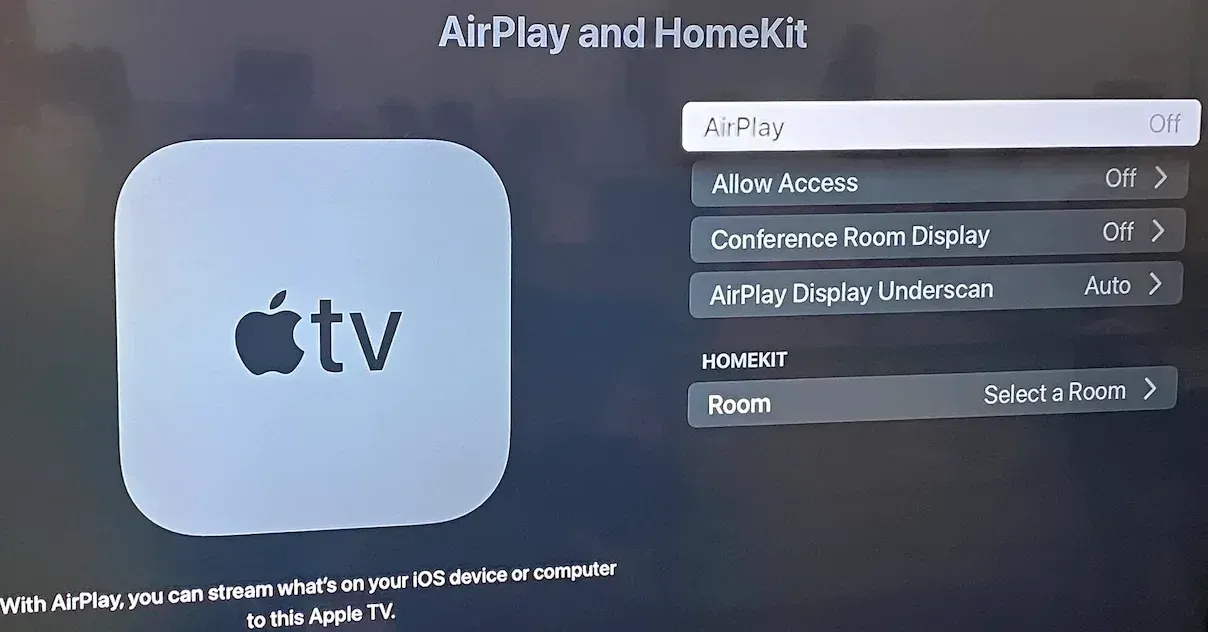
Step 2. Make sure AirPlay is enabled on your TV or Apple TV.
Step 3. On your Mac, click the Control Center icon at the top of the screen and choose Screen Mirroring.
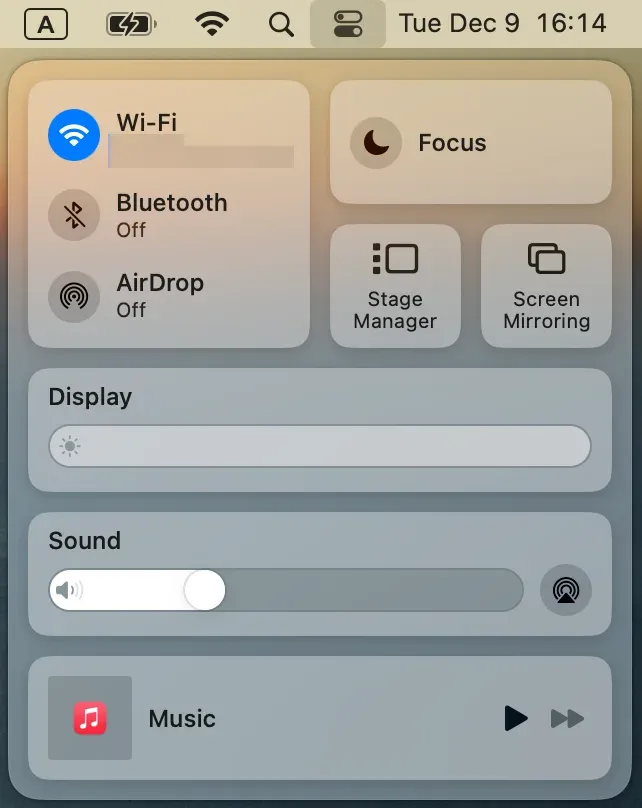
Step 3. Select your TV from the list of available devices.
Step 4. You can choose to mirror your screen or extend your Mac display depending on your needs.
If you're wondering how to put your laptop screen on TV wirelessly, AirPlay offers a seamless and high-quality streaming experience that is perfect for Apple users.
Which is the Best Wireless Projection Method
When it comes to how to project PC to TV wirelessly, you have several options, including PigeonCast, Chromecast, Miracast, and AirPlay. So, which is the best wireless method? The ideal choice for projecting your laptop to your TV wirelessly depends on your specific needs and available devices.
| Method | Best For | Pros | Cons |
|---|---|---|---|
| PigeonCast | Cross-platform compatibility | Free, easy setup, supports both Windows & Mac | Requires installation |
| Chromecast | Streaming videos from Chrome | Works with many devices, good for media | Relies on Google Chrome and Wi-Fi speed |
| Miracast | Windows PCs | No internet required, direct connection | Limited to Miracast-compatible devices |
| AirPlay | Apple users (Mac/Apple TV) | High-quality streaming, seamless integration | Only works with Apple products |
For Windows users, Miracast offers a direct and simple solution. Mac users will find AirPlay a natural fit for their Apple ecosystem. If you're looking for a cross-platform solution, PigeonCast provides excellent flexibility for both Windows PCs and Macs. Chromecast works best for streaming content but requires a Google device.
The End
Projecting your laptop to a TV wirelessly has never been easier. Whether you choose PigeonCast, Chromecast, Miracast, or AirPlay, there's a method for everyone, depending on your device and needs. Each solution offers its own unique advantages, such as the seamless integration of AirPlay for Mac users or the cross-platform flexibility of PigeonCast for both Windows and Mac. Choose the method that works best for you, and enjoy a hassle-free, cable-free viewing experience.
How to Project Laptop to TV Wireless FAQs
Can I mirror my laptop to my TV without HDMI?
Yes, you can connect a laptop to a TV without HDMI. wireless methods like Miracast, Chromecast, AirPlay, or PigeonCast allow you to mirror your laptop to your TV without needing HDMI cables.
How do I cast my screen to my TV wirelessly?
You can cast your screen using Miracast (Windows), AirPlay (Mac), Chromecast, or PigeonCast. Each method requires a Wi-Fi connection.
Can I use a TV as a monitor for my laptop?
Yes, most modern TVs can function as monitors for your laptop via HDMI or wireless projection methods.
Can I extend my laptop screen to a TV?
Yes, both Miracast and AirPlay allow you to extend your laptop display, giving you more screen real estate.
How to connect laptop to TV without cable?
You can connect wirelessly using methods like Miracast, Chromecast, AirPlay, or PigeonCast, which eliminate the need for physical cables.
Mia Clarke is a technology editor specializing in screen mirroring and casting solutions across multiple platforms. Mia provides clear, practical guides and in-depth insights to help users seamlessly connect their devices. Passionate about enhancing digital experiences, Mia is dedicated to keeping readers updated on the latest trends and tools in cross-platform screen sharing. Whether you’re looking to mirror your smartphone, laptop, or smart TV, Mia’s content delivers reliable, user-friendly advice to simplify your tech setup.