
If you've ever wanted to turn your regular TV into a smart entertainment hub without spending a fortune, you've probably come across Google Chromecast. It's one of those gadgets that quietly changed how we watch TV, simple, affordable, and surprisingly powerful. But exactly what is Chromecast, how does it work, and why do so many people still use it after all these years? Let's dive in.
What Is Google Chromecast
At its core, Google Chromecast is a compact streaming device, often referred to as a Chromecast dongle, that plugs into your TV's HDMI port. Once connected, it lets you stream videos, music, or even your Chrome browser tabs (see how to cast from Chrome) directly from your phone, tablet, or laptop.
The beauty of Chromecast lies in its simplicity. There are no clunky interfaces or endless menus, and you can use your phone as a remote control. Just open an app like YouTube or Netflix, tap the Cast icon, and watch your favorite content appear instantly on your Chromecast TV.
Checking Chromecast's Evolution
When Google introduced Chromecast in 2013, its goal was simple: make streaming easy and affordable. The first version cost just $35, yet it could transform any TV with an HDMI port into a smarter one. Since then, Google has released several improved versions, like Chromecast 2, Chromecast Ultra, and Chromecast with Google TV, each designed to meet different user needs.
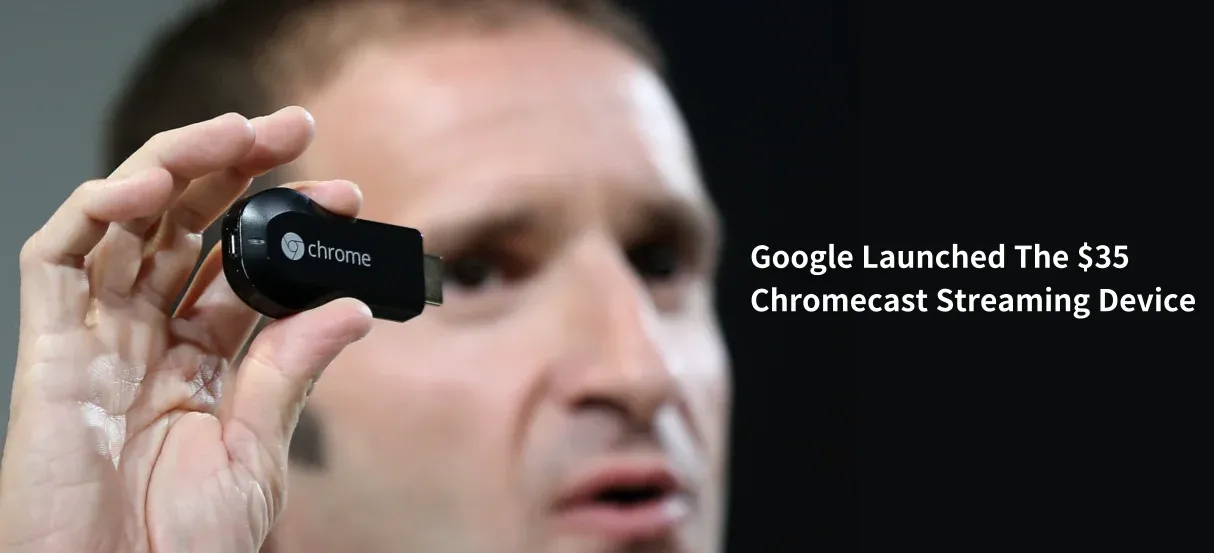
Here's how they compare:
| Image | Model | Launch Year | Design & Form Factor | Max Resolution | Key Features | Target User |
|---|---|---|---|---|---|---|
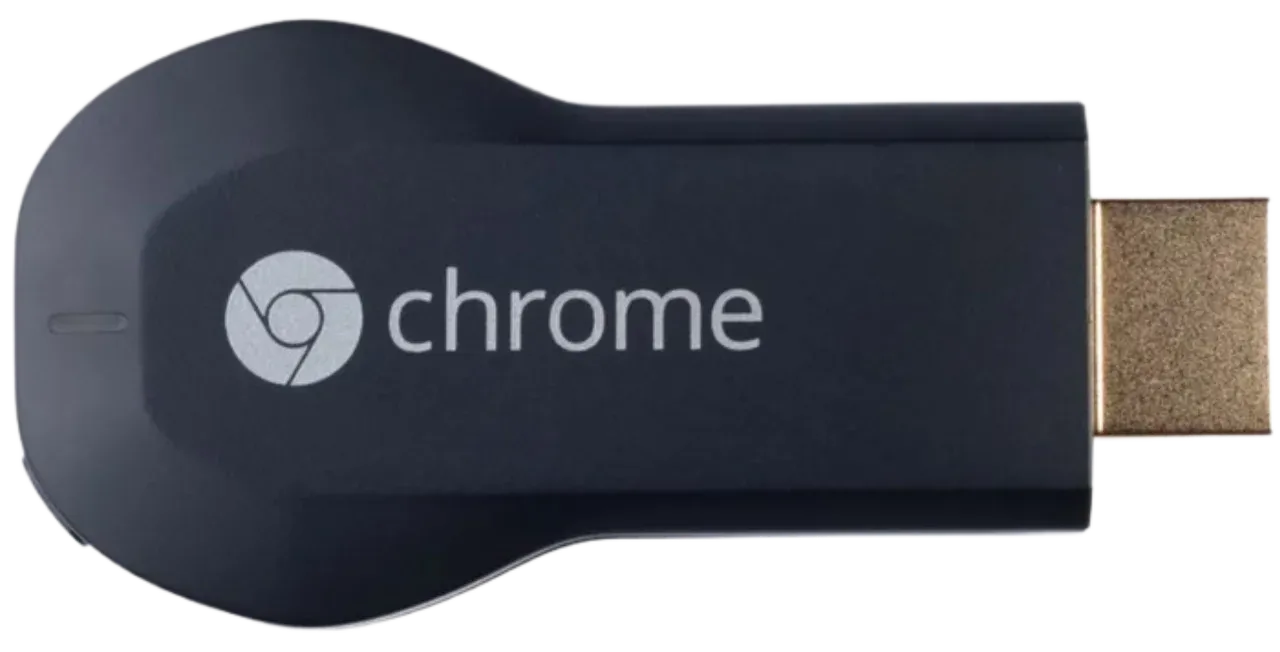 | Chromecast (1st Gen) | 2013 | Stick-like dongle | 1080p | Basing casting from phone or Chrome browser; low-cost entry | Users new to streaming |
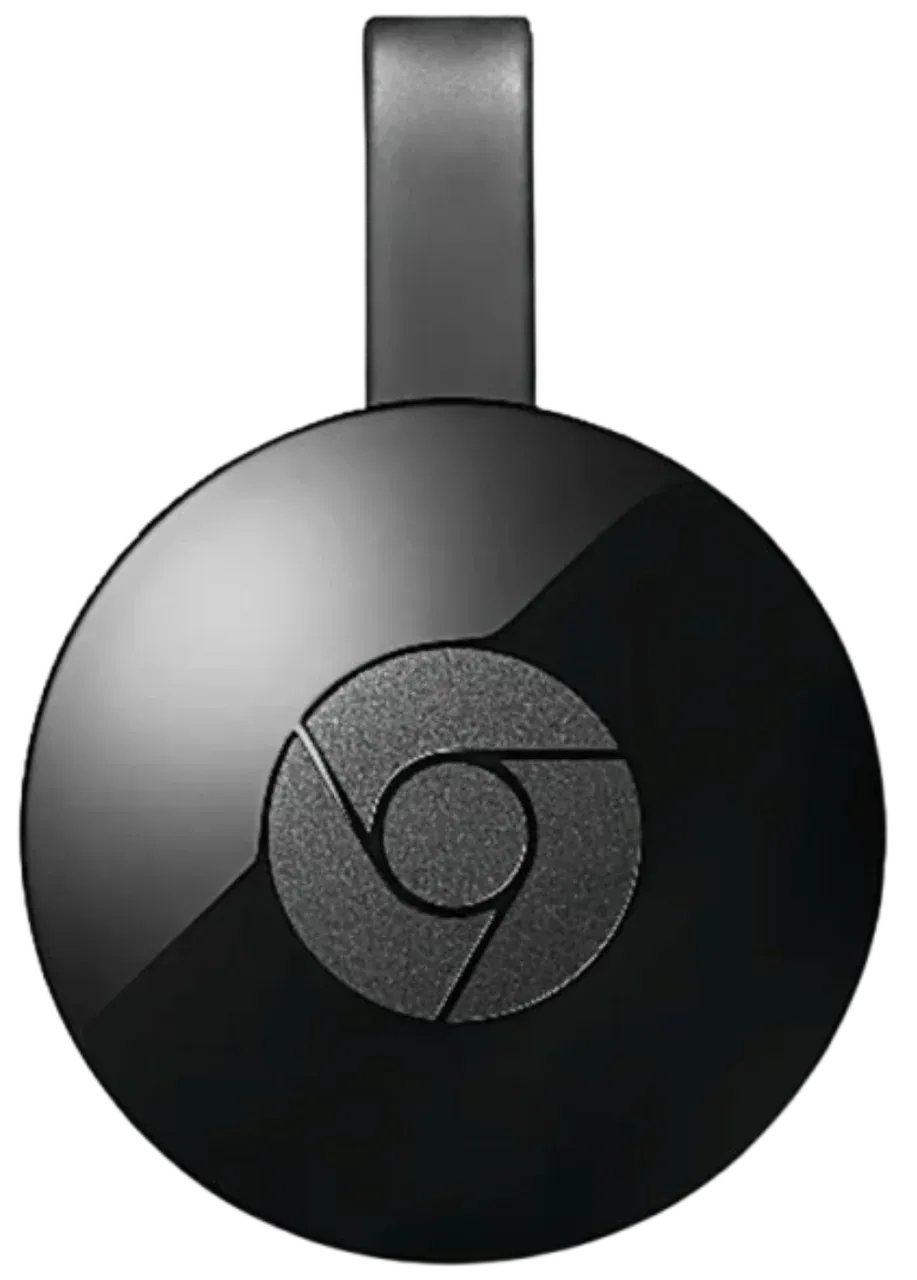 | Chromecast (2nd Gen) | 2015 | Round puck, flexible HDMI cable | 1080p | Bual-band Wi-Fi for faster, more stable connections | Everyday streamers sekking smoother playback |
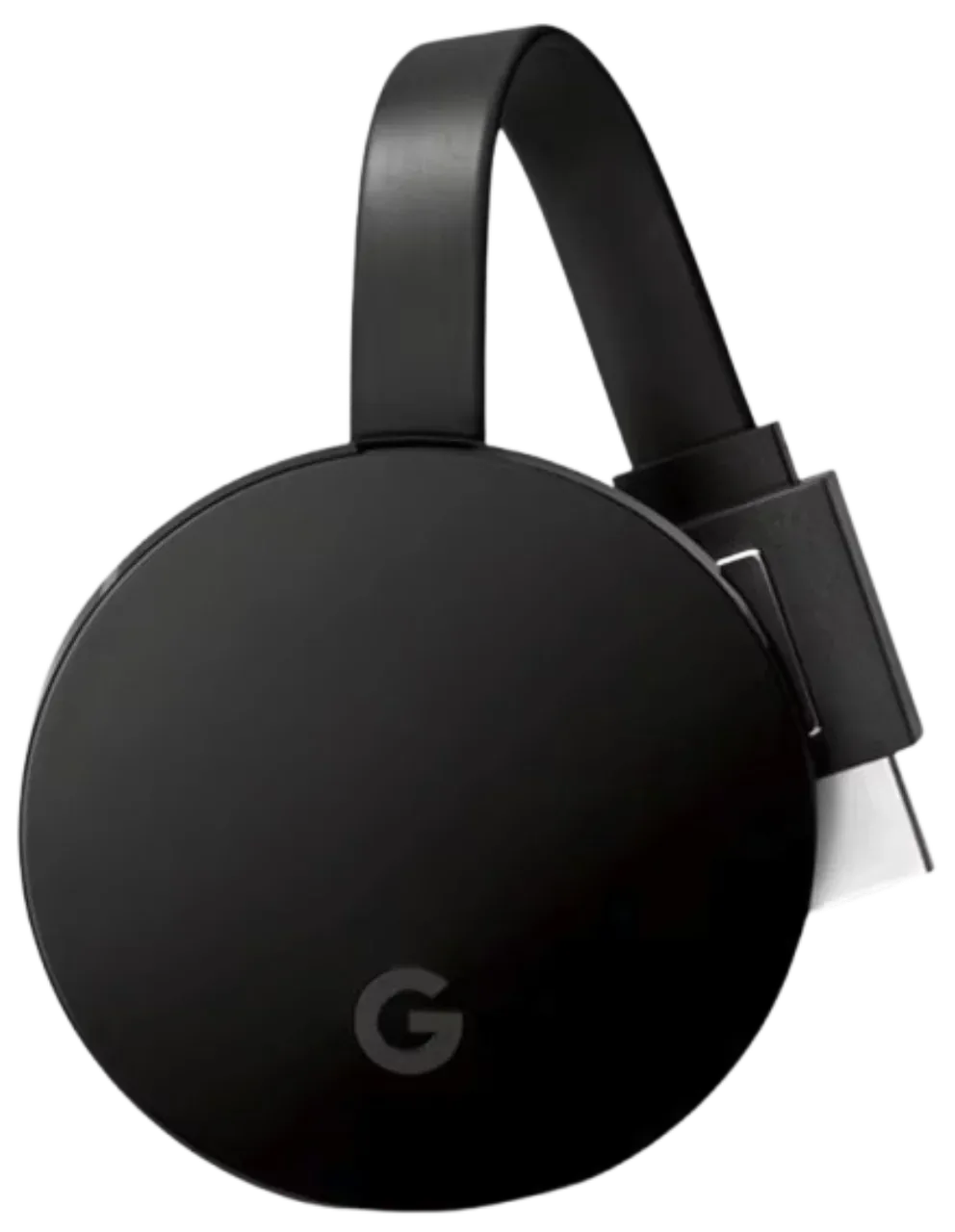 | Chromecast Ultra | 2016 | Compact black puck | 4K HDR | Ethernet support via adapter; improved performance | 4K TV owners or heavy streamers |
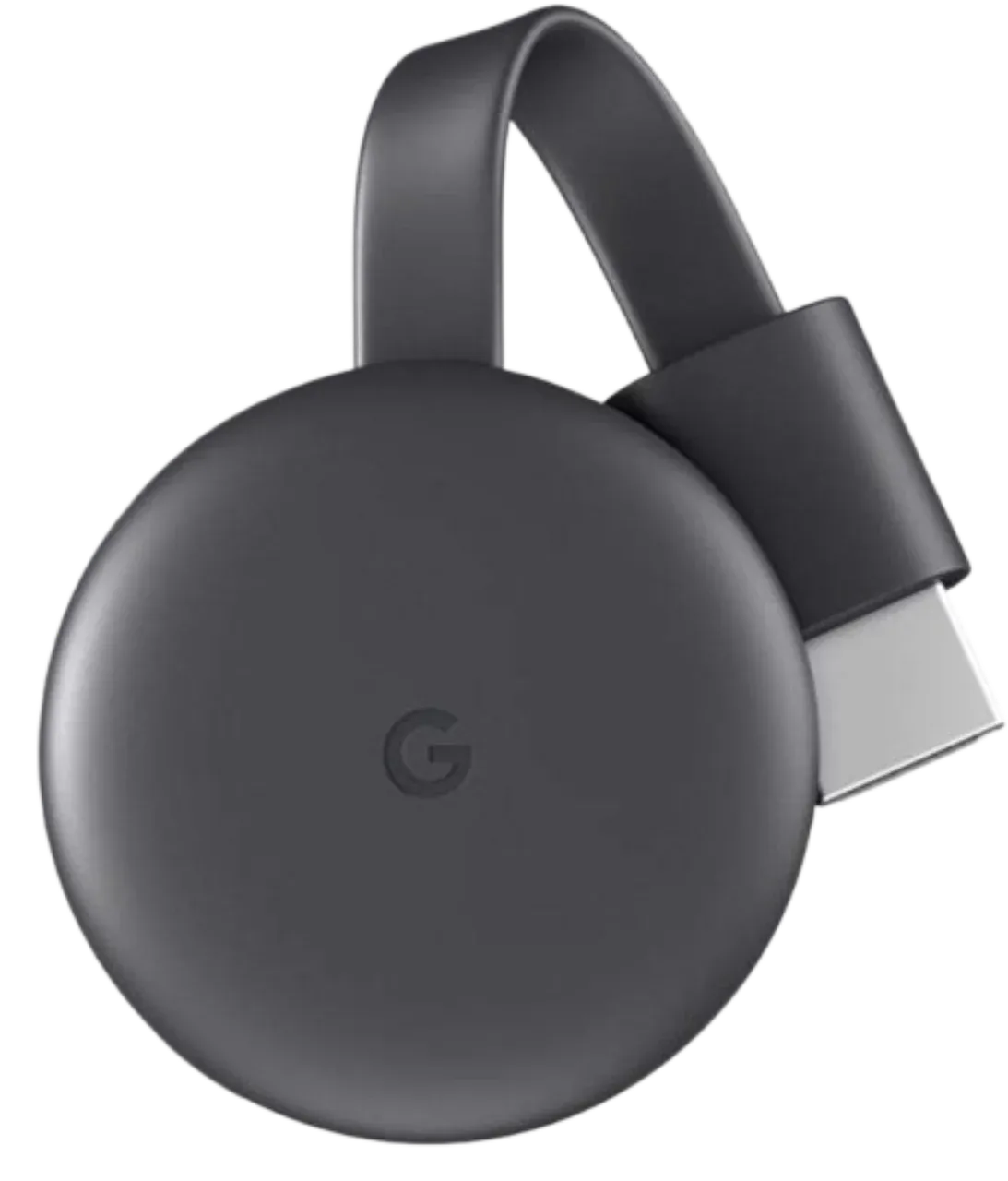 | Chromecast (3rd Gen) | 2018 | Minimalist round design | 1080p (60fps) | Slightly faster than 2nd gen; stable and simple | Users wanting reliability on a budget |
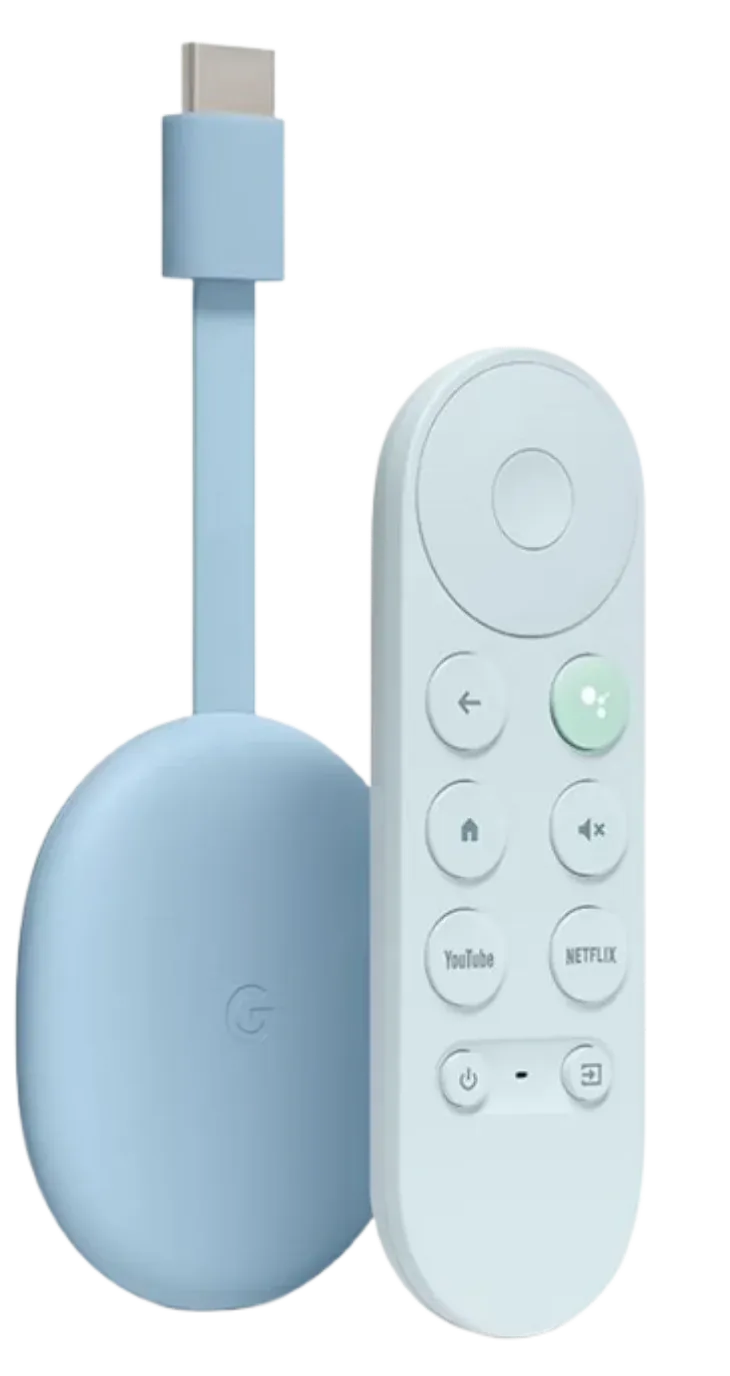 | Chromecast with Google TV (4K) | 2020 | Sleek oval dongle with remote | 4K HDR / Dolby Vision | Runs Google TV OS; voice control via remote; app store access | Users wanting full smart TV experience |
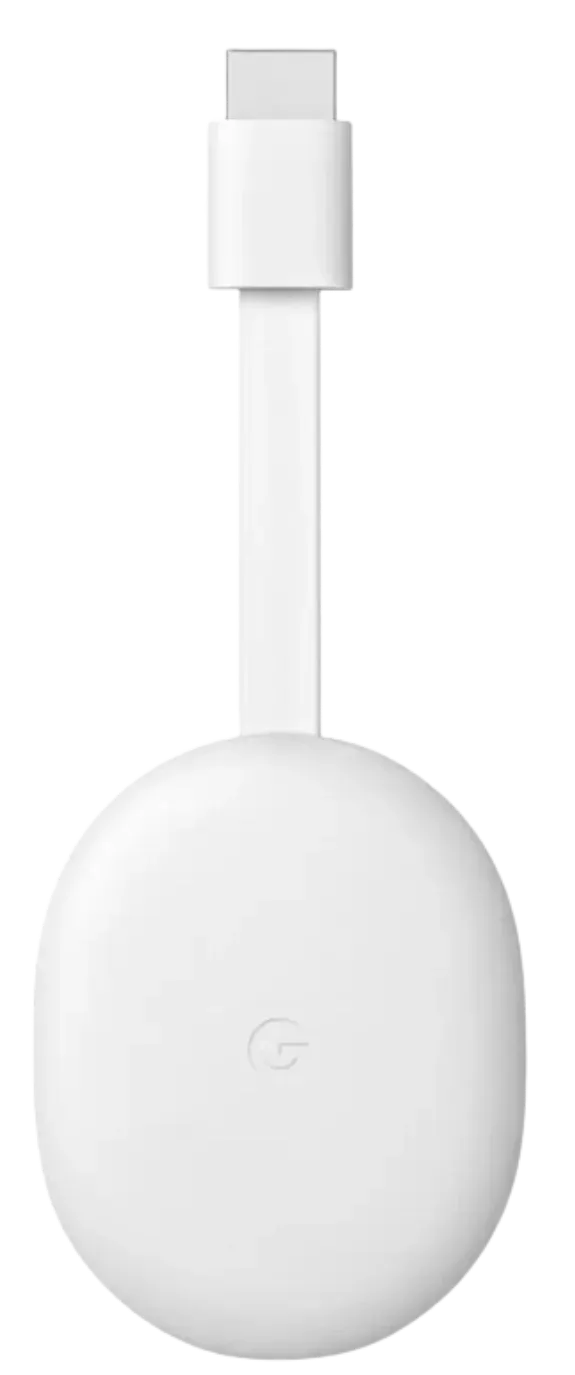 | Chromecast with Google TV (HD) | 2022 | Same as 4K version | 1080p HDR | Affordable version with same interface and remote | Users with non-4K TVs seeking Google TV features |
Choosing the Right Chromecast
If you prefer to control everything from your phone, the older Chromecast models are still great. They're simple, inexpensive, and perfect for casual streaming or secondary TVs.
If you want a more complete TV experience, the Chromecast with Google TV versions (HD or 4K) are the way to go. They include a remote, on-screen apps, personalized recommendations, and even Google Assistant voice control, all while keeping the option to cast from phone whenever you like.
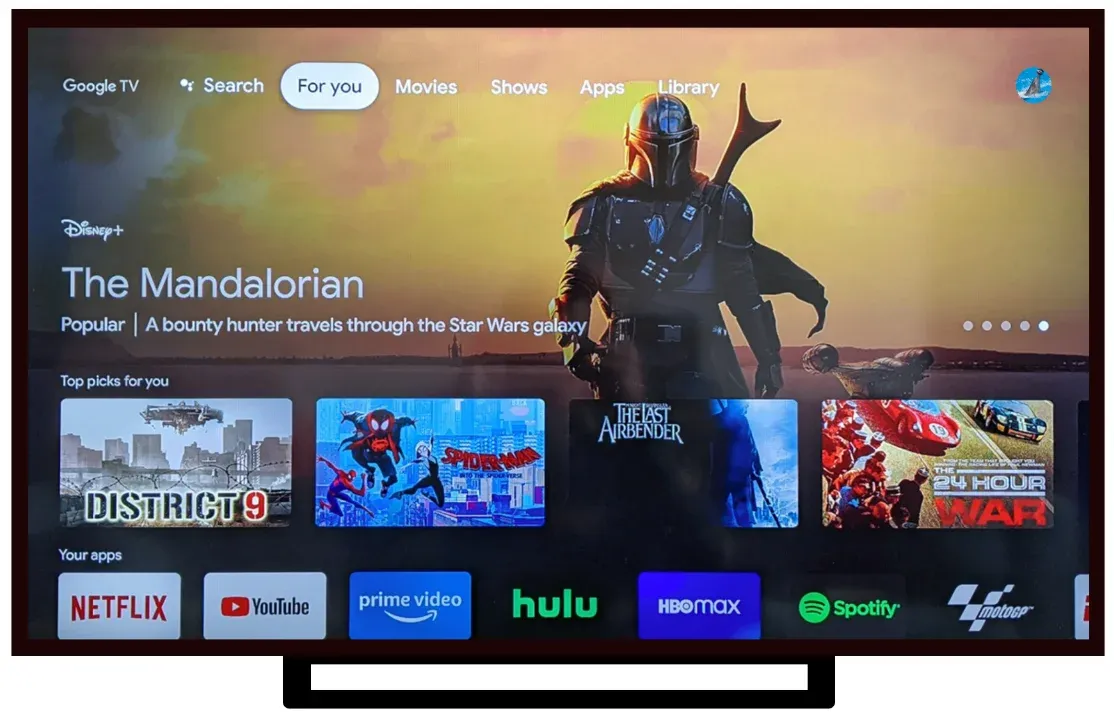
In short, classic Chromecast devices mirror your phone, while Chromecast with Google TV acts like a full-fledged smart TV system.
How Does Chromecast Work
Now that we've seen how the different Chromecast devices have evolved, it's easier to understand what actually makes them so convenient. Whether it's the original Chromecast dongle or the newer Chromecast with Google TV, the underlying principle stays the same: your phone or laptop tells the Chromecast what to play, and the Chromecast handles the rest.
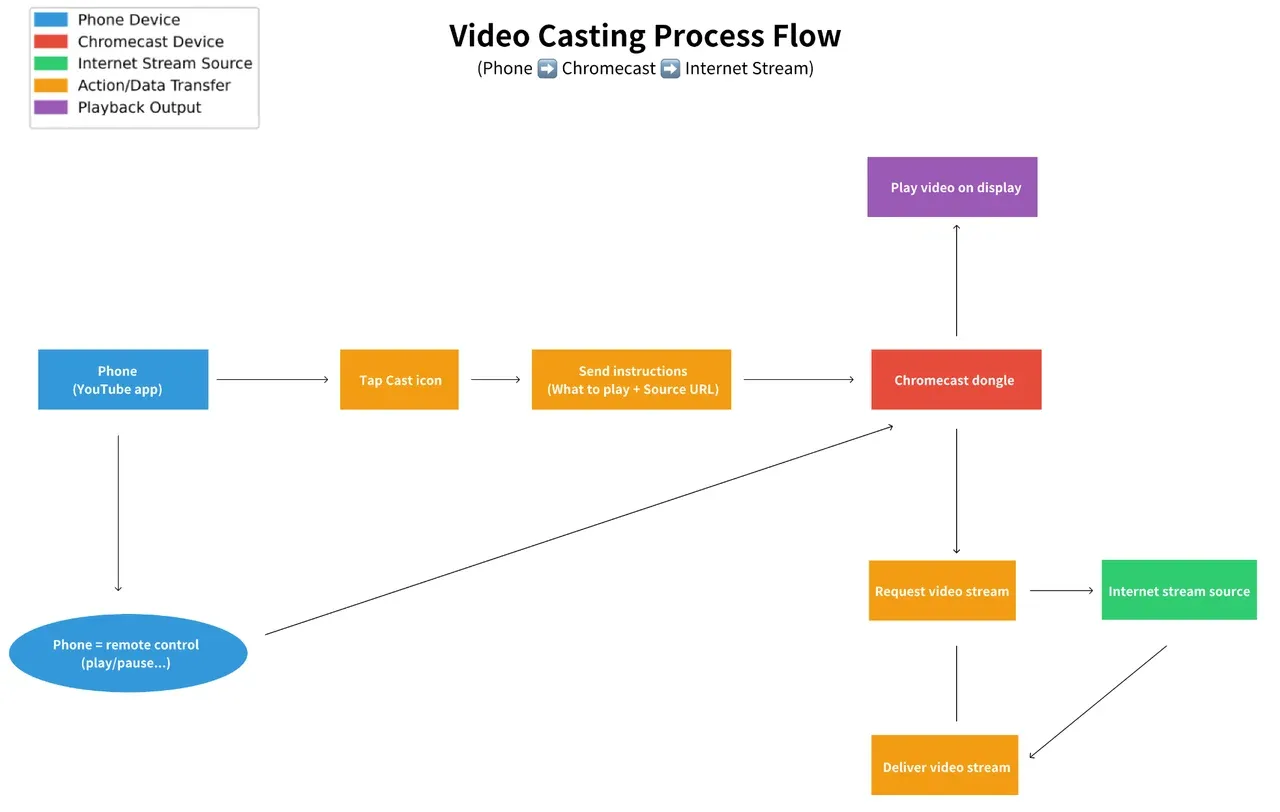
Think of it this way — your phone isn't "sending" the entire video; it's simply giving instructions. When you tap the Cast icon in an app like YouTube, your device tells the Chromecast what to play and where to fetch it from. Once that handoff happens, the Chromecast connects directly to the internet stream itself. Your phone becomes a remote control, not the source of playback.
The Sender and Receiver Relationship
To make this work, Chromecast relies on what Google calls the Google Cast protocol, a communication system between a sender and a receiver.
- The sender is your phone, tablet, or Chrome browser.
- The receiver is the Chromecast streaming device plugged into your TV or a TV with Chromeca
When both are connected to the same Wi-Fi network, they can "see" each other. The sender locates available Chromecast receivers, and when you click "Cast", it sends a lightweight instruction, much like telling a smart assistant, "Play this video from YouTube."
From that moment, the receiver (your Chromecast device) streams the content directly over Wi-Fi. That's why you can minimize the app, open other apps, or even turn off your phone's screen without stopping playback.
Network Requirements and Performance
Because everything runs through Wi-Fi, a stable network makes a huge difference. Starting from Chromecast 2, Google added dual-band Wi-Fi (2.4 GHz and 5 GHz) support, which dramatically improved streaming quality. The Chromecast Ultra and Chromecast with Google TV take this further with better antennas and optional Ethernet connections for wired stability, ideal for 4K streaming or dense Wi-Fi environments.
If you're setting up your device for the first time, it's essential to connect your Chromecast to Wi-Fi properly. This connection allows your phone or computer to communicate with the Chromecast device and stream content smoothly. The setup usually involves using the Google Home app to detect the Chromecast on your network, choosing your Wi-Fi, and linking your Google account.
Mirroring vs. Direct Streaming
There are two distinct ways Chromecast works, and understanding them helps you get the best performance:
- Direct streaming (app casting): When you use Cast-enabled apps like YouTube or Netflix, Chromecast plays the media directly from the cloud. This gives you high quality, minimal lag, and the ability to keep using your phone normally.
- Screen mirroring (tab or device casting): This option mirrors whatever is on your screen, useful for presentations, web pages, or apps without native Cast support. However, since the data goes through your phone or computer first, it depends on your device's performance and may introduce slight latency.
Why It Feels Seamless
Chromecast's biggest advantage lies in its simplicity and optimization. The Google Cast protocol was designed to minimize interruptions (it buffers efficiently, adjusts stream quality automatically, and even syncs playback state between devices). If you've ever switched from your phone to a friend's tablet mid-playback, you've seen how smart it is.
And for the Chromecast with Google TV, this system works both ways: it can act as a receiver for casting and a standalone smart TV interface running Google TV OS. That's what makes it so versatile — it bridges two worlds: casting and on-screen browsing.
All in all, when people ask "how does Chromebook", the answer is simple yet elegant: your device sends instructions, your Chromecast handles the stream, and you get smooth, high-quality playback without cables or complicated setup.
How to Use Chromecast
Using Chromecast is easier than you might think. Whether you're using a classic Chromecast dongle or the newer Chromecast with Google TV, the setup process is quick, and the experience is designed to be intuitive. Let's walk through how to get started, step by step.
Chromecast Dongle Setup and Usage
If you're using one of the earlier models, such as Chromecast 2nd or 3rd Gen or Chromecast Ultra, setup takes just a few minutes. These versions rely on your smartphone, tablet, or laptop to control what's playing.
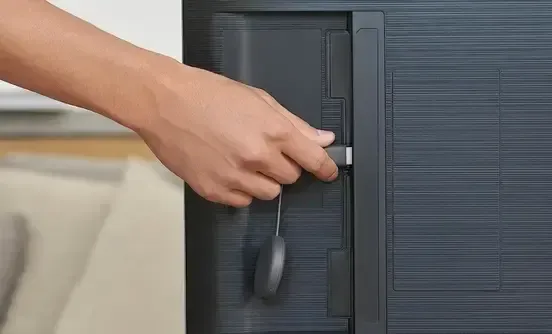
Step 1. Insert the Chromecast dongle into an HDMI port on your TV. Then, connect the USB power cable.
Step 2. Download the Google Home app from the App Store or Google Play. This app is your control center for setting up and managing your Chromecast devices.
Step 3. Open the Google Home app, and it should automatically detect your Chromecast. Follow the on-screen instructions to link the device to your home network.
Note: This step is crucial because Chromecast uses Wi-Fi to communicate with your phone or computer.
Step 4. Open a Cast-enabled app such as YouTube, Netflix, or Spotify. Tap the Cast icon (a small rectangle with a Wi-Fi signal in the corner), and select your Chromecast device from the list.
Tip: Make sure your phone or laptop is on the same Wi-Fi network as your Chromecast. If they're not, your device won't show up in the Cast menu.
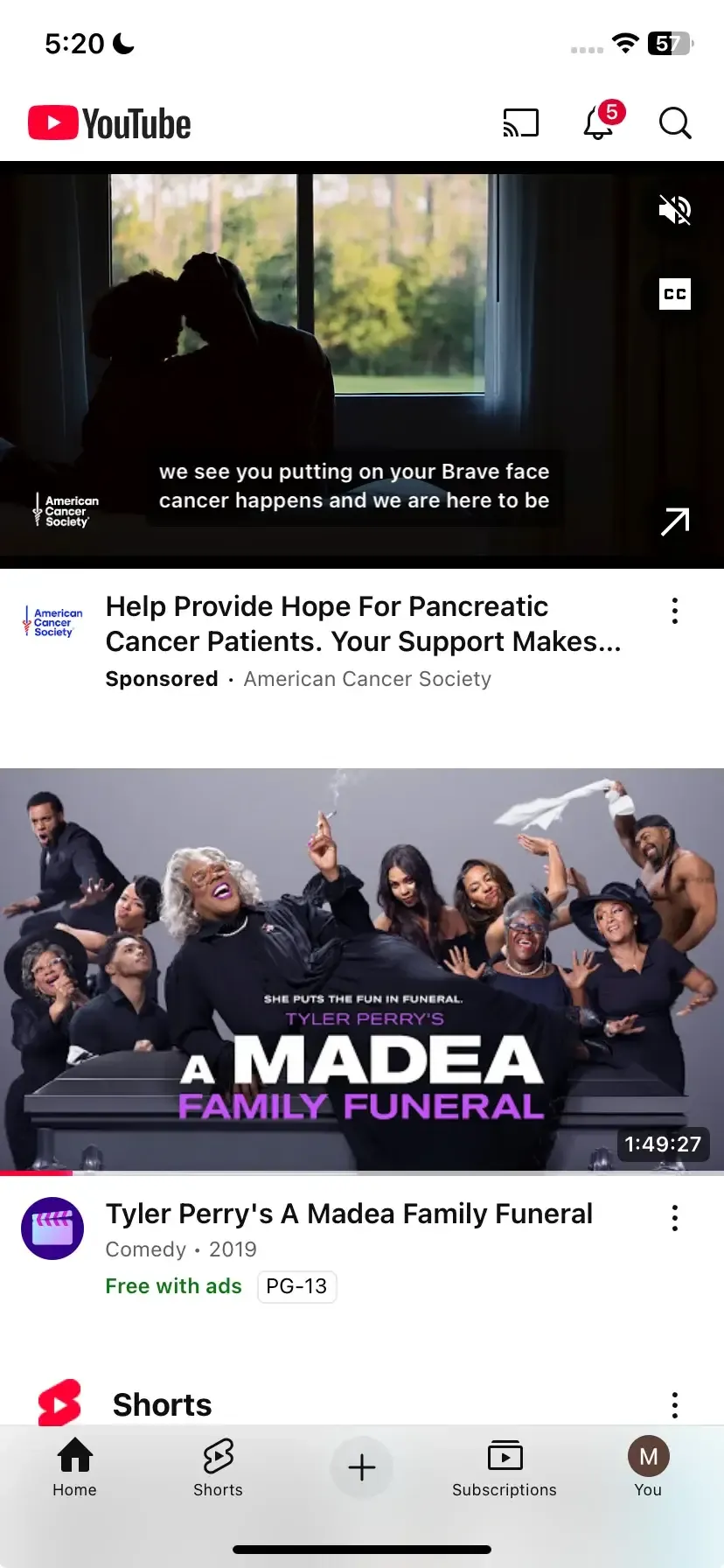
Step 5. Once connected, the video or music will instantly start playing on your TV. Your phone becomes the remote — you can pause, rewind, change volume, or browse for something else to watch without interrupting playback.
Chromecast with Google TV Setup and Usage
The Chromecast with Google TV offers a slightly different experience — it has its own remote, on-screen interface, and the full Google TV operating system built in. You can think of it as a fusion of Chromecast and Android TV, giving you more control without losing the simplicity of casting.
Step 1. Insert the Chromecast with Google TV into your TV's HDMI port and connect the included USB power cable and adapter. Power on your TV and switch to the correct HDMI input.
Step 2. The setup wizard on your TV will guide you through choosing your language, pairing your remote, and connecting to Wi-Fi. You'll also be asked to sign in with your Google account to sync apps, preferences, and watchlists.
Step 3. Like the classic model, Wi-Fi is essential. You'll need a stable network to stream smoothly and download apps from the Google Play Store.
Step 4. Once setup is complete, you'll see a clean, personalized interface that highlights trending shows, apps, and recommendations from across your streaming services, including Netflix, Disney+, Prime Video, YouTube, and more.
Step 5. The included remote features a built-in Google Assistant button. Just press it and say things like "Play Stranger Things on Netflix" or "Show me comedy movies", and it will do the rest.
Step 6. Cast from your phone anytime. Even though this model has its own interface, it's still fully backward compatible with classic casting. So you can cast videos or music from your phone just as easily, ideal when you find something on your mobile device and want to continue watching on the big screen.
Your Chromecast also works perfectly with the Chrome browser. If you're on a laptop or desktop (Windows or macOS), you can cast from it easily:
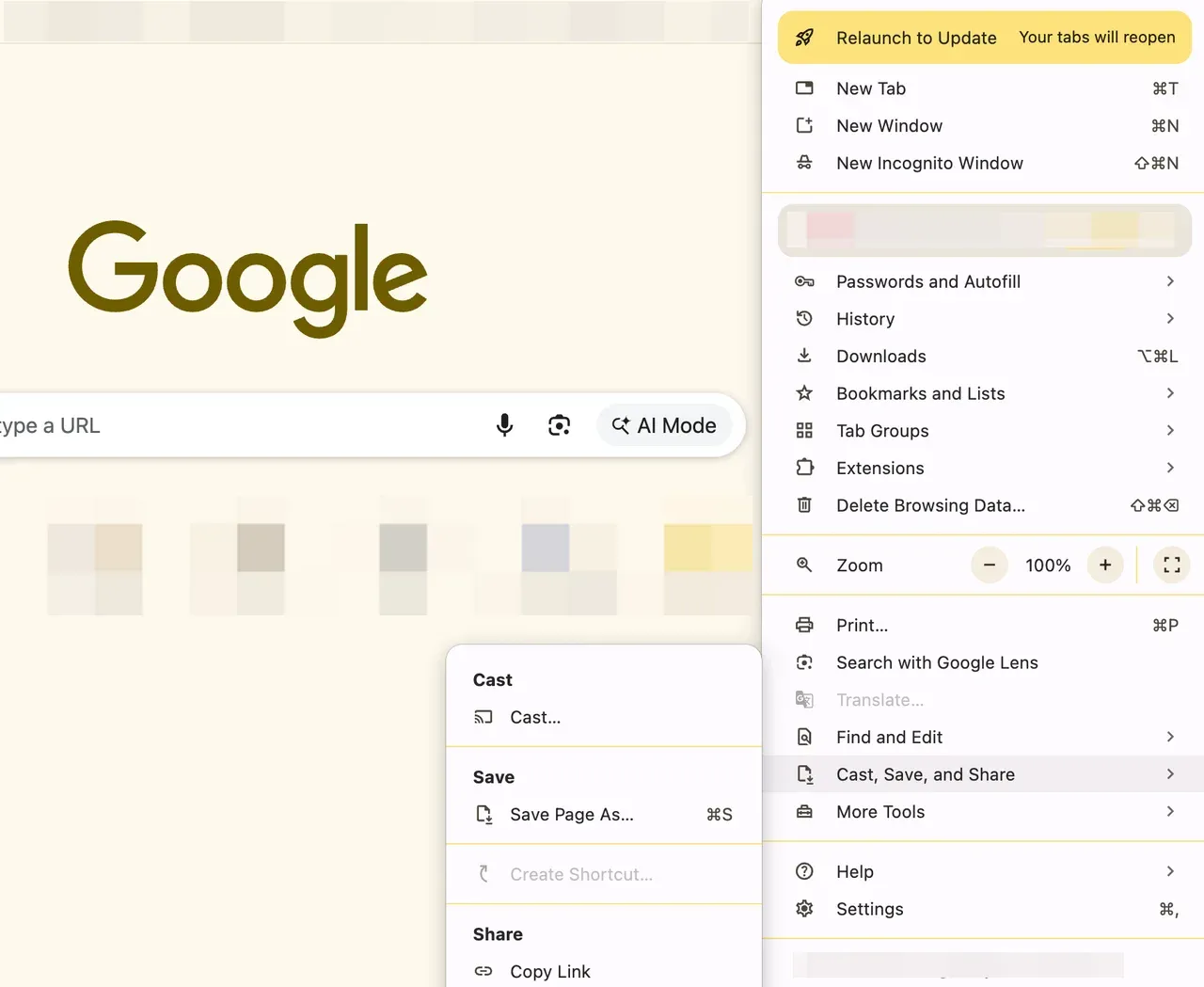
Step 1. Open Chrome and go to the website or video you want to cast.
Step 2. Click the three-dot menu (⋮) in the upper right corner.
Step 3. Choose Cast and select your Chromecast device.
Step 4. You can cast a specific browser tab, a local file, or your entire desktop.
This is particularly handy for business presentations, photo slideshows, or watching web-only videos that don't have native Cast support.
As you see, Chromecast makes it easy to turn any regular TV into a smart, connected screen without complicated menus or remotes. Whether you prefer using your phone as a remote or exploring apps directly on Chromecast with Google TV, the experience is smooth, fast, and delightfully simple.
What Is Google Chromecast Used For
What can a Chromecast device actually do in everyday life? Beyond streaming your favorite YouTube videos, Google Chromecast opens up a wide range of possibilities from entertainment to productivity. Here's how people typically use it.
Stream Movies, Shows, and Music
This is the most common reason people buy a Chromecast TV. You can instantly cast movies from Netflix, Prime Video, Disney+, Hulu, or YouTube to your TV. For music, you can stream directly from Spotify, Pandora, or YouTube Music — no cables, no remotes.
What's great is that the Chromecast device doesn't just mirror your phone screen; it streams the content directly from the cloud. That means you get stable playback and high quality, even if you minimize the app or turn off your phone's screen.
Share Photos and Videos
Want to show your vacation photos or a birthday video on the big screen? For example, cast Google Photos: open the app, tap the Cast option, and watch your media come to life on your TV. It's perfect for family gatherings and casual get-togethers.
Work and Study from Home
Chromecast isn't just for fun, but also a handy wireless presentation tool. You can cast Chrome tabs, Google Slides, or PDFs straight to your TV or projector. Whether you're hosting a meeting or attending a remote class, it helps turn any display into a professional workspace.
Gaming and Fitness
Many mobile games support casting, letting you use your phone as a controller while the action unfolds on the big screen. Similarly, fitness apps like YouTube Fitness and Peloton let you follow workout routines more comfortably on your TV.
Voice Control and Smart Home Integration
If you use the Chromecast with Google TV, the built-in Google Assistant makes controlling content easier than ever. You can simply say:
- Play Stranger Things on Netflix
- Show me trending action movies
It also connects with smart home devices, allowing you to dim lights or check the weather without touching a button.
Best Alternatives to Chromecast
While Chromecast is one of the easiest and most affordable streaming solutions, it's not the only way to enjoy your favorite shows and apps on the big screen. If you're exploring other options that fit different needs, like standalone streaming, advanced remote control, or better ecosystem integration, here are the top Chromecast alternatives worth considering.
#1. PigeonCast (Software Alternative)
If you love the convenience of Chromecast but wish it were even simpler, without needing any extra hardware, PigeonCast is the perfect alternative. Unlike traditional streaming sticks, PigeonCast is an app-based solution, meaning you can mirror your phone, tablet, or laptop screen directly to your TV without plugging in a dongle.

Pros:
- 100% software-based — no Chromecast dongle or HDMI device required.
- Works across multiple platforms, including Android, iOS, Windows, and Mac.
- Portable and easy to use — perfect for travelers or multi-device households.
- Supports screen mirroring, video casting, and live streaming in one app.
Cons:
- Requires a stable Wi-Fi connection between devices.
- Interface depends on your phone or laptop, not a dedicated remote.
If you want to mirror your screen without buying extra hardware, or use a casting solution that travels with you, PigeonCast is the most portable and flexible alternative to Chromecast.
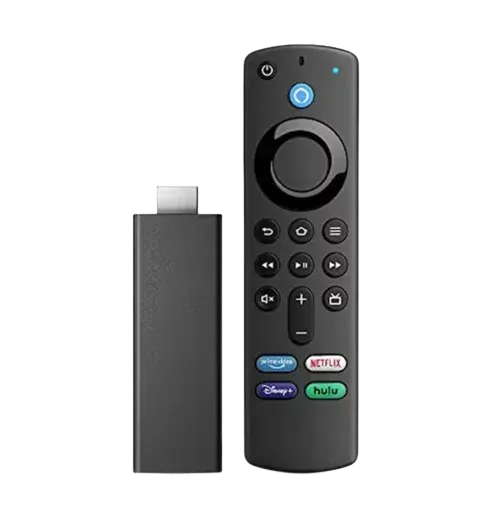
#2. Amazon Fire TV Stick
The Amazon Fire TV Stick is a powerful, self-contained streaming device that plugs directly into your TV's HDMI port. It doesn't rely on a phone to control playback, and everything is managed through the included Alexa remote.
Pros:
- Comes with a remote and voice control via Alexa.
- Works independently from your phone or computer.
- Supports major apps like Netflix, Prime Video, Disney+, YouTube, and more.
Cons:
- Interface is heavily Amazon-centric.
- Limited Google ecosystem integration.
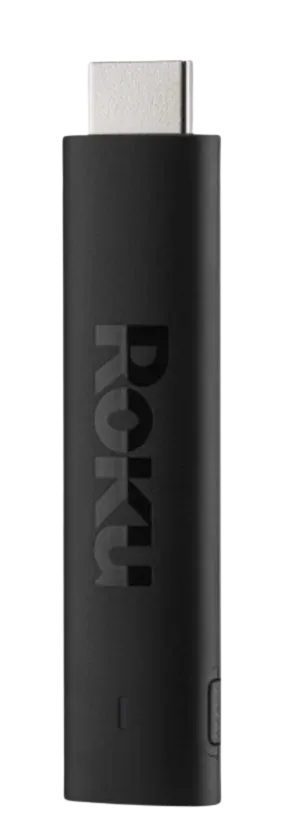
#3. Roku Streaming Stick 4K
Roku is a veteran in the streaming space and is known for its simple, app-based interface. It's a great option for users who value neutrality and wide content availability.
 Pros:
Pros:
- Extremely easy to set up and navigate.
- Works with a broad range of apps ("channels").
- Offers both casting and traditional app interfaces.
Cons:
- Limited voice control options compared to Google or Amazon.
- Interface feels more basic than Google TV or Fire OS.
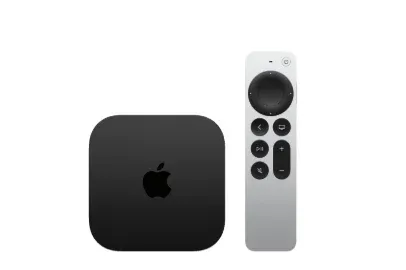
#4. Apple TV 4K
For users in the Apple ecosystem, Apple TV 4K provides a polished and premium experience with exceptional performance and quality.
Pros:
- Supports Dolby Vision and Dolby Atmos for high-end picture and sound.
- Deep integration with iPhone, iPad, and Mac via AirPlay.
- Powerful performance thanks to the A15 Bionic chip.
Cons:
- Significantly more expensive than other options.
- Works best when paired with Apple devices.
Final Thoughts
So, what is Chromecast with Google TV really? It's more than a tiny HDMI gadget — it's a bridge between your personal devices and your living room entertainment. Whether you're streaming your favorite series, sharing memories, or showing a presentation, Chromecast makes it seamless.
And while Google continues to refine its lineup, from the early Chromecast 2 to the powerful Chromecast with Google TV, its mission hasn't changed: making smart entertainment simple and accessible for everyone.
If you want something plug-and-play, Chromecast is hard to beat. But if you prefer a software-only approach, give PigeonCast a try. Either way, your phone becomes the ultimate remote — and your TV, the ultimate screen.
What Is Chromecast FAQs
What replaced Google Chromecast?
Google TV Streamer is Google’s current next-generation streaming device. It combines Google Cast support with a full Google TV interface, dedicated remote, app installation, personalized recommendations, and smart home controls. Existing Chromecast devices can still be used, but Google TV Streamer is now the main hardware option.
Does Google Chromecast still work?
Yes. Existing Chromecast devices can continue working with compatible apps and supported networks. However, available features and software support vary by model and generation. Older devices may receive fewer updates or encounter compatibility issues as apps, operating systems, and streaming standards change.
Do I need Chromecast if I have a smart TV?
Not necessarily. Many smart TVs already include Google Cast or popular streaming apps, so an additional device may offer limited value. Chromecast can still be useful if the TV has a slow interface, lacks certain apps, or you want a more consistent casting experience across different displays.
Is there a monthly fee for Chromecast?
No. Chromecast does not require a separate monthly fee to cast content. However, you may need to purchase compatible hardware, and services such as Netflix or Disney+ can require their own subscriptions. See the full breakdown of Chromecast costs and fees.
Can you use Chromecast with any TV?
A separate Chromecast device requires a compatible HDMI input, sufficient power, and the necessary HDCP support. The TV does not need to be a smart TV. You also need a suitable network connection and a supported phone or tablet to complete the initial setup.
How to use Chromecast in a hotel?
Using Chromecast in a hotel depends on the hotel's TV setup and network restrictions. If the hotel TV has an available HDMI port and the Wi-Fi network allows device connections, you can usually connect your Chromecast and cast from your phone. However, some hotel networks use login pages or block device-to-device communication, which can prevent Chromecast from working properly. In these cases, using a travel router, a compatible hotel Wi-Fi solution, or another screen mirroring method may provide a more reliable connection.
Which apps work with Chromecast?
Many video, music, and media apps support Google Cast, including services such as YouTube, Netflix, Disney+, and Spotify. Availability can vary by country, subscription plan, device, and app version. Look for the Cast icon inside the app to confirm that the current content can be sent to a TV.
Can Chromecast make a non-smart TV smart?
Yes. Connecting a Chromecast device to a compatible non-smart TV adds wireless casting without replacing the television. Models with Google TV also provide an app-based streaming interface and remote. The TV still needs a suitable HDMI connection and must meet the device’s technical requirements.
What is the main purpose of Chromecast?
Chromecast makes it easier to move media from a smaller device to a TV. You can choose content on your phone, tablet, or computer and control playback without navigating the television interface. It is especially useful for shared viewing, music playback, presentations, and TVs with limited built-in apps.
Mia Clarke is a technology editor specializing in screen mirroring and casting solutions across multiple platforms. Mia provides clear, practical guides and in-depth insights to help users seamlessly connect their devices. Passionate about enhancing digital experiences, Mia is dedicated to keeping readers updated on the latest trends and tools in cross-platform screen sharing. Whether you’re looking to mirror your smartphone, laptop, or smart TV, Mia’s content delivers reliable, user-friendly advice to simplify your tech setup.