
You just bought a new Chromecast, ready to cast your favorite shows on the big screen, only to realize it needs WiFi before it can do anything. Don't worry, setting it up is easier than it sounds. Whether you're trying Chromecast WiFi setup for the first time or switching to a new WiFi network, this guide walks you through every step clearly. Let's dive into how to connect Chromecast to WiFi.
How to Connect Chromecast to WiFi for the First Time
Before you can stream, your Chromecast needs to join your home network. Follow these steps carefully, which only takes a few minutes to complete your Chromecast setup WiFi process.
Step 1: Plug in and power on your Chromecast.
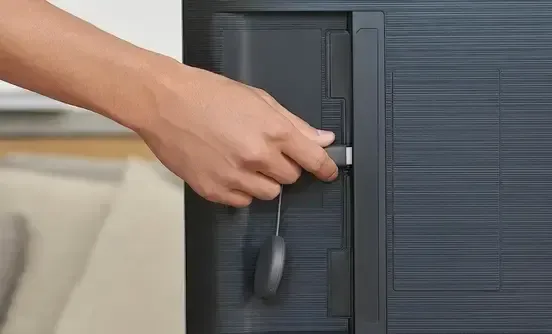
- Connect your Chromecast to your TV via an HDMI port.
- Plug the power cable yo a wall outlet (not just a USB port on your TV).
- Turn on the TV.
- Switch to the HDMI input your Chromecast is using.
Step 2: Install the Google Home app on your phone.
- On your Android phone or iPhone, download the Google Home app from Google Play or App Store.
- Make sure your phone is connected to the same WiFi network you want your Chromecast to use.
Step 3: Add your Chromecast device.
- Open the Google Home app.
- Tap the plus icon (+) in the top-right corner.
- Select Set up device > New device > Home.
- The app will automatically search for a nearby Chromecast device.
Step 4. Confirm the pairing code.
- A code will appear both on your TV screen and in the app.
- Check that they match, then tap Yes to continue.
Step 5. Connect Chromecast to WiFi
- Choose your home network from the list.
- Enter the WiFi password.
- The app will connect your Chromecast to WiFi.
- Once it's done, you'll see a confirmation message, and your Chromecast is ready to stream.
That's it — your Chromecast setup WiFi process is complete. You can now cast videos, music, and apps directly from your phone or laptop to your TV.
How to Connect Chromecast to New WiFi
Maybe you've moved, upgraded your router, or changed your WiFi name, and now your Chromecast can't connect to WiFi. You'll need to switch it to your new network. Here's how to connect Chromecast to new WiFi quickly.
Option 1: If the old network is still available
Step 1. Open the Google Home app.
Step 2. Tap your Chromecast device.
Step 3. Select the gear icon to access the Settings menu.
Step 4. Choose Wi-Fi > Forget network.
Step 5. Tap Set up new WiFi and follow the same steps from the setup section above.
Option 2: If you can't access the old network
If your previous WiFi no longer exists, you'll need to factory reset your Chromecast.
Step 1. Hold down the reset button on the Chromecast device, which is usually next to the power port, for about 15 seconds until the light blinks.
Step 2. Release the button, and your Chromecast will restart.
Step 3. Open the Google Home app again and repeat the WiFi setup process as described earlier.
This process refreshes your device completely, letting you connect to a brand-new network without issues.
Try PigeonCast for Mirroring Without Chromecast
Sometimes, WiFi just isn't available (maybe you're in a hotel, or your router's acting up). In those cases, casting with Chromecast won't work. That's where PigeonCast app comes in.

PigeonCast is a free, cross-platform screen mirroring app that works on TV, phone, and computer without needing Chromecast at all. It supports common protocols like Google Cast, AirPlay, and DLNA, plus its own proprietary casting protocol.
This means you're not trapped in one ecosystem. You can mirror your iPhone, Android, or laptop to any TV smoothly, even without specific hardware. If you've ever struggled with "how to connect Chromecast to WiFi" problems, PigeonCast gives you a simple, wireless alternative that just works.
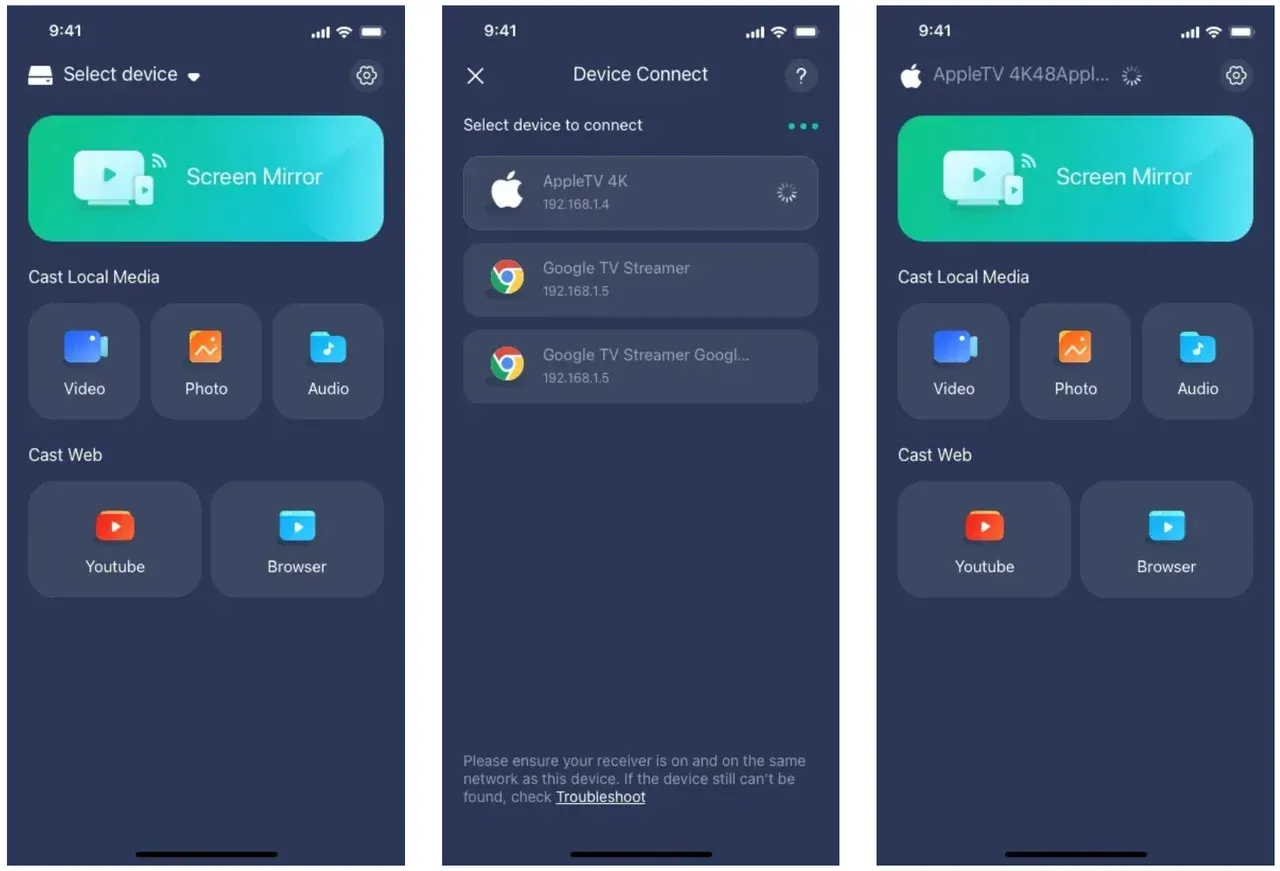
Step 1. Download PigeonCast on your casting device and TV.

PigeonCast Screen Mirroring

Official Download



Step 2. Connect your devices to the same WiFi network.
Step 3. Launch PigeonCast on your devices, and choose the target device.
Step 4. Once connected, tap one in-app option to start casting.
Try PigeonCast for a quick, smooth screen mirroring experience.
Wrapping Up
Setting up or reconnecting your Chromecast to WiFi doesn't have to be confusing. Once you know how to connect Google Chromecast to WiFi or switch to a new one, the process takes just minutes. But if you're ever stuck without internet access or want a more flexible option, PigeonCast is the easiest way to mirror your screen without relying on Chromecast.
How to Connect Chromecast to WiFi FAQs
Q: How to connect Chromecast to hotel WiFi?
Hotel networks often have login portals that Chromecast can't access. Try using a mobile hotspot from your phone or laptop to create a private WiFi network, then connect both devices to it.
Q: How do I reset my Chromecast to a new WiFi?
Hold the reset button on the Chromecast for about 15 seconds until the LED blinks, then set it up again using the Google Home app.
Q: Why won't my Wi-Fi connect to my Chromecast?
Make sure your Chromecast and phone are on the same frequency band (2.4GHz or 5GHz). Restart your router, then try reconnecting through the Google Home app.
Q: How do I reboot my Chromecast?
Open the Google Home app, select your device, tap the settings icon → More → Reboot. Alternatively, unplug the power cable, wait 10 seconds, and plug it back in.
Q: Can I connect a Chromecast to any TV?
Yes, as long as your TV has an HDMI port and supports HDCP (most modern TVs do). You can also use HDMI adapters for older displays.
Mia Clarke is a technology editor specializing in screen mirroring and casting solutions across multiple platforms. Mia provides clear, practical guides and in-depth insights to help users seamlessly connect their devices. Passionate about enhancing digital experiences, Mia is dedicated to keeping readers updated on the latest trends and tools in cross-platform screen sharing. Whether you’re looking to mirror your smartphone, laptop, or smart TV, Mia’s content delivers reliable, user-friendly advice to simplify your tech setup.