
If you want to know how to cast to Chromecast, the short answer is simple: connect your phone or computer to the same Wi-Fi as the Chromecast, open a supported app or Chrome browser, and tap the Cast button. That covers the basic idea, but the steps change a bit depending on the device you use.
In some situations, you may also need a screen mirroring tool instead of standard Google Cast. That becomes useful when the Cast button is missing, when an app does not support Chromecast properly, or when you want to mirror your entire screen instead of sending only video playback.
This guide focuses on the normal Chromecast methods first, then covers what to do when casting does not work as expected.
What You Need Before You Cast to Chromecast
Before you begin, check these basics:
- your Chromecast or Google TV is plugged in and turned on
- your sender device and Chromecast are on the same Wi-Fi network
- the app you want to use supports Google Cast (check which apps are Chromecast-enabled)
- your phone or computer is not on guest Wi-Fi
If Chromecast is new to you and you want a wider overview, this Chromecast guide explains what Chromecast does and where it works best.
How to Cast to Chromecast From Android
Android is usually the easiest way to start because Google Cast is built into many Android apps and devices. In most cases, you can quickly cast phone to Chromecast without installing extra tools or changing complicated settings. Many popular streaming apps already display the Cast button clearly, making the connection process simple and reliable.
Step 1. Connect your Android phone and Chromecast to the same Wi-Fi network.
Step 2. Open a Cast-supported app such as YouTube.
Step 3. Tap the Cast icon.
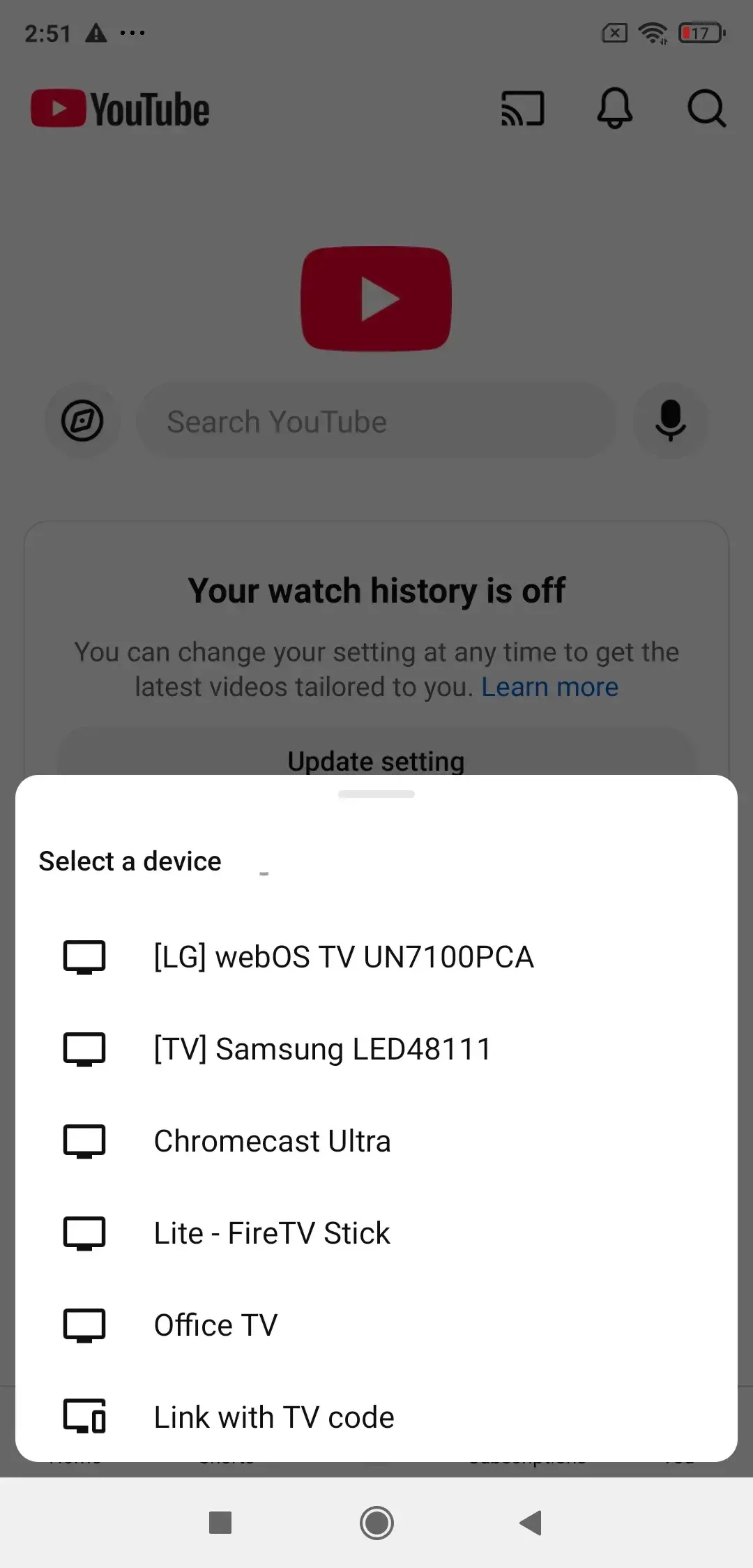
Step 4. Choose your Chromecast or TV from the list.
Step 5. Start the video and control playback from your phone.
This method works best when the app can hand the video to the TV directly. That usually gives you better battery life and fewer interruptions than mirroring the whole phone screen.
For a more detailed walkthrough, check out this complete guide on How to Chromecast from Android.
What if the Cast Icon Is Missing on Android?
If the Cast icon does not appear, check the app first. Not every app supports Google Cast. You can also try Android screen casting:
Step 1. Open Quick Settings on your phone.
Step 2. Tap Cast, Screen Cast, or Smart View, depending on your device.
Step 3. Choose your Chromecast.
This mirrors the whole phone display, which is useful for showing photos, web pages, presentations, or apps that do not include native Chromecast support.
If Android screen casting still does not work reliably, some users switch to tools like PigeonCast for more flexible full-screen mirroring across different devices.


Overall Rating:


How to Cast to Chromecast From iPhone
Casting from an iPhone to Chromecast is possible, but the experience can vary depending on the app you use. Unlike Android, where Google Cast is deeply integrated into the system, iPhone relies more on individual app support. That’s why some apps display the Cast button immediately, while others may not support Chromecast at all.
Step 1. Make sure your iPhone and Chromecast are connected to the same Wi-Fi network.
Step 2. Open an app that supports Google Cast.
Step 3. Tap the Cast button if the app shows it.
Step 4. Choose your Chromecast from the device list.
Step 5. Play the video and use your iPhone as the remote.
When an app supports native Chromecast streaming, the connection is usually smoother and more stable than traditional screen mirroring. It also helps reduce lag and improves video playback quality.
If you want more detailed setup instructions and fixes for common casting issues, check out this guide on How to Chromecast from iPhone.
How to Cast to Chromecast From Windows or Mac
On a computer, the easiest way to cast laptop to Chromecast is usually Chrome. You can cast a tab, a file, or in some cases the whole desktop.
Step 1. Connect your Windows PC or Mac and Chromecast to the same Wi-Fi network.
Step 2. Open Google Chrome.
Step 3. Open the website or video you want to show.
Step 4. Right-click the video and choose Cast.
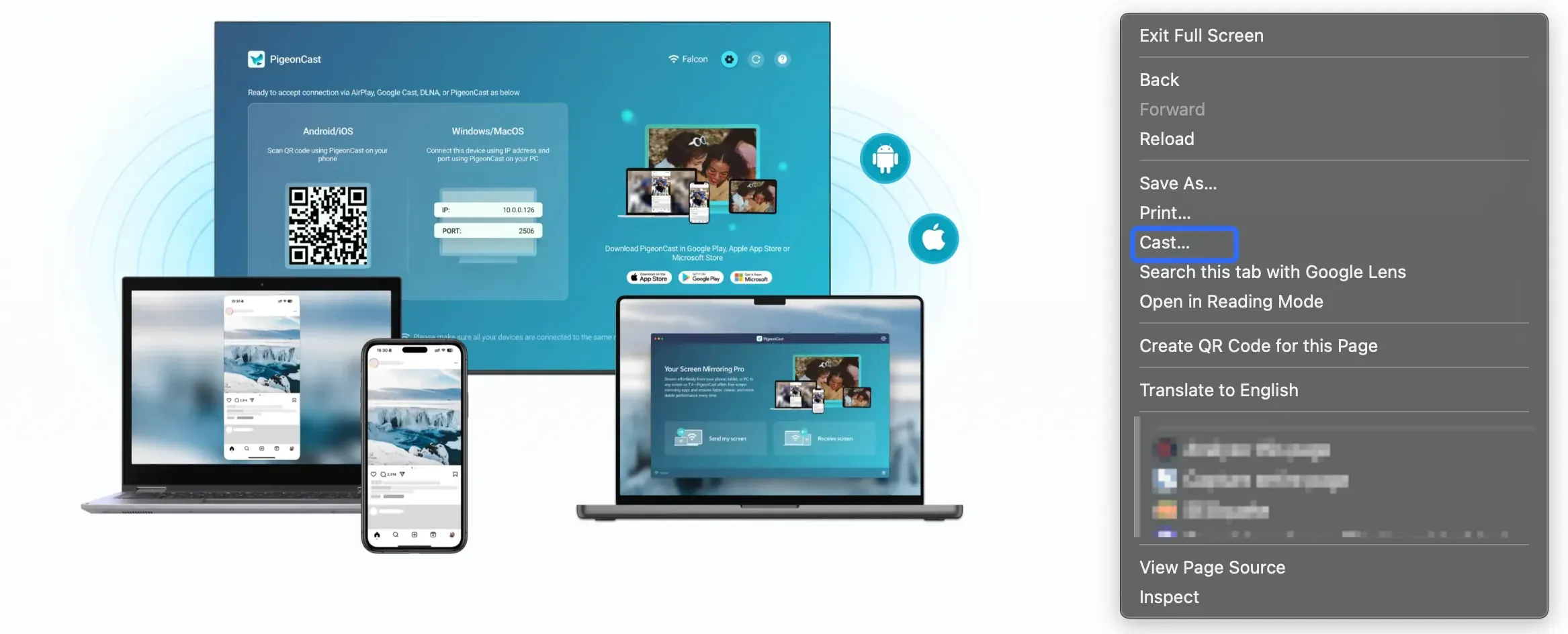
Step 5. Choose your Chromecast.
Step 6. Pick what you want to send from the Source menu.
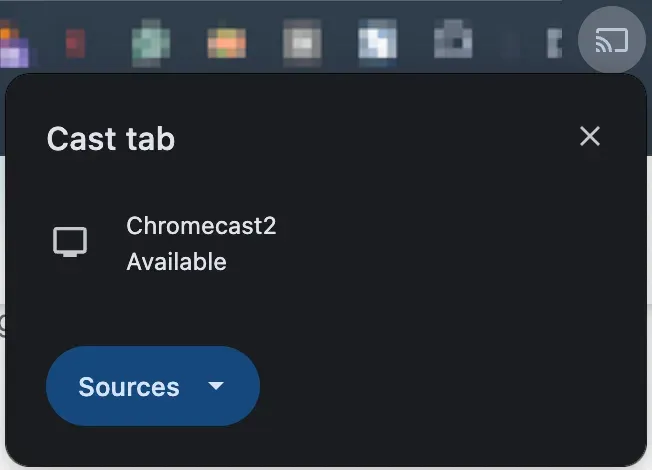
- Cast tab for one browser tab
- Cast screen for your whole display
Tab casting is usually the best choice for web video. Full screen casting is better when you need to show slides, a document, or a whole desktop view.
Chrome browser casting is fine for many jobs, but it is not always the best answer.
- protected video may show a black screen
- some sites do not play well when cast from a tab
- screen casting can lag more than app casting
Why Chromecast Is Not Showing Up on Phone or Laptop
If Chromecast does not appear in the device list, the problem is usually one of a few common things.
- The devices are on different Wi-Fi networks
This is the first thing to check. A phone on mobile data, a laptop on guest Wi-Fi, or a TV on another band can stop Chromecast from appearing. So, open Wi-Fi settings on both devices and confirm the network name matches.
- The app does not support Google Cast
Some apps let you watch video but do not offer a Cast button. In that case, Chromecast may be working fine, but the app gives you no direct way to use it.
- The Chromecast has not finished setup
If Chromecast is brand new or was reset, open Google Home and finish setup before you test casting again.
- VPN or guest network settings are blocking device discovery
VPN apps, guest Wi-Fi, and router isolation settings can hide devices from each other. Turn VPN off for the first test and move both devices to the main home network.
- Chrome or the app needs a restart
Close the app or browser, open it again, and recheck the Cast list. Sometimes that is enough.
When Standard Chromecast Casting Is Not Enough
Standard Chromecast casting works well for supported apps like YouTube and Netflix. However, it does not always work smoothly in every situation. Some apps do not include a Cast button, some TVs handle Google Cast poorly, and sometimes you might simply want to mirror your entire screen instead of sending only video playback.
In these situations, turn to tools like PigeonCast for more flexible screen mirroring across phones, tablets, and computers.
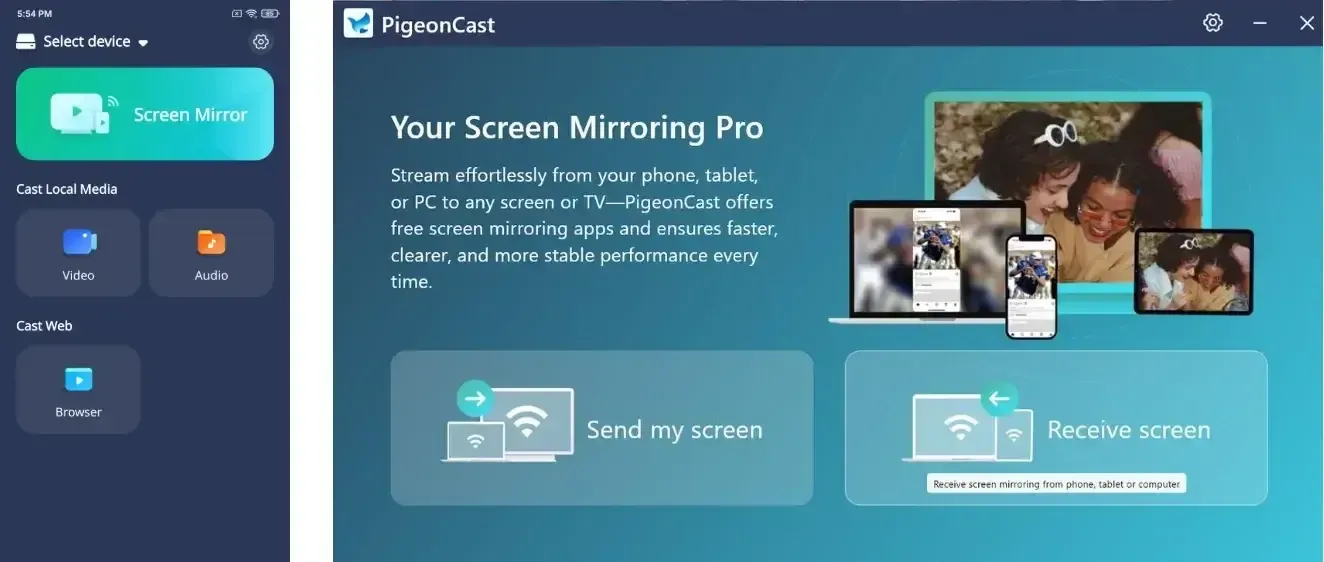
Common situations include:
- the app does not display a Cast button
- you want full-screen mirroring instead of app-based casting
- your TV has limited Google Cast compatibility
- you want to mirror content from different device types more easily
Basic Screen Mirroring Steps With PigeonCast
Step 1. Open PigeonCast on your phone or computer.
Overall Rating:


Step 2. Make sure your TV and device are connected to the same Wi-Fi network.
Step 3. Choose your TV or Chromecast from the available list.
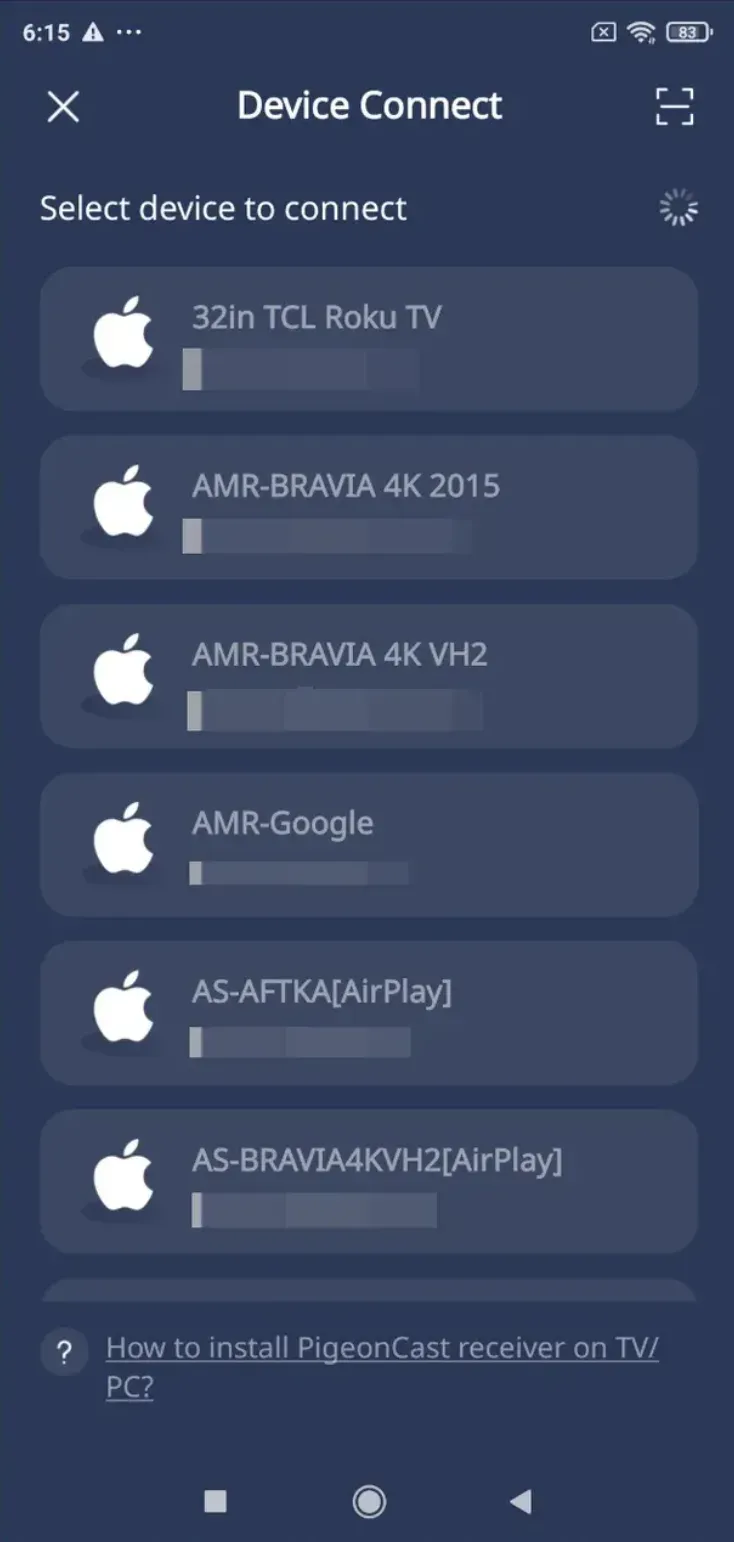
Step 4. Start mirroring and control playback directly from your device.
Unlike standard Chromecast casting, this approach mirrors what is actually displayed on your screen. That makes it useful for presentations, web pages, unsupported apps, video calls, or other content that does not work well with native Google Cast.
Conclusion
How to cast to Chromecast comes down to three things: same Wi-Fi, a Cast-supported app, and the right sender device. Android usually gives the easiest result. iPhone works, but more depends on the app. On Windows and Mac, Chrome is usually the best place to begin.
If the Cast button does not show up or you want full screen mirroring, that is where PigeonCast can help. It is useful when the normal Chromecast method does not match what you need to show on the TV.
How to Cast to Chromecast FAQ
Can I cast to Chromecast without Wi-Fi?
In most cases, Chromecast requires both your sender device and Chromecast to stay on the same local Wi-Fi network. If the devices are connected to different networks, they usually cannot detect each other or establish a casting connection.
Can I cast my whole phone screen to Chromecast?
Yes. Many Android devices support full screen casting through built-in features like Cast. This allows you to mirror your entire phone display to the TV instead of casting only supported video apps.
On iPhone, full screen casting is less direct because iPhone uses AirPlay, while Chromecast uses Google Cast. To mirror your iPhone to Chromecast, you need a third-party app like PigeonCast.
Why is there no Cast button in my app?
The most common reason is that the app does not support Google Cast. Some apps only enable Chromecast on certain devices or operating systems, while smaller streaming apps may not support casting at all.
If the Cast icon is missing, you can also try browser casting or full screen mirroring instead of native app casting.
Is Chromecast the same as screen mirroring?
No. Chromecast and screen mirroring work differently. Chromecast usually sends supported media content directly from the internet to your TV, which often gives smoother playback and better battery performance.
Screen mirroring copies everything displayed on your phone, tablet, or computer screen to the TV in real time. This is more useful for presentations, web pages, unsupported apps, or live demonstrations.
Can I cast from Safari to Chromecast?
Safari does not support Chromecast as directly as Google Chrome. On Mac, Chrome is usually the easier option because it includes built-in browser casting support.
On iPhone or iPad, Chromecast performance depends more on whether the app itself supports Google Cast rather than the Safari browser.
Why can't I cast to my TV using Chromecast?
If Chromecast is not working, the problem is usually related to one of these common issues:
- your phone, computer, or Chromecast is connected to a different Wi-Fi network
- the app does not support Google Cast
- Chromecast setup was not completed correctly
- VPN, guest Wi-Fi, or router settings are blocking device discovery
- the app or browser needs to be restarted
In many cases, reconnecting both devices to the same Wi-Fi network and reopening the app can fix the issue quickly.
Mia Clarke is a technology editor specializing in screen mirroring and casting solutions across multiple platforms. Mia provides clear, practical guides and in-depth insights to help users seamlessly connect their devices. Passionate about enhancing digital experiences, Mia is dedicated to keeping readers updated on the latest trends and tools in cross-platform screen sharing. Whether you’re looking to mirror your smartphone, laptop, or smart TV, Mia’s content delivers reliable, user-friendly advice to simplify your tech setup.