
If you want to cast phone to browser, you usually need a third-party tool rather than relying on a built-in cast button alone. A browser on a PC or Mac does not usually work as a default phone-casting receiver by itself, so the practical way to make this work is to use a tool built for browser-based mirroring.
That is why this setup often feels less straightforward than casting to a TV. Your phone may support screen sharing, but the browser still needs a proper receiving workflow before the session can start cleanly. Without that extra layer, the browser may be open and ready, but your phone still has nowhere useful to send the screen.
If your goal is to show an iPhone or Android screen inside a browser window for a presentation, demo, recording, or easier viewing, an online screen mirroring tool like PigeonCast is the cleanest place to start. It gives you the third-party browser receiving workflow this task usually needs.
What You Need Before You Start Phone-to-Browser Casting
Before you start, make sure the basics are ready:
- a phone that can start the mirror session
- a PC or Mac with an open browser window ready to receive
- a third-party browser mirroring tool
It also helps to check the basics first:
- both devices are on the same local Wi-Fi network
- VPN is off during the first test
- the computer will stay awake during setup
- the browser window stays open while you connect
How to Cast Phone to Browser with PigeonCast Web Mirror
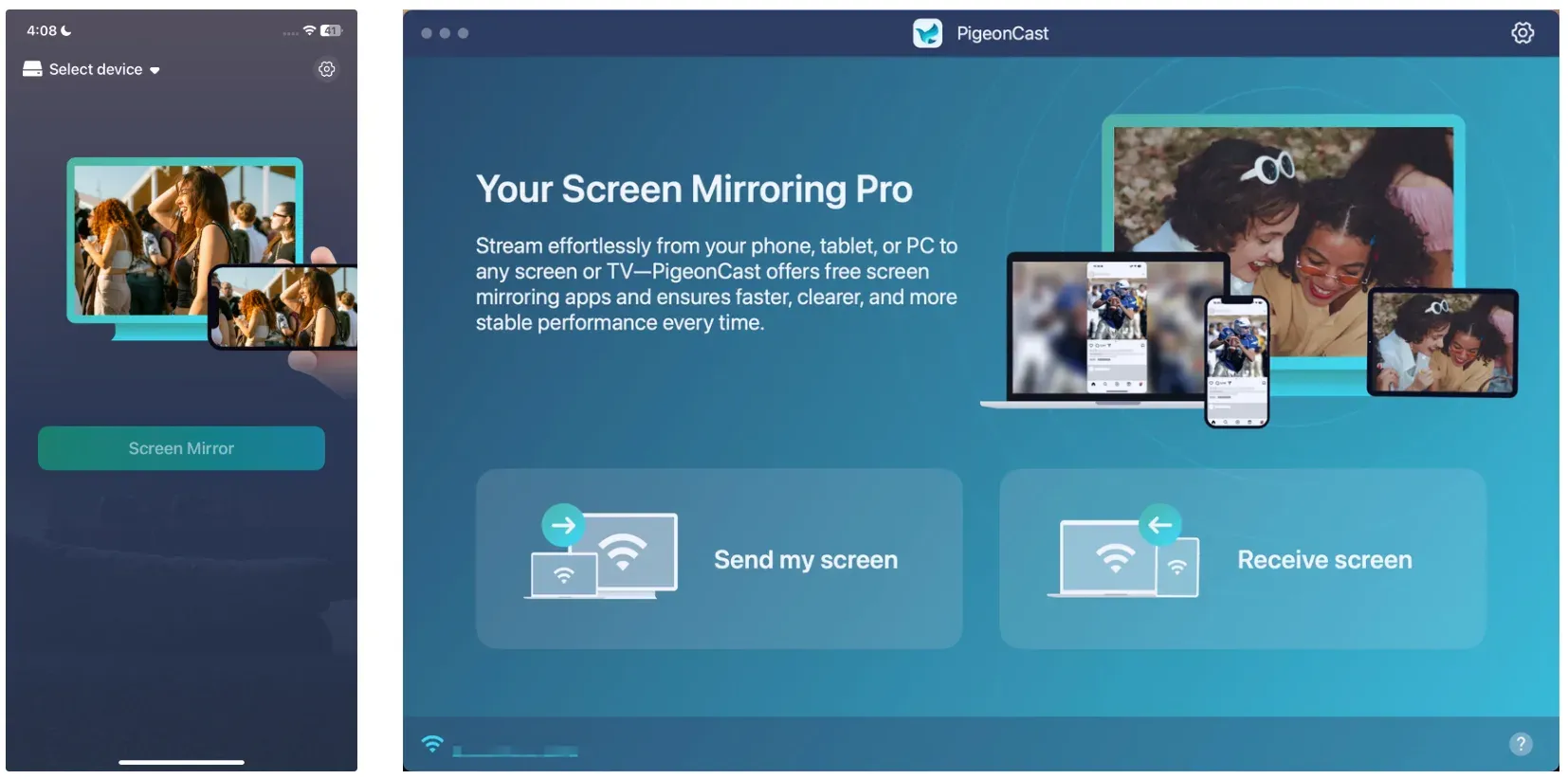
If you want the fastest working method, start with PigeonCast. PigeonCast is a dedicated screen mirroring tool built for multi-platform use, which is exactly why it fits this browser-casting task so well.
Instead of covering only one narrow sender-receiver combination, PigeonCast is designed for broader everyday mirroring across Android phones, iPhones, Windows PCs, Macs, smart TVs, browser-based receiving sessions.
That broader platform support matters because many real setups do not stay inside one device ecosystem. You may need to mirror an iPhone to a browser on a Windows PC today, show an Android screen on a Mac tomorrow, or send content to a smart TV in another session. PigeonCast is easier to recommend because it is built around that mixed-device reality.
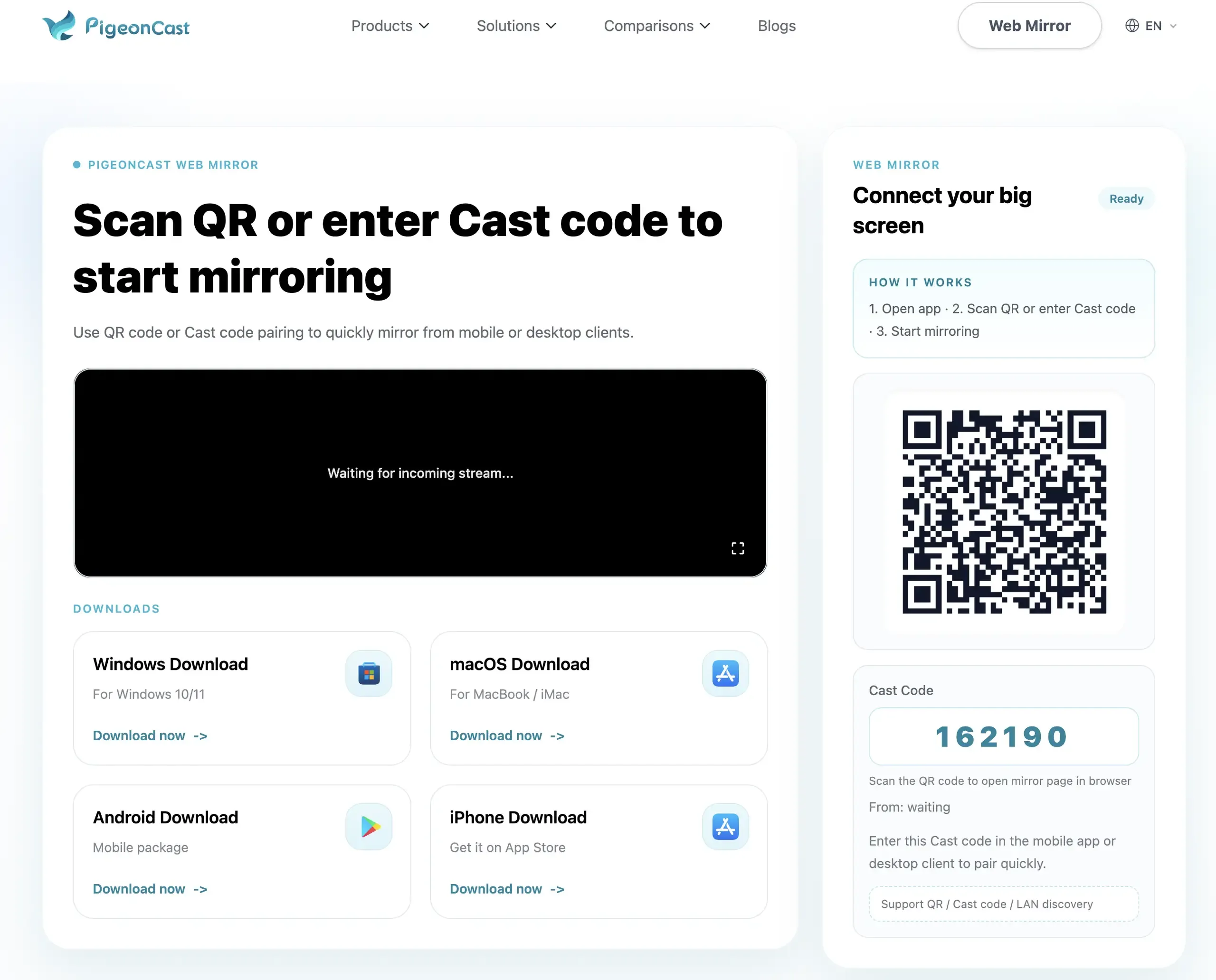
It is also a better fit when you care about actual viewing quality, not just whether the connection starts once. A strong mirroring tool should feel smooth enough for live demos, clear enough for app walkthroughs, and stable enough for longer sessions. PigeonCast is positioned around that kind of experience, with an emphasis on fluid screen sharing, high-definition viewing, and a cleaner cross-platform workflow than piecing the session together from unrelated casting methods.
Step 1: Open Online PigeonCast on Your Computer
On the computer that will receive your phone screen, open a browser such as Chrome, Safari, Edge, or another modern desktop browser.
Then open PigeonCast Web Mirror in that browser and keep the window active. This browser window becomes the place where your phone screen will appear.
Before moving on, make sure:
- the computer stays awake
- the browser window remains open
- your network connection is stable
If you are using this for a meeting, class, or demo, it is worth opening the browser session before you need it live.
Step 2: Connect Your Phone to the Browser
On your Android phone, open PigeonCast and switch to the Web Mirror tab.


Overall Rating:


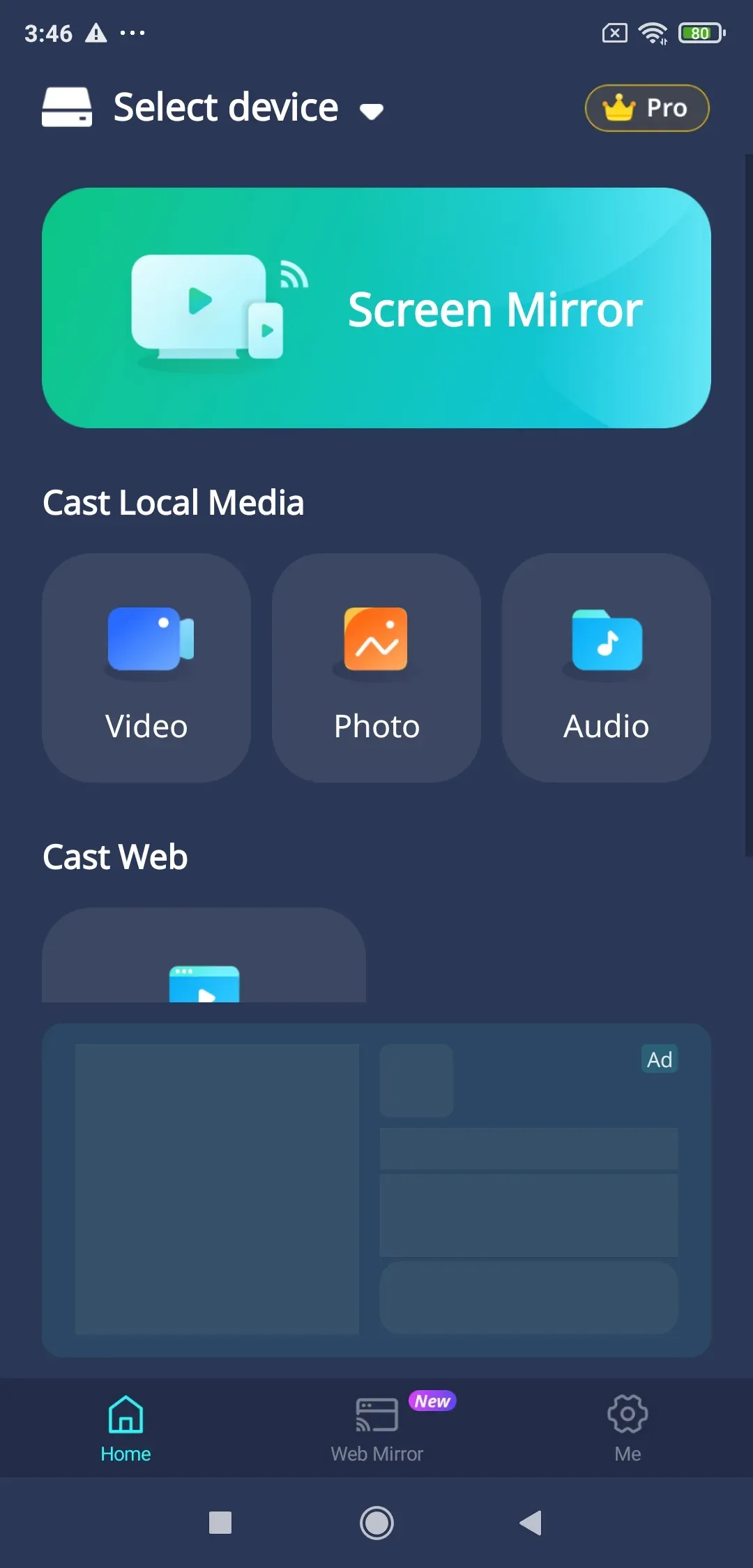
Then enter the 6-digit code shown in the browser window on your phone, or scan the QR code.
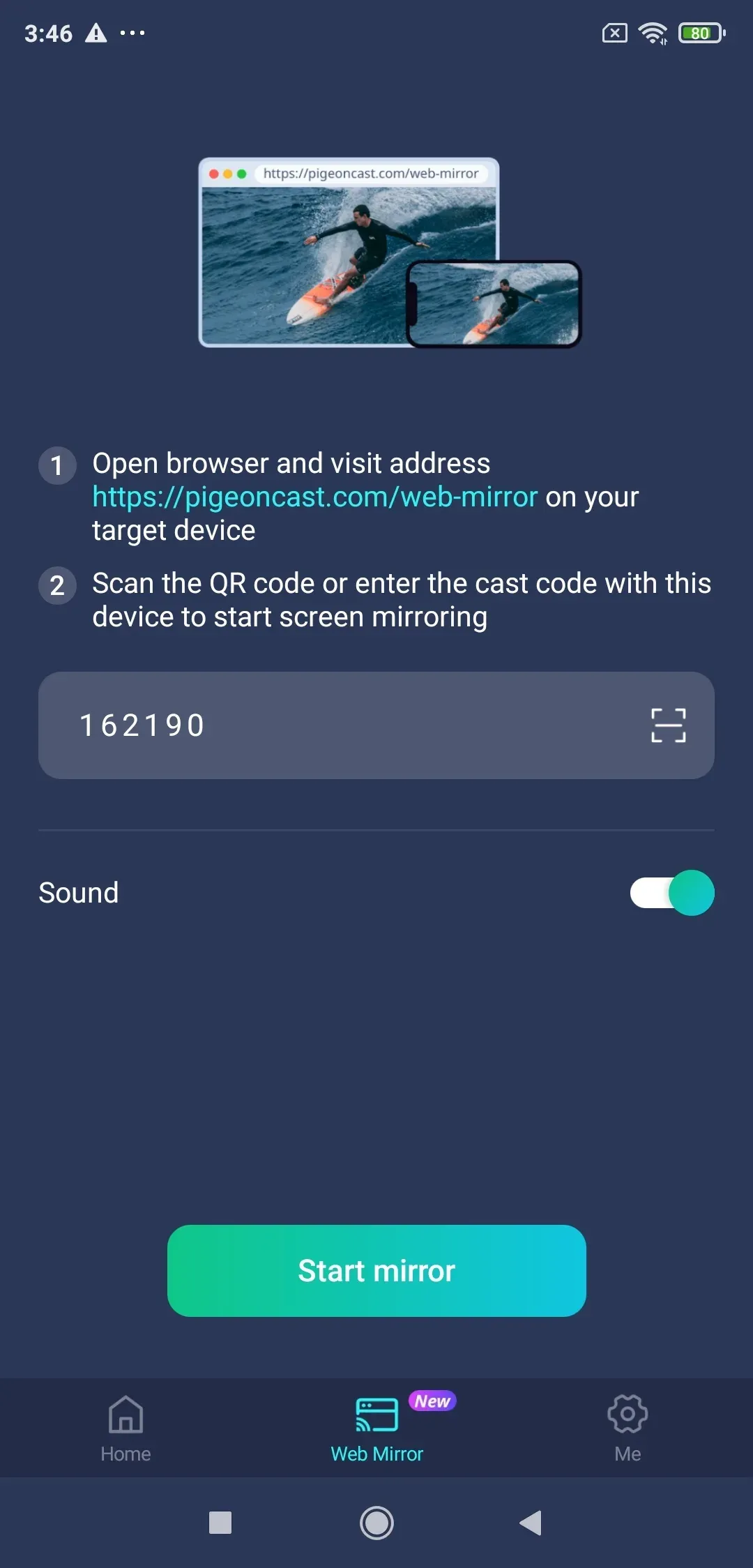
Step 3: View Phone Screen in Browser
Once the phone connects, tap the Start mirror option on your phone screen.
Your phone screen should then appear in the browser window on the receiving computer. At that point, you can use the browser view for:
- presentations
- live demos
- phone-to-desktop monitoring
- showing app flows to another person
- easier viewing on a larger display
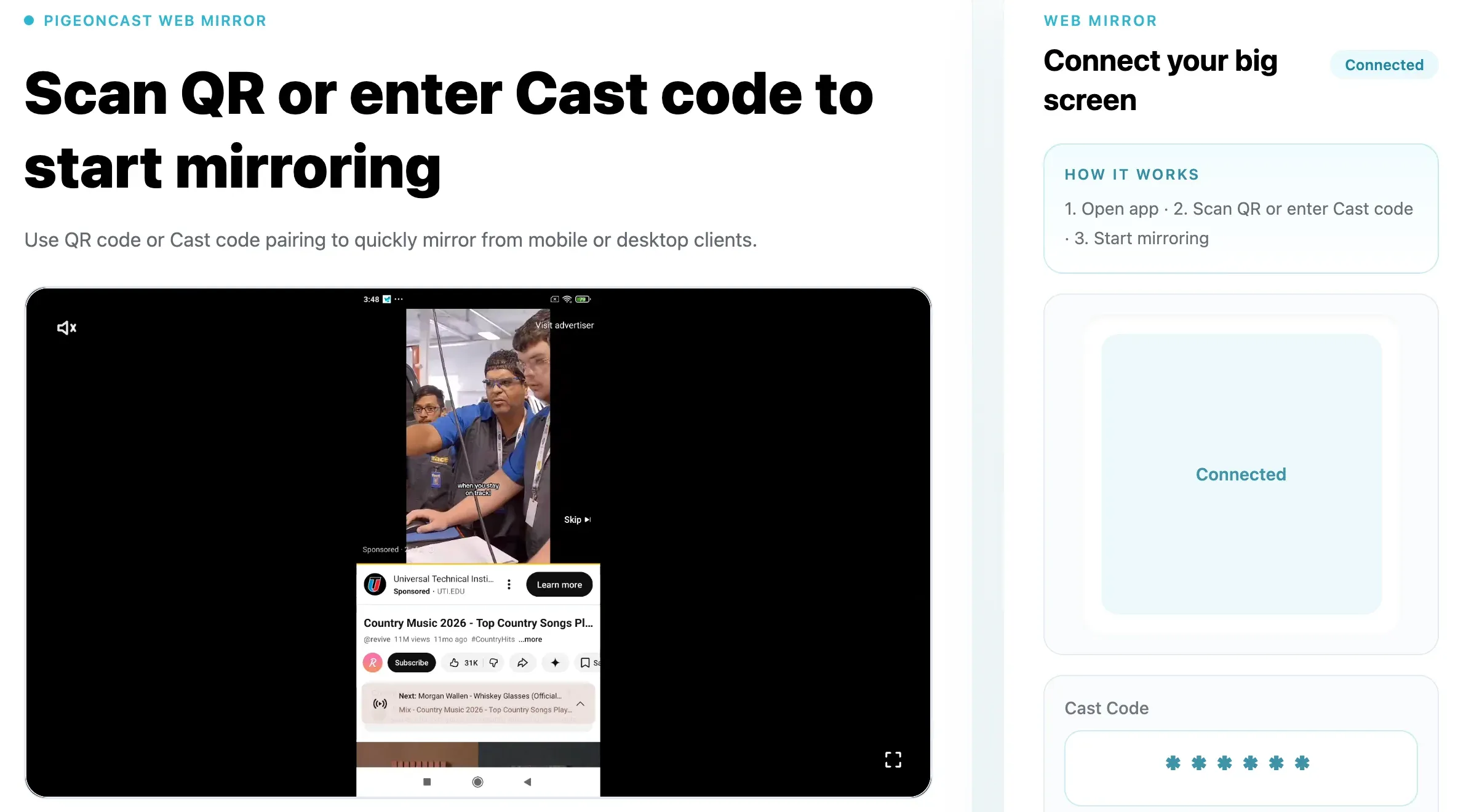
If the session starts but feels unstable, test first with a simple home screen mirror instead of a media-heavy app. That helps separate general connection issues from app-specific playback behavior.
Tip: The online screen mirroring feature will be added to the iOS version soon. If you want to mirror iPhone to Windows PC, install PigeonCast on your PC and start mirroring by following the onscreen instructions.
Overall Rating:


Common Problems When You Mirror Phone to Browser
Most failures are not mysterious. They usually come from one of four causes: network visibility, browser session readiness, phone permissions, or unstable Wi-Fi.
The Phone Cannot Find the Browser Session
Start with the basics:
- confirm the receiving page is open
- make sure the computer and phone are on the same Wi-Fi
- turn off VPN during testing
- avoid guest networks that isolate devices
- refresh the browser receiver page and retry
If the phone still cannot find the session, the problem is usually discovery on the local network rather than the browser itself.
The Browser Opens, but the Screen Does Not Show
This usually points to permission or session-start issues.
Check whether:
- the phone actually started the mirror session
- the browser receiver page is still active
- the phone accepted any sharing prompt
- another app interrupted the connection flow
Testing with the phone home screen first is the fastest way to confirm whether basic mirroring works.
The Session Lags or Stutters
If the mirrored screen appears but performs poorly, the cause is usually Wi-Fi quality rather than the idea of browser mirroring itself.
Try these fixes:
- move both devices closer to the router
- pause large downloads or sync jobs
- reduce background load on the computer
- retry on a less crowded network
For normal presentations and app demos, stable local Wi-Fi matters more than raw internet speed.
Audio or Certain Apps Do Not Behave as Expected
Some sessions are straightforward screen-sharing tasks, while others involve app-specific media behavior. If your main goal is to show navigation, a demo flow, or a mobile interface, browser mirroring usually works well. If your goal is protected streaming playback, behavior may vary more depending on the app and the session.
That is another reason to keep expectations clear. Mirroring phone to browser is best understood as a screen-sharing workflow first, not a guaranteed solution for every media edge case.
Conclusion
If your goal is to cast phone to browser, the most reliable path is to use a tool designed for browser receiving instead of trying to force a built-in TV casting workflow into the wrong job. That is why PigeonCast is the strongest first recommendation for this workflow.
It fits the real job more directly, works for both iPhone and Android readers, and gives you a practical browser receiving workflow instead of leaving you to piece the session together from unrelated casting tools. If you only remember one thing from this guide, make it this: for a stable browser mirror, make sure the phone, the browser, and the connection flow are all ready before you start.
Cast Phone to Browser FAQ
Can I cast my phone to a browser?
Yes. You can cast or mirror your phone to a browser when you use a workflow designed for browser receiving. In practice, that usually means opening a web-based receiver like PigeonCast on your computer and starting a mirror session from your phone.
How do I mirror my phone screen in Chrome or another browser?
Open a browser on your PC or Mac, launch a browser-based receiver such as PigeonCast, connect your phone to that session, and then start mirroring from the phone side.
Can I cast iPhone to browser on PC?
Yes, as long as the workflow supports browser receiving on the PC side. That is one of the main reasons a tool like PigeonCast is more practical here than relying on TV-oriented casting paths.
Can I cast Android phone to browser without Chromecast?
Yes. Chromecast is mainly a TV- and Cast-receiver-oriented workflow. If your destination is a browser window on a computer, a browser-based mirroring method is usually the better fit.
Why can't I cast to my Google Chrome?
Usually because Google Chrome on your computer is just a browser, not a default phone screen receiver. Your phone may support casting or screen sharing, but Chrome still needs a compatible browser-based receiving workflow before it can display the phone screen. That is why a third-party tool such as PigeonCast is often needed.
Can I mirror my phone to Google Chromecast?
Yes, if you use an Android device like Google Pixel, ensure it is conencted to the same Wi-Fi network as Chromecast, then go to the Quick Settings menu, choose Cast and choose Chromecast from list. If you use an iPhone that uses AirPlay for screen mirroring, try a third-party app like PigeonCast to bridge the gap.
Mia Clarke is a technology editor specializing in screen mirroring and casting solutions across multiple platforms. Mia provides clear, practical guides and in-depth insights to help users seamlessly connect their devices. Passionate about enhancing digital experiences, Mia is dedicated to keeping readers updated on the latest trends and tools in cross-platform screen sharing. Whether you’re looking to mirror your smartphone, laptop, or smart TV, Mia’s content delivers reliable, user-friendly advice to simplify your tech setup.