
Unlike Safari, Chrome doesn't have a built-in AirPlay button, which leads to the common question: Can you AirPlay from Chrome? While it's not as straightforward, the good news is that you can still stream content from Chrome to your TV using AirPlay or with the help of apps like PigeonCast. Just follow this guide for clear, step-by-step solutions tailored to various TV and computer setups.
Can You AirPlay from Chrome
You can't use a built-in AirPlay button directly in Google Chrome, as AirPlay is an Apple protocol and Chrome doesn't support it natively. Instead, Google uses its own casting system, Google Cast, which is why you'll see a "Cast" button for devices like Chromecast or Android TV.
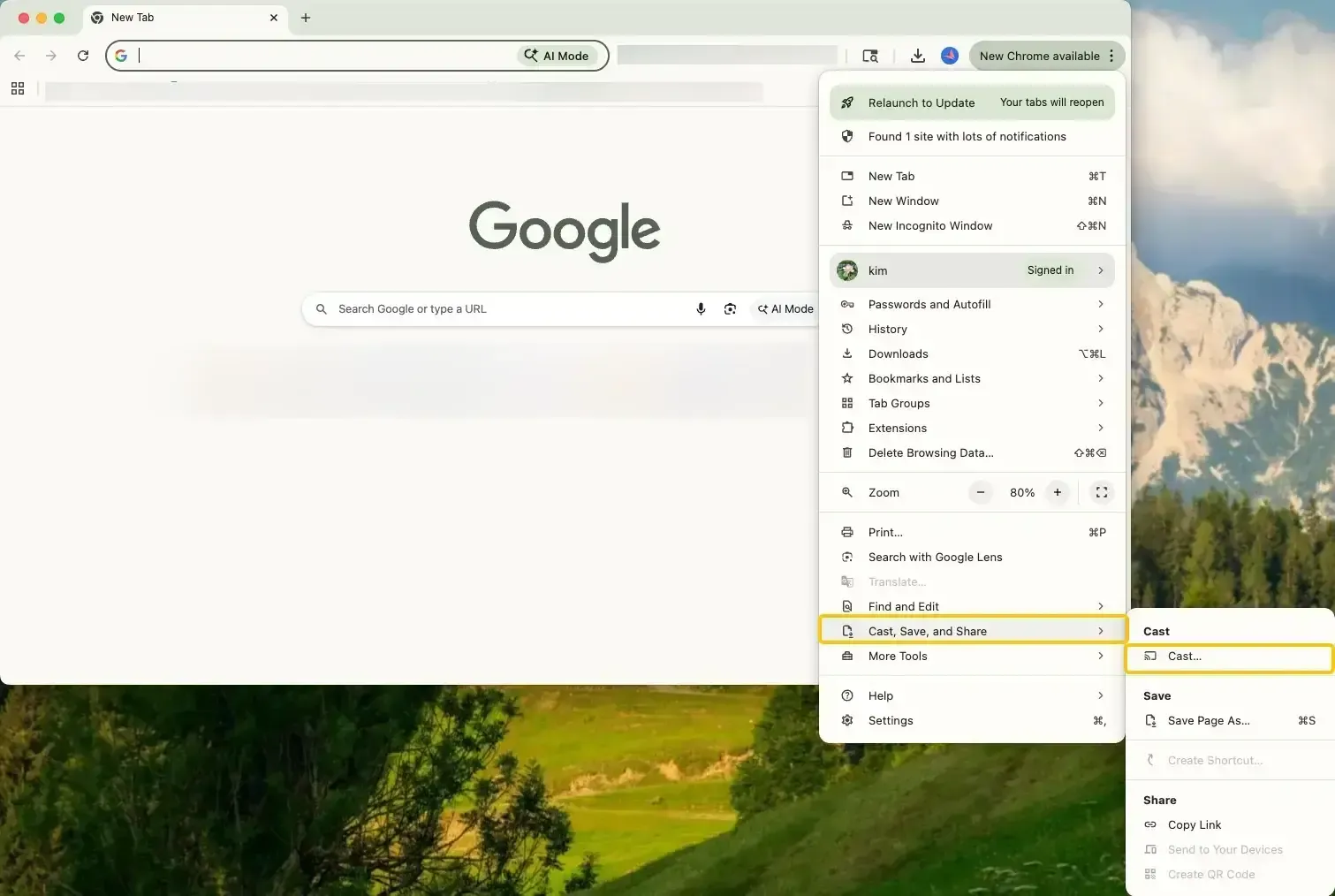
However, you can still display Chrome on an Apple TV by mirroring your entire screen or a specific browser window. This lets you view videos, presentations, and websites on the larger display. Since Apple TV does not provide a conventional desktop browser, screen mirroring is also one of the most practical ways to browse websites on Apple TV from a phone, tablet, or computer.
How to AirPlay from Chrome to TV
To stream from Chrome, first figure out what you're casting to: a device with AirPlay (like an Apple TV) or one without. This will help you choose the right streaming method for Chrome AirPlay.
AirPlay from Google Chrome to AirPlay Compatible TV
If you're using an AirPlay-compatible TV, such as an Apple TV, Samsung, LG, or Vizio smart TV that supports AirPlay 2, the process is simple and easy to follow. Read on to check the specific steps on how to AirPlay from Google Chrome:
Step 1. Ensure your iPhone, iPad, or MacBook and TV are connected to the same wireless network.
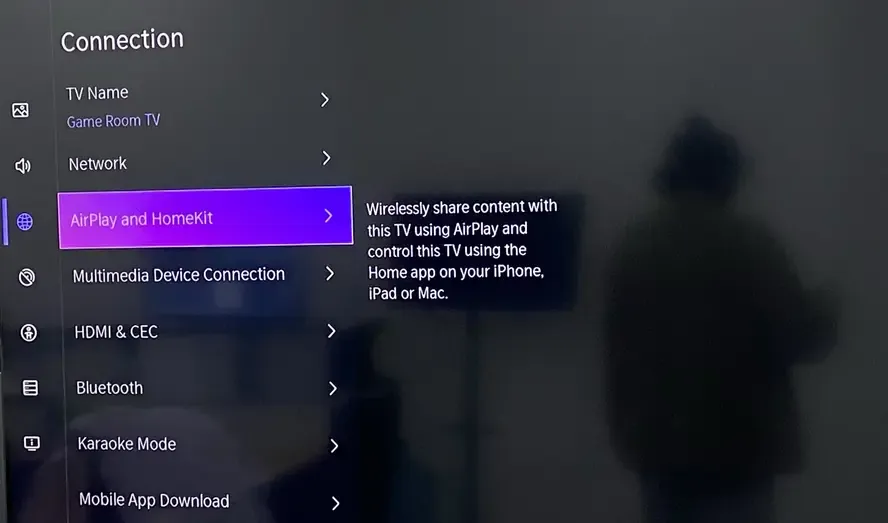
Step 2. Go to the Settings on your TV, click AirPlay and HomeKit Settings, and ensure that AirPlay is turned on.
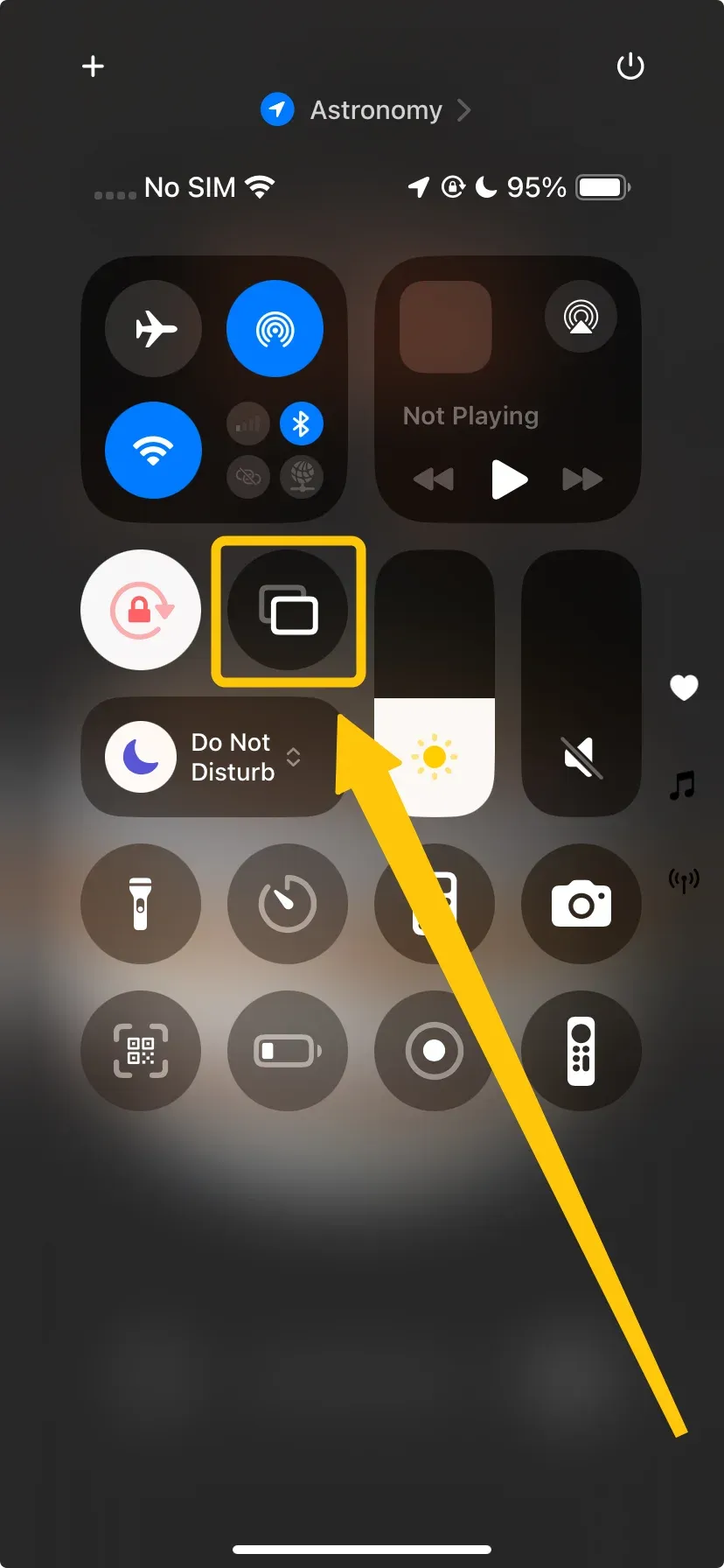
Step 3. Click the Screen Mirroring icon (resembling two toggle switches) in the Control Center in the iPhone, or in the top-right menu bar of your Mac.
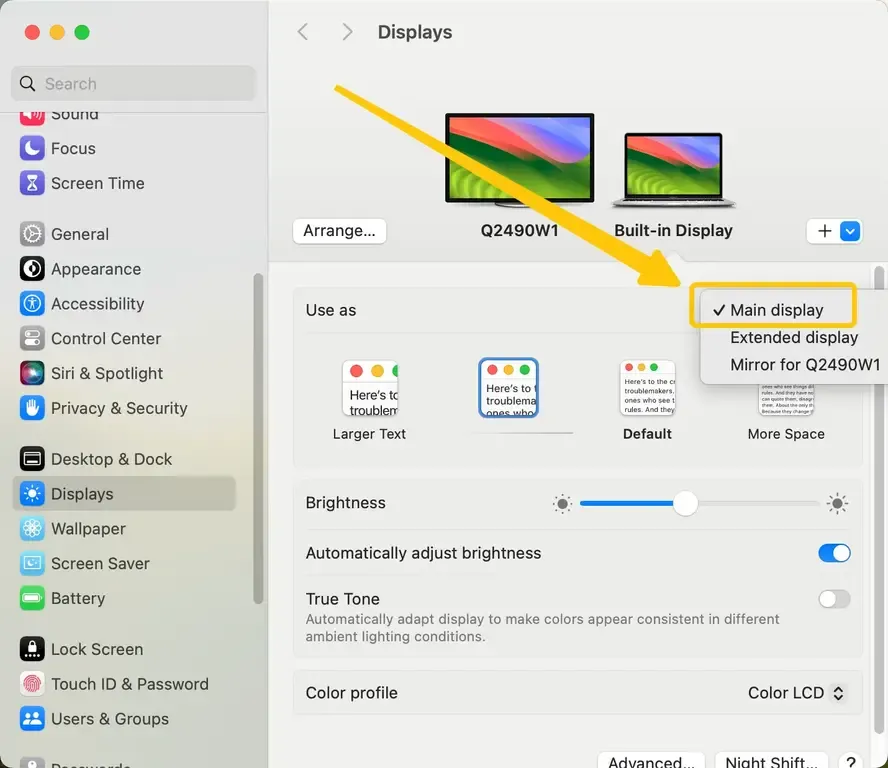
Step 4. Choose your compatible television from the available list, and you will be presented with two options:
- Mirror Display: Shows an exact copy of your Mac's screen on the TV.
- Use As Separate Display: Turns your TV into a second monitor, allowing you to drag the Chrome window over to it independently.
Step 5. Open Chrome on your iPhone, iPad or MacBook, and it will then be visible on the TV screen.
AirPlay from Google Chrome to a Non AirPlay-Compatible TV
How to AirPlay from Chrome browser to a TV that doesn't support AirPlay? For TVs that don't have built-in AirPlay, you'll need an app that acts as a translator to make your TV appear as an AirPlay receiver. PigeonCast is perfect for this, supporting AirPlay, DLNA, and Google Cast for free, with no ads, and streaming content in up to 4K resolution.
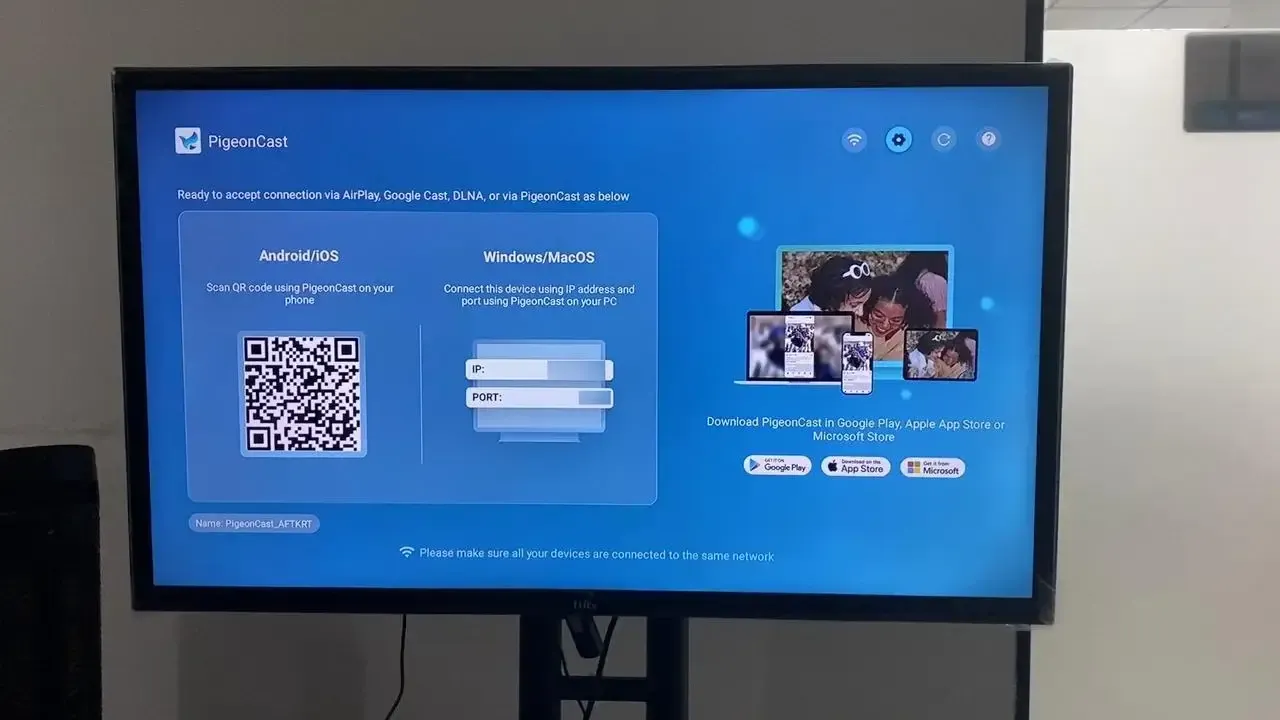
Step 1. Ensure both your devices are under the same wireless network.


Overall Rating:


Step 2. Install PigeonCast on your iPhone, iPad, or Mac from the App Store and open it.
Overall Rating:


Step 3. Download PigeonCast on your TV or Windows PC from the corresponding app store, then launch the app.
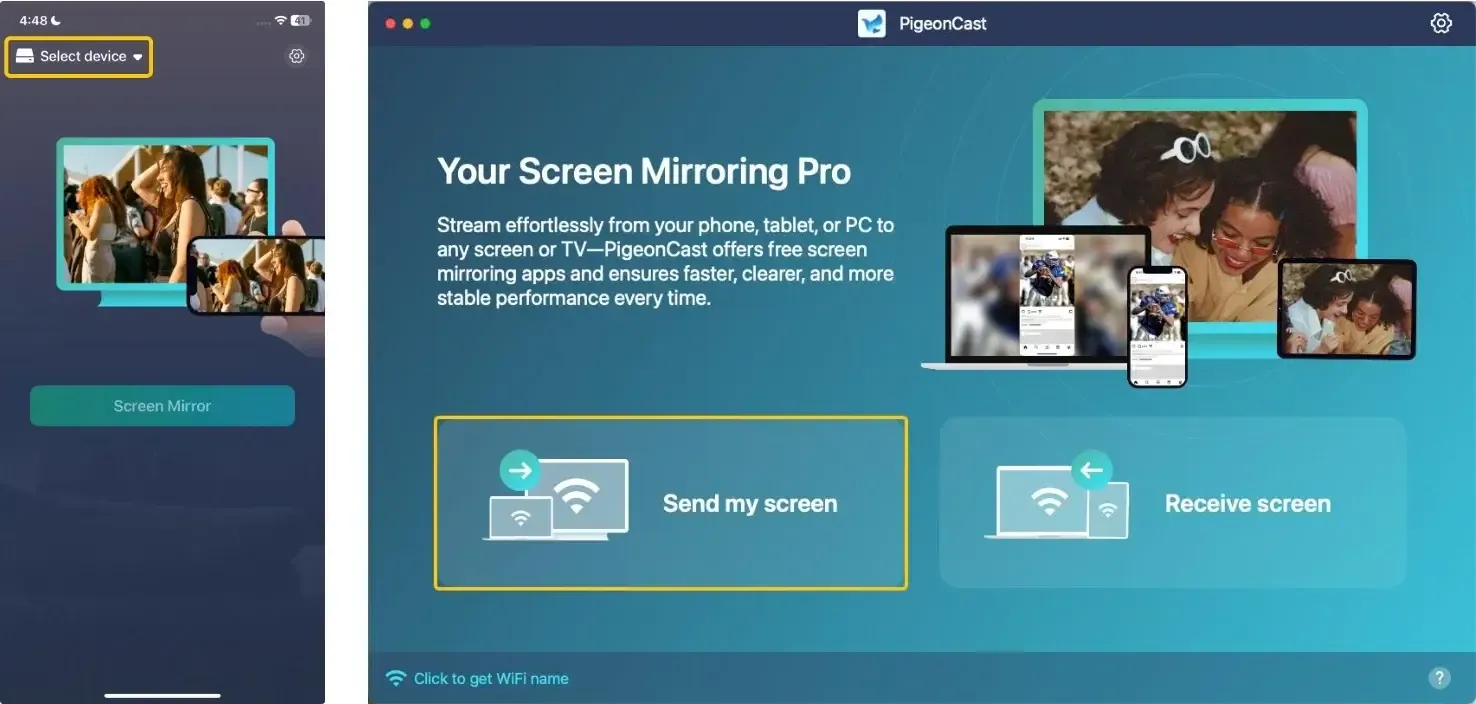
Step 4. On your Apple device, tap Select device or Send my screen to choose your TV or Windows PC from the available list.
Step 5. Enter the onscreen PIN code to confirm your connection requisition. Or you can scan the onscreen QR code to build the connection.
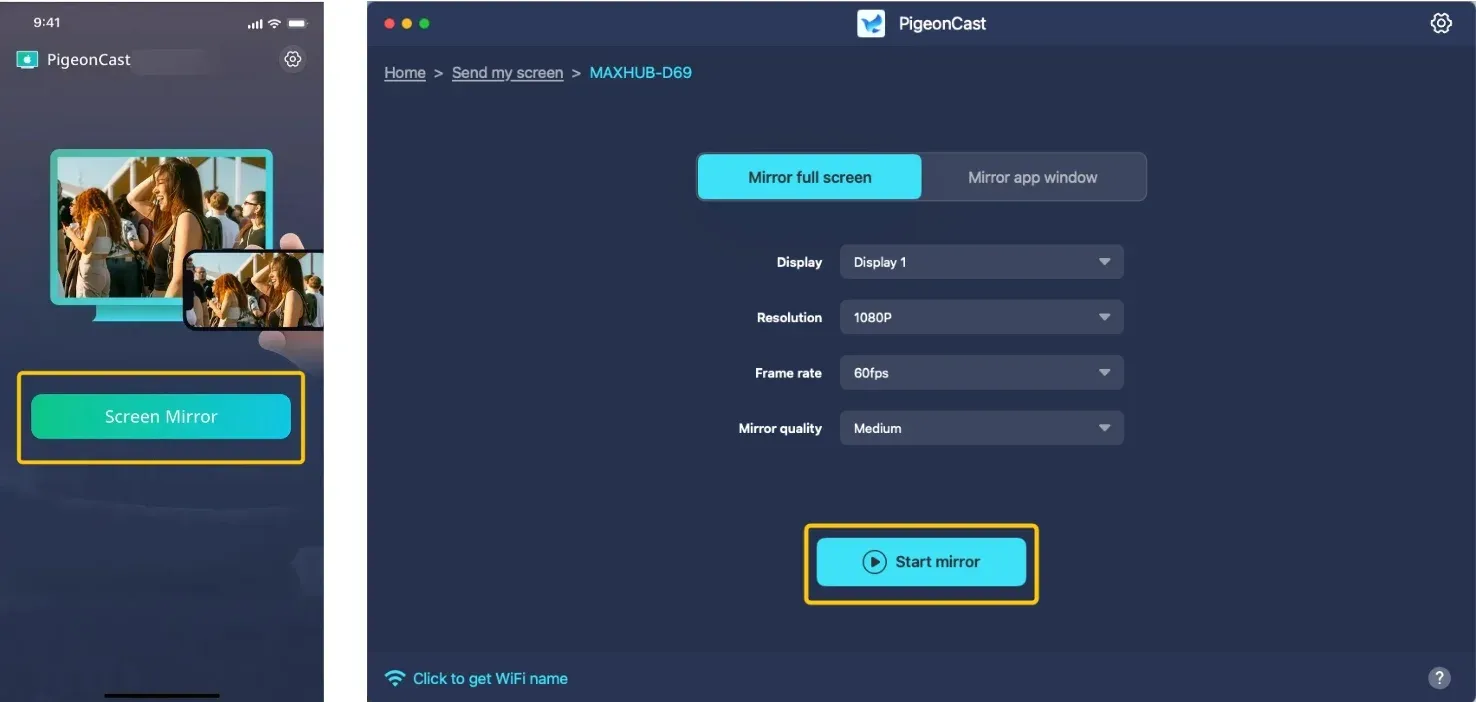
Step 6. When the pairing process finishes, you can click Screen mirror or Start mirror to begin your mirroring activities. If you use a MacBook, you can choose either to mirror the full screen or a single app window.
Step 7. Simply open Chrome as usual to start watching on the big screen.
Conclusion
How to AirPlay from Chrome to Apple TV or non AirPlay-compatible device? While Google Chrome doesn't have a built-in AirPlay button, you can still stream content from Chrome to your TV using AirPlay or third-party apps like PigeonCast. Whether your TV supports AirPlay natively or not, this guide offers simple, step-by-step solutions for different setups, ensuring you can enjoy seamless streaming from Chrome to your TV.
AirPlay from Chrome FAQ
How to AirPlay from a browser?
For a direct, per-video AirPlay experience, you must use the Safari browser on a Mac or iOS device, where the AirPlay icon is built into supported video players. For any other browser (Chrome, Firefox, Edge), you must use the operating system's Screen Mirroring function to send the entire browser window or display.
How to AirPlay on Google?
To AirPlay content from Google services like YouTube or Google Photos, you have two options:
- Use the service's dedicated iOS/iPadOS app, which includes an AirPlay button.
- Access the service through the Safari browser on a Mac, where the AirPlay icon will be available in the video player. The Chrome browser will only show Google's Cast button for Chromecast.
How to AirPlay YouTube from Mac Chrome?
- Via Screen Mirroring: Use Control Center > Screen Mirroring to send your entire Mac desktop to the TV, then play the YouTube video in Chrome.
- Via Safari: For a better experience, open YouTube in Safari. The native AirPlay button will appear, allowing you to send just the video stream (not your whole desktop) to the TV, often with superior quality.
How to AirPlay from Chrome to Roku?
Many Roku devices and Roku TVs support Apple AirPlay (including AirPlay 2) and HomeKit, making it easy to AirPlay content from Chrome to your Roku. Here's how to do it:
- On your Roku, go to Settings > Apple AirPlay and HomeKit, and enable AirPlay.
- On your Mac, open Control Center > Screen Mirroring and select your Roku device from the list. Your Chrome window will then appear on the TV.
How to AirPlay from Chrome on Windows?
To AirPlay from Chrome on a Windows PC, you'll need to mirror your entire screen or a specific Chrome window to an AirPlay-compatible device. Since Windows doesn't have native AirPlay support, you'll need a third-party app to bridge the connection. Here's how to do it:
- Download and install PigeonCast on both your Apple device and Windows PC, then open PigeonCast on both your Windows PC and your Apple device.
- Make sure your Apple device and Windows PC are connected to the same Wi-Fi network.
- On your Apple device, tap Select Device or Send My Screen and choose your Windows PC from the available list.
- Once connected, click Screen Mirror or Start Mirror on your Apple device to mirror your screen to your TV. If you use a MacBook, you can choose either to mirror the full screen or a single app window.
- On your Windows PC, open Chrome and start browsing. Whatever you do on Chrome will now be displayed on your TV screen via AirPlay.
How to AirPlay from Chrome to Samsung TV?
For Samsung TVs from 2018 onward with AirPlay 2:
- Enable AirPlay on the TV: Settings > General > Apple AirPlay and HomeKit.
- On your Mac, use Control Center > Screen Mirroring and select your Samsung TV.
For older Samsung TVs, use the PigeonCast app from Apple's App Store.
Clara Rossi is an experienced technology editor and a seasoned expert in screen mirroring and casting technologies. With a keen eye for detail and a deep understanding of how to seamlessly connect devices, Clara excels at optimizing user experiences for effortless sharing and streaming. Whether you're seeking quick fixes or advanced tips, her expertise and responsiveness ensure that every query is met with a well-informed and efficient solution.