
Casting content from your phone to your TV is incredibly convenient, but what if you want to send content directly from your web browser? Fortunately, this guide will walk you through the process of Chromecast browser to cast from any device, including Android, iPhone, or PC, and turn your TV into a giant Web Window.
Can You Chromecast Browser
Chromecast doesn't have a built-in web browser, so you can't browse the web directly on the device. However, you can easily Google Chromecast browser from various devices, including Android phones, iPhones, and desktop PCs. By casting your browser to your TV, you can display everything from online videos and photos to browsing websites or giving presentations, all from your device to a larger screen.
How to Chromecast Browser Android
Android devices, being part of the Google ecosystem, offer the most seamless integration with Chromecast. The process is largely the same whether you're using the Google Chrome browser or other Chromium-based browsers. The key is a small but powerful icon that unlocks the ability to stream content to your big screen. Here's how to cast Chromecast browser phone:
Step 1. Ensure your Android phone and your Chromecast are connected to the same Wi-Fi network.
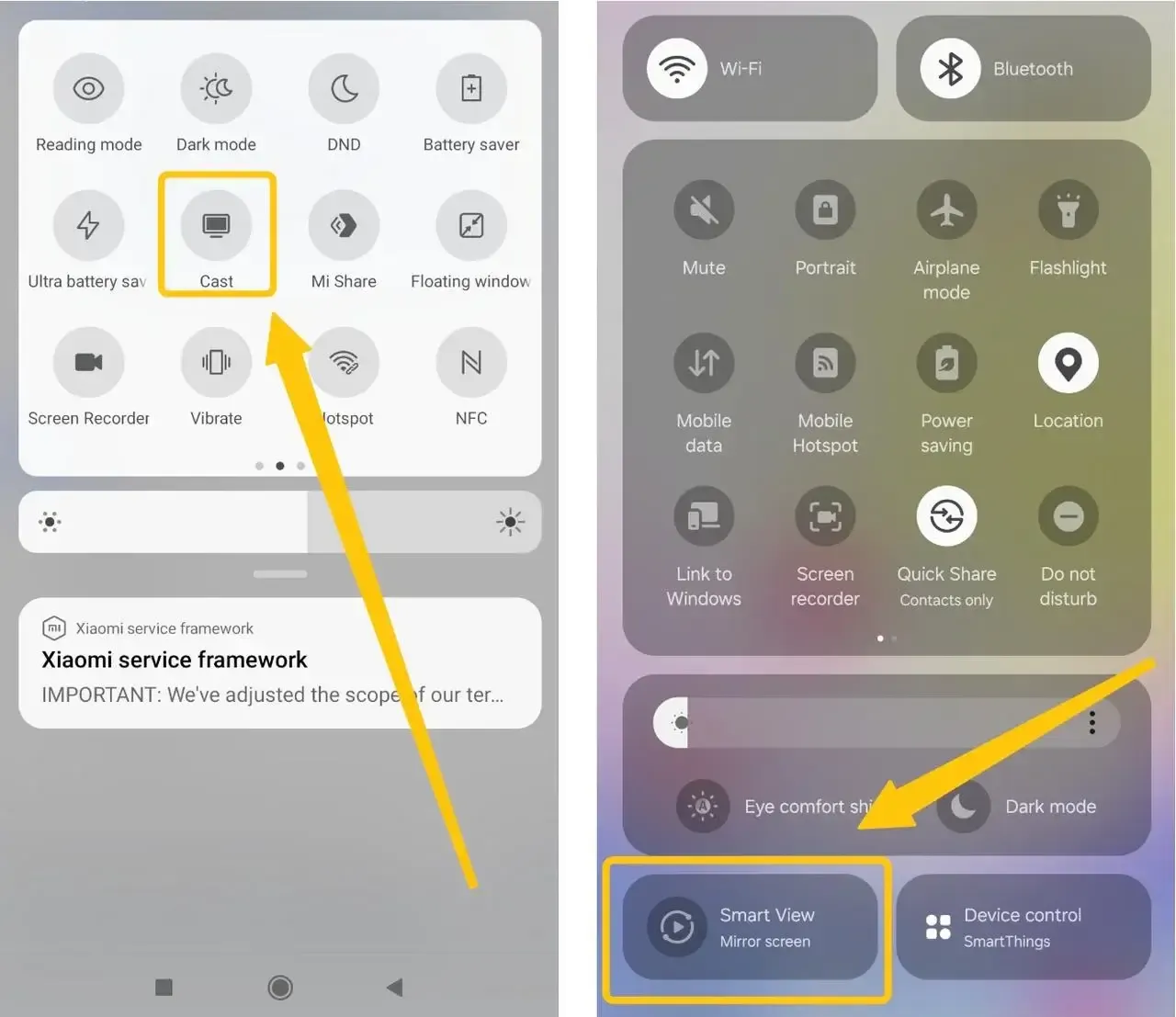
Step 2. Tap the Cast and Smart View in the Quick Settings panel on your Android.
Step 3. Choose your device from a list of available devices.
Step 4. Wait a few seconds, and your phone screen will appear on the Chromecast device. Once connected, open any browser on your phone, and it will be mirrored to the Chromecast device.
How to Chromecast Browser iPhone
While iOS is a different platform, Google's widespread support makes casting from an iPhone browser almost as seamless as on Android. On an Apple device, you can use Google Chrome or the Safari browser to stream content through Chromecast. Here's how to cast the iOS Chromecast browser:
Step 1. Install the Google Home app from the App Store on your Apple device.
Step 2. Ensure your iPhone or iPad and Chromecast are connected to the same wireless network.
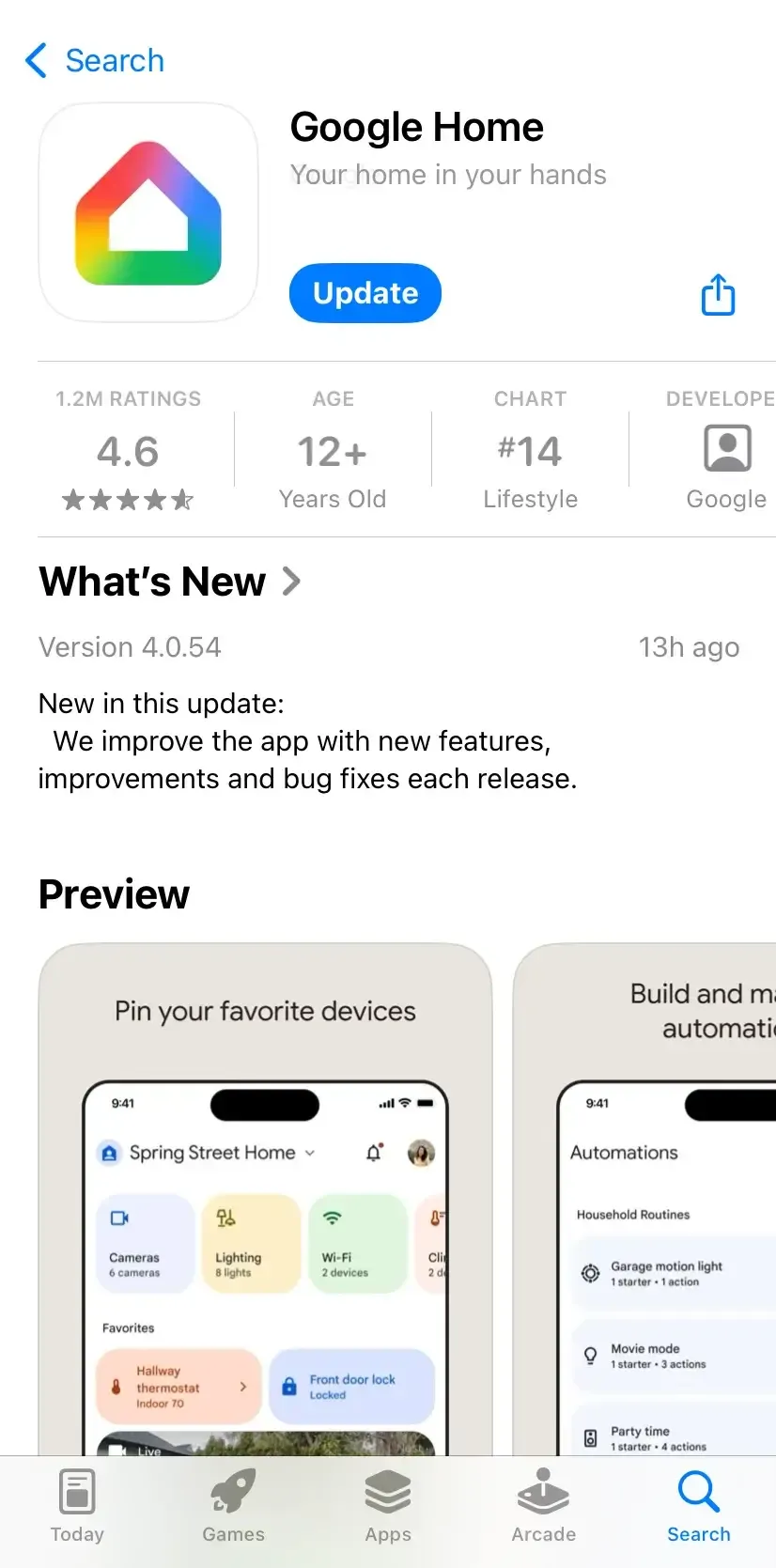
Step 3. Launch the app and follow the onscreen instructions to select your Chromecast device to pair with.
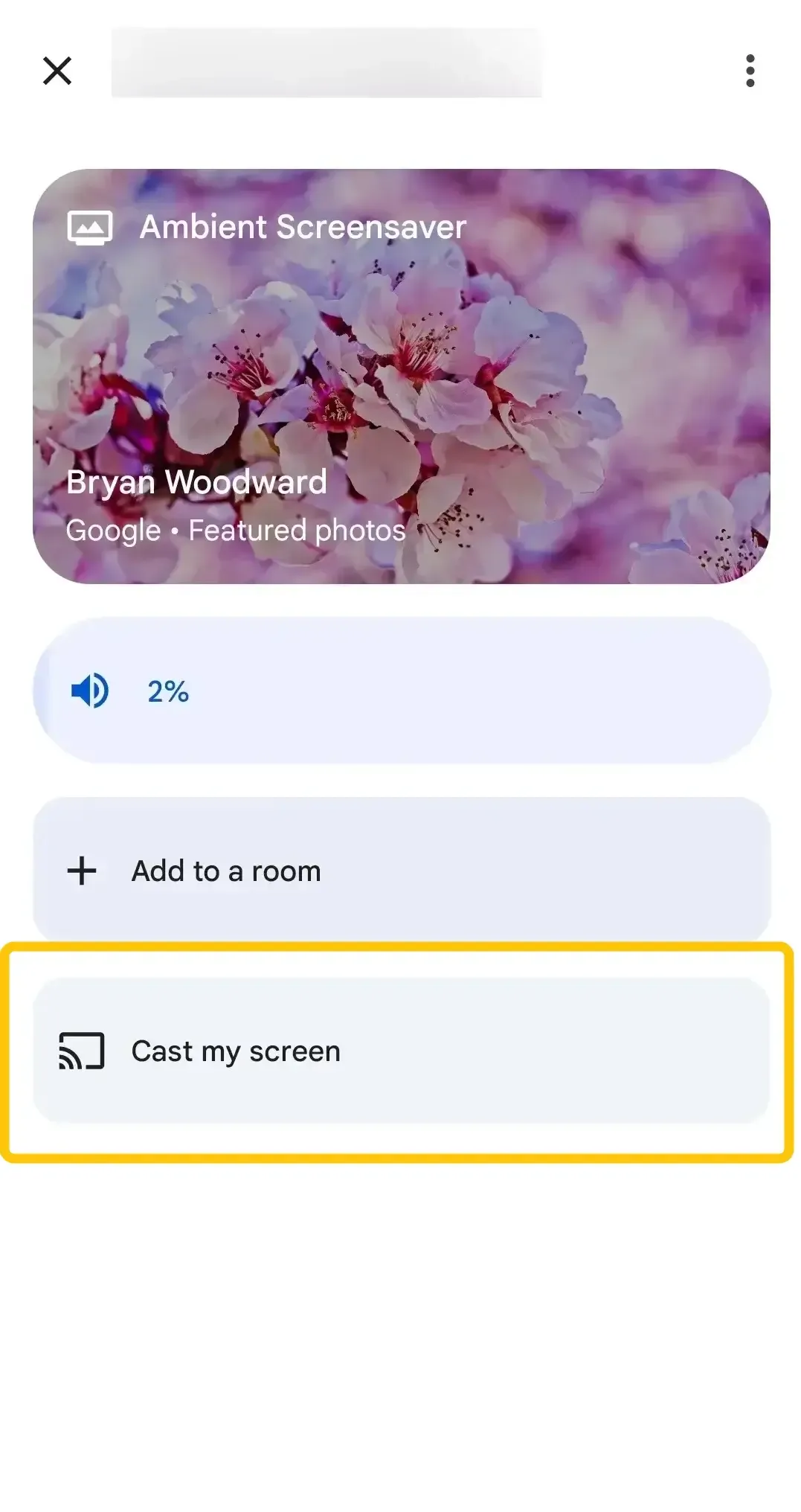
Step 4. Tap Cast my screen to start mirroring your iPhone/iPad to the TV with Chromecast.
Step 5. Now open any browser on your iPhone/iPad, and it will be cast to the Chromecast web browser displaying on your TV.
How to Chromecast Browser to TV from PC
Casting from a PC unlocks the full potential of browser casting. Not only can you cast a single tab, but you also have the option to mirror your entire desktop. This is ideal for presentations, watching content from your hard drive, or using web applications that aren't available on mobile.
Way 1. Chromecast Chrome Browser
If you're looking for a straightforward way to cast content from your device, using the Google TV Chromecast browser is a highly effective option. Whether you're streaming videos, browsing the web, or presenting, Google Chrome integrates seamlessly with Chromecast to mirror your browser tab to the TV. Let's explore how to get started with this simple method for casting through the Chrome browser.
Step 1. Turn on the Chromecast-enabled TV.
Step 2. Open Chrome on your PC and click the three-dot icon in the top right corner next to the profile icon.
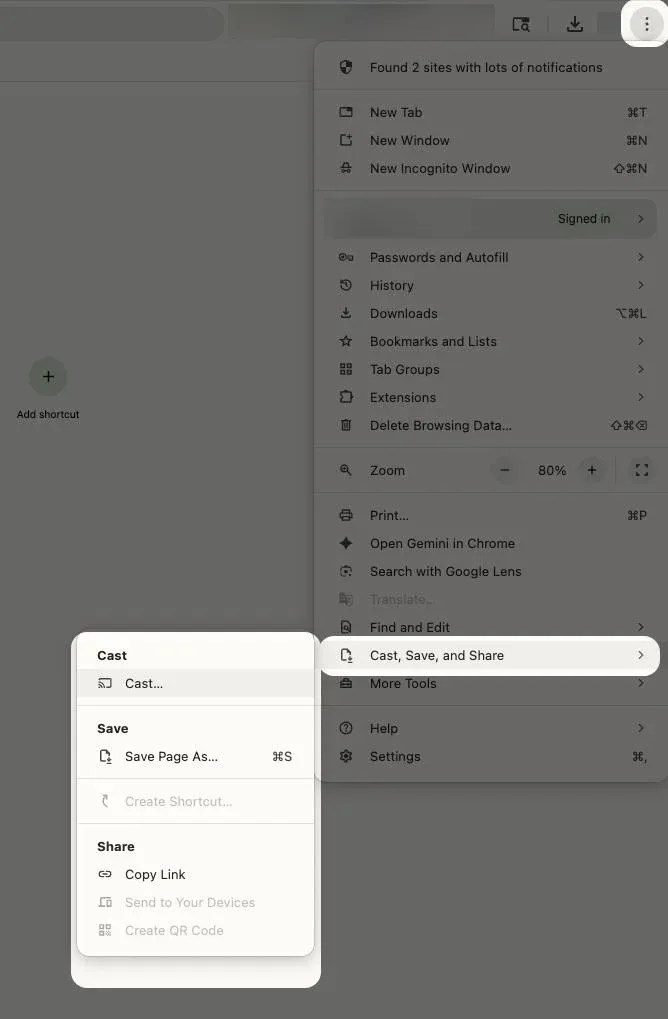
Step 3. Click Cast… and select your Chromecast TV to start connecting.
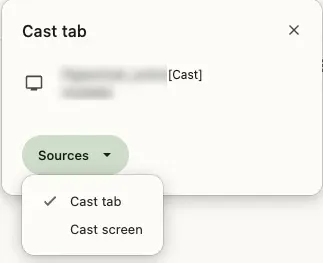
Step 4. You can also choose the Cast tab to cast your browser tab to the TV or the Cast screen option to mirror the whole screen.
Way 2. Chromecast Various Browser
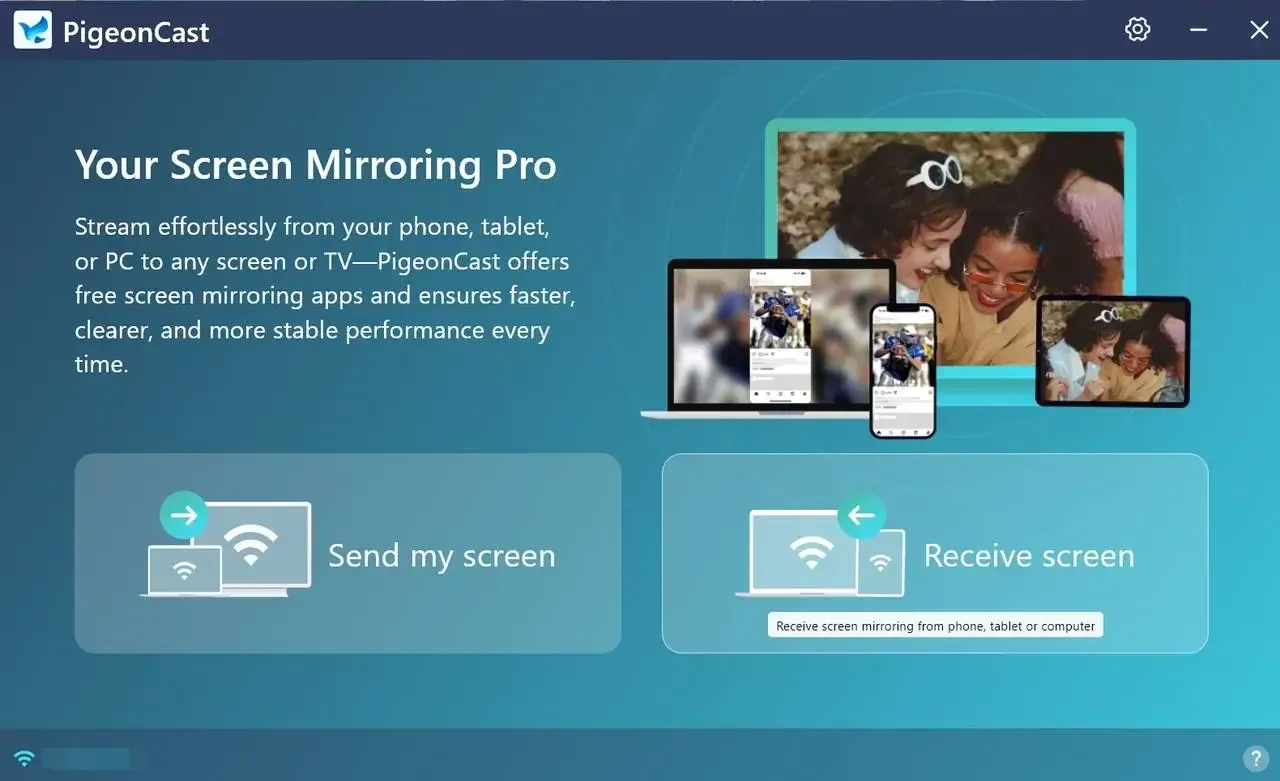
Not every browser has a built-in cast feature like Chrome, but if you want to cast from various browsers like casting FireFox to TV, PigeonCast can help. This free screen-sharing app allows you to effortlessly cast your PC screen onto another device, making it an ideal solution when using browsers that don't natively support casting.

PigeonCast Screen Mirroring

Official Download


Step 1. Install PigeonCast on your Windows PC and Chromecast TV.
Step 2. Ensure your PC and TV are covered by the same wireless network.
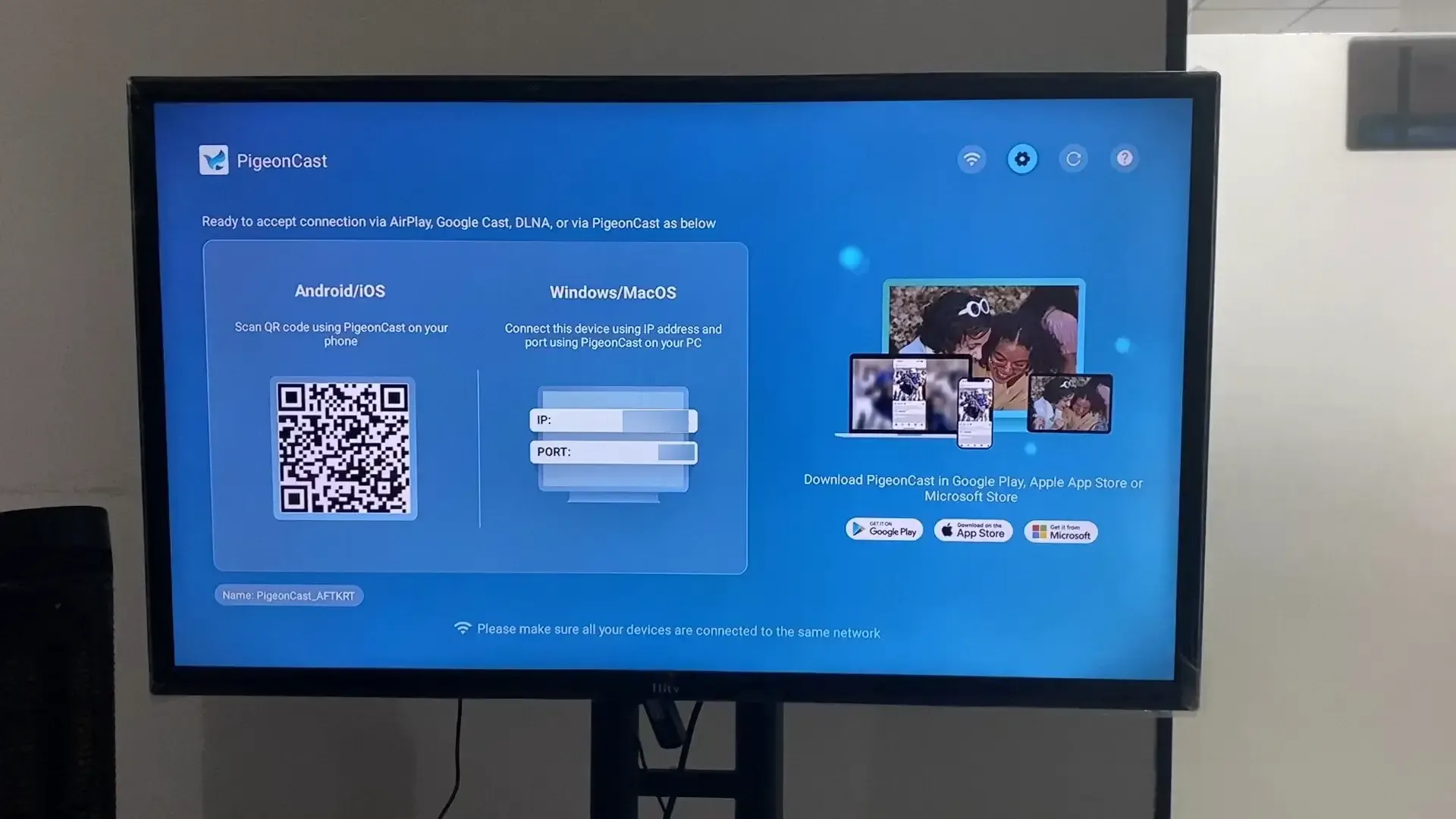
Step 3. Launch the app, tap Send my screen to choose your TV from the device list. Or you can scan the onscreen QR code shown on your TV screen.
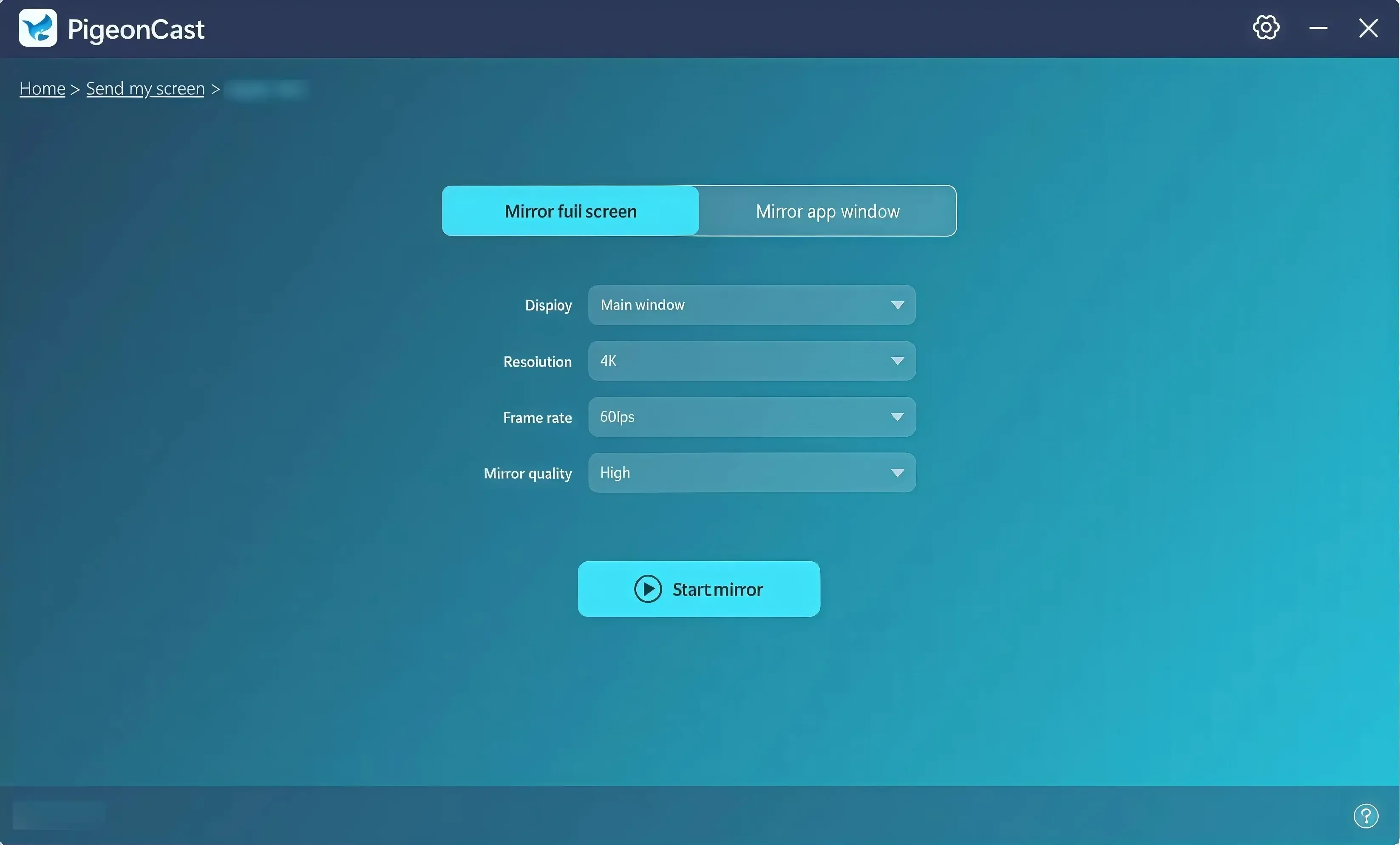
Step 4. Enter the onscreen code to finish the pairing, and you can choose Mirror full screen or Mirror app window to adjust the mirroring model. Finally, click Screen Mirror to start mirroring.
Closing Words
Casting browser content to your TV with Chromecast is an easy way to enjoy videos, presentations, and websites on a larger screen. Whether using an Android phone, iPhone, or PC, the process is simple. For browsers that don't natively support casting, apps like PigeonCast can help you mirror your content without issues. Chromecast offers a flexible and seamless way to stream directly from your browser to your TV.
Chromecast Browser FAQ
Is there a web browser on Chromecast?
No, Chromecast does not have a built-in web browser. However, you can cast content from a web browser on your device (such as Chrome, Safari, or Edge) to your TV using Chromecast. This allows you to view websites, videos, and presentations directly on your TV screen.
Can you get Chrome on Chromecast?
No, you cannot install Chrome directly on Chromecast, as it doesn't have its own operating system for installing apps. However, you can use Google Chrome on your computer or mobile device and cast the browser to your Chromecast-enabled TV. This allows you to stream websites, videos, or mirror your screen from Chrome to your TV.
How to Chromecast from iPhone browser?
To Chromecast from an iPhone browser, you can follow these steps:
- Ensure Chromecast and iPhone are connected to the same Wi-Fi network.
- Download and install the Google Home app from the App Store if you don't have it already.
- Open the Google Home app on your iPhone and tap on your Chromecast device from the list of available devices in the app.
- Tap Cast my Screen and then Cast Screen to mirror your iPhone's display to the TV.
- Now open your browser (Safari, Chrome, etc.) on your iPhone. Anything you do on the browser will be mirrored to your Chromecast device.
- To stop casting, go back to the Google Home app and select Stop Casting.
Why is Chromecast not working from Chrome browser?
Here are the possible reasons why Chromecast might not be working from the Chrome browser:
- Wi-Fi Connection Issues
- Outdated Google Chrome Version
- Chromecast Not Powered or Connected
- Casting Feature Disabled in Chrome
- Firewall or Antivirus Software
- Outdated Chromecast Firmware
- Network Interference or Low Bandwidth
- Chrome Extensions Conflicting with Casting
- Browser Tab or Screen Casting Limitations
- Device or Network Overload
What's the best browser for Chromecast with Google TV?
When using Chromecast with Google TV, the best browser options for streaming or casting content from your device to the TV are:
- Google Chrome: As the most compatible and widely used browser, Google Chrome offers seamless integration with Chromecast.
- Microsoft Edge: Based on Chromium (the same engine as Chrome), Microsoft Edge also supports casting via the Cast feature.
- Brave Browser: Brave is another Chromium-based browser that is becoming increasingly popular due to its privacy features.
- Opera: Although Opera is less popular, it is still based on Chromium and supports Chromecast. It can be used for casting content directly to the TV, though it may not be as seamless as Chrome in terms of performance and stability.
Clara Rossi is an experienced technology editor and a seasoned expert in screen mirroring and casting technologies. With a keen eye for detail and a deep understanding of how to seamlessly connect devices, Clara excels at optimizing user experiences for effortless sharing and streaming. Whether you're seeking quick fixes or advanced tips, her expertise and responsiveness ensure that every query is met with a well-informed and efficient solution.