
Imagine scrolling through a video in Firefox and wishing you could share it instantly with everyone in the living room. That's exactly where the question of how to cast from Firefox comes in. Firefox is one of the most trusted browsers for security and privacy, but when it comes to media streaming, things aren't as straightforward. Luckily, this guide will walk you through 4 methods to make Firefox cast to TV.
Can You Cast from Firefox
A common question is: "Can you cast Firefox to Chromecast or TV directly?" The short answer is no, not directly. Unlike Google Chrome, which has built-in support for Chromecast with a one-click Cast feature, allowing you to cast from the browser directly, Firefox no longer provides a native way to stream content to a TV.
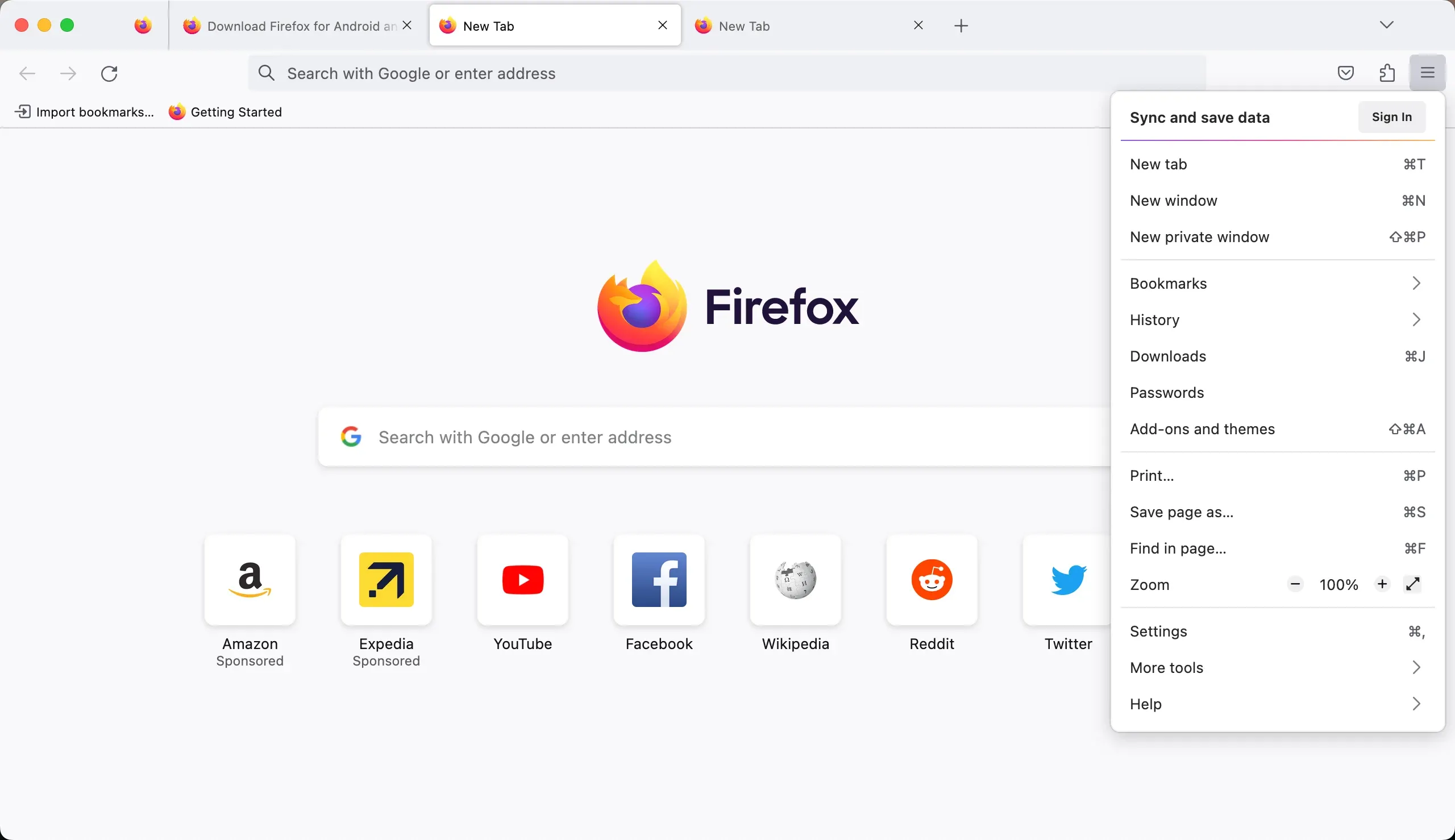
Fixfox once experimented with casting features. In fact, video and tab casting were disabled by default starting in Firefox 37 (see Bug 1142521), and for a while, users could toggle the option through the hidden browser.casting.enabled preference in about:config. Over time, this preference was removed, and official Chromecast integration was dropped completely. That's why you won't see a native cast icon in Firefox today.
How to Chromecast Firefox? Yes, that doesn't mean you're stuck. You can still cast Firefox to TV using:
- A Firefox Chromecast extension like fx_cast
- A third-party casting tool, such as PigeonCast
- Device-level screen mirroring on Windows, macOS, Android, or iOS
- A wired HDMI connection for maximum stability
With these methods, you can achieve nearly the same experience as Chromecast from Chrome, without leaving Firefox.
Method 1: Use the fx_cast Extension
If you're looking for the closest experience to Chromecast from Firefox, the fx_cast extension is your best bet. This open-source project brings a Firefox Chromecast bridge to life, enabling you to send videos and even tabs directly to a Chromecast device.
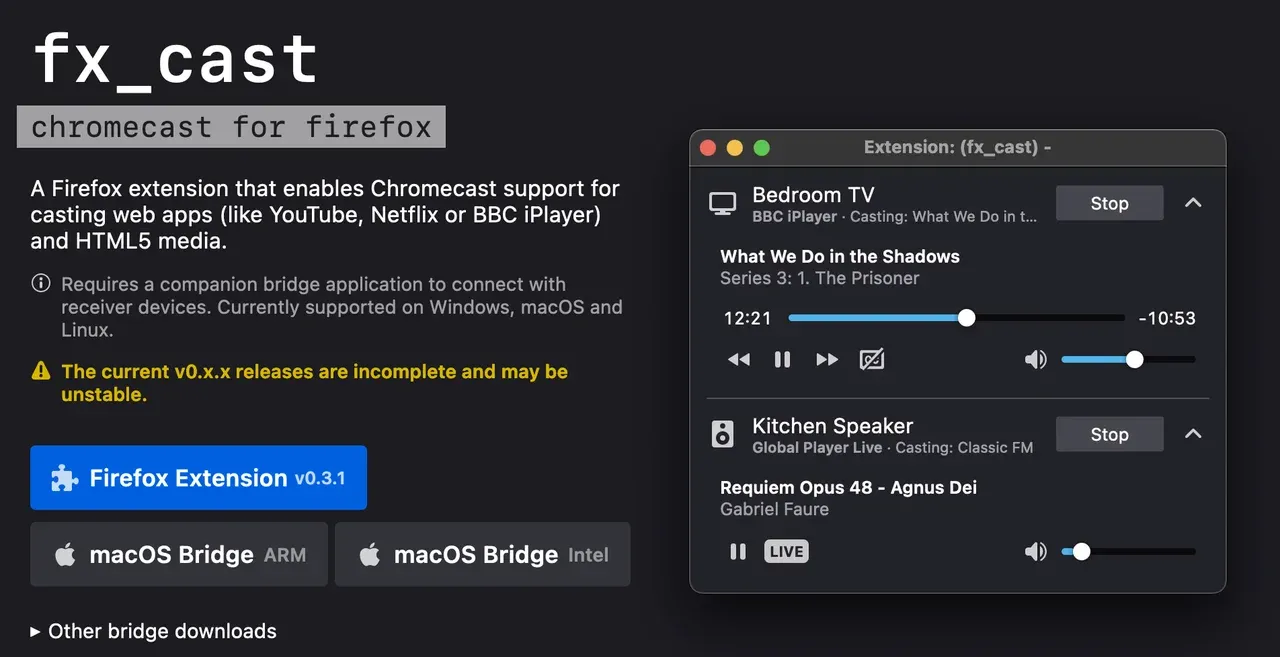
Here's how to cast to Chromecast from Firefox using the extension:
Step 1. Install the fx_cast extension in your Firefox browser.
Step 2. Download the fx_cast companion bridge for your computer (Windows, macOS, or Linux) and install it.
Note: This small program acts as a translator, allowing Firefox to communicate with your Chromecast device or TV.
Step 3. Restart Firefox to activate the extension.
Step 4. Open a media page in Firefox, such as YouTube or Vimeo.
Note: fx_cast works best with supported websites, and you may need to whitelist certain sites in the extension settings.
Step 5. Click the new cast icon in the video player or Firefox menu.
Step 6. Select your Chromecast device from the list.
Step 7. Your video or tab will appear on the TV screen.
This method is great if you're already comfortable managing extensions and prefer a Chrome-like casting workflow inside Firefox. If this way doesn't work, try reinstalling the extension and bridge or alternatives below.
Method 2: Use Third-Party Casting Tools
If you don't want to tinker with experimental extensions or run into compatibility hiccups, third-party casting tools are a reliable choice. They work across platforms, whether you're on Windows, macOS, iOS, or Android, and don't depend on hidden Firefox features.
- PigeonCast (recommended) – Our top recommendation. It's designed specifically to make Firefox cast to TV easy, letting you stream videos or mirror your browser screen smoothly.
- AirDroid Cast – A versatile option that supports cross-device screen sharing with minimal setup.
- LetsView – Another cross-platform tool, good for casual casting and free to use.
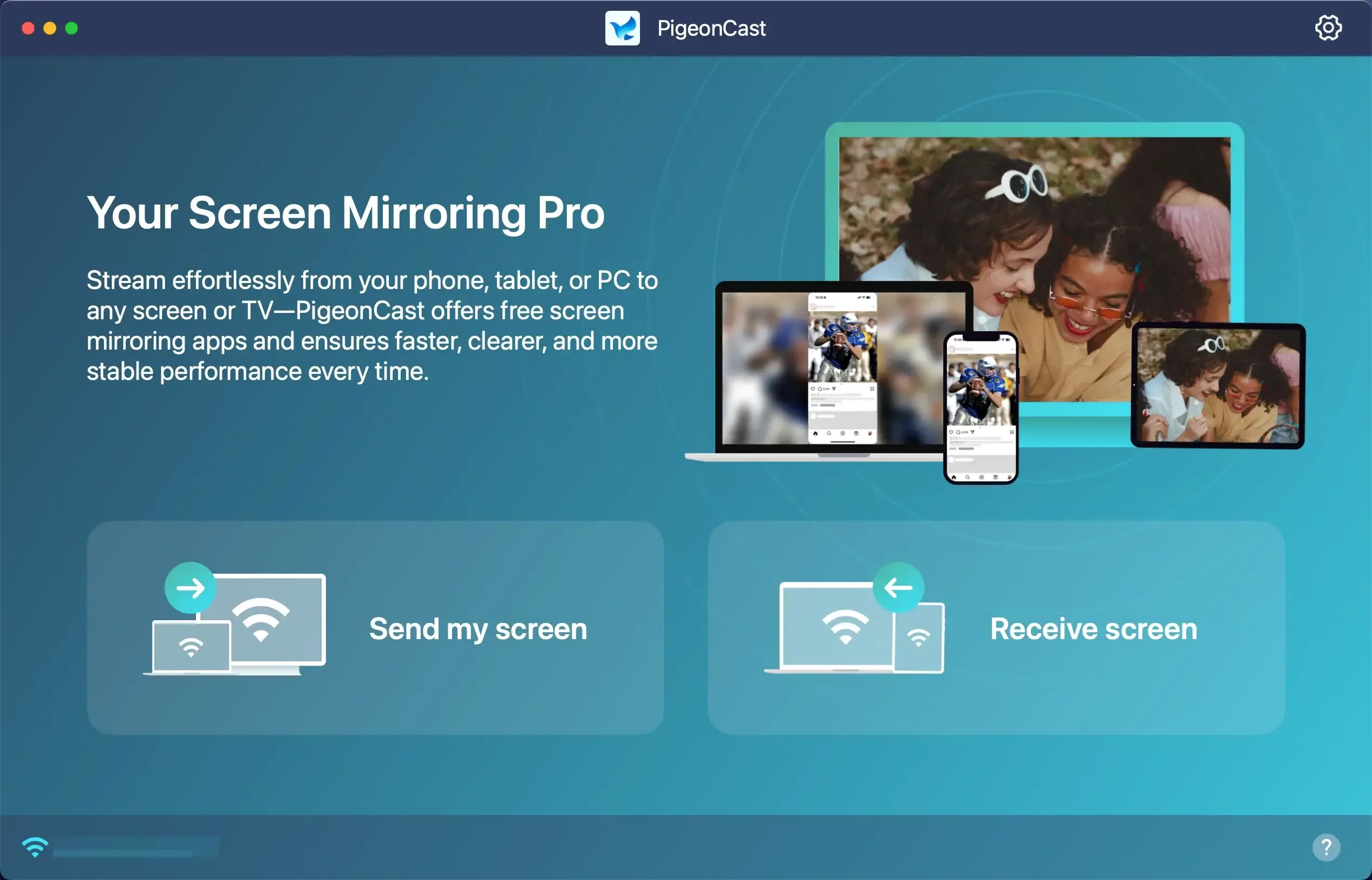
See how to cast Firefox to TV with the free screen mirroring app:
Step 1. Install PigeonCast on your computer, phone, or tablet. For a better streaming experience, install the app on your TV too.

PigeonCast Screen Mirroring

Official Download



Step 2. Ensure both your device and TV are connected to the same Wi-Fi network.
Step 3. Launch PigeonCast and select your TV from the available devices list
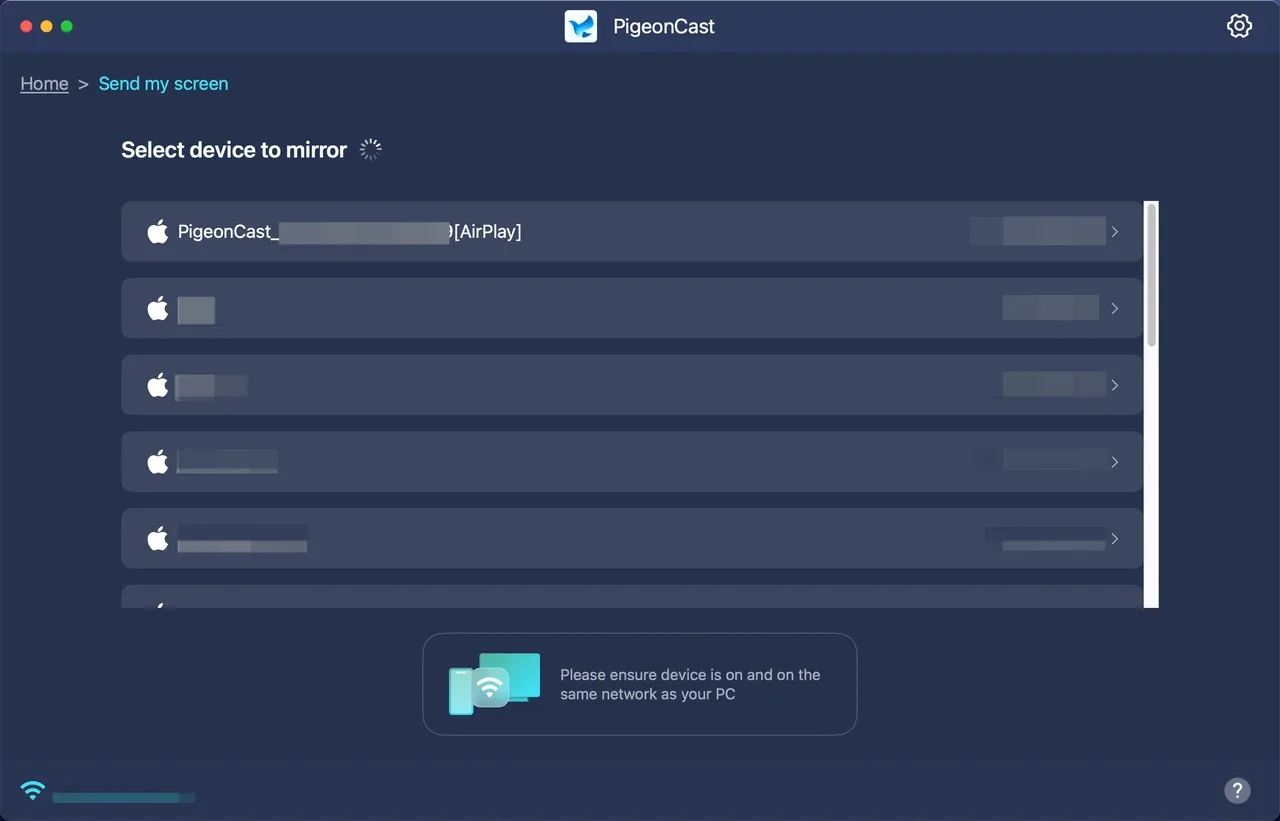
Step 4. Open Firefox and navigate to the content you want to cast.
Step 5. Choose how to stream Firefox from your device to your TV. For example, on your laptop, you can click Mirror app window and choose Firefox (or any launched app) from the drop-down menu. If you can't find Firefox in the window list, ensure the app is not minimized.
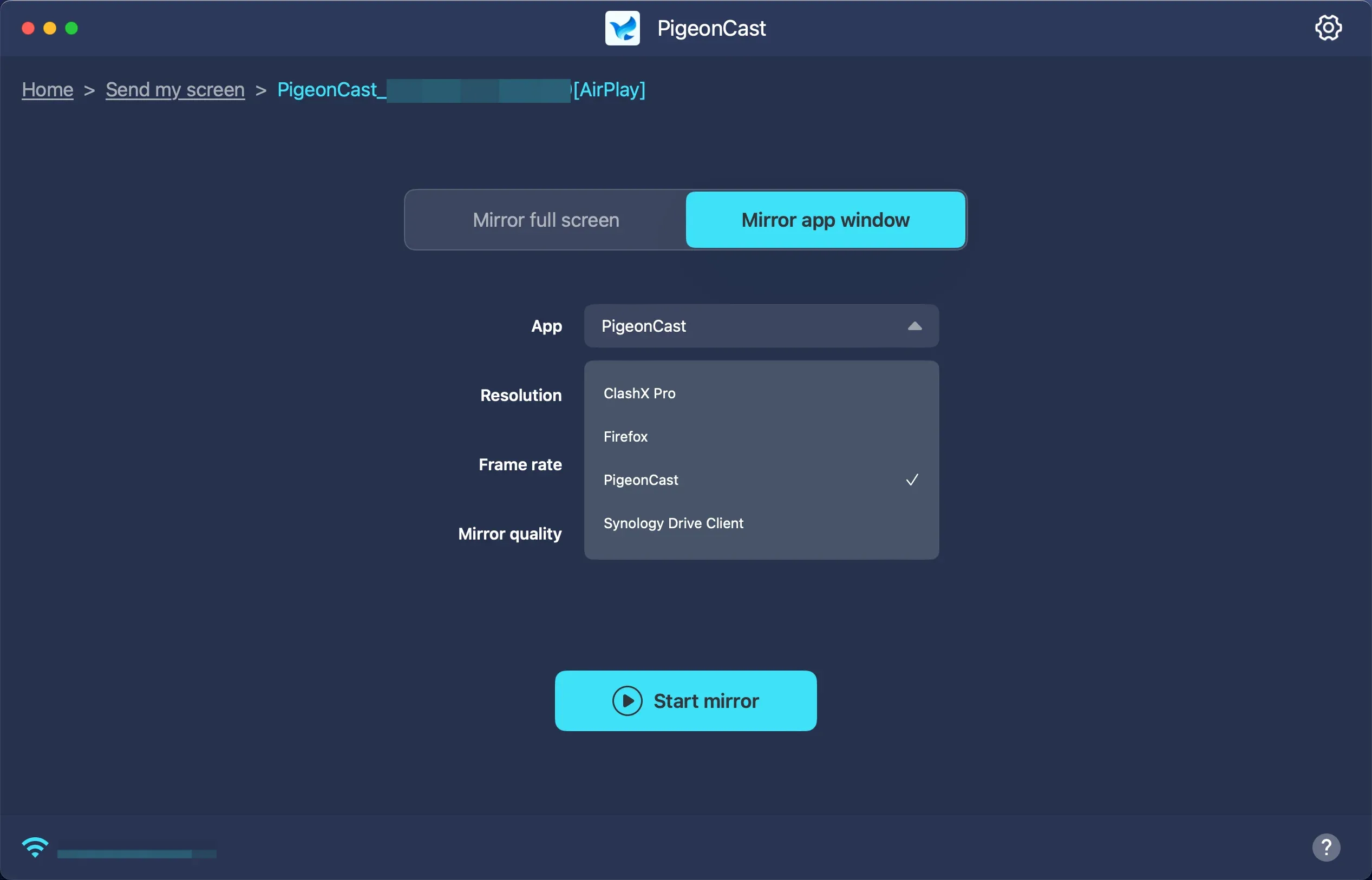
Step 6. Follow the onscreen instructions to broadcast Firefox on TV.
The advantage here is flexibility: these apps don't lock you into a single ecosystem. Whether you're figuring out how to cast Firefox to TV at home, in the office, or during a presentation, these tools deliver consistent results without worrying about device compatibility.
Method 3: Enable Screen Mirroring Feature (OS-Level)
Another approach is to skip extensions altogether and mirror your entire device screen. This is often called casting from Firefox indirectly, since you're mirroring the whole screen rather than just browser content.
So, how to cast from Firefox to TV? The exact steps differ on Windows PC, MacBook, Android, and iPhone (or iPad). Regardless of the device, the key rule is the same: make sure your device and Chromecast or TV are connected to the same Wi-Fi network.
Step 1. Press the Win + K shortcut to access the Cast menu.
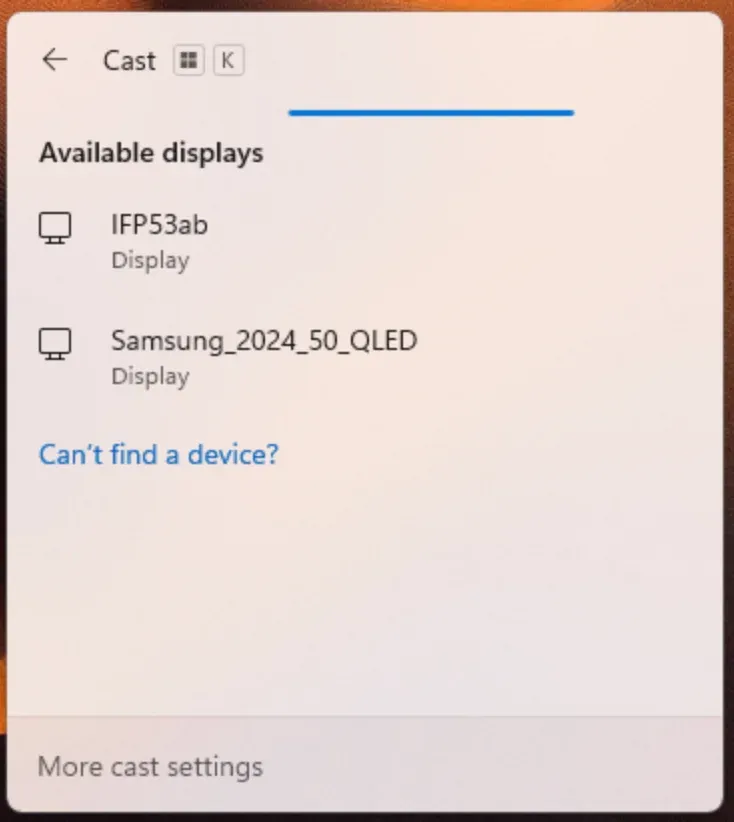
Step 2. Select your TV from the list.
Step 3. Open Firefox, and your Windows screen shows on the TV.
Step 1. Click the Control Center icon in the menu bar and enable Screen Mirroring.
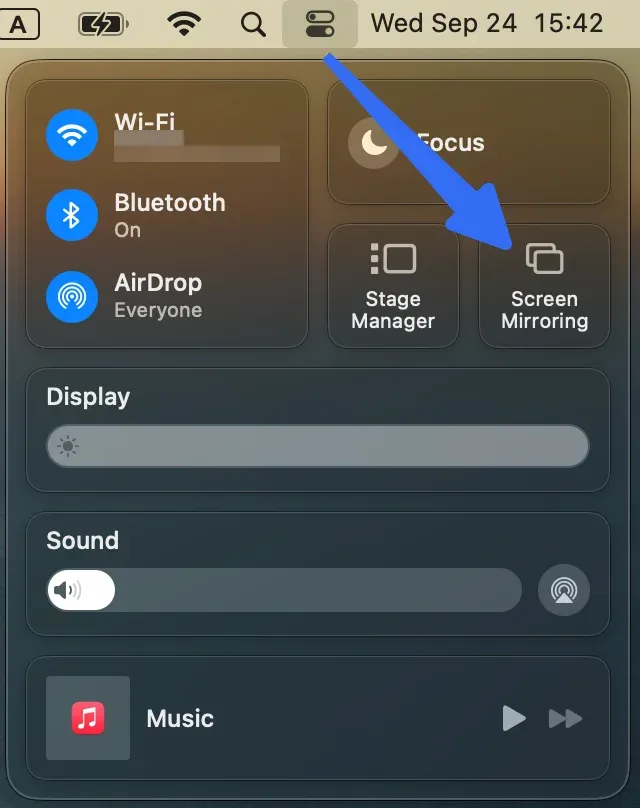 Step 2. Choose your TV or Apple TV.
Step 3. Launch Firefox; your desktop mirrors automatically.
- On Android (using Miracast or Google Cast):
Step 1. Open Quick Settings and tap Cast or Smart View.
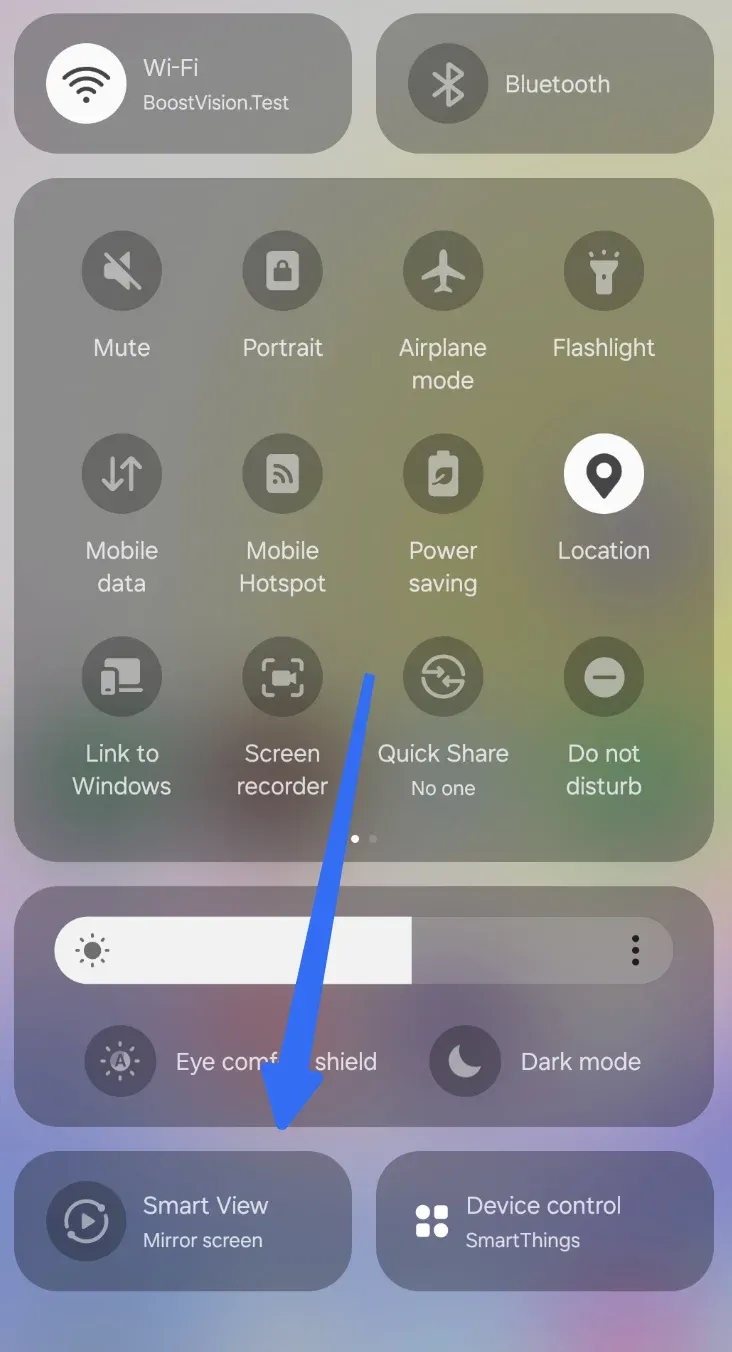
Step 2. Choose your TV.
Step 3. Open Firefox; everything you do on the device appears on the screen.
- On iPhone or iPad:
Step 1. Swipe down to open Control Center and tap the Screen Mirroring icon.
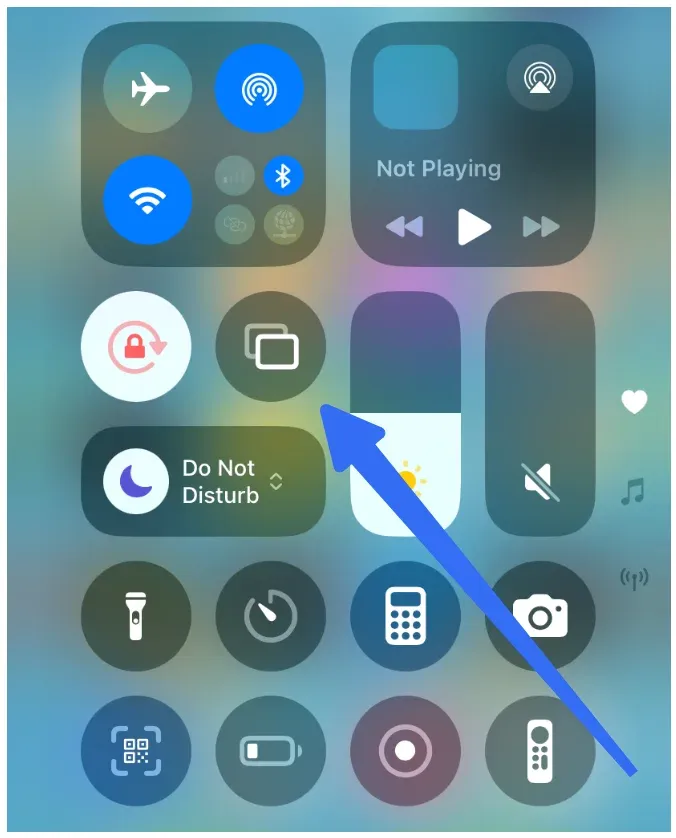
Step 2. Choose your TV with built-in support for AirPlay.
Step 3. Open Firefox; your screen is mirrored.
This method doesn't technically perform a Firefox cast to Chromecast or TV. Instead, it mirrors your entire screen, so anything you do in Firefox, including scrolling, videos, or presentations, shows up on the TV.
Method 4: Use a Wired HDMI Connection
For those who value stability and zero lag, the old-school method still works best: a direct HDMI connection. Simply plug your laptop or phone into the TV with an HDMI cable, and Firefox will appear instantly on the bigger screen.
While it's not as wireless or flexible as casting from Firefox, HDMI avoids Wi-Fi drops, app crashes, or compatibility issues. It's the go-to solution for reliable streaming, especially for long videos or professional presentations.
Here's the connection process:
Step 1. Connect an HDMI cable from your laptop or mobile device to the TV (use an HDMI adapter if your device lacks HDMI ports).
Step 2. Switch the TV input to the correct HDMI port.
Step 3. Open Firefox, and your browser screen appears on the TV immediately.
That's how to connect Firefox to TV. Although this method sacrifices some flexibility, it guarantees better stability.
Wrapping Up
Although Firefox no longer includes native Chromecast support, you can still cast Firefox to TV using the right method. PigeonCast is the easiest option for most users. Extensions like fx_cast bring casting back into the browser, while screen mirroring and HDMI offer universal solutions.
So if you've been wondering how to cast Firefox to TV, now you know the answer: whether it's Firefox Chromecast, extensions, or third-party tools, your favorite browser can live on the big screen.
How to Cast from Firefox FAQs
Q: What is the casting extension for Firefox?
The most popular casting extension for Firefox is fx_cast. It mimics Chrome's built-in casting ability and lets you send content from Firefox to Chromecast or other cast-enabled devices. To make it work, you'll also need to install the fx_cast companion bridge app on your computer.
Q: Does Mozilla Firefox have Chromecast?
Not natively. Mozilla briefly experimented with casting features in older builds but officially removed Chromecast integration around 2019. Today, you can only cast from Firefox using third-party solutions like fx_cast, PigeonCast, or other cross-platform tools.
Q: Does Chromecast support browsers?
Yes, but Google Chrome has the smoothest integration since Chromecast is a Google product. You can also cast from Microsoft Edge (Chromium-based) and Firefox with the help of extensions or third-party apps.
Q: What's the easiest way to cast Firefox to TV?
The easiest method depends on your setup. If you're comfortable with extensions, fx_cast is straightforward. If you want a quick, cross-platform option without fiddling, apps like PigeonCast make it simple to cast Firefox to TV on Android, iOS, Windows, and macOS.
Q: Can I use HDMI instead of Chromecast?
Absolutely. An HDMI cable provides the most reliable connection with no lag or setup required. Just connect your phone or computer to the TV using an HDMI adapter, switch the TV input, and Firefox will display instantly—no Wi-Fi or casting device needed.
Mia Clarke is a technology editor specializing in screen mirroring and casting solutions across multiple platforms. Mia provides clear, practical guides and in-depth insights to help users seamlessly connect their devices. Passionate about enhancing digital experiences, Mia is dedicated to keeping readers updated on the latest trends and tools in cross-platform screen sharing. Whether you’re looking to mirror your smartphone, laptop, or smart TV, Mia’s content delivers reliable, user-friendly advice to simplify your tech setup.