
Do MacBooks have AirPlay? The answer is Yes. Modern MacBooks, including the MacBook Air and MacBook Pro, come with AirPlay built in. This feature lets you share your screen, stream videos, or play music wirelessly to an Apple TV, AirPlay-enabled smart TV, or even another Mac.
But that's just part of the story. In this guide, we'll walk you through where to find AirPlay on MacBook, how to AirPlay from Mac to TV, and even how to use your MacBook as a receiver with AirPlay to Mac. We'll also examine third-party solutions, such as PigeonCast, which extends AirPlay's capabilities by supporting Google Cast and its own PigeonCast protocol.
AirPlay on MacBook: Availability and Basics
Does MacBook Air have AirPlay? Yes! Apple introduced AirPlay to the Mac ecosystem years ago, and it has become an essential part of the macOS experience. Whether you're using a MacBook Pro, a MacBook Air, or even desktop Macs such as an iMac, AirPlay is built right into the system.
AirPlay on MacBook means:
- You can stream videos or presentations from the device to any compatible TV, like Samsung, LG, Roku, Sony, etc.
- You can mirror the entire desktop wirelessly.
- You can turn your Mac into a receiver and let others AirPlay iPhone to MacBook.
AirPlay isn't the only wireless protocol out there, though. Competing technologies like Miracast (available on Windows computers), Google Cast (used in Chromecast devices and many Android TVs), and DLNA (a standard supported by many smart TVs and media players) offer similar functionality.
If you're in the Apple ecosystem (iPhone, iPad, MacBook, and Apple TV), AirPlay is by far the most seamless. However, if you have an Android phone, a MacBook, and an Android TV, AirPlay is not the optimal solution for seamless streaming.
Where Is AirPlay on MacBook?
Finding the AirPlay button on MacBook is simple, but it varies slightly depending on your macOS version:
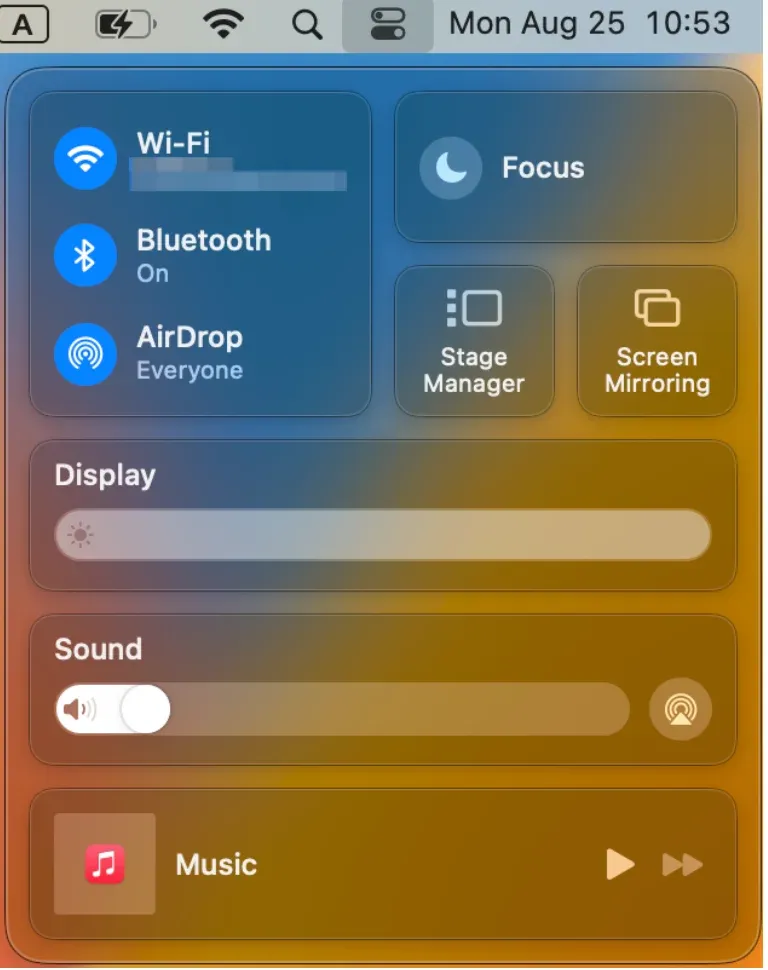
- On macOS Monterey and later, look for the Control Center icon in the top-right menu bar. From there, you'll see the Screen Mirroring option.
- On older macOS versions, you'll often see the AirPlay icon (a rectangle with a triangle) directly in the menu bar.
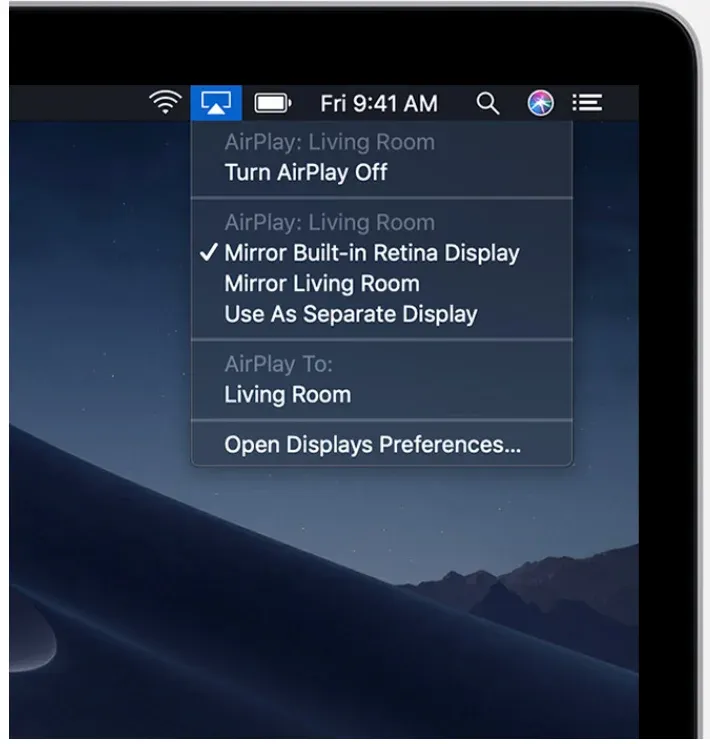 (image from Apple Support Communities)
Clicking this lets you turn on AirPlay on Mac and select the device you want to stream to.
How to AirPlay from Mac?
It's easy to AirPlay Mac to TV as long as the TV supports AirPlay too. Nowadays, AirPlay is not only available on Apple TV but also on many smart TVs, such as LG, Samsung, Sony, Amazon Fire TV, TCL, and so forth, with the introduction of AirPlay 2. Some TVs are also excluded from the list, but with a third-party app like AirMirror, which lets these TVs emulate an AirPlay receiver.
Now, let's walk through the process of how to AirPlay MacBook to a compatible device:
Step 1. Make sure your MacBook and the device you're streaming to (Apple TV, smart TV, or another Mac) are connected to the same Wi-Fi.
Step 2. On a MacBook Pro or MacBook Air, click the AirPlay icon or click the Control Center in the menu bar, then choose Screen Mirroring.
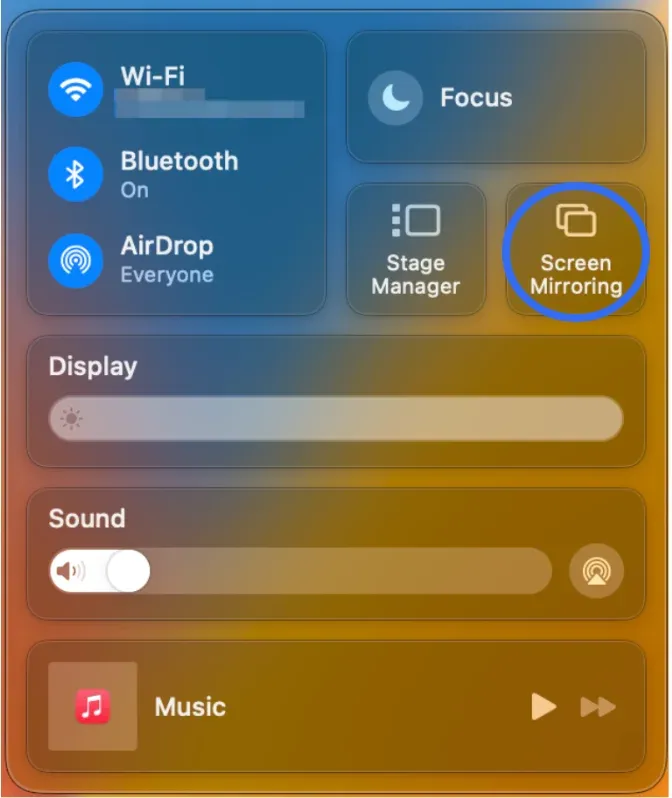 Step 3. Click your TV, Apple TV, or even another Mac to start mirroring from the list of available devices.
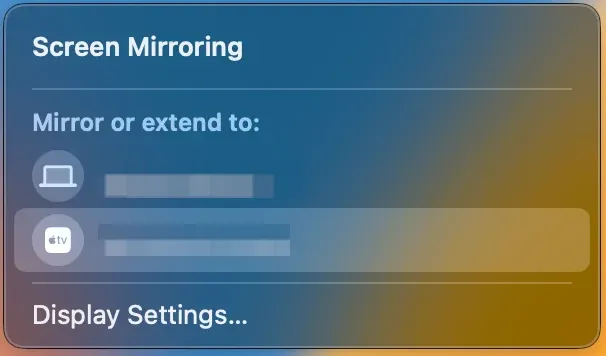
Step 4. Depending on the device, you may be prompted to enter a code displayed on your TV. You can also tweak the resolution and sound output under System Settings > Displays.
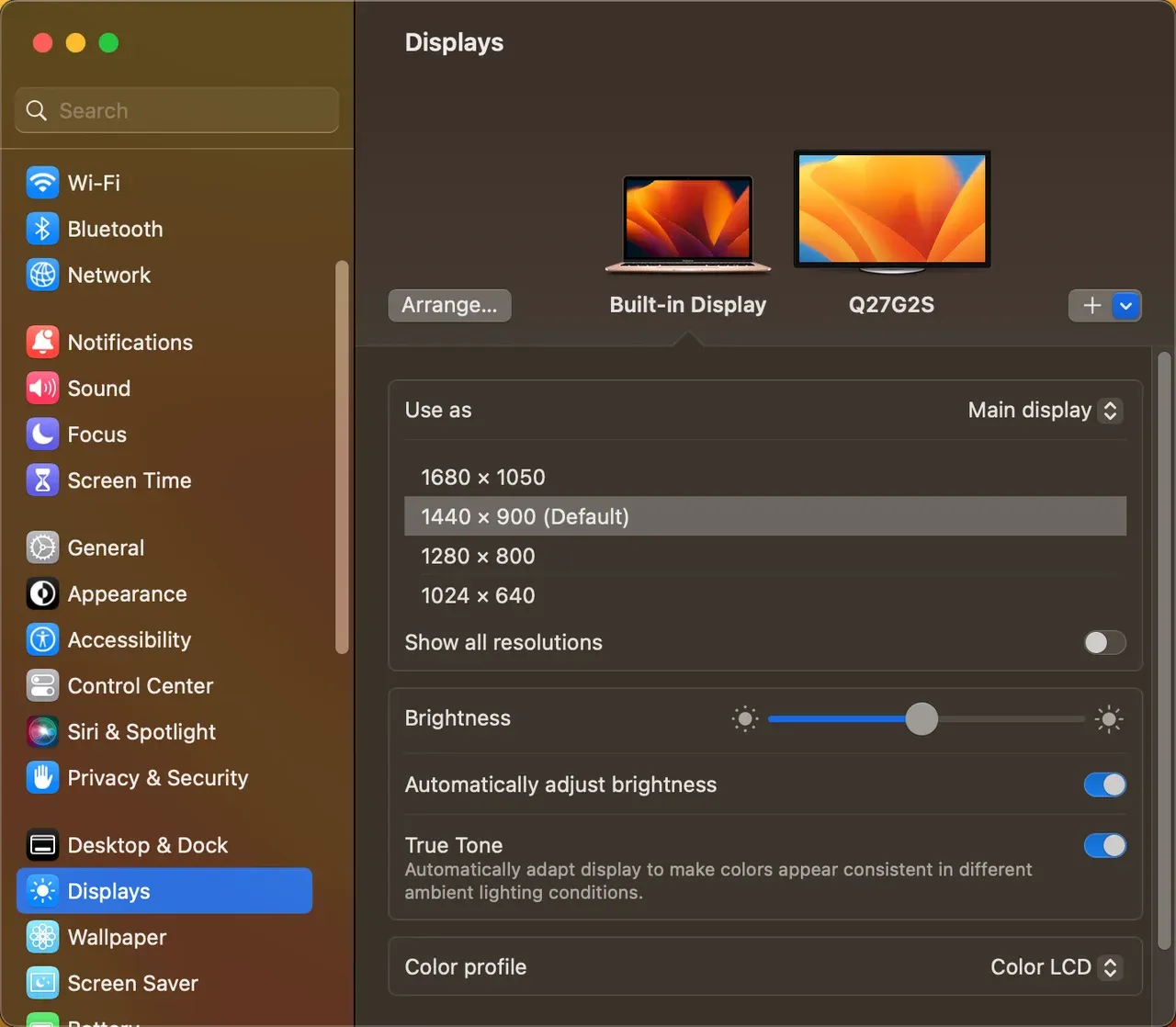
That's it! Now you know how to AirPlay from Mac to TV or any AirPlay-compatible device.
How to AirPlay to Mac?
Since macOS Monterey, you can AirPlay to Mac, which is perfect if you want to mirror content from your iPhone or iPad directly onto your MacBook screen. How to AirPlay to Mac from iPhone or iPad? The process is also simple:
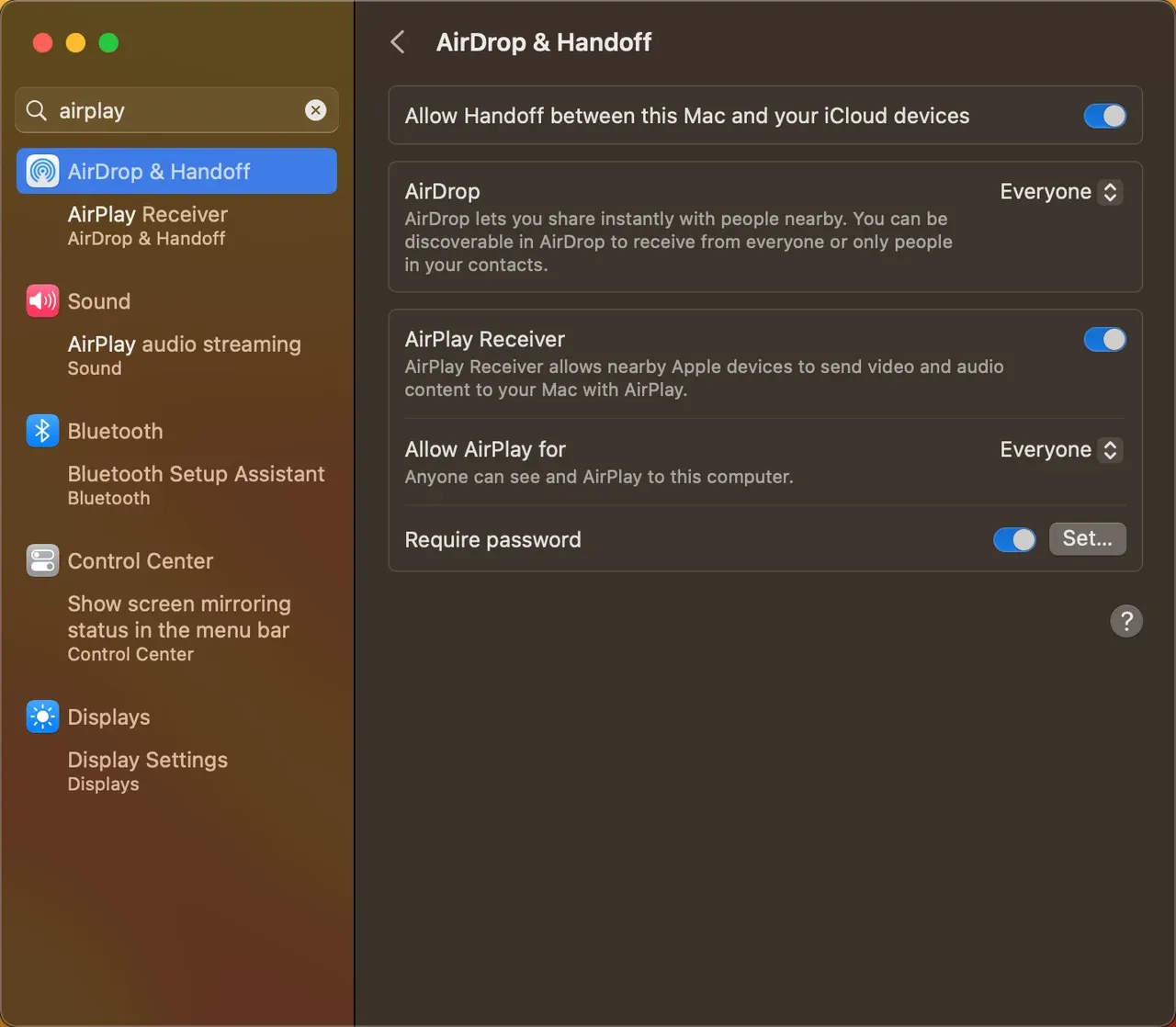
Step 1. Go to Settings on your MacBook and enter AirPlay for quick location.
Step 2. On the AirDrop & Handoff window, toggle AirPlay Receiver on, which allows you to send video and audio content from nearby devices to your Mac with AirPlay.
Step 3. Ensure your iPhone or iPad and MacBook are connected to the same Wi-Fi.
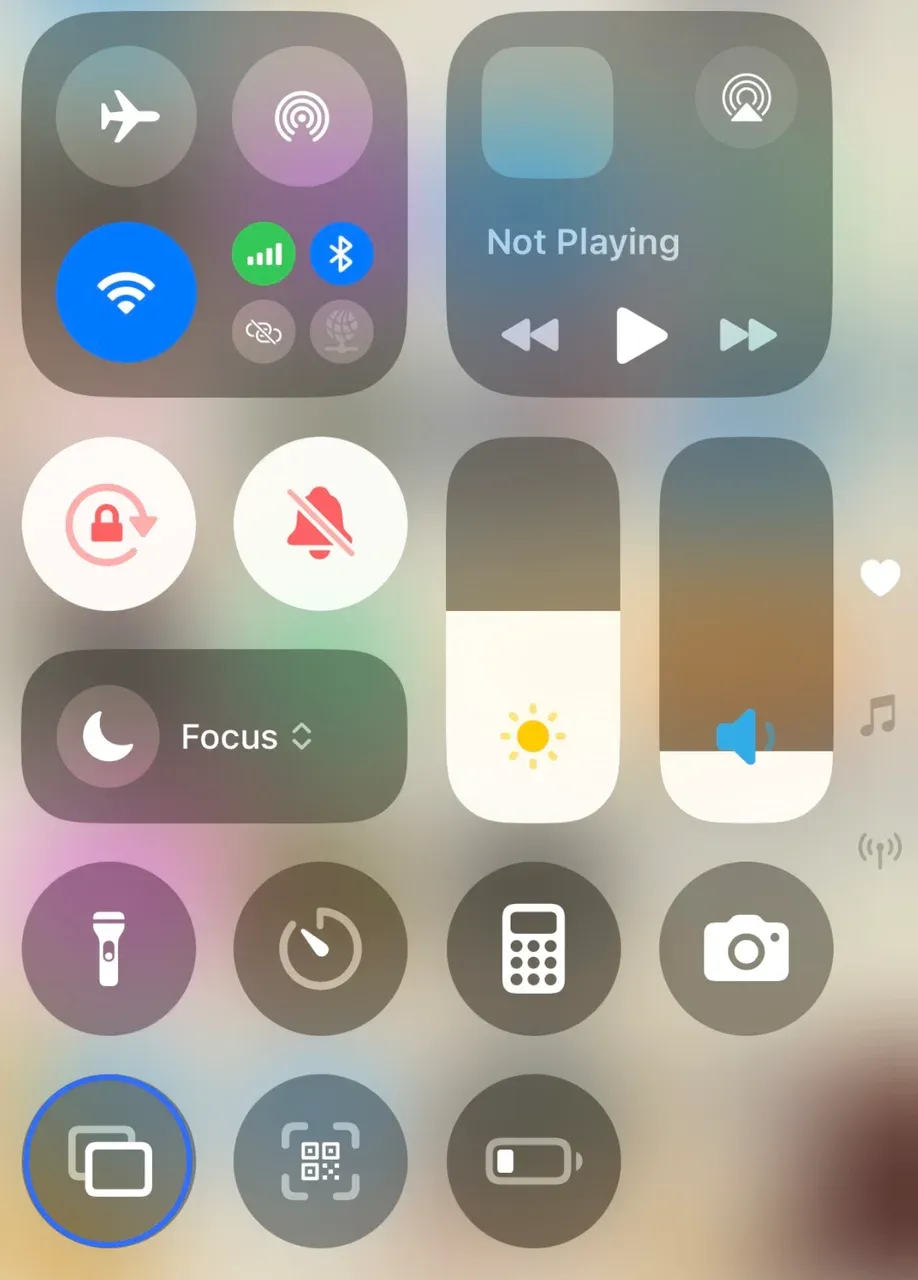
Step 4. On your iPhone or iPad, open the Control Center and tap Screen Mirroring.
Step 5. Choose your MacBook from the device list and enter the passcode if asked.
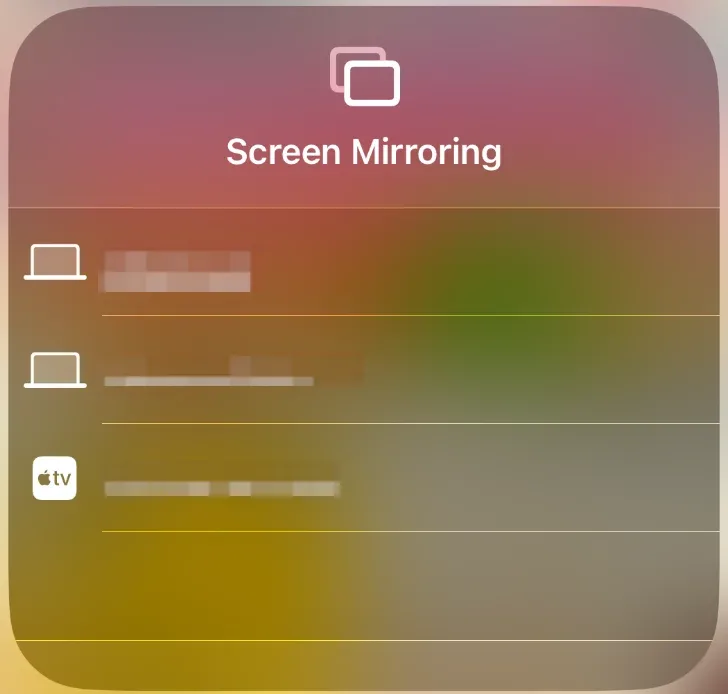
That's the whole process. Just select your Mac from the AirPlay device list on your iPhone or iPad, and it will appear instantly. This is especially handy for quick photo sharing, presentations, or even extending your display when you don't have a TV nearby.
Why Mirror from or to MacBook with PigeonCast
AirPlay works perfectly if you're fully in the Apple ecosystem, but what if your TV or doesn't support it? That's where PigeonCast makes a real difference.

PigeonCast on MacBook supports AirPlay, Google Cast (Chromecast), and its proprietary technology called PigeonCast, all in one. It not only lets you mirror your MacBook Air or MacBook Pro to a wide range of TVs, but also turns your Mac into a receiver so you can AirPlay iPhone to MacBook or even from Android or Windows.
Here's why PigeonCast for Windows is worth trying:
- Works with almost any smart TV, not just AirPlay-enabled ones.
- Supports cross-platform mirroring: iPhone, Android, Windows, Mac, Apple TV, Android TV, and Fire TV.
- Simple setup, free to use, and lightweight on your MacBook.
If you want to go beyond the limits of built-in MacBook AirPlay, PigeonCast transforms your laptop into a universal streaming hub that just works. Here's how to use AirPlay on Mac:
Step 1. Download and install the PigeonCast on your Mac.

PigeonCast Screen Mirroring

Official Download


Step 2. Ensure your Mac and the other device are on the same Wi-Fi network.
Step 3. Launch the PigeonCast on your Mac and follow the on-screen instructions to start wireless streaming.
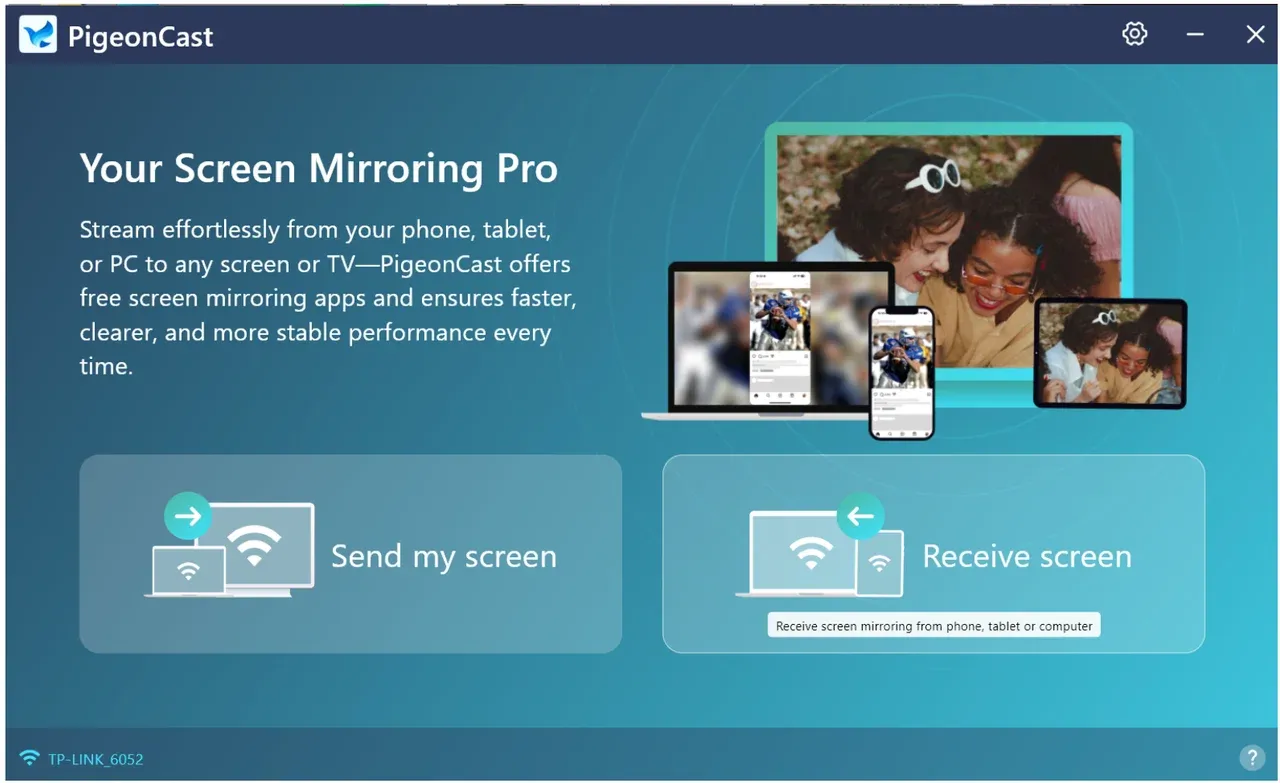
- Send my device: mirror Mac to Windows, Mac, Apple TV, or smart TV to extend your Mac screen.
- Receive my screen: mirror iPhone, Android, Windows, or Mac to Mac.
Final Thoughts
So, do MacBooks have AirPlay? Yes, whether you're on a MacBook Pro or a MacBook Air, AirPlay is built in and easy to use. But on different macOS versions, the location of the AirPlay button varies: on macOS Monterey and later, you can find it from the Control Center; on older versions, you can directly find it on the menu bar. Once you click it, you can AirPlay your Mac to any compatible device.
But if you want more than what Apple's native tool offers, PigeonCast is the best way to enjoy cross-platform streaming with support for AirPlay, Google Cast, DLNA, and PigeonCast protocols. With the right setup, your MacBook isn't just a laptop; it's a wireless media powerhouse.
Do MacBooks Have AirPlay FAQs
Does MacBook Air have AirPlay?
Yes, all modern MacBook Air models include AirPlay support, just like the MacBook Pro. With AirPlay enabled on your Mac, you can stream videos, mirror your screen, or extend your display.
How do I turn on AirPlay on my MacBook?
The process depends on what macOS version your MacBook uses:
- On macOS Monterey and later, click the Control Center icon in the top right corner and click the Screen Mirroring option.
- On older versions, just click the AirPlay icon (a rectangle with a triangle) in the top menu bar.
Can I mirror my MacBook Air to a TV?
Yes, you can mirror your MacBook Air to a compatible TV with AirPlay. Connect both devices to the same Wi-Fi, click the AirPlay button on MacBook (or use Screen Mirroring in Control Center), then choose your TV or Apple TV. Enter the code on your TV if prompted, and your Mac screen will appear on the big screen.
Can I mirror my phone to my MacBook?
Yes, if your MacBook runs macOS Monterey or later, and AirPlay Receiver is enabled on your Mac. To mirror an iPhone to your MacBook, ensure the two devices are on the same Wi-Fi, and at the same time, click the Screen Mirroring option from the Control Center and choose your MacBook. However, to mirror an Android phone to MacBook, you need to set up a third-party app, like PigeonCast, on the Android device. The app adds AirPlay support to the Android device and bridges the gap.
How to AirPlay from iPhone to Mac?
- Turn on AirPlay Receiver from the Settings app on your Mac.
- Connect the iPhone to the Wi-Fi your Mac uses.
- Open Control Center on the iPhone and tap Screen Mirroring.
- Choose your MacBook from the available devices and enter the passcode if required.
You'll see your iPhone screen on your Mac. If you just want to share some videos or photos, the steps are:
- Turn on AirPlay Receiver from the Settings app on your Mac.
- Connect the iPhone to the Wi-Fi your Mac uses.
- Go to the Photos app on your iPhone and choose the media you want to cast.
- Tap the Share button at the bottom left corner and choose the AirPlay option.
- Choose your Mac as the target device.
What if my TV doesn't support AirPlay?
Many apps add AirPlay support to an incompatible smart TV, such as AirMirror, PigeonCast for Android TV. Just ensure that your iPhone, iPad, or even MacBook and the TV are using the same Wi-Fi and the app opens on the TV. Go to the Control Center, and enable AirPlay (Screen Mirroring), choose your TV (your TV typically is renamed by the app, so check what the app shows), and the screen mirroring starts.
Is PigeonCast free to use on Mac?
Yes, PigeonCast is completely free on Mac and other devices (Android, iPhone, Apple TV, and Android TV) at the time of this writing. You can set it up on your MacBook and have a seamless cross-platform streaming experience.
Mia Clarke is a technology editor specializing in screen mirroring and casting solutions across multiple platforms. Mia provides clear, practical guides and in-depth insights to help users seamlessly connect their devices. Passionate about enhancing digital experiences, Mia is dedicated to keeping readers updated on the latest trends and tools in cross-platform screen sharing. Whether you’re looking to mirror your smartphone, laptop, or smart TV, Mia’s content delivers reliable, user-friendly advice to simplify your tech setup.