
Apple devices are easy to use, but each one, whether it's an iPhone, iPad, MacBook, or iMac, has its own set of features. This guide will show you how to use AirPlay iMac to share content from other Apple devices, and also how to screen mirror your iMac from or to non-Apple devices. It's all about making your iMac work seamlessly with both Apple and non-Apple gadgets.
What Is AirPlay
AirPlay is Apple's proprietary wireless streaming protocol that allows audio, video, screen mirroring, and device control between Apple devices. It works by creating a direct connection over a local Wi-Fi network, typically using the Bonjour service for device discovery and the AirPlay protocol for data transmission.

AirPlay supports high-quality audio and video streaming with low latency, and it leverages encryption and authentication mechanisms to ensure secure transmission, protecting content from unauthorized access. To function properly, all devices must be connected to the same Wi-Fi network, and network stability is critical to maintain smooth streaming.
Can I AirPlay on iMac
Yes, you can AirPlay from or to your iMac to stream media or mirror your screen to compatible devices. Whether you're playing a video, sharing a presentation, or just streaming music, AirPlay lets you connect your iMac to devices like AirPlay-enabled speakers without the need for wires. Here are some prerequisites for AirPlay on iMac:
- Your iMac and the device you want to AirPlay must be on the same Wi-Fi network.
- Ensure both devices are updated to the latest software.
- AirPlay must be enabled on your iMac and the receiving device.
How to AirPlay Apple Device to iMac
To AirPlay to your iMac, make sure it's ready to receive the stream and that both your iMac and the device you're streaming from are connected to the same Wi-Fi network. Once that's set up, follow these simple steps on how to AirPlay on iMac from different devices:
AirPlay From an iPhone or iPad to an iMac
AirPlay makes it easy to share content directly from your iPhone or iPad to your iMac, whether you're streaming a video, displaying photos, or mirroring your screen. The process is simple and quick, but sometimes a few steps can make all the difference in ensuring everything works smoothly. Here's how to get it set up:
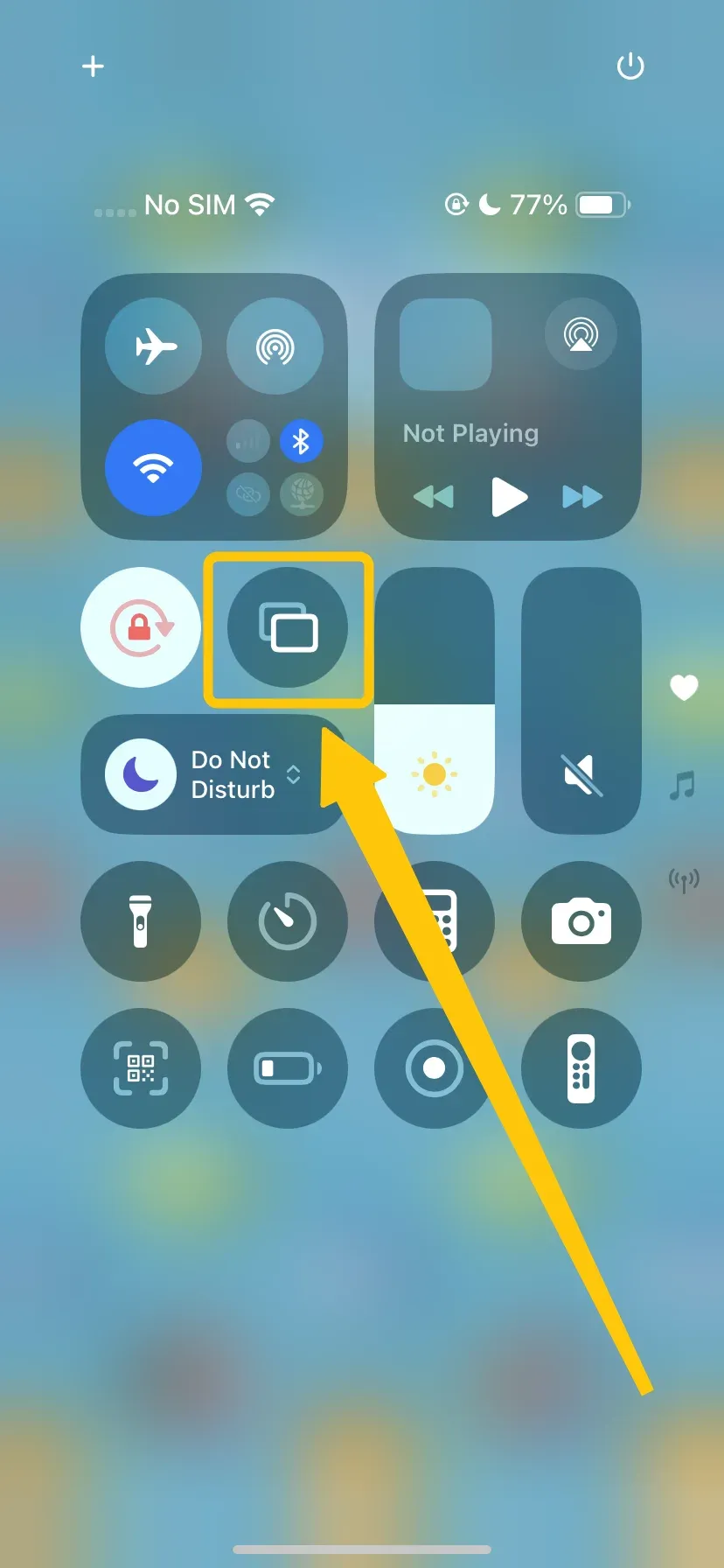
Step 1. Swipe down from the upper-right corner of your iPhone or iPad to access the Control Center.
Step 2. Tap on Screen Mirroring and choose your iMac from the list of available devices.

Step 3. If prompted, click Accept option and a code will appear on your iMac. Simply enter this code on your iPhone or iPad to establish the connection.
Step 4. Once you're connected, you can enjoy seamless streaming or mirror your iPhone or iPad's content on your iMac with ease.
AirPlay MacBook to iMac
AirPlay lets you effortlessly mirror your MacBook's display or stream content to your iMac, turning your iMac into an extra screen or a media hub. Whether you're working on a project, watching a movie, or giving a presentation, it's a smooth way to share your MacBook's content.
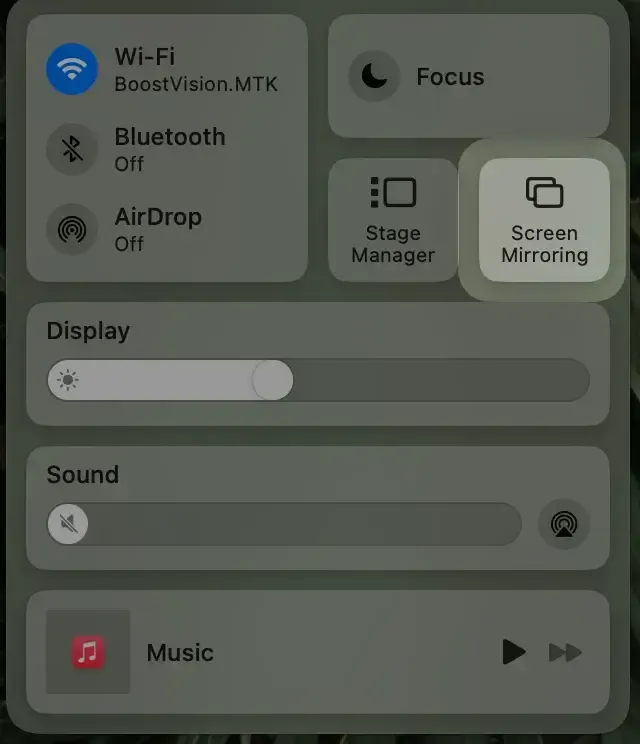
Step 1. Ensure your MacBook and iMac are under the same WiFi network.
Step 2. From the menu bar, choose the Screen Mirroring feature and select your iMac from the drop-down list of available devices.
Step 3. When pairing successfully, you'll enjoy a seamless experience whether you're sharing your screen or using your iMac as a separate workspace.
AirPlay from iMac to Apple TV
Sometimes you may want to use your iMac to share content with your Apple TV, whether it's to stream shows when your TV isn't available, give presentations, demo apps or games, collaborate with colleagues, or simply have a flexible workspace. AirPlay allows you to mirror your iMac directly to your Apple TV without extra cables.
Step 1. Make sure your Apple TV and iMac are connected to the same Wi-Fi network.
Step 2. On your MacBook, select Screen Mirroring from the Control Center menu.
Step 3. Choose your Apple TV from the list of available devices.
Step 4. Once connected, your iMac screen will appear on your Apple TV, letting you watch content, share media, or use your Apple TV as a secondary display for work or demos.
How to Mirror Android or Windows PC to iMac
AirPlay is primarily optimized for Apple devices, which can limit interoperability with non-Apple systems. A robust alternative is the Universal PigeonCast's solution for Mac screen mirroring, which enables seamless connectivity between iMacs and a variety of devices, including Apple, Android, and Windows platforms.
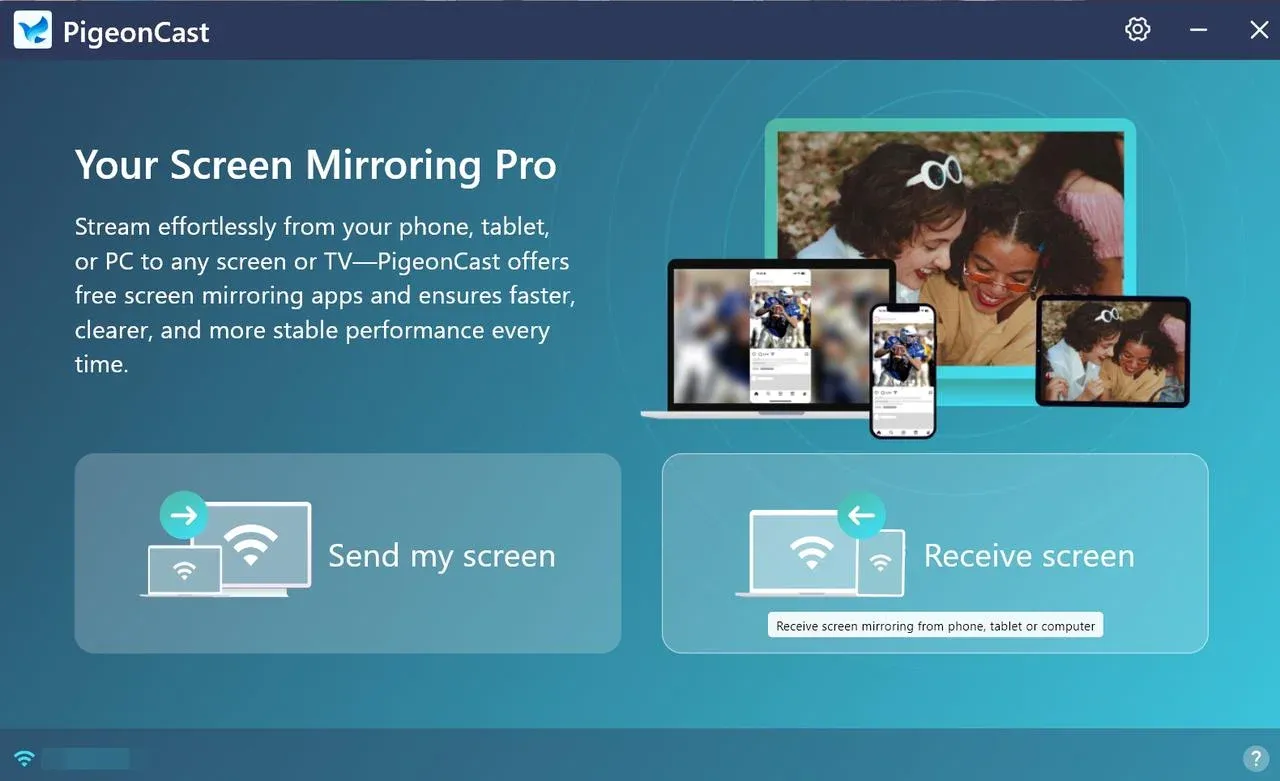
The application uses secure data handling protocols to protect user privacy and prevent any risk of information leakage. Once downloaded, you can easily set up your MacBook as either the sender or receiver device.

PigeonCast Screen Mirroring

Official Download


Step 1. Install this universal Mac app on your MacBook device.

Step 2. Launch the app and select your connection device from the list of available devices, then scan or input the digit code to connect your two devices.
Step 3. After finishing the pairing process, you can screen anything you want from your iMac or to your iMac.
Troubleshooting Common iMac AirPlay Issues
If you're having trouble with AirPlay on your iMac, you might run into a few common issues. For example, your iMac might not show up in the AirPlay menu, or the connection could drop unexpectedly. Don't worry, there are a few quick troubleshooting steps to help you fix these problems and get everything working smoothly again.
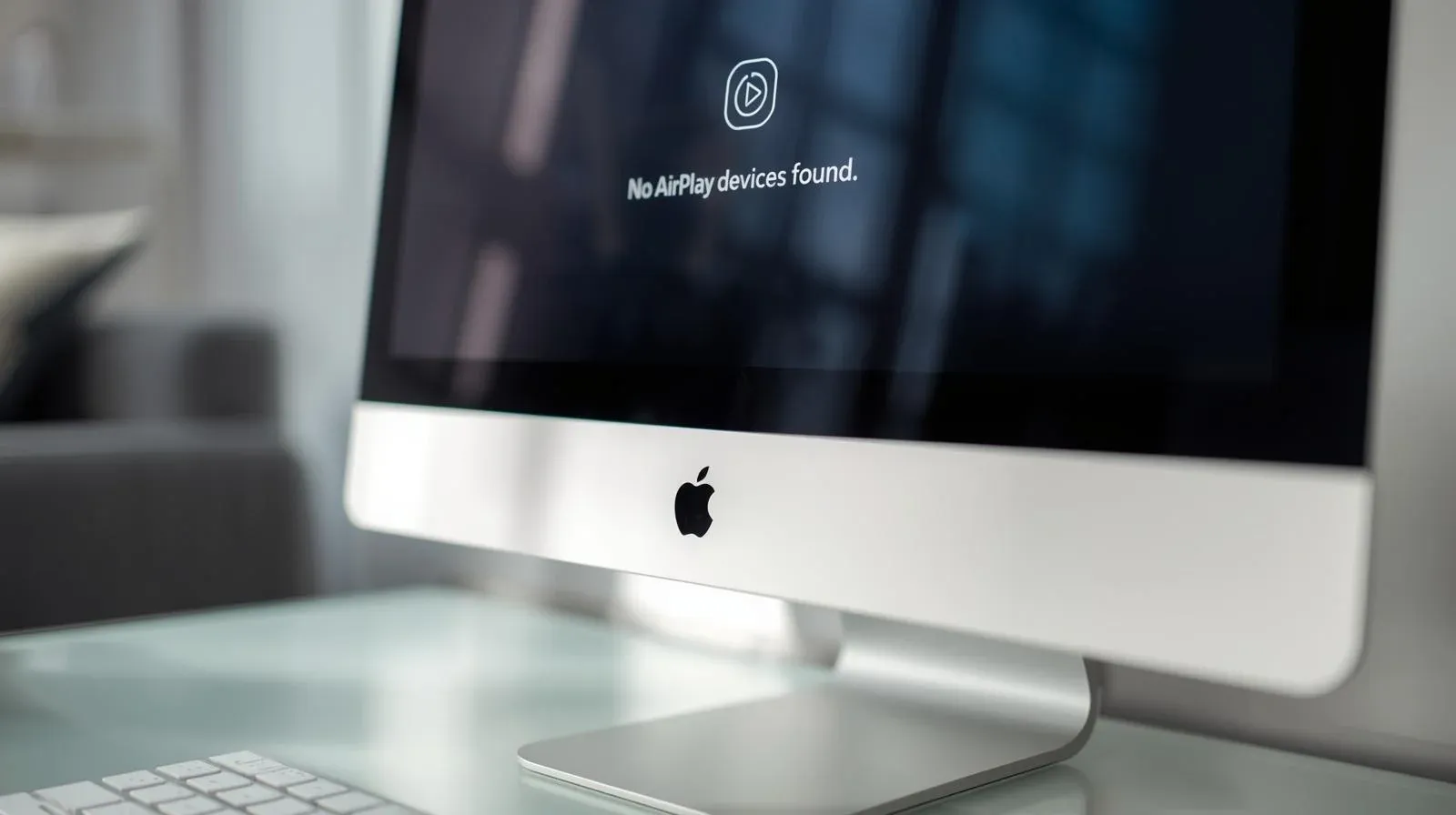
- AirPlay Device Not Showing Up
If your AirPlay-enabled device isn't appearing in your iMac's AirPlay menu, the issue could be related to your network connection, settings, or compatibility between devices.
- AirPlay Connection Keeps Dropping
If your AirPlay connection keeps dropping, it's usually because of an unstable network or issues with device communication. A quick check of your Wi-Fi and device settings can often fix this.
- No Sound or Video
If you're connected but see no sound or video, it could be a settings issue, a device compatibility problem, or even network congestion. Double-check everything is set up correctly and ensure your network isn't overloaded.
Bottom Line
AirPlay on iMac is a powerful tool that enhances your media and productivity experience, allowing you to wirelessly stream content or mirror your screen. Whether you want to AirPlay to iMac or AirPlay from iMac, you can follow this simple guide to easily master the feature.
AirPlay iMac FAQ
Q: How do I turn on AirPlay on my iMac?
To turn on AirPlay on your iMac (so it can receive content from other devices like iPhones or iPads):
- Go to System Settings (macOS Ventura or later) or System Preferences (older macOS).
- Click General > AirPlay & Handoff.
- Toggle on AirPlay Receiver and choose who can stream to it (Everyone or Same Network).
Q: Why is there no AirPlay option on my Mac?
If the AirPlay option isn't showing up on your Mac, it could be due to a few reasons:
- Make sure your Mac and the device you're trying to AirPlay to are connected to the same Wi-Fi network.
- Check that AirPlay is enabled in your System Preferences under Displays.
- If it still doesn't appear, ensure both devices are updated to the latest software version, and try restarting your devices to refresh the connection.
Q: Which iMac has AirPlay?
AirPlay is available on most modern iMacs running macOS 10.15 (Catalina) or later. If your iMac is from 2011 or newer and has the latest macOS update, it should support AirPlay. To check if your iMac supports AirPlay, make sure it's updated to the latest version of macOS and look for the AirPlay icon in the menu bar.
Q: How do I turn on AirPlay on my iMac?
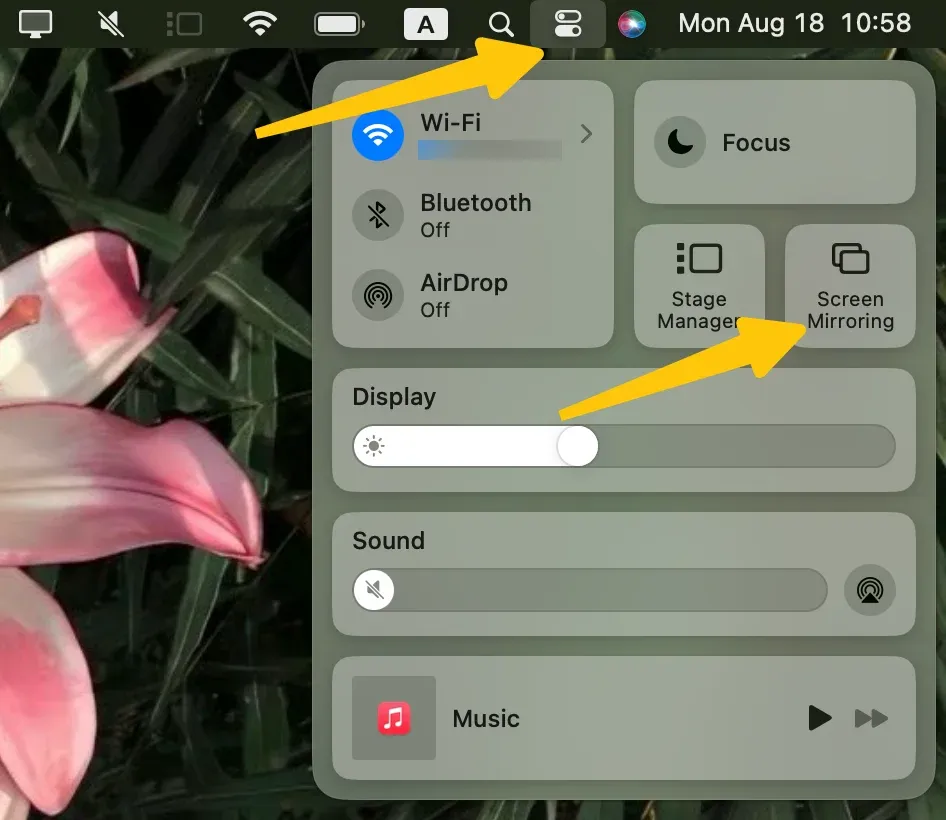
To turn on AirPlay on your iMac, click the Control Center icon in the top-right corner of your screen and select Screen Mirroring. From there, choose the device (such as an Apple TV or compatible smart TV) you want to mirror your iMac display to. If you don't see the option, go to System Settings > Control Center and make sure Screen Mirroring is enabled in the menu bar.
Q: How do I mirror my iMac to my TV?
You can mirror your iMac to your TV using AirPlay, an HDMI cable or PigeonCast.
- For AirPlay, make sure your iMac and TV (or Apple TV) are on the same Wi-Fi network, then click the Control Center on your iMac, select Screen Mirroring, and choose your TV.
- If your TV doesn't support AirPlay, you can connect an HDMI cable from your iMac to the TV and select the correct input source on the TV to mirror your screen. Moreover, you can just install PigeonCast to get help.
Q: Can I AirPlay to an old iMac?
You generally can't AirPlay directly to an old iMac because macOS doesn't support using it as an AirPlay receiver. However, if your iMac is an older model (pre-2014), you may be able to use Target Display Mode with the right cable to turn it into a second screen. Alternatively, third-party apps like PigeonCast can let your old iMac receive AirPlay from other Apple devices.
Clara Rossi is an experienced technology editor and a seasoned expert in screen mirroring and casting technologies. With a keen eye for detail and a deep understanding of how to seamlessly connect devices, Clara excels at optimizing user experiences for effortless sharing and streaming. Whether you're seeking quick fixes or advanced tips, her expertise and responsiveness ensure that every query is met with a well-informed and efficient solution.