
Are you wondering about AirPlay for Windows? This post reveals AirPlay compatibility on Windows and guides you through wirelessly mirroring an iPhone to Windows and Windows to Apple TV. No further ado, let's dive into Windows AirPlay.
Does Windows Have AirPlay?
Does Windows Have AirPlay?
No, Windows does not have native AirPlay support. AirPlay is primarily built into Apple devices such as iPhones, iPads, Macs, and Apple TVs, allowing them to stream or mirror content to compatible receivers. Apple also licenses AirPlay 2 to many smart TV brands, including Samsung, LG, Sony, and Vizio.
Windows users can install the Apple TV app for Windows to watch Apple TV+ and purchased or rented content, but the app does not add AirPlay screen mirroring or receiving capabilities to a Windows PC.
Windows still lacks built-in AirPlay support for several reasons:
- Apple’s ecosystem strategy: Apple keeps AirPlay closely connected to its own devices and licensed receiving products.
- Technical requirements: Native AirPlay support would require Windows-level integration for device discovery, streaming, encryption, audio, and protected content.
- Existing Windows alternatives: Microsoft already supports technologies such as Miracast, Wireless Display, and Cast to Device, reducing the need to add AirPlay natively.
Can You Use AirPlay for Windows?
Yes, you can AirPlay from Windows or to Windows. While there is no native AirPlay support on Windows, third-party apps can add it:
- PigeonCast apps
- iTunes
- AirServer
- Reflector
- LonelyScreen
- LetsView
- AirMyPC
These apps emulate an AirPlay receiver or sender and allow Windows PCs to work with Apple devices. Well, how to use AirPlay on Windows via these apps? Check the step-by-step tutorial below.
How to AirPlay iPhone to Windows?
As there is no native Apple AirPlay for Windows 10, how to cast iPhone to Windows 10? As stated above, use a third-party app for wireless screen mirroring, audio or video sharing, and the step-by-step tutorials for these apps are provided below.
#1. Use PigeonCast for Windows
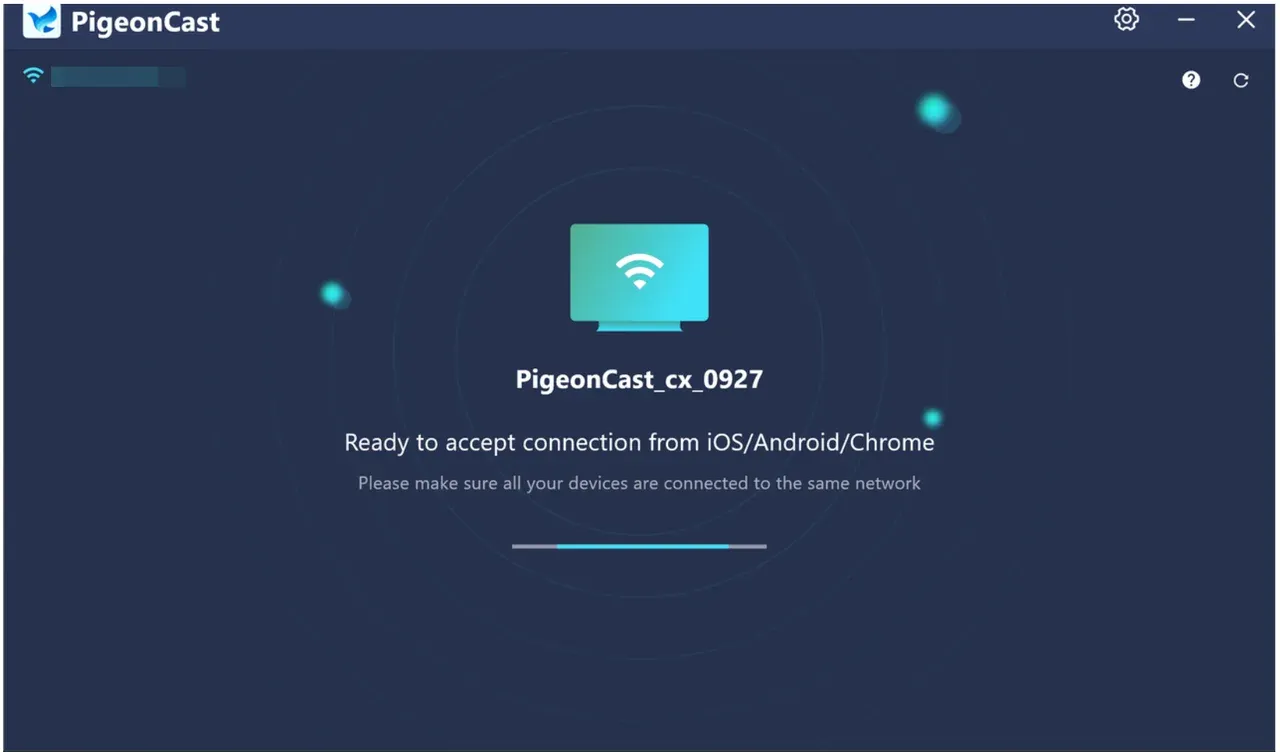
The app PigeonCast for Windows, with the support of AirPlay, enables you to mirror an iPhone or MacBook to a Windows laptop easily at to 4K/60 FPS. No cable or other hardware is needed. The app also supports DLNA and Google Cast, making it easy to connect Windows to Android devices.
How to AirPlay to PC through the third-party app? Ensure that your iPhone and Windows PC have the same Wi-Fi network connection. Then, follow the guide:
Step 1. Download the PigeonCast for Windows app from the Microsoft Store.

PigeonCast Screen Mirroring

Official Download


Step 2. Launch the app on your Windows PC and note your Windows PC name the app displays, and the device is ready to accept a connection from an iPhone.
Step 3. On your iPhone, enable AirPlay by tapping Screen Mirroring (two overlapping rectangles) from the Control Center.
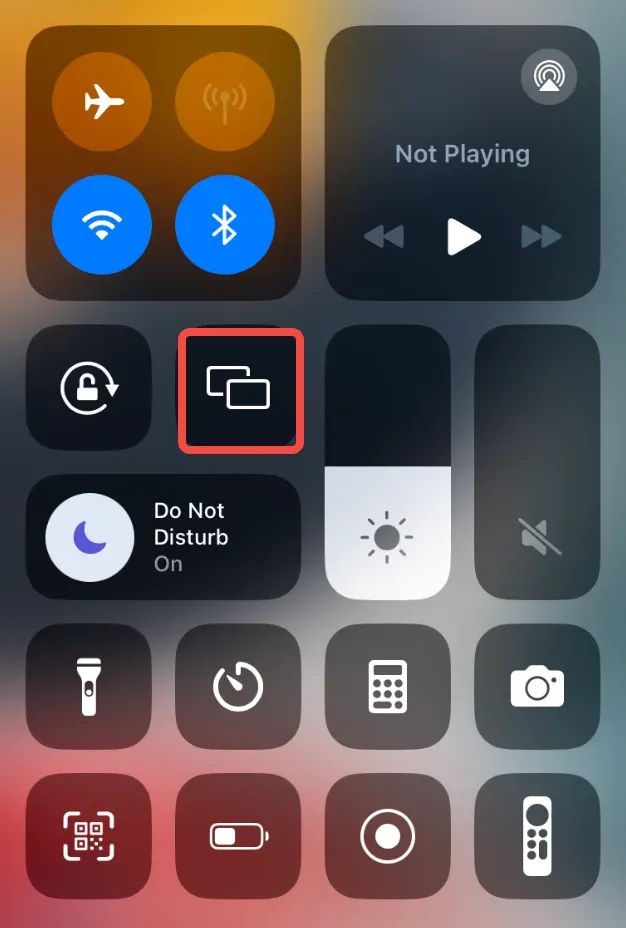
Step 4. Look for your PC name in the AirPlay device list and tap it to set up a connection.
Step 5. Once connected, you can watch your iPhone on Windows, such as Apple TV.

The app will also turn your Windows laptop into an AirPlay sender, connecting Windows to Apple TV easily.
#2. Use AirServer
AirServer is an AirPlay receiver app for Windows PC, which turns your Windows PC into a receiver for Apple AirPlay from Apple device, like iPhone, iPad, and MacBook. Therefore, to enable AirPlay for Windows 11, you can give the third-party app a try:
Step 1. Visit the AirServer website where you download and install the app on your Windows PC.
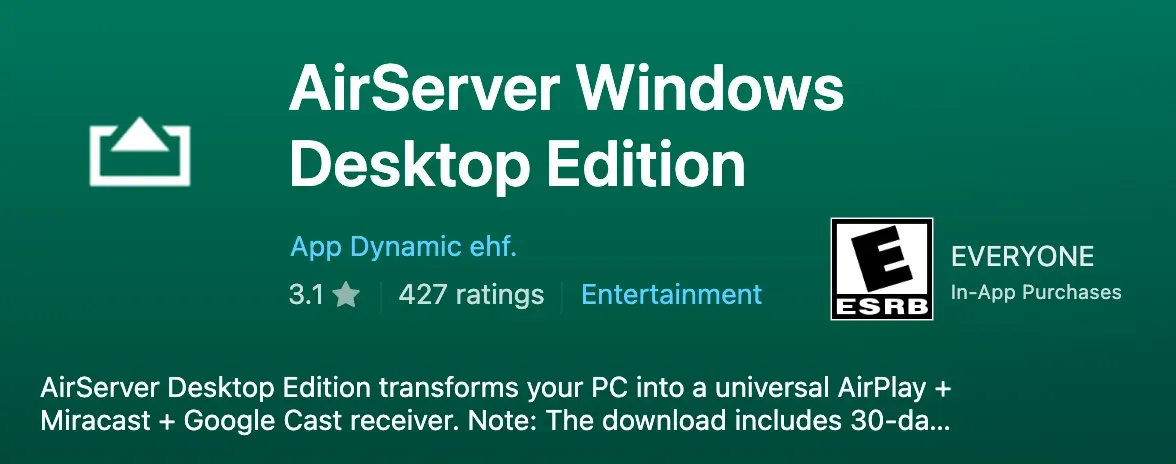
Step 2. Open the app on your Windows PC.
Step 3. On your iOS or macOS device, open Control Center, choose Screen Mirroring, and choose your Windows PC from the device list.
Step 4. Once connected, your Windows screen appears on Apple TV.
#3. Reflector
Reflector is another alternative to AirPlay for Windows 10, the screen mirroring and media streaming software helps you establish a wireless connection between iPhone or iPad and Windows for real-time mirroring.
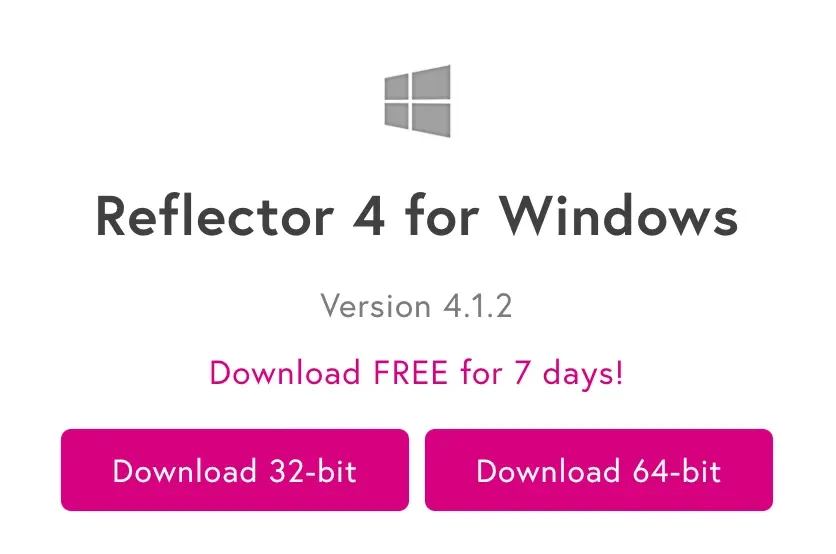
Here is how to AirPlay to Windows using Reflector:
Step 1. Download and install Reflector on your Windows PC.
Step 2. Ensure your sender and receiver are on the same Wi-Fi network.
Step 3. Enable Screen Mirroring on your Apple device from Control Center and choose your computer.
Step 4. Watch your iOS or MacBook screen on your Windows computer.
#4. LonelyScreen
LonelyScreen provides you with a similar easy way to add AirPlay to your Windows computer and becomes a solid choice for most people. However, for advanced needs (like smoother playback, audio-only streaming, or casting from more device types), other tools like PigeonCast might be worth considering.
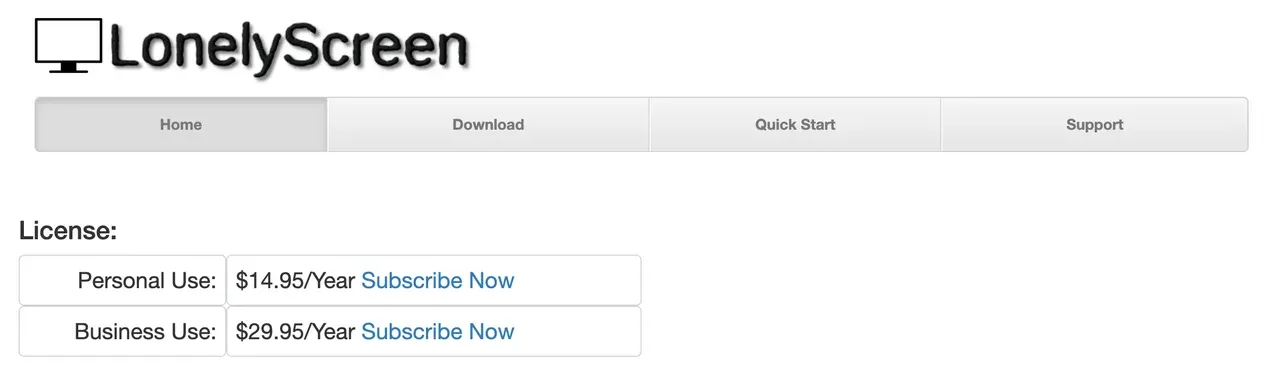
Step 1. Install the app on your Windows PC.
Step 2. On iPhone or iPad, access Control Center, choose Screen Mirroring, then select LonelyScreen.
Step 3. Click Start Broadcast on your PC.
#5. LetsView
Although there is no native AirPlay Windows 11, you can make your Windows PC AirPlay compatible with LetsView. The app is also a screen mirroring app that enables you to AirPlay your iPhone or iPad to Windows.

Step 1. Download and install LetsView app on your computer.
Step 2. Connect your devices to the same Wi-Fi network.
Step 3. Launch the app on your Windows. It will display a QR code.
Step 4. Use your device to scan the QR code to start casting to Windows.
How to AirPlay Windows to Apple TV?
To AirPlay from Windows to Apple TV or cast Windows to Apple TV, use certain software that enables your Windows PC to act as an AirPlay sender, or configure your Apple TV to accept screen mirroring or casting from Windows. Each does its trick, easy and quick.
#1. Use PigeonCast for Apple TV
The PigeonCast for Apple TV app enables your Apple TV to receive connection requests from an Android, Windows, iOS or macOS device, then you can watch your Windows on Apple TV.
The app supports Google Cast, DLNA, and AirPlay. Moreover, Windows supports DLNA for streaming content. Although Windows doesn't support Google Cast natively, you can still use it via Google Chrome or Microsoft Edge. Regardless of this, Windows cannot easily act as either a DLNA receiver or a Google Cast receiver.
To do Windows AirPlay to Apple TV, try the free third-party app:
Step 1. Download and install the PigeonCast for Apple TV app on your Apple TV.
PigeonCast Screen Mirroring
Official Download

Step 2. Ensure that your Windows and Apple TV are connected to the same network.
Step 3. Launch the PigeonCast for Apple TV app on your Apple TV and note the device name the app shows.
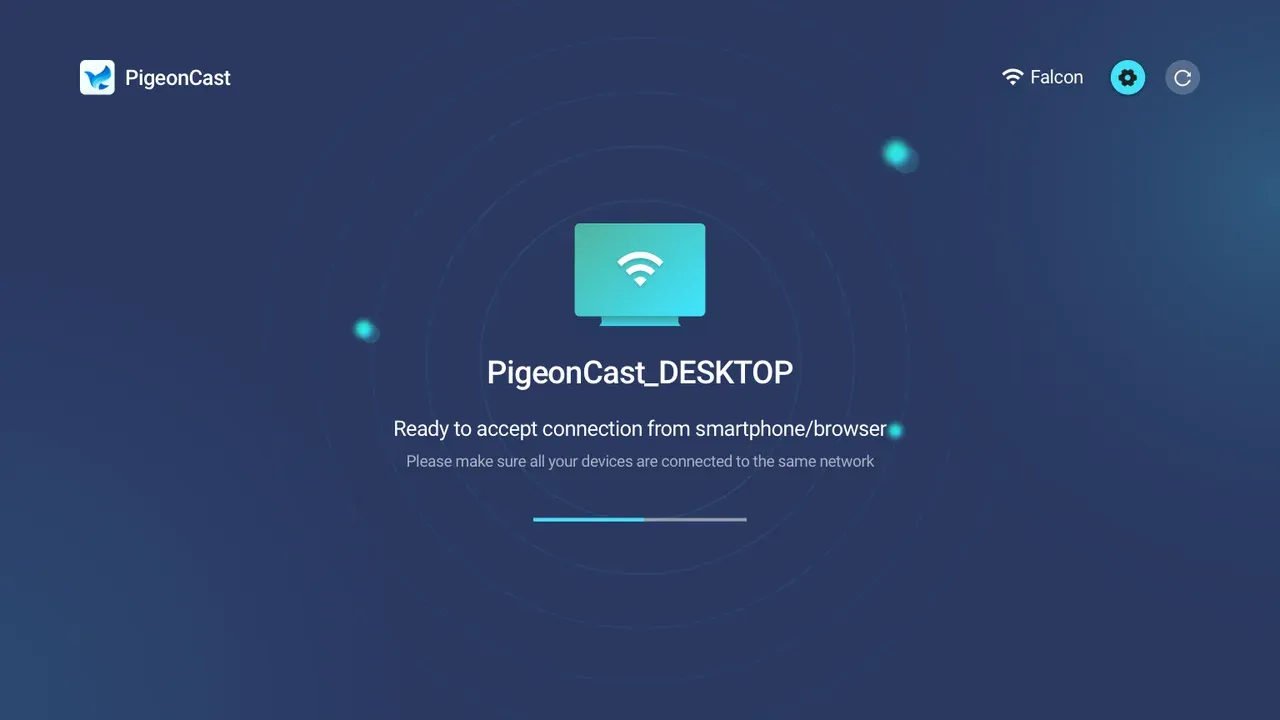
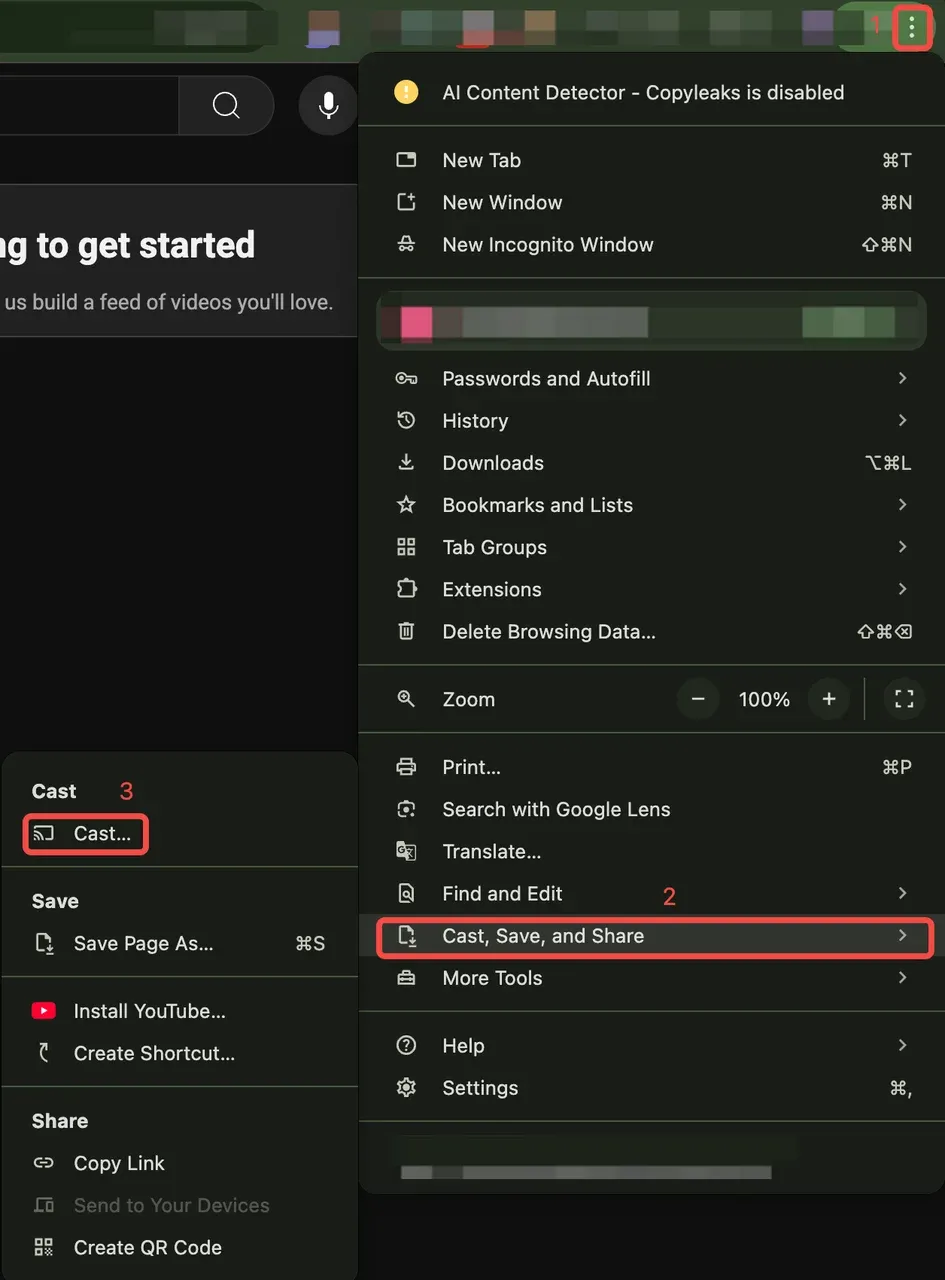
Step 4. Go to Google Chrome on your Windows and find the content you want to watch on Apple TV.
Step 5. Tap the three-dot menu in the top right corner, then choose Cast, Save, and Share > Cast.
Step 6. On the pop-up Cast tab, choose the Sources between Cast tab and Cast screen, then click your Apple TV device name to set up the connection.
Step 7. Once connected, the tab or your Windows screen appears on Apple TV instantly.
#2. Use iTunes
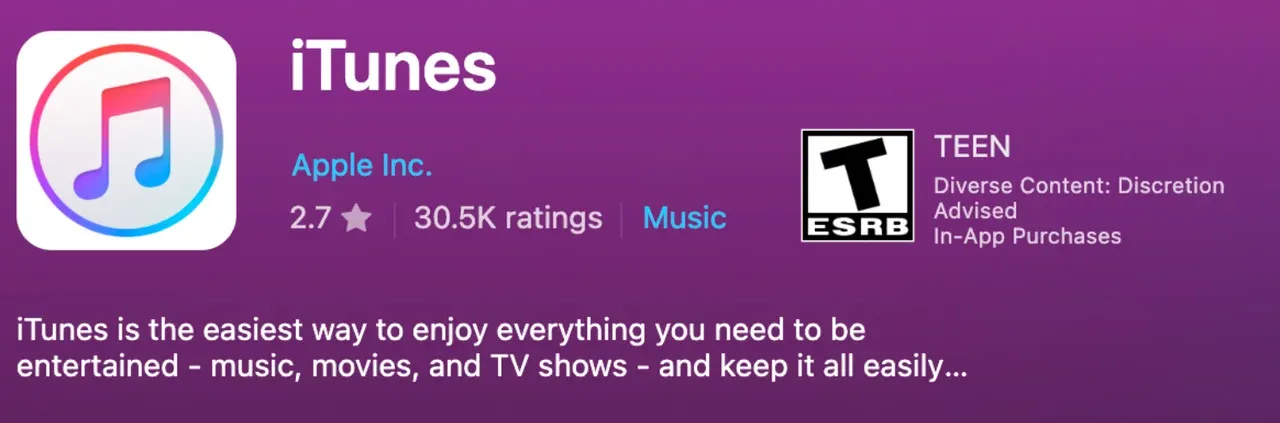
If you want to AirPlay media from your Windows PC to Apple TV, you can connect the PC to the TV via iTunes. iTunes is a media player and media library developed by Apple Inc. Its version for Windows can send content to an Apple TV with Home Sharing setup.
Here are the steps to cast Windows to Apple TV via iTunes:
Step 1. Download and install the iTunes app on your Windows PC.
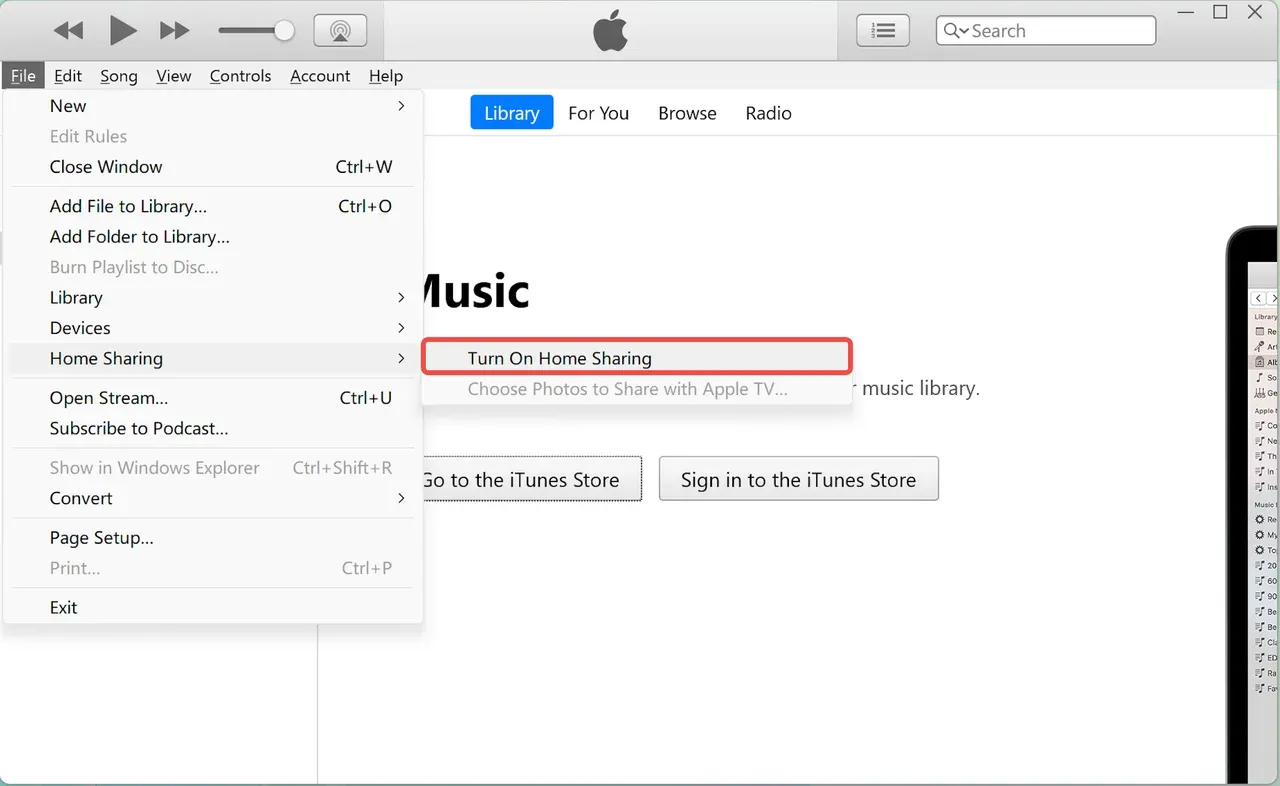
Step 2. Set up Home Sharing on your Windows PC:
- Open the iTunes app on your Windows PC.
- Navigate to File > Home Sharing > Turn On Home Sharing.
- Enter your Apple ID and password.
- Choose Turn On Home Sharing.
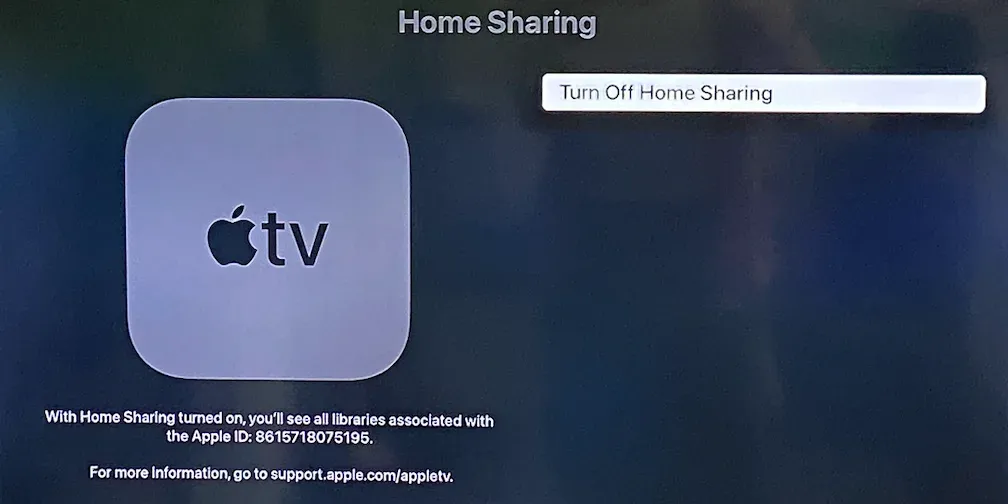
Step 3. Set up Home Sharing on your Apple TV:
- Go to Settings on Apple TV.
- Go to Users and Accounts > Home Sharing with the remote.
- Turn on Home Sharing, confirm your email address or phone number, and enter your password.
Step 4. Stream media (like photos) from Windows to Apple TV via iTunes.
- Go back to the iTunes app on your Windows PC.
- Choose File > Home Sharing.
- Choose Photos to Share with Apple TV.
- In the new window, choose Share Photos From.
- Choose a source from the pop-up menu, like All photos and albums or Selected albums (then choose the photos you want to stream).
- Click Apply.
- On your Apple TV, choose Computers to view the libraries on your shared devices that you want to view or play content from.
#3. AirMyPC
How to AirPlay on Windows to watch Windows on Apple TV? Try AirMyPC. The app is designed for Windows PC and turn Windows PC into an AirPlay receiver, solving the issue no AirPlay for Windows.
Step 1. Download AirMyPC on your Windows PC.
Step 2. Launch the app and click its icon. You will see the menu where all Apple TVs are available.
Step 3. Find your Apple TV from the menu to AirPlay Windows to it.
Final Thoughts
While Windows doesn't natively support AirPlay, that doesn't mean you're out of luck when it comes to screen mirroring and media streaming between Windows and Apple devices. Thanks to a variety of third-party apps like PigeonCast, it's entirely possible to mirror your iPhone to a Windows PC or cast from Windows to an Apple TV, quickly and wirelessly.
Whether you're trying to watch mobile content on a larger screen or extend your Windows desktop to your Apple TV, these tools bridge the gap left by Apple's exclusive ecosystem. With just a few setup steps, you can enjoy a smooth AirPlay-like experience even on a Windows machine.
So, while the answer to "Does Windows have AirPlay?" is still no, the workarounds are powerful enough to get the job done. Try the methods above and enjoy the freedom of cross-platform streaming today.
AirPlay for Windows FAQ
Q: Is there a Windows equivalent of AirPlay?
Yes, the closest native equivalent on Windows is Miracast, which allows wireless screen mirroring between Windows PCs and compatible devices. Other alternatives include Cast to Device, Wireless Display, and third-party tools like PigeonCast, which supports multiple protocols including AirPlay, DLNA, and Google Cast.
Q: Can you mirror an iPhone to a PC?
Yes, you can mirror an iPhone to a PC using third-party apps such as PigeonCast, AirServer, Reflector, LonelyScreen, and LetsView. These tools act as AirPlay receivers on your Windows PC, enabling wireless screen mirroring from your iPhone.
Q: Is there something better than AirPlay?
"Better" depends on your needs. AirPlay works seamlessly within Apple's ecosystem, but for broader compatibility, protocols like Google Cast or apps like PigeonCast might be better. PigeonCast supports AirPlay, DLNA, and Google Cast, making it more flexible across different platforms.
Q: Can you AirPlay to a Windows PC?
Yes, you can AirPlay to a Windows PC using third-party receiver apps. Tools like PigeonCast, AirServer, and Reflector turn your PC into an AirPlay-compatible device, allowing you to stream or mirror content from iPhones, iPads, and Macs.
Mia Clarke is a technology editor specializing in screen mirroring and casting solutions across multiple platforms. Mia provides clear, practical guides and in-depth insights to help users seamlessly connect their devices. Passionate about enhancing digital experiences, Mia is dedicated to keeping readers updated on the latest trends and tools in cross-platform screen sharing. Whether you’re looking to mirror your smartphone, laptop, or smart TV, Mia’s content delivers reliable, user-friendly advice to simplify your tech setup.