

If you are searching for the best AirPlay receiver app, you probably want to do one of three things: mirror an iPhone to a Windows PC, turn a Mac or PC into an AirPlay destination, or send your screen to a TV when built-in AirPlay is missing, unreliable, or too limited.
The tricky part is that not every “AirPlay receiver app” solves the same problem.
Some apps are true receiver tools. They make your PC or Mac behave like an AirPlay destination. Others are broader screen mirroring apps built for everyday use across phones, computers, and TVs. That difference matters. A classroom, a meeting room, a living room TV, and a Windows laptop all need different things.
This guide compares the best AirPlay receiver apps for PC and TV in 2026, including PigeonCast, AirServer, Reflector, LonelyScreen, and LetsView, along with native AirPlay support on Apple devices and AirPlay-enabled TVs. The goal is not to crown the app with the longest feature list. The goal is to help you choose the one that actually fits your setup.
Quick Recommendation for Best AirPlay Receiver App
For most home users, start with PigeonCast if your real goal is simple screen mirroring across phones, computers, and TVs instead of turning one desktop computer into a permanent AirPlay receiver.
- Choose AirServer if you need a serious receiver for shared displays, classrooms, or business rooms.
- Choose Reflector if your Mac or Windows PC is the main receiving screen and you need broad device support.
- Choose LonelyScreen if you only need a lightweight AirPlay receiver for iPhone or iPad to PC/Mac mirroring.
- Choose LetsView if you want a free screen mirroring app to try before paying for a receiver-first tool.
- Choose Apple TV or built-in AirPlay if your TV, Mac, or Apple TV already handles AirPlay well.
Best AirPlay Receiver Apps Compared
| App | Best For | PC Support | TV Support | Protocol Support | AirPlay Focus | Best Use Case |
|---|---|---|---|---|---|---|
| PigeonCast | Everyday PC and TV mirroring across ecosystems | Windows and Mac (send & receive) | Android TV, Google TV, Fire TV, Fire Stick, etc. | AirPlay, Google Cast, DLNA | Balanced (multi-protocol) | Home use, mixed-device households, TV-first screen sharing across Apple + Android + Windows |
| AirServer | Professional shared display environments | Windows and Mac (receiver-focused) | External display setups / receiver mode | AirPlay, Google Cast, Miracast | Strong | Classrooms, corporate meeting rooms, training environments with multiple presenters |
| Reflector | Desktop-based screen receiving and recording workflows | Windows and Mac (advanced receiver + recording) | Indirect (via connected display) | AirPlay, Google Cast, Miracast | Strong | Teaching, demos, device mirroring to a primary computer screen |
| LonelyScreen | Lightweight AirPlay-only mirroring to computer | Windows and Mac (basic receiver) | No native TV support | AirPlay only | Very strong (AirPlay-only) | Simple iPhone/iPad to PC or Mac mirroring without advanced setup |
| LetsView | Free cross-platform screen mirroring trial solution | Windows and Mac | Smart TVs (varies by device) | AirPlay, Miracast (limited consistency) | Moderate | Casual use, budget users, quick screen sharing across devices |
| Apple TV / Built-in AirPlay | Native Apple ecosystem mirroring solution | Mac only (AirPlay receiver support) | Apple TV + AirPlay-enabled smart TVs | AirPlay only | Native | Apple-first households where all devices are already in the Apple ecosystem |
What Is an AirPlay Receiver App?
An AirPlay receiver app lets a device receive AirPlay content from an iPhone, iPad, or Mac.
In plain English, it turns your computer or TV setup into a screen that appears in the AirPlay menu. Once connected, you can mirror your screen, play videos, show photos, or present content wirelessly.
A typical AirPlay receiver setup looks like this:
- iPhone to Windows PC
- iPhone to Mac
- Mac to another Mac
- iPhone to TV
- iPad to classroom display
- MacBook to meeting room screen
However, AirPlay is only one part of modern screen sharing. Many homes and offices now include Android phones, Windows laptops, Chromebooks, smart TVs, and Apple devices in the same space. That is why a pure AirPlay receiver is not always the best answer.
If your world is Apple-only, a focused AirPlay receiver may be enough. If your devices are mixed, a broader screen mirroring app may be a better long-term choice.
AirPlay Receiver App vs Screen Mirroring App
These two terms are often mixed together, but they are not identical.
An AirPlay receiver app is mainly built to accept incoming AirPlay connections. It is best when your goal is to make a PC or Mac behave like an Apple TV.
A screen mirroring app is broader. It may support AirPlay, but it may also support Android, Windows, browser-based casting, smart TVs, QR code connection, or cross-platform sharing.
The difference is important because many people search for “AirPlay receiver app” when what they really want is simpler:
“I want to show my phone on a bigger screen.”
If that bigger screen is a PC, a receiver app makes sense. If that bigger screen is a TV, a broader mirroring app may be easier.
How We Evaluated Thses AirPlay Receiver Apps
To compare these apps fairly, we focused on five factors that matter most in real-world use:
- Receiving Device: Does the app work best on a Windows PC, Mac, TV, or dedicated display?
- Device Compatibility: Does it only support Apple devices, or does it also work with Android, Windows, Chromebook, Google Cast, or Miracast?
- Ease of Setup: Can a normal user connect quickly, or does the app require firewall changes, network troubleshooting, or classroom-style configuration?
- Everyday Reliability: Is it better for casual home use, repeated business use, gaming, presentations, or education?
- Value: Does the app solve enough of the user’s real problem to justify installing or paying for it?
This matters because the “best” AirPlay receiver for a teacher is not necessarily the best one for someone trying to mirror an iPhone to a living room TV.
PigeonCast: Best for Flexible Receiving Across PCs and TVs
PigeonCast is a strong choice for users who want an AirPlay receiver that is not limited to a single type of device.
Like traditional receiver tools, it can receive content on desktop platforms. However, its broader appeal comes from supporting multiple casting standards, including AirPlay, Google Cast, and DLNA, as well as a wider range of receiving devices.
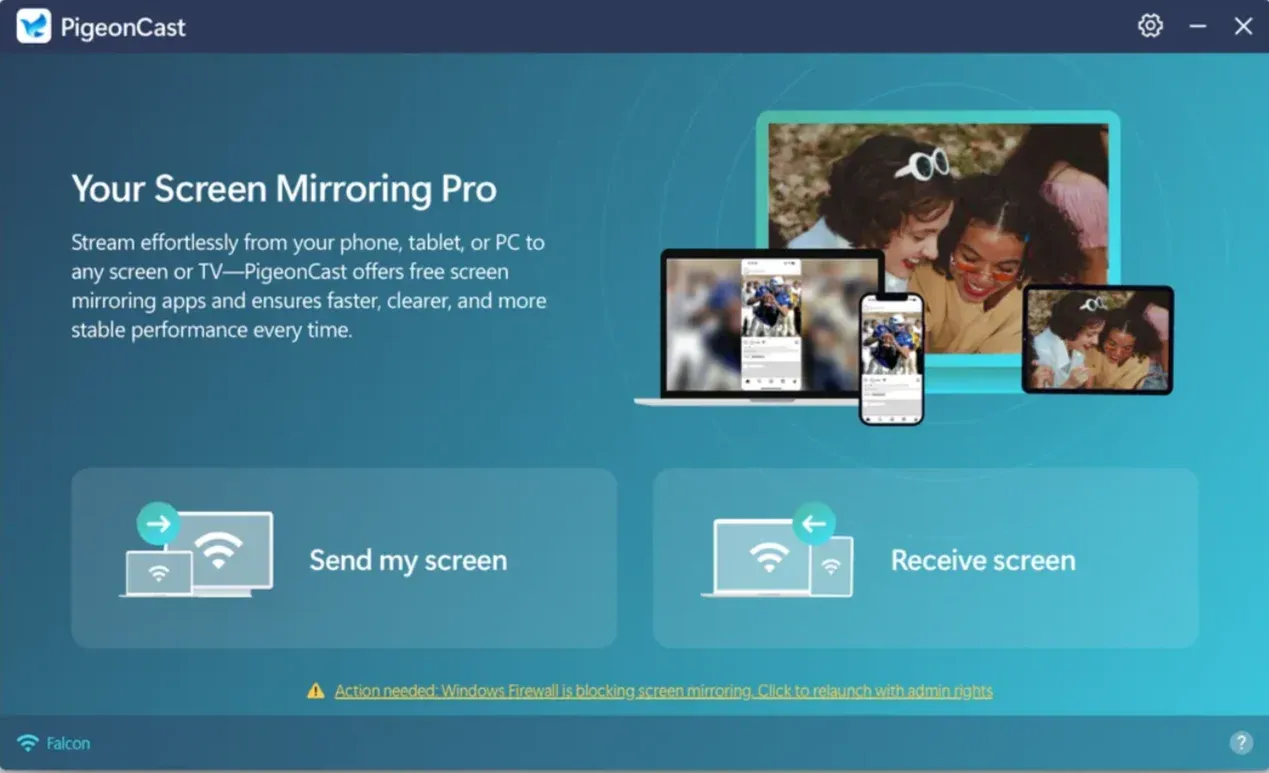
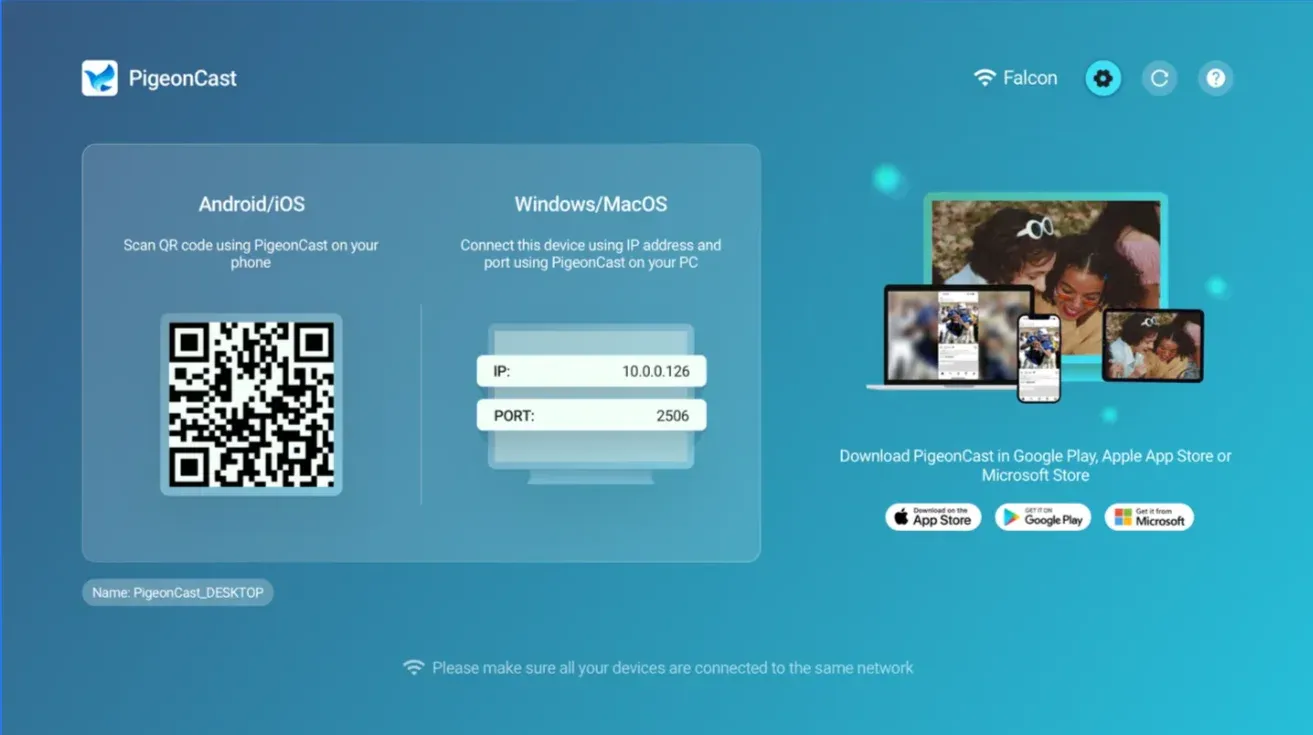
This flexibility becomes useful in environments where screen sharing is not limited to Apple devices or desktop computers. A Windows PC may need to receive AirPlay from an iPhone, while a TV may need to receive content from an Android phone or laptop. Instead of focusing on one protocol or one destination, PigeonCast is designed to work across those scenarios.
Another advantage is TV compatibility. In addition to desktop receiving, PigeonCast works with Android TV, Google TV, Fire TV, and other popular streaming platforms, making it a practical option for users whose primary screen is a television rather than a computer.
Best For
PigeonCast is best for users who want a single solution for receiving and sharing content across PCs, TVs, and mixed-device environments.
Pros
- Supports AirPlay, Google Cast, and DLNA
- Works on both desktop and TV-based receiving setups
- Compatible with Android TV, Google TV, and Fire TV devices
- Useful in mixed Apple, Android, and Windows environments
- More flexible than protocol-specific receiver tools
Cons
- Less specialized for classroom and enterprise deployments than AirServer
- Power users focused exclusively on desktop receiving may prefer dedicated receiver software
- Broader feature set may be unnecessary for simple Apple-only setups
Verdict
Choose PigeonCast if you need more than a traditional AirPlay receiver. Its support for multiple protocols and receiving endpoints makes it a versatile option for users who move between PCs, TVs, and different device ecosystems rather than relying on a single screen or platform.


Overall Rating:



AirServer: Best for Shared Displays, Classrooms, and Offices
AirServer is one of the most established names in the AirPlay receiver category. It is designed less like a casual TV app and more like a serious receiving platform for shared displays.
That makes it a strong choice for schools, meeting rooms, offices, and environments where many people need to cast to the same screen.
AirServer’s biggest advantage is protocol support. Depending on the version and device, it can support AirPlay, Google Cast, and Miracast. This matters in real-world shared spaces because not everyone walks in with an iPhone. Some people bring Windows laptops, Android phones, Chromebooks, or Macs.
Best For
AirServer is best for classrooms, offices, conference rooms, training rooms, and shared screens that need to receive from many different device types.
Pros
- Strong receiver-first product
- Good fit for business and education
- Supports multiple casting standards
- Useful for shared-display environments
- More serious than casual mirroring apps
Cons
- More than many home users need
- Setup may feel heavier than simple TV mirroring apps
- Not the most natural first choice for casual living-room use
Verdict
Choose AirServer if the receiving screen is part of a shared space. If you are setting up a classroom display or conference room screen, AirServer makes more sense than a lightweight home mirroring app.
Reflector: Best Desktop Receiver for Mac and Windows
Reflector is one of the best choices if your computer is the screen you want to receive content on.
It works especially well for users who want a Mac or Windows PC to receive mirroring from iPhones, iPads, Android devices, Chromebooks, Macs, or Windows devices. Like AirServer, Reflector is not limited to AirPlay alone. It also supports other major screen mirroring protocols, which makes it useful in mixed-device settings.
Reflector is particularly good when the computer is the center of the workflow. For example, a teacher may want to mirror student devices to a laptop. A creator may want to show an iPhone screen on a desktop monitor. A presenter may want a PC to receive device demos.
Best For
Reflector is best for users who want a polished desktop receiver on Mac or Windows.
Pros
- Strong Mac and Windows support
- Receives from multiple device types
- Good for demos, recording workflows, presentations, and classrooms
- More polished than basic AirPlay-only tools
- Good middle ground between casual and professional use
Cons
- Less direct for TV-first users
- More receiver-focused than many home users need
- Requires the receiving computer to stay active
Verdict
Choose Reflector if your PC or Mac is the main screen. It is one of the clearest picks for desktop receiving, especially when more than just Apple devices may connect.
LonelyScreen: Best Lightweight AirPlay Receiver for PC or Mac
LonelyScreen is the simplest option on this list for users who want to turn a Mac or PC into an AirPlay receiver.
Its value is in its narrowness. It is not trying to be a full smart TV mirroring platform or business-room receiver. It mainly exists for people who want to cast an iPhone or iPad screen to a computer.
That makes it easy to understand. If you want to mirror an iPhone to a Windows PC and do not need Android, Miracast, Google Cast, or advanced shared-display tools, LonelyScreen may be enough.
Best For
LonelyScreen is best for simple iPhone-to-PC or iPhone-to-Mac mirroring.
Pros
- Simple AirPlay receiver concept
- Good for basic iPhone and iPad mirroring
- Easy to understand
- Lightweight compared with broader platforms
- Useful for demos, photos, gameplay, or casual viewing on a computer
Cons
- Narrower than AirServer or Reflector
- Not ideal for mixed-device households
- Not a TV-first solution
- May feel dated compared with newer mirroring apps
Verdict
Choose LonelyScreen if you want a basic AirPlay receiver for PC or Mac. Skip it if you need broader PC and TV mirroring or support for non-Apple devices.
LetsView: Best Free Screen Mirroring App to Try First
LetsView is not the purest AirPlay receiver app, but it deserves a place in this comparison because many users searching for AirPlay receiver tools are actually looking for free screen mirroring.
LetsView supports multiple device types, including Windows, Mac, iOS, Android, and TV. That makes it useful for casual users who want to test screen mirroring before choosing a paid or more specialized option.
Its biggest advantage is accessibility. If you are not sure whether you need a receiver-first app or a broader mirroring tool, LetsView is a reasonable place to start.
Best For
LetsView is best for budget users, students, casual screen sharing, and people who want a free first try.
Pros
- Free to start
- Broad platform coverage
- Works across computers, mobile devices, and TVs
- Good for users still exploring their setup
- More flexible than AirPlay-only tools
Cons
- Less focused as a dedicated AirPlay receiver
- May not be the best long-term solution for serious business use
- Feature depth can vary by device and platform
Verdict
Choose LetsView if you want a free screen mirroring app before committing to a paid receiver. It is a good testing option, but not always the strongest long-term choice for dedicated AirPlay receiving.
Apple TV or Built-In AirPlay: Best If You Already Have It
Sometimes the best AirPlay receiver app is no app at all.
If you already have an Apple TV, an AirPlay-enabled smart TV, or a Mac that supports AirPlay receiving, you may not need third-party software. Native AirPlay is often the cleanest option when all your devices are inside the Apple ecosystem.
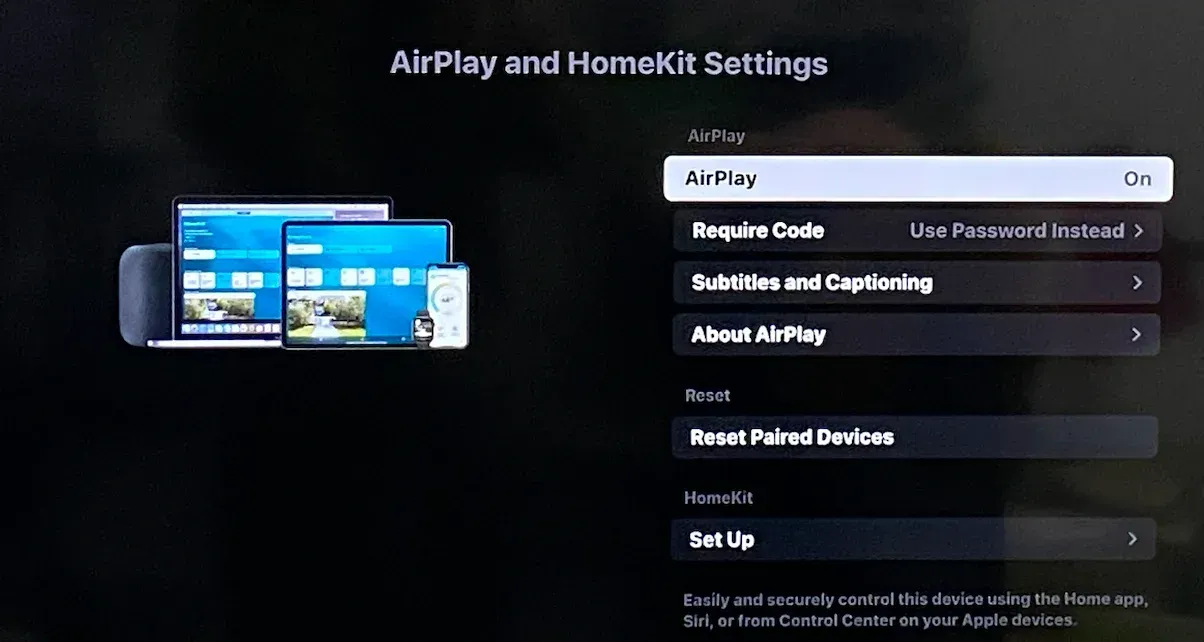
This is especially true if your main use cases are watching videos, showing photos, playing music, or mirroring an iPhone to a TV that already supports AirPlay.
Best For
Apple TV and built-in AirPlay are best for Apple-first homes and users who already own compatible hardware.
Pros
- Native Apple experience
- No extra receiver app needed
- Good for iPhone, iPad, and Mac users
- Strong TV experience when supported
- Simple for Apple-only households
Cons
- Less useful for Windows PCs
- Not ideal for Android or mixed-device homes
- Depends on compatible hardware
- Can be limiting if your TV’s built-in AirPlay is unreliable
Verdict
Use built-in AirPlay if your hardware already supports it well. Choose a third-party app only when native AirPlay is missing, unreliable, or too limited for your devices.
Common Mistakes When Choosing an AirPlay Receiver App
By this point, one thing should be clear: most people are not choosing between six identical apps.
They are choosing between very different approaches to screen sharing. Some solutions are designed around desktop receiving, while others focus on TVs, mixed-device households, or shared displays.
That is why many buyers end up disappointed—not because the software is bad, but because they choose the wrong type of solution for their setup.
- Mistake 1: Choosing a Desktop Receiver for TV Mirroring
If your destination screen is a TV, a PC receiver app may not be the best solution. You may be better served by built-in AirPlay, Apple TV, PigeonCast, or a broader TV mirroring app.
- Mistake 2: Assuming AirPlay Is Enough
AirPlay works well in Apple-first environments. But many homes and offices are not Apple-only. If Android phones, Windows laptops, or Chromebooks are involved, choose a tool that supports more than AirPlay.
- Mistake 3: Ignoring the Receiving Device
The best app depends heavily on whether the receiver is a PC, Mac, TV, or meeting-room display. A great desktop receiver may be awkward for TV use.
- Mistake 4: Choosing Based Only on Price
Free apps are useful for testing, but stability matters if you use screen mirroring for teaching, meetings, demos, or regular family entertainment.
- Mistake 5: Buying an App Before Checking Built-In AirPlay
Before installing anything, check whether your TV, Mac, or Apple TV already supports AirPlay. If it works reliably, you may not need another app.
Final Verdict
If your goal is to turn a Windows PC into an AirPlay receiver for presentations, demos, or classroom use, Reflector and AirServer remain the strongest choices.
If you only need occasional iPhone-to-PC mirroring and want the simplest setup possible, LonelyScreen is often enough.
But many users searching for an AirPlay receiver app are actually trying to solve a different problem: getting content from a phone, tablet, or laptop onto a TV.
In those cases, desktop-focused receiver software can feel unnecessarily complicated. A solution like PigeonCast, which supports multiple protoocls and works on many platforms, is often the more practical choice because it is designed around where people actually consume content today: the television.
The best AirPlay receiver is not always the one with the most features. It is the one that fits the screen you are trying to cast to.
AirPlay Receiver App FAQ
Do I need an app for AirPlay?
Not always. If you already have an Apple TV, a compatible Mac, or a smart TV with built-in AirPlay support, you may not need any additional software. However, if you're trying to receive AirPlay on a Windows PC, Android TV, Google TV, Fire TV Stick, or another unsupported screen, a third-party receiver app like PigeonCast is usually required.
Are AirPlay receiver apps safe to use?
Most well-known AirPlay receiver apps are safe when downloaded from official websites or trusted app stores. As with any networking software, avoid unknown downloads and keep your receiver app updated to ensure the best security and compatibility.
How do I set up an AirPlay receiver?
The exact steps depend on the app or device you're using, but the general steps are: install the receiver software, connect both devices to the same network, enable AirPlay on the receiving device if required, and then select the receiver from the AirPlay menu on your iPhone, iPad, or Mac.
What to use instead of AirPlay?
The most common alternatives are Google Cast (Chromecast), DLNA, Miracast, and third-party screen mirroring apps. The best AirPlay alternative depends on your devices. For mixed Apple, Android, Windows, and TV environments, a solution that supports multiple casting standards can be more flexible than relying on AirPlay alone.
How to choose a device for AirPlay?
Start with the screen you want to receive content on. If you primarily cast to a TV, look for a device with built-in AirPlay support or a compatible receiver app. If you want a PC or Mac to receive content, choose a dedicated AirPlay receiver application. Compatibility, ease of setup, and support for multiple device types are often more important than feature count alone.
Mia Clarke is a technology editor specializing in screen mirroring and casting solutions across multiple platforms. Mia provides clear, practical guides and in-depth insights to help users seamlessly connect their devices. Passionate about enhancing digital experiences, Mia is dedicated to keeping readers updated on the latest trends and tools in cross-platform screen sharing. Whether you’re looking to mirror your smartphone, laptop, or smart TV, Mia’s content delivers reliable, user-friendly advice to simplify your tech setup.