
AirPlay was built for Apple devices, not Windows PCs. That part never changed. Still, many people want the same thing: mirror an iPhone, iPad, or even Mac screen onto a Windows PC without cables, without lag, and without jumping through hoops.
So here is the straight answer. A PC can work as an AirPlay receiver, but only with the right setup. This guide explains what an AirPlay receiver for PC really is, how PC AirPlay works in practice, and which approach actually holds up outside of perfect demo conditions.
Can Your PC Be an AirPlay Receiver?
Short answer: yes, but not natively.
Apple keeps AirPlay tightly controlled. It is designed for macOS, iOS, Apple TV, and a small group of licensed partners. However, Windows sits outside that ecosystem. Windows does not include AirPlay at the system level, and it never has. That means there is no hidden switch or built-in settings you can enable.
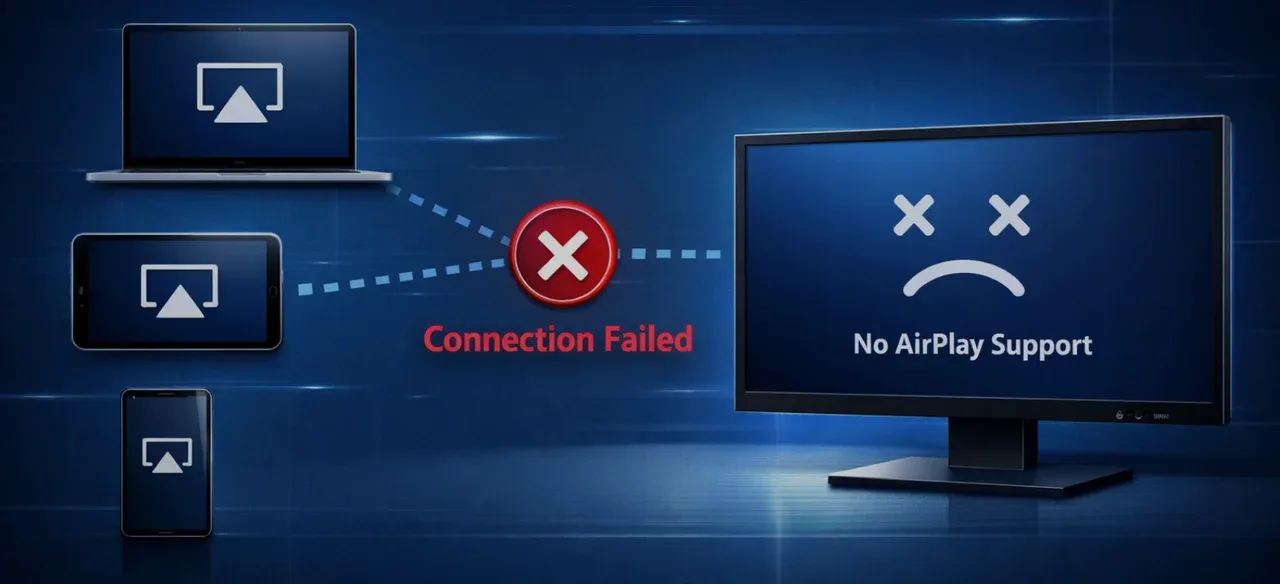
What does work is a software-based Windows AirPlay receiver. What is an AirPlay receiver? An AirPlay receiver is the device that receives and displays content sent via AirPlay. Your iPhone is the sender. The receiver could be an Apple TV, a Mac, or a Windows PC running compatible software.
Simply put, an AirPlay receiver acts as a bridge, translating AirPlay data so your PC can understand and display it. Once your PC runs an AirPlay receiver, common use cases become possible:
-
Mirror iPhone to Windows PC for presentations
-
Show apps or browser tabs on a larger desktop display
-
Use your PC as a viewing hub when no Apple TV is available
How to Use Your PC as an Free AirPlay Receiver
Turning your PC into an AirPlay receiver is simpler than most people expect: no drivers, no account binding.
Step 1. Install an AirPlay receiver app on your Windows computer and let it open.
Choose software that explicitly supports receiving AirPlay streams on Windows. Some options focus only on mirroring. Others combine AirPlay with additional protocols.
Apps like PigeonCast for Windows take this hybrid approach. They support AirPlay alongside other casting standards, like Google Cast and DLNA, which helps when AirPlay itself becomes unstable.


Overall Rating:


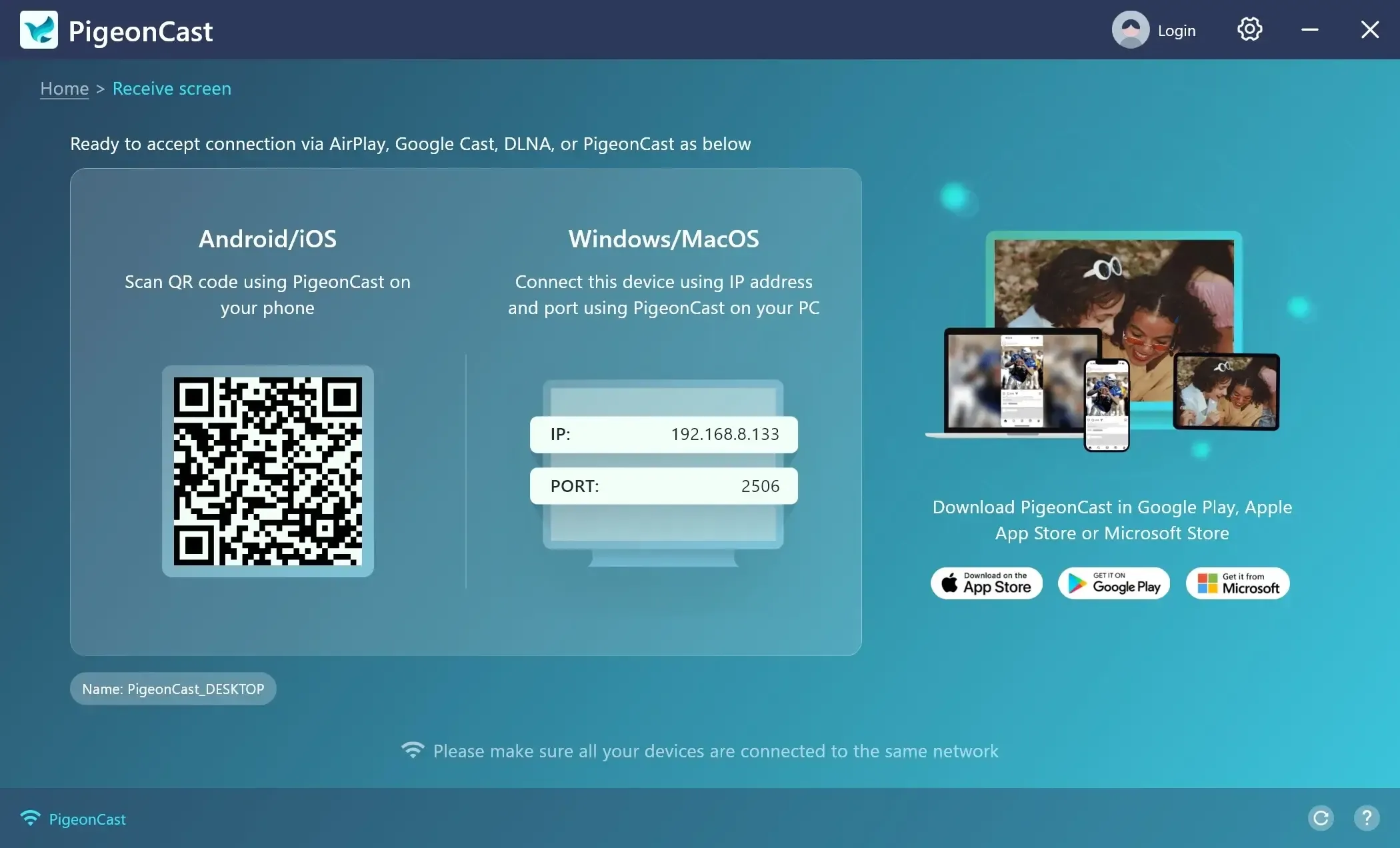
Step 2. Connect all devices to the same Wi-Fi network.
AirPlay relies on local network discovery. If your PC and iPhone, iPad, or Mac are not on the same network, the connection will not appear.
Note: Public or segmented networks often block discovery traffic, causing AirPlay not working. Home or office Wi-Fi works best.
Step 3. Enable screen mirroring on iPhone, iPad, or Mac.
-
Open Control Center.
-
Tap Screen Mirroring.
-
Select your PC from the list.
Step 4. Confirm the connection on your PC.
If your Windows AirPlay receiver is active, your Apple device screen should appear within seconds.
Best AirPlay Receiver Software for PC in 2026
On paper, many AirPlay receivers promise the same thing. In practice, they behave very differently once you use them for more than a few minutes.
Some tools work fine for a quick demo. Others fall apart during longer sessions, especially when the network is not perfect.
What Actually Matters in an AirPlay Receiver
Ignore feature lists for a moment. What really affects daily use comes down to a few details:
-
Whether the connection stays stable over time
-
If audio and video remain in sync
-
How well resolution adapts to different screens
-
How the app reacts when Wi-Fi quality dips
These are the areas where lightweight or experimental tools tend to struggle.
Free vs Paid Windows AirPlay Receiver Options
A free receiver Windows solution can be enough for casual mirroring. The tradeoffs usually show up later, not immediately.
| Feature | Typical Free Tools | More Reliable Solutions |
|---|---|---|
| Stability | Inconsistent | Stable over long sessions |
| Resolution | Often limited | High-definition support |
| Audio sync | Unpredictable | Consistent |
| Protocol support | Single-purpose | Multi-protocol |
The line between "free" and "reliable" is usually clear. But there are exceptions.
PigeonCast is one of the few free tools that does not impose usage limits, watermarking, or ads. More importantly, it handles AirPlay as a core feature rather than a bonus add-on. That differences show in longer screen mirroring sessions where many free receivers start to fail.
Why PigeonCast Stands Out in Real Use
Most AirPlay receivers focus on one direction only. PigeonCast does more.
It turns your Windows PC into an AirPlay receiver, allowing iPhone or iPad screens to appear on your desktop. At the same time, it can act as a sender, letting that same PC mirror its screen to a Mac ot Apple TV when needed.
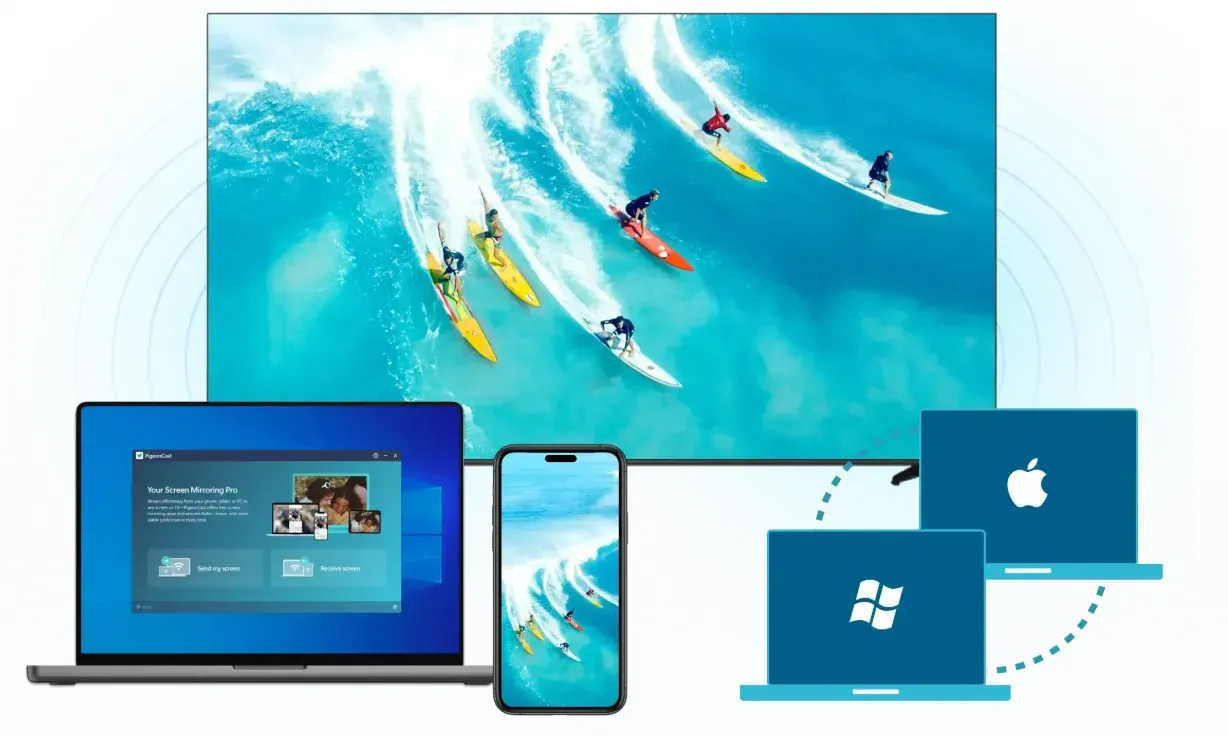
The flexibility matters more than it sounds. If AirPlay becomes unstable on a busy network, having alternative casting options built in means you do not have to restart your workflow or switch apps.
Overall Rating:

A Practical Recommendation
If AirPlay is your main workflow, choose a receiver that treats it as a first-class feature.
If you mirror often and hate troubleshooting, using a multi-protocol receiver reduces friction. When AirPlay stumbles, you already have alternatives ready.
Wrapping Up
AirPlay was never designed with Windows in mind. That reality will not change. What has changed is how well modern software bridges that app.
A proper AirPlay receiver for PC lets your Windows machine behave like part of Apple's ecosystem, without pretending it actually is. Choose tools that respect those limits, handle real-world networks, and give you options when AirPlay itself falls short.
AirPlay Receiver for PC FAQs
Is there a free AirPlay receiver for PC?
Yes. There are free AirPlay receiver options for Windows, but most of them come with tradeoffs like time limits, ads, resolution caps, or unstable connections. PigeonCast for Windows is an exception: it's completely free, has no usage limits, no ads, and supports HD screen mirroring without forcing upgrades.
Is using an AirPlay receiver on PC safe?
In general, yes, as long as you use reputable software. AirPlay works over your local network, so data is not routed through external servers. A reliable AirPlay receiver should clearly state how it handles connections and avoid injecting ads or background services. Always download from the official site.
Does PC AirPlay support audio?
Yes. A proper AirPlay receiver for PC supports both video and audio streaming, including system sound and media playback. If you experience audio lag or missing sound, it usually points to a low-quality or overloaded receiver rather than a limitation of AirPlay itself.
Do I need Bluetooth for AirPlay?
No. AirPlay does not use Bluetooth. It relies on Wi-Fi and local network discovery. Bluetooth may be used for initial pairing in some Apple devices, but for mirroring and streaming, Wi-Fi is required.
How to turn on computer as AirPlay receiver?
To turn your computer into an AirPlay receiver:
-
Install an AirPlay receiver app on your PC or Mac.
-
Make sure both devices are on the same Wi-Fi network.
-
Enable receiving mode in the app.
-
Select your computer from the AirPlay list on your iPhone, iPad, or Mac.
Once enabled, your computer appears like any other AirPlay target.
What is the Windows app AirPlay receiver?
A Windows AirPlay receiver is an app that allows a Windows PC to receive AirPlay streams from Apple devices. Some apps focus only on receiving, while others, like PigeonCast, also allow you to stream Windows to Mac or Apple TV, making it more flexible for mixed-device setups.
Is there a Windows equivalent to AirPlay?
There is no Apple-made AirPlay equivalent built into Windows, but functionally, yes, Windows can achieve the same results.
Third-party apps allow Windows PCs to receive and send wireless screen and audio streams, just like AirPlay does in the Apple ecosystem. These tools replicate the experience of AirPlay rather than the protocol itself, making them the practical Windows equivalent for screen mirroring and media casting.
Is AirServer for Windows free?
No. AirServer for Windows is a paid product. It may offer a trial, but full functionality requires a license. If you're looking specifically for a free AirPlay receiver for Windows, you'll need to compare alternatives carefully.
Can I install AirPlay on my Windows PC?
You can't install Apple's AirPlay itself on Windows, but you can install software that supports the AirPlay protocol. Once installed, your Windows PC behaves like an AirPlay-compatible device on the network.
Can I mirror my iPhone to my PC?
Yes. You can mirror your iPhone to a Windows PC using an AirPlay receiver app. This is commonly used for presentations, demos, recording tutorials, or viewing mobile content on a larger screen.
Can Windows 11 receive AirPlay?
Windows 11 does not natively support AirPlay, but it can receive AirPlay streams with the right software. With an AirPlay receiver installed, Windows 11 works just as well as earlier versions for iPhone and Mac screen mirroring.
What is the AirPlay receiver for Mac?
macOS already includes a built-in AirPlay receiver feature on newer versions (check our guide on Do MacBooks Have AirPlay). For older Macs or more flexible workflows (like cross-platform mirroring), third-party tools can turn a Mac into both an AirPlay receiver and sender, similar to how Windows solutions work.
Mia Clarke is a technology editor specializing in screen mirroring and casting solutions across multiple platforms. Mia provides clear, practical guides and in-depth insights to help users seamlessly connect their devices. Passionate about enhancing digital experiences, Mia is dedicated to keeping readers updated on the latest trends and tools in cross-platform screen sharing. Whether you’re looking to mirror your smartphone, laptop, or smart TV, Mia’s content delivers reliable, user-friendly advice to simplify your tech setup.