Encountering the error message "Your PC can't project to another screen. Try reinstalling the driver or using another video card." can be an inconvenience, especially when you're trying to connect to an external monitor, TV, or projector. This error typically occurs due to display driver issues, hardware connection problems, or incorrect system settings. In this guide, we'll walk you through the steps to troubleshoot and resolve this issue effectively.
Fix 1: Check Hardware Connections
The first step is to verify that your external device, such as TV, projector, or second monitor, is properly connected. If there's a loose cable or a problem with the connection, Windows won't be able to detect the external screen, leading to the "PC can't project to another screen" error.
How to fix:
Step 1. Check if the connection cables (HDMI, VGA, DisplayPort, etc.) are securely plugged in.
Step 2. Try using a different cable or port to rule out a faulty connection.
Step 3. Ensure the external display is set to the correct input source.
A simple hardware connection issue could be the cause. Ensuring all cables are properly connected can resolve most projection problems. You might be interested in How to Connect Your Laptop to TV in 2025: Wireless & HDMI.
Fix 2: Update Your Graphics Drivers
If the hardware connection is fine but you're still unable to project your Windows screen, the issue might lie with your graphics drivers. Outdated or corrupted drivers can cause the error "Windows screen projection not working" or prevent the external screen from being detected.
How to solve the issue? A YouTuber shared an effective workaround:
Step 1. Press the Windows + P key and click the More Display settings option.
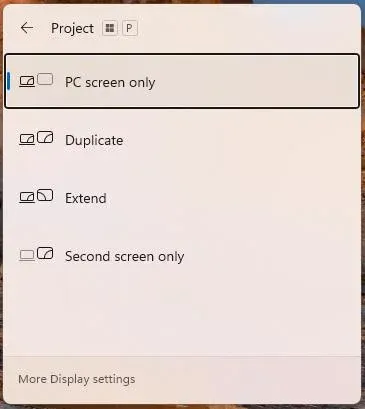
Step 2. Click Advanced display under Related settings on the pop-up window.
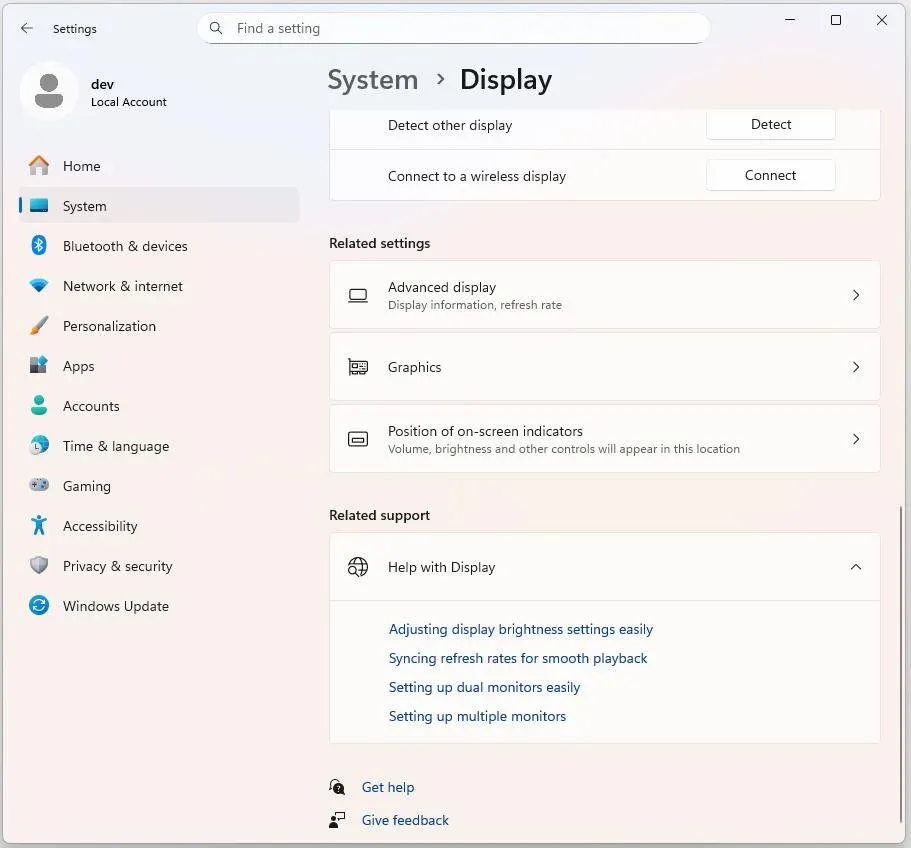
Step 3. Select your display and click Display adapter properties for your display.
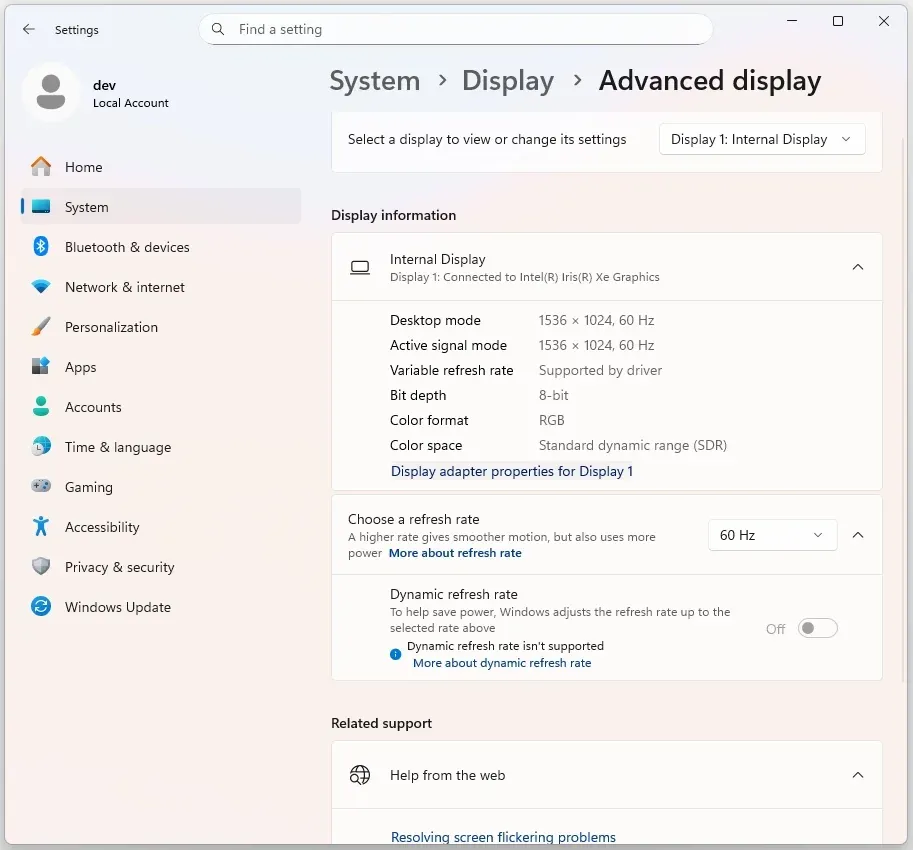
Step 4. Click Properties on the pop-up window.
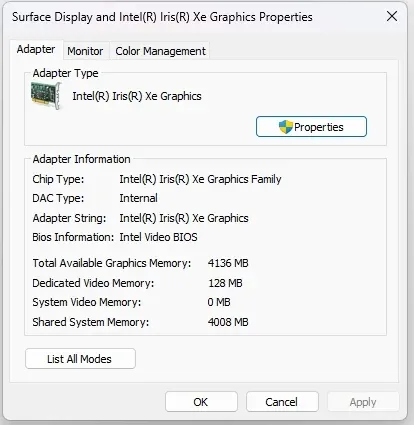
Step 5. Switch to the Driver tab and click Update driver.
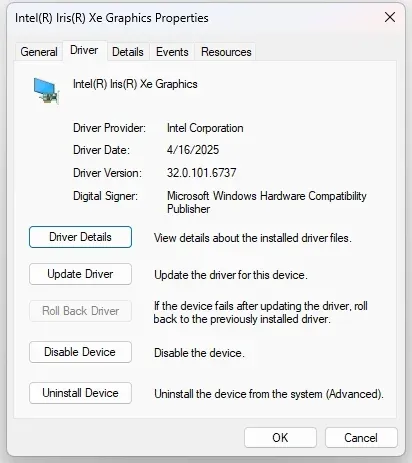
Step 6. Click Search automatically for drivers and wait for Windows to install the new drivers.
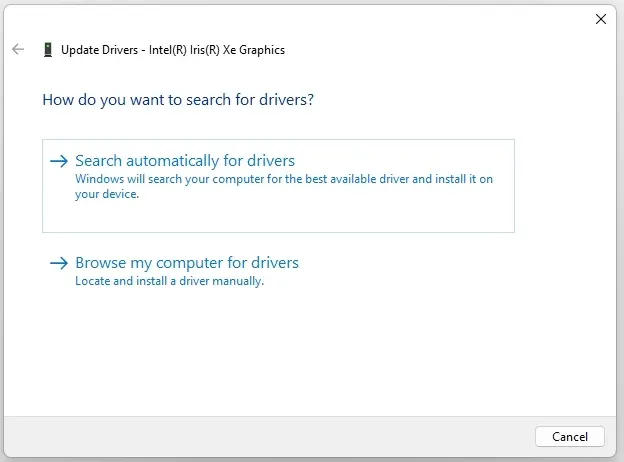
Alternatively, you can go to Device Manager to update your drivers:
- Press Windows + X and choose Device Manager.
- Expand the Display Adapters section and right-click your graphics card.
- Choose Update driver and follow the on-screen instructions to install any available updates.
- If no updates are available, try uninstalling the driver.
- Restart your PC and check if the projection issue is fixed.
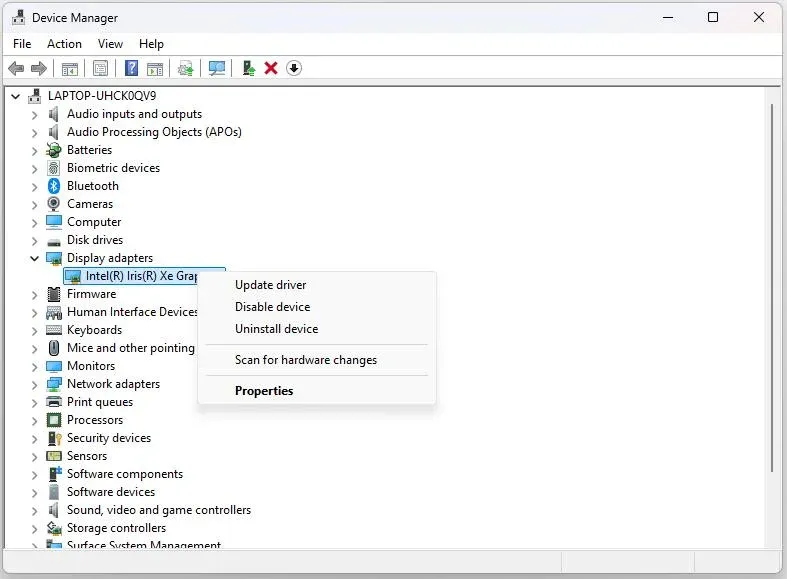
Keeping your graphics drivers up to date is crucial for fixing Windows display issues and ensuring that your PC can project to another screen.
Fix 3: Modify Display Settings
If the drivers are up to date and the issue persists, it might be related to your display settings. Sometimes, Windows doesn't automatically select the correct projection mode, causing the error to appear. You may need to manually configure the display settings.
Here's how:
Step 1. Press Windows + P to open the projection options.
Step 2. Choose Extend or Second screen only, depending on how you want to display your content.
Step 3. If the external display is still not detected, click Connect to a wireless display to search for and connect to your device.
Adjusting the display mode can help Windows detect the external display and resolve the "PC can't project to another screen" error.
Fix 4: Check for Windows Updates
Windows updates can sometimes cause projection issues, especially after major updates. If your system is outdated, it may be missing crucial fixes or compatibility improvements for external displays.
Here are the steps:
Step 1. Go to Settings > Update & Security > Windows Update.
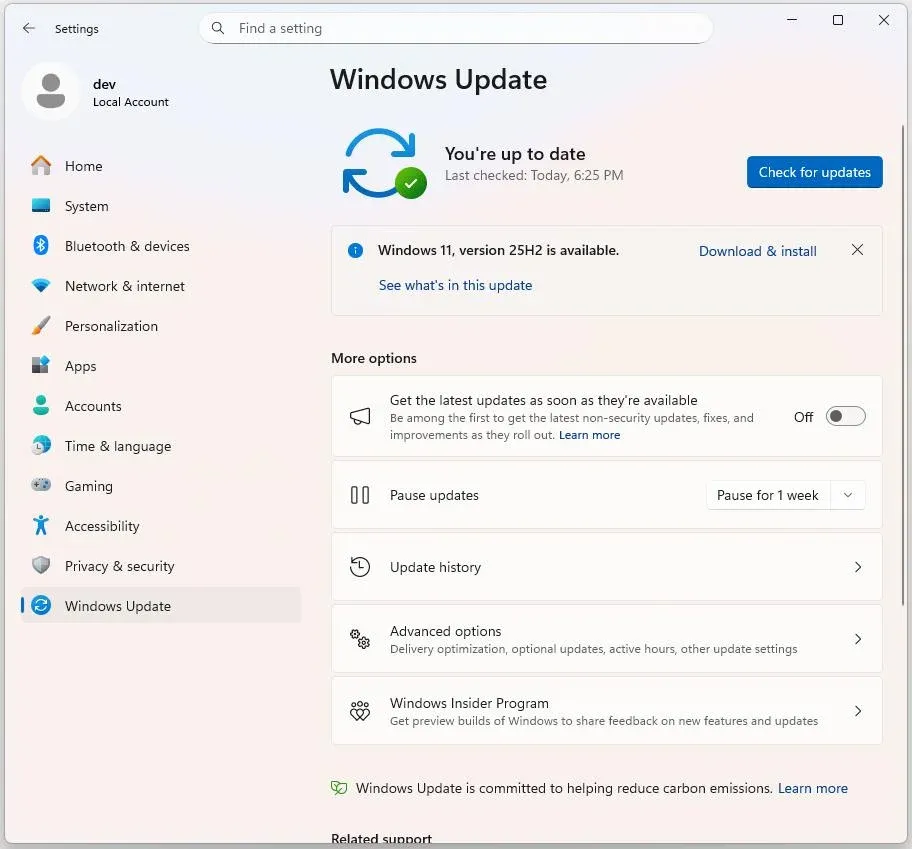
Step 2. Click Check for Updates and install any available updates.
Step 3. After the update is complete, restart your PC and check if the projection feature works.
Keeping your Windows OS up to date ensures that your PC can effectively project to other screens without running into system-related issues.
Use Wireless Projection Tools: PigeonCast as a Backup Solution
If the methods above don't solve the issue, or if you're looking for a more flexible and convenient solution for wireless screen projection, PigeonCast is a great alternative. It supports wireless screen mirroring between your Windows PC and TV or any other compatible device, making it easy to stream content without worrying about cables or complex settings.
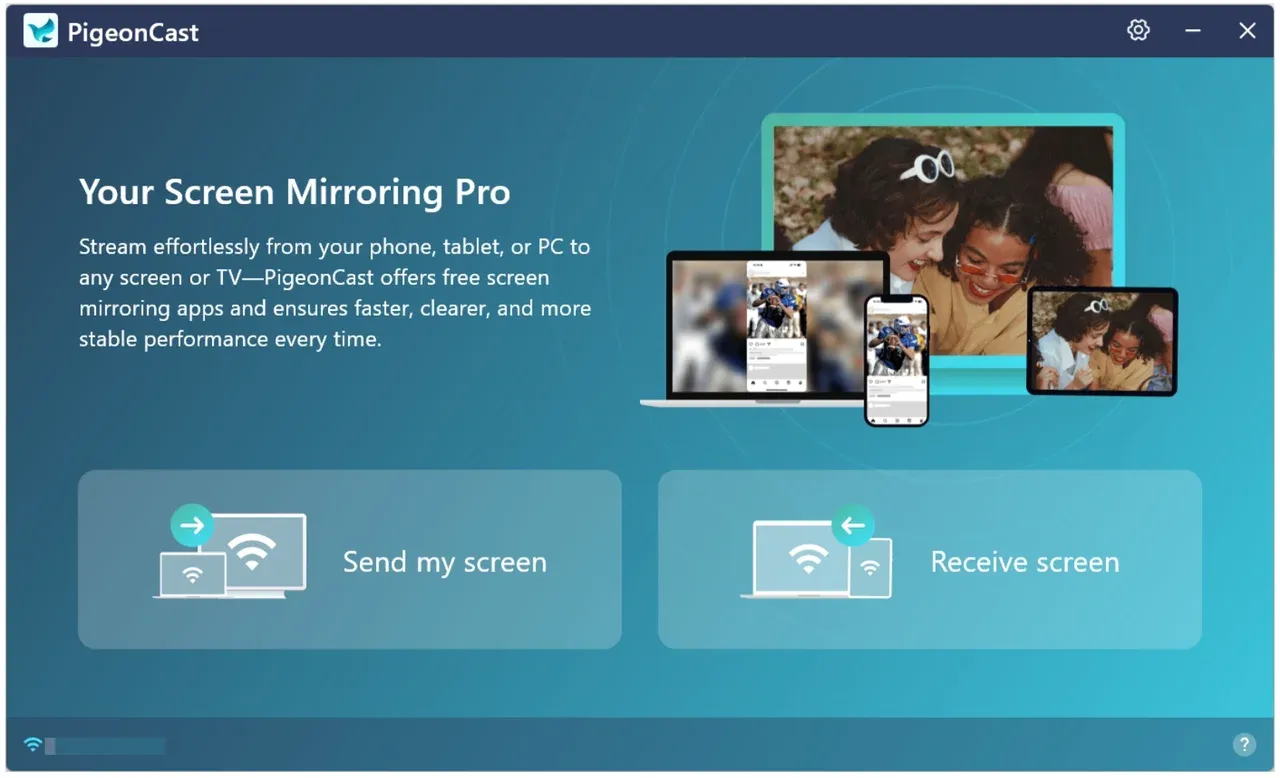
PigeonCast simplifies the projection process and offers better compatibility with various devices. It's particularly useful for those who need to frequently switch between devices and don't want to deal with the hassle of tangled cables and inconsistent connections.
How to project Windows 11 to TV with PigeonCast? You just need to:
Step 1. Go to PigeonCast Download Center and install PigeonCast on your Windows computer and your TV.

PigeonCast Screen Mirroring

Official Download



Step 2. Ensure your Windows computer and TV are connected to the same Wi-Fi network and the app is running on both platforms.
Step 3. On your Windows computer, follow the onscreen instructions to connect it to your TV.
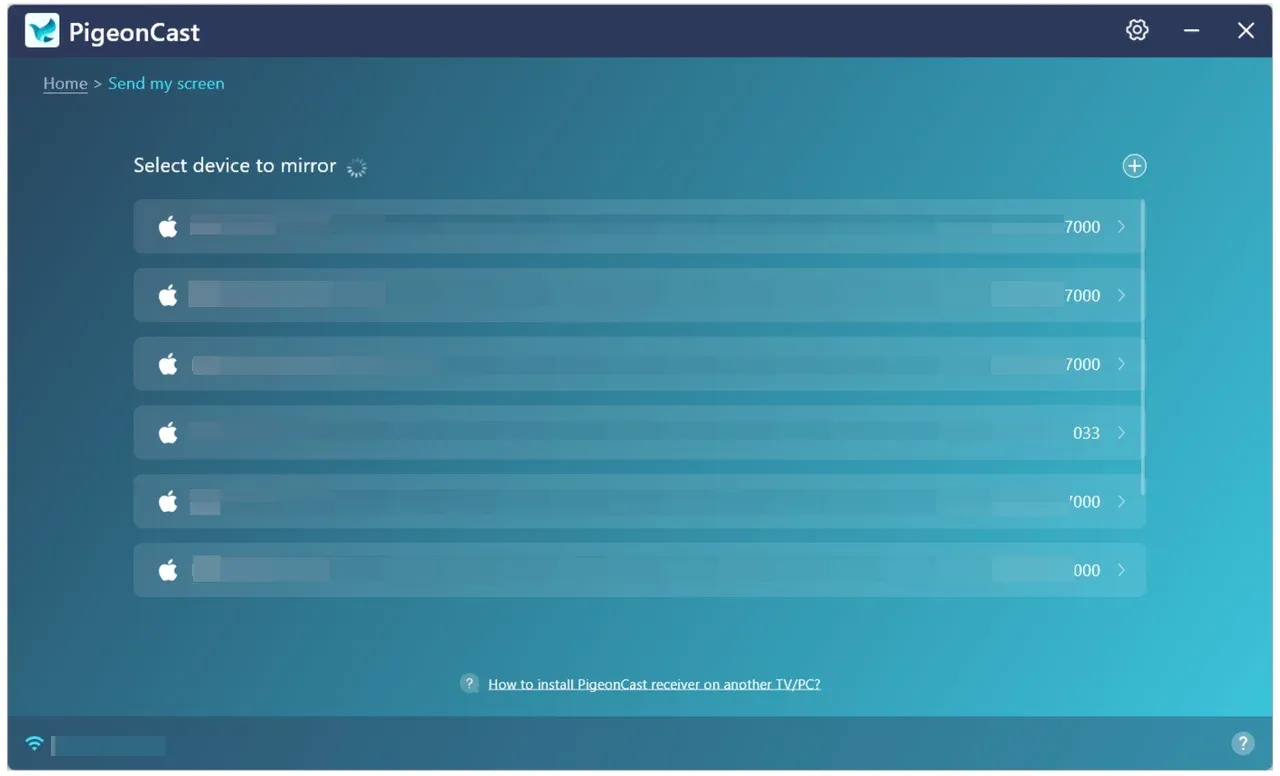
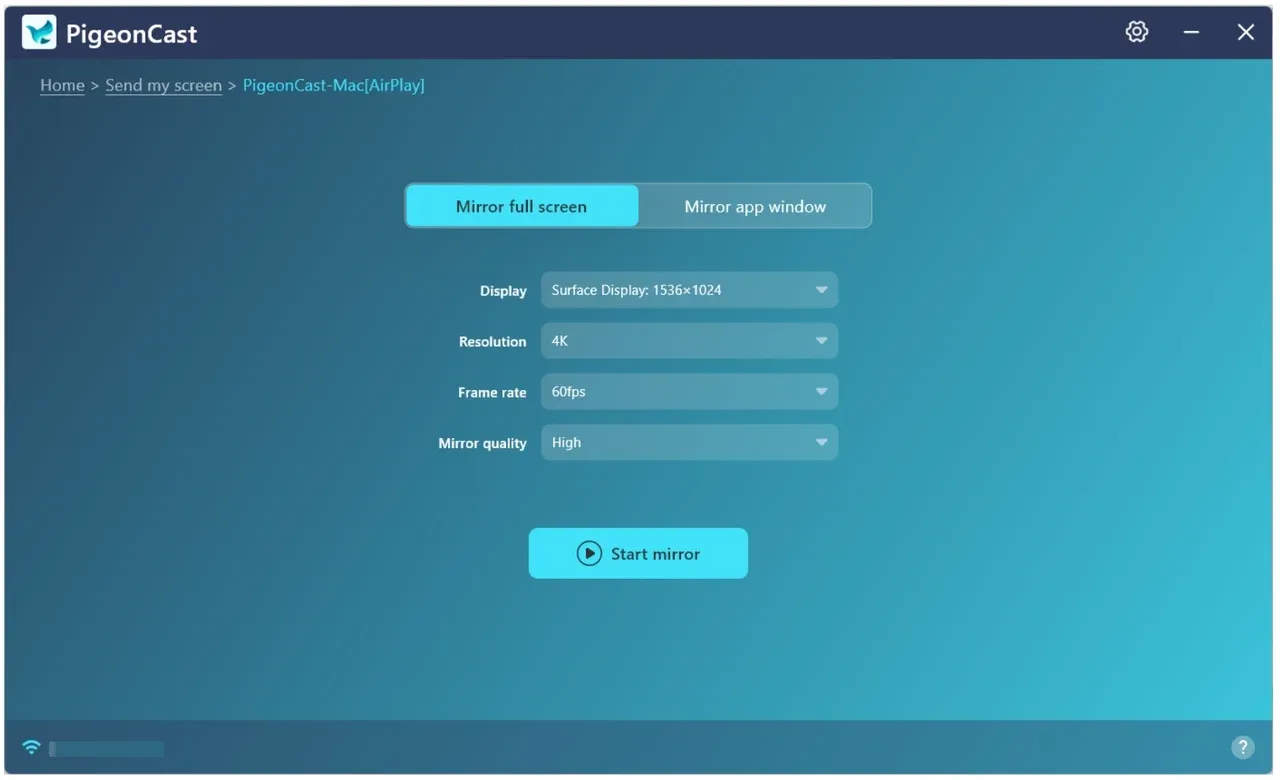
Step 4. Click Start mirror for wireless projection.
If you're constantly using projection features, PigeonCast is an excellent wireless solution that eliminates common connection and driver issues. Many Windows users have reported the projection issue on the Microsoft Learn website, and if you find PigeonCast useful, consider sharing it with others who might benefit from a stable, wireless solution.
Final Thoughts
Resolving the "Your PC can't project to another screen Windows 10" error is usually a straightforward process, as long as you follow the proper troubleshooting steps. Whether it's a simple cable connection issue or a driver update that's needed, you can fix most problems yourself.
For those who prefer a wireless solution without worrying about drivers or hardware, PigeonCast provides a reliable and convenient way to mirror your screen from PC to TV or other devices.
Your PC Can't Project to Another Screen FAQs
Q: How do I enable projecting to this PC in Windows 11?
Press Windows + P to open the projection options, then select Extend or Second screen only to activate projection.
Q: Why is Windows 11 not allowing a second monitor?
Windows 11 may fail to detect a second monitor due to hardware issues, outdated drivers, or incorrect display settings. Ensure the monitor is properly connected, check the display settings (Settings > System > Display), and update your graphics drivers.
Q: Why is my HDMI not projecting?
This can happen due to faulty cables, incorrect input settings on the monitor or TV, or outdated display drivers. Try using a different HDMI cable, verify the input source, and update your graphics drivers to ensure proper functionality.
Q: Why does my PC show no signal when connected to the monitor?
This can occur due to loose cables, incorrect input source settings, or outdated drivers. Double-check all connections and ensure the display settings are properly configured.
Q: Why does my wireless projection keep disconnecting?
Wireless projection may be affected by network instability. Ensure both devices are on the same Wi-Fi network and that the signal strength is stable.
Mia Clarke is a technology editor specializing in screen mirroring and casting solutions across multiple platforms. Mia provides clear, practical guides and in-depth insights to help users seamlessly connect their devices. Passionate about enhancing digital experiences, Mia is dedicated to keeping readers updated on the latest trends and tools in cross-platform screen sharing. Whether you’re looking to mirror your smartphone, laptop, or smart TV, Mia’s content delivers reliable, user-friendly advice to simplify your tech setup.