
Windows 10 display issues can occur for various reasons, affecting your overall user experience. Whether you're facing a display problem related to screen flickering, resolution mismatches, or no signal errors, these issues can be frustrating. Fortunately, this guide will walk you through 10 common display issues in Windows 10, providing easy-to-follow solutions and troubleshooting steps to resolve them.
Issue One: Screen Flickering
Screen flickering is one of the most common and annoying display issues. It can occur intermittently, causing your screen to rapidly flash or show horizontal lines. This issue often happens after a Windows update or graphics driver changes. You might notice that certain applications or the entire screen flicker, leading to a disrupted and unpleasant viewing experience.
Solution 1: Update Graphics Drivers
Step 1. Right-click on the Start button and select Device Manager.
Step 2. Expand the Display adapters section.
Step 3. Right-click your graphics driver and select Update driver.
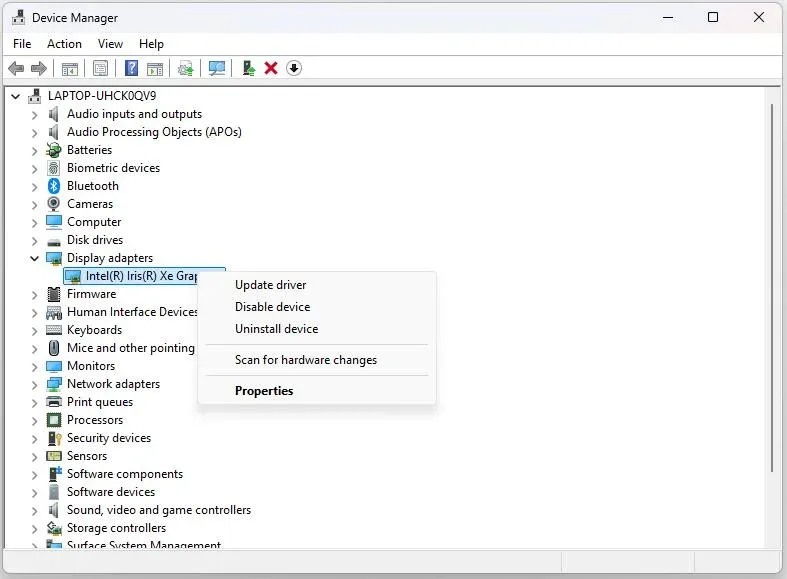
Step 4. Choose Search automatically for updated driver software.
Step 5. Follow the prompts to install any available updates.
Solution 2: Disable Hardware Acceleration
Step 1. Open the app that's causing the flickering.
Step 2. Go to Settings > Advanced Settings.
Step 3. Look for Hardware Acceleration and toggle it off.
Step 4. Restart the app to check if the flickering stops.
Solution 3: Perform System File Check
Step 1. Open Command Prompt (Admin).
Step 2. Type sfc /scannow and press Enter.
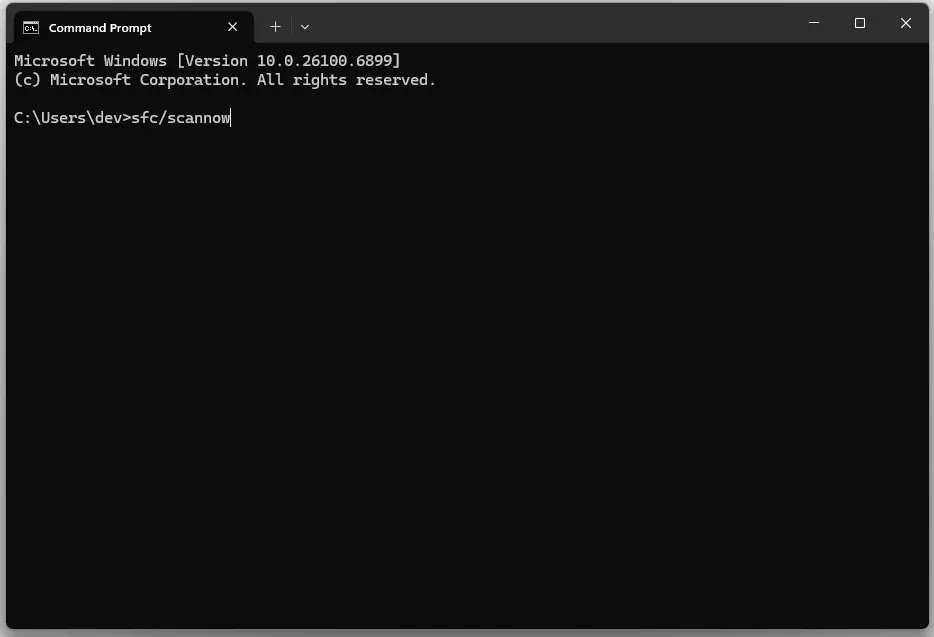 Step 3. Wait for the scan to complete and fix any system file errors.
Issue Two: No Signal
A "No Signal" error on your monitor is a common problem, especially during Windows screen extending or when connecting external devices. This happens when the monitor doesn't receive input from your computer. It's most noticeable when you connect an HDMI cable to an external display, but the screen remains blank.
Solution 1: Check Cable Connections
Step 1. Ensure the HDMI or VGA cable is properly connected to both the PC and the external monitor.
Step 2. Try a different cable to rule out a defective one.
Step 3. Check if the monitor is powered on and set to the correct input.
Solution 2: Adjust Display Settings
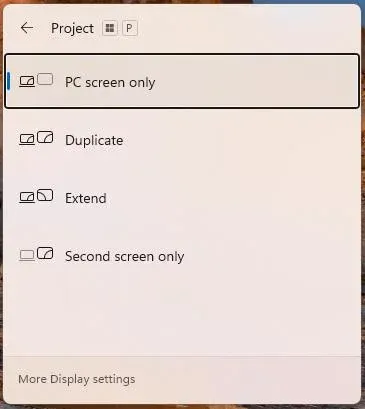
Step 1. Press Windows Key + P to open the Project menu.
Step 2. Select Duplicate or Extend depending on your display configuration.
Step 3. If the problem persists, go to Settings > System > Display and adjust the display resolution.
Solution 3: Use PigeonCast for Wireless Casting
If traditional connections still don't work, try using PigeonCast for wireless screen mirroring. This tool bypasses cable issues, providing an easy way to cast content from your PC to a TV or computer without dealing with physical connection problems.

Once you set up PigeonCast on your Windows computer, you can connect the computer to another PC, MacBook, or TV with ease. For your better Windows screen mirroring experience, set up the app on both your devices.
Step 1. Download and install PigeonCast on your Windows and TV and ensure the two devices are sharing the same Wi-Fi network.

PigeonCast Screen Mirroring

Official Download



Step 2. Launch the PigeonCast app on your Windows and TV, and click the Send my screen option displayed on the Windows screen.
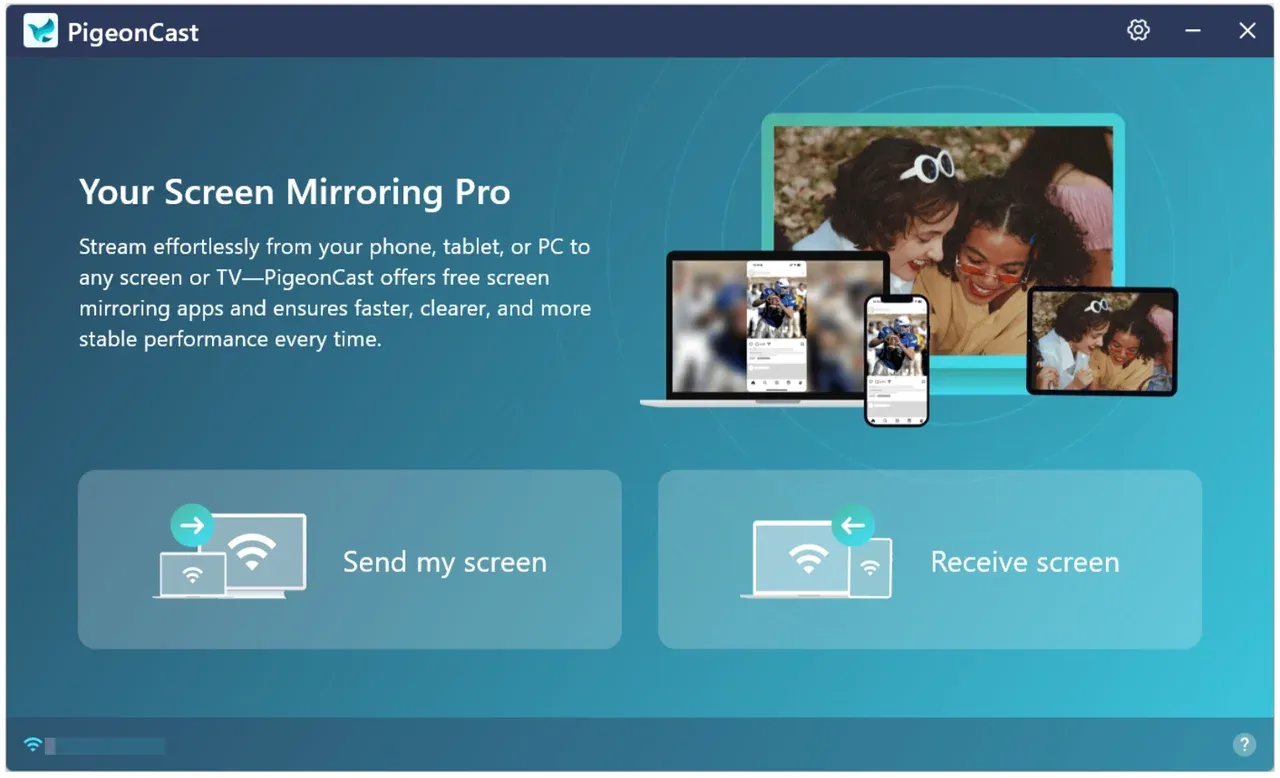
Step 3. Once PigeonCast detects your TV, choose it.
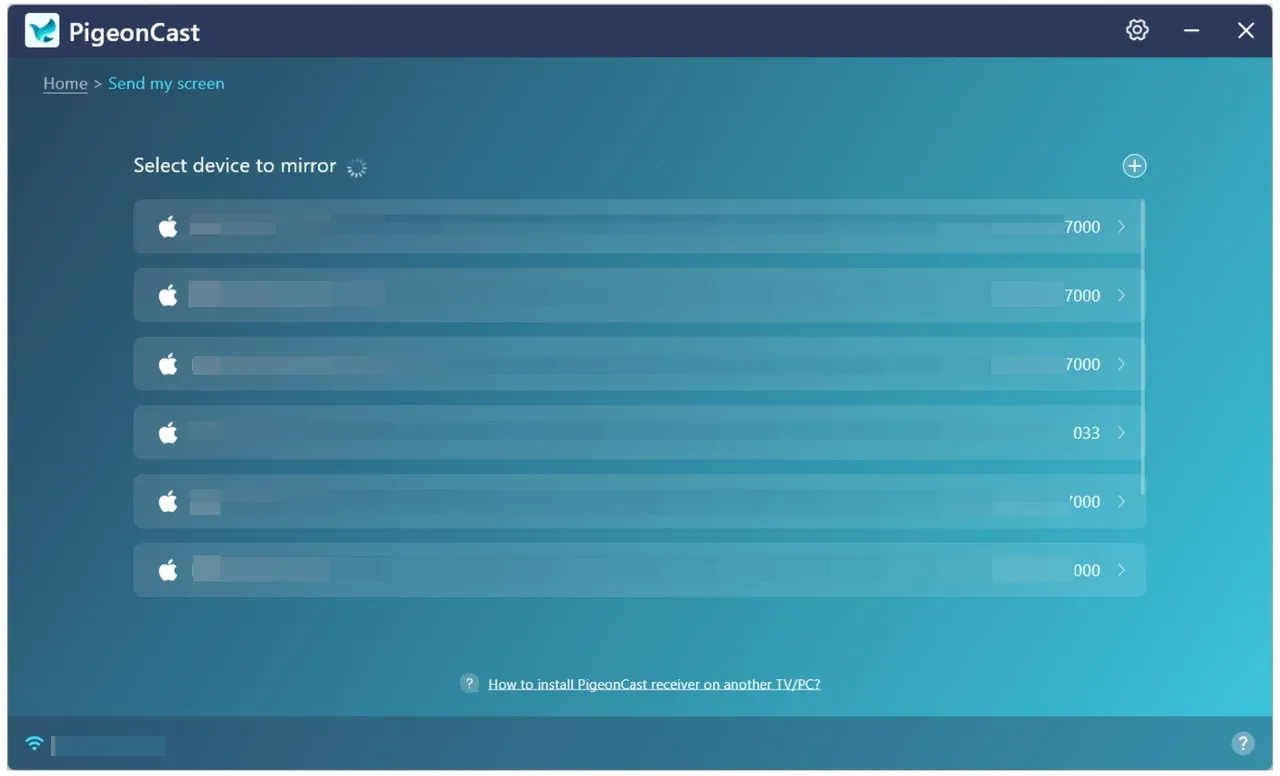
Step 4. Choose how to share your Windows screen: mirror the entire screen or a specific app screen.
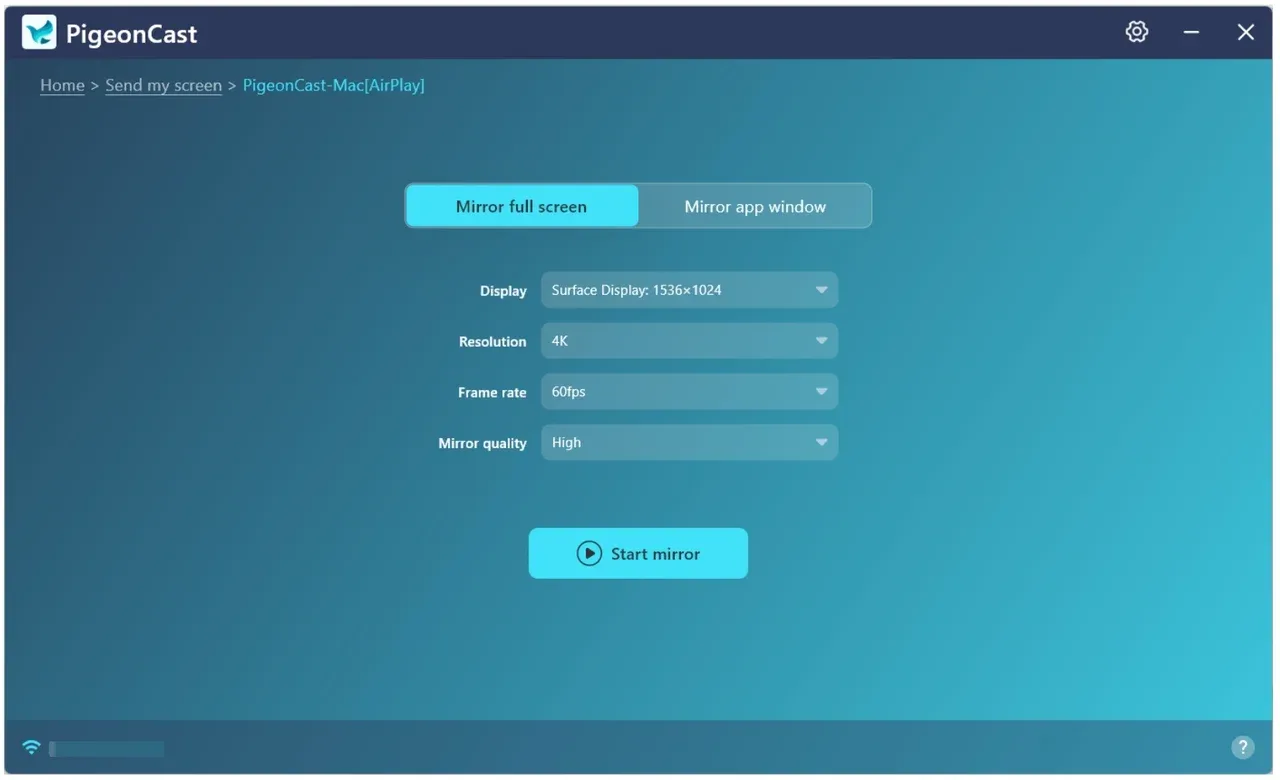
Step 5. Click Start mirror, and what you expect appears on the TV screen.
Issue Three: Resolution Issues
Incorrect screen resolution is a common problem after updating Windows or installing new graphics drivers. When this happens, your screen might appear pixelated or blurry, and certain UI elements may seem out of proportion.
Solution 1: Change Screen Resolution
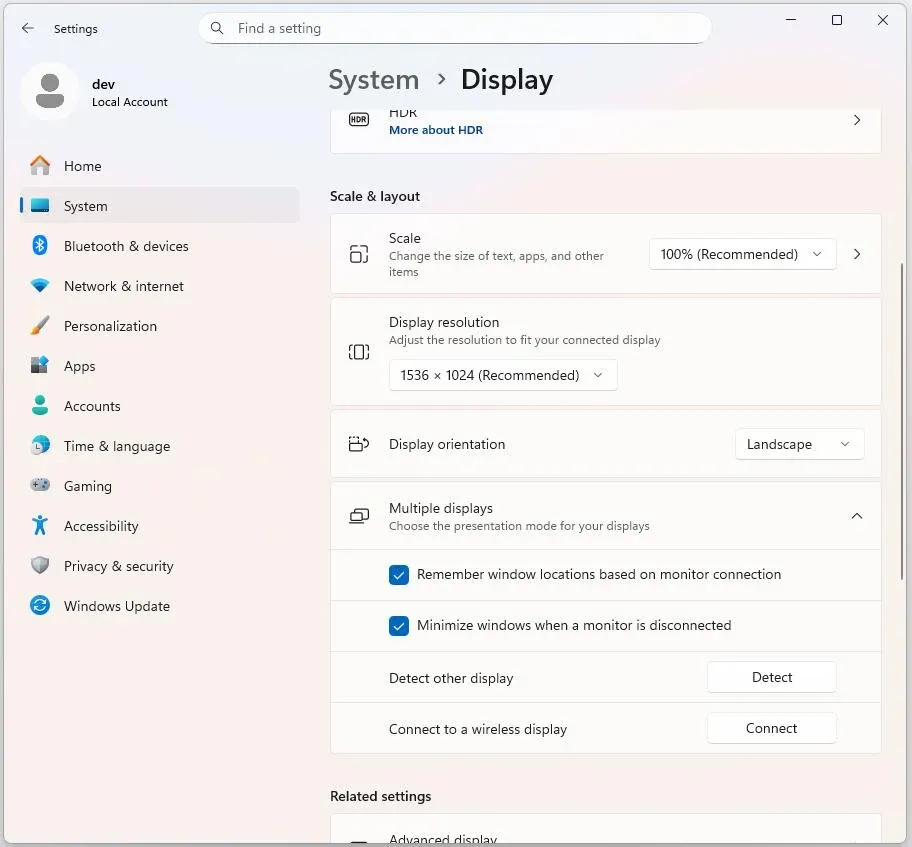
Step 1. Right-click on the desktop and select Display settings.
Step 2. Scroll to the Display resolution section.
Step 3. Choose the recommended resolution for your monitor from the dropdown menu.
Solution 2: Update Graphics Drivers
Step 1. Right-click on the Start button and select Device Manager.
Step 2. Expand the Display adapters section.
Step 3. Right-click your graphics driver and select Update driver.
Step 4. Choose Search automatically for updated driver software.
Step 5. Follow the prompts to install any available updates.
Solution 3: Reconfigure External Display Settings
Step 1. Right-click on the desktop and select Display settings.
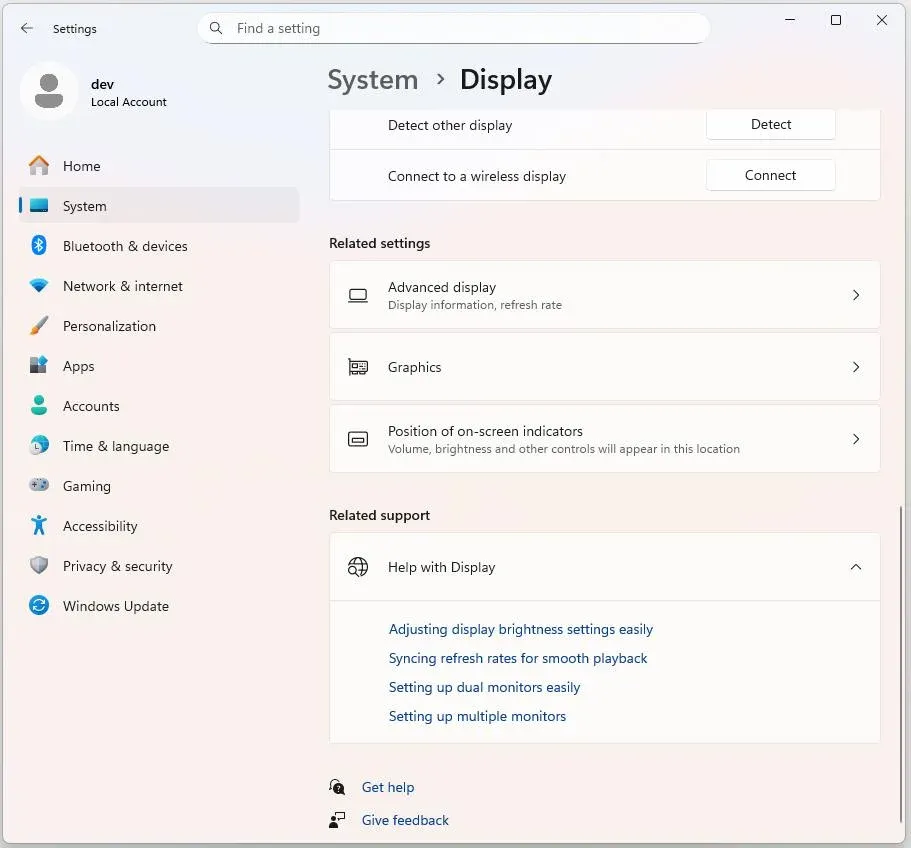
Step 2. Scroll down and click Advanced display settings.
Step 3. Choose the correct display and adjust its resolution according to the monitor's specifications.
Issue Four: Black Screen After Boot
A black screen after booting your Windows 10 PC can be caused by various issues, such as corrupted display drivers, hardware failure, or issues with Windows updates. This can leave you unable to access your desktop or any programs.
Solution 1: Boot into Safe Mode
Step 1. Restart your computer and press F8 repeatedly during boot.
Step 2. Select Safe Mode from the boot options.
Step 3. Once in Safe Mode, update or reinstall the graphics drivers.
Solution 2: Perform a System Restore
Step 1. Boot from a Windows installation disk or USB.
Step 2. Select Repair your computer > Troubleshoot > System Restore.
Step 3. Choose a restore point before the issue started.
Solution 3: Check Hardware Connections
Step 1. Ensure that all internal hardware, including the GPU and RAM, is properly seated.
Step 2. Try connecting to a different monitor to rule out a hardware failure.
Issue Five: Distorted or Glitchy Graphics
Distorted or glitchy graphics, such as flickering lines or pixelation, can be caused by faulty display drivers or overheating hardware. This issue can make using your PC very difficult, especially for tasks like gaming or video editing.
Solution 1: Update Graphics Drivers
Step 1. Right-click on the Start button and select Device Manager.
Step 2. Expand the Display adapters section.
Step 3. Right-click your graphics driver and select Update driver.
Step 4. Choose Search automatically for updated driver software.
Step 5. Follow the prompts to install any available updates.
Solution 2: Check Hardware Temperatures
Step 1. Download a temperature monitoring tool like HWMonitor.
Step 2. Check your GPU and CPU temperatures. If they exceed safe limits, clean the components or improve cooling.
Solution 3: Test with a Different GPU
Step 1. If possible, test your computer with a different GPU to see if the issue persists.
Step 2. If the problem is resolved, consider replacing the faulty GPU.
Issue Six: Monitor Detected but No Display
When you connect an external monitor, Windows might detect the monitor but not show any display. This problem is often related to incorrect display settings or faulty drivers.
Solution 1: Reconfigure Display Settings
Step 1. Right-click on the desktop and select Display settings.
Step 2. Scroll to Multiple displays and click Detect to prompt Windows to find the connected monitor.
Solution 2: Update or Reinstall Graphics Drivers
Step 1. Right-click on the Start button and select Device Manager.
Step 2. Expand the Display adapters section.
Step 3. Right-click your graphics driver and select Update driver.
Step 4. Choose Search automatically for updated driver software.
Step 5. Follow the prompts to install any available updates.
Solution 3: Try a Different Cable
Step 1. Swap the current cable with another one to rule out any cable issues.
Step 2. Check for any bent or damaged pins on the cable or port.
Issue Seven: Screen Resolution Change After Restart
A common problem that Windows 10 users face is the screen resolution resetting to a lower setting after restarting the computer. This issue is often caused by a failure to save the correct settings after reboot or a conflict with display drivers. The result is a distorted or blurry display, making it difficult to navigate or use your computer effectively.
Solution 1: Reconfigure Screen Resolution
Step 1. Right-click on the desktop and select Display settings.
Step 2. Scroll to Display resolution and set the recommended resolution.
Step 3. Click Apply to confirm the settings.
Step 4. Restart your computer and check if the resolution persists.
Solution 2: Update Graphics Drivers
Step 1. Open Device Manager by right-clicking on the Start menu.
Step 2. Expand the Display adapters section.
Step 3. Right-click the graphics driver and select Update driver.
Step 4. Choose Search automatically for updated driver software.
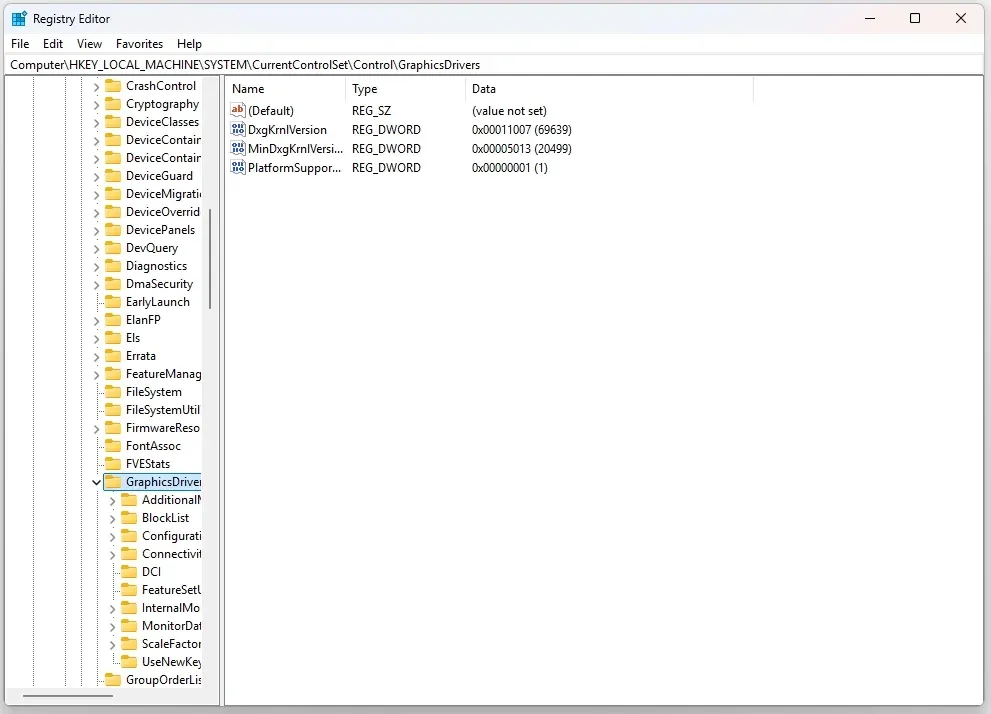
Solution 3: Modify Registry Settings (Advanced)
Step 1. Press Windows + R, type regedit, and press Enter.
Step 2. Navigate to HKEY_LOCAL_MACHINE\SYSTEM\CurrentControlSet\Control\GraphicsDrivers.
Step 3. Look for the value DisplayResolution and set it to the correct resolution value.
Step 4. Restart your computer.
Issue Eight: Color Problems
Color problems on your display, such as washed-out colors or overly bright or dim displays, are common issues that affect many Windows 10 users. This can be caused by incorrect graphics card settings, monitor calibration issues, or software conflicts. When colors appear distorted or unrealistic, it can interfere with visual tasks such as photo editing or watching videos.
Solution 1: Adjust Monitor Calibration
Step 1. Right-click on the desktop and select Display settings.
Step 2. Scroll down and click on Advanced display settings.
Step 3. Click on Color calibration and follow the wizard to adjust brightness, contrast, and color balance.
Solution 2: Update Graphics Drivers
Step 1. Open Device Manager by right-clicking on the Start menu.
Step 2. Expand the Display adapters section.
Step 3. Right-click the graphics driver and select Update driver.
Step 4. Choose Search automatically for updated driver software.
Solution 3: Reset Graphics Card Settings
Step 1. Open your graphics card control panel (e.g., NVIDIA Control Panel, AMD Radeon Settings).
Step 2. Find the Display or Color section and reset the settings to default.
Step 3. Check the monitor's color again to see if the issue is resolved.
Issue Nine: Taskbar Display Issues
Taskbar issues, such as missing or unresponsive icons, are frustrating and can disrupt the workflow. These issues often arise after system updates or due to conflicts with display scaling settings. Sometimes icons disappear altogether, or they fail to respond when clicked, making it difficult to interact with programs pinned to the taskbar.
Solution 1: Restart Windows Explorer
Step 1. Press Ctrl + Shift + Esc to open Task Manager.
Step 2. Scroll down to find Windows Explorer, right-click on it, and select Restart.
Step 3. Check if the taskbar icons reappear and function properly.
Solution 2: Adjust Display Scaling
Step 1. Right-click on the desktop and select Display settings.
Step 2. Scroll down to Scale and layout.
Step 3. Change the display scaling to 100%, 125%, or 150% depending on your monitor's size.
Step 4. Restart your computer to see if the taskbar issues are resolved.
Solution 3: Use System File Checker
Step 1. Press Windows + X and select Command Prompt (Admin).
Step 2. Type sfc /scannow and press Enter.
Step 3. Wait for the scan to complete and fix any errors related to the taskbar.
Issue Ten: Driver Compatibility Issues
Driver compatibility issues often cause various Windows 11 display issues, including flickering, black screens, or incorrect resolution. This is particularly common after a Windows update or when installing new hardware. If the correct graphics driver isn't installed or if there's a conflict between drivers, the display may malfunction.
Solution 1: Update or Reinstall Graphics Drivers
Step 1. Open Device Manager by right-clicking on the Start menu.
Step 2. Expand the Display adapters section.
Step 3. Right-click the graphics driver and select Update driver.
Step 4. Choose Search automatically for updated driver software.
Alternatively, you can uninstall and reinstall the driver by going to Device Manager, right-clicking the display adapter, and selecting Uninstall. Then, restart your computer and let Windows automatically reinstall the driver.
Solution 2: Use Compatibility Mode
Step 1. Right-click on the graphics driver setup file.
Step 2. Select Properties and go to the Compatibility tab.
Step 3. Check the box for Run this program in compatibility mode for and select a previous version of Windows (e.g., Windows 8).
Step 4. Install the driver and check if it resolves the issue.
Solution 3: Roll Back Driver Updates
Step 1. Open Device Manager and expand the Display adapters section.
Step 2. Right-click on your graphics card and select Properties.
Step 3. Go to the Driver tab and click Roll Back Driver.
Step 4. Restart your computer to apply the changes.
Top 10 Windows 10 Display Problems: Quick Overview
If you're experiencing display issues in Windows 10, here's a quick checklist:
| 10 Display Issues Windows 10 | Possible Causes | Solutions |
|---|---|---|
| Screen Flickering | Outdated drivers, hardware acceleration | Update drivers, disable hardware acceleration |
| No Signal | Loose cables, incorrect settings | Check cables, adjust display settings, use wireless screen mirroring solution like PigeonCast |
| Resolution Issues | Incompatible drivers, wrong resolution | Adjust resolution, update drivers |
| Black Screen After Reboot | Corrupt drivers, failed updates | Boot into Safe Mode, perform system restore |
| Glitchy Graphics | Overheating, faulty drivers | Update drivers, monitor temperatures |
| Monitor Detected, No Display | Incorrect settings, cable issues | Reconfigure settings, check cables |
| Screen Resolution Change After Restart | Driver problems, system settings not saved | Reconfigure resolution, update drivers, modify registry |
| Color Problems | Incorrect calibration, driver issues | Adjust monitor calibration, reset graphics card settings |
| Taskbar Display Issues | Scaling issues, system bugs | Restart Windows Explorer, adjust display scaling |
| Driver Compatibility Issues | Outdated or conflicting drivers | Update or reinstall drivers, use compatibility mode |
Conclusion
Windows 10 display issues can occur for a variety of reasons, but with the right approach, most can be resolved quickly. Whether it's a screen flickering problem, resolution mismatch, or driver compatibility issue, following the steps outlined here can help restore your system's display functionality. For screen mirroring, consider using tools like PigeonCast for a seamless experience without the need for HDMI cables.
Windows 10 Display Issues FAQs
Q: How to fix display problems in Windows 10?
Start by checking the display settings, updating your drivers, and ensuring all cables are properly connected. For more advanced issues, use system restoration or consider third-party apps like PigeonCast for wireless display.
Q: What are the signs of a failing computer monitor?
Signs of a failing monitor include flickering, color distortion, dead pixels, or an entirely black screen.
Q: Can software cause monitor flickering?
Yes, certain apps that use hardware acceleration or excessive resources can cause flickering.
Q: What hardware issue causes screen flickering?
Common hardware issues include a failing GPU, damaged cables, or malfunctioning display ports.
Mia Clarke is a technology editor specializing in screen mirroring and casting solutions across multiple platforms. Mia provides clear, practical guides and in-depth insights to help users seamlessly connect their devices. Passionate about enhancing digital experiences, Mia is dedicated to keeping readers updated on the latest trends and tools in cross-platform screen sharing. Whether you’re looking to mirror your smartphone, laptop, or smart TV, Mia’s content delivers reliable, user-friendly advice to simplify your tech setup.