
If your Windows PC is not detecting your second monitor, you're not alone. It's one of the most common display issues on both Windows 10 and Windows 11, affecting everyone from home users to office setups. The frustrating part? It might look like a hardware failure, but in most cases, the fix is simpler than you think.
This guide first explains the reason for Windows not detecting second monitor, then walks you through detailed, step-by-step solutions. And if all else fails, you'll also discover a modern alternative: wireless screen mirroring using PigeonCast (a free screen mirroring app), so you can project your Windows display without relying on fragile cables.
Why Windows Fails to Detect Your Second Monitor
When your Windows PC isn't detecting a second monitor, the issue almost always comes down to two main categories: hardware connection problems and software misconfigurations. In other words, either the display signal isn't getting through physically, or Windows itself isn't handling the setup properly.
Understanding which side of the problem you're dealing with is key. Hardware issues can include loose HDMI cables, damaged ports, or power-related faults. Software-related causes, on the other hand, often stem from outdated graphics drivers, incorrect display modes, or bugs introduced by recent Windows updates.
Let's look at both areas in detail and see how to fix each one step by step.
Cause 1: Faulty Cable, Port, or Input Source
A damaged HDMI or DisplayPort cable is one of the most common reasons for a second monitor not displaying. Even a slightly bent connector pin can break the signal. Sometimes, the monitor itself is simply set to the wrong input (HDMI 2 instead of HDMI 1).
- Fix preview: Try switching cables and verify your monitor's input source in its on-screen menu.
Cause 2: Outdated or Corrupted Graphics Drivers
When Windows 11 not detecting second monitor or Windows 10 not detecting second monitor occurs, outdated GPU drivers are usually involved. Recent OS updates can also break compatibility between the system and your graphics hardware.
- Fix preview: Updating or reinstalling your graphics driver often restores the missing connection instantly.
Cause 3: Display Mode Confusion (Extend vs. Duplicate)
Sometimes your laptop not recognizing monitor isn't a detection issue at all. It's a projection mode mismatch. Windows is sending the display signal to the wrong output mode. When this happens, the second monitor might stay black even though the system technically detects it.
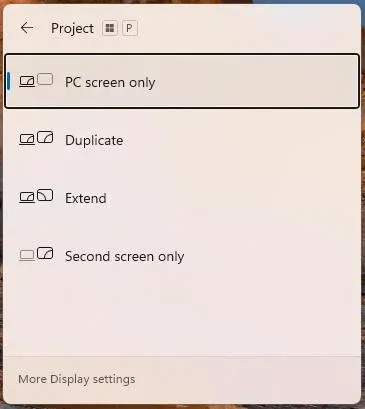
- Fix preview: Press Windows + P and cycle through modes like Extend or Duplicate to make your second visible again.
Cause 4: Docking Station or Adapter Problems
Many external monitor not detected issues appear when using USB-C docks or HDMI adapters. Not all adapters convert signals the same way, and cheaper ones often fail after system update.
- Fix preview: Always test with a direct cable connection before blaming your laptop.
Cause 5: System-Level or Hardware Failures
When none of the above works, a deeper issue may be responsible, such as a BIOS setting, faulty GPU, or internal port damage. But before replacing hardware, go through the troubleshooting steps below. You might save yourself both time and money.
How to Get Windows to Detect Your Second Monitor
Now that we've seen the common causes (both hardware and software), it's time to put them into action. The following steps walk you through how to diagnose and fix the problem systematically, starting from simple physical checks to deeper system-level adjustments.
Each method addresses a specific reason why Windows not detecting second monitor or second monitor not displaying might occur, so follow them in order until your setup works again.
Fix 1: Check the Cable and Connection
A surprising number of "second monitor not detected" or "Windows HDMI not working" issues are caused by something as simple as a loose cable or bad port.
How to check:
Step 1. Turn off your PC and both displays.
Step 2. Disconnect and firmly reconnect the HDMI, DisplayPort, or USB-C cable on both ends.
Step 3. Inspect the connectors and look for bent pins or dust inside the port.
Step 4. Try a different cable or another port on your graphics card or monitor.
If the second display lights up with a new cable, the old one was the problem.
Tip: Avoid daisy-chaining adapters (for example, HDMI-to-VGA). Direct connections are always more stable.
Fix 2: Confirm the Correct Input Source
Even if the hardware connection is fine, your monitor might still show "no signal" if it's on the wrong input source. This is one of the easiest causes of external monitor not detected problems.
How to fix:
Step 1. Press the Input or Source button on your computer.
Step 2. Cycle through available inputs (HDMI 1, HDMI 2, DP, VGA, etc.).
Step 3. Make sure you've selected the same port your PC is using.
Fix 3: Update or Reinstall Graphics Drivers
If your "PC not detecting second monitor" issue persists, the culprit might be your graphics driver. A corrupted or outdated driver can stop Windows from communicating with external displays.
How to fix:
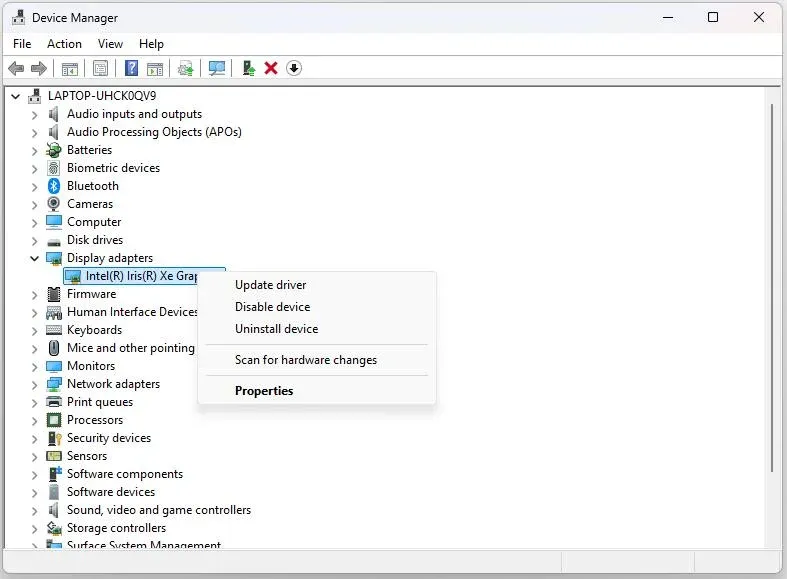
Step 1. Press Windows + X and choose Device Manager.
Step 2. Expand Display adapters and right-click your GPU.
Step 3. Choose Update driver, then click Search automatically for drivers.
Step 4. If that fails, uninstall the driver and restart. Windows will reinstall it automatically.
Tip: For better stability, download the latest driver directly from NVIDIA, AMD, or Intel's official website.
Fix 4: Detect the Display Manually
Sometimes Windows is not detecting my second monitor automatically. In that case, you can force a manual search:
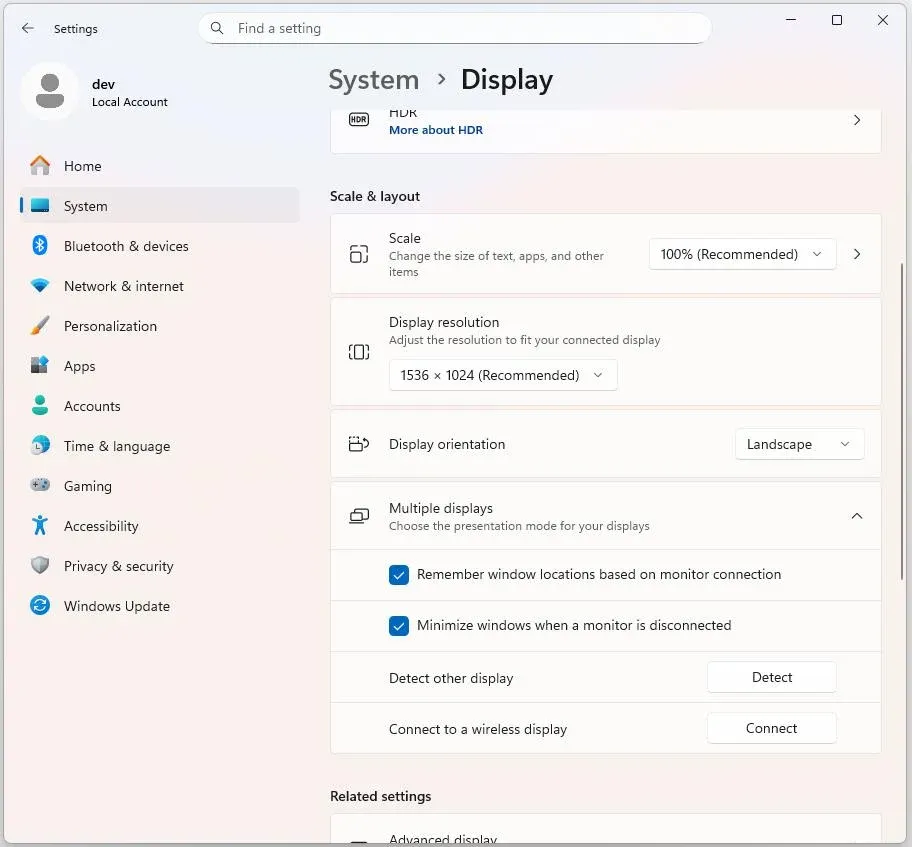
How to fix:
Step 1. Go to Settings > System > Display.
Step 2. Scroll down and click Detect under Multiple displays.
Step 3. Wait a few seconds. If Windows finds your monitor, you'll see it appear as "Display 2".
If nothing happens, proceed to the next fix.
Fix 5: Adjust Display Mode
If you still ask the question "Why is my second monitor not being detected?", the possible reason is that Windows is projecting to the wrong display mode. The screen might be detected but not active.
How to fix:
Step 1. Press Windows + P to open the Project menu.
Step 2. Switch between Duplicate, Extend, and Second screen only.
Step 3. Wait a few seconds each time to see if the external display turns on.
If the monitor flickers or says "Out of range", change the resolution:
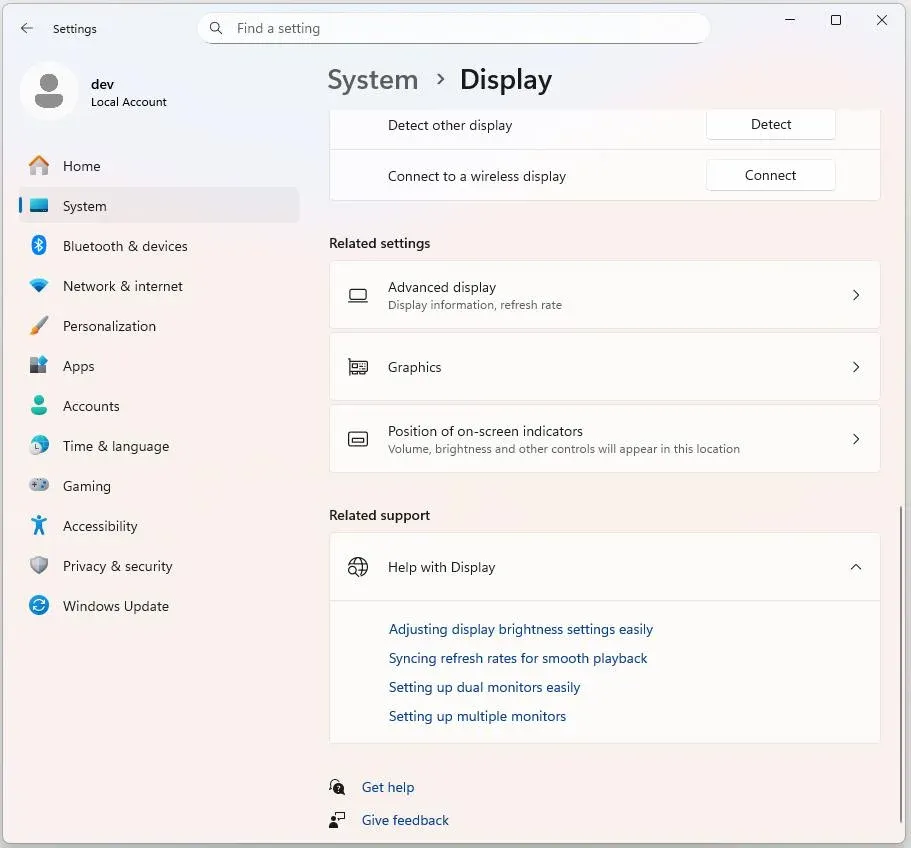
- Go to Settings > System > Display > Advanced display settings.
- Select your external display and choose a supported resolution.
Fix 6: Restart the Display Driver
Sometimes the display driver simply needs to be refreshed, especially after waking from sleep or plugging in a new monitor.
You can restart your display driver via a quick shortcut: Windows + Ctrl + Shift + B. You'll hear a brief beep, the screen will flash, and Windows will reset your graphics driver.
This often fixes temporary glitches where computer not detecting second monitor happens right after booting.
Fix 7: Check for Windows Updates
A recent system update can sometimes break multi-display support. If your 2nd monitor not detected issue started recently, check for pending patches.
How to fix:
Step 1. Go to Settings > Windows Update.
Step 2. Click Check for updates and install everything available.

Step 3. Restart your PC afterward.
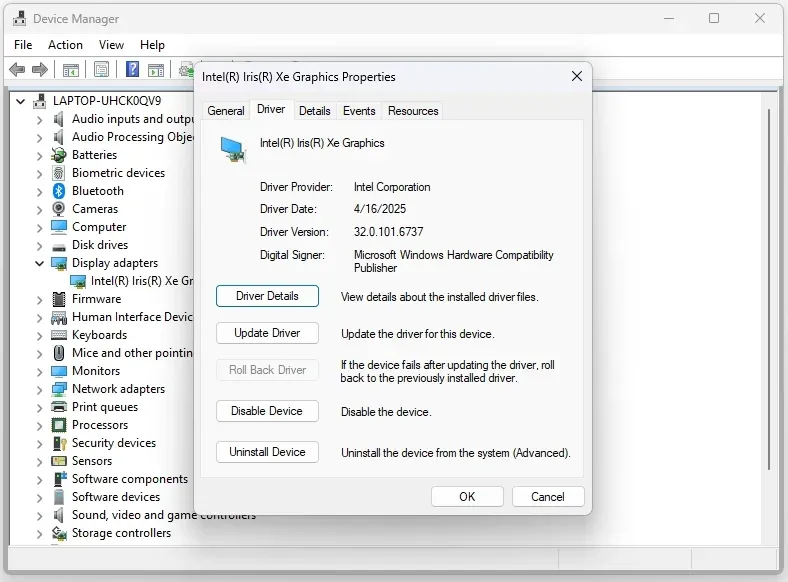
If the problem appeared after an update, roll back your graphics driver to a previous version from Device Manager > Properties > Driver > Roll Back Driver.
Fix 8: Use Wireless Mirroring as an Alternative
If you've tried all the above and Windows not detecting second monitor but mirroring, there's a simpler workaround: go wireless.
Windows Miracast allows you to connect your Windows laptop to a supported device wirelessly:
Step 1. Open Settings > Bluetooth & devices on your Windows computer.
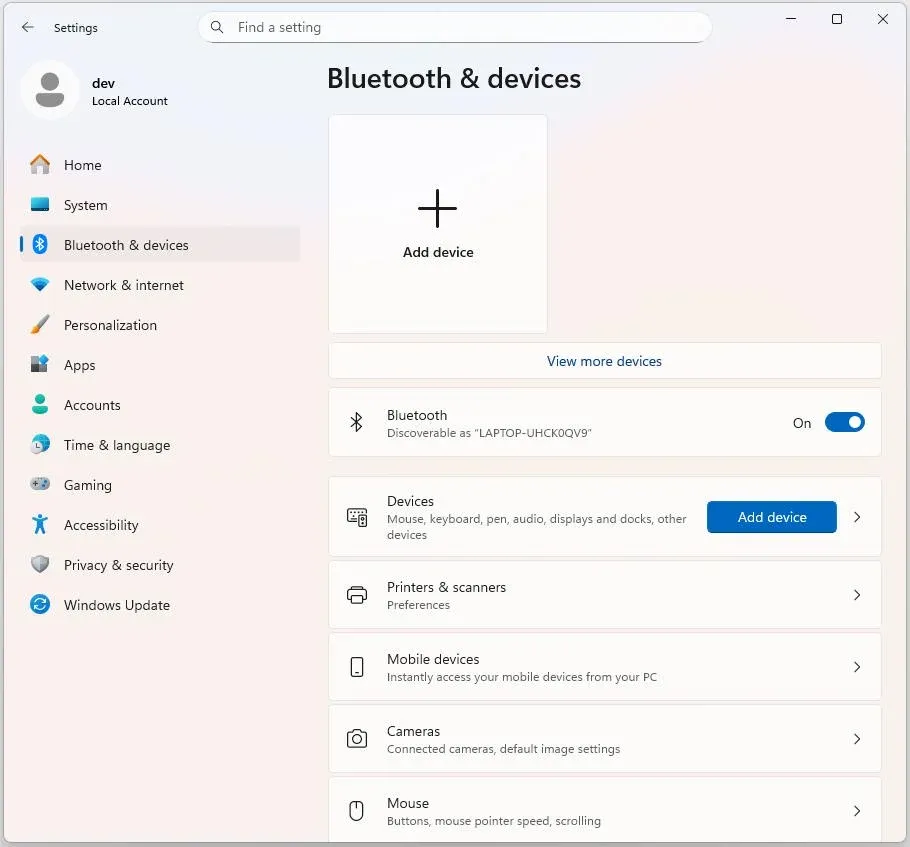
Step 2. Turn on the Bluetooth toggle switch and click Add Bluetooth or other device.
Step 3. Choose Wireless display or dock.
Step 4. Choose the target display with Miracast support from the list, such as wireless monitor, TV, or PC.
Step 5. Continue with the on-screen prompts (if applicable).
Alternatively, you can use apps like PigeonCast allow you to mirror or extend your Windows screen to another Windows PC, MacBook, or smart TV over your home Wi-Fi network, which requires no cables or drivers.

It's especially useful when you want a quick dual-display setup or your HDMI port isn't functioning. Just install PigeonCast (it is free to use), connect both devices to the same network, and start mirroring in seconds. For example, to connect Windows laptop to MacBook via the app:
Step 1. Download and install PigeonCast on your Windows PC and MacBook.

PigeonCast Screen Mirroring

Official Download



Step 2. Ensure your laptops are on the same Wi-Fi network and launch the app on both platforms.
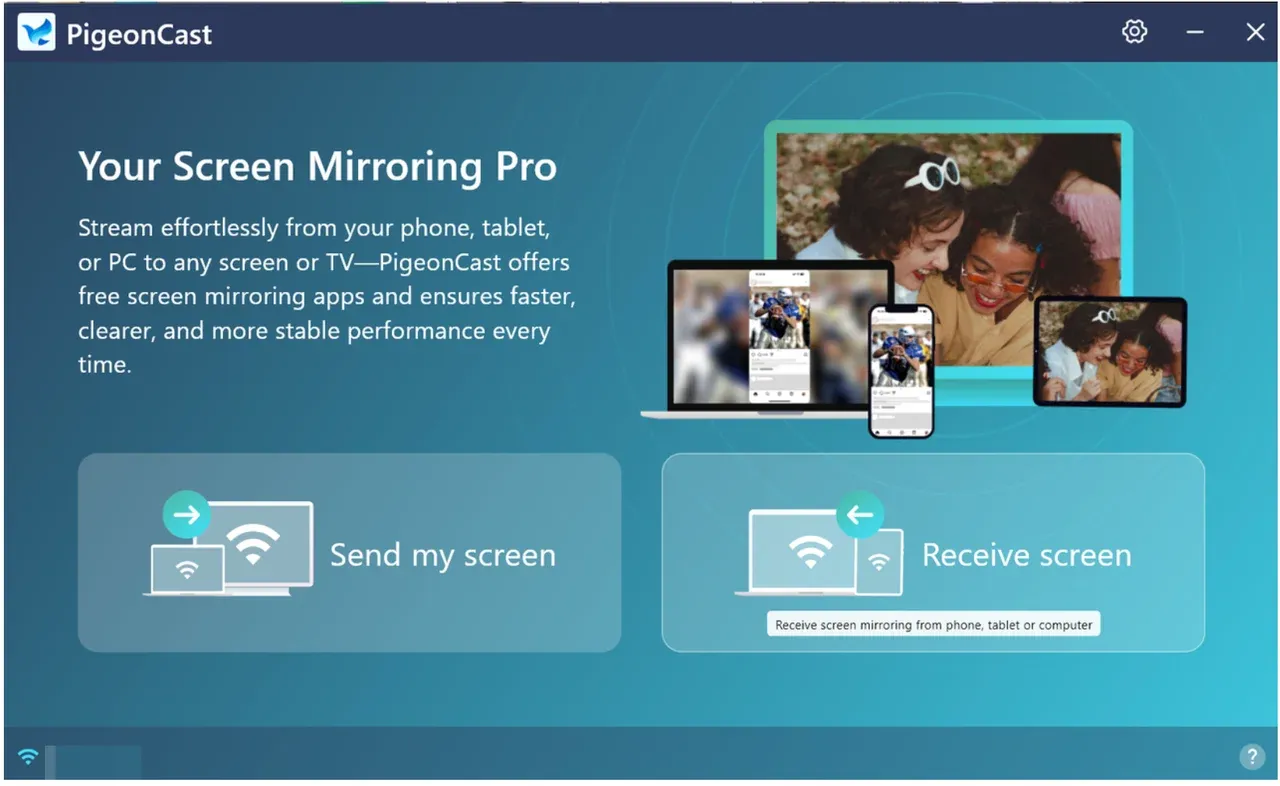
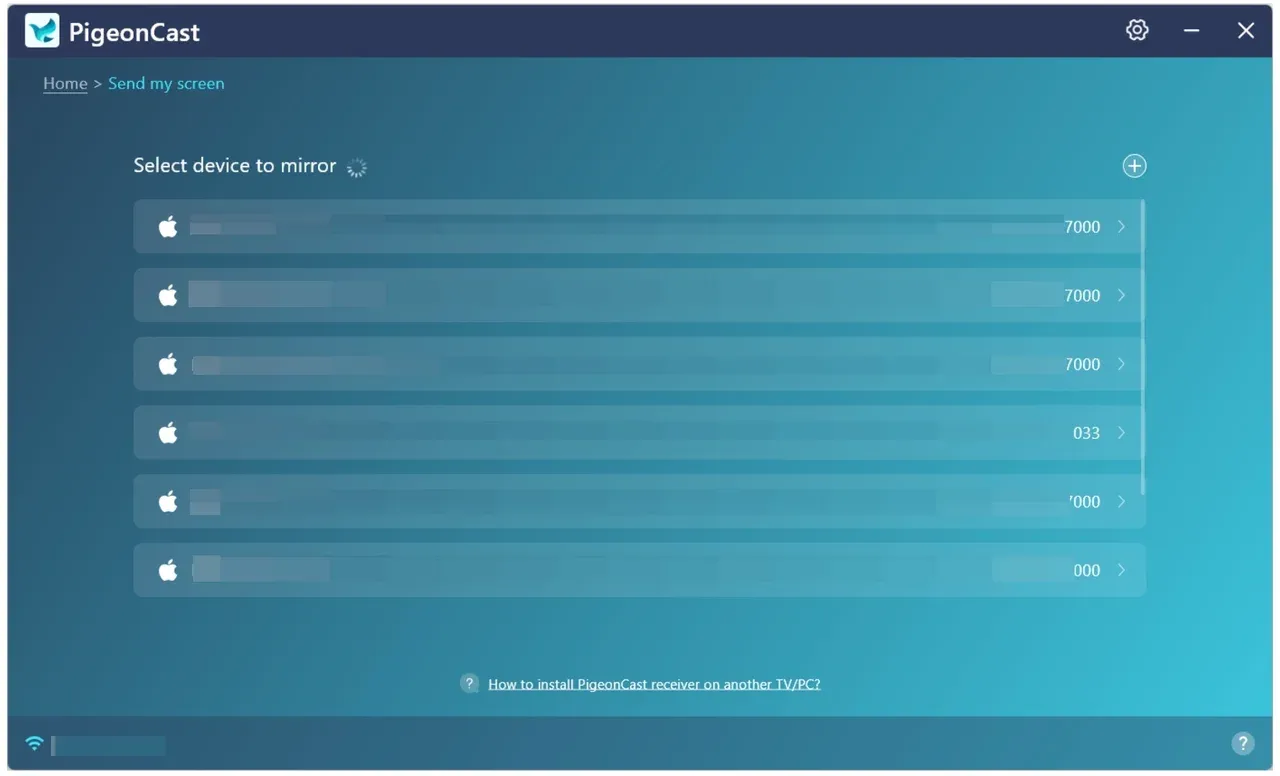
Step 3. On your MacBook, click Receive screen, then on your Windows computer, click Send my screen.
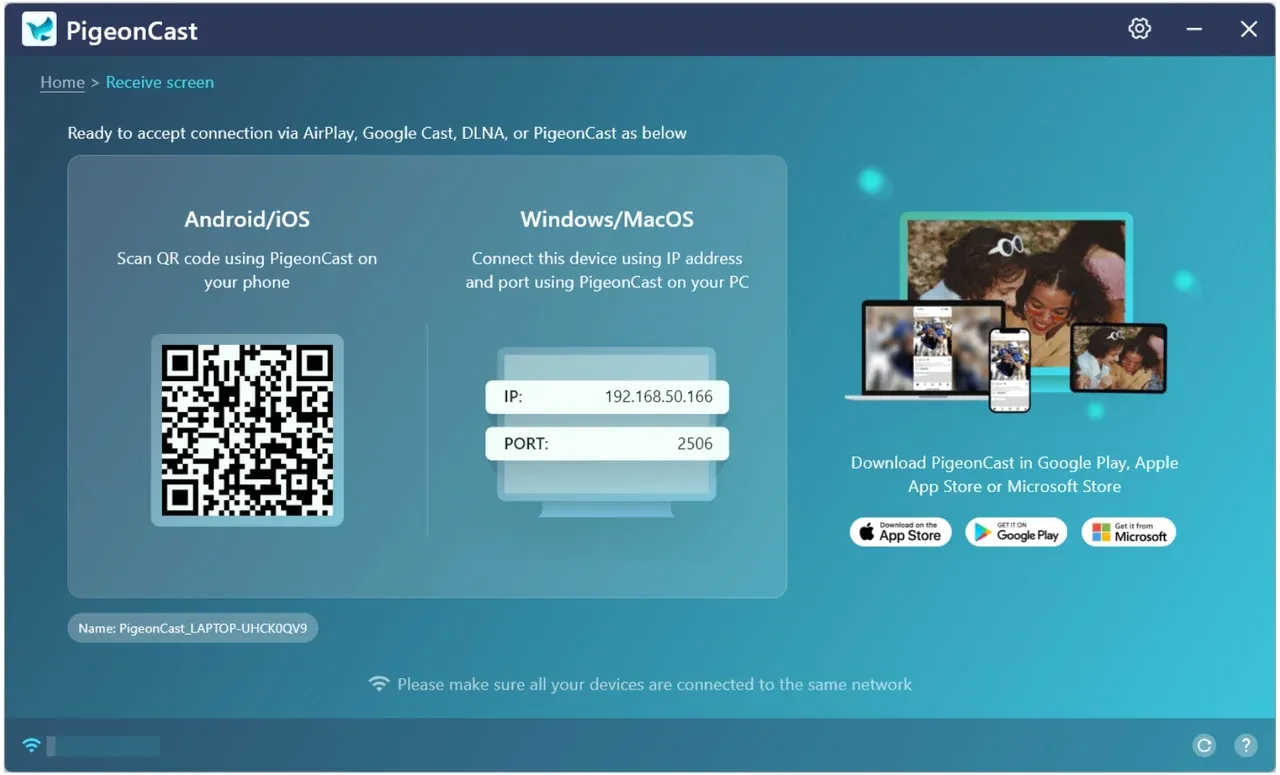
Step 4. On your Windows computer, choose your MacBook from the list of available devices. If your MacBook doesn't show up, you can enter your Mac's IP address.
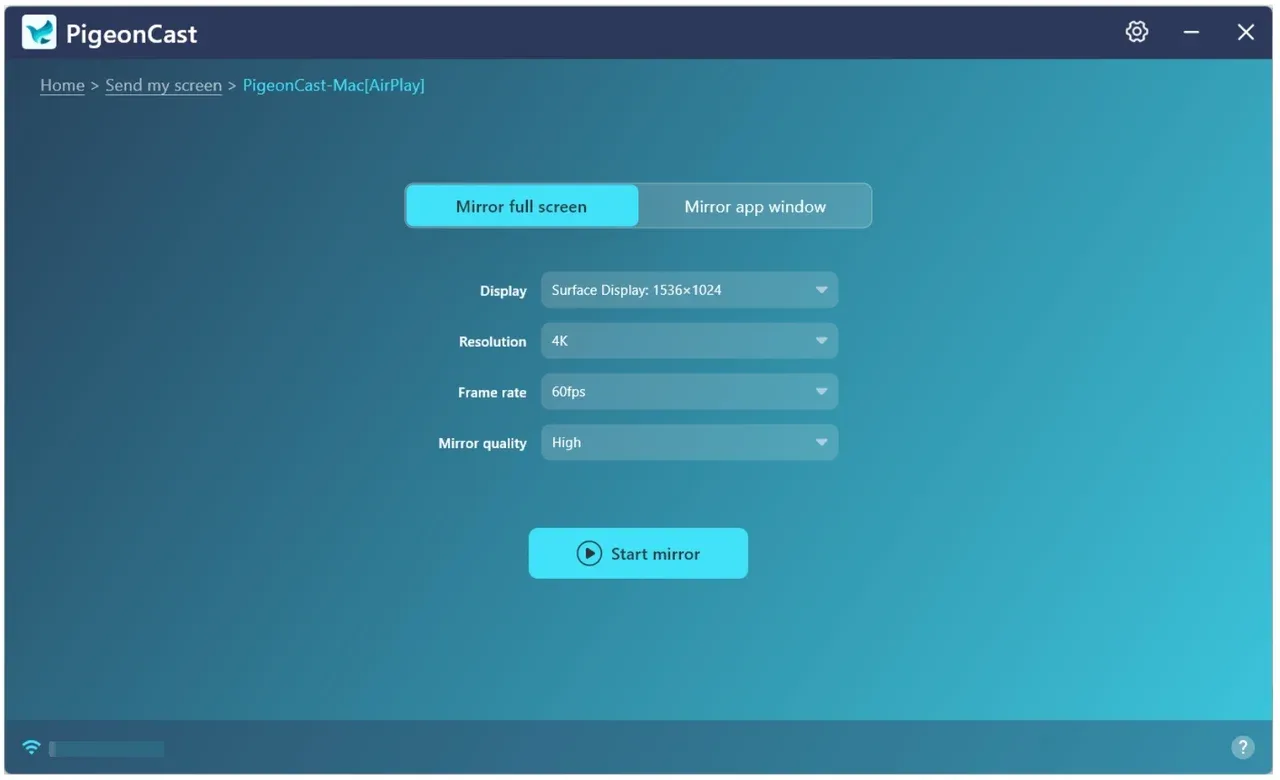
Step 5. Once your Windows is connected to your Mac, choose either to mirror the entire screen or an app running in the background (not minimized), and tap Start mirror.
If your Windows can't detect a second monitor, try our free and stable wireless solution.
Fix 9: Reset Display Settings
When all else fails, resetting your display configuration can solve persistent not detecting second monitor issues.
How to fix:
Step 1. Go to Settings > System > Display.
Step 2. Scroll down and click Advanced display settings > Display adapter properties.
Step 3. In the Monitor tab, reset refresh rate to the default value.
Step 4. Reboot your PC and reconnect your monitor.
This clears cached display profiles that sometimes conflict with external monitors.
By following these steps in order, from physical inspection to driver updates and display resets, most users can resolve even stubborn second monitor not detected Windows 11 problems without professional repair.
Windows Not Detecting Second Monitor: Quick Fix Summary
This quick-reference guide makes it easier to pinpoint whether your problem comes from a loose connection, a driver glitch, or a display setting misconfiguration. Use this table to quickly identify the right next step and restore your dual-monitor setup.
| Problem / Symptom | Likely Cause | Recommended Fix | Difficulty | Success Rate |
|---|---|---|---|---|
| No signal or "We didn't find another display." | Loose cable or wrong port | Reconnect cable, try a new port or cable | ★☆☆☆☆ | High |
| Screen stays black after connection | Wrong input source | Switch to correct HDMI/DP input using monitor's menu | ★☆☆☆☆ | High |
| Second monitor appears briefly then disappears | Driver corruption or outdated GPU driver | Update or reinstall graphics drivers | ★★☆☆☆ | High |
| Windows not detecting second monitor even after reconnecting | System failed to auto-detect | Go to Settings > Display > Detect manually | ★★☆☆☆ | Medium |
| External display detected but not showing image | Wrong projection mode | Use Windows + P and choose Extend or Duplicate | ★☆☆☆☆ | High |
| Both displays flicker or freeze | Display driver glitch | Press Windows + Ctrl + Shift + B to restart the driver | ★☆☆☆☆ | High |
| Windows 11 not detecting second monitor after an update | Incompatible driver or patch issue | Run Windows Update or roll back driver | ★★☆☆☆ | Medium |
| HDMI/DisplayPort physically damaged | Hardware failure | Test monitor on another computer, replace cable or adapter | ★★★☆☆ | Medium |
| Windows not detecting second monitor but mirroring works | Hardware path broken, but wireless display functional | Use PigeonCast or Miracast for wireless mirroring | ★☆☆☆☆ | Very High |
| Persistent detection errors | Misconfigured display profile | Reset display settings and restart PC | ★★☆☆☆ | Medium |
Final Thoughts
When Windows not detecting second monitor becomes a recurring issue, it usually traces back to hardware or software faults. Loose cables, outdated drivers, or misconfigured display settings are often the cause.
Start simple with checking connections, restarting your PC, and updating drivers. If your second monitor not displaying problem still lingers, try a wireless alternative. With PigeonCast, you can mirror or extend your screen seamlessly on Windows 10 or Windows 11, no cables or compatibility worries.
Sometimes the fastest fix isn't another cable; it's going wireless.
Windows Not Detecting Second Monitor FAQs
Q: Why is Windows not detecting second monitor after update?
Major Windows updates can sometimes reset display settings or disable certain drivers. If your Windows 11 not detecting second monitor issue appeared after an update, try reinstalling or rolling back your graphics driver. You can also open Settings > System > Display > Multiple displays and manually detect the monitor again.
Q: How to enable 2nd monitor on PC?
Go to Settings > System > Display, then click Detect under Multiple displays. Make sure your cables are secure and your monitor is powered on. If your PC is not detecting a second monitor, try switching the HDMI or DisplayPort cable to rule out hardware faults.
Q: How do I force my computer to recognize a second monitor?
Press Windows + P and choose either Extend or Duplicate. You can also update the display driver via Device Manager > Display adapters. If your laptop is not recognizing the monitor, disconnect and reconnect the display while the system is on, in which Windows may refresh the detection automatically.
Q: Why is my second monitor not displaying even though it's detected?
That usually means the wrong display mode is selected. Go to Display settings and ensure the monitor is not set to "Disconnect this display". Adjust the resolution if needed (mismatched settings can also cause the second monitor not to display).
Q: What if Windows not detecting second monitor but mirroring works?
This suggests your system can transmit video data but not identify the monitor as a separate display. Try changing the cable or port, or use a wireless mirroring option like PigeonCast, which connects your laptop and TV or monitor over Wi-Fi without relying on HDMI detection.
Q: Why does my laptop not detect a monitor through HDMI but work with others?
Not all HDMI cables and adapters handle the same bandwidth or compatibility standards. If your laptop not detecting monitor only happens with one display, test with another cable or port. Outdated firmware on monitors can also cause connection issues.
Q: Can I use PigeonCast for dual displays or mirroring?
Yes. PigeonCast lets you mirror or extend your Windows screen to a TV, projector, or another PC wirelessly. It's ideal if your external monitor not detected or if you want a clutter-free setup without cables.
Q: Is PigeonCast free and safe to use?
Absolutely. PigeonCast is completely free. It's 100% safe, verified, and doesn't collect personal data, making it one of the most reliable wireless display solutions for Windows 10 and Windows 11 users.
Mia Clarke is a technology editor specializing in screen mirroring and casting solutions across multiple platforms. Mia provides clear, practical guides and in-depth insights to help users seamlessly connect their devices. Passionate about enhancing digital experiences, Mia is dedicated to keeping readers updated on the latest trends and tools in cross-platform screen sharing. Whether you’re looking to mirror your smartphone, laptop, or smart TV, Mia’s content delivers reliable, user-friendly advice to simplify your tech setup.