
Are you seeking the best screen mirroring app for iPhone to PC? You're in the right place. In this guide, we'll explore some of the top apps available, highlight their key features, and walk you through the pros and cons of each. By the end, you'll have a better idea of which option fits your needs, whether it's for work presentations, gaming, or simply enjoying content on a bigger screen.
Can I Mirror My iPhone Screen to a PC
Yes, you can mirror an iPhone to a Windows PC, but it requires a little extra setup because iPhones and Windows use different screen mirroring technologies. iPhones rely on AirPlay, Apple's wireless streaming protocol, which works seamlessly with Macs, Apple TVs, and AirPlay-compatible smart TVs.
Windows PCs, on the other hand, use a standard Miracast built into Windows 10 and 11 that works well with Android devices and other Windows machines but not iPhones. This compatibility gap means you can't mirror your iPhone to a PC directly.
To bridge the difference, you need third-party apps like PigeonCast, ApowerMirror, Reflector, LonelyScreen, AirServer, or LetsView. Some turn your PC into an AirPlay receiver, while others also support app-to-app or wired connections. If you prefer to mirror your iPhone to a PC without AirPlay, you can use a direct connection within a compatible app or connect through USB instead.
What Is the Best App for Screen Mirroring iPhone to PC
Now that you understand the differences in mirroring technologies between iPhones and Windows PCs, the next question is which app will give you the best experience. With several options available, each offering unique features, ease of use, and performance levels, it's important to choose a solution that fits your specific needs. Here's a comparison table about best free screen mirroring app for iPhone to PC you can refer to first:
| App | User-Friendliness | Compatibility | Latency | Free Trial | Unique Feature |
|---|---|---|---|---|---|
| PigeonCast | Easy | iOS, Android, Windows, macOS, Android TV, FireOS | Low (Optimized for Wi-Fi) | Free | multiple protocol support, dual functionality (sender & receiver), high quality, low latency performance |
| ApowerMirror | Easy | iOS, Android, Windows, macOS | Low (Wired) / Medium (Wi-Fi) | Free | Screen recording, annotation, dual connection options |
| Reflector | Easy | iOS, Android, Windows, macOS | Low (depends on Wi-Fi) | Free | Wireless AirPlay receiver, multi-device mirroring |
| LonelyScreen | Easy | iOS, Windows | Medium | Trial | Turns PC into an AirPlay receiver |
| AirServer | Moderate | iOS, Android, Windows, macOS | Low (Optimized AirPlay) | Trial | Professional-grade, multi-device casting |
| LetsView | Moderate | iOS, Android, Windows, macOS, Android TV | Medium | Free | Free app, whiteboard collaboration |
Trial: Free access is limited, usually as a trial period or with restricted features.
PigeonCast
The PigeonCast for Windows app lets you cast or mirror your phone, tablet, or laptop to Windows with high-quality video and audio. It also supports 4K video streaming from iPhone to TV without lag and allows mirroring across Windows, Apple, and Google devices using AirPlay, Google Cast, or DLNA.
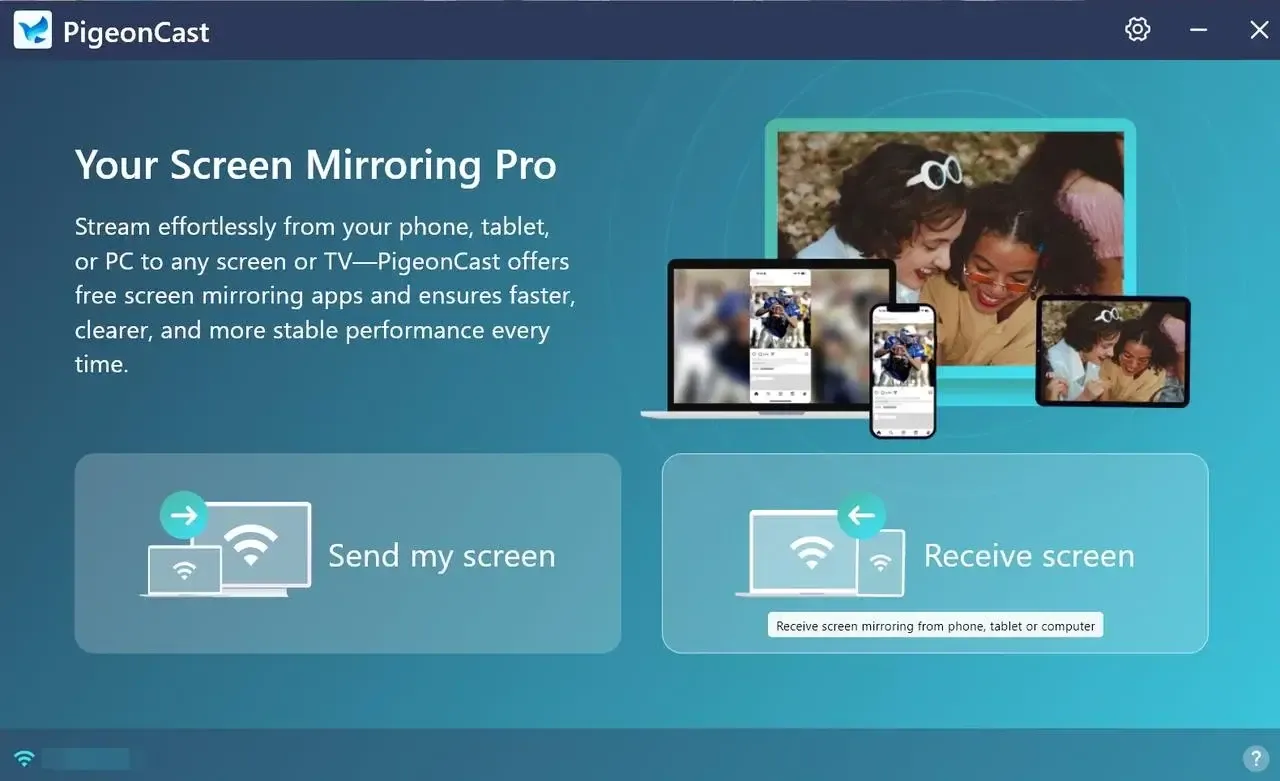
PigeonCast lets your Windows 10 or 11 PC act as a receiving screen for your iPhone while keeping your data safe and private. One important requirement is that your Windows PC and iPhone must be connected to the same Wi-Fi network to work properly. This also matters when you use a Windows laptop as the receiving screen. For example, if you want to screen mirror iPhone to Dell laptop, the Dell device needs to be discoverable on the same network and allowed through Windows network permissions.
Step 1. Install the Windows mirroring app on your computer.

PigeonCast Screen Mirroring

Official Download


Step 2. Ensure your iPhone and PC are connected to the same wireless network.
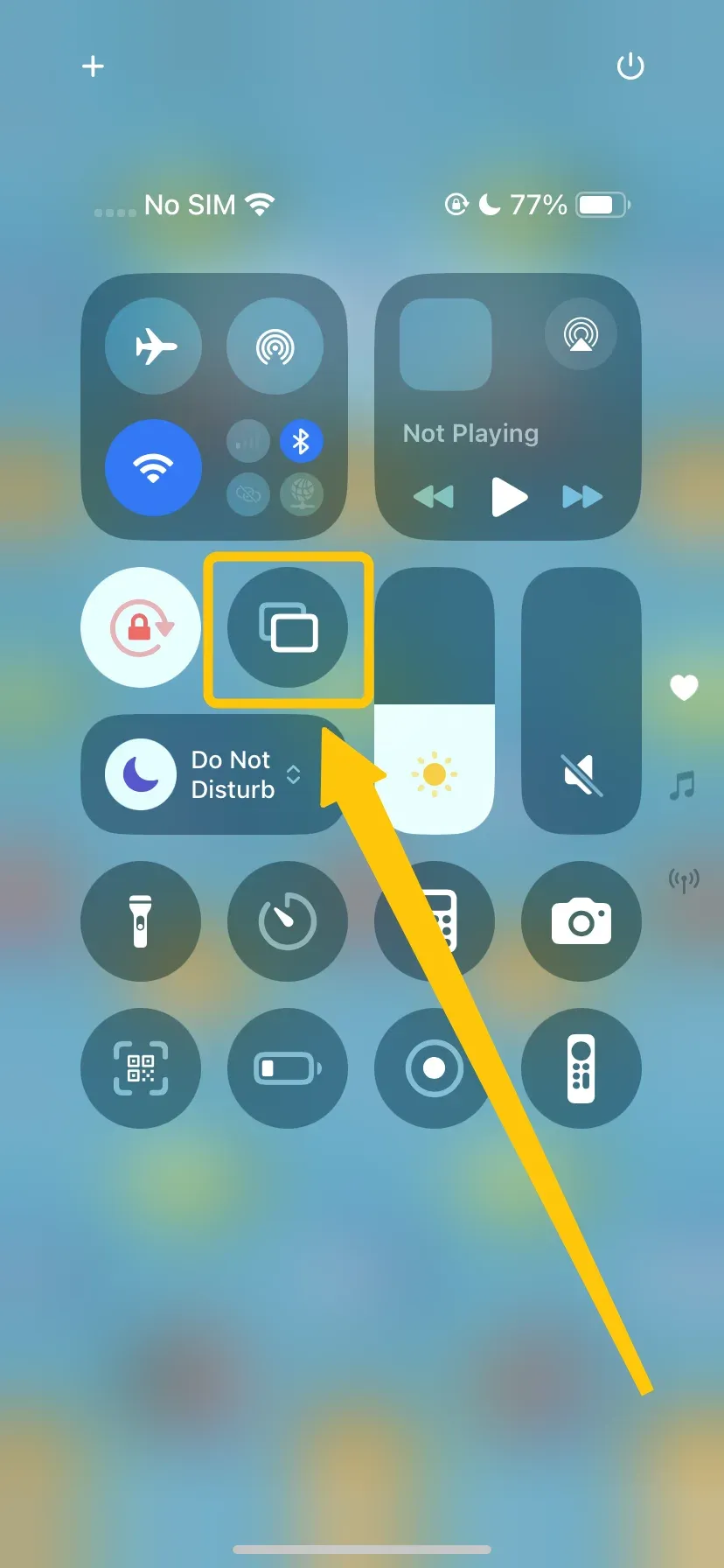
Step 3. Launch the app, and tap Screen Mirroring option in Control Center on iPhone.
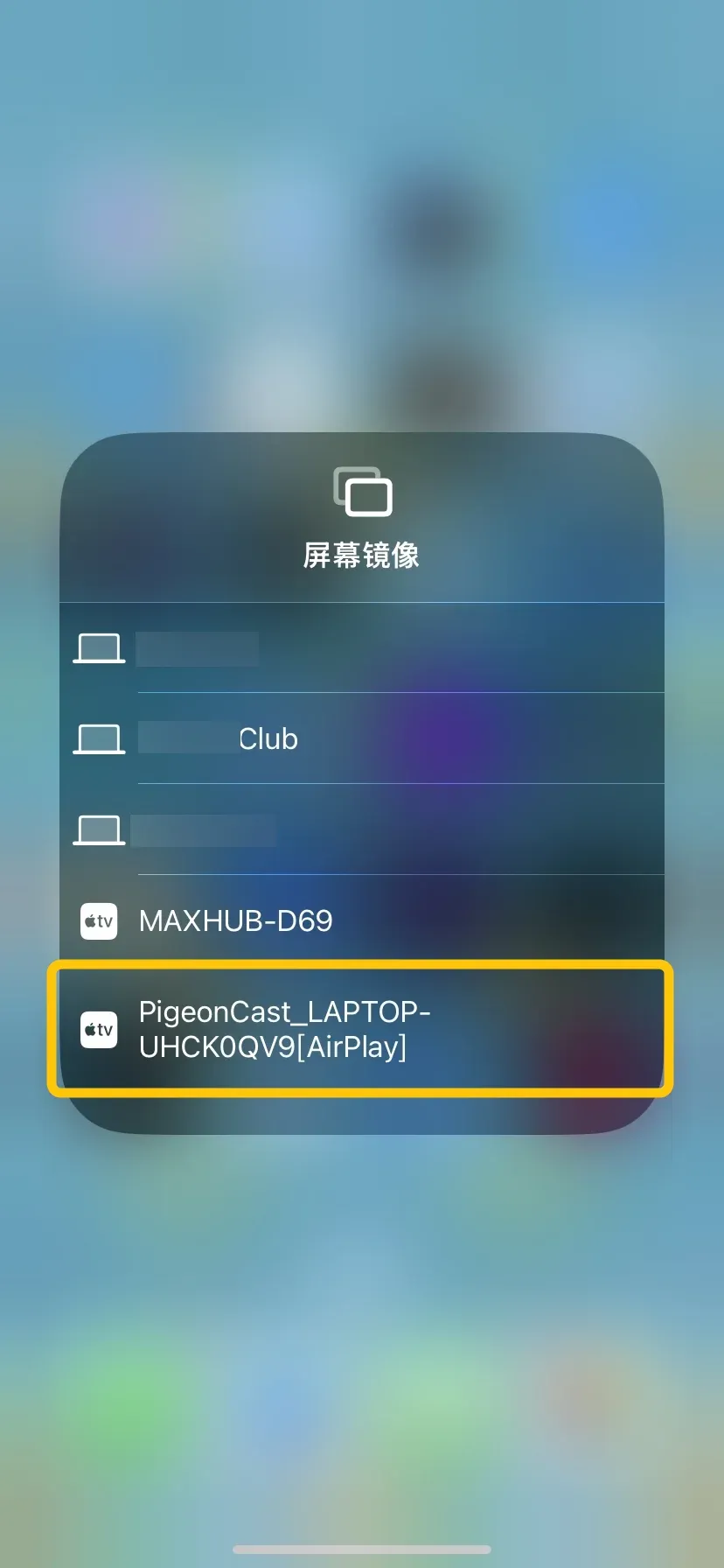
Step 4. From the device list to choose your PC to connect to. If prompted, enter the onscreen code to finish the pairing process.
Step 5. Once you succeed, your iPhone screen will display on the Windows screen.
PigeonCast for Windows enables seamless streaming of content from a Windows PC to any AirPlay-compatible device, including Apple TV. With support for multiple mirroring modes and a straightforward setup, PigeonCast allows Windows users to leverage the AirPlay ecosystem effectively, bridging compatibility between PC environments and Apple devices.
ApowerMirror
If you want to mirror your iPhone to a PC, ApowerMirror is one of the easiest and most reliable apps to use. You can connect either with a cable or wirelessly, depending on what's convenient. It streams smoothly in HD, and you get handy extras like screen recording and a whiteboard for notes or annotations. The free version does add a watermark, but subscribing gives you full access to all features.
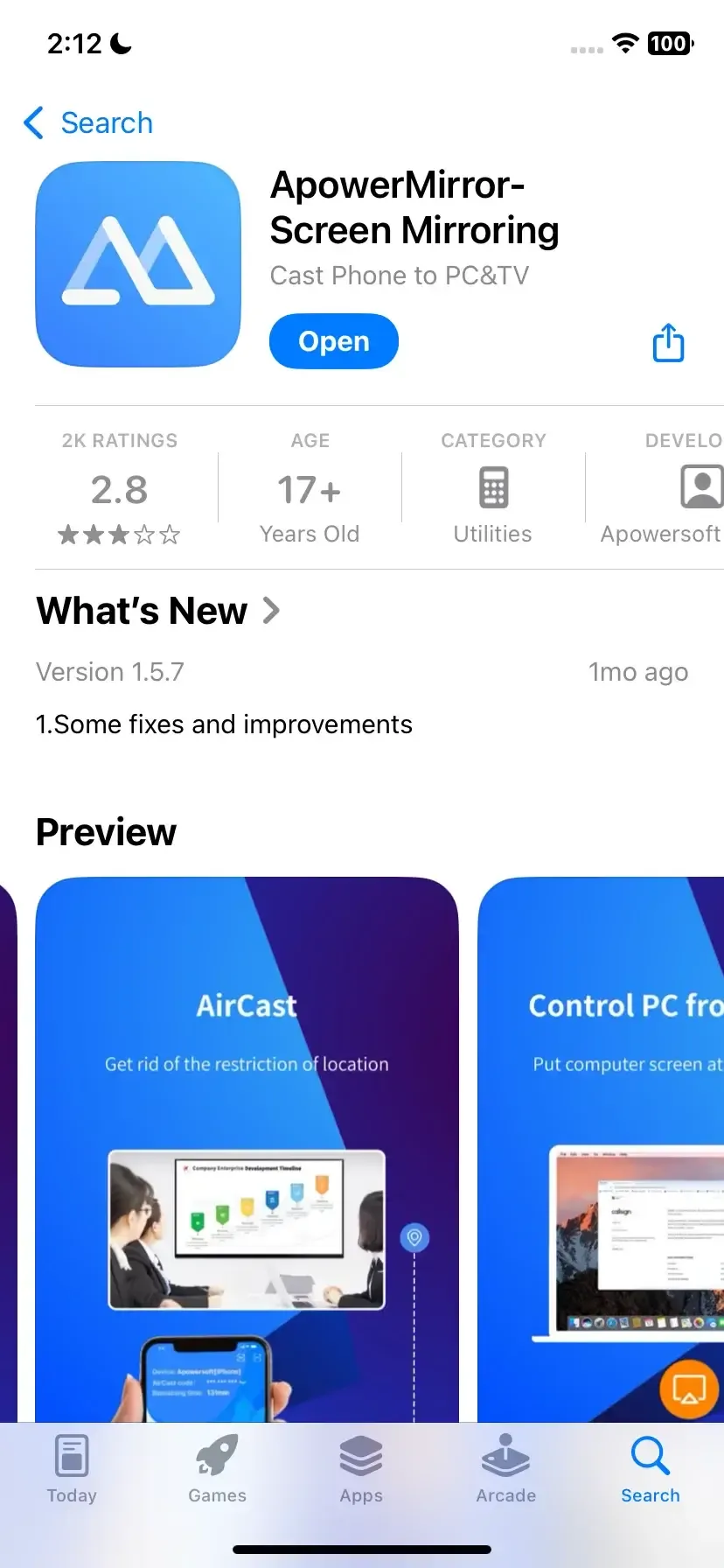
Step 1. Install ApowerMirror on both your iPhone and Windows computer.
Step 2. Open the app on your PC and select the medium as USB Cable. You have two mediums available, i.e., USB or Wi-Fi.
Step 3. After selecting both your devices, you can start mirroring and enjoying your favorite shows.
Reflector
How to use screen mirroring iPhone to Windows PC? Reflector turns your PC into a wireless receiver that works with AirPlay, Google Cast, and Miracast, so you don't need any cables. You can even record your mirrored screen, which is handy for presentations or tutorials. Keep in mind that Reflector is paid software and doesn't offer a free version, but it's a reliable choice for smooth, wireless mirroring.
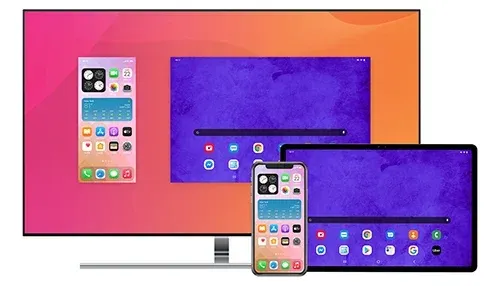
Step 1. Install Reflector on your Windows computer and find Screen Mirroring on your iPhone from the Control Center.
Step 2. Select your PC from the available list of devices.
Step 3. After you select a PC name, the screen mirroring option will appear and tap it to turn green.
Step 4. When your device initiates "talking" to Reflector on your computer, a short code will appear. Type the screen code on your device to finish the connection.
Step 5. Screen mirroring will commence. To disconnect, go back into AirPlay and turn off the mirroring toggle.
LonelyScreen
What's the best screen mirroring app for iPhone to Windows 10? LonelyScreen is a simple AirPlay receiver for Windows PCs. Once installed, your PC shows up as an AirPlay device, letting you stream your iPhone screen directly. It's lightweight, easy to set up, and perfect for basic screen mirroring. However, it doesn't include extra tools like recording, and after the free trial, you'll need a paid license to continue using it.
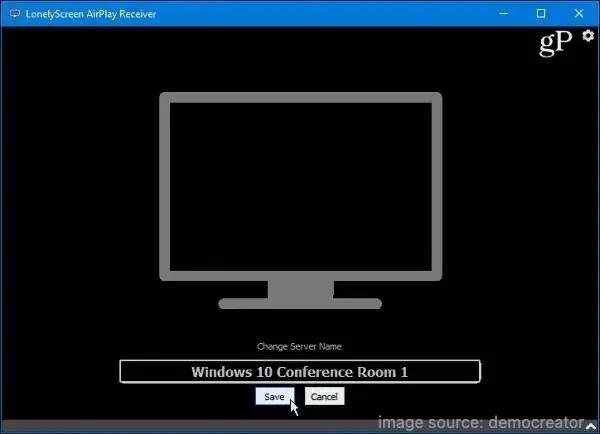
Step 1. Download and launch LonelyScreen on your computer.
Step 2. Click to change the name if needed (Otherwise, it will be listed as LonelyScreen).
Step 3. Go to Control Center > Screen Mirroring on your iPhone and select the name you chose in LonelyScreen.
AirServer
AirServer is a professional-grade screen mirroring tool that supports AirPlay, Google Cast, and Miracast. You can mirror multiple devices at the same time, which is great for presentations or educational purposes. However, it is more expensive than other options and may be more than you need if you only want casual screen mirroring at home.
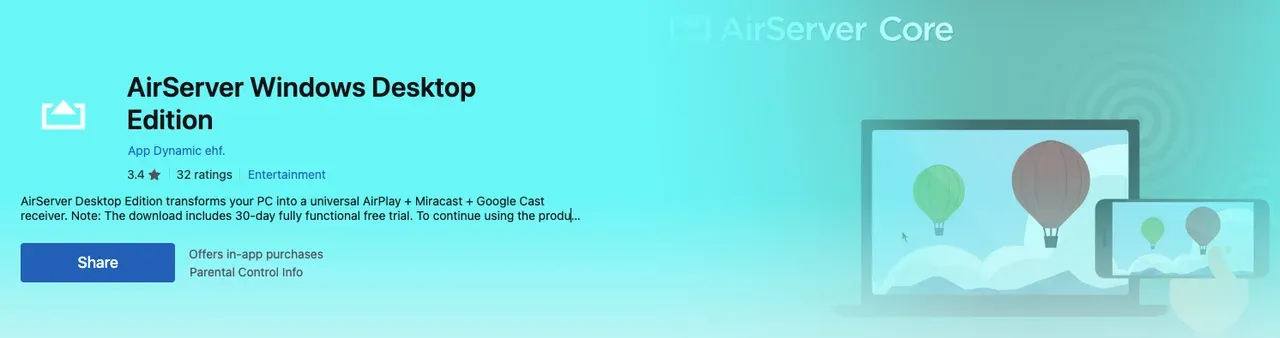
Step 1. Go to the Microsoft Store and download AirStream on your Windows PC, then buy your license from the AirStream website.
Step 2. Launch the app and name your computer.
Step 3. Go to Control Center to choose the Screen Mirroring option on your iPhone
Step 4. Choose your Windows computer from the device list to pair with.
LetsView
LetsView is also a free screen mirroring app that connects your iPhone to a Windows PC wirelessly. Even though it's completely free, it delivers solid performance for everyday use. The interface is simple, and it even includes extras like screen recording and screenshots. That said, you might notice some lag on weaker Wi-Fi connections, and it doesn't have the advanced features you'd find in paid apps.
Step 1. Download the application on your iPhone and PC.
Step 2. Connect both devices to the same network.
Step 3. Once both tools are connected, your PC name will appear on your phone.
Step 4. Click the name of your PC and access your iPhone's Control Center.
Step 5. Tap on Screen Mirroring and finally, tap the name of your PC to begin mirroring.
Final Verdict
The best free screen mirroring app for iPhone to PC depends on your needs. Casual users can go with free apps like PigeonCast, while professionals may prefer ApowerMirror or AirServer for advanced features. Whichever option you choose, screen mirroring makes it easier to work, play, and share your iPhone content on a bigger screen.
Best Screen Mirroring App for iPhone to PC FAQ
Q: How can I mirror my iPhone screen to my PC?
You can mirror your iPhone screen to your PC by using a third-party app that acts as an AirPlay receiver, since iPhones use Apple's AirPlay technology and Windows PCs don't support it natively.
- First, install a mirroring app such as PigeonCast on your PC.
- Then, connect both your iPhone and PC to the same Wi-Fi network or use a USB cable if the app supports wired mirroring.
- On your iPhone, open Control Center, tap Screen Mirroring, and select your PC from the list. Your iPhone screen will then appear on your computer.
Q: Is there a free screen mirroring app for iPhone?
Yes, there are free screen mirroring apps for iPhone. A popular choice is PigeonCast, which lets you mirror your iPhone to a PC, Mac, or even a smart TV at no cost. It works over Wi-Fi, supports features like screen recording and screenshots, and doesn't require any paid subscription.
Q: Can I mirror my iPhone screen to a Windows PC without Wi-Fi?
Yes, you can use a wired connection with apps like ApowerMirror. By connecting your iPhone to your PC with a USB cable, you can mirror your screen without relying on Wi-Fi, which also helps reduce lag.
Q: Does iPhone support screen mirroring to Windows PC natively?
No, iPhones use AirPlay technology, while Windows PCs use Miracast, so they are not directly compatible. To mirror your iPhone screen to a PC, you need a third-party app like PigeonCast that acts as an AirPlay receiver.
Q: Which screen mirroring app has the lowest latency for iPhone to PC?
Apps that support wired connections, such as ApowerMirror, generally have the lowest latency. This makes them ideal for gaming, live streaming, or interactive presentations where real-time performance is essential.
Clara Rossi is an experienced technology editor and a seasoned expert in screen mirroring and casting technologies. With a keen eye for detail and a deep understanding of how to seamlessly connect devices, Clara excels at optimizing user experiences for effortless sharing and streaming. Whether you're seeking quick fixes or advanced tips, her expertise and responsiveness ensure that every query is met with a well-informed and efficient solution.