

If you've ever searched for ways to mirror your iPhone or iPad screen to a PC, chances are you've come across LonelyScreen. This lightweight software has been around for years and is often suggested as a quick solution for AirPlay mirroring on Windows. But a common question many users ask is: is LonelyScreen safe to use?
In this article, we'll walk you through what LonelyScreen is, how it works, the safety concerns you should be aware of, and whether it's still the best choice today. We'll also highlight a more modern alternative to LonelyScreen that provides a smoother and more versatile mirroring experience.
What Is LonelyScreen
LonelyScreen is a simple AirPlay receiver for Windows PCs and MacBooks. By installing the software, your computer essentially "pretends" to be an Apple TV, allowing you to mirror your iPhone or iPad screen directly onto your desktop.
It's been popular among teachers, gamers, and professionals who want to display mobile content on a bigger screen. However, because it hasn't been updated frequently in recent years, many users are unsure if it's still a reliable tool in 2025, and come with the big question: is LonelyScreen safe?
Is LonelyScreen Safe
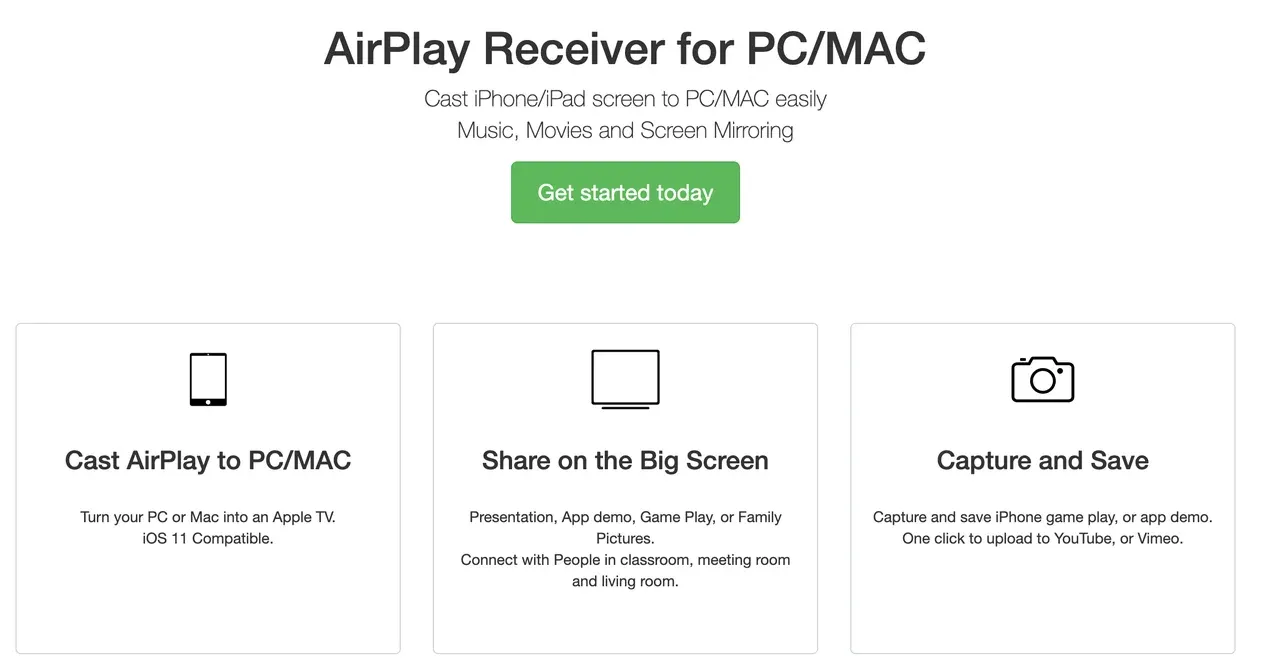
The short answer is yes. LonlyScreen is generally safe to install and use. The third-party app is not malware, and most antivirus programs won't flag it as harmful. That said, there are a few things to keep in mind:
- Outdated updates: The software hasn't received regular maintenance, which can create compatibility issues with the latest versions of iOS and Windows or macOS device.
- Performance limitations: Some users report laggy mirroring or connection drops, which can be frustrating if you need smooth streaming.
- Privacy concerns: Like any third-party app, you should always download it from the official website to avoid tampered versions.
So while LonelyScreen itself isn't unsafe, its outdated state raises questions about long-term reliability.
Is LonelyScreen Worth Using
Before deciding whether to use LonelyScreen, it helps to see a clear summary of its strengths and weaknesses. This LonelyScreen review highlights what works well and what might hold you back.
Pros:
- Easy to set up: just install it and it works as an AirPlay receiver
- Lightweight and doesn't require extra hardware
- Free version available for basic use.
Cons:
- Outdated software with limited support.
- Occasional bugs and crashes on newer Windows builds.
- Doesn't support protocols beyond AirPlay (no Google Cast or DLNA).
- Performance may lag for games or HD videos.
- An ancient user interface that provides an awful experience.
If all of your devices are Apple, such as an iPhone, iPad, or MacBook, LonelyScreen connects the device to a Windows device wirelessly. However, this is for basic AirPlay mirroring and struggles to keep up with modern needs.
How to Use LonelyScreen
LonelyScreen is available in Windows and macOS versions, allowing you to mirror your iPhone or iPad to your computer. Here are the steps to connect your iPhone to Windows PC with LonelyScreen:
Step 1. Download the app from the official website and install it on your Windows PC.

PigeonCast Screen Mirroring

Official Download


Step 2. Click the Settings icon in the upper-right corner and register LonelyScreen.
Step 3. Ensure that your iPhone and Windows PC are on the same Wi-Fi network.
Step 4. On your iPhone, open Control Center, then tap the Screen Mirroring icon to enable AirPlay.
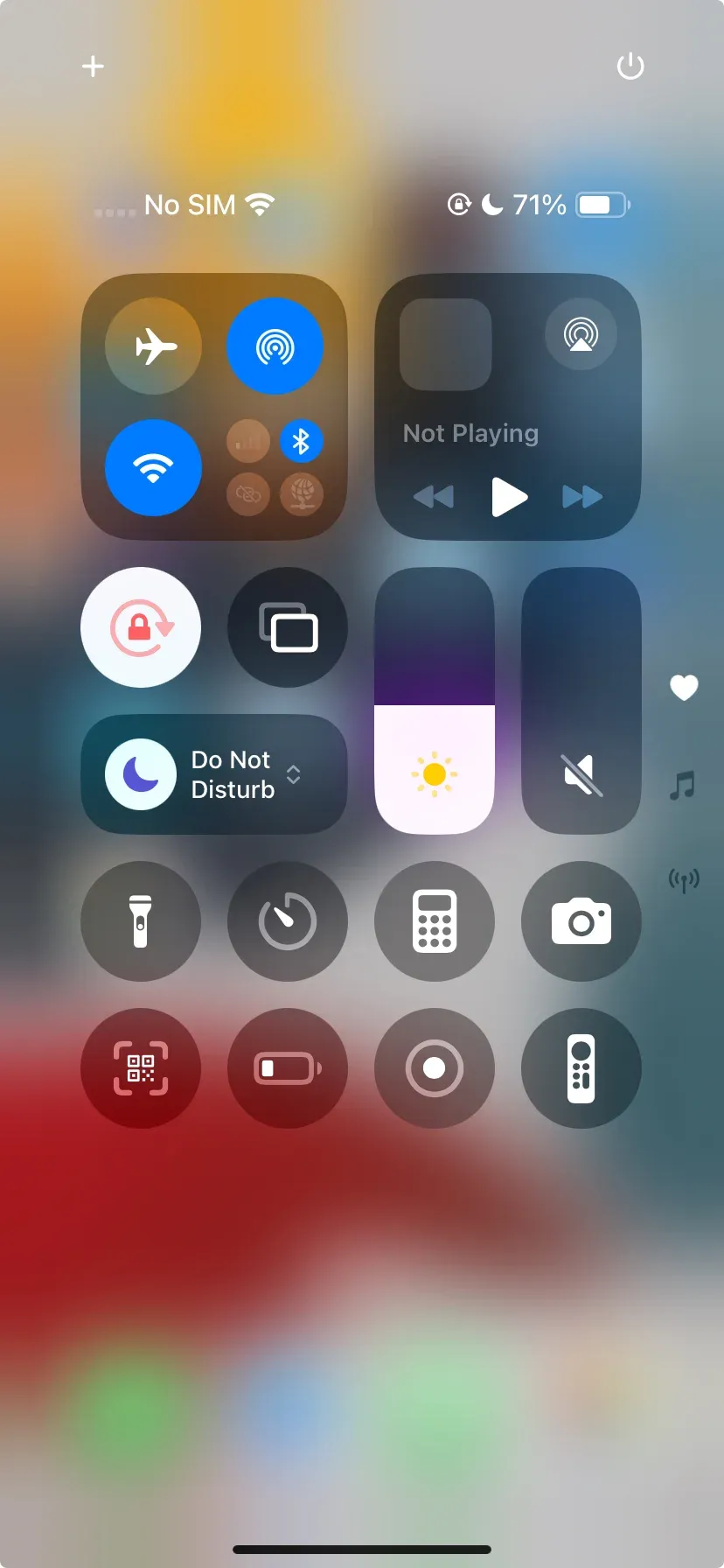
Step 5. On the Screen Mirroring window, choose LonelyScreen.
Step 6. Once connected, your iPhone screen will appear on your computer immediately.
Best Free LonelyScreen Alternatives for Screen Mirroring
If you're looking for more reliability and flexibility, it's worth considering a LonelScreen alternative. Modern mirroring software can support multiple protocols, higher performance, and more devices.

For example, PigeonCast apps not only support AirPlay like LonelyScreen, but also work with Google Cast and DLNA. One of the Windows version and the macOS version are compatible across Windows, macOS, iOS, Android, and smart TVs, delivering smooth, high-quality mirroring (e.g., 1080p) even for videos and games. With active updates and cross-platform support, they are much more versatile options than LonelyScreen.
Overall, with PigeonCast solutions, you can connect your Android or iOS device to a Windows or macOS laptop. Also, a wireless connection between a Windows or macOS device and an Android or Apple TV is supported. Here's how to mirror an iPhone to a Windows PC via the PigeonCast for Windows app:
Step 1. Download the PigeonCast for Windows app from the official website or Microsoft Store.
Step 2. Make sure the two devices you want to connect are using the same Wi-Fi network.
Step 3. Launch the PigeonCast for Windows app on your PC.
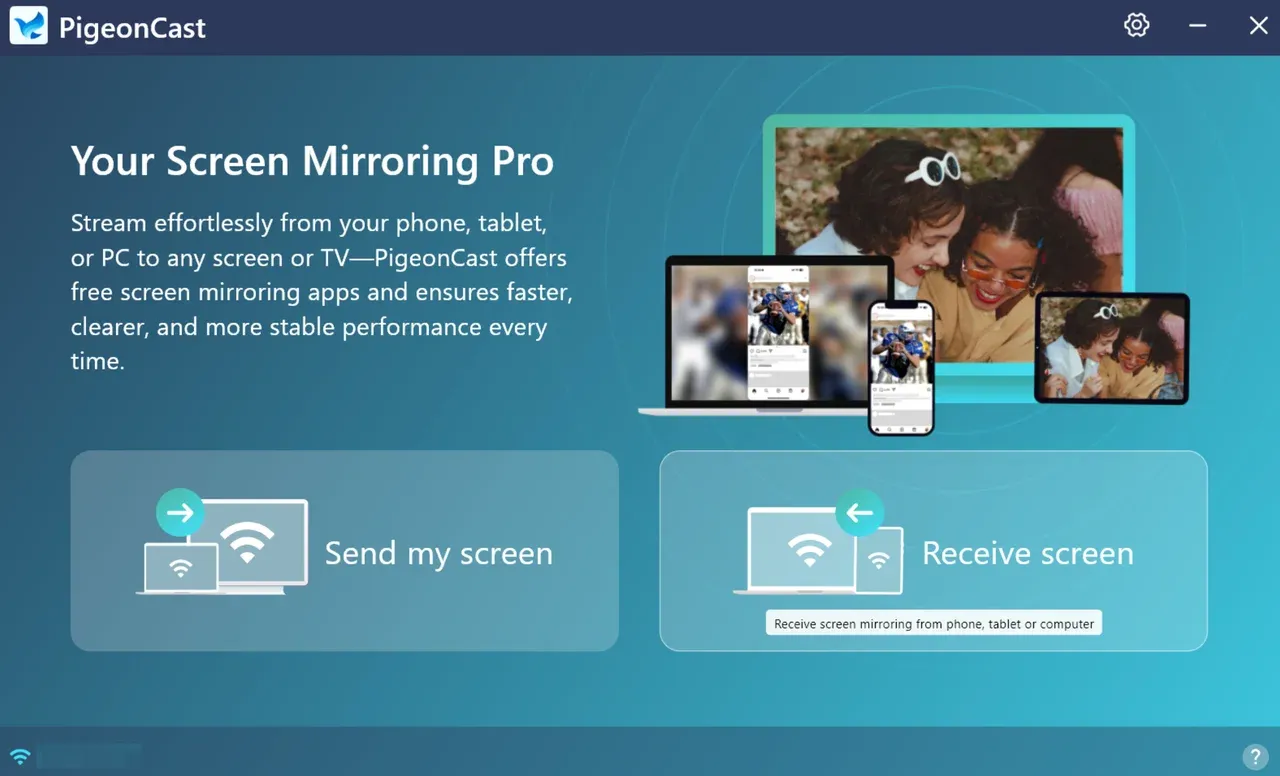
Step 4. Click the Receive screen option on the app interface. Now, your Windows PC can be discovered by your iPhone as PigeonCast.
Note: You can click the Settings icon in the upper-right corner to rename your Windows PC.
Step 5. On your iPhone, go to Control Center, tap the Screen Mirroring icon, and choose PigeonCast.
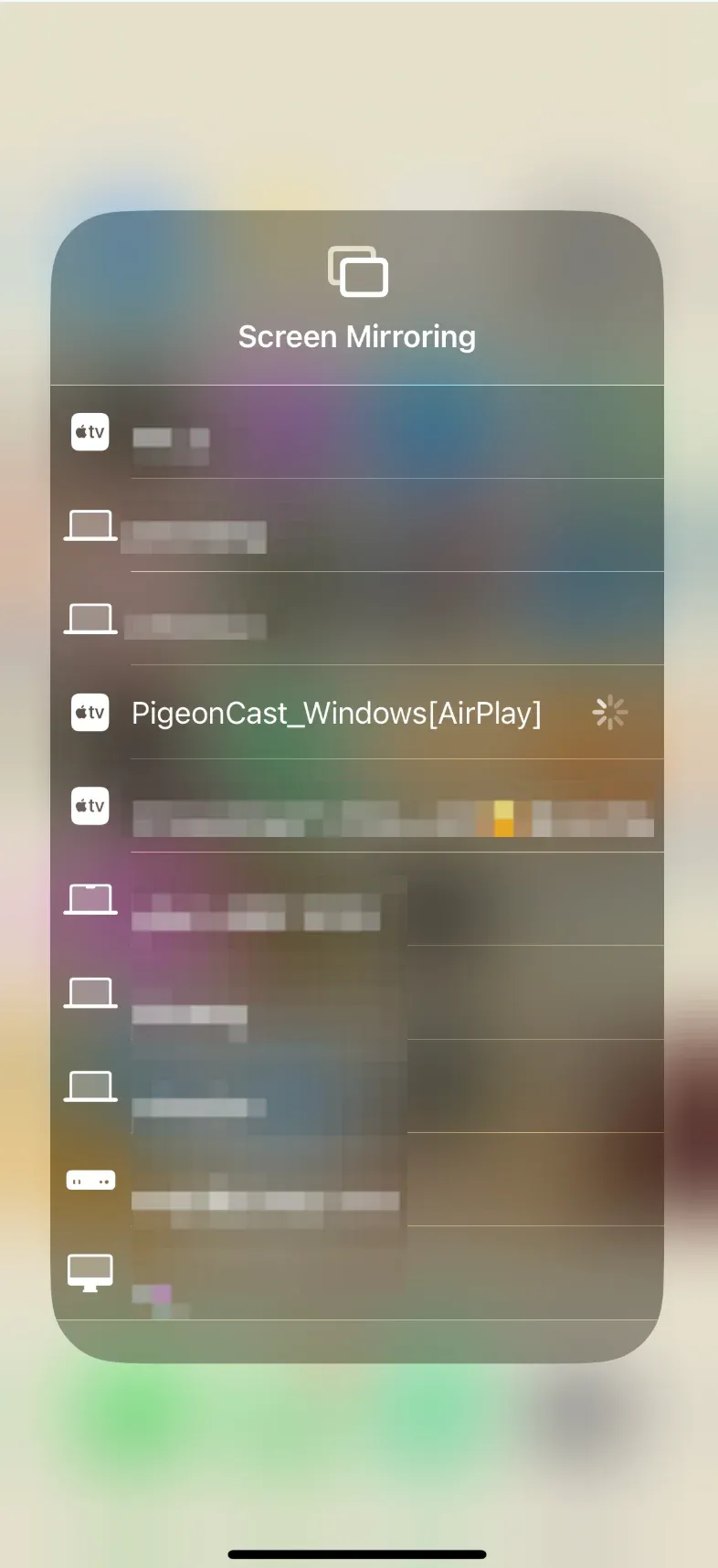
Step 6. Wait for a few seconds, and your iPhone screen will appear on your Windows computer. You can play a video or a game to have a smooth, big-screen experience.
As you see, the third-party app provides two options (Send my screen and Receive screen), not only emulating your Windows PC as an Apple TV, but also adding the AirPlay feature to the device, which allows you to cast your laptop to a TV that is AirPlay-compatible effortlessly.
The best alternative to LonelyScreen depends entirely on your needs. You can choose the PigeonCast app for cross-platform screen mirroring, or a dedicated AirPlay receiver app like Reflector.
Final Thoughts
After examining LonelyScreen, it's clear that while it is safe to use, it is somewhat outdated and limited. If you only need occasional AirPlay mirroring, it may be sufficient.
However, for a more reliable and modern solution, choosing a universal casting tool like PigeonCast for Windows or PigeonCast for Mac provides smoother performance, multi-protocol support, and compatibility with a wide range of devices. This makes it the ideal choice for anyone serious about screen mirroring today.
Is LoneyScreen Safe FAQs
Q: Does LonelyScreen work on macOS as well as Windows?
Yes, LonelyScreen supports both Windows and macOS. On both systems, it functions as an AirPlay receiver, allowing you to mirror your iPhone or iPad screen to your computer. That said, performance can vary depending on your operating system version, and many LonelyScreen review posts note that updates for macOS compatibility are less frequent.
Q: Is LonelyScreen safe to use on Windows and macOS?
Generally, yes. LonelyScreen is considered safe as long as you download it from the official website. However, since it hasn't received frequent updates in recent years, some users worry about potential security vulnerabilities or compatibility issues with the latest versions of Windows and macOS. If safety and long-term support are your priority, you may want to consider a LonelyScreen alternative (like PigeonCast) that is actively maintained.
Q: Which screen mirroring app is safe?
A safe screen mirroring app should come from a reputable developer, receive regular updates, and avoid requiring unnecessary permissions. While LonelyScreen is safe when downloaded from its official site, alternatives like PigeonCast are often considered safer due to ongoing security updates and broader compatibility with Windows, macOS, Android, and iOS.
Q: Does LonelyScreen cost money?
LonelyScreen offers a free trial, but long-term use requires a paid license. Some users mention in their LonelyScreen review feedback that the cost feels high compared to newer apps that offer more features. If you're looking for an affordable and versatile option, consider trying PigeonCast solutions, which are available on Windows and macOS and support multiple streaming protocols beyond AirPlay.
Q: Why is LonelyScreen not working on my computer?
If LonelyScreen isn't working, the issue could be related to your firewall, antivirus, or outdated software. First, make sure both your iOS device and computer are connected to the same Wi-Fi network. If the problem persists, it may be due to LonelyScreen's limited update cycle, in which case switching to a modern LonelyScreen alternative could provide a smoother experience.
Q: How do I delete LonelyScreen?
- On Windows, you can remove LonelyScreen by going to Control Panel > Programs > Uninstall a Program, selecting LonelyScreen, and clicking Uninstall.
- On macOS, drag the LonelyScreen app from the Applications folder to the Trash, then empty the Trash to complete removal.
Q: What is the best LonelyScreen alternative?
The "best" option depends on your needs, but if you're looking for reliability, frequent updates, and cross-platform support, the PigeonCast app for Windows and Mac is a strong pick. Unlike LonelyScreen, it doesn't just handle AirPlay; it also supports Google Cast, DLNA, and its own protocol, making it far more flexible.
Mia Clarke is a technology editor specializing in screen mirroring and casting solutions across multiple platforms. Mia provides clear, practical guides and in-depth insights to help users seamlessly connect their devices. Passionate about enhancing digital experiences, Mia is dedicated to keeping readers updated on the latest trends and tools in cross-platform screen sharing. Whether you’re looking to mirror your smartphone, laptop, or smart TV, Mia’s content delivers reliable, user-friendly advice to simplify your tech setup.