

Screen mirroring is now a foundational tool for getting your iPhone to be your media hub, where you can share family photos, stream a movie, or give a presentation on a larger screen. However, the challenge is having a free mirroring app for iPhone to TV that doesn't crash, is easy to use, and doesn't have a ton of ads. In this guide, you'll find out what the best free mirroring app for iPhone to TV is in 2025. You should be all set, regardless of whether you are using a smart TV, Roku, Fire TV, or Chromecast.
What Is Screen Mirroring & Why Use a Free App?
Screen mirroring is a technology that essentially allows you to share the exact display your iPhone represents onto a TV or monitor in real-time. It can be very useful when wanting to:
- Stream movies or YouTube videos
- Show photos or gameplay
- Present documents in meetings
- Online learning
However, even though Apple's AirPlay is quite powerful with compatible TVs, it doesn't work with many of the other popular devices, like Fire TV or older smart TVs. The solution is largely a free screen mirroring app, which also allows for the most flexibility, and does not require you to have additional hardware.
Quick Comparison Table: 7 Best Free Mirroring Apps for iPhone
Is there a free screen mirroring app for iPhone? Yes, there are a lot of choices, and the top 7 among them are as follows:
| iPhone Mirroring Apps | Platform Compatibility | Pros | Limitations |
|---|---|---|---|
| PigeonCast for iPhone | iOS to PC/TV | Clean interface, AirPlay, Google Cast, DLNA compatible | Require the same Wi-Fi network |
| Miracast: Screen Mirroring TV | iOS to smart TVs | Good compatibility, intuitive setup | Ads in the free version |
| LetsView | iOS, Android, TV, PC | Fully free, annotations, screen recording | Occasional lag, ads |
| AirBeamTV | iOS to Smart TVs (Samsung, LG, etc.) | No extra hardware needed | Some features paid only |
| ApowerMirror | iOS, Android, PC, TV | Touch control, good for teaching | Watermark in the free version |
| DoCast | iOS to Roku/Fire TV/Chromecast | Great UI, stable casting | 15-minute limit/session in free mode |
| Replica | iOS to Smart TVs | Fast setup, supports most major TVs | HD and extended features are paid |
Which to Choose for Mirroring Your iPhone to TV
With a lot of best free screen mirroring apps out there, it all comes down to your setup and needs. Of course, whether you're casting to a smart TV, streaming to a Roku or Fire TV Stick, or presenting on a PC monitor.
Some are completely free without paywalls, while others offer better performance or wider compatibility with some feature limitations. Below, we break down when to pick each one so you can choose the best one for your devices and use cases.
Top Choice: PigeonCast for iPhone
The PigeonCast app stands out as one of the most reliable and easy-to-use solutions for iPhone screen mirroring. Designed for users who want a smooth experience with minimal setup, it enables lag-free, high-quality mirroring from your iPhone to a wide range of smart TVs and streaming devices, including Philips TVs, Haier TV, Samsung, LG, Sony, TCL, and other popular models.
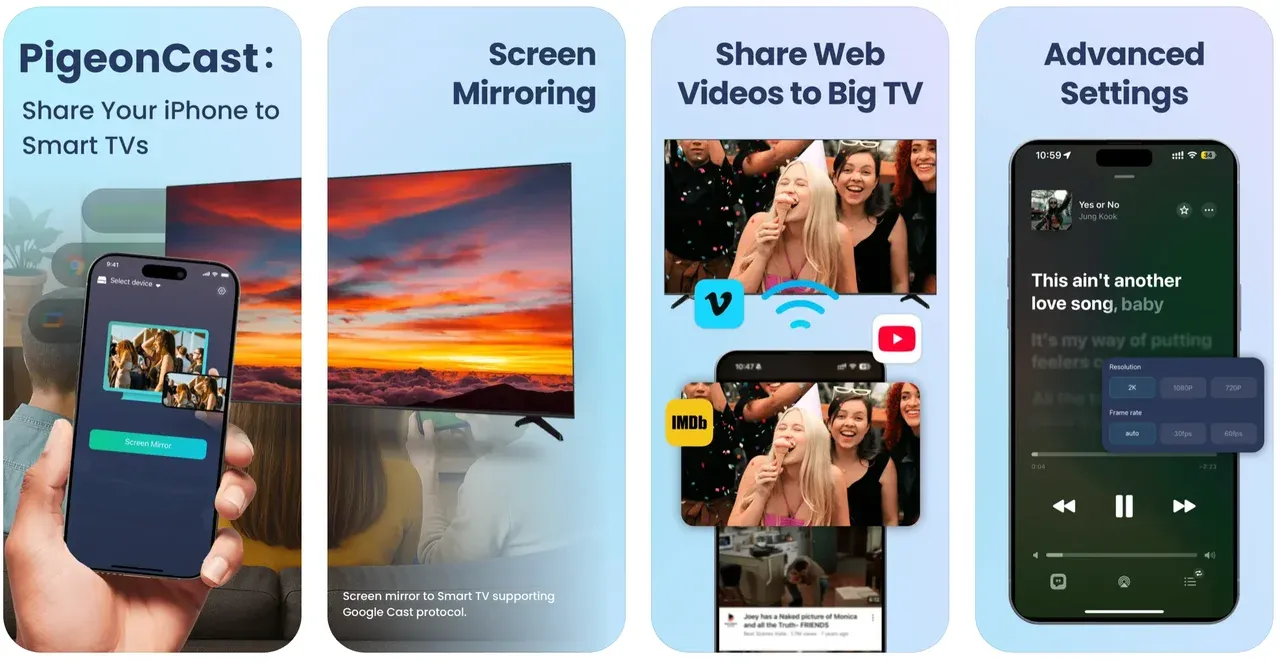
The free mirroring app for iPhone to TV bridges the gap between your iPhone and Chromecast and DLNA-compatible TVs, allowing seamless cross-platform streaming. This benefits from multiple protocol support, including AirPlay, Google Cast, and DLNA.
Key feature:
- Real-time HD mirroring with no noticeable delay
- Compatible with non-AirPlay devices, such as Chromecast
- Works with AirPlay-enabled receivers, Chromecast, Android TV, and DLNA receivers
- No cables, no Apple TV required
- Supports videos, photos, presentations, and even mobile games
- Fully functional free version available
How to use:
Step 1. Download PigeonCast for iPhone from the App Store on your iPhone.

PigeonCast Screen Mirroring

Official Download


Step 2. Connect your iPhone and TV to the same Wi-Fi network.
Step 3. Open PigeonCast, select your TV or casting device.
Step 4. Tap Screen Mirroring, and your iPhone screen will appear on the big screen in seconds.
#2. Miracast: Screen Mirroring TV
Although iPhones don't natively support Miracast, this app from Delta Software provides a smart workaround, enabling iOS devices to connect to TVs. It acts as a bridge between your iPhone and Android TV devices, including Samsung, Sony, LG, and Panasonic, making it a great choice for households that don't own an Apple TV.
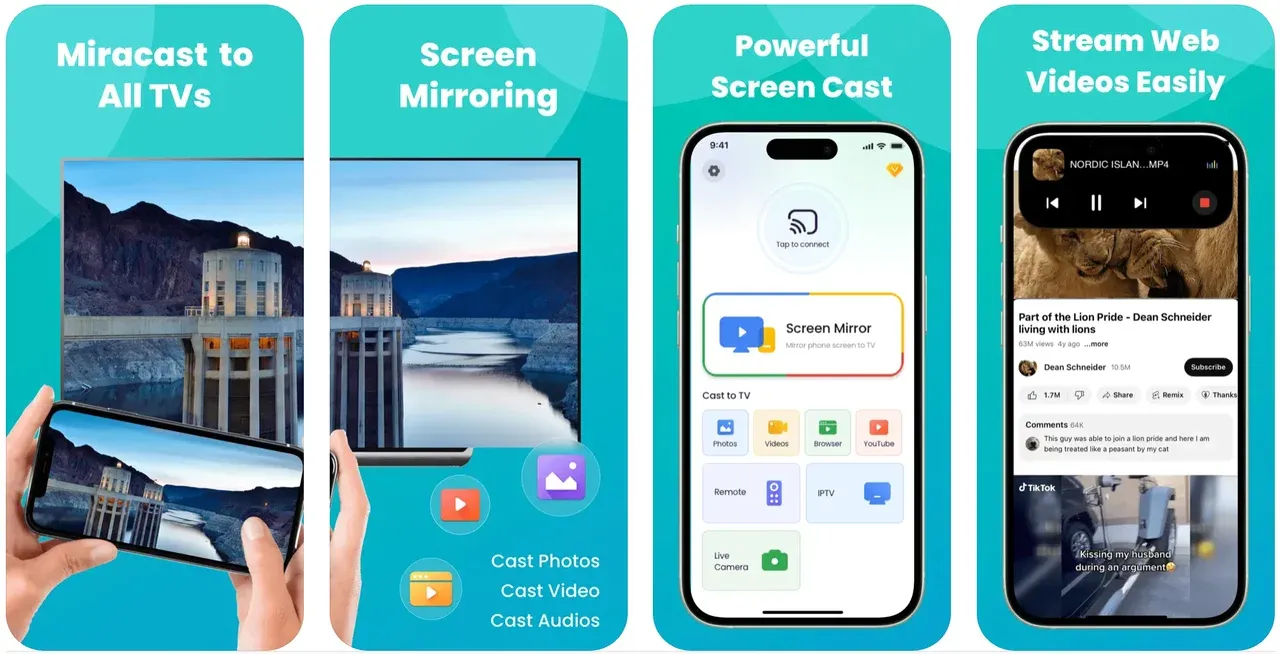
With the free screen mirroring app for iPhone, you don't need to pay for a TV with Apple TV built in to bypass the compatibility issues.
Key features:
- Cast photos, videos, YouTube and Chrome videos
- Compatible with a wide range of smart TVs
- Allows users to stream videos, photos, and presentations wirelessly
- No need for Apple TV — save on hardware costs
- Clean interface and responsive performance
How to use:
Step 1. Download Miracast: Screen Mirroring TV from the App Store.
Step 2. Connect both your iPhone and Miracast-enabled TV to the same Wi-Fi network.
Step 3. Follow the on-screen steps to establish the connection via the helper system.
Step 4. Tap Screen Mirroring to begin sharing your screen.
#3. Screen Mirroring: LetsView
If you're looking for a fully free screen mirroring app for iPhone to TV with no hidden costs, LetsView is one of the strongest contenders. It's cross-platform, meaning it works not just with iPhones, but also Android devices, Windows, Mac, and TVs. That makes it an ideal choice for homes or offices where different devices are used.
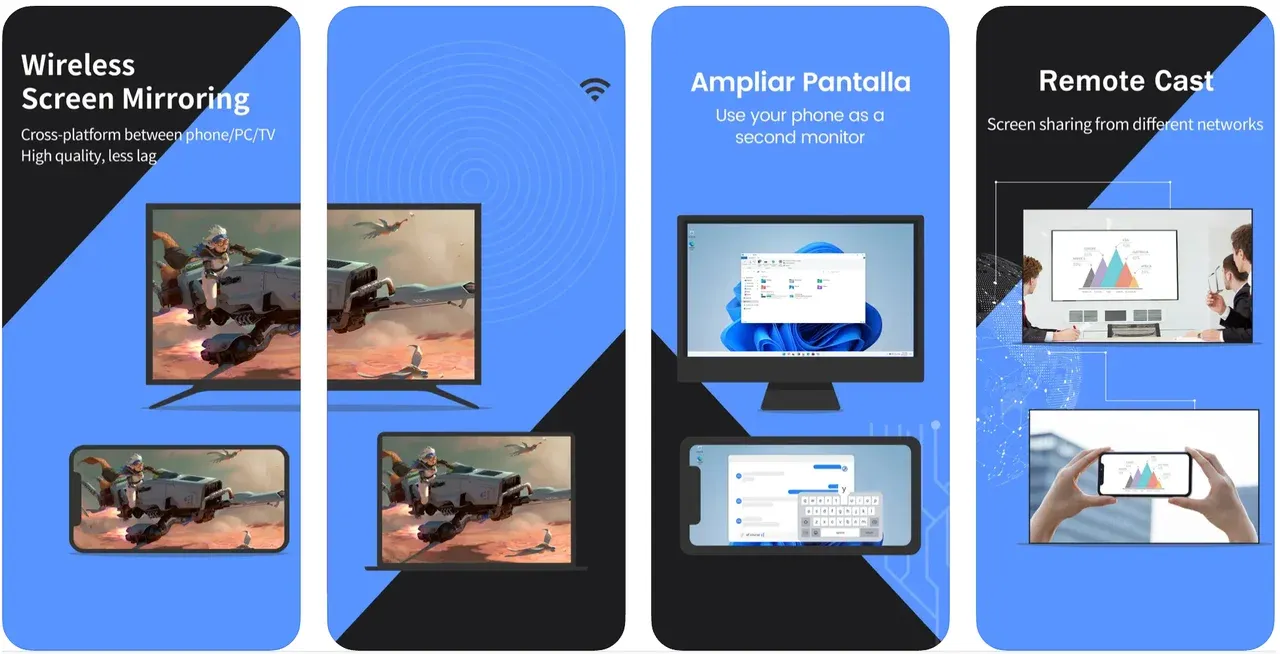 What makes LetsView stand out is its range of practical features, from real-time annotation tools to screen recording, which is great for educators, business users, and anyone who needs more than just basic mirroring.
Key features:
- 100% free with no subscription tiers
- Compatible with smart TVs, Windows PCs, Mac, Android, and iOS
- Built-in screen recording and whiteboard features
- Good for online teaching, remote collaboration, and home entertainment
- Wireless connection using local Wi-Fi
How to use:
Step 1. Download LetsView from the App Store on your iPhone.
Step 2. Ensure your iPhone and TV (or PC) are connected to the same Wi-Fi network.
Step 3. Open LetsView and select the target device from the list.
Step 4. Tap Screen Mirroring and follow the prompts to begin sharing your screen.
#4. AirBeamTV
AirBeamTV is a trusted name when it comes to wireless mirroring from iPhone to smart TVs, especially brands like Samsung, LG, Sony, and Philips. Unlike AirPlay, which only works with Apple-compatible devices, AirBeamTV bypasses the need for Apple TV or HDMI cables.
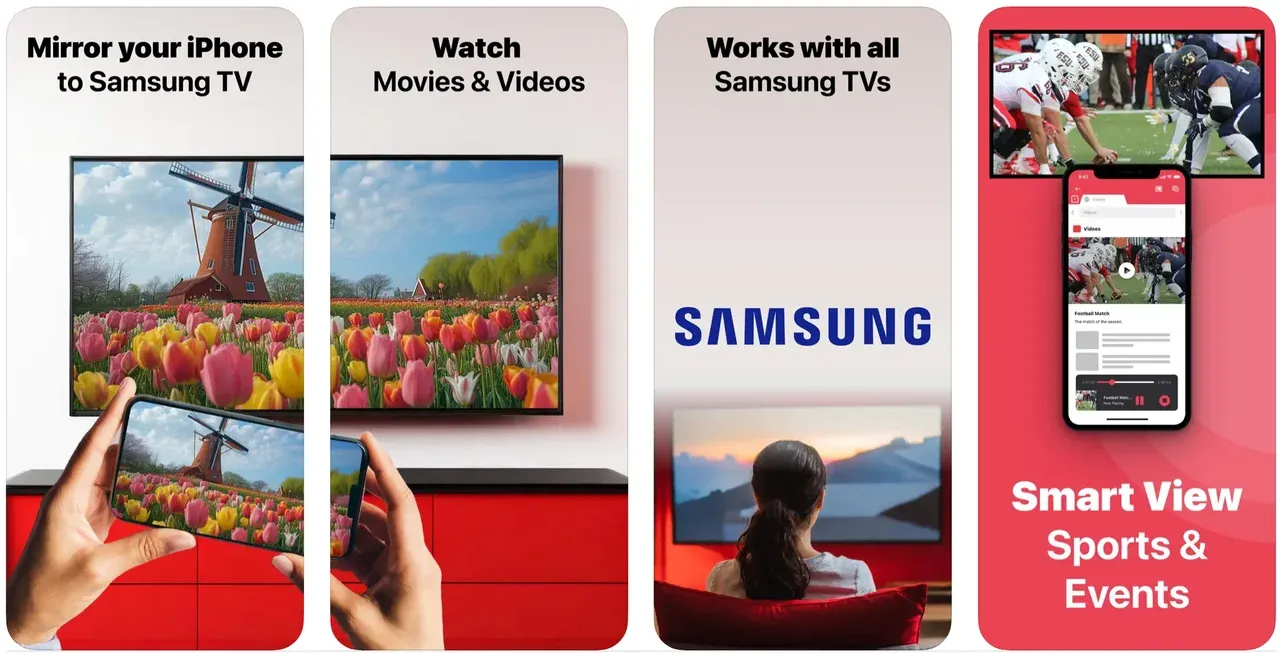
It's designed for users who want a native-looking mirroring experience without needing additional hardware. The app mirrors your iPhone screen directly to your TV with decent video quality and relatively low latency.
Key features:
- No Apple TV or cables required
- Compatible with a wide range of smart TVs
- Easy-to-navigate interface with minimal setup
- Good for streaming apps, browsing, or photo sharing
- Available in both free and paid versions
How to use:
Step 1. Download AirBeamTV for your TV brand from the App Store.
Step 2. Connect your iPhone and TV to the same Wi-Fi network.
Step 3. Launch the app and select your TV.
Step 4. Tap Start Mirroring to begin streaming your iPhone screen.
#5. ApowerMirror
ApowerMirror is a versatile screen mirroring solution for iPhone users who want more interactive control. It's especially popular among educators, gamers, and professionals thanks to its support for screen drawing and device control (when connected via PC).
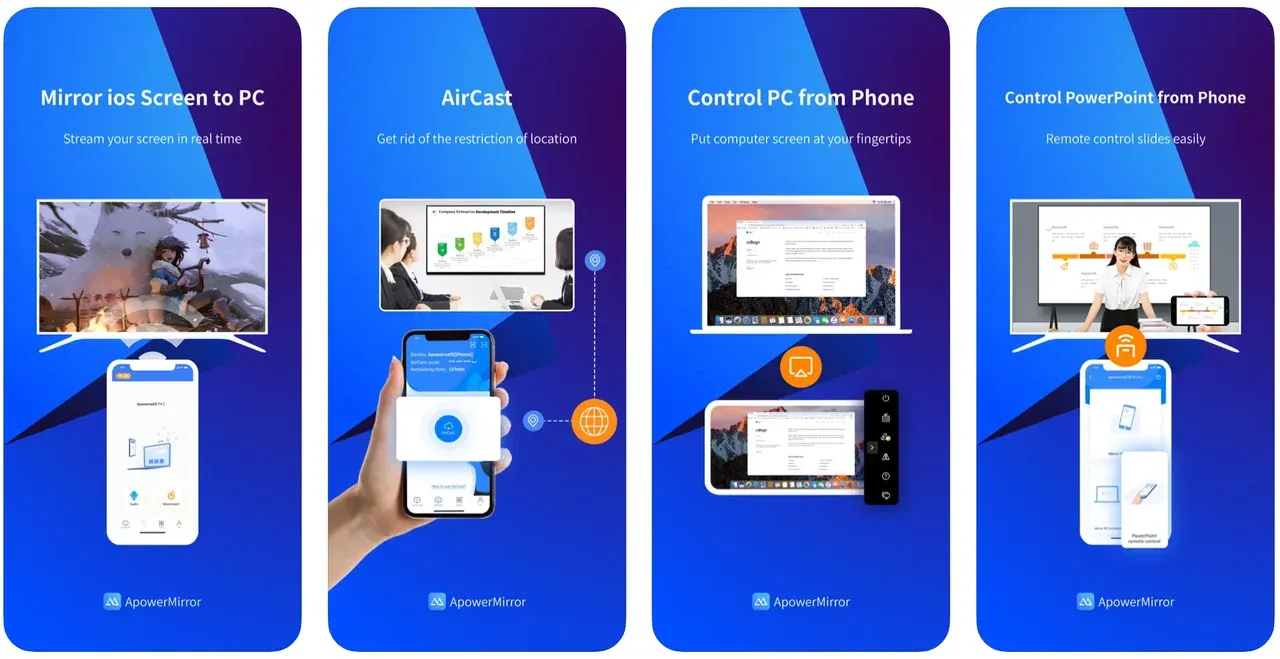
Although the free version includes watermarks and ads, it still delivers stable performance with a polished interface. It also supports casting to PCs, TVs, and even projectors, making it a great choice for both home and work environments.
Key features:
- Multi-platform support: iOS, Android, Windows, Mac, TV
- Touchscreen mirroring and control (when used with PC)
- Built-in screen recording, annotations, and snapshots
- Ideal for remote teaching and business presentations
- Watermark and feature limitations in the free version
How to use:
Step 1. Download ApowerMirror from the App Store.
Step 2. Make sure both your devices are on the same network.
Step 3. Open the app, and select your TV, PC, or receiver.
Step 4. Start screen mirroring or use additional tools like whiteboard or record.
#6. DoCast
If you own a Roku, Fire TV, or Chromecast device, DoCast is one of the most user-friendly mirroring apps tailored for those platforms. It offers a smooth UI and fast connection, making it beginner-friendly and ideal for casual users.
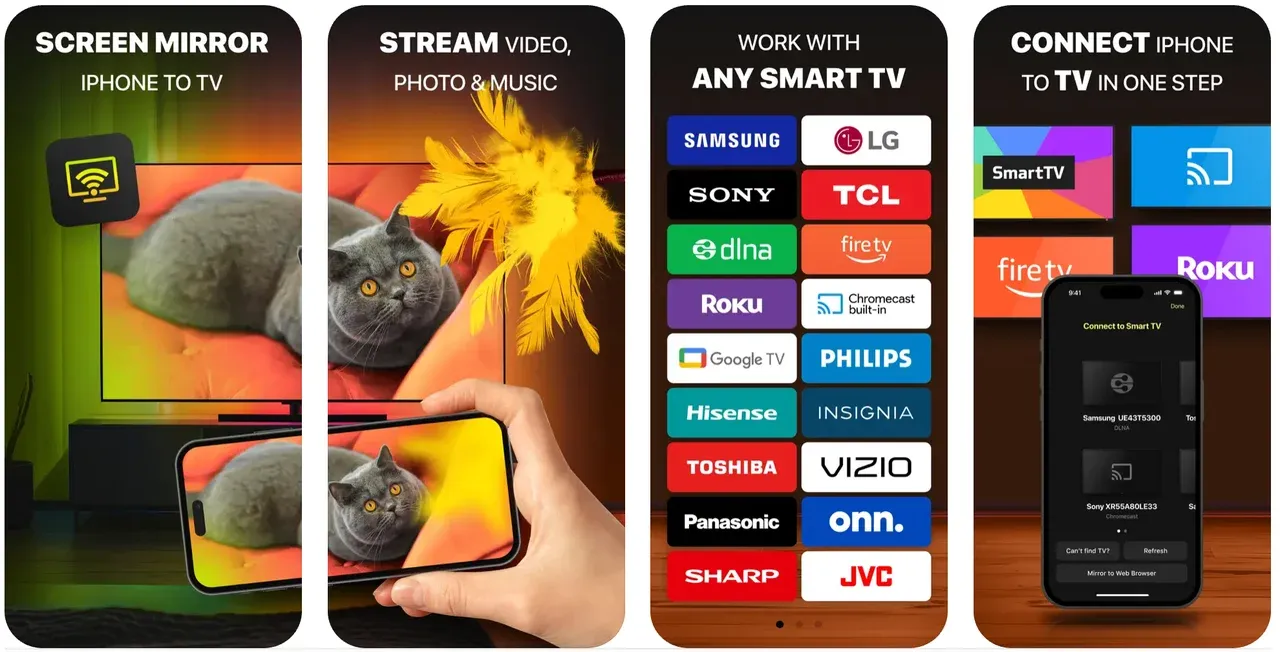
The biggest limitation is the free tier's 15-minute session cap per mirroring, which can be a dealbreaker for longer sessions, though it's fine for short presentations or photo slideshows.
Key features:
- Optimized for Roku, Fire TV, and Chromecast
- Clean interface with fast device detection
- Easy for first-time users
- 15-minute cap per session in the free version
- Good for video, photo casting, or presentations
How to use:
Step 1. Download DoCast from the App Store.
Step 2. Connect your iPhone and TV device to the same Wi-Fi network.
Step 3. Open DoCast and select your streaming device.
Step 4. Tap Mirror Screen to begin.
#7. Replica
Replica is another strong option if you want a streamlined mirroring experience from iPhone to TV. It supports most major smart TV brands and is known for its quick setup and responsive performance. While the free version includes ads and limited resolution, it works well for casual use.
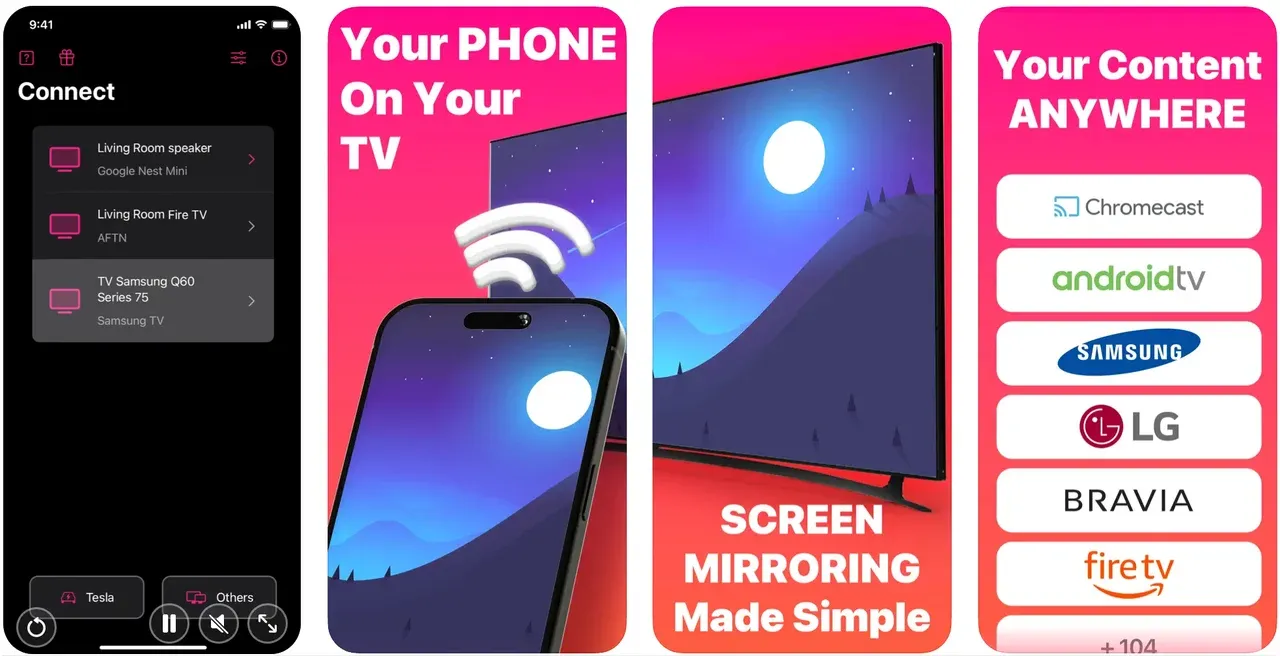
If you're casting videos, browsing, or showing off photos to a group, Replica offers a hassle-free way to get your screen onto the big screen in under a minute.
Tips & Troubleshooting for iPhone Screen Mirroring
Even if you have a quality-mirroring app, you may encounter iPhone mirroring not working from time to time, including connectivity and performance trouble. Here are some functional tips and suggested troubleshooting
Best Practices for iPhone Screen Mirroring
- Use the Same Wi-Fi Network: Make sure your iPhone and your television (or whatever receiving device) are using the same local Wi-Fi network. Most apps depend on this to find and connect devices.
- Restart Your Devices: If the app can't find your TV, try restarting your iPhone or the receiving device. In many cases, this does the trick, as it resets how the app advances the connection.
- Disable VPN**:** VPNs can potentially block communication from discovering each other on local networks. Although unlikely, turn off any VPN when mirroring.
- Allow Local Network Access: When using the app for the first time, ask permission for "Local Network." Without this, the app will not be able to see any devices within local traffic limits.
- Prefer 5GHz Wi-Fi for Better Performance: If your router is dual-band, make sure your iPhone and TV are using the 5GHz band, as it provides better and more stable streaming results than 2.4 GHz.
Common Issues for iPhone Screen Mirroring
- TV Not Showing Up in the App: Ensure your TV can support the protocol you selected (AirPlay, DLNA, Google Cast, etc.). Also, make sure the two devices are on the same network and that the app has network permissions.
- Audio Not Mirroring: Some apps only mirror the video when the encoding settings are configured that way. Check the settings in the app, or use an app that supports full audio mirroring, such as PigeonCast.
- Video Lag or Buffering: You can try switching to a 5GHz Wi-Fi connection, limiting other activity on your network, or quitting unused apps on your iPhone.
- Black Screen or App Crash: Make sure the app is updated. If the issue still persists, reinstall the app or check for device compatibility on the official website or App Store page. If your iPhone screen appears with black borders after mirroring, adjusting iPhone screen mirroring to full screen can help the content fit your TV display better.
Wrapping Up
When you're looking to choose the best screen mirroring app for iPhone to TV, it can be very setup-dependent and subjective as to what suits you best. For most users, however, PigeonCast is the best compromise between ease-of-use, cross-platform compatibility, and completely free functionality to make it our top pick.
If, however, you're casting to a specific platform like, say, Roku, Chromecast, or Fire TV, applications like DoCast or AirBeamTV may be better in terms of device-specific integration. If you're an educator or business who wants added tools like annotations and screen-recording, then LetsView or ApowerMirror are good alternatives.
Ultimately, the best screen mirroring app is the app that fits your specific needs, whether that may be no ads, better performance, wider compatibility, additional functionality, etc. The good news for you is that none of these apps costs you anything.
Best Free Mirroring App for iPhone to TV FAQs
Can I mirror my iPhone to a non-AirPlay TV for free?
Absolutely. Apps like PigeonCast, AirBeamTV, and DoCast are specifically designed to mirror your iPhone to TVs that don't support AirPlay, including Chromecast, Roku, Fire TV, and Android TV.
Do I need Apple TV to mirror my iPhone screen?
No. While Apple TV makes it easier to use AirPlay, many third-party apps, like PigeonCast or AirBeamTV, let you mirror your screen to other smart TVs without needing any extra hardware.
Is there a free AirPlay?
AirPlay itself is a built-in feature on iPhones and iPads, so there's no need to pay for it. However, it only works with AirPlay-compatible devices like Apple TV or select smart TVs from brands like LG, Samsung, and Sony. If your TV doesn't support AirPlay, you can use free third-party apps like PigeonCast for Android TV or AirBeamTV to enable AirPlay-like functionality.
Why can't I mirror my iPhone to my smart TV?
There are several possible reasons:
- Your smart TV may not support AirPlay or other required protocols.
- Your iPhone and TV may not be on the same Wi-Fi network.
- The screen mirroring app you're using might not support your TV brand.
- Local network permissions may be disabled on your iPhone.
If you use a Skyworth model, the best way to mirror iPhone to Skyworth TV depends on its AirPlay, Android TV app, Chromecast, or HDMI support.
Is there a free screen mirror app?
Yes, many free screen mirroring apps for iPhone are available. Top free options include:
- PigeonCast – best for AirPlay, Google Cast, and DLNA compatibility
- LetsView – 100% free with no paywall
- DoCast – great for Roku, Fire TV, and Chromecast (with a session limit in the free version)
These apps allow you to mirror your iPhone screen without purchasing hardware or subscriptions.
What is the app that casts iPhone to TV?
There are several apps designed specifically to cast your iPhone to a TV. Some of the most popular ones include:
- PigeonCast – supports AirPlay, Chromecast, Android TV, and DLNA
- AirBeamTV – perfect for casting to LG, Samsung, Sony, and other smart TVs
- DoCast – tailored for Roku, Fire TV, and Chromecast
- ApowerMirror – includes extra tools like screen recording and whiteboard
Can I use a screen mirroring app to connect my iPhone to a Sceptre TV?
It depends on your Sceptre TV model. Android-based models may support a receiver app, while compatible Roku models can use AirPlay directly. Non-smart models require an external streaming device or HDMI adapter instead. Check the available ways to screen mirror your iPhone to a Sceptre TV before choosing an app.
Mia Clarke is a technology editor specializing in screen mirroring and casting solutions across multiple platforms. Mia provides clear, practical guides and in-depth insights to help users seamlessly connect their devices. Passionate about enhancing digital experiences, Mia is dedicated to keeping readers updated on the latest trends and tools in cross-platform screen sharing. Whether you’re looking to mirror your smartphone, laptop, or smart TV, Mia’s content delivers reliable, user-friendly advice to simplify your tech setup.