
Have you ever wanted to share photos with the family, stream a video service not available on your TV, or give a presentation from your iPhone on a much larger screen? Screen mirroring your iPhone to your Philips TV makes this possible. While the process isn't always a single-click affair due to varying TV models and software, several reliable methods exist to make it happen. Let's read on to check how to screen mirror iPhone to Philips TV in 3 simple methods below.
How to Screen Mirror on Philips TV with iPhone
Screen mirroring from your iPhone to a Philips TV is quick and easy, and it offers a seamless way to share content directly on your TV. Philips smart TVs support several screen mirroring methods, including wireless options like AirPlay, third-party apps, and even wired connections. Since the process may vary slightly depending on your TV model, it's best to follow the guide that matches your specific setup.
Way 1. Use AirPlay
How to screen mirror on iPhone to Philips TV? If your Philips TV supports AirPlay 2, this is one of the fastest and easiest ways to mirror your screen. However, not all Philips TVs support AirPlay 2. This feature is typically available on newer models running Google TV or Android TV, usually from 2019 onwards. Be sure to check if your TV is AirPlay 2-compatible for a smooth connection.
Step 1. Ensure your iPhone and Philips TV are on the same WiFi network.
Step 2. On your Philips TV, go to Settings > Network & Internet > AirPlay Settings and ensure AirPlay is enabled.
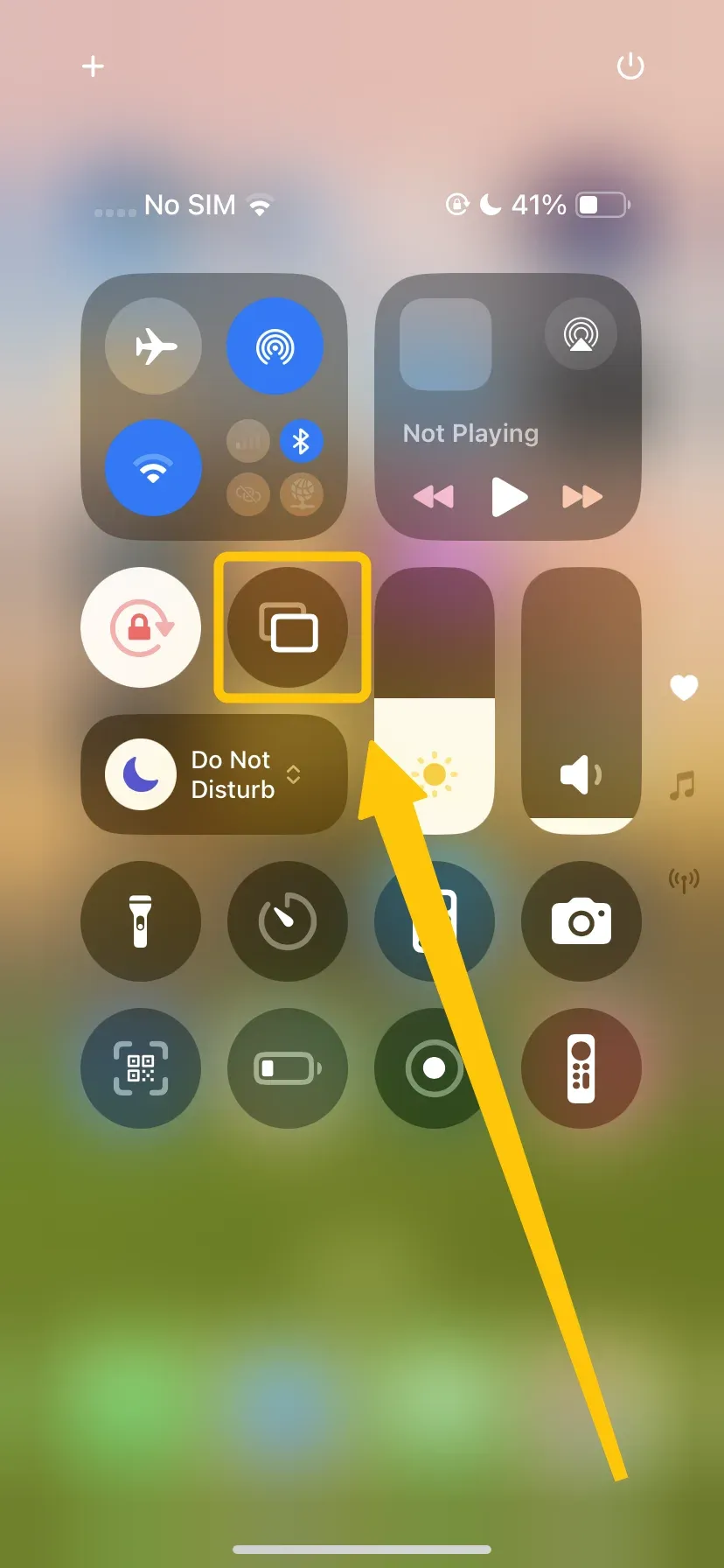
Step 3. On your iPhone, open Control Center > Screen Mirroring to choose your Philips TV from the available list.
Step 4. If prompted, enter the PIN code shown on your television screen.
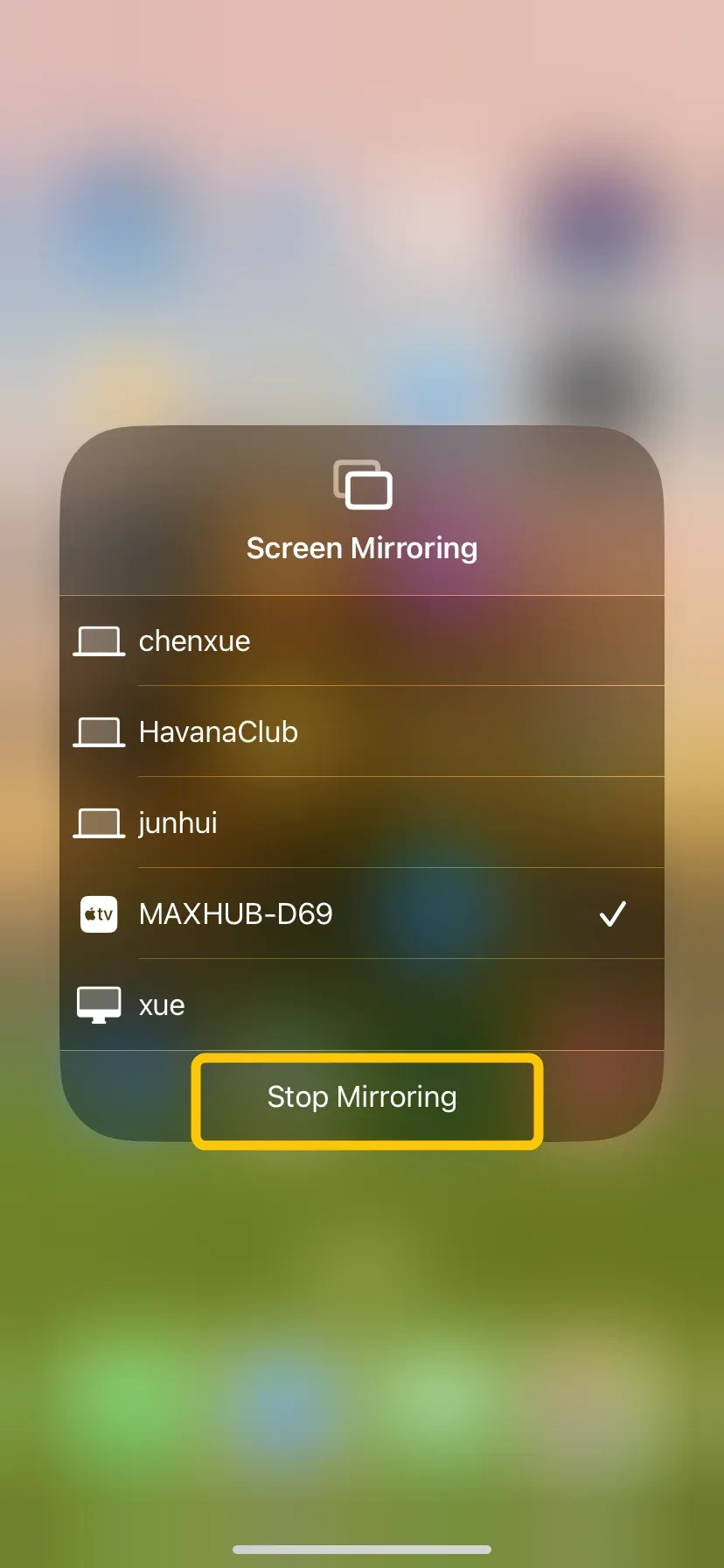
Step 5. Your iPhone screen will now be mirrored on your Philips TV. To stop, open the Control Center again, tap Screen Mirroring, and select Stop Mirroring.
Way 2. Use PigeonCast
If your Philips TV is an older model or runs Saphi OS and doesn't support AirPlay, how to connect iPhone to Phillips TV? Simply use a free mirroring app for iPhone to TV like PigeonCast, which works smoothly on iOS, Android, Windows, Mac, and most TVs. No cables or adapters are needed, and it can stream content in up to 4K resolution.
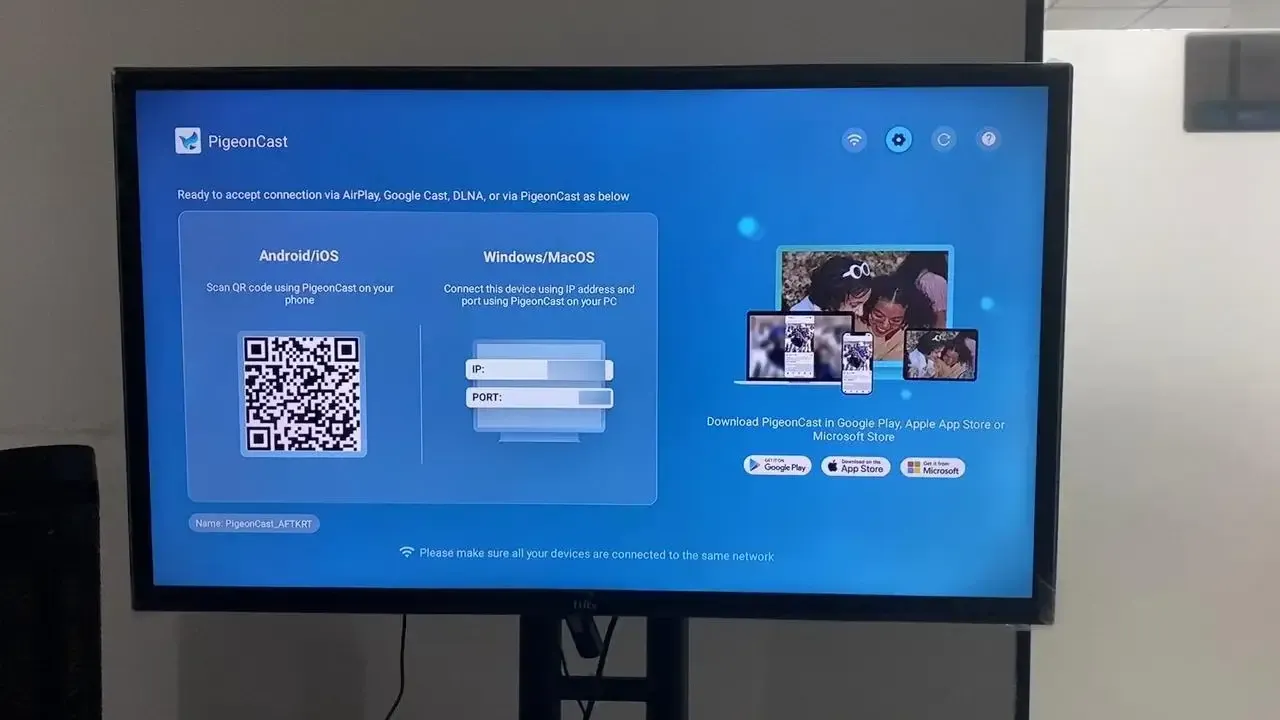
Step 1. Connect your iPhone and Philips TV to the same wireless network.


Overall Rating:



Step 2. Install PigeonCast on your iPhone from the App Store and on the Philips from the corresponding app store, then launch it.
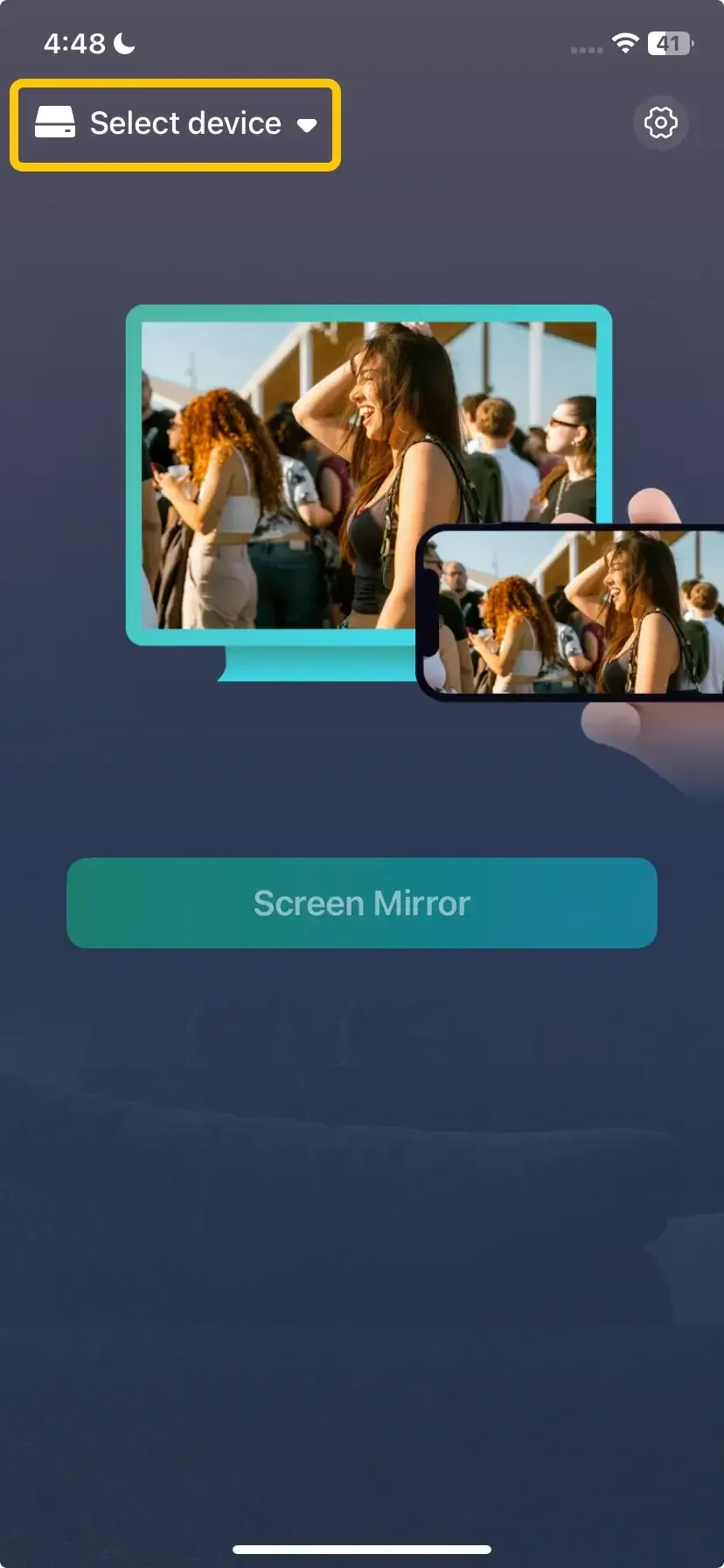
Step 3. On the iPhone, tap Select device to choose your Philips TV from the device list. Or you can scan the QR code appeared on the television screen to build the connection.
Step 4. Type the onscreen PIN code to finish the pairing process.
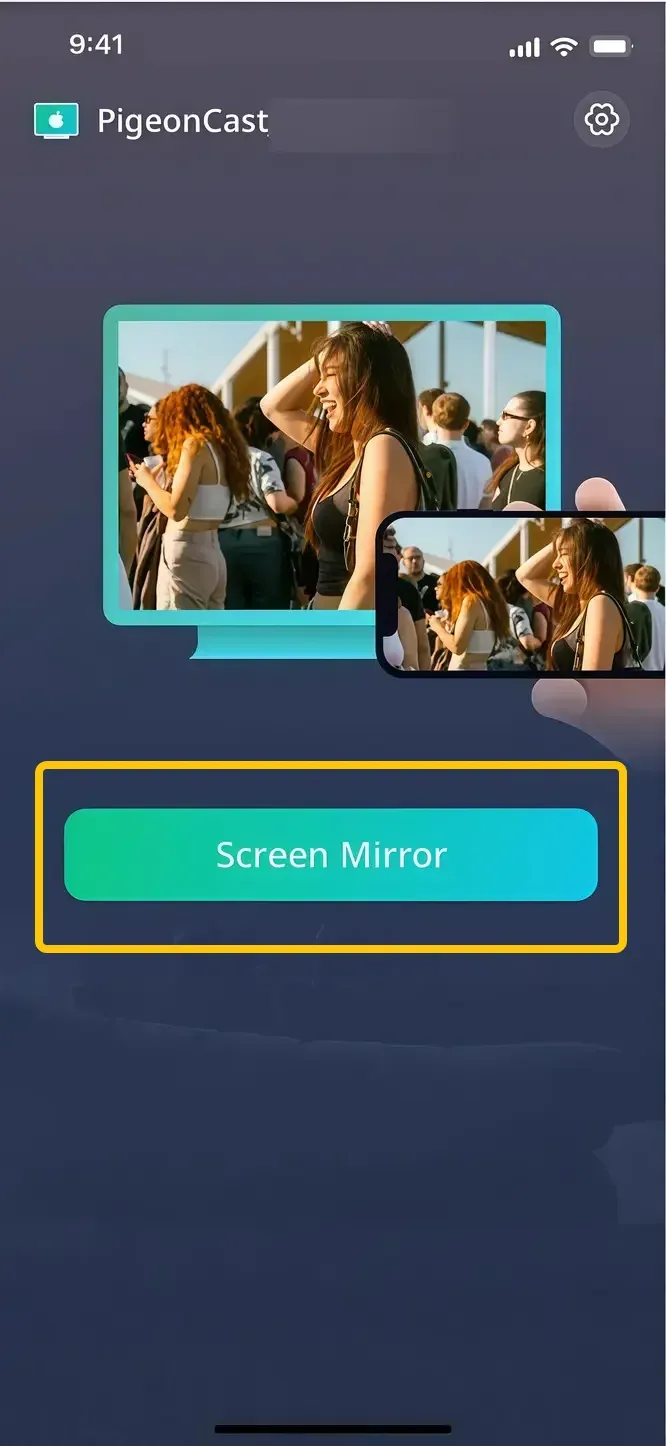
Step 5. When you finish the connection, you can tap Screen Mirror to start the mirroring activities on the Philips TV.
Way 3. Use an HDMI Cable
How to screen mirror from iPhone to Philips TV? For a more reliable and stable connection, you can use an HDMI cable to physically connect your iPhone to your Philips TV. This wired method is perfect for users who experience lag with wireless solutions or don't have Wi-Fi available.
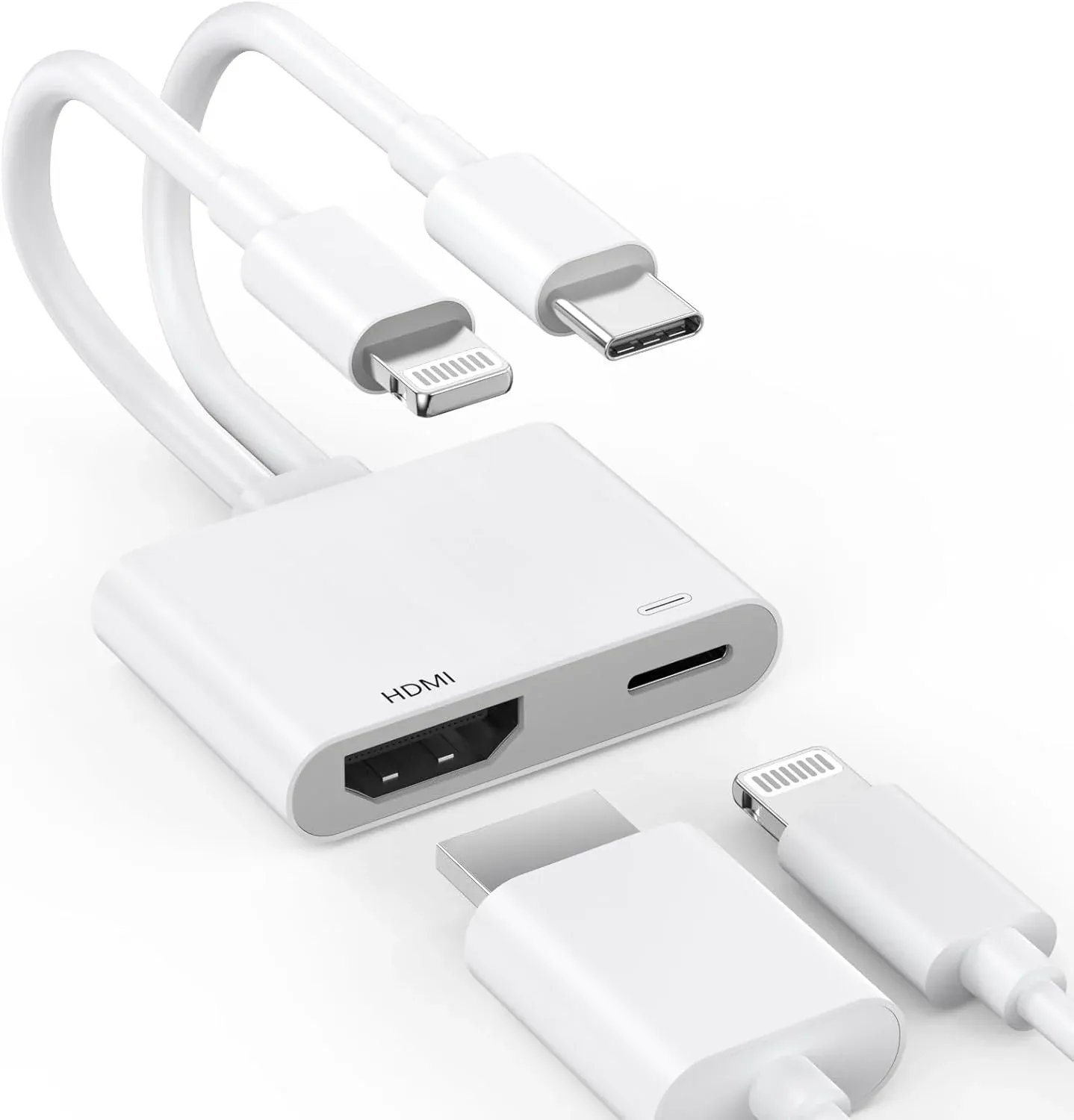
Step 1. Purchase Apple's Lightning to Digital AV Adapter (for older iPhones) or USB-C to Digital AV Adapter (for iPhone 15 and newer).
Step 2. Plug the adapter into your iPhone's charging port, and connect an HDMI cable from the adapter to an available HDMI port on your Philips TV.
Step 3. Use your Philips TV remote, change the input/source to the corresponding HDMI port you used (e.g., HDMI 1).
Step 4. Your iPhone's screen will instantly appear on the TV. The adapter also allows for simultaneous charging.
Final Verdict
How to screen mirror iPhone to Philips Smart TV? Whether you're using AirPlay for newer models, a free app like PigeonCast for older ones, or a wired HDMI connection for a more stable setup, there are several methods available to suit your needs. By following the steps outlined for each method, you can easily mirror your iPhone to your Philips TV and enjoy a seamless viewing experience.
How to Screen Mirror iPhone to Philips TV FAQ
Can you AirPlay on Philips?
Yes, but only on specific models. Philips TVs that run on Google TV or Android TV and were manufactured from approximately 2019 onwards often have built-in AirPlay 2 support. Check your TV's specifications or look for the AirPlay icon in its settings menu to confirm.
How to screen mirror iPhone to Philips TV without WiFi?
The only consistent method without WiFi is to use a wired HDMI connection with Apple's Digital AV Adapter. This creates a direct physical link between your iPhone and the TV, requiring no network at all.
Why won't my Philips TV connect to my phone?
If your Philips TV won't connect to your phone, here are some possible reasons:
- Different Wi-Fi Networks
- AirPlay Not Enabled
- Outdated Software
- Bluetooth or VPN Interference
- Compatibility Issues
- Network Interference
- Hardware Malfunction
How to screen mirror iPhone to Philips Google TV?
To screen mirror your iPhone to a Philips Google TV, follow these steps:
- Ensure both devices are on the same Wi-Fi network.
- Enable AirPlay on your Philips Google TV from Settings > Network & Internet > AirPlay Settings and turn on AirPlay.
- On your iPhone, open the Control Center > Screen Mirroring, then select your Philips TV from the list of available devices.
- If prompted, enter the PIN shown on your TV screen to complete the connection.
How to screen mirror iPhone to Philips Android TV?
Similar to Google TV, many Philips Android TVs support AirPlay 2. Enable it in the TV's settings, usually under Device Preferences or Network & Internet. If AirPlay is not available, you can use the PigeonCast app from the Google Play Store on your TV as a reliable alternative.
Clara Rossi is an experienced technology editor and a seasoned expert in screen mirroring and casting technologies. With a keen eye for detail and a deep understanding of how to seamlessly connect devices, Clara excels at optimizing user experiences for effortless sharing and streaming. Whether you're seeking quick fixes or advanced tips, her expertise and responsiveness ensure that every query is met with a well-informed and efficient solution.