

AirPlay has become one of the easiest ways to stream content from your Apple devices to a larger screen. Whether it's movies, music, photos, or even your entire screen, AirPlay allows a smooth connection between your iPhone, iPad, or Mac and your TV. If you're looking for a list of AirPlay compatible TVs or how to get it working, this guide will cover everything step by step.
Quick Answer to AirPlay-Compatible TV
An AirPlay-compatible TV is a smart TV that supports Apple's AirPlay 2 technology, allowing you to stream videos, photos, music, and mirror your screen directly from an iPhone, iPad, or Mac without connecting cables.
Many modern TVs from brands including Samsung, LG, Sony, Vizio, Roku TV, TCL, Hisense, and Philips offer AirPlay 2 support. However, compatibility depends on the specific model and manufacturing year, so not every TV from these brands supports AirPlay.
If your TV isn't AirPlay-compatible, you can still use AirPlay by connecting an Apple TV streaming device or using an AirPlay receiver solution such as PigeonCast.
At a Glance:
| Situation | Recommended Solution |
|---|---|
| Your TV supports AirPlay 2 | Stream directly from your iPhone, iPad, or Mac |
| Your TV doesn't support AirPlay | Add an Apple TV streaming device |
| You want AirPlay on a non-Apple TV | Use an AirPlay receiver such as PigeonCast |
| You want to mirror your Mac or iPhone screen | Use AirPlay screen mirroring |
| You need the most stable connection | Connect via HDMI |
In the sections below, you'll find a complete list of AirPlay-compatible TV brands and models, along with alternative options if your TV doesn't support AirPlay natively.
What Is AirPlay on TV
AirPlay is Apple's proprietary wireless streaming protocol. It allows you to mirror your iPhone, iPad, or Mac screen directly to a compatible TV or stream videos, music, and photos. Unlike traditional casting, AirPlay keeps the content in sync, meaning what you see on your device is mirrored accurately on your TV with minimal lag.
AirPlay works over Wi-Fi, so both your device and your TV need to be connected to the same network. The latest version, AirPlay 2, also supports multi-room audio and more stable connections, making it perfect for streaming in modern smart homes.
Which TV Is AirPlay Compatible
Not every TV comes with built-in AirPlay support. Most modern smart TVs from brands like Apple TV, Samsung, LG, Sony, and Vizio include AirPlay 2 functionality. If your TV was manufactured in the last few years, there's a good chance it's compatible.
- Apple
- Apple TV 4K, Apple TV HD
- Samsung
- Crystal UHD Series 6, 7, 8 (2018-2023)
- QLED 4K Q6-Q9 Series (2018-2023)
- Neo QLED 4K/8K Series (2021–2023)
- MICROLED Series (2023)
- The Frame, Serif, Sero, Premiere Series (2018–2023)
- Smart Monitor M5, M7, M8 Series (2021–2023)
- Odyssey Gaming Monitors G6–G9, Ark Series (2022–2023)
- LG
- OLED 4K & 8K Series (2018–2023)
- NanoCell 4K & 8K Series (2018–2023)
- QNED 4K & 8K Series (2021–2023)
- UHD & FHD Series (2018–2023)
- Life Style, Micro LED, Cine, and other premium models (2021–2023)
- Sony
- A75K, A75WL, A80K, A80L, A8H, A90K, A95K/L Series (2020–2023)
- A9F, A9G, A9S Series (2018–2020)
- X72K–X95K/L Series (2019–2023)
- Z8H, Z9F/G/J/K Series (2018–2021)
- W880K/W830K Series (2022)
- Vizio
- D-Series (2018–2020)
- E-Series UHD (2016–2018)
- M-Series & M-Series Quantum (2016–2023)
- P-Series, P-Series Quantum/X (2016–2022)
- V-Series (2018–2023)
- OLED (2020–2022)
- TCL
- C735, C835, C845 Series
- Q750G, QM850G Series
- Roku TV 3–8 Series, XL Collection
- Roku TV & Roku Devices
- AIWA, AOC, ATVIO, Coocaa, Daewoo, Element, FFalcon, Funai, Hitachi, HKPro, InFocus, onn., Philco, Philips, Polaroid, RCA, Sansui, Sanyo, Semp, Sharp, Westinghouse Roku TVs
- Roku 3, Express, Express+, Express 4K, Express 4K+, Premiere, Premiere+, Streambar, Streambar Pro, Streaming Stick & 4K variants, Ultra, Ultra LT
- Amazon Fire TV
- Fire TV 4-Series (2021)
- Fire TV Omni-Series (2021)
- Fire TV Smart TV 2K HD / 4K UHD
- Funai F140/F340 Series (2022)
- Insignia F30, 4K UHD (2020–2020)
- JVC 4K Fire TV with Freeview Play (2021)
- Ok. Fire TV (2021)
- Onida HD Ready/Full HD Fire TV (2022)
- Sharp Fire TV Edition Smart TV (2021)
- Hisense
- UHD Series: A4–A9, C1, E7, FHD A4, L5/L9, PL1, PX2, U6–U9, UX, UXK (2022–2023)
- Roku TV & 4K UHD (2022)
- Other Brands
- Hitachi, Leica Cine 1 (2023)
- Magnavox, Metz, Polaroid, Westinghouse Roku TVs
- REGZA Series: M550L, X8900L, X9900L, Z570–Z875L Series (2022)
- Toshiba 4K UHD / Fire TV / Series C350, E330, M550, V35, X9900 (2020–2023)
- Xiaomi 4K UHD (2022)
There is a series of questions, like "is Samsung TV AirPlay compatible", "is Hisense TV AirPlay compatible", "is Roku TV AirPlay compatible", and "is Fire TV AirPlay compatible". To figure out your question, "Is my TV AirPlay compatible?", you can check the above list of AirPlay 2-compatible smart TVs (by brand)or try the three alternative methods:
- Method 1: Look for AirPlay settings in your TV menu, usually under Network or General Settings.
- Method 2: Check your TV's manual or specification online and look for words such as "AirPlay 2 compatible" or "supports Apple AirPlay".
- Method 3. Use your Apple device: On your iPhone or iPad, swipe down to open the Control Center and tap Screen Mirroring. If your TV appears in the list, it's AirPlay-compatible.
How to Turn On AirPlay on TV
If your TV is on the list, great. You have an AirPlay compatible TV, and you're all set to start streaming with AirPlay. If it's not listed or is an older model, don't worry; you can still get AirPlay working by using a streaming device like Apple TV or a Roku Stick, or by installing a compatible AirPlay receiver app on your TV.
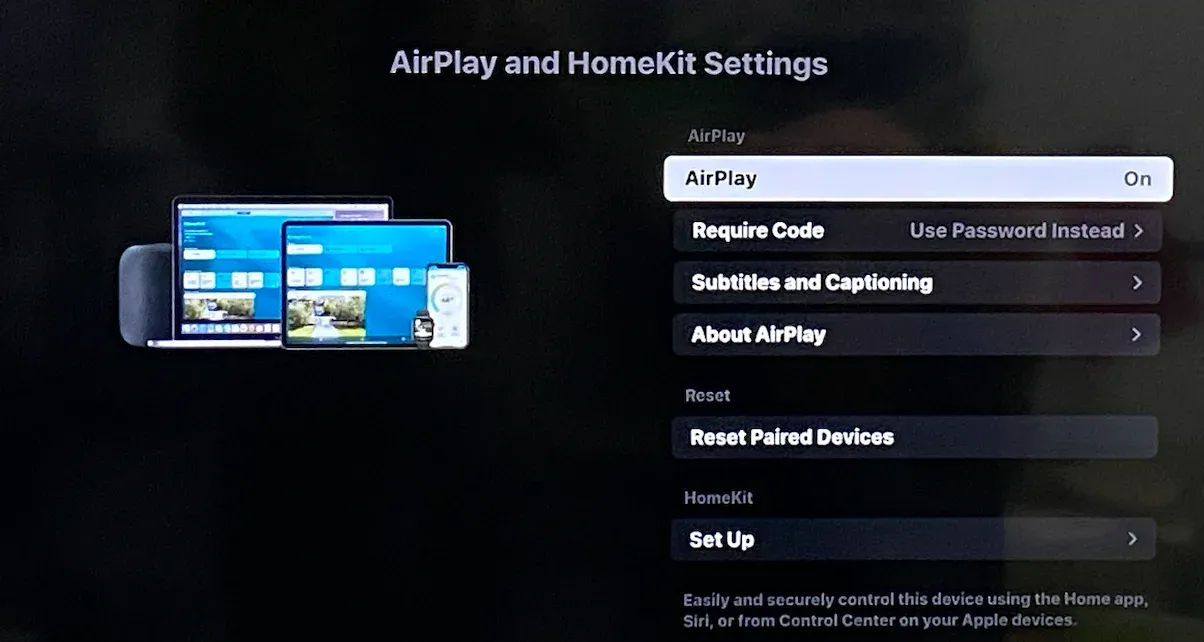
Method 1. Activate AirPlay on the TV's Settings Menu
On most AirPlay compatible TV models, the AirPlay feature is enabled by default, and you generally don't need to turn it on manually.
Step 1. Go to your TV Settings.
Step 2. Look for AirPlay and HomeKit or Network & AirPlay.
Step 3. Turn AirPlay on.
Step 4. Set permissions for first-time connections (you can choose Require Code or Anyone on the Same Network).
Once activated, your TV is ready to receive content from Apple devices.
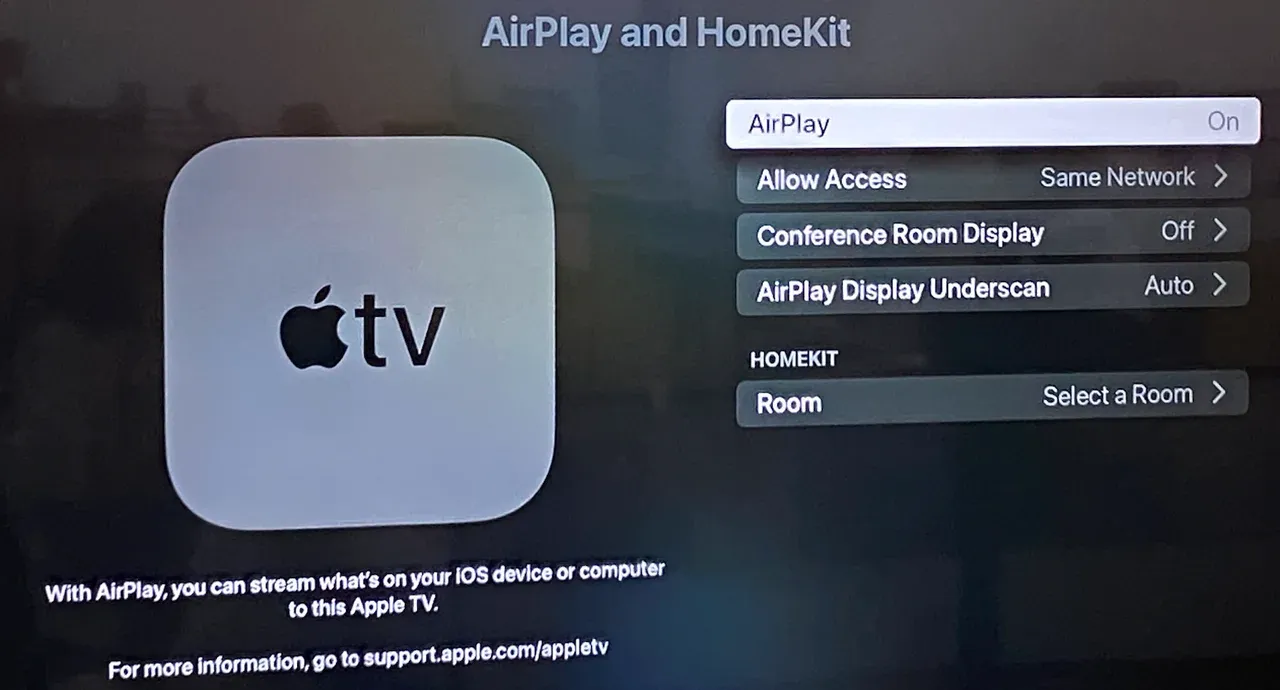
Method 2. Connect Apple TV or Roku Stick to the TV
You can connect a streaming player that has AirPlay built in (like Apple TV or Roku Stick) to your TV. This approach is especially useful if your TV is older or lacks smart functionality.
Step 1. Plug your streaming device into an HDMI port on your TV and the power source.
Step 2. Follow the onscreen instructions or product manual to connect the device to Wi-Fi.
Step 3. Enable AirPlay in the device's settings.
Method 3. Set Up an AirPlay Receiver App on the TV
If your smart TV doesn't have native AirPlay support, you can try installing an AirPlay receiver app like PigeonCast or AirMirror on your TV. See how to set up an AirPlay-compatible TV in this way:
Step 1. Download and install the PigeonCast for Android TV app on your TV.

PigeonCast Screen Mirroring

Official Download


Step 2. Launch the app on your TV, and the device can function just like a native AirPlay-compatible device.
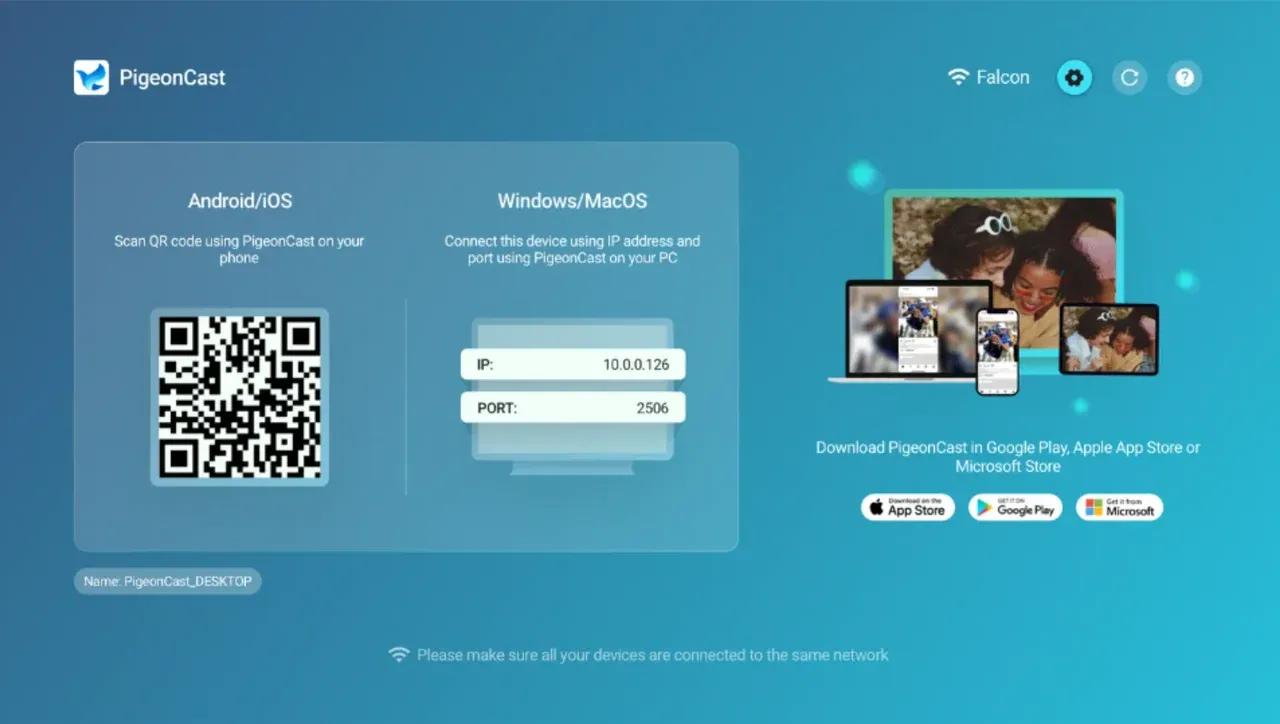
Step 3. (Optional) Go to the app's Settings menu and rename your TV.
How to AirPlay to TV from iPhone or Mac
Once AirPlay is enabled on your TV or streaming device, AirPlay to TV is straightforward. But there is a premise that your devices should be connected to the same Wi-Fi network; otherwise, your Apple device won't detect your Vizio TV or streaming device.
- AirPlay to TV from iPhone or iPad
Step 1. Open Control Center on iPhone or iPad.
Step 2. Tap the Screen Mirroring icon (the overlapping rectangles).
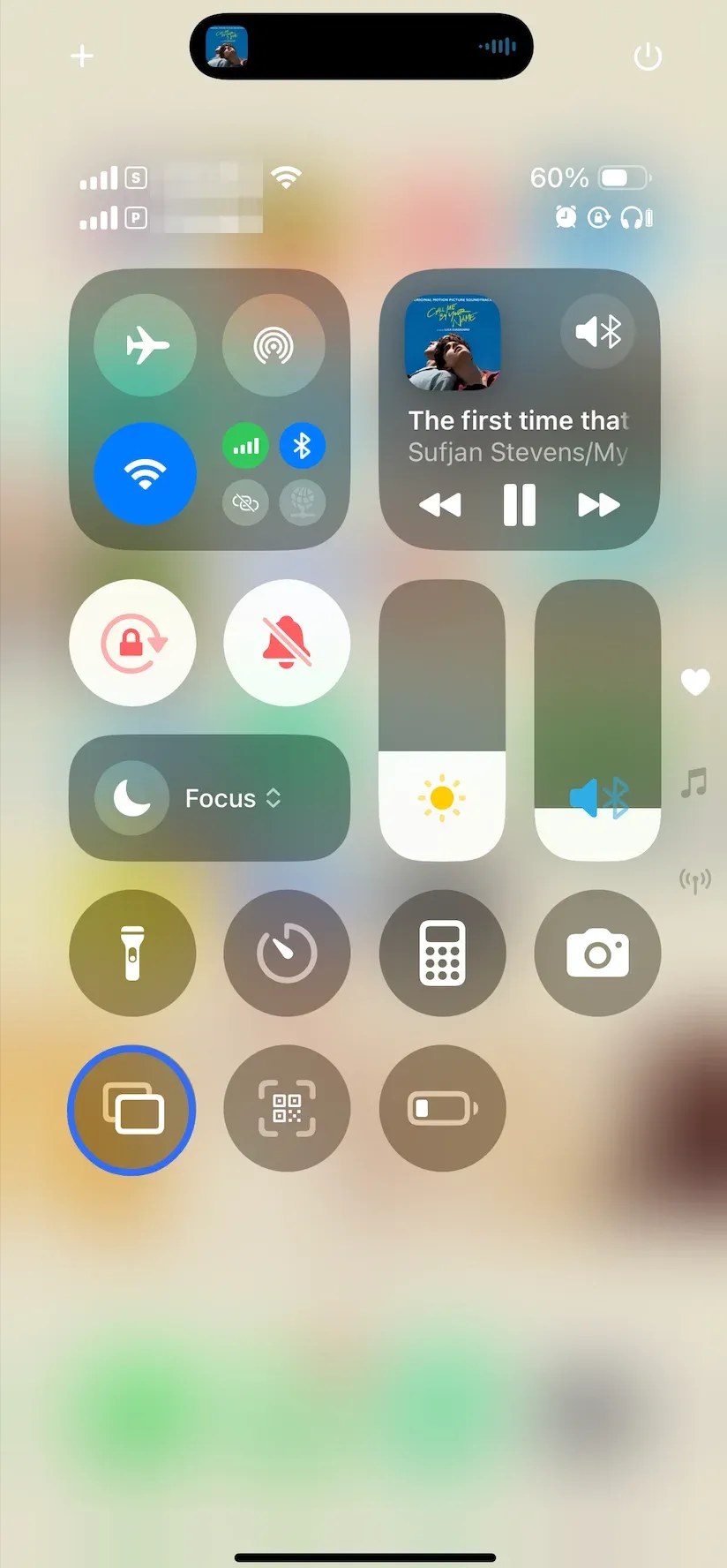
Step 3. Choose your Vizio TV or streaming device from the list of available devices.
Step 4. Enter the passcode that is displayed on the TV screen on your iPhone or iPad.
Step 5. Once connected, your iPhone or iPad screen will appear on the TV screen immediately.
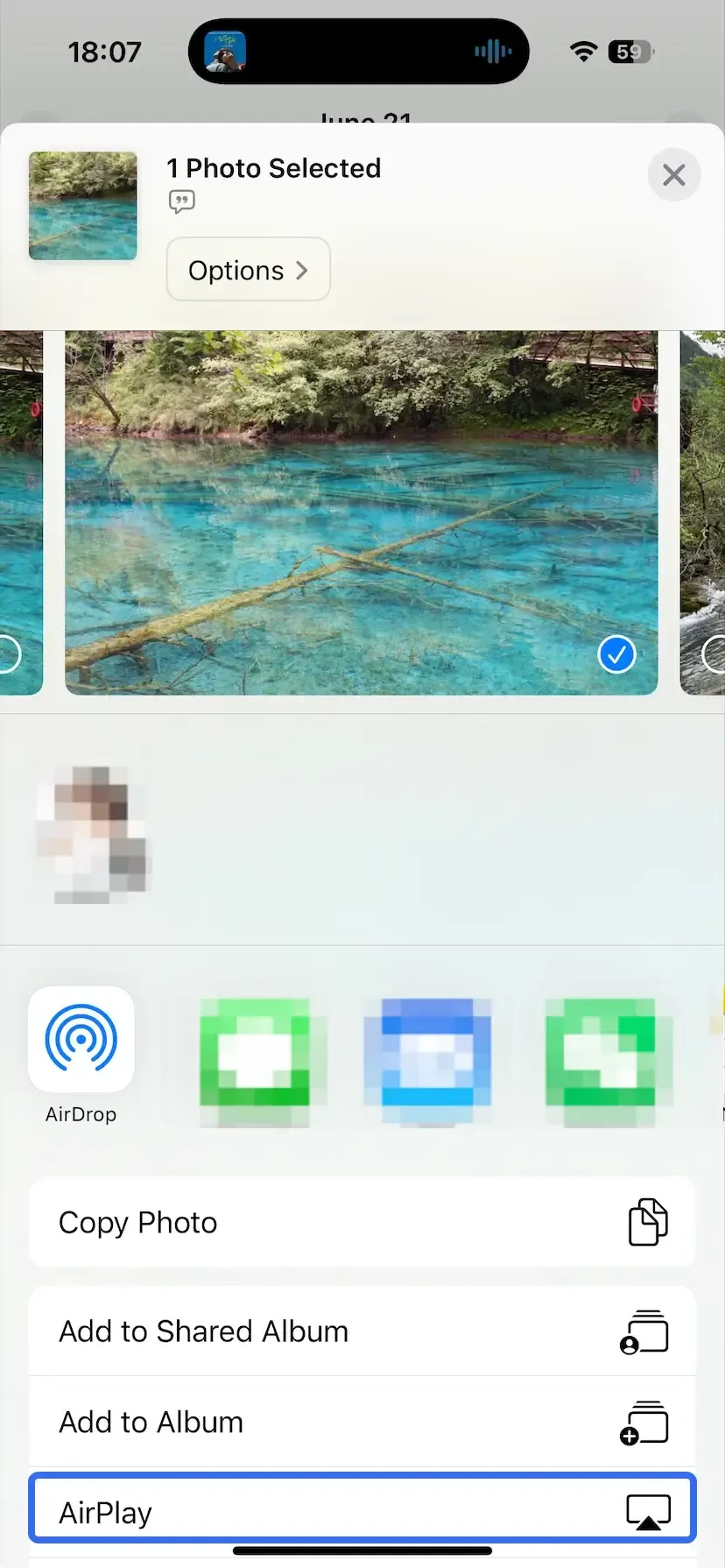
Alternatively, open an app like Photos or Apple TV, tap the AirPlay icon, and choose your TV. Then, enjoy the selected content on the large screen.
Step 1. Click the AirPlay icon in the menu bar on old Macs or on new Macs, click the Control Center icon and choose Screen Mirroring.
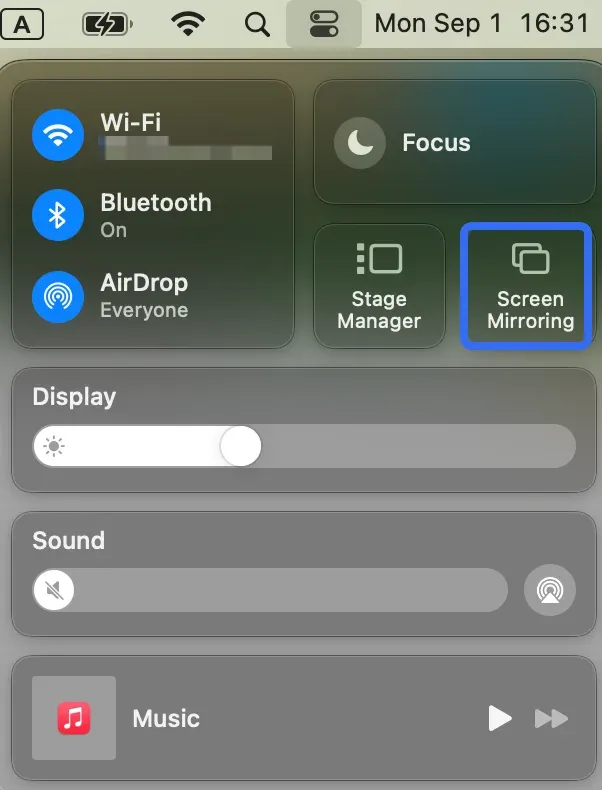
Step 2. Choose your TV or streaming device from the list of available devices.
Step 3. Enable the passcode on your MacBook to allow this connection.
Step 4. Choose to mirror your screen or extend your Mac display.
Final Thoughts
AirPlay is an incredibly convenient way to enjoy your Apple content on a larger screen. Whether you have an AirPlay 2 compatible TV or you use a streaming device or a third-party app (like PigeonCast), the setup is relatively simple. Once configured, you can effortlessly mirror your device, stream videos, or play music without tangled cables or complicated setups.
AirPlay Compatible TV FAQs
Can I use AirPlay on any smart TV?
No, not every smart TV supports AirPlay. AirPlay is only available on compatible models that have Apple's AirPlay 2 technology built in, typically newer TVs from brands like Samsung, LG, Sony, Vizio, Roku TV, and Hisense. If your TV doesn't support AirPlay natively, you can add compatibility using an Apple TV device or an AirPlay receiver app.
What does AirPlay compatible mean?
An AirPlay-compatible TV can receive content wirelessly from Apple devices such as an iPhone, iPad, or Mac. This allows you to stream videos, display photos, play music, or mirror your screen directly to the TV without additional cables. As long as both devices are connected to the same network, content can be shared with just a few taps.
How do I add AirPlay to my TV?
You can add AirPlay support by connecting an Apple TV streaming device or installing an AirPlay receiver app if your TV's operating system supports one. These solutions allow older or unsupported TVs to receive AirPlay streams from Apple devices. The setup process is usually straightforward and only takes a few minutes to complete.
Why can't I connect to my TV using AirPlay?
If AirPlay isn't working, the most common reason is that your devices aren't connected to the same Wi-Fi network. Other possible causes include AirPlay being disabled on the TV, outdated software, or temporary network issues. Restarting both devices and checking for updates often resolves connection problems quickly.
Do you need Wi-Fi for AirPlay?
Yes, AirPlay typically requires Wi-Fi because it relies on a local network to discover and connect devices. In most cases, your Apple device and TV must be connected to the same Wi-Fi network. Some Apple devices support peer-to-peer AirPlay in limited situations, but Wi-Fi remains the most reliable and widely supported setup.
Is screen mirroring the same as AirPlay?
Not exactly. Screen mirroring is one feature of AirPlay, but AirPlay can also stream media directly from supported apps. When streaming a video through AirPlay, the TV often receives the content directly, which can provide smoother playback and better battery efficiency than continuously mirroring your entire screen.
Do I need an Apple TV to use AirPlay?
No, an Apple TV is not required if your smart TV already supports AirPlay 2. Many modern TVs include AirPlay functionality out of the box. However, Apple TV remains a popular option for older televisions or users who want access to Apple's broader streaming and smart home ecosystem.
How do I know if my TV has AirPlay?
The easiest way is to check your TV's settings menu for options such as AirPlay, Apple AirPlay, or Screen Mirroring. You can also open Control Center on your iPhone or iPad and tap Screen Mirroring. If your TV appears in the list of available devices, it supports AirPlay and is ready to connect.
Mia Clarke is a technology editor specializing in screen mirroring and casting solutions across multiple platforms. Mia provides clear, practical guides and in-depth insights to help users seamlessly connect their devices. Passionate about enhancing digital experiences, Mia is dedicated to keeping readers updated on the latest trends and tools in cross-platform screen sharing. Whether you’re looking to mirror your smartphone, laptop, or smart TV, Mia’s content delivers reliable, user-friendly advice to simplify your tech setup.