
In the world of wireless streaming, Apple's AirPlay technology has become a cornerstone for Apple users, allowing seamless streaming of audio, video, and images between devices. Since its debut in 2010, AirPlay has transformed how Apple users connect and share content across various devices. But, with the introduction of AirPlay 2 in 2017, many have been asking, "What's the real difference between AirPlay vs AirPlay 2?" In this guide, we'll dive deep into the features, performance, and compatibility of AirPlay 1 vs 2 to help you understand which version best suits your needs.
AirPlay vs AirPlay 2: Key Differences
AirPlay 1 (now simply referred to as AirPlay), introduced in 2010, marked a breakthrough in wireless streaming technology. It allowed users to stream audio from one Apple device to another via Wi-Fi, with minimal setup.
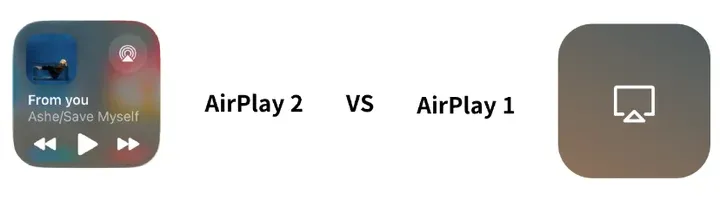
AirPlay 2, released in 2017, builds upon the foundation of AirPlay 1 and brings several crucial upgrades, including multi-room audio support, better buffering, and deeper integration with the Apple ecosystem.
One of the biggest questions surrounding these two technologies is the difference in performance and capabilities. Let's explore the key differences between AirPlay 1 vs 2 and help you decide which is best for your needs.
AirPlay vs AirPlay 2: Audio Quality
Both AirPlay 1 and AirPlay deliver excellent audio streaming quality, but AirPlay 2 improves on what AirPlay offers. With AirPlay 2, Apple has upgraded the streaming protocol, offering better buffering and reliability. The main difference in AirPlay 1 vs 2 audio quality lies in multi-room audio support, a feature AirPlay 1 does not support.
- AirPlay 1: Audio streaming is clear and reliable but can sometimes experience dropouts if the network is congested or if you're streaming to multiple devices. The quality is generally good, but it may face limitations in more complex environments.
- AirPlay 2: Enhanced buffering and multi-room support ensure a smoother and more consistent audio experience across multiple devices, even in more complex environments. If you are streaming to multiple speakers, AirPlay 2 ensures that there is no desynchronization, providing a unified sound experience across rooms.
In summary, AirPlay 2 offers a more stable and higher-quality audio experience, especially when streaming to multiple speakers or across a busy network. The AirPlay 1 vs 2 audio quality comparison clearly shows that AirPlay 2 provides a superior streaming experience with fewer interruptions and more synchronized sound.
AirPlay vs AirPlay 2: Video Quality
When it comes to video quality, both AirPlay 1 and AirPlay 2 support streaming up to 1080p resolution. However, AirPlay 2 doesn't drastically improve video quality, but its buffering capabilities ensure a smoother experience with less lag.
- AirPlay 1: Supports 1080p video streaming but can occasionally suffer from buffering issues (see why AirPlay is lagging), especially on older devices.
- AirPlay 2: Maintains 1080 quality, but with better buffering performance, leading to fewer interruptions to overall video streaming experience, especially when streaming from newer Apple devices.
Although AirPlay 2 doesn't support 4K streaming for video (this is reserved for Apple TV 4K), it does improve the overall video streaming experience, especially when streaming to multiple devices. This makes the AirPlay 2 vs 1 comparison clear while both versions support 1080p video, AirPlay 2 offers a smoother, more consistent experience across devices, especially in complex streaming setups.
AirPlay vs AirPlay 2: Device Compatibility
AirPlay 1 has been around a while, and many devices support it. However, AirPlay 2 has expanded compatibility significantly, particularly with third-party smart TVs (check TVs with AirPlay 2 support) and speakers.
- AirPlay 1: Compatible with older Apple devices and a limited set of third-party devices, like earlier models of Apple TVs and AirPlay-compatibility speakers.
- AirPlay 2: Supports all AirPlay 1-compatible devices and adds support for third-party smart TVs (Samsung, LG, Sony), smart speakers (Sonos, Bose), and more. AirPlay 2 also supports devices running iOS 11.4 or later, macOS Mojave, and later, making it more versatile than its predecessor.
This added compatibility allows AirPlay 2 to integrate more seamlessly into your home, especially if you have a mix of Apple and non-Apple devices. In the AirPlay 2 vs AirPlay comparison, the expanded device support makes AirPlay 2 the clear choice for users with diverse technology setups.
AirPlay vs AirPlay 2: Control Modes
The control modes for AirPlay 1 are relatively simple: you can use the Control Center on your iPhone or iPad to start a stream, and you can also use iTunes to stream from a Mac or Windows computer. However, in the comparison of Apple AirPlay vs AirPlay 2, the latter introduces a more comprehensive set of control options:
- Siri voice commands
- Control Center
- Home app
- Third-party apps
With Apple AirPlay 2, you can also control playback across multiple devices and adjust volume independently for each device. If you want more flexibility, AirPlay 2 vs AirPlay 1 is a significant improvement, offering a much more versatile streaming experience.
AirPlay vs AirPlay 2: Multiuser Sharing
AirPlay 2 goes beyond just streaming content from one device to another; it also allows multiple users to add to the playback queue. For example, you can create a shared "Up Next" playlist in Apple Music, allowing different users to add songs to the playlist.
- AirPlay 1: Does not support multiuser sharing or collaborative playlists.
- AirPlay 2: Allows for shared playlists, and multiple users can add their own tracks, creating a collaborative listening experience.
A Quick Overview: AirPlay vs AirPlay 2 Comparison Table
After exploring the details of AirPlay and AirPlay 2, the comparison table below offers a quick overview of the key differences between AirPlay 2 vs 1. Whether you're looking to stream audio seamlessly with AirPlay or seeking more advanced features like multi-room synchronization, this table outlines the main features of each version. It will help you make an informed decision based on your specific needs, ensuring you can fully leverage Apple's wireless streaming technology.
| Feature | AirPlay | AirPlay 2 |
|---|---|---|
| Audio Streaming Over Wi-Fi | Yes, uses high-bandwidth Wi-Fi for audio streaming | Yes, uses high-bandwidth Wi-Fi, but enhanced with better synchronization |
| Phone Call Interruptions | Music is interrupted when receiving a call | Music continues without interruption during calls |
| Control Through Siri | Not available | Allows full Siri control for playback and volume |
| Multi-Device Audio Streaming (Multi-Room) | Only supports one-to-one audio streaming | Supports streaming to multiple devices across different rooms in sync |
| Syncing Audio Across Multiple Devices | Not possible | Can sync audio across multiple AirPlay 2 devices (e.g., HomePod, Apple TV) |
| Streaming Devices Compatibility (iOS, macOS, Windows) | Compatible with iOS, macOS, and Windows (via iTunes) | Same as AirPlay, with additional support for more third-party devices |
| App Integration (Apple Music, Spotify, YouTube, Netflix) | Works with Apple Music, Spotify, YouTube, Netflix, and more | Same as AirPlay, but with better integration for multi-device control |
| Restreaming to Non-AirPlay 2 Devices | Not possible | Can restream content from AirPlay 2 devices to non-AirPlay 2 devices |
| Shared "Up Next" Playlist | Not supported | Allows friends to add songs to the "Up Next" playlist, enhancing multi-user interaction |
| Compatibility with HomeKit | Not supported | Fully integrated with HomeKit for creating scenes and controlling devices |
| Video Streaming Quality (4K Support) | Supports video but typically scales down to 1080p | Supports 4K video streaming from compatible devices like Apple TV 4K |
AirPlay 1 vs AirPlay 2: Which One Should You Choose:
If you have older Apple devices or third-party speakers that only support AirPlay 1, then it may still be the right option for your needs. For basic audio streaming from one device to another, AirPlay 1 remains perfectly functional.
However, if you're looking for more advanced features, such as multi-room audio, better control via Siri, and improved syncing between devices, AirPlay 2 is the clear winner. It's ideal for users who want to maximize the capabilities of their Apple ecosystem and enjoy enhanced streaming experiences.
How to Use AirPlay and AirPlay 2
To use AirPlay 1, simply ensure both your Apple device and the receiving device (Apple TV, AirPlay-compatible speaker, etc.) are connected to the same Wi-Fi network. From your iPhone or iPad, open the Control Center, tap the AirPlay icon, and select the device you want to stream to.
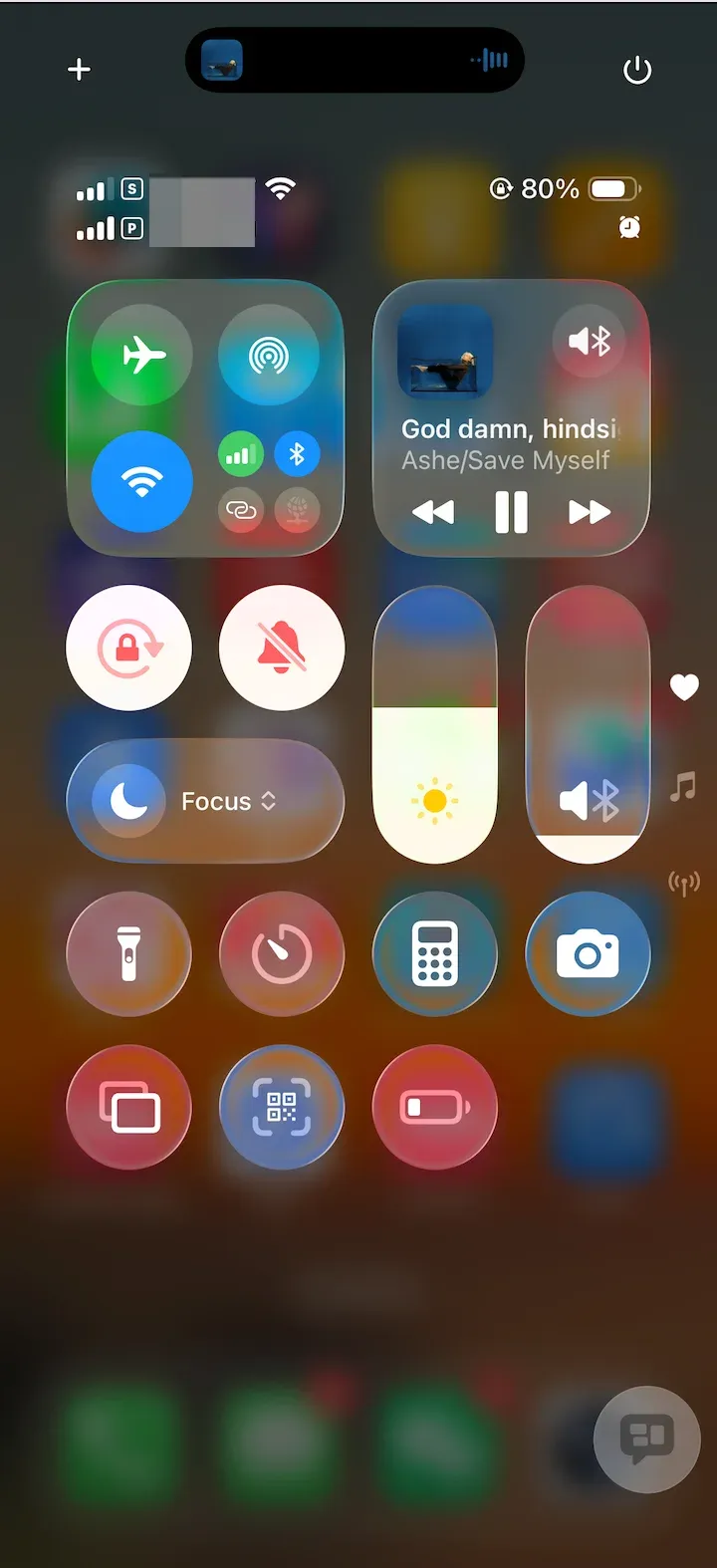
With AirPlay 2, the process is largely the same, but with added capabilities. For example, you can stream audio to multiple AirPlay 2-compatible speakers simultaneously, and control them individually using the Control Center or the Home app. Siri commands are now available for controlling playback, so you can ask Siri to play a song in one room or across multiple rooms.
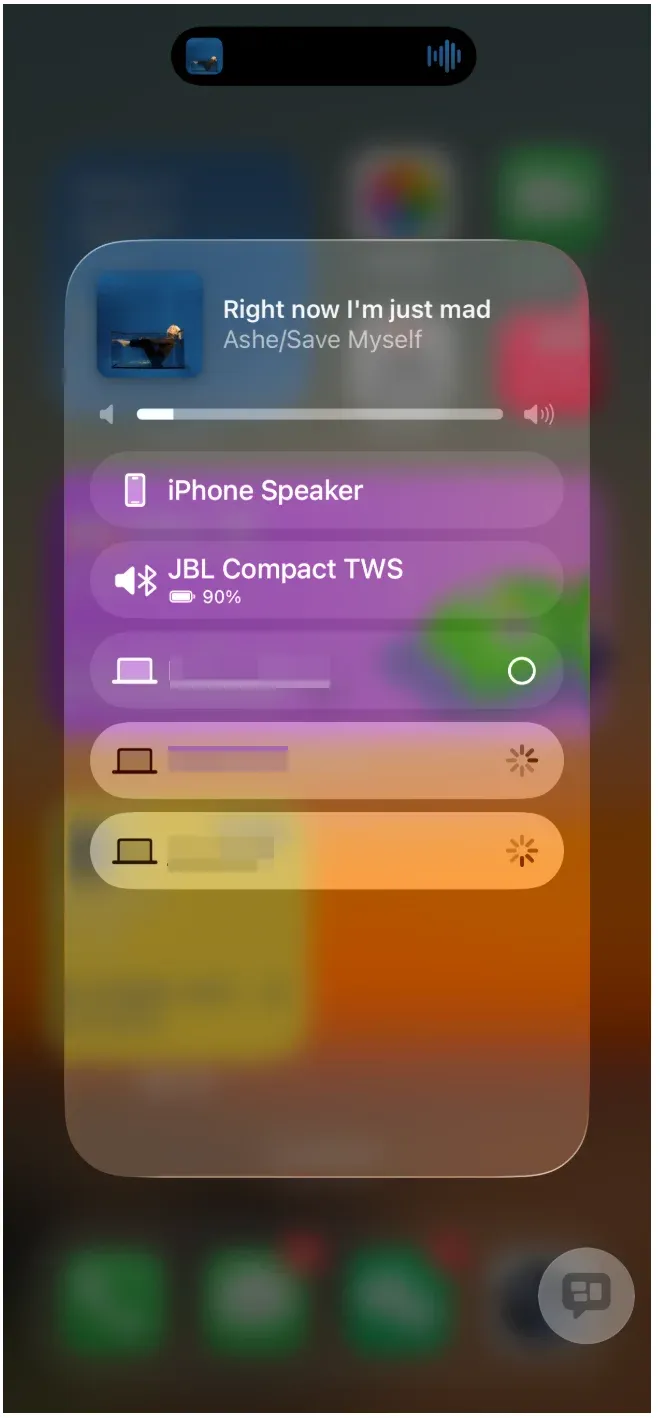
One of the notable differences between AirPlay and AirPlay 2 is the ability to create stereo pairs with two HomePods. If you're an Apple Music subscriber, you can even create shared playlists and control them using Siri. This wasn't possible with AirPlay 1, which only allowed for basic one-to-one streaming.
Free Cross-platform AirPlay Receiver App: PigeonCast
However, it's important to note that AirPlay 1 and AirPlay 2 are both limited to the Apple ecosystem, which can be restrictive for users who want to stream content across different platforms. For example, AirPlay does not work with Android devices or Windows PCs, and you may experience compatibility issues if you're using non-Apple speakers or TVs.
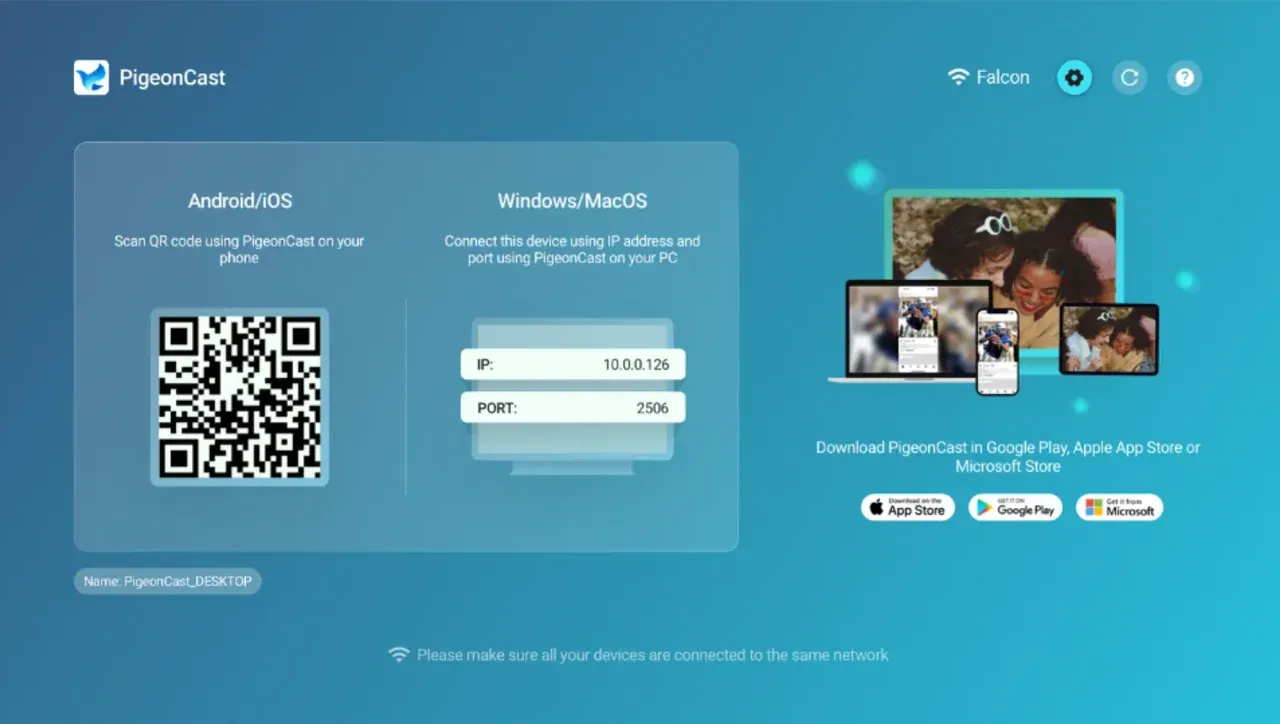
For those looking for a more cross-platform solution, PigeonCast is a great alternative. Unlike AirPlay, PigeonCast allows you to stream content not only from iOS and Mac devices, but also from Android, Windows PCs, and other non-Apple platforms to your AirPlay 2-compatible devices.
This eliminates the compatibility limitations of AirPlay, offering more flexibility for users who want seamless streaming across different devices and platforms. Best of all, PigeonCast is free and easy to set up, providing a smooth, hassle-free experience.


Overall Rating:



Conclusion
In the debate of AirPlay vs AirPlay 2, it's clear that AirPlay 2 offers significant improvements, especially for those who want multi-room audio and enhanced streaming controls. Whether you're streaming music across multiple rooms or using Siri to control playback, AirPlay 2 delivers a better, more integrated experience. However, for those who need cross-platform compatibility, PigeonCast remains an excellent alternative, offering flexible streaming options beyond Apple's ecosystem.
AirPlay vs AirPlay 2 FAQs
What's the difference between AirPlay and AirPlay 2?
The biggest difference between AirPlay and AirPlay 2 is the advanced functionality in AirPlay 2. One of the standout features is multi-room audio support. While AirPlay 1 allows you to stream audio from your device to one speaker or Apple TV at a time, AirPlay 2 enhances the experience by allowing you to stream to multiple devices in sync across different rooms. This is perfect for creating a whole-home audio system, enabling you to control your music seamlessly across different rooms. AirPlay 2 also offers better buffering, improved syncing, and the ability to control audio via Siri and the Home app. The AirPlay 2 vs 1 difference is evident in these added features that significantly enhance the streaming experience.
Can I use AirPlay 2 with my old iPhone?
To use AirPlay 2, you need an iPhone 5S or newer, running iOS 11.4 or later. If you have an older iPhone model (iPhone 5 or earlier), you will be limited to using AirPlay 1, which lacks features like multi-room streaming and Siri control. If your iPhone is compatible with iOS 11.4 or later, you can take advantage of the AirPlay 2 features, such as streaming to multiple devices and using the Home app or Siri to control your audio and video playback.
Does AirPlay 2 stream in 4K?
Currently, AirPlay 2 can support 4K video streaming, but this feature is available only when streaming from compatible devices such as the Apple TV 4K. If you're using an Apple TV 4K, AirPlay 2 will stream in 4K resolution. However, AirPlay 2's video quality can be scaled down to 1080p depending on the capabilities of the device you're streaming to.
How do I set up AirPlay 2 on my Apple TV?
To set up AirPlay 2 on an Apple TV, ensure your device is running tvOS 11.4 or later, and then follow the on-screen instructions for streaming from your Apple device.
Can I stream music across multiple rooms?
Yes, AirPlay 2 allows you to stream music to multiple rooms simultaneously, creating a more immersive and synchronized audio experience. For instance, you can play the same song on multiple AirPlay 2-compatible devices (such as HomePods or Apple TVs) across different rooms in your home. You can even control the volume and track playback independently for each speaker, providing flexibility.
Why can't I stream to my AirPlay 2 device?
If you're unable to stream, check your Wi-Fi network, ensure your devices are updated to the latest software, and verify that the device you're streaming to supports AirPlay 2.
How to know if AirPlay is 1 or 2?
To determine if you're using AirPlay 1 or AirPlay 2, you can check the compatibility of your devices. AirPlay 1 is supported on older Apple devices and AirPlay 2 is only available on newer ones. Additionally, features like multi-room audio, Siri control, and HomeKit integration are exclusive to AirPlay 2. If you're using multiple speakers or controlling devices with Siri, you're using AirPlay 2. If you're only streaming to one device at a time, it's AirPlay 1.
How do I tell if my TV has AirPlay 2?
To find out if your TV supports AirPlay 2, check the TV's settings or user manual. Look for "AirPlay 2" in the TV's streaming or connectivity settings. Popular brands like Samsung, LG, Sony, and Vizio support AirPlay 2 in their latest models, especially smart TVs released in 2018 or later. Alternatively, you can visit the TV manufacturer's website to check for compatibility or simply try connecting via AirPlay to see if it works.
How do I get AirPlay 2 on my TV?
To enable AirPlay 2 on your TV, make sure your TV is compatible with AirPlay 2 and that it is running the latest software update. For example, on Apple TV, go to Settings > AirPlay and HomeKit to turn AirPlay on. If your TV supports AirPlay 2, ensure that your TV is connected to the same Wi-Fi network as your Apple device and is updated to the latest firmware.
Does AirPlay 2 use Wi-Fi or Bluetooth?
AirPlay 2 uses Wi-Fi to stream content between devices. This ensures higher bandwidth and better streaming quality, especially for video and audio content. Bluetooth is not used for the actual streaming of content. While Bluetooth is used for some device pairings, the primary connection for streaming is through Wi-Fi, which allows for higher-quality audio and video transmission over longer distances.
Is Apple AirPlay 2 free?
Yes, Apple AirPlay 2 is completely free to use. It comes built into Apple devices, such as iPhones, iPads, Macs, and Apple TVs, at no additional cost. You do not need to pay for the service, but you may need compatible hardware (such as AirPlay 2-enabled speakers or TVs) to use its features.
Is PigeonCast free?
Yes, PigeonCast is 100% free to use. Unlike AirPlay, which is limited to Apple devices, PigeonCast offers a completely free way to stream content from Windows PCs, Android devices, and other platforms to AirPlay 2-compatible devices, without the need for any additional subscriptions or fees. It's a great way to ensure compatibility across all your devices, offering flexibility and ease of use for both Apple and non-Apple users.
Mia Clarke is a technology editor specializing in screen mirroring and casting solutions across multiple platforms. Mia provides clear, practical guides and in-depth insights to help users seamlessly connect their devices. Passionate about enhancing digital experiences, Mia is dedicated to keeping readers updated on the latest trends and tools in cross-platform screen sharing. Whether you’re looking to mirror your smartphone, laptop, or smart TV, Mia’s content delivers reliable, user-friendly advice to simplify your tech setup.