
AirPlay is a fantastic feature that lets you wirelessly stream content from your Apple device to other compatible screens, such as TVs, speakers, or other devices. However, there are times when you might want to turn off AirPlay, whether it's to stop ongoing session or prevent it from automatically connecting to your devices. In this guide, we'll walk you through how to turn off AirPlay on various Apple devices, including iPhone, iPad, Mac, Apple TV, and more.
Why Should You Turn Off AirPlay
Turning off AirPlay can help prevent unwanted interruptions and enhance your device's security. While AirPlay offers great convenience for streaming content, it has been identified as having certain vulnerabilities, such as the AirBorne flaws, which could allow attackers to intercept or manipulate data.
However, it's important to note that Apple regularly releases updates to fix security issues and improve the AirPlay protocol. By keeping your devices updated, you can stay protected against potential risks. Disabling AirPlay when not in use is a simple precaution that can help prevent unauthorized connections and ensure a safer experience, and this guide will show you how to turn AirPlay off effectively.
How to Turn Off AirPlay on iPhone/iPad
If you need to stop an active AirPlay session or disable it from connecting automatically on your iPhone or iPad, follow these steps:
- Stop current AirPlay session:
Step 1. Swipe down from the top-right corner to open the Control Center.
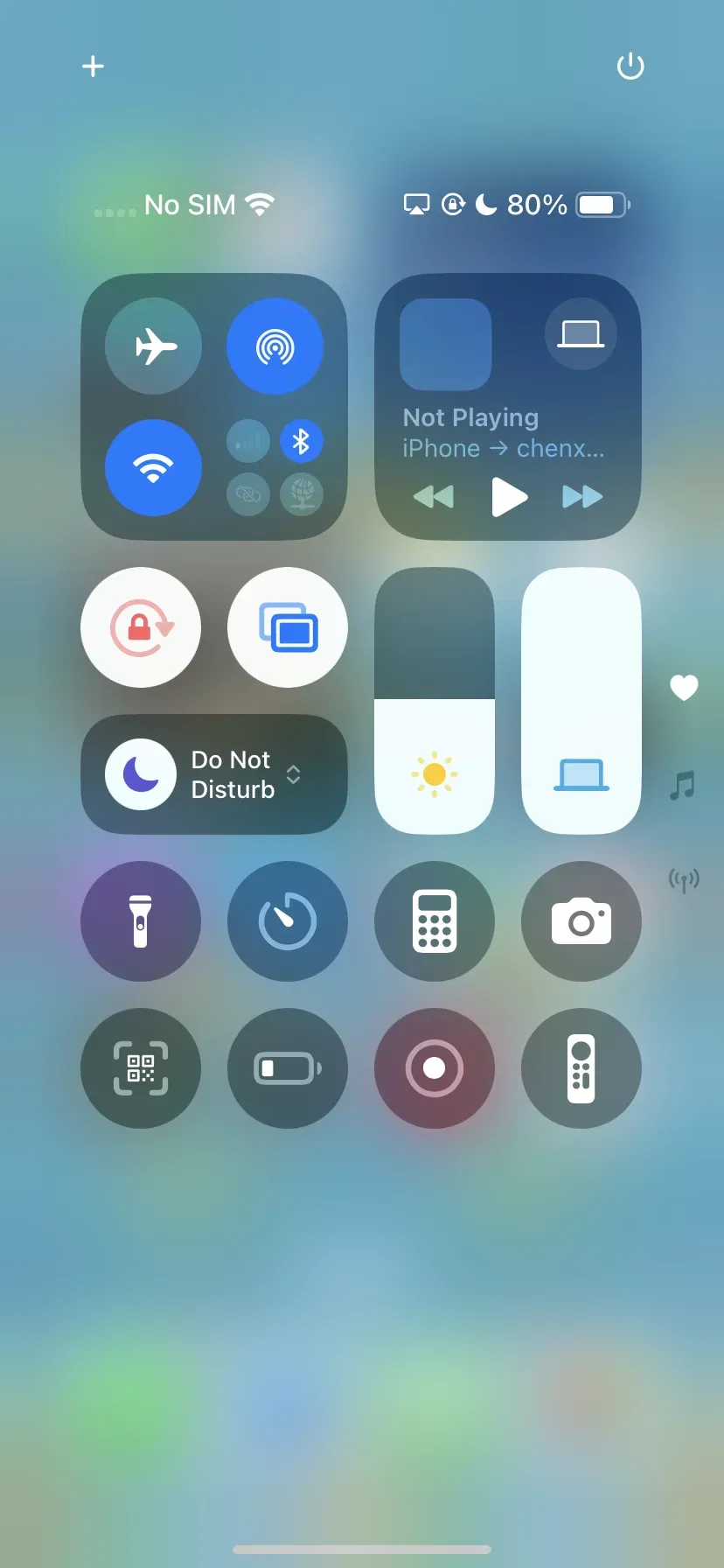
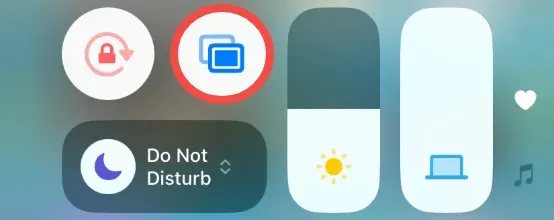
Step 2. Tap the AirPlay icon.
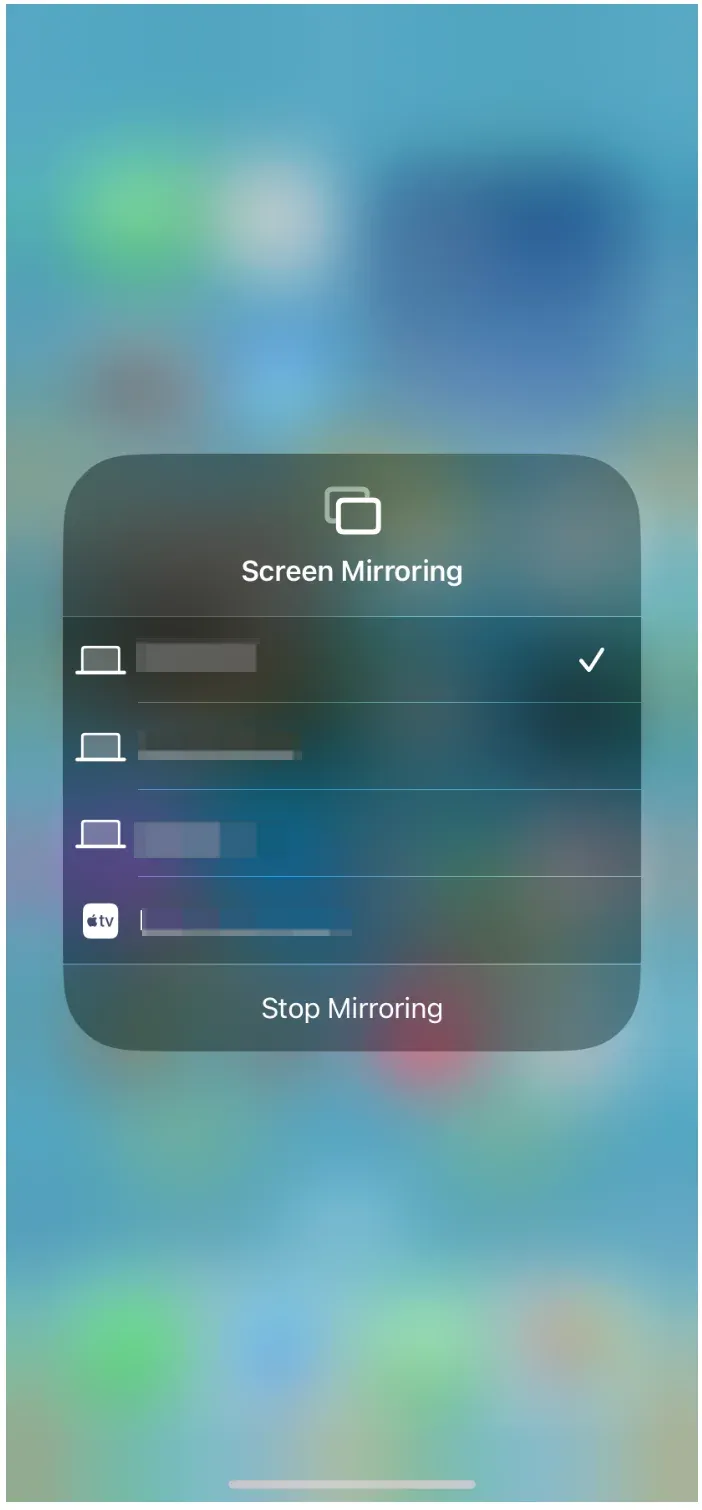
Step 3. Tap the Stop Mirroring option on the pop-up menu or tap the connected device to terminate the current AirPlay session.
- Disable automatic AirPlay connections:
Step 1. Go to Settings > General > AirPlay & Continuity.
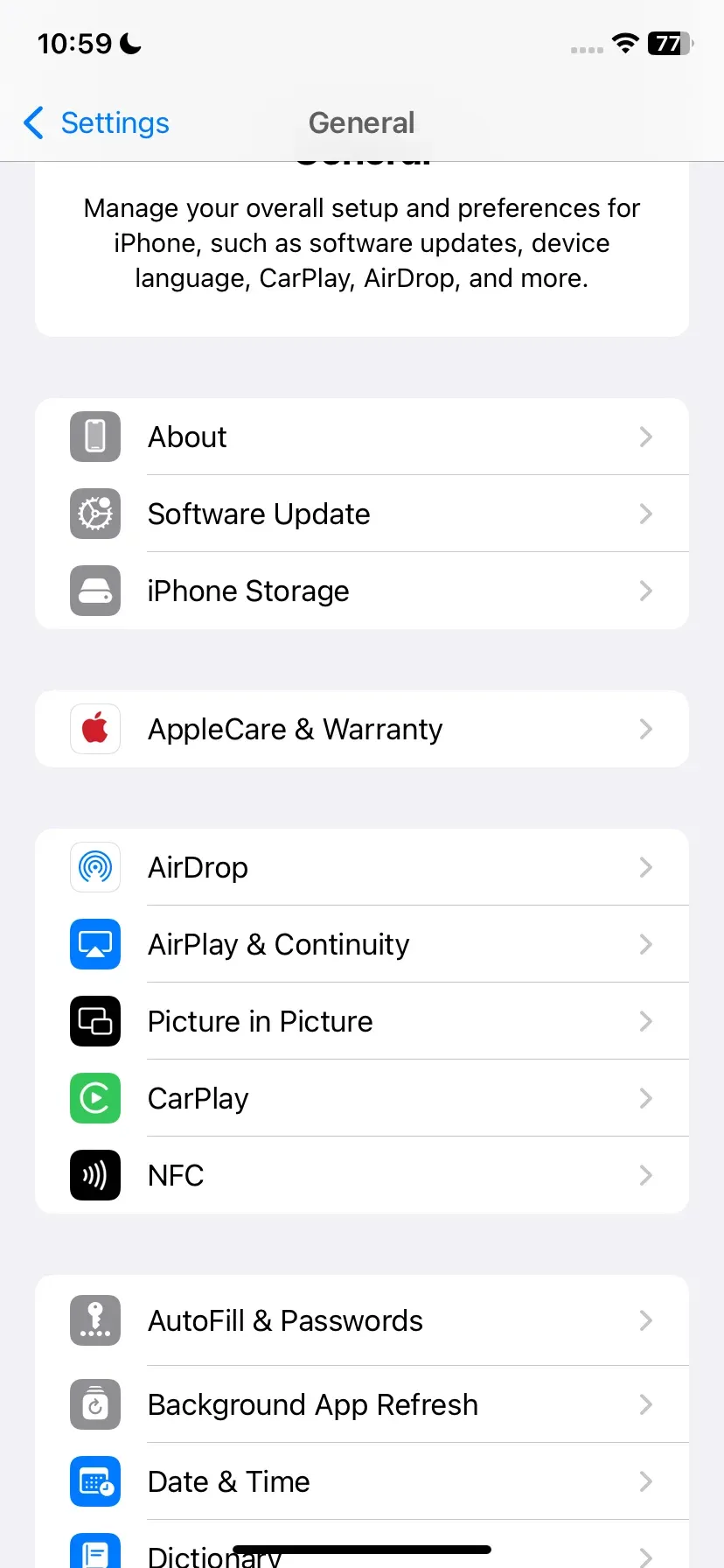
Step 2. Tap Automatically AirPlay and set it to Never, so your iPhone won't automatically connect to nearby AirPlay-enabled devices.
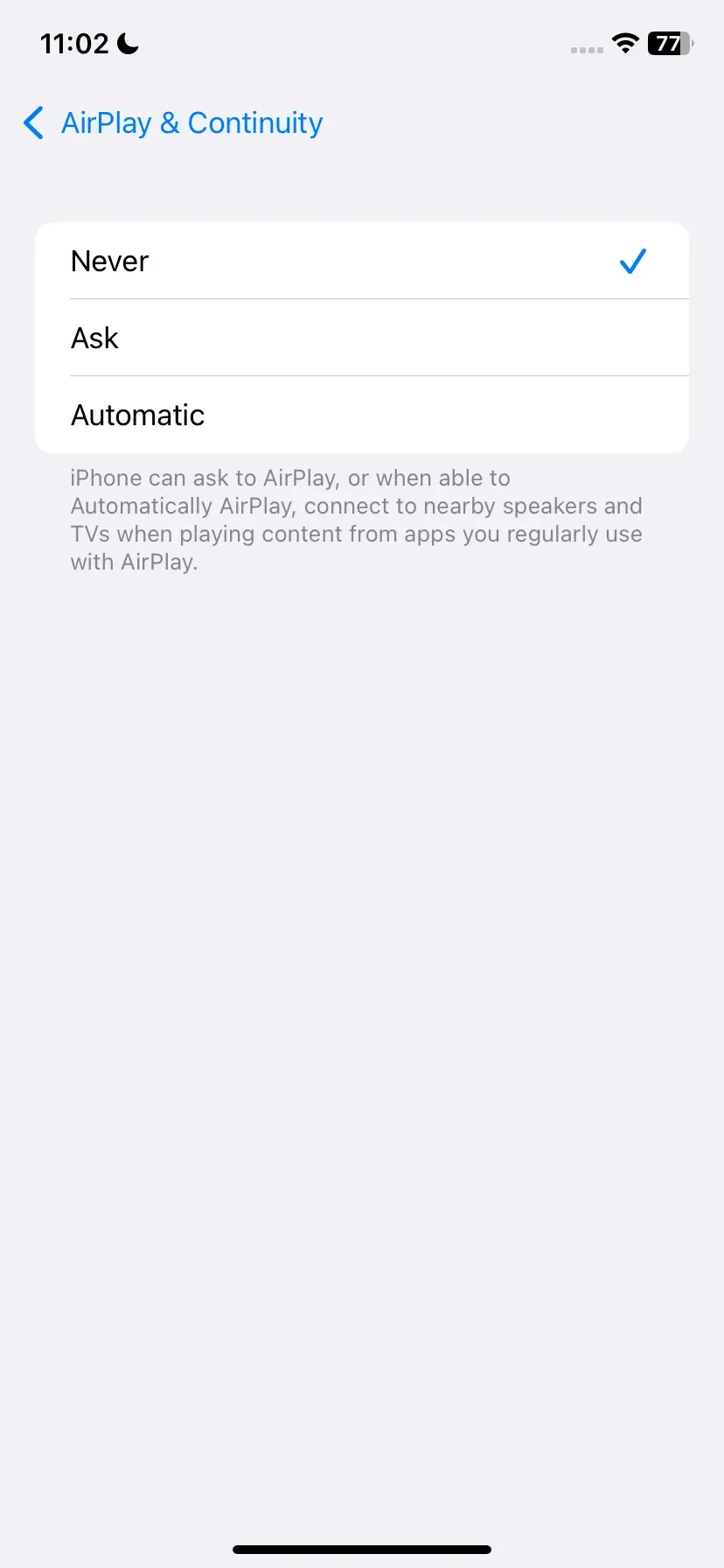
So, how to turn off AirPlay on iPad or iPhone? It's easy and completed with a few steps. By following these steps, you'll ensure AirPlay doesn't automatically start when you're near compatible devices.
How to Turn Off AirPlay on MacBook
MacBooks also have AirPlay built in, allowing connecting the device to a compatible device wirelessly. If you're using a MacBook and need to stop AirPlay, follow these steps:
- Stop current AirPlay session:
Step 1. Tap the Control Center icon in the menu bar at the top of your screen.
Step 2. Click the AirPlay icon.
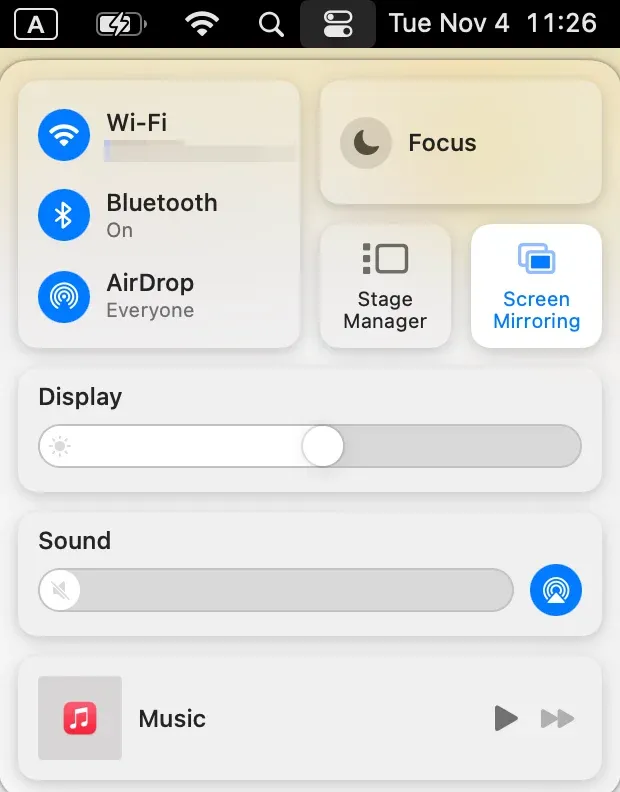
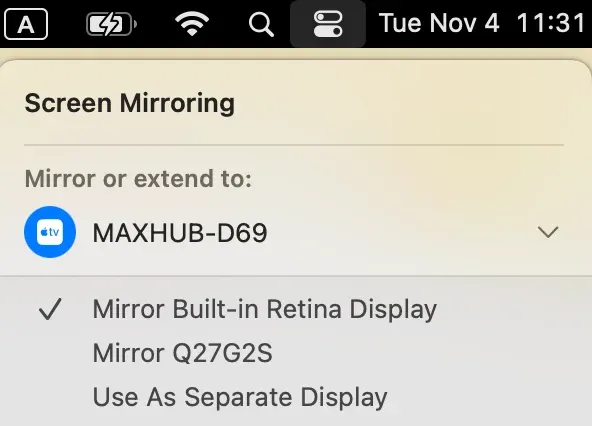
Step 3. Click the connected device in the list and the mirroring process ends.
- Disable Automatic AirPlay:
Step 1. Go to Settings > General > AirPlay & Handoff.
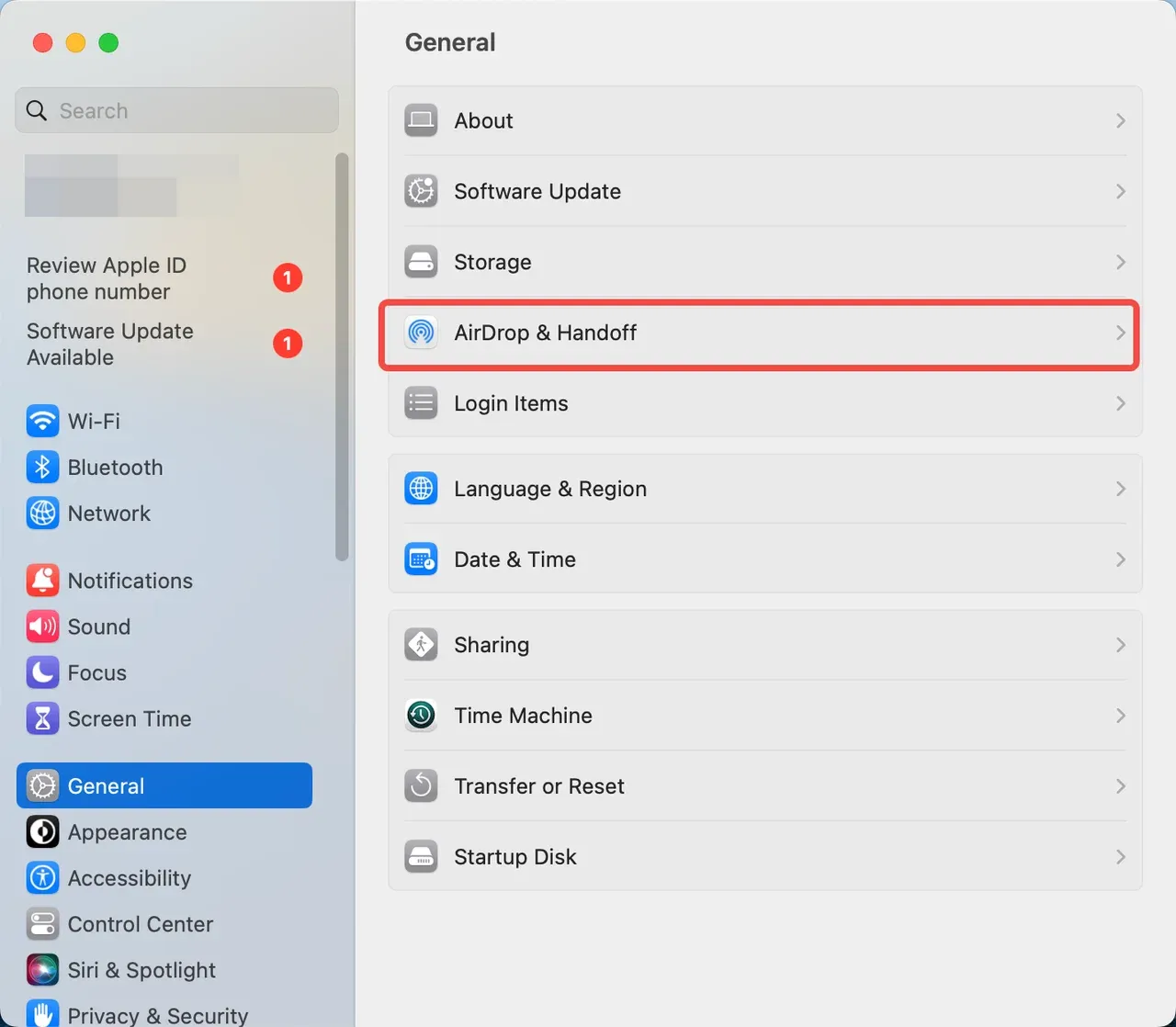
Step 2. Toggle off AirPlay Receiver, and then your Mac won't receive AirPlay content or screen share from iOS devices.
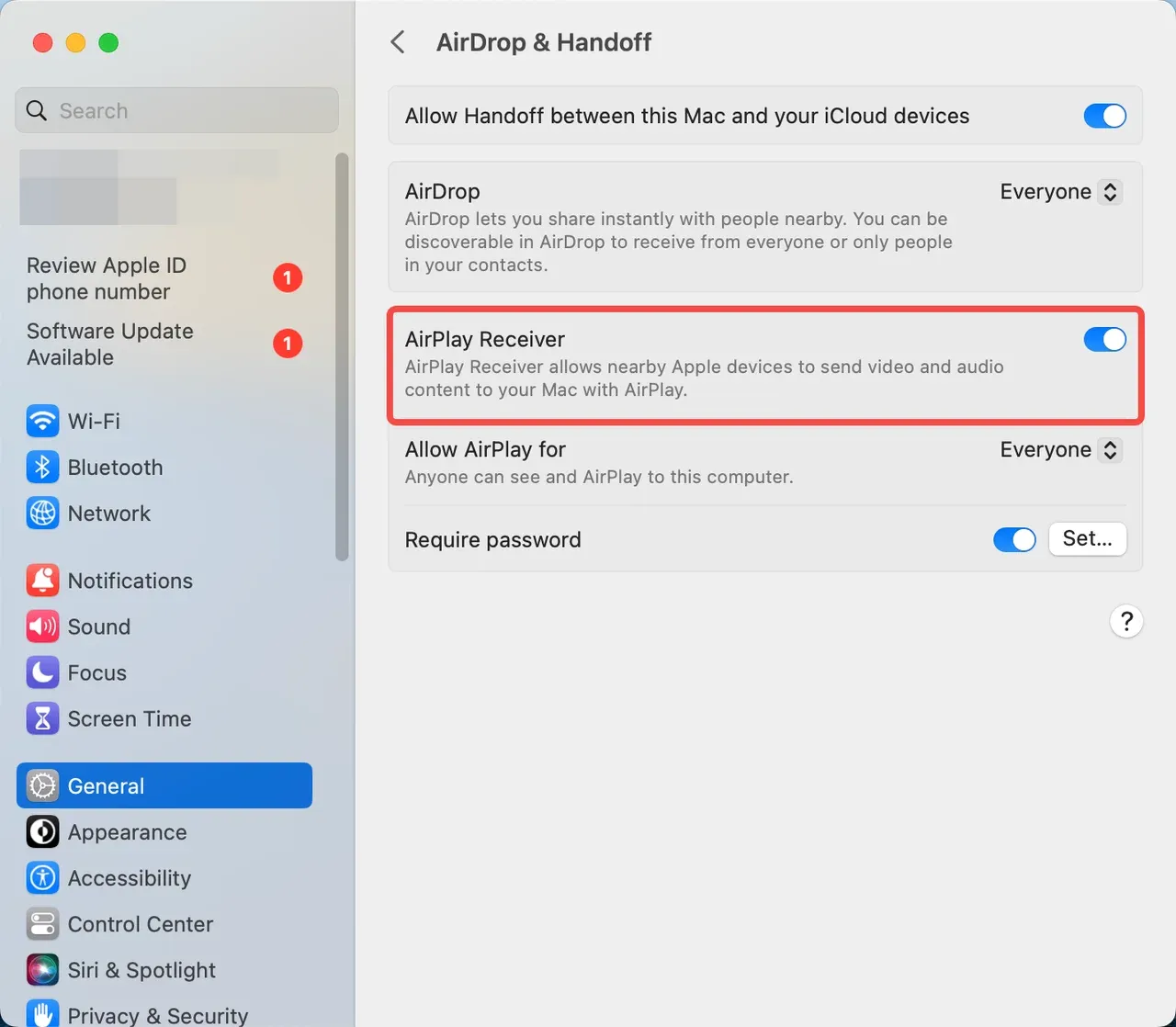
Step 3. Toggle on Require passcode and set your passcode. This allows others to still send AirPlay content, but they need to input your password before it show up on your Mac.
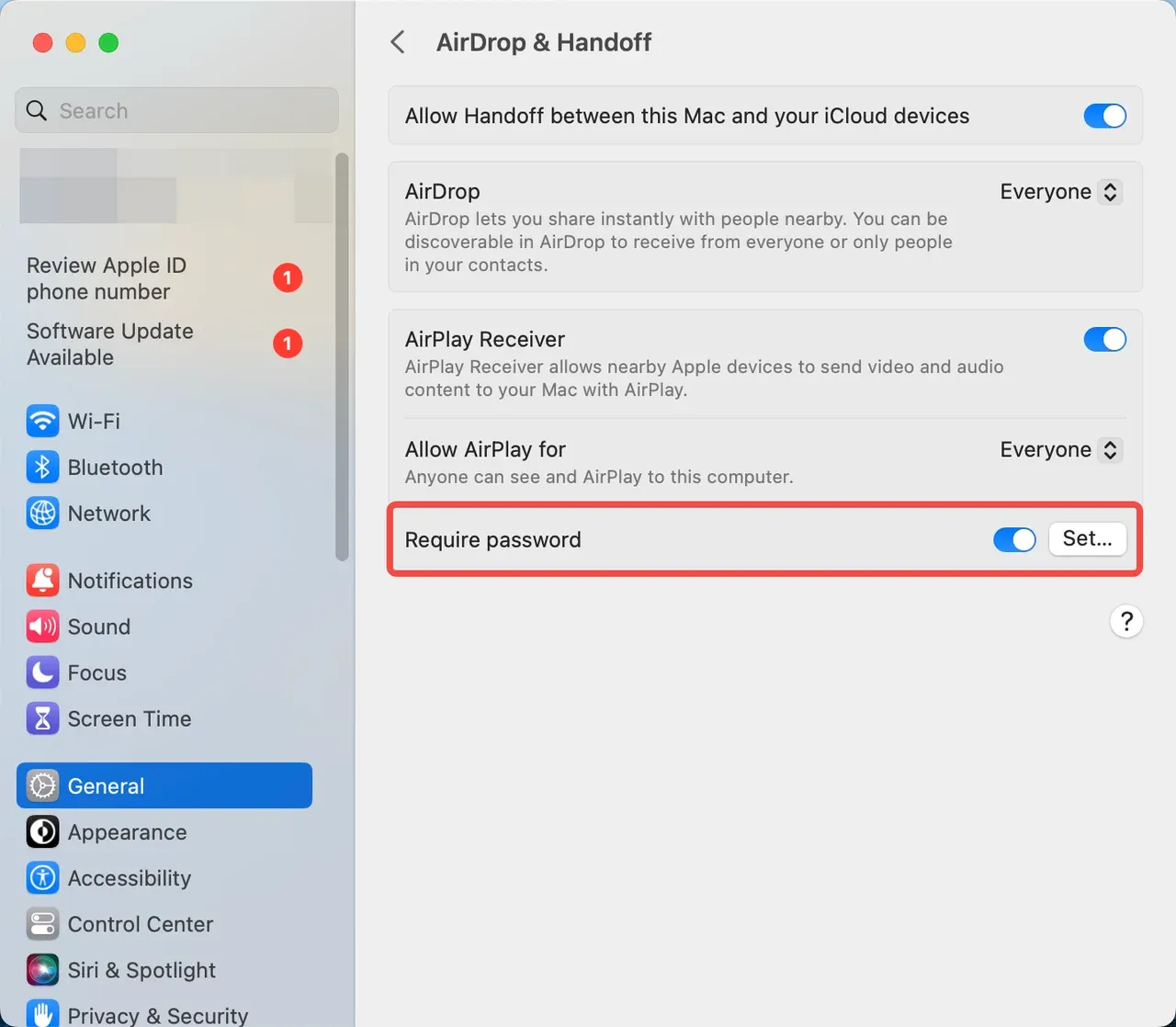
These steps will stop AirPlay from showing up unexpectedly on your MacBook and prevent it from auto-connecting to nearby devices.
How to Turn Off AirPlay on TV
Besides Apple TV, many smart TVs are AirPlay-compatible, such as Roku, Samsung, Vizio, and LG. Well, how to disable AirPlay on various TV brands? Here I would like to share the steps on Apple TV, Samsung TV, and Roku TV.
- Apple TV:
Here's how to turn off Apple AirPlay on Apple TV:
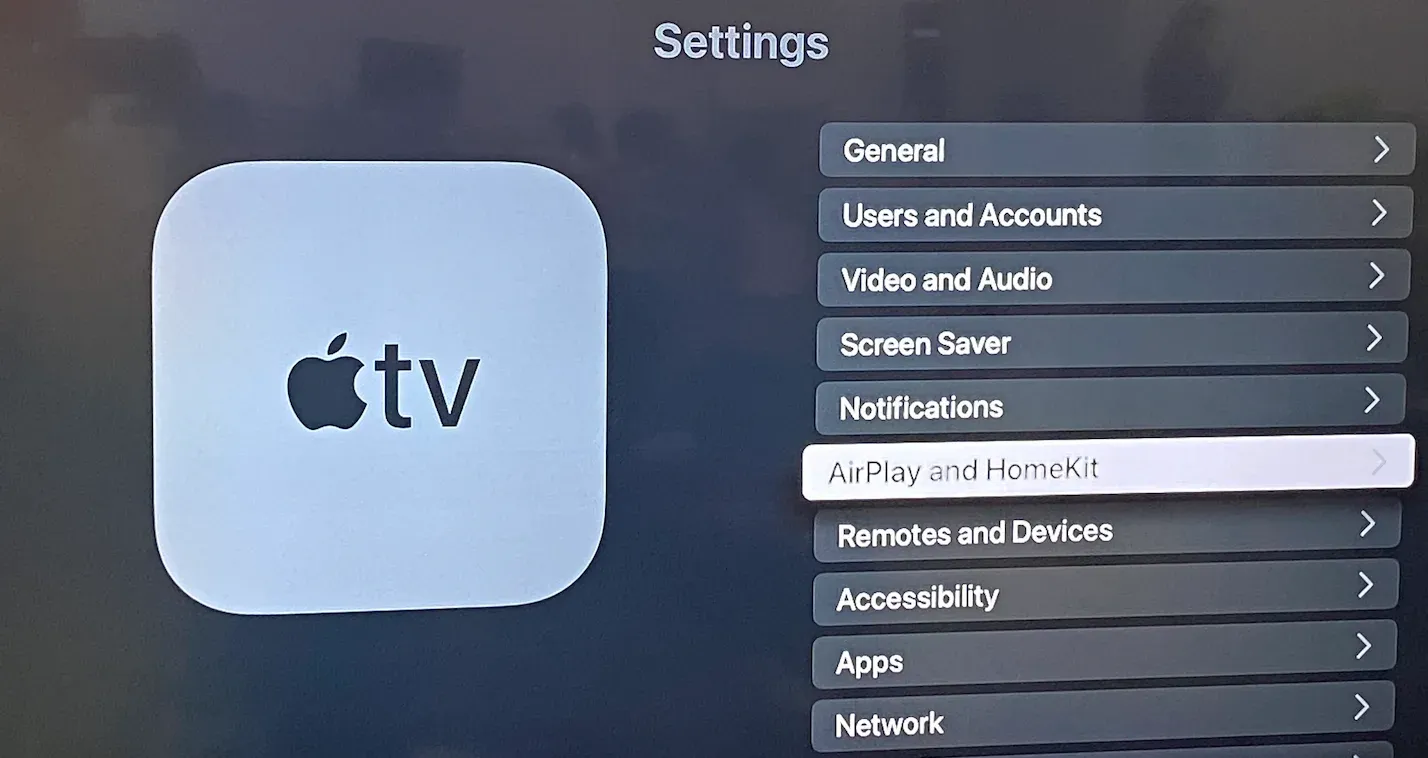
Step 1. Go to the Settings app on your Apple TV.
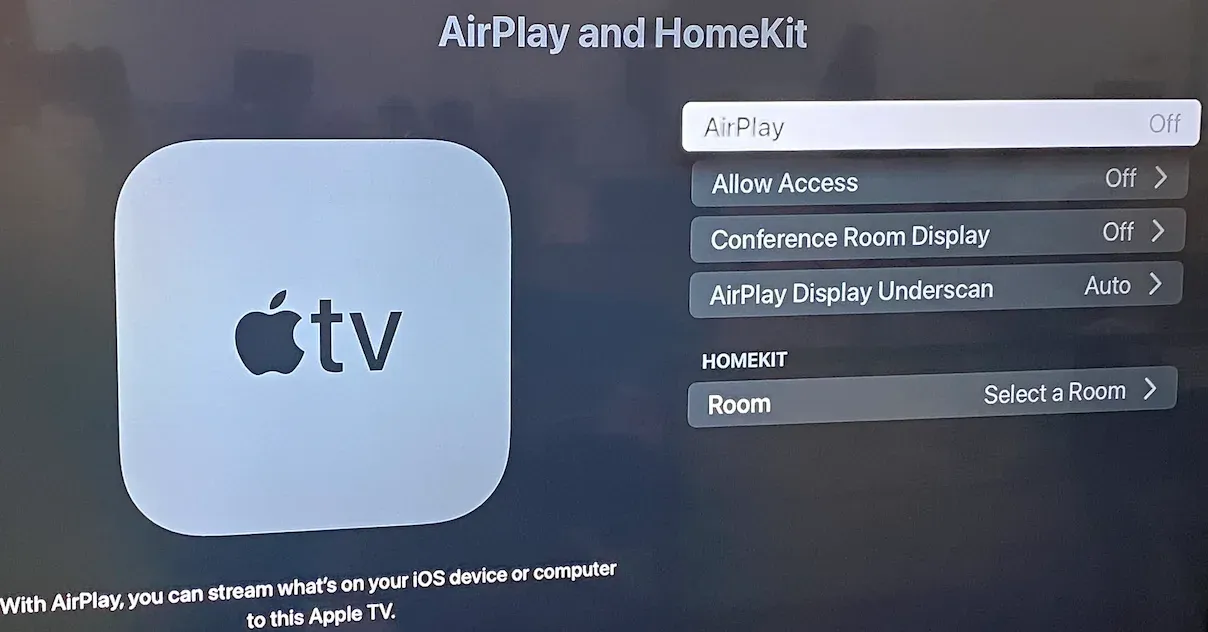
Step 2. Choose AirPlay and HomeKit in the Settings menu.
Step 3. Switch AirPlay to Off to disable incoming AirPlay requests.
- Samsung TV:
To disable AirPlay on Samsung TV, you need to:
Step 1. Press the Home button on your remote and choose Menu.
Step 2. Choose Settings > All Settings.
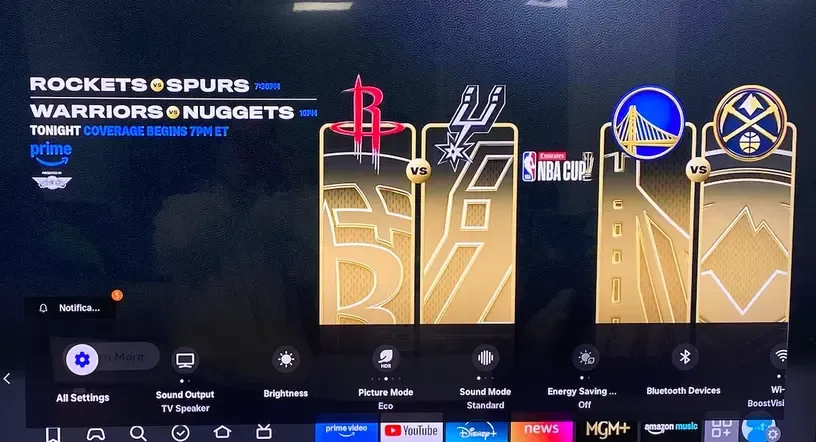
Step 3. Choose Connections > Apple AirPlay Settings.
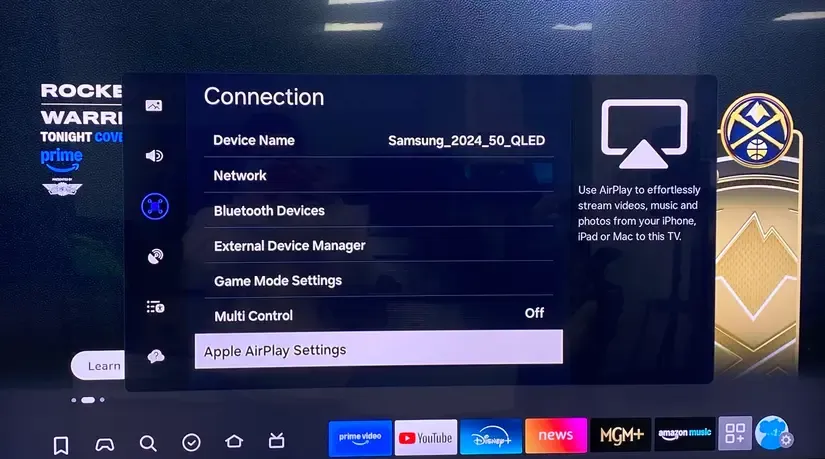
Step 4. Set AirPlay to Off.
- Roku TV:
How to turn off AirPlay on Roku TV? If you have a Roku device, you can do this:
Step 1. Go to Settings on your Roku TV and choose Apple AirPlay and HomeKit.
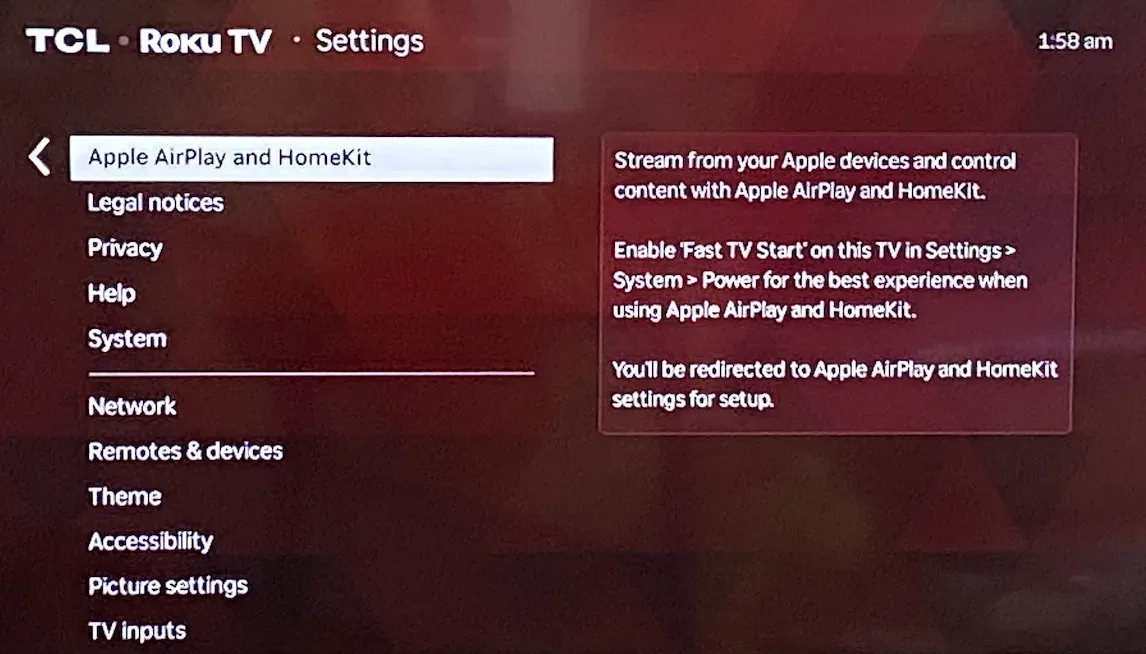
Step 2. Change the AirPlay toggle to Off.
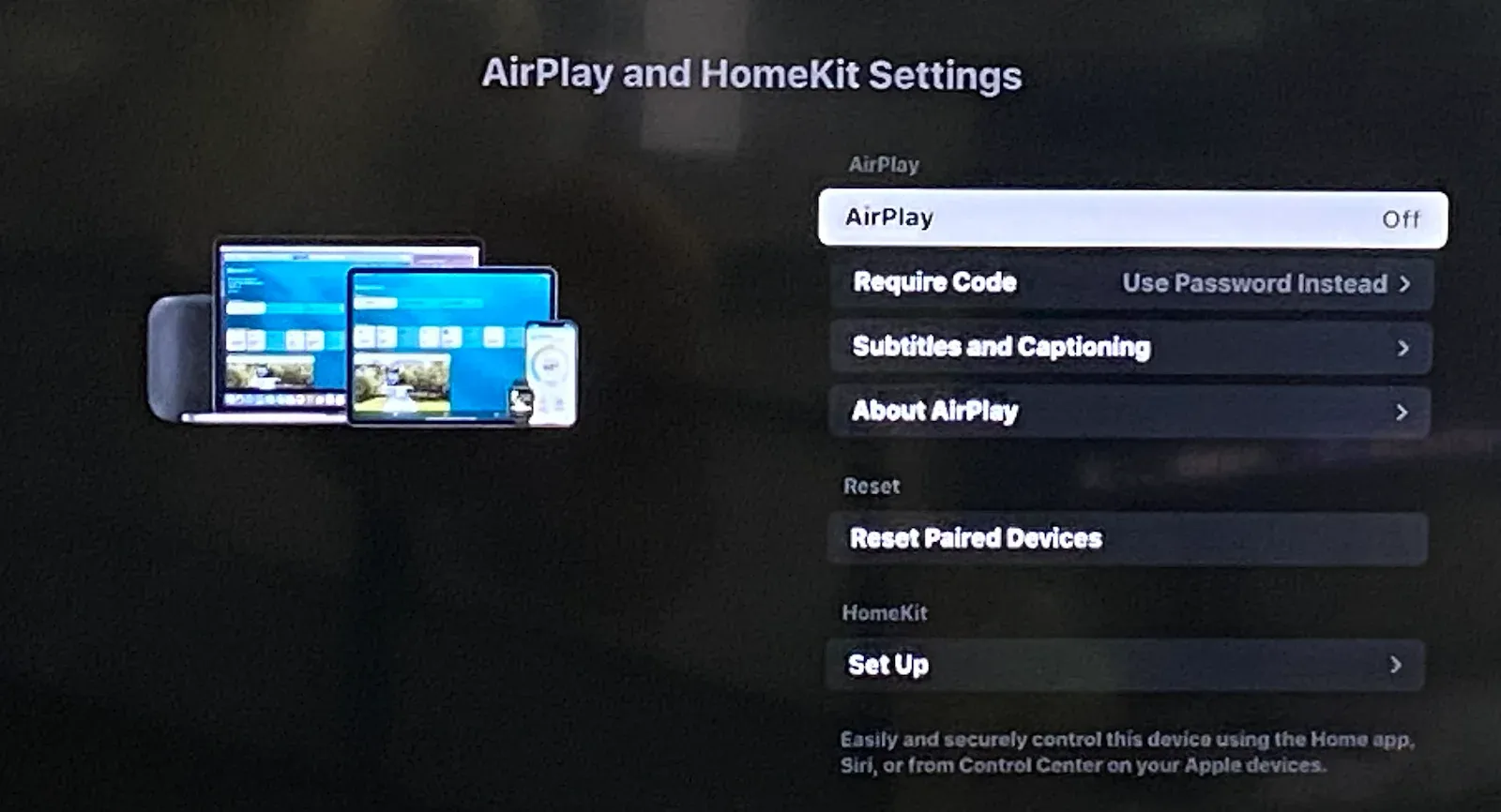
Other smart TVs, such as Sony, TCL, Hisense, LG, and Vizio, follow a similar process for turning off AirPlay.
How to Turn Off AirPlay on Apple Watch
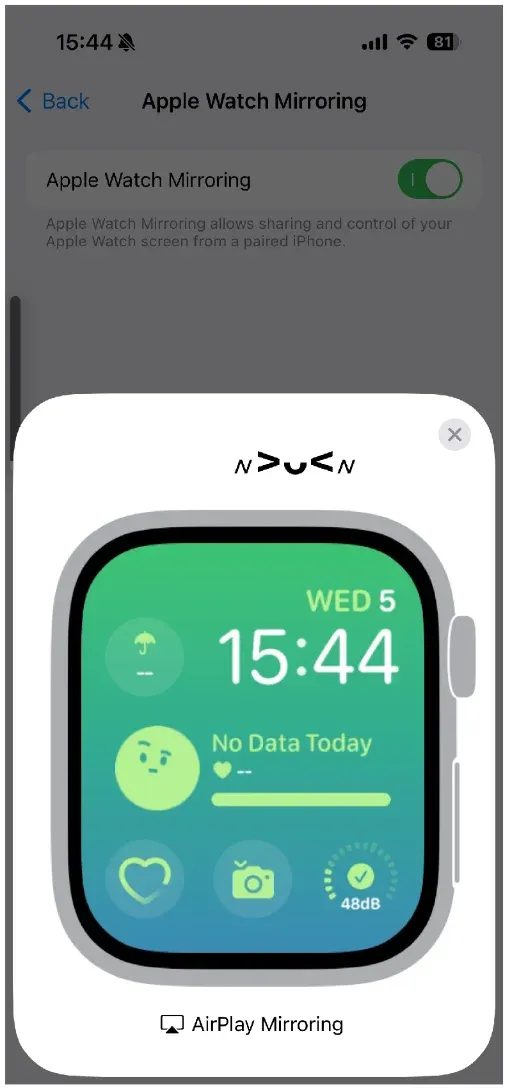
AirPlay allows you to showcase your Apple Watch display on your iPhone or iPad. If you don't need this function, try steps below:
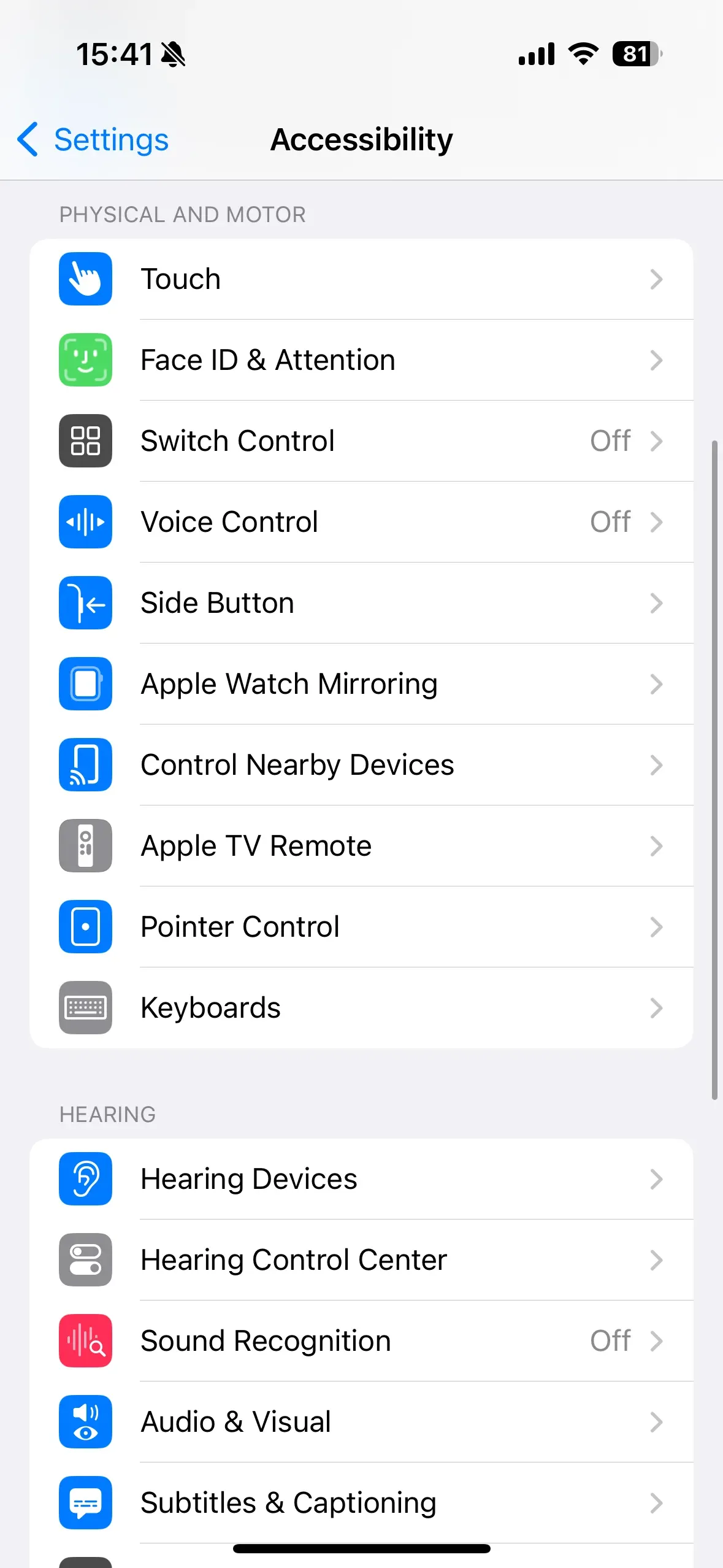
Step 1. Go to Settings on your iPhone.
Step 2. Choose Accessibility > Apple Watch Mirroring.
Step 3. To end the AirPlay mirroring, tap the X button.
Try a Free Alternative to AirPlay: PigeonCast
If you're looking for a simple, reliable wireless streaming solution, PigeonCast is a free and ad-free alternative to AirPlay. It works across multiple devices and doesn't require complex settings. You can use it to stream content from your iPhone, Mac, or Windows computer to your TV without the limitations or auto-connection issues that sometimes arise with AirPlay.
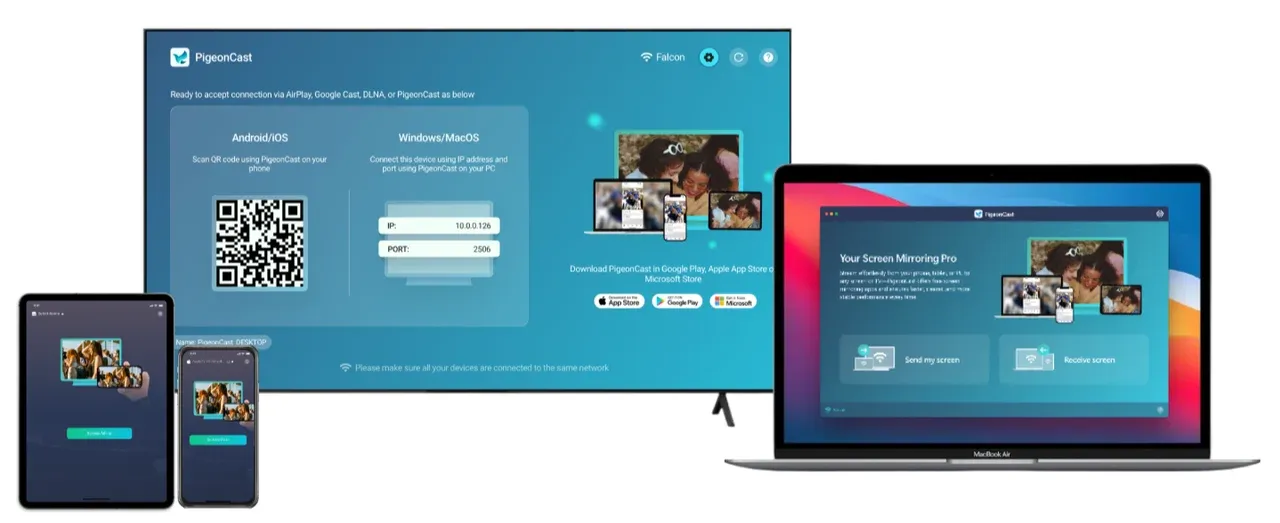
How to use PigeonCast for screen mirroring:
Step 1. Free to download PigeonCast on your Apple device and give it permissions.

PigeonCast Screen Mirroring

Official Download


Step 2. Ensure your Apple device and the display you want to broadcast are on the same network.
Step 3. Launch the PigeonCast app, choose the target display, and start mirroring.
Bottom Line
Knowing how to turn off AirPlay on different devices is useful for both privacy and control over your streaming sessions. Whether you're stopping an active session or preventing future automatic connections, the steps vary slightly by device. However, with just a few adjustments in settings or the Control Center, you can easily manage your AirPlay experience across your devices.
可以扩充为更符合 SEO 的版本,覆盖 how to turn off AirPlay、disable AirPlay、stop AirPlay from connecting automatically、AirPlay not turning off、AirPlay keeps popping up 等相关关键词。每个回答控制在 40–80 词,采用“直接回答 + 背景解释”的结构:
How to Turn Off AirPlay FAQs
How can I tell if AirPlay is turned on?
You can tell AirPlay is active when the AirPlay icon appears highlighted in Control Center, media controls, or the menu bar on Apple devices. If audio, video, or screen content is being streamed to another device such as an Apple TV or smart TV, AirPlay is currently enabled and connected.
How do I completely turn off AirPlay on my iPhone?
To turn off AirPlay on your iPhone, open Control Center, tap the AirPlay icon, and select iPhone or Stop Mirroring. This immediately ends the active streaming session. If AirPlay keeps reconnecting, you may also need to disable automatic AirPlay connections in Settings > General > AirPlay & Handoff.
Why won’t AirPlay turn off on my iPhone?
If AirPlay won't turn off, an active streaming or screen mirroring session may still be running in the background. First stop the connection from Control Center, then check Settings > AirPlay & Handoff for automatic connection options. Restarting your iPhone can also clear temporary connection issues and force AirPlay to disconnect.
Why does AirPlay keep showing up on my iPhone?
AirPlay is a built-in iOS feature, so its icon may appear whenever compatible devices are detected on the same Wi-Fi network. In some cases, automatic AirPlay settings can make connection prompts appear more often. Disabling automatic AirPlay under Settings > General > AirPlay & Handoff can reduce these recurring notifications.
How do I stop AirPlay from connecting automatically?
To stop AirPlay from connecting automatically, go to Settings > General > AirPlay & Handoff > Automatically AirPlay, then choose Never or Ask. This prevents your iPhone or iPad from automatically connecting to nearby AirPlay-compatible devices and gives you more control over wireless streaming sessions.
Why does AirPlay keep reconnecting after I disconnect it?
AirPlay may reconnect if your device remembers a previously used receiver or if automatic connection settings are enabled. Network conditions and nearby Apple devices can also trigger reconnections. Turning off automatic AirPlay and reconnecting to Wi-Fi can usually prevent unwanted AirPlay sessions from starting again.
Can I disable AirPlay without turning off Wi-Fi?
Yes. AirPlay can be disabled independently of your Wi-Fi connection. Simply stop the current AirPlay session from Control Center or change the automatic AirPlay settings on your device. This allows you to continue using Wi-Fi for internet access while preventing AirPlay streaming or screen mirroring.
Is PigeonCast free and safe?
Yes. PigeonCast is completely free to use, requires no subscriptions, and contains no intrusive ads. It provides a secure and reliable way to stream content wirelessly across devices, making it a convenient alternative for users looking for a simple AirPlay-compatible streaming solution.
Mia Clarke is a technology editor specializing in screen mirroring and casting solutions across multiple platforms. Mia provides clear, practical guides and in-depth insights to help users seamlessly connect their devices. Passionate about enhancing digital experiences, Mia is dedicated to keeping readers updated on the latest trends and tools in cross-platform screen sharing. Whether you’re looking to mirror your smartphone, laptop, or smart TV, Mia’s content delivers reliable, user-friendly advice to simplify your tech setup.