
Android and Apple have long been rivals, with systems that rarely play nicely together. Apple TV is built for AirPlay, favoring iOS devices, but that doesn't mean Android users are locked out. In this guide, we'll show you how to cast Android to Apple TV, overcoming platform barriers with simple solutions.
Can Android Cast to Apple TV?
Apple's closed ecosystem is known for seamless device integration, while Android champions openness and flexibility across a wide range of devices. These differences often lead to compatibility issues, especially when trying to use device ecosystems.
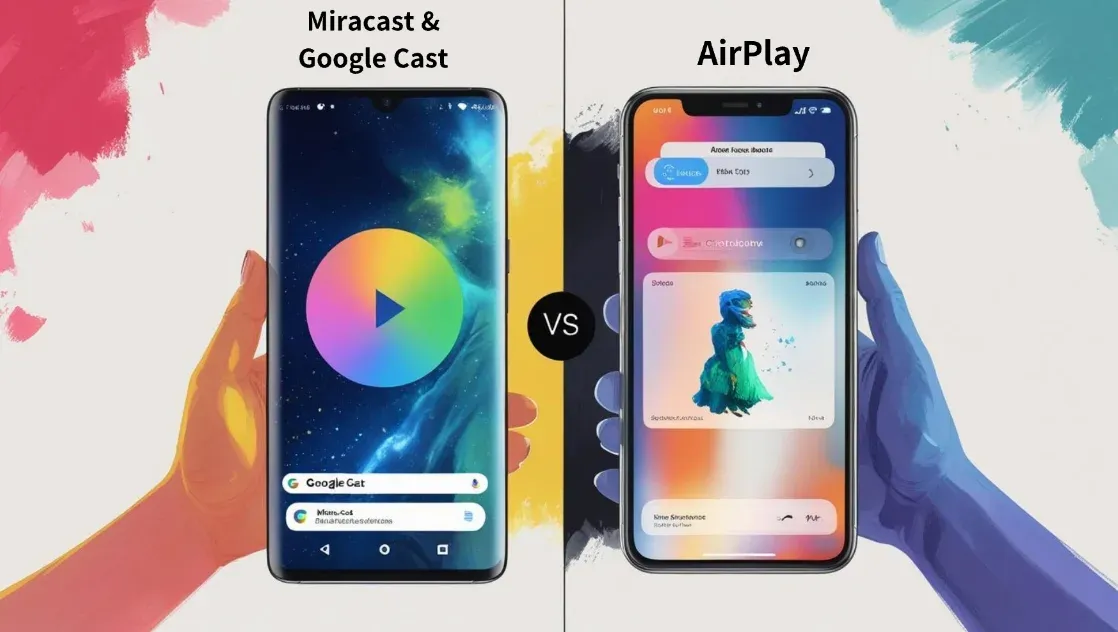
One of the most common challenges we face is casting or screen mirroring an Android device to an Apple TV. By default, Apple TV is optimized for iPhones and iPads via AirPlay, while Android devices use Miracast or Google Cast. These technologies are independent and incompatible, but cheer up; this doesn't mean you can't cast Android to Apple TV.
Here you can find many user-friendly tools, such as PigeonCast solutions, to bridge that gap. Whether you're looking to share videos, photos, or presentations from your Android phone to an Apple TV, we'll walk you through how to cast to Apple TV from Android, no iPhone required.
How to Cast from Android to Apple TV?
To mirror Android to Apple TV, you need to change your device compatibility. To put it simply, bring AirPlay functionality to your Android or Google Cast to your Apple TV. You can do that by setting up an app on your Android or Apple TV, and the tutorials are shared below.
#1. PigeonCast for Android Screen Mirroring
PigeonCast for Android Screen Mirroring is our top-recommended free app for mirroring Android to Apple TV. It brings powerful casting technologies, like AirPlay, Google Cast, and DLNA, to your Android device. Therefore, with built-in AirPlay support, you can easily cast your Android screen to any MacBook and Apple TV.
How to mirror Android to Apple TV with the app? The app will connect to your Android to Apple TV via a Wi-Fi network; thus, make sure that the two devices are connected to the same Wi-Fi network, then follow the steps below:
Step 1. Go to the Google Play Store to download and install the PigeonCast app on your Android phone or tablet.

PigeonCast Screen Mirroring

Official Download


Step 2. When your Apple TV is on, launch the free third-party app, and tap the Select device option on the home menu.
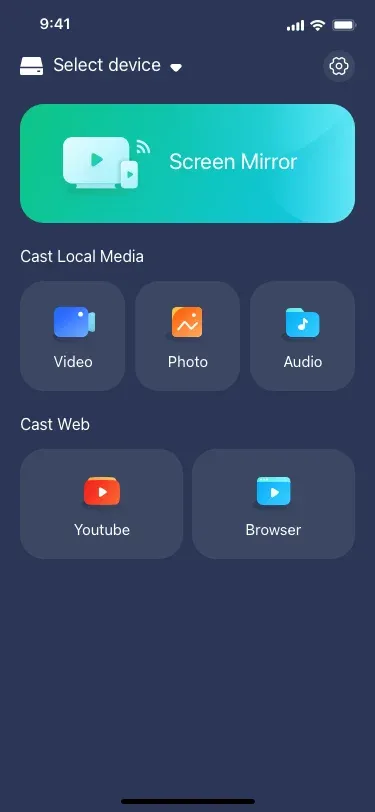
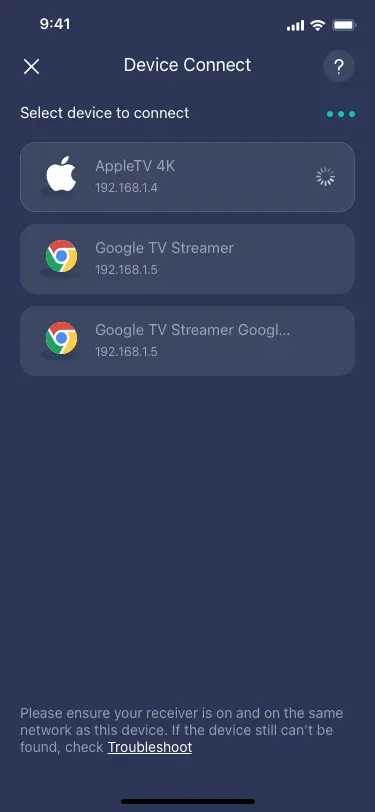
Step 3. On the Device Connect menu, choose the Apple TV you want to cast your Android to.
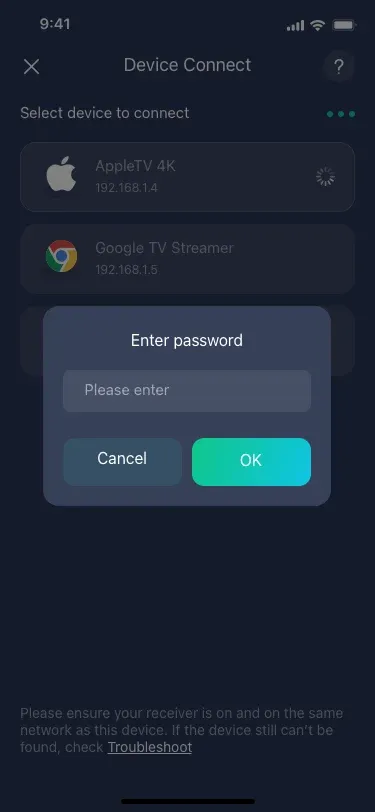
Step 4. Enter the four-digit password shown on your Apple TV to set up a secure connection and tap the OK button.
Step 5. Wait for the Apple TV to be connected. Once connected, you can activate any feature on the app to watch your Android screen via the TV.
- Screen Mirror: project the entire Android screen to Apple TV.
- Video, Photo, Audio: cast the stored media on your Android to Apple TV.
- YouTube: Cast YouTube videos from Android to Apple TV.
- Browser: Cast Chrome from Android to Apple TV.
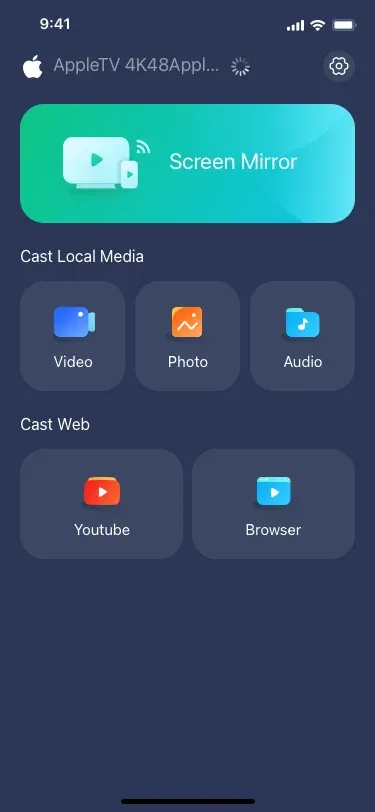
That's how the PigeonCast app AirPlay from Android to Apple TV.
#2. PigeonCast for Apple TV Screen Mirroring
The first PigeonCast tool turns your Android into an AirPlay sender, while the second PigeonCast app adds Google Cast support to your Apple TV, making Android-to-Apple TV casting easy. Both apps are free to use, work wirelessly, and require no complex setup, perfect for quick screen mirroring without cables or compatibility headaches.
How to cast Android to Apple TV wirelessly? Try the PigeonCast for Apple TV Screen Mirroring app:
Step 1. On your Apple TV, go to the App Store and download the third-party app.
PigeonCast Screen Mirroring
Official Download

Step 2. Ensure that your Android device and Apple TV are on the same Wi-Fi network.
Step 3. Launch the app on your Apple TV. It will assign and display a new device name. Be sure to take note of it.
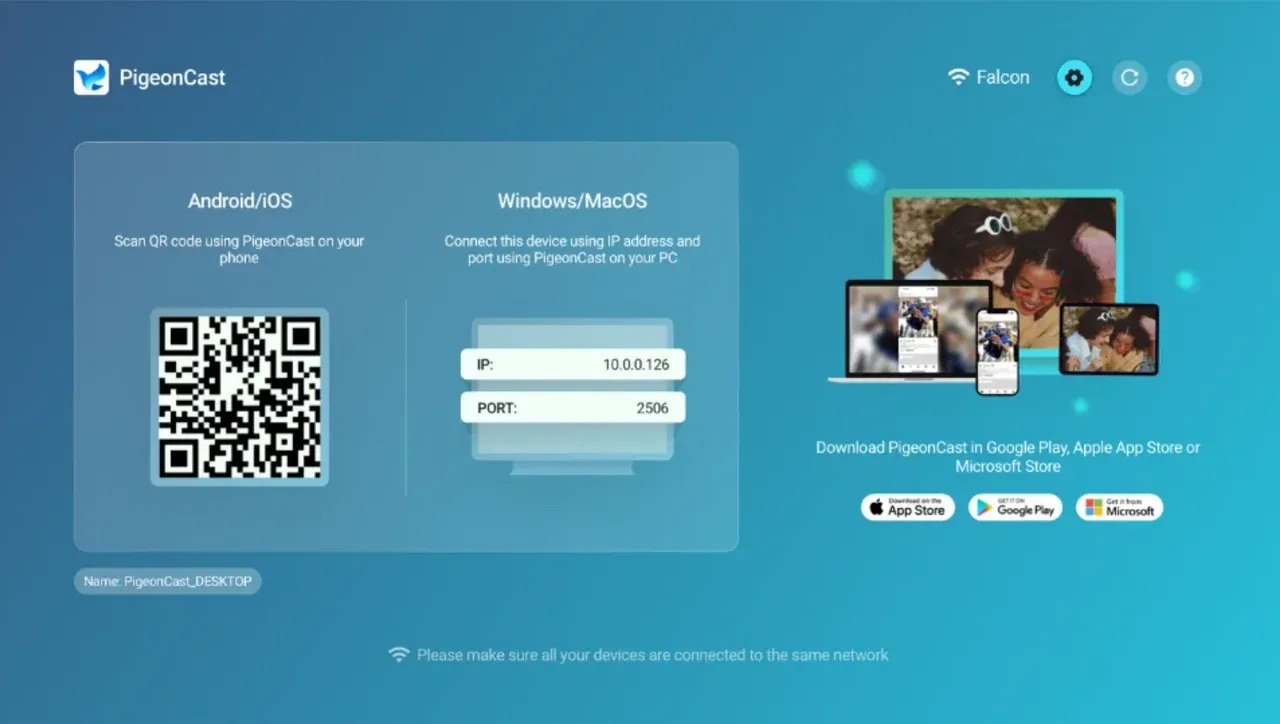
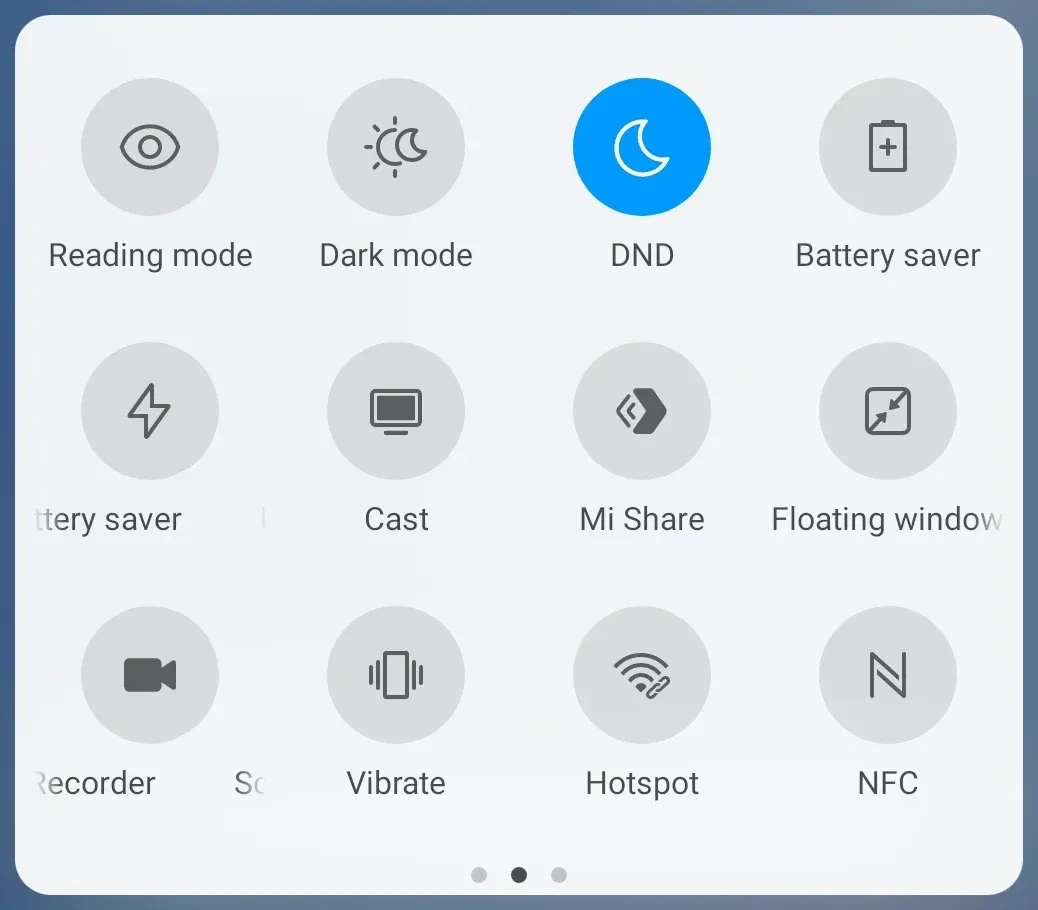
Step 4. On your Android device, swipe down to open Quick Settings and tap the Cast feature. The name may vary by brand, so check your device manual to find the correct option.
Step 5. Your Android device will list available devices, from which tap the new name of your Apple TV that the app assigns.
Step 6. Wait for your Android to connect to Apple TV. Once connected, you can mirror Android to Apple TV free.
#3. AirScreen
The AirScreen app can connect your Android to your TV, including Apple TV. Similar to PigeonCast for Apple TV, the app is a powerful streaming receiver that is compatible with AirPlay, Cast, and DLNA, making content or screen sharing without any cables.
How to cast to Apple TV from Android using AirScreen? Here is a quick guide:
Step 1. Install the AirScreen app on your Apple TV and open it.
Step 2. On your Android phone, open the notification panel and choose the Cast option.
Step 3. Your Android will start searching for nearby devices. Once it displays your Apple TV, tap it.
Step 4. Once you have connected your Android to the TV, you can start streaming and sharing your content.
Conclusion
To cast from Android to Apple TV, you'll need a tool that either turns your Android into an AirPlay sender or adds Google Cast support to your Apple TV. This guide covers four easy-to-use apps—like PigeonCast for Android and Apple TV—that connect your devices wirelessly. While using them, just make sure both your Android and Apple TV are on the same Wi-Fi network.
Cast Android to Apple TV FAQ
Q: Can Android cast to AirPlay?
By default, Android does not support AirPlay, which is Apple's proprietary wireless streaming protocol. However, with third-party apps like PigeonCast for Android, you can enable AirPlay sender functionality on your Android device and cast to AirPlay-compatible receivers.
Q: Can you mirror Android to Apple TV?
Yes, you can mirror Android to Apple TV using apps that bridge the compatibility gap. Tools like PigeonCast for Android and Apple TV enable screen mirroring by emulating AirPlay or adding Google Cast support to Apple TV. Just make sure both devices are on the same Wi-Fi network.
Q: What is the best app to cast Android to Apple TV?
Apps like PigeonCast, AirScreen, and ApowerMirror are among the best for casting Android to Apple TV. PigeonCast is especially user-friendly, offering both AirPlay sender and Google Cast receiver functions across devices.
Q: Does Apple TV support Google Cast or Chromecast?
Apple TV does not natively support Google Cast or Chromecast. However, with apps like PigeonCast for Apple TV, you can add Google Cast compatibility, allowing Android devices to connect and cast content.
Q: Why can't my Android detect the Apple TV?
This usually happens if the devices are not on the same Wi-Fi network, if AirPlay or Cast is disabled on the Apple TV, or if your casting app isn't running. Ensure both devices are connected properly and try restarting the app.
Q: Is screen mirroring from Android to Apple TV laggy?
Performance depends on the app used, your Wi-Fi strength, and the resolution of the content. With reliable tools like PigeonCast and a strong local network, mirroring is generally smooth with minimal lag.
Mia Clarke is a technology editor specializing in screen mirroring and casting solutions across multiple platforms. Mia provides clear, practical guides and in-depth insights to help users seamlessly connect their devices. Passionate about enhancing digital experiences, Mia is dedicated to keeping readers updated on the latest trends and tools in cross-platform screen sharing. Whether you’re looking to mirror your smartphone, laptop, or smart TV, Mia’s content delivers reliable, user-friendly advice to simplify your tech setup.