
AirPlay looks simple from the outside. Tap one icon, pick a screen, and your video, music, or display appears somewhere bigger. That is the promise, and when the sender, receiver, and network all line up, it usually works that way.
The confusion starts when people treat AirPlay like one universal casting button. It is not. AirPlay works best inside the Apple ecosystem and on well-implemented compatible receivers, but the experience changes depending on whether you are streaming media, mirroring a screen, sending from iPhone or Mac, or aiming at a TV that only partly supports the feature.
This AirPlay guide is built to make those differences clear fast. You will see what AirPlay actually does, where it fits best, how to use it on common devices, what causes the most common failures, and when it makes more sense to switch methods instead of repeating the same setup loop.
Quick Answer
AirPlay is Apple’s wireless streaming and screen mirroring technology that lets users send video, audio, photos, and device screens between compatible devices. It works best inside the Apple ecosystem and on stable local Wi-Fi networks.
AirPlay is ideal for:
- streaming video from iPhone to TV
- mirroring a Mac screen wirelessly
- sharing photos, music, and presentations
Most AirPlay problems come from:
- network mismatches
- weak TV implementation
- mirroring latency
- inconsistent receiver support
If AirPlay repeatedly fails across different devices or TV brands, a cross-platform casting solution may provide a more stable long-term setup.
What AirPlay Actually Does
According to Apple, AirPlay lets users stream video, audio, photos, and mirror device screens wirelessly between compatible devices. In everyday use, AirPlay usually means sending content from an iPhone, iPad, or Mac to Apple TV or a compatible television over a local network connection.
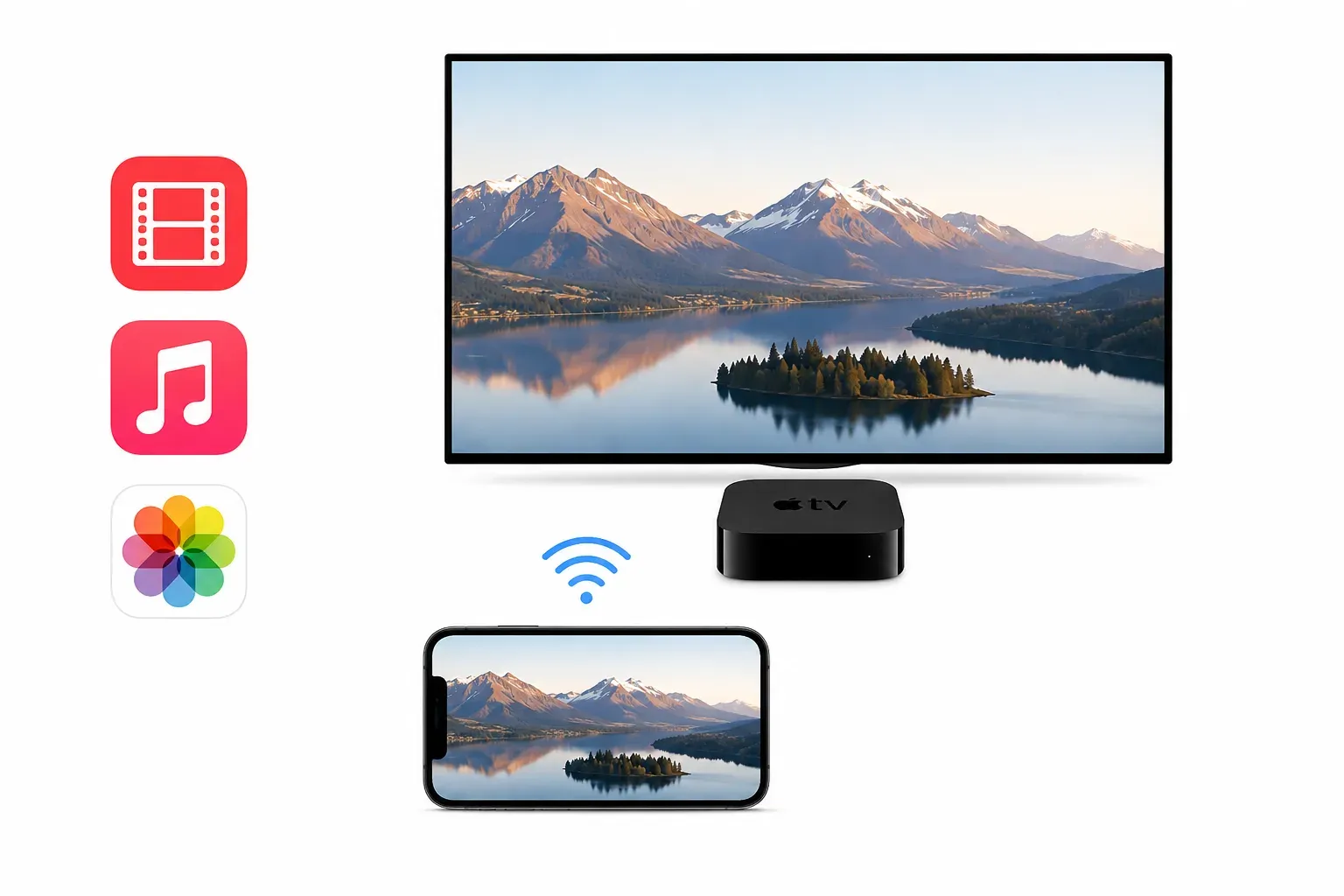
Apple officially supports two different AirPlay behaviors:
- media streaming, where a video, song, or photo is sent to the receiver
- screen mirroring, where your full device display is duplicated in real time
Those two modes feel similar in menus, but they behave differently in real use. Streaming is usually lighter and more stable for long video sessions. Mirroring is more flexible because it shows your whole screen, but it is also more sensitive to network quality, receiver implementation, and live performance limits.
That difference explains why AirPlay can feel perfect in one situation and frustrating in another. A TV may handle AirPlay video streaming well but still feel weaker for full-screen mirroring. A Mac may mirror smoothly in one room and start lagging in another because the wireless conditions changed. If you keep that streaming-versus-mirroring split in mind, AirPlay becomes much easier to use and troubleshoot.
Related reading:
- What Is AirPlay on iPhone
- Where Is AirPlay on Mac
- Is AirPlay Free to Use
- Does AirPlay use WiFi or Bluetooth
- What's the Difference Between AirPlay and AirPlay 2
Where AirPlay Works Best
AirPlay is strongest when the setup is simple and the ecosystem is aligned. That usually means an Apple sender, a receiver with mature AirPlay support, and a stable local network.
AirPlay is often the best fit when you want to:
- play videos from iPhone or iPad on a TV without cables
- mirror a Mac screen to Apple TV or a compatible TV for light presentations
- share photos, music, or short clips inside a home Apple setup
- move between Apple devices and AirPlay-certified screens without learning a new setup pattern
The cleanest AirPlay path is still Apple-to-Apple or Apple-to-certified-receiver. That is where discovery, passcode handling, and playback behavior tend to feel the most predictable.
AirPlay becomes less predictable when:
- the receiver is a third-party TV with uneven firmware support
- the setup mixes Windows, Android, and Apple devices in the same routine
- the network blocks or weakens local discovery
- you need the same repeatable process across many different TVs
In those cases, the problem is not that AirPlay is bad. It is that the environment no longer matches what AirPlay does best.
What to Check Before You Use AirPlay
Most failed AirPlay sessions are caused by setup mismatches, not by broken hardware. Run this short check once before you go deeper:
- Keep sender and receiver on the same Wi-Fi network and, when possible, the same band.
- Confirm the receiver actually supports AirPlay, not just the Apple TV app.
- Wake the TV, Apple TV, or receiver fully before trying discovery.
- Update iPhone, iPad, Mac, and TV firmware if connection issues repeat.
- Turn off VPN or privacy routing features during the first test.
- Decide whether you need streaming or full-screen mirroring before you start.
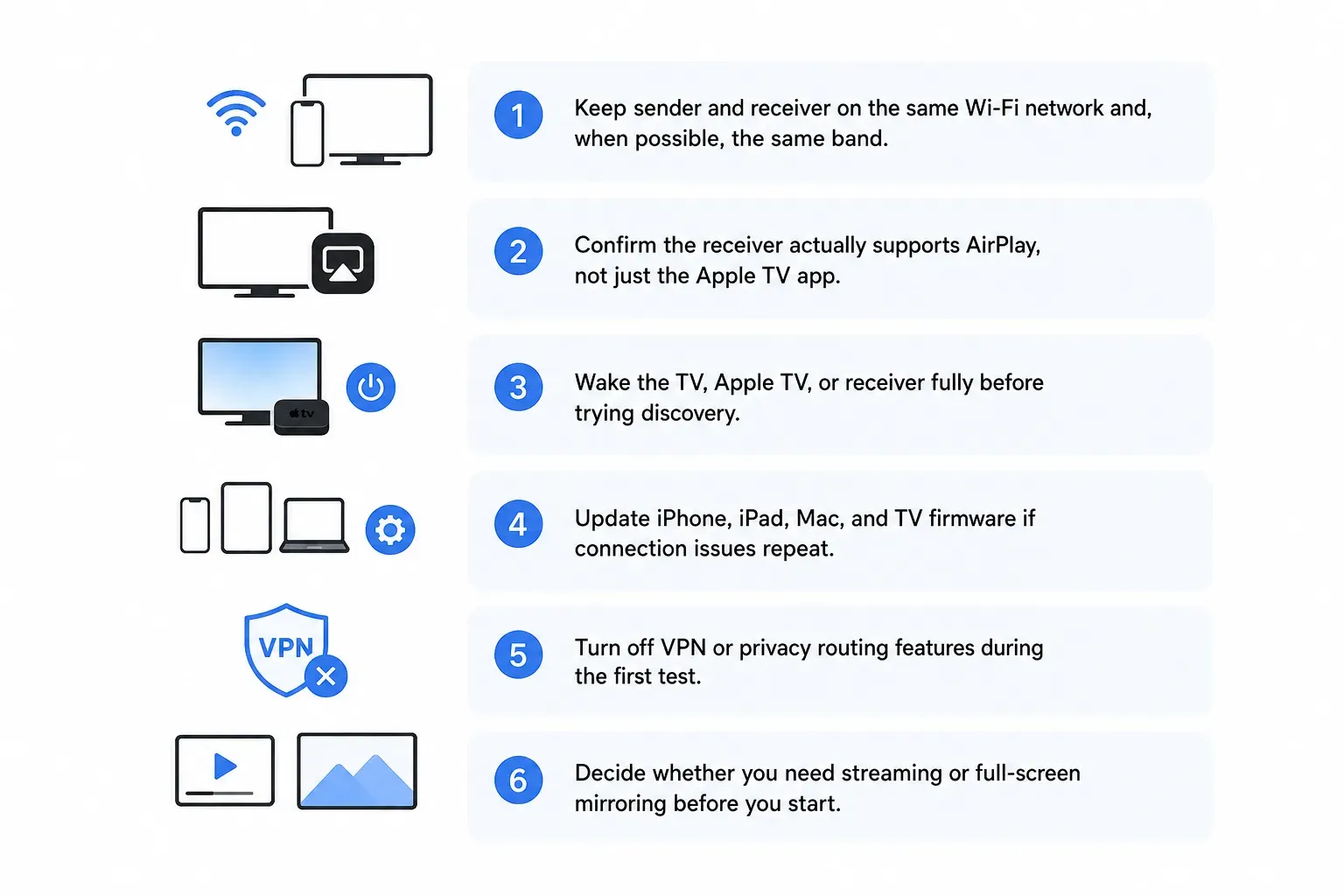
That last point matters more than it seems. If your real goal is watching one video, streaming is usually the cleaner path. If your goal is showing an app, browser tab, slideshow, or live session, mirroring is the right test. Choosing the wrong mode often makes users think AirPlay is failing when they are really using the wrong output path.
If you want to sanity-check the basics before troubleshooting deeper, use these guides in the order most people usually ask the questions:
- Is AirPlay Free
- Does AirPlay Use WiFi or Bluetooth
- Can You AirPlay Without WiFi
- Where Is AirPlay on Mac
- What does the AirPlay Icon Look Like
- What Is AirPlay Password
How to Use AirPlay from iPhone and iPad
iPhone and iPad are the most common AirPlay senders. This is also where AirPlay feels the most intuitive because the controls are built directly into iOS and iPadOS.
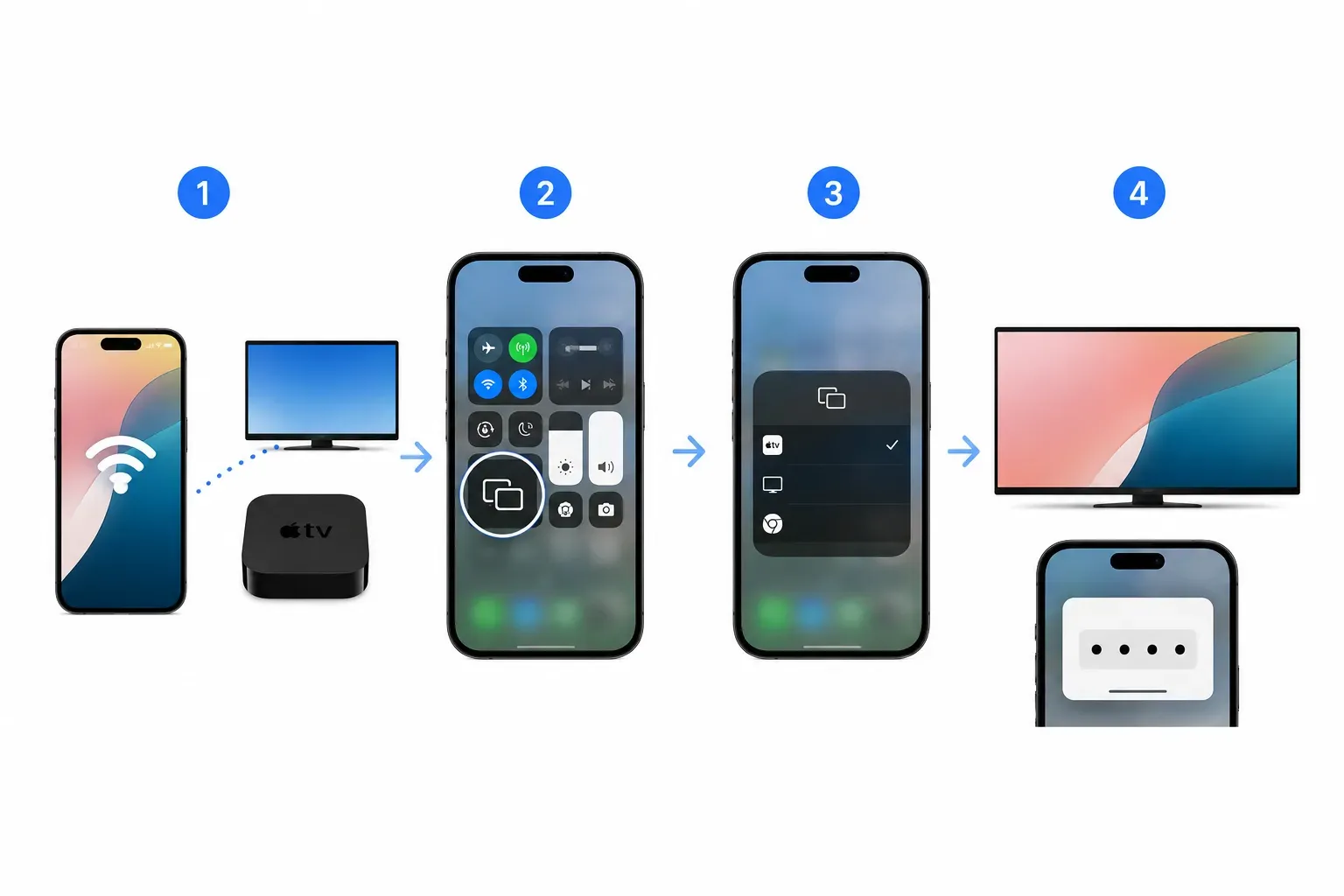
If you want to mirror the whole screen:
Step 1. Make sure your iPhone or iPad and receiver are on the same Wi-Fi network.
Step 2. Open Control Center ans tap Screen Mirroring.
Step 3. Select your TV, Apple TV, or other compatible receiver.
Step 4. Enter the AirPlay code shown on the receiver if prompted.
If you only want to send media, open a compatible app, tap the AirPlay icon or playback output icon, and choose the target device there. That route is often better for video sessions because it avoids unnecessary full-screen duplication.
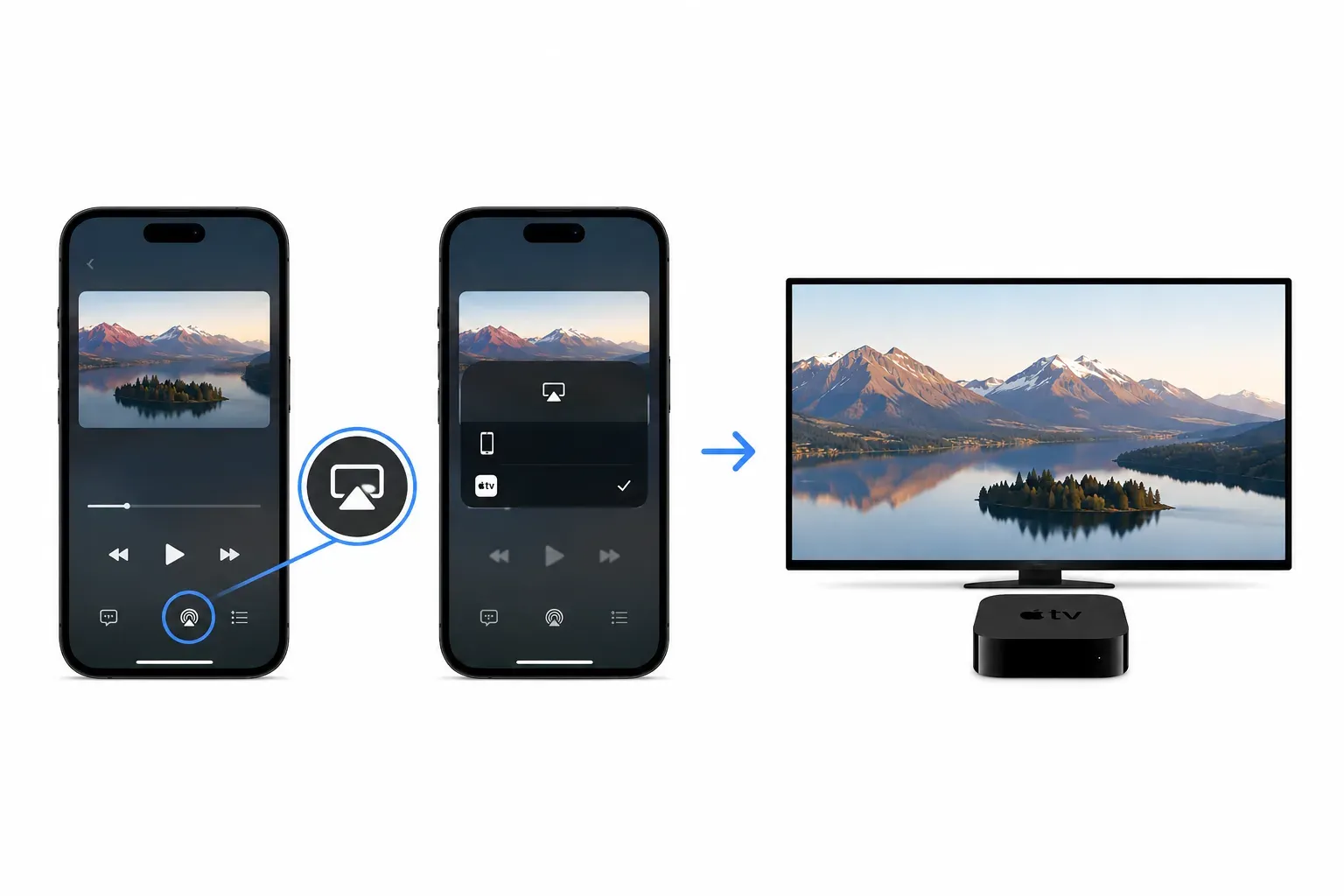
For iPhone and iPad users, the main decision is not whether AirPlay exists. It is whether the receiver path is clean enough to stay on AirPlay. If your TV appears quickly and playback stays stable, keep using native AirPlay. If discovery is inconsistent across rooms or across different TV brands, moving to an app-based approach usually saves time long term.
Recommended reading:
- How to Screen Mirror iPhone to TV
- How to Screen Mirror iPhone to Samsung TV
- How to Mirror iPhone to TV Without Apple TV
- How to Screen Mirror iPhone to Roku
- How to Mirror iPhone to Mac
How to Use AirPlay from Mac
Mac gives you more flexibility than iPhone because you can use AirPlay either as a media path or as a display method. That is useful, but it also introduces more room for confusion if you are not clear on the goal.
For Mac screen mirroring:
Step 1. Connect your Mac and receiver to the same Wi-Fi network.
Step 2. Open the Screen Mirroring or Control Center menu in the macOS menu bar.
Step 3. Select your Apple TV or AirPlay-enabled display.
Step 4. Choose the mirror or display mode that fits your session.
Step 5. Test motion, audio, and resolution before a meeting or presentation starts.
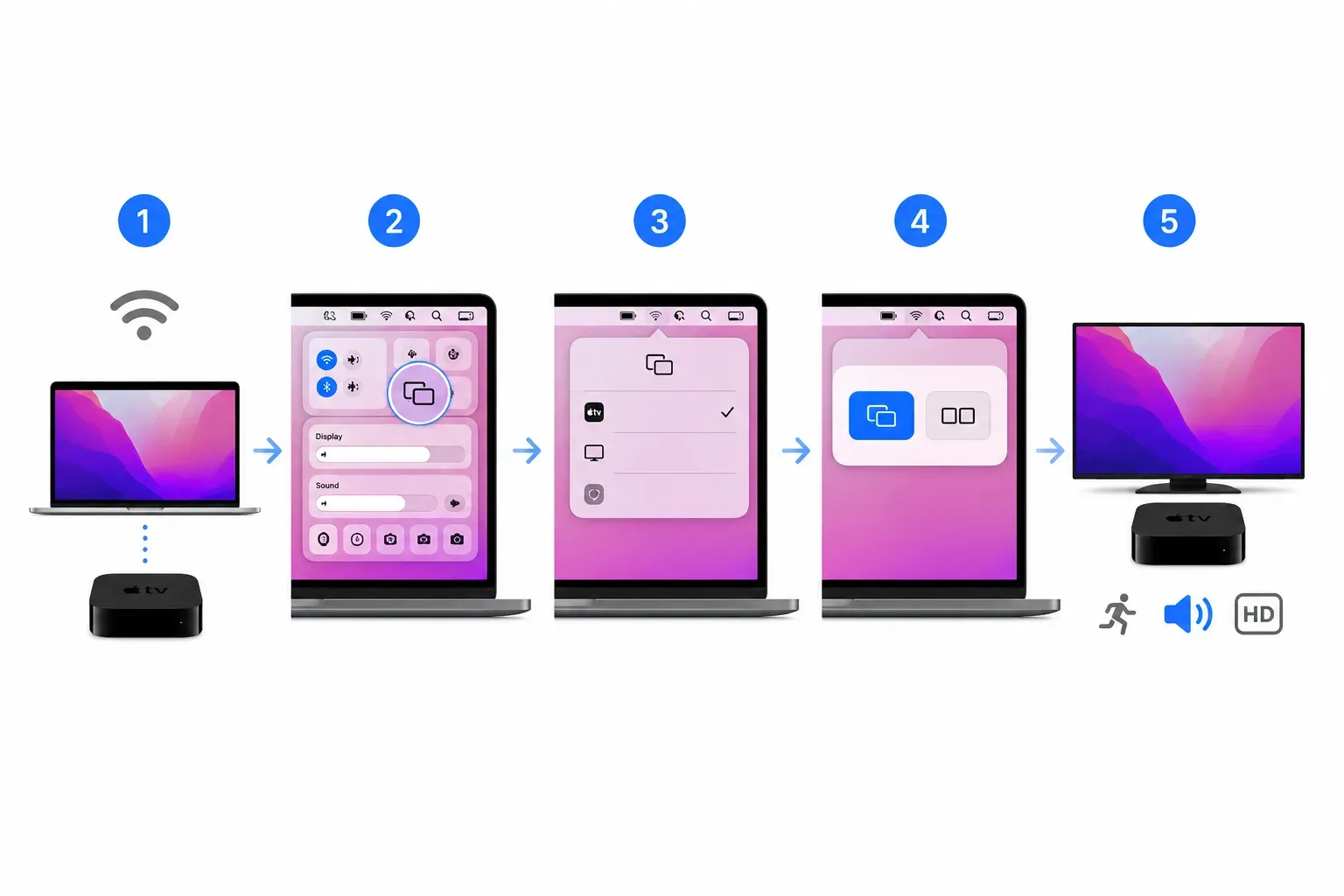
Mac AirPlay works well for light presentation, browsing, photos, and video playback. It is less ideal for scenarios where timing is strict, latency matters, or the room network is unstable. In those cases, the practical rule is simple: if the session matters more than keeping your desk cable-free, switch earlier instead of trying to rescue a weak wireless session.
If your Mac setup keeps breaking at the same point, route your troubleshooting by symptom. Discovery failures, black screens, and unstable playback often point to different causes and should not be treated as one generic “AirPlay problem".
Recommended reading:
- How to AirPlay from Mac to TV
- How to Screen Mirror on Mac
- How to Screen Mirror Mac to Samsung TV
- How to Mirror Mac to Apple TV
- How to Connect Mac to LG TV Wirelessly
- How to AirPlay Mac to Mac
- How to Use AirPlay to iMac
Can You AirPlay from Android, Windows, or Chromebook?
Unlike Apple devices, Windows, Android, and ChromeOS do not include native AirPlay sender support at the operating-system level. That is why users often assume AirPlay is broken or unsupported when the real issue is platform mismatch rather than network failure.
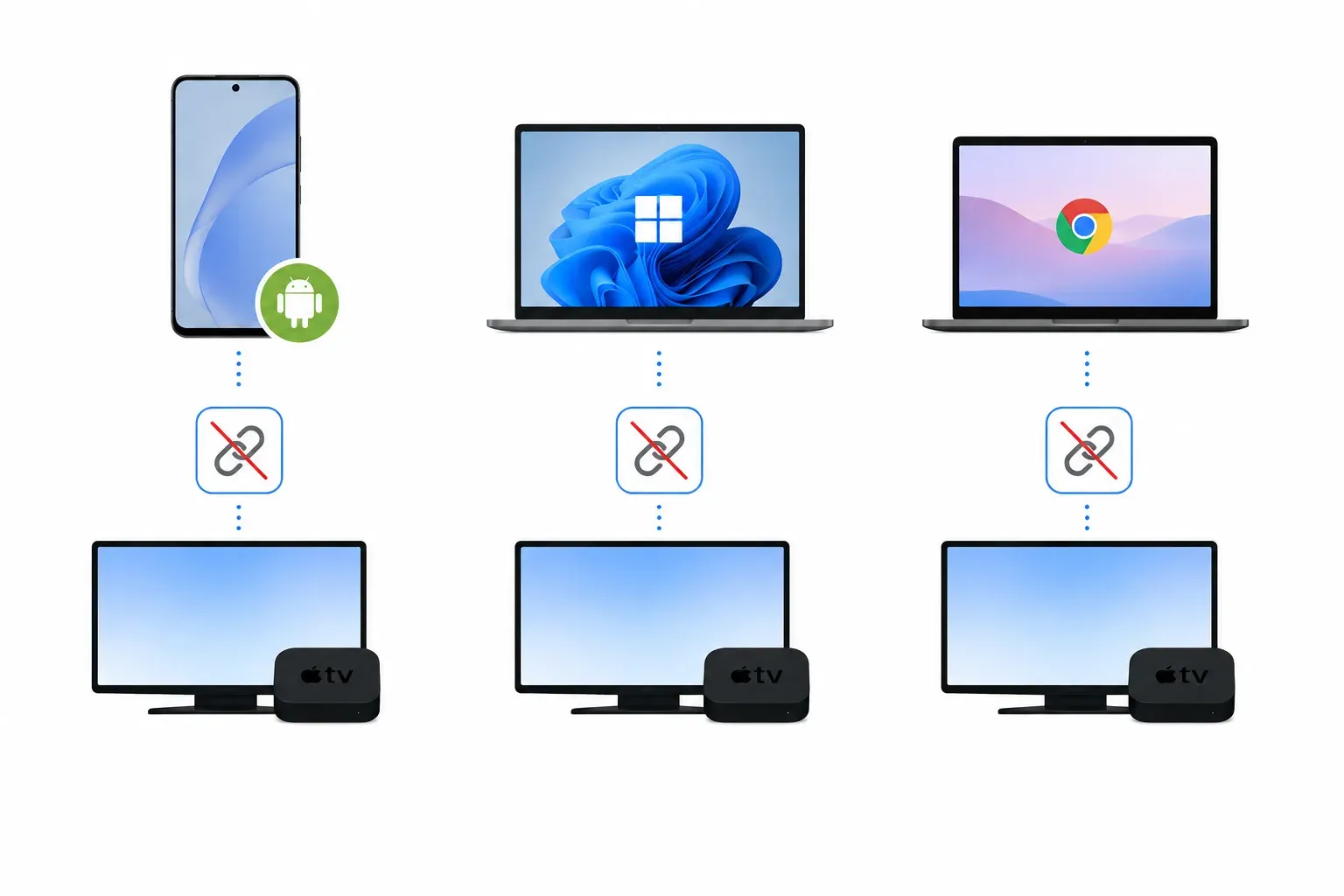
The practical answer is that Windows or Android users usually need to choose between:
- Miracast when the TV supports wireless display
- Google Cast when the TV has Chromecast-built in
- an AirPlay-compatible sender app when the receiver path specifically depends on AirPlay
- a cross-platform screen mirroring option when consistency matters more than protocol labels
If you want the platform-specific breakdown first, start with the guide below before choosing a method.
AirPlay to Apple TV and Smart TVs
The receiver side matters just as much as the sender. Two TVs can both mention AirPlay and still deliver very different results because implementation quality, firmware maturity, and device class all affect the experience.
Apple TV
Apple TV is usually the cleanest AirPlay receiver. Discovery is straightforward, streaming behavior is mature, and screen mirroring is generally more predictable than it is on mixed-brand TV setups. If you already use Apple devices regularly, Apple TV remains one of the most reliable ways to keep AirPlay simple.
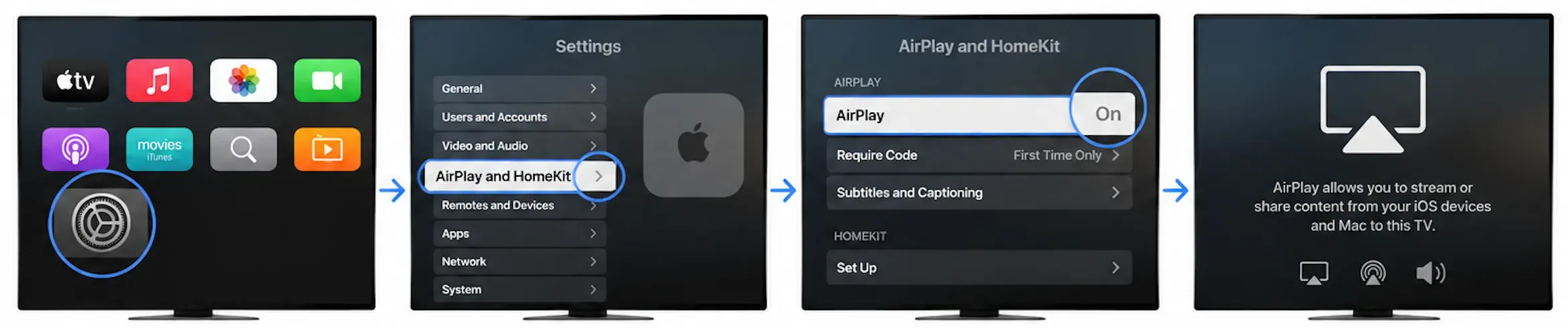
If you want the Apple TV-specific setup path, see Apple TV AirPlay.
AirPlay-enabled smart TVs
Many modern smart TVs support AirPlay, but that label does not mean every usage pattern will feel equally stable. Some TVs are perfectly fine for casual video streaming from iPhone but less reliable for longer mirroring sessions or repeated reconnects across multiple users.
For smart TVs, a quick reality check helps:
- if AirPlay appears quickly and reconnects cleanly, native is a good default
- if one TV works and another AirPlay-labeled TV does not, treat implementation quality as the likely variable
- if the same house uses several TV brands, consistency may matter more than keeping each room on its native stack
Fire TV is a good example of why that distinction matters. Some Fire TV smart TVs support AirPlay directly, but many Fire TV Stick and Cube setups behave differently. If the goal is dependable everyday use instead of model-by-model checking, using an AirPlay app for your FireOS device is often the better long-term choice. For the full breakdown, see How to AirPlay to Fire TV.
If you want a more specific path, move from the broadest platform guides to the more brand- or scenario-specific ones:
- How to AirPlay to Samsung TV
- How to AirPlay to Roku
- How to AirPlay to Vizio TV
- How to AirPlay to TCL TV
- How to AirPlay to Sony TV
- How to AirPlay to Hisense TV
- How to AirPlay to Insignia TV
- How to AirPlay to Panasonic TV
- How to AirPlay TikTok to TV
If setup looks correct but the TV side still breaks down, switch from setup guides to the matching TV-specific repair article instead of repeating the same menu steps:
- AirPlay Not Working on Samsung TV
- Fire TV AirPlay Not Working
- AirPlay Not Working on Roku
- Vizio AirPlay Not Working
- TCL TV AirPlay Not Working
- Hisense TV AirPlay Not Working
- LG TV AirPlay Not Working
Common AirPlay Problems and Fast Switch Rules
Is your AirPlay not working? AirPlay troubleshooting gets much easier when you stop treating every failure as the same failure. The symptom usually tells you where to look first.
| Symptom | Most likely issue | First action | When to switch |
|---|---|---|---|
| No device appears | Network mismatch, receiver not truly AirPlay-ready, VPN or isolation setting | Recheck Wi-Fi, wake receiver, turn off VPN, confirm actual AirPlay support | If the same receiver still does not appear after one clean retry cycle, change method |
| Repeated passcode prompts | Pairing state conflict or unstable receiver behavior | Remove prior pairing records and reconnect cleanly | If the same device loops again after reset, stop retrying and use a more repeatable setup |
| Black screen after connect | App restriction, display-mode mismatch, or weak receiver implementation | Test local media first, then retry with a simpler output path | If local media works but target content fails, change method for that session |
| Lag or random drops | Congested Wi-Fi, weak signal, mirroring overhead | Move closer to router, reduce network load, use streaming mode when possible | If delay makes the session unusable, switch immediately |
| Works on one TV but not another | Receiver-side implementation difference | Compare settings and firmware, then retest once | If one TV stays inconsistent, stop assuming all AirPlay TVs behave the same |
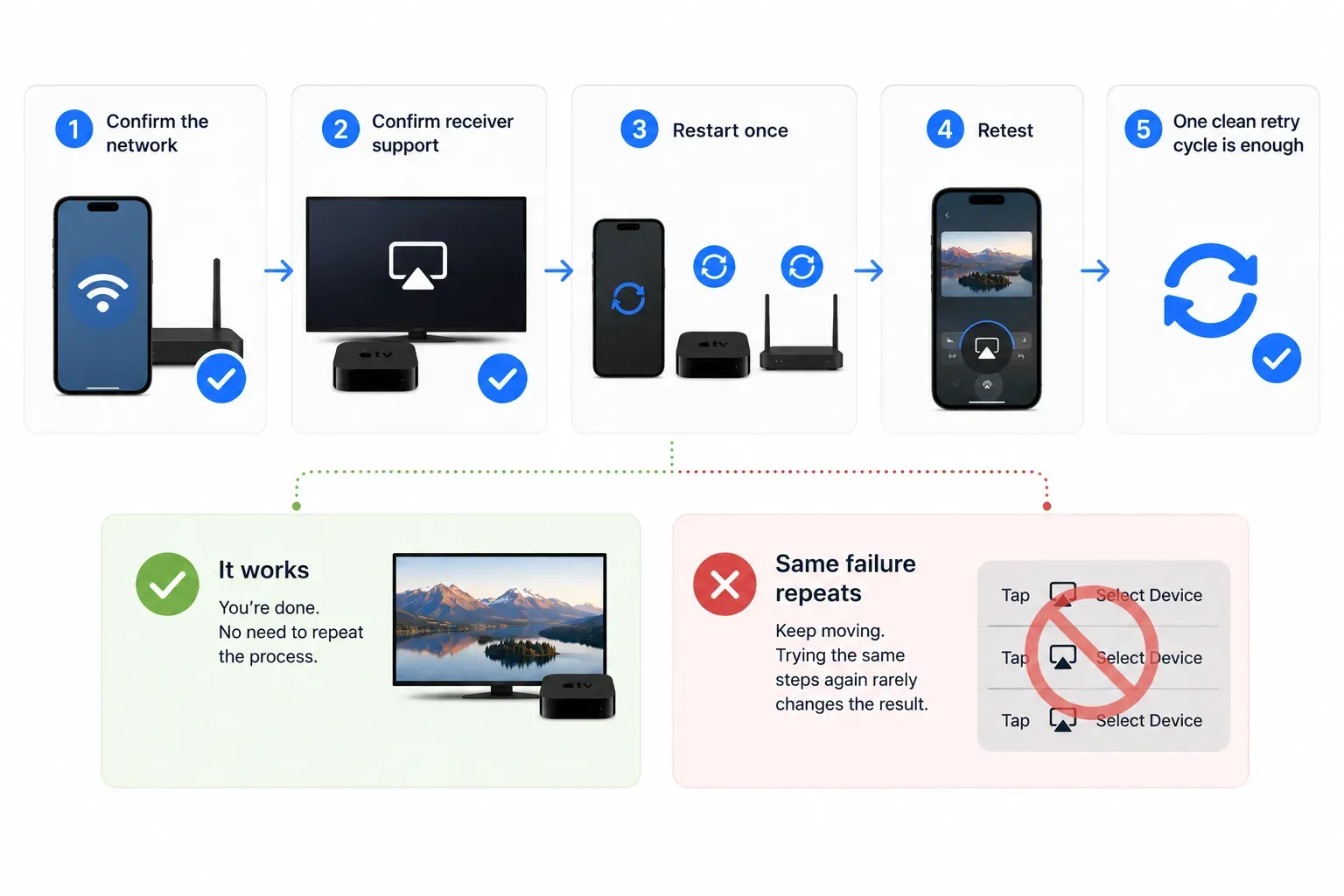
The most useful AirPlay rule is this: one clean retry cycle is enough. Confirm the network, confirm receiver support, restart once, and retest. If the same failure repeats, keep moving. Repeating the identical menu path rarely creates a different outcome.
If you want to troubleshoot by exact symptom instead of guessing, use this repair list:
| If this is your AirPlay issue | Read this next |
|---|---|
| AirPlay will not connect to the TV at all | AirPlay not connecting to TV |
| AirPlay audio is missing or unstable | AirPlay sound not working |
| The AirPlay verification code does not appear on TV | AirPlay code not showing on TV |
| AirPlay connects but playback does not actually start | AirPlay connected but not playing |
| AirPlay sends audio only and no usable video | AirPlay only playing audio |
| Subtitles disappear or stop rendering over AirPlay | AirPlay subtitles not working |
| Prime Video shows “AirPlay is unavailable for this video” | AirPlay is unavailable for this video Prime |
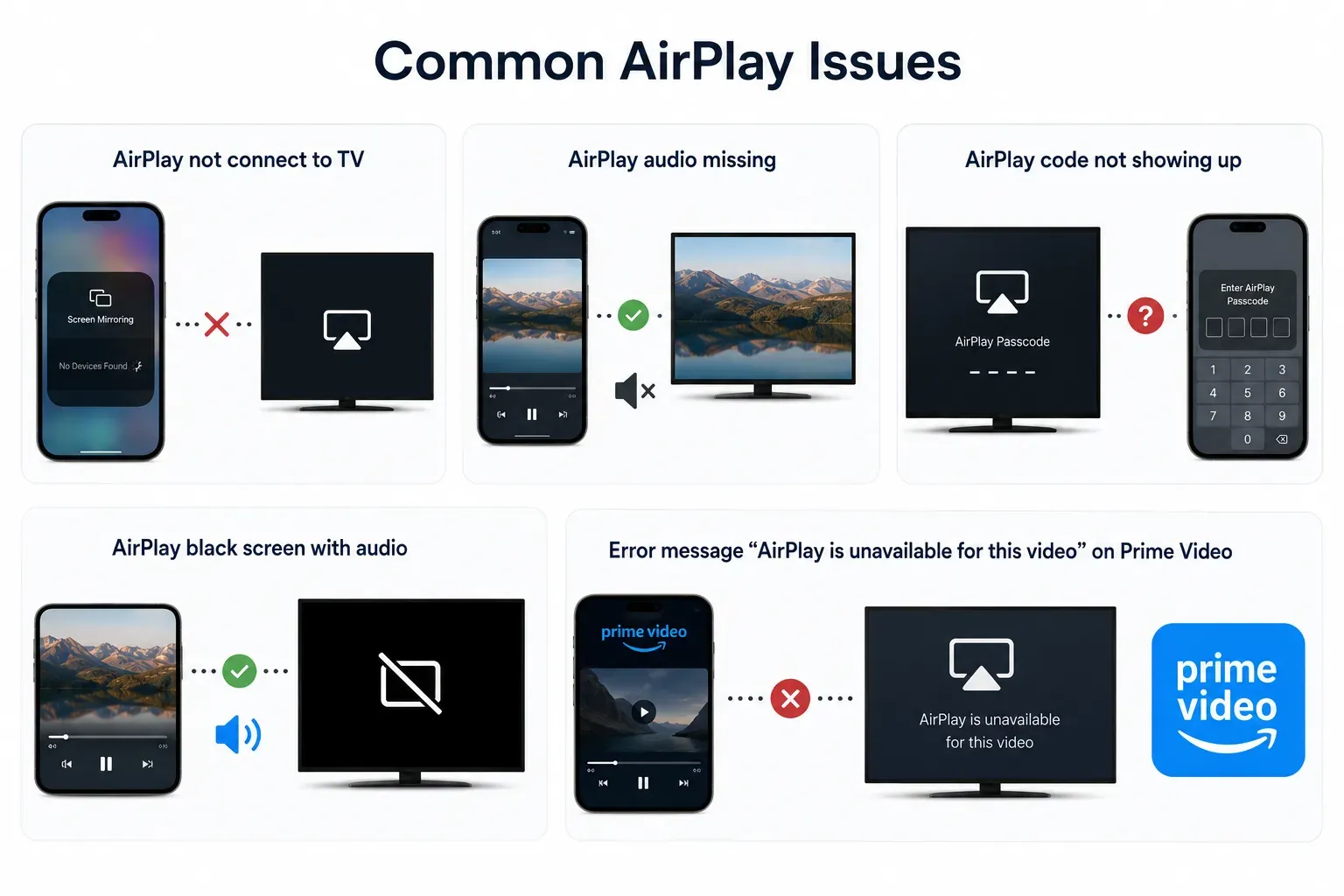
This list also helps you avoid a common time-waster: fixing the wrong failure class. “No device found,” “audio only", “connected but not playing", and “subtitles missing” may all feel like generic AirPlay trouble, but they usually point to different causes and should be handled with different fixes.
AirPlay vs Other Methods and When to Switch
AirPlay is not the answer to every wireless display task. It is one method in a broader group of streaming and mirroring systems, and it works best when the environment matches it.
Stay with AirPlay when:
- your sender is iPhone, iPad, or Mac
- the receiver has proven AirPlay support
- the network is stable
- you want a clean native Apple setup
Switch earlier when:
- you are working across Apple, Windows, and Android devices
- TV support varies by room or by brand
- you need one repeatable setup path more than one protocol name
- native AirPlay works inconsistently even after a clean baseline check
If you want the deeper protocol view, read AirPlay vs DLNA vs Cast vs Miracast. That comparison explains why some tasks fit AirPlay naturally while others fit Cast, Miracast, or different delivery models better.
For many mixed-device homes and repeat-use setups, users may prefer a more consistent cross-platform casting experience instead of relying entirely on native AirPlay behavior.
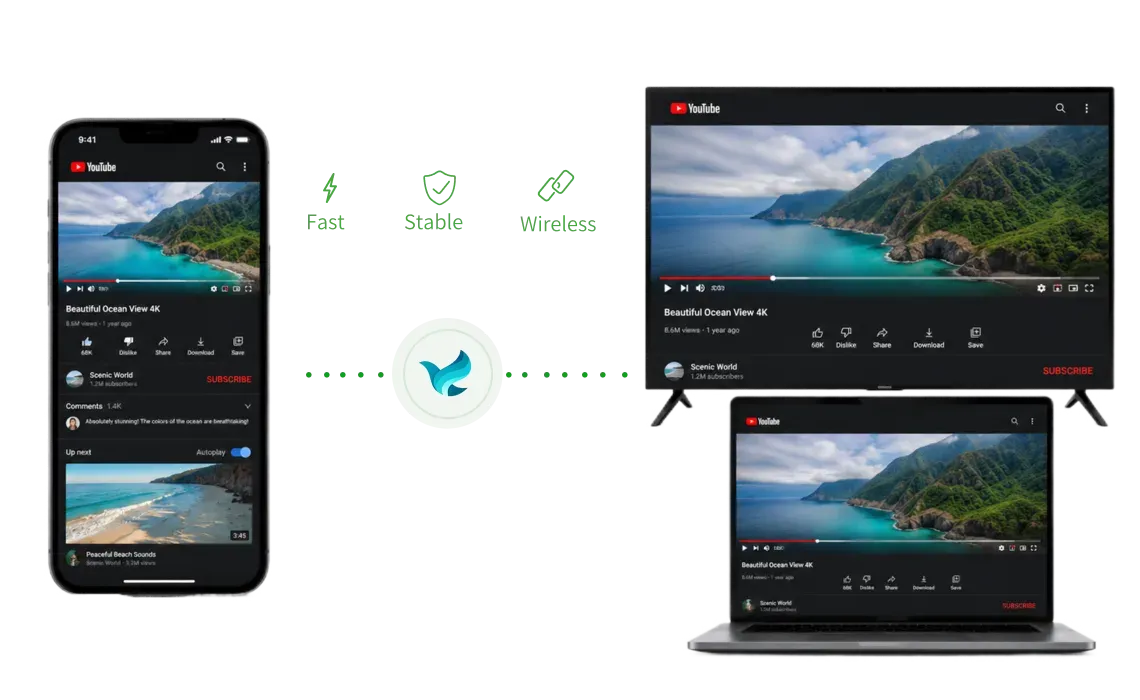
PigeonCast is the more practical modern alternative to AirPlay. The advantage is not that it imitates Apple menus. The advantage is that it reduces setup variance across device types and TV brands, which matters more when you cast often or move between screens regularly.
The screen mirroring app is especially useful when you want:
- one repeatable cross-device mirroring routine
- fewer protocol-specific dead ends
- a more consistent routine across living room TVs, bedroom TVs, and mixed hardware


Overall Rating:



That does not mean native AirPlay has no place. It means native AirPlay is best when the Apple path is already clean, while PigeonCast is the stronger ongoing default when repeatability across different environments matters more than staying inside one native protocol.
Conclusion
AirPlay is still one of the easiest ways to move media and screens from Apple devices to a larger display, but it only feels effortless when the sender, receiver, and network path actually match the job.
If you are in a clean Apple-friendly setup, stay with AirPlay and keep the process simple. If your environment is mixed, your TVs behave differently, or you need one method you can repeat without rechecking compatibility every time, move to a more consistent path earlier. The right decision is not “use AirPlay everywhere". It is “use AirPlay where it fits, and switch quickly when the environment no longer fits it".
AirPlay FAQ
What is AirPlay used for most often?
AirPlay is most commonly used to send video, audio, photos, and screen output from iPhone, iPad, or Mac to Apple TV or a compatible TV. For most users, that means either media playback or wireless screen mirroring.
Is AirPlay the same as screen mirroring?
No. Screen mirroring is one AirPlay use case, but AirPlay also supports direct media playback paths. That is why some sessions feel smoother when you play video through an app output menu instead of mirroring the entire screen.
Why does AirPlay work on one TV but not another?
The AirPlay label does not guarantee the same implementation quality on every receiver. Firmware maturity, TV software behavior, and feature support can vary enough to change the experience noticeably.
Can I use AirPlay without Wi-Fi?
Most normal AirPlay sessions depend on local network visibility, so Wi-Fi is part of the standard setup. If the session is important and wireless conditions are poor, HDMI is usually the safer fallback.
Can Windows use AirPlay the same way a Mac can?
Not natively. Windows usually needs a different wireless display path, an AirPlay-compatible sender app, or a broader cross-platform solution depending on the receiver and the task.
When should I switch away from AirPlay instead of troubleshooting longer?
Switch after one full clean retry cycle if the same failure repeats. If the environment is mixed, receiver behavior is inconsistent, or you need a repeatable routine across several TVs, switching earlier is usually more efficient than continuing to retest native AirPlay.
Does AirPlay use Bluetooth or Wi-Fi?
AirPlay mainly relies on Wi-Fi and local network communication rather than Bluetooth for normal streaming and screen mirroring sessions. Bluetooth may assist with initial discovery in some cases, but most AirPlay data transmission happens over Wi-Fi.
Are all smart TVs with AirPlay support equally reliable?
No. AirPlay compatibility does not guarantee identical behavior across every TV brand or model. Firmware quality and manufacturer implementation can significantly affect stability and mirroring performance.
Mia Clarke is a technology editor specializing in screen mirroring and casting solutions across multiple platforms. Mia provides clear, practical guides and in-depth insights to help users seamlessly connect their devices. Passionate about enhancing digital experiences, Mia is dedicated to keeping readers updated on the latest trends and tools in cross-platform screen sharing. Whether you’re looking to mirror your smartphone, laptop, or smart TV, Mia’s content delivers reliable, user-friendly advice to simplify your tech setup.