
Apple's AirPlay is a remarkably convenient feature, allowing you to wirelessly stream videos, photos, music, and more directly from your iPhone, iPad, or Mac to a compatible screen. For Hisense TV owners, this functionality integrates your Apple devices seamlessly with your television, transforming it into a larger canvas for your content. In this guide, we will show you how to AirPlay on Hisense TV and offer solutions in case you encounter issues.
How to AirPlay to Hisense TV
To start streaming via AirPlay, your Hisense TV must be a compatible model and properly connected to your network. The steps below will walk you through the entire process, from checking compatibility to casting your screen, ensuring a smooth and seamless experience. Now, let's dive into how to use AirPlay on Hisense TV:
Move 1. Check Compatibility & Update
Before you start streaming with AirPlay, ensure your Hisense TV is AirPlay-compatible, and both your TV and Apple device are up to date. Follow these simple steps to get everything set up for a smooth connection.
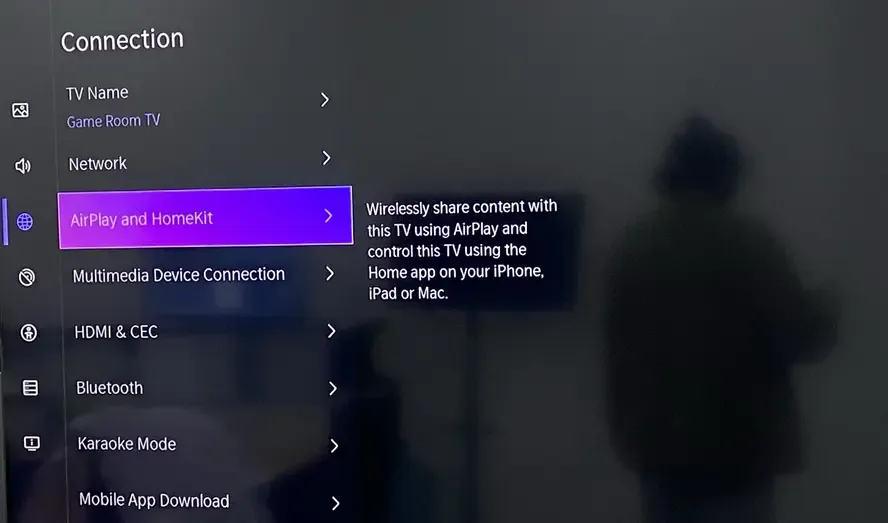
Step 1. Confirm AirPlay Support on Your Hisense TV:
Most Hisense models running VIDAA U6 OS or newer (2020 and later) and all Hisense Google TVs (2021 and later) are compatible with AirPlay 2. To verify, open your Hisense TV's Settings and look for the "AirPlay" or "Screen Mirroring" option. If you find it, your TV supports AirPlay.
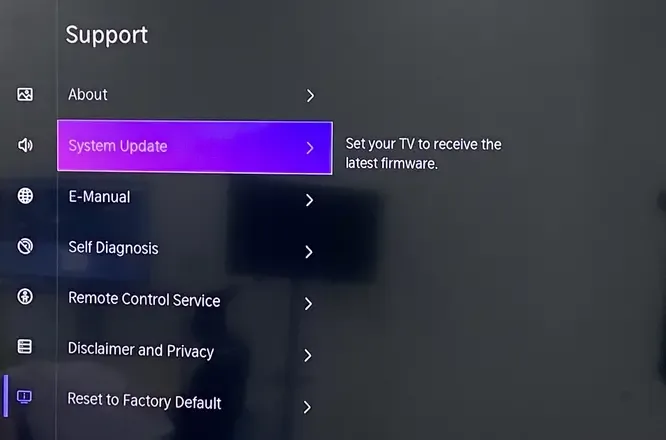
Step 2. Ensure your Hisense TV is running the latest firmware from Settings > System > Software Update and check for any available updates.
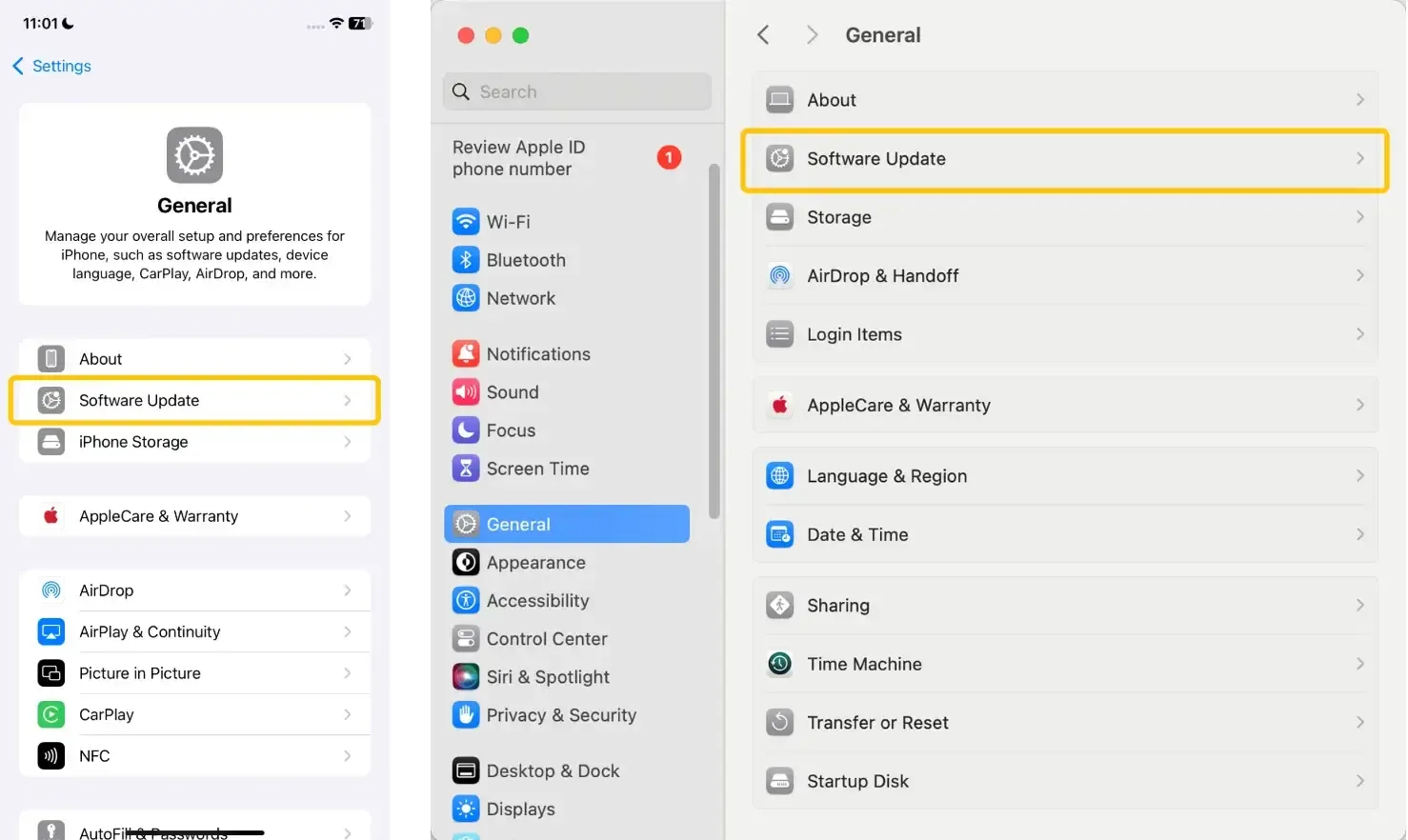
Step 3. Check that your Apple device is running the latest version of iOS, iPadOS, or macOS:
- iPhone or iPad: Go to Settings > General > Software Update on your iPhone or iPad.
- Mac: Navigate to System Settings > Software Update.
Move 2. Connect to the Same Network
Now that your devices are compatible and updated, the next step is to ensure both your Hisense TV and Apple device are connected to the same Wi-Fi network. This is crucial for a seamless AirPlay experience.
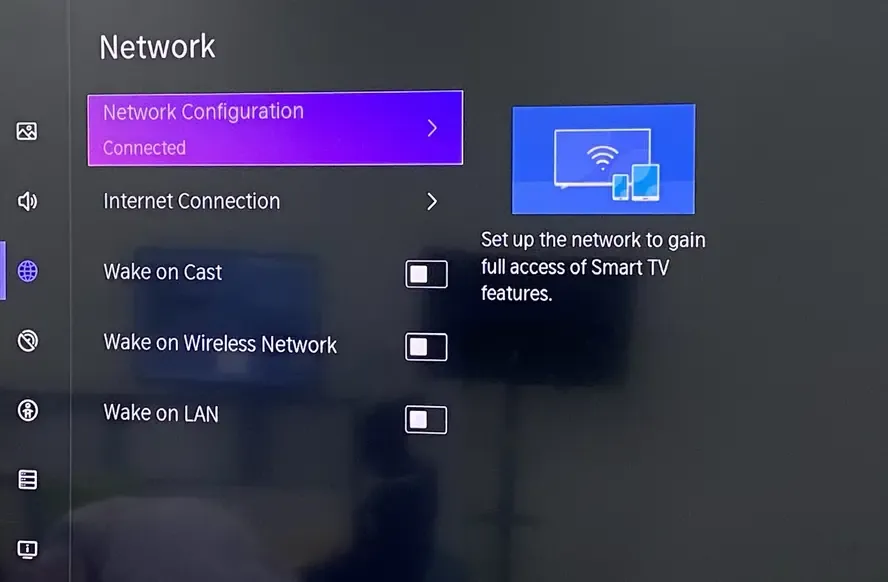
Step 1. Verify Wi-Fi Connection on Your TV from the TV's Settings > Network to check the Wi-Fi connection.
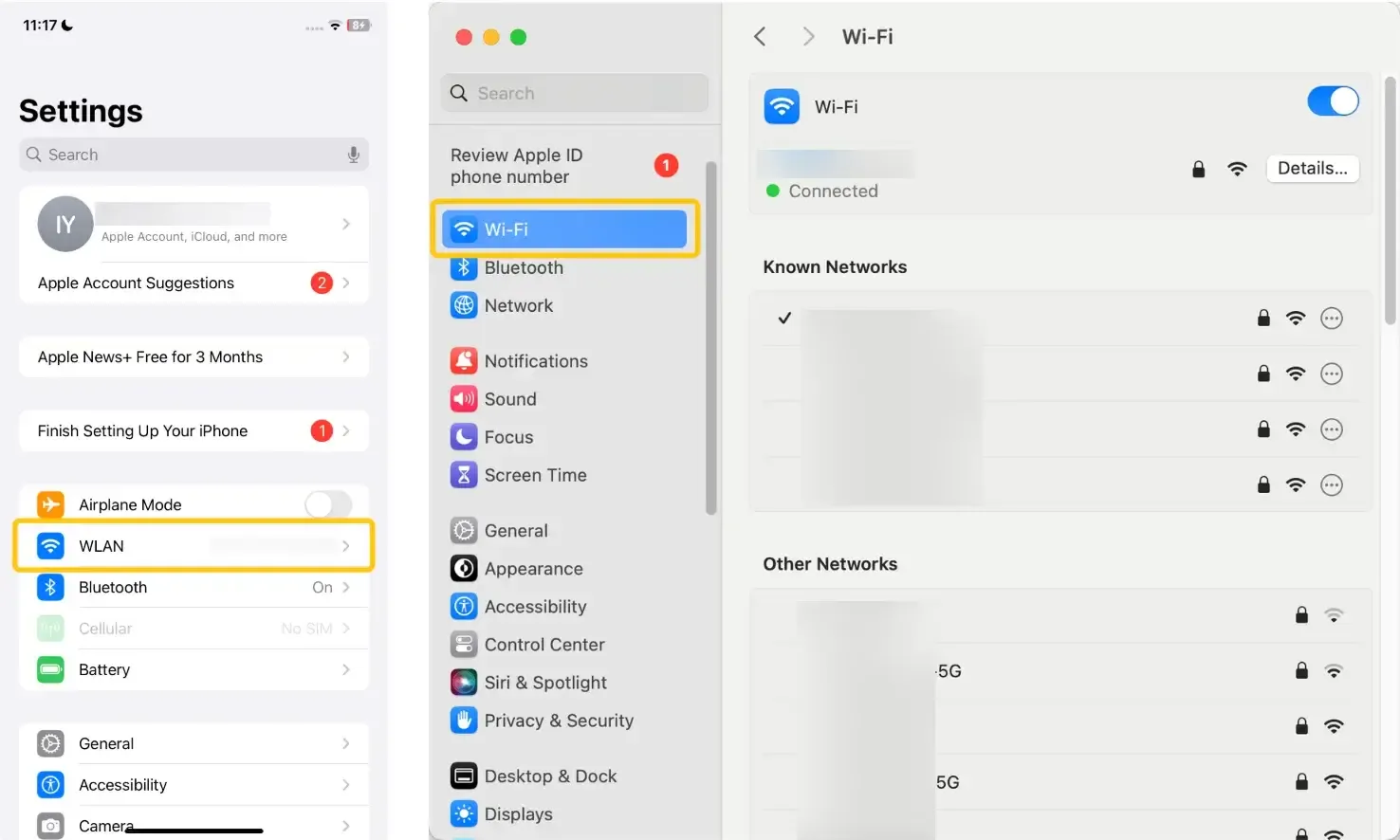
Step 2. On your iPhone, iPad, or Mac, confirm that your device is connected to the same Wi-Fi network as your Hisense TV from the Settings > WLAN/Wi-Fi menu.
Move 3. Enable AirPlay on Your Hisense TV
With both devices on the same network, it's time to unlock the full potential of your Hisense TV. Let's walk through the simple steps on how to enable AirPlay on Hisense TV and get your content flowing to the big screen.
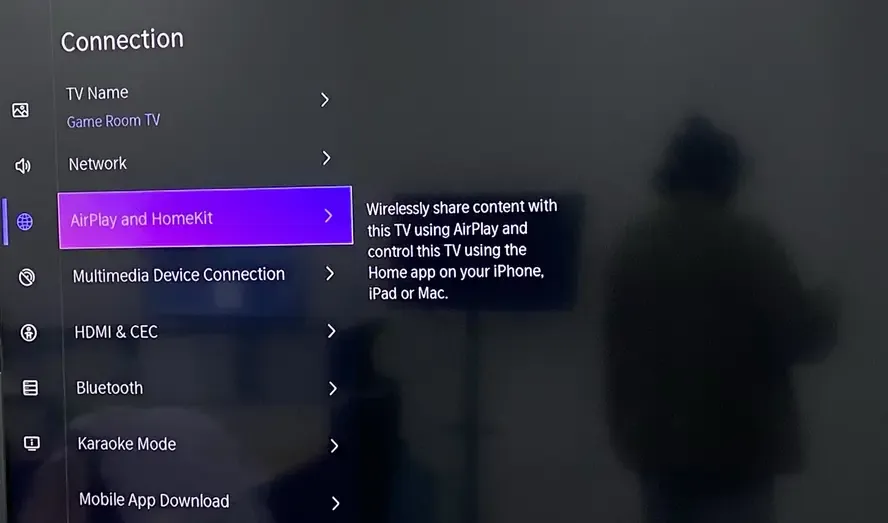
Step 1. On your Hisense TV, open the Settings menu.
Step 2. Navigate to Network or Connections.
Step 3. Look for the AirPlay option and make sure it is turned on.
Move 4. AirPlay from Your Apple Device
AirPlay is enabled on your Hisense TV, and it's time to start streaming from your Apple device. Whether it's a video, music, or photos, sending content to the big screen is quick and easy. Here's how to set up AirPlay from your iPhone, iPad, or Mac.
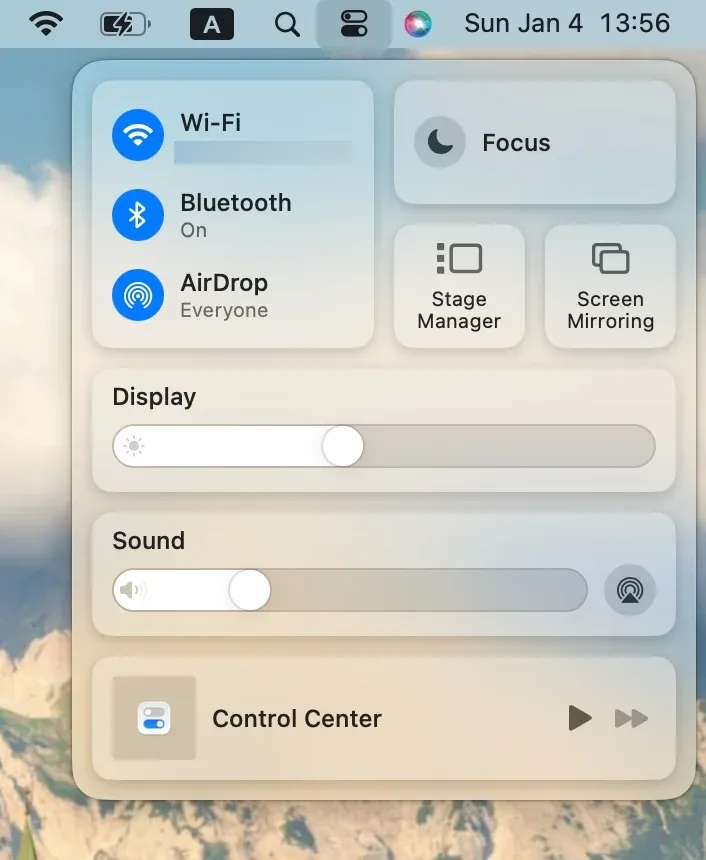
Step 1. Open the Control Center on your Apple device:
- iPhone or iPad (iPhone X and later): Swipe down from the top-right corner of the screen.
- iPhone or iPad (older models): Swipe up from the bottom of the screen.
- Mac: Click the icon in the menu bar in the top-right corner of your screen, next to the clock and other system icons.
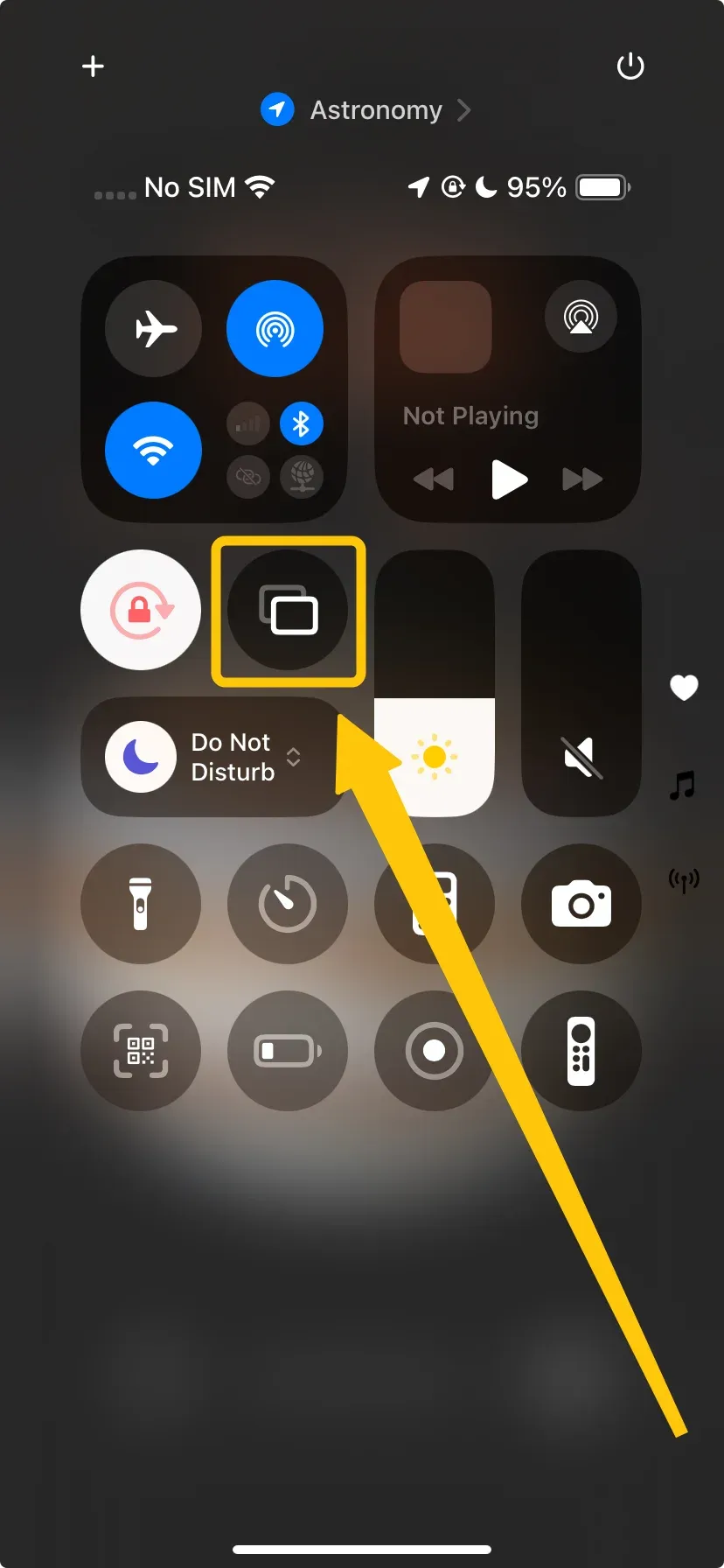
Step 2. Tap Screen Mirroring and select your Hisense TV from the list of available devices.
Step 3. Once connected, the content of your Apple will appear on the big screen. You can now stream videos, photos, music, or even mirror your entire screen.
2 Alternatives: Hisense TV AirPlay Not Working
Although AirPlay generally works smoothly on Hisense TVs, there may be times when things don't go as expected. If you're experiencing issues with AirPlay not working, here are two alternative solutions to help you get back to streaming your content without interruption.
Way 1. Use PigeonCast
PigeonCast is a powerful and free alternative to AirPlay for streaming content from Apple devices to Hisense TVs. If AirPlay is giving you trouble, PigeonCast offers a seamless experience without relying on AirPlay compatibility. It supports casting content from iOS, Android, Windows, and Mac devices to any screen, including your Hisense TV.
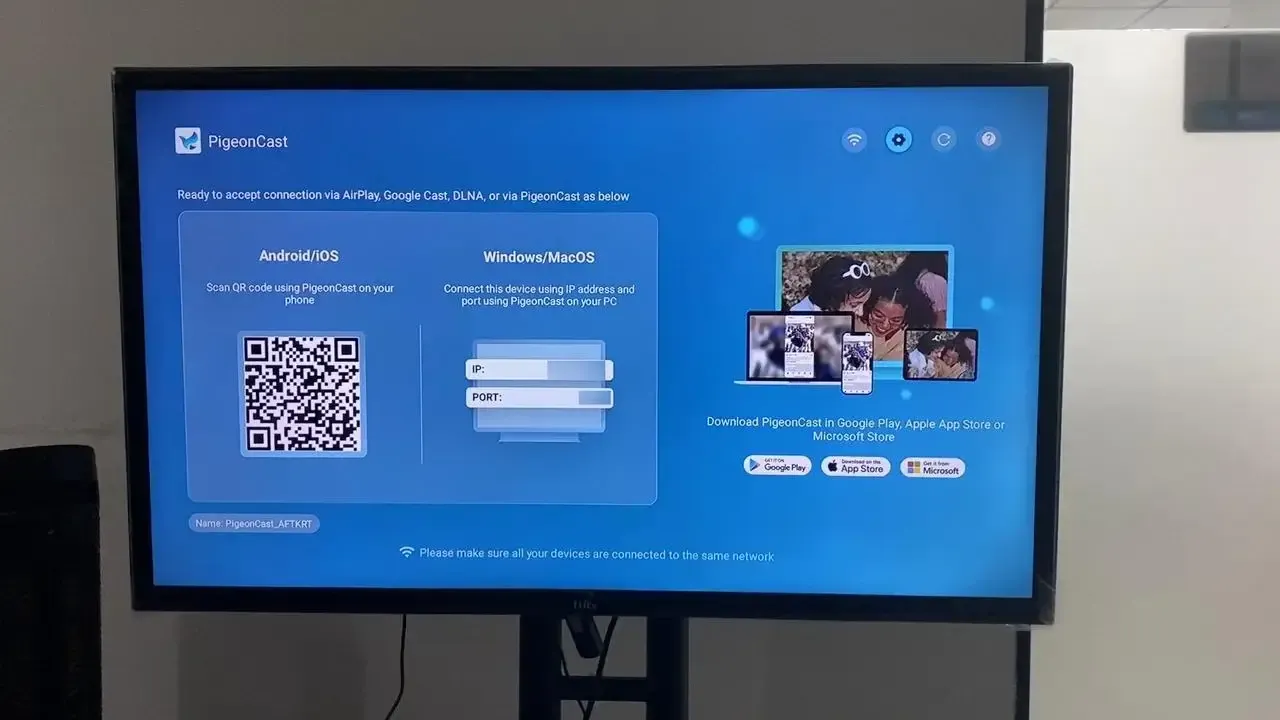
Step 1. Ensure both your devices are connected to the same wireless network.


Overall Rating:



Step 2. Install PigeonCast on your Apple device and launch it.
Step 3. Go to Hisense TV's app store, search PigeonCast and install it, then launch this app.
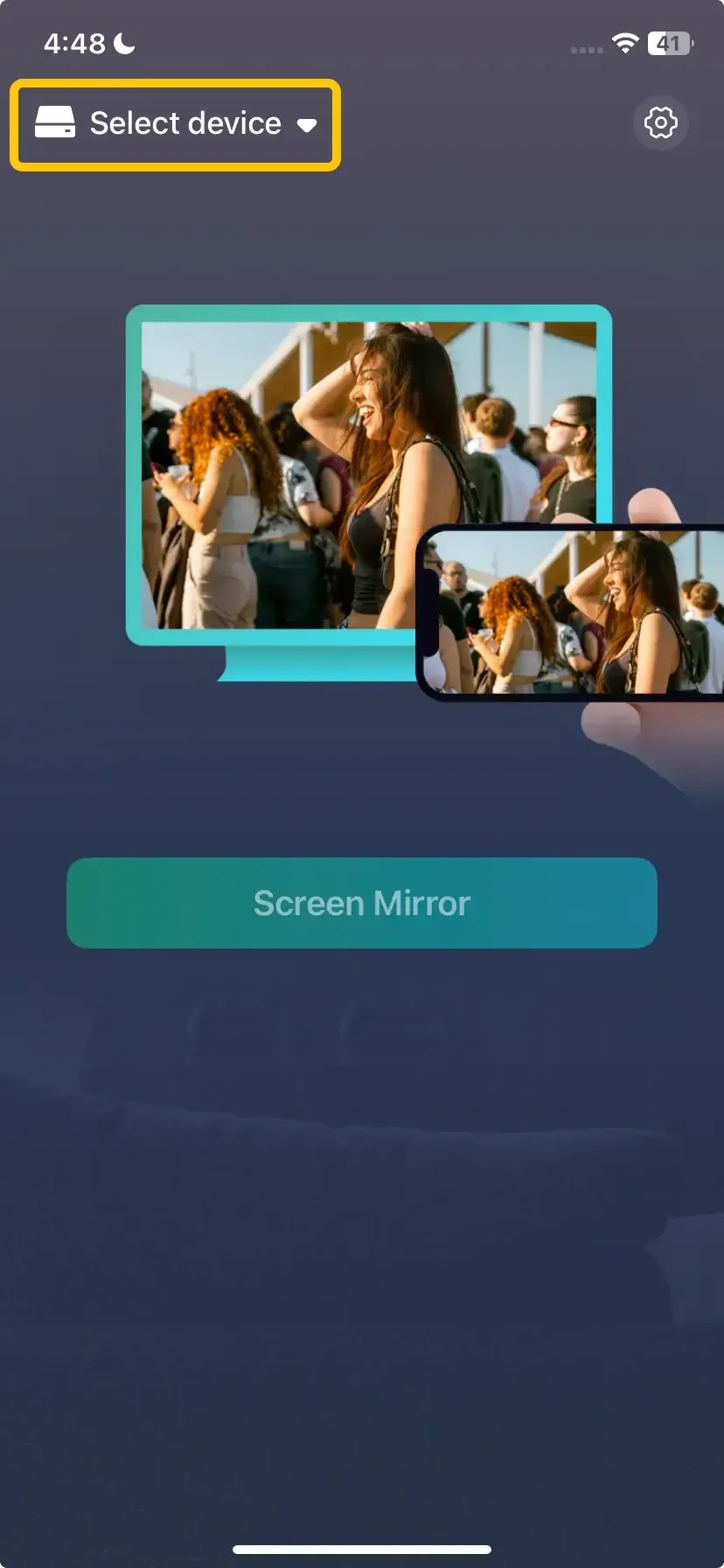
Step 4. On your Apple device, tap Select device to choose your Hisense TV from the list of available devices. Or you can scan the code shown on the television screen to build the pairing.
Step 5. Enter the onscreen code to confirm the connection performance.
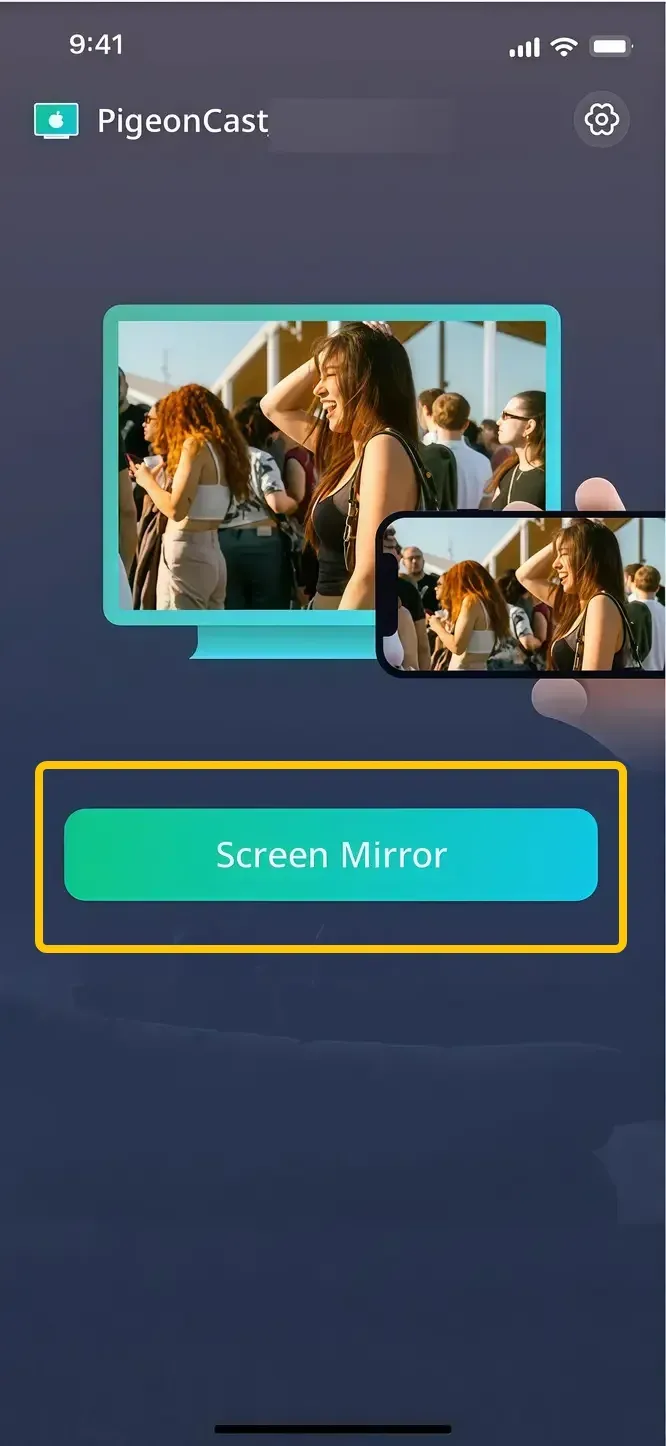
Step 6. Once the pairing succeeds, you can tap the Screen Mirror button to mirror your device's screen to the TV.
Way 2. Use an HDMI Cable
If you prefer a wired connection, using an HDMI cable is a reliable method to mirror or stream content from your Apple device to your Hisense TV. This option doesn't require any wireless connection, ensuring you can stream your media without worrying about Wi-Fi issues.
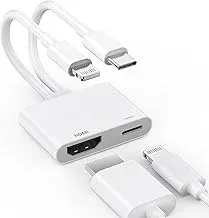
Step 1. If you're using an iPhone or iPad, you'll need a Lightning to HDMI adapter. For newer Macs with USB-C ports, a USB-C to HDMI adapter will be required.
Step 2. Plug the HDMI cable into the adapter, and then connect the other end to one of the HDMI ports on your Hisense TV.
Step 3. Use your TV remote to select the correct HDMI input that corresponds to the connected device.
Step 4. Your content will now be mirrored from your Apple device to the Hisense TV.
Final Verdict
How to connect AirPlay to Hisense TV? By following the steps outlined in this guide, you can enjoy a seamless streaming experience with your compatible devices. If you encounter any issues, free alternative solutions like PigeonCast or using an HDMI cable can help you get back to enjoying your content without interruptions.
How to AirPlay on Hisense TV FAQ
How to turn on AirPlay on Hisense TV?
To turn on AirPlay on your Hisense TV, follow these steps:
- Press the Settings button on your remote to access the TV's settings.
- Go to the Network or Connections section.
- Look for the AirPlay option and toggle it to On.
- You can also set a password for added security or adjust other AirPlay preferences if needed.
How to AirPlay on Hisense Roku TV?
To AirPlay to your Hisense Roku TV, follow these steps:
- Make sure your Hisense Roku TV is running Roku OS 9.4 or higher, which supports AirPlay 2.
- Ensure both your Roku TV and the Apple device are connected to the same Wi-Fi network.
- Press the Home button on your Roku remote.
- Enable AirPlay on Your Hisense Roku TV from Settings > Apple AirPlay and HomeKit.
- On your Apple device, launch Control Center and select Screen Mirroring to choose your Hisense Roku TV from the list of available devices.
How to AirPlay on Hisense TV without WiFi?
Unfortunately, AirPlay requires both your Apple device and your Hisense TV to be connected to the same Wi-Fi network. If you don't have Wi-Fi, the best alternative is to use a Lightning to HDMI adapter for iPhone/iPad or a USB-C to HDMI adapter for Mac.
How to AirPlay on Hisense Google TV?
For Hisense TVs running Google TV, AirPlay should work natively. Just ensure both your Apple device and Hisense Google TV are on the same Wi-Fi network. Open Control Center > Screen Mirroring on your Apple device, and select your Hisense TV to start streaming.
Which Hisense has AirPlay?
Most Hisense Smart TVs manufactured in 2019 or later support AirPlay 2. This includes TVs running on platforms like Roku TV or Google TV. To confirm if your Hisense TV supports AirPlay, check the settings menu for an AirPlay option or refer to your TV's user manual.
Why is my Hisense TV not showing up on screen mirroring?
If your Hisense TV isn't showing up for screen mirroring, there are several potential reasons:
- Incompatibility
- Network Issues
- Disabled Settings
- Outdated Software
- Device or TV in Use
- Network Congestion or Interference
- Security Settings
Clara Rossi is an experienced technology editor and a seasoned expert in screen mirroring and casting technologies. With a keen eye for detail and a deep understanding of how to seamlessly connect devices, Clara excels at optimizing user experiences for effortless sharing and streaming. Whether you're seeking quick fixes or advanced tips, her expertise and responsiveness ensure that every query is met with a well-informed and efficient solution.