
Today's TVs are more than just a way to watch shows, but have become versatile screens for streaming, gaming, and sharing content from your devices. If you've ever wondered how to connect AirPlay to TV, you're in the right place. This guide will walk you through the setup step by step and also give you practical alternatives in case AirPlay isn't supported.
Can You Use AirPlay on Any TV?
No—you can't use AirPlay on just any TV. AirPlay is Apple's wireless streaming technology that lets you share videos, music, photos, and even mirror your entire screen from an iPhone, iPad, or Mac to supported devices such as Apple TV, HomePod, or AirPlay-enabled smart TVs. The upgraded AirPlay 2 adds more stability, higher streaming quality, and multi-room audio so you can play music across different speakers at the same time.

While Apple TVs and many newer smart TVs include AirPlay 2, older models or certain budget options may lack compatibility. In such cases, you have two main choices: use a TV with built-in AirPlay or rely on third-party apps, like PigeonCast or adapters to mirror your Apple device. Identifying which category your TV falls into will guide you in setting up the most effective streaming solution.
How to Connect AirPlay to TV
Before you start streaming, it's essential to understand how to connect to AirPlay on TV. Whether your TV has built-in AirPlay support or requires a workaround with an adapter or app, the setup process is straightforward once you know the steps.
Use an Apple TV or AirPlay-Compatible Smart TV
How do I connect AirPlay to my TV? If your TV has built-in AirPlay support, the process is simple and seamless. Using an Apple TV or a smart TV with AirPlay compatibility ensures the smoothest streaming experience with minimal delay. This setup is perfect for anyone who wants fast, reliable streaming without needing extra apps or adapters.
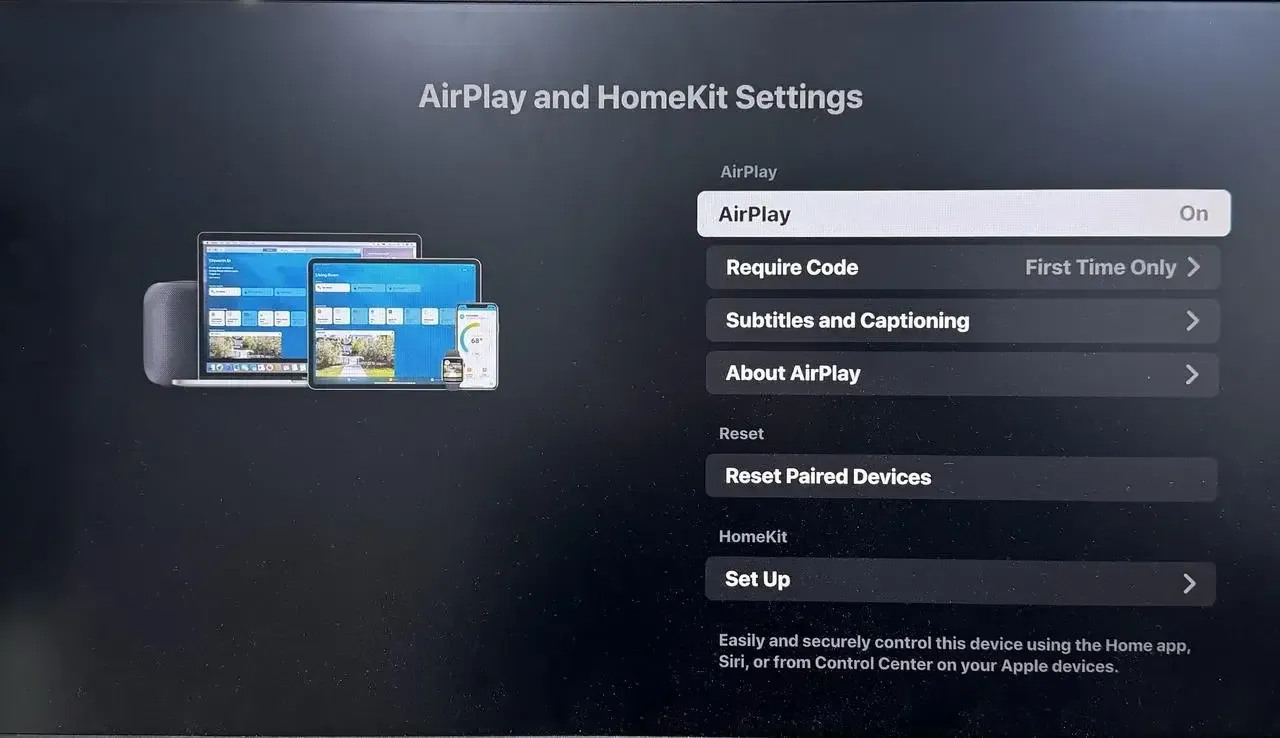
Step 1. Turn on your TV and enable AirPlay from Settings > AirPlay and HomeKit Settings to toggle AirPlay on.
Step 2. Ensure it's connected to the same WiFi as your AirPlay device.
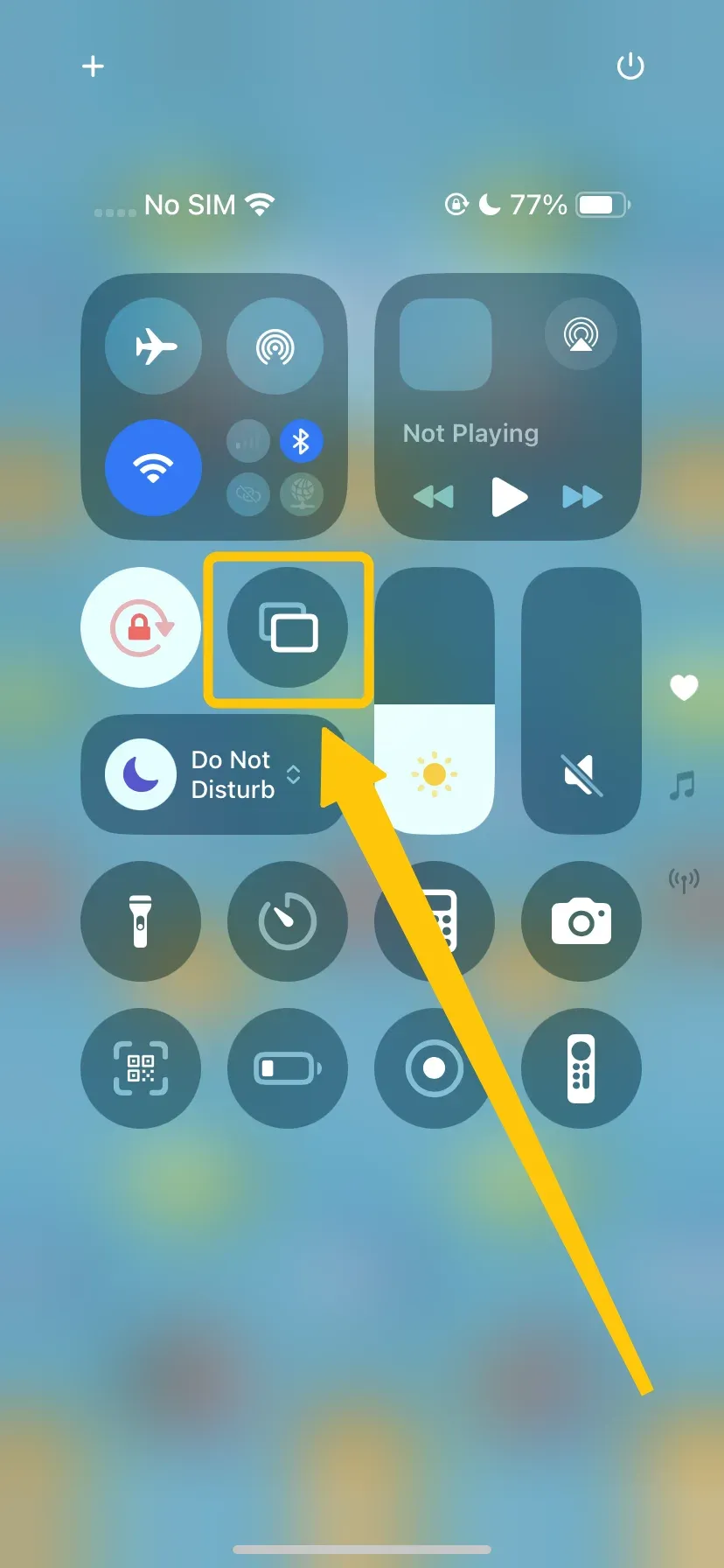
Step 2. On your iPhone or iPad, open the Control Center and tap Screen Mirroring.
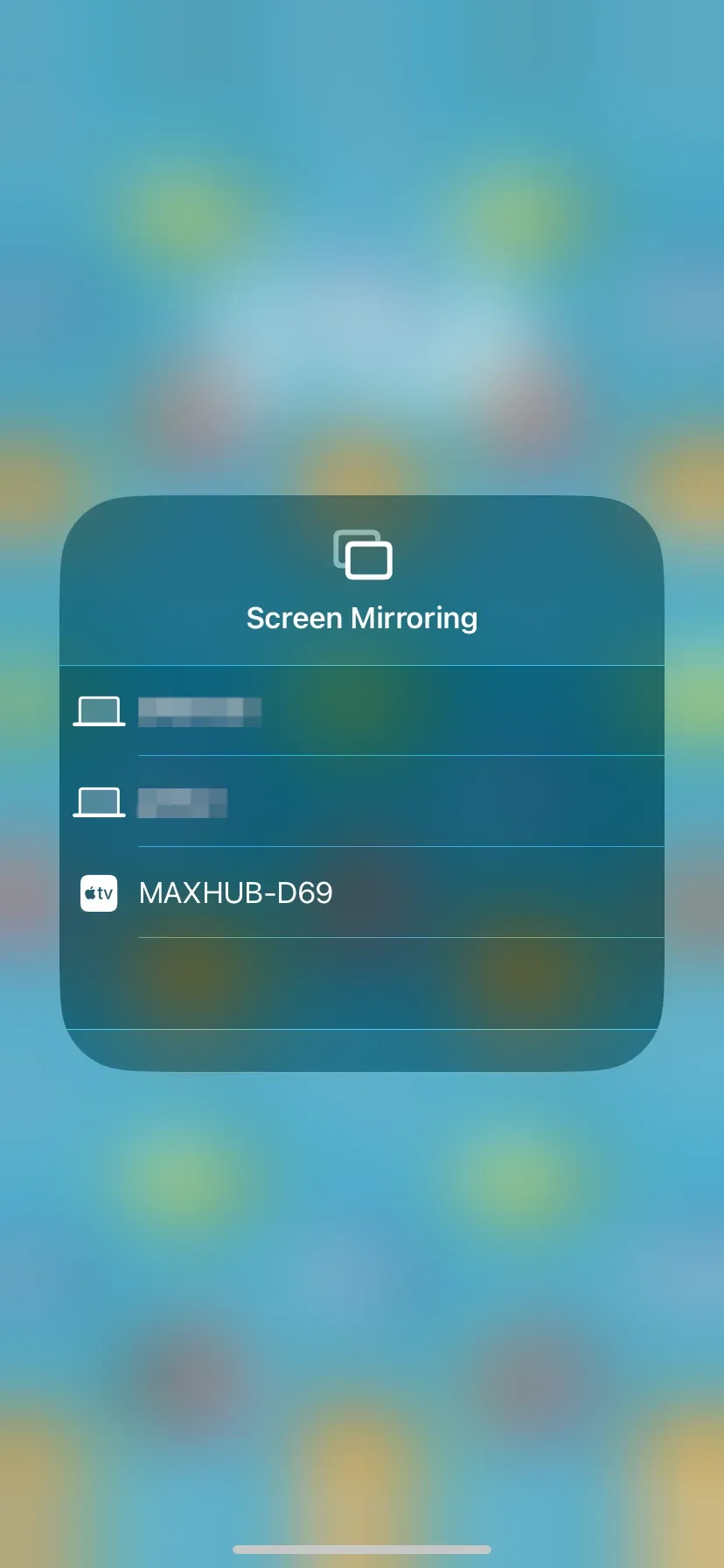
Step 3. Select your TV from the list of available devices.
Step 4. Enter the AirPlay code displayed on your TV if prompted.
Step 5. Once connected successfully, you can see your TV screen showing what is displayed on your Apple device.
Use a TV That Doesn't Support AirPlay
How do I connect my AirPlay to my TV? If your TV doesn't support AirPlay, you can PigeonCast Android TV screen mirroring app to add this functionality. This free app supports AirPlay, Google Cast, and DLNA, making it simple to stream videos, photos, and also prioritizes your privacy, keeping your data secure and ensuring your streams remain safe from leaks. Now, let's see how to AirPlay to TV with the software:
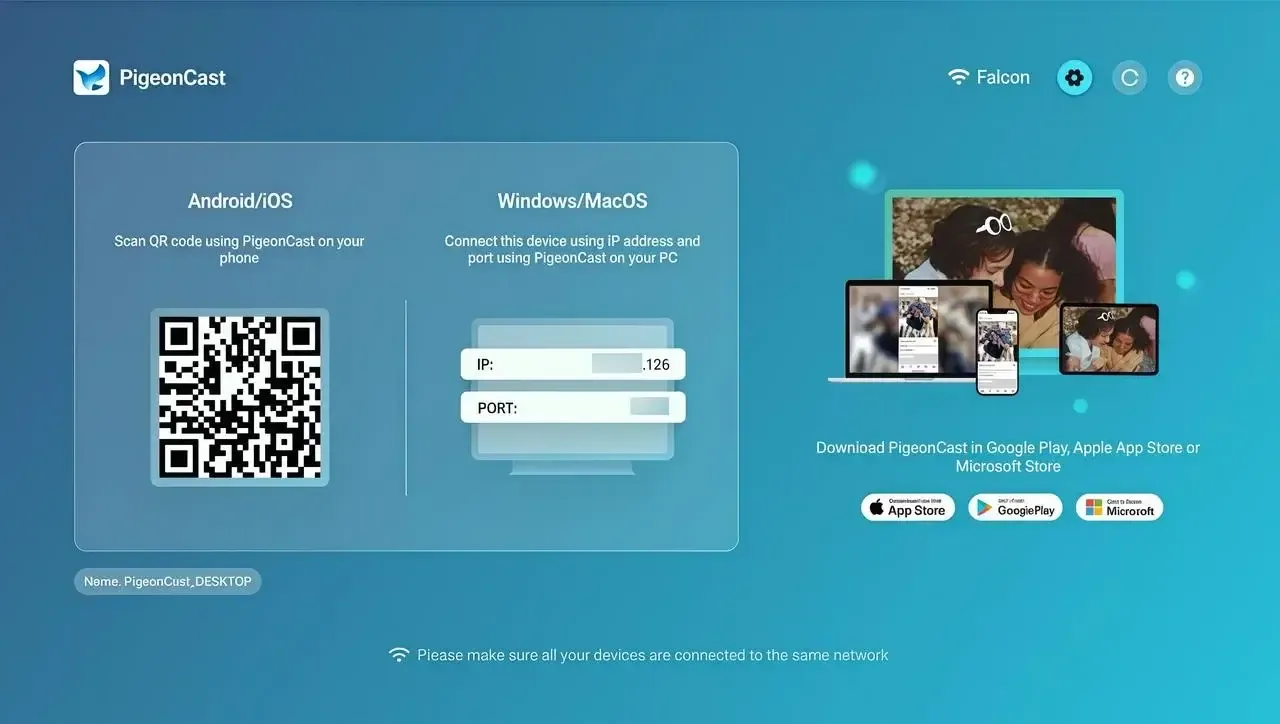
Step 1. Install the PigeonCast app on your Android TV and ensure both your devices are under the same wireless network.

PigeonCast Screen Mirroring

Official Download


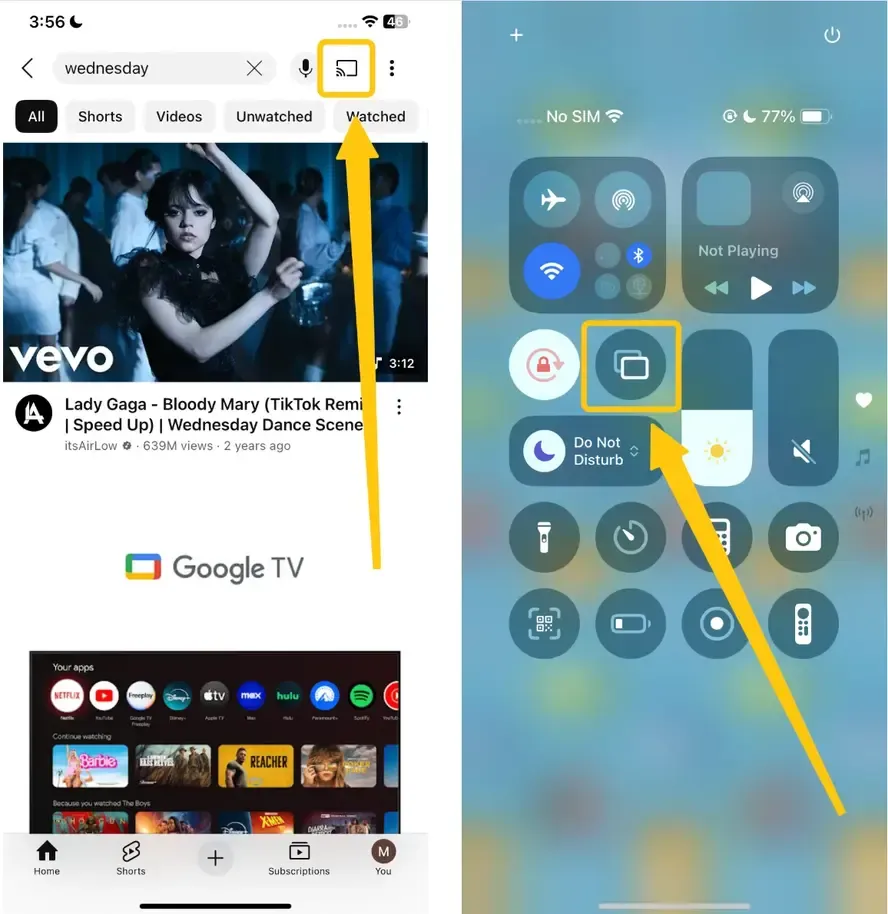
Step 2. Launch the app on your TV, and tap the Cast button or Screen Mirroring in the Control Center on the iPhone to choose your Android TV from the available list.
Step 3. If prompted, enter the onscreen codes to confirm the mirroring behavior. Once finished, you can AirPlay your Apple device to the non-AirPlay TV.
Common AirPlay-to-TV Problems and Fixes
Now that you know how to connect TV to AirPlay, it's important to be aware of common issues that can occur. Streaming may sometimes lag, your devices might fail to connect, or the AirPlay option may not appear at all. Understanding these problems and how to fix them will help ensure a smoother, more reliable streaming experience.
- TV Not Showing Up: Ensure that both your Apple device and TV are connected to the same WiFi network. Also, check that AirPlay is turned on in your TV's settings or within any third-party apps you're using, like PigeonCast.
- Lag or Buffering: If streaming feels slow or keeps buffering, try restarting your router, minimizing the number of devices on the network, or moving your devices closer to the Wi-Fi source to improve signal strength.
- Screen Mirroring Not Working: When mirroring fails, restart both your Apple device and TV. It's also a good idea to make sure your device and TV software are up to date, as outdated software can cause connection issues.
- Audio Not Syncing: If the sound doesn't match the video, check your device's volume, review AirPlay audio settings, and make sure no nearby Bluetooth devices are causing interference.
Wrapping Up
How to connect AirPlay to your TV? AirPlay is a convenient way to mirror or stream content from Apple devices to TVs, whether you have an Apple TV, AirPlay-compatible smart TV, or even a TV that needs a third-party app. Plus, if you have never tried a screen mirroring app, it's time to try PigeonCast for more stable connection.
How to Connect AirPlay to TV FAQ
Q: Why can't I connect to my TV using AirPlay?
If you can't connect to your TV using AirPlay, it's usually because:
- Devices not on the same Wi-Fi network
- AirPlay not enabled on the TV or Apple device
- Software or firmware issues
- Network congestion or weak Wi-Fi signal
- Compatibility issues with the TV model
Q: How do I fix AirPlay lag or buffering issues?
To fix AirPlay lag or buffering issues, make sure both your Apple device and TV are on a strong, stable Wi-Fi network, reduce network congestion by limiting other devices, move closer to the router if needed, and restart both your TV and Apple device. Keeping software updated on both devices also helps improve performance.
Q: Can I mirror my Mac to a non-Apple TV?
Yes, you can mirror your Mac to a non-Apple TV by using third-party apps like PigeonCast, ApowerMirror, or Reflector. These apps enable AirPlay functionality on most smart TVs, allowing you to stream or mirror your Mac's screen even if the TV doesn't natively support AirPlay.
Q: Do I need an Apple TV to use AirPlay?
No, you can use AirPlay with many AirPlay-compatible smart TVs. If your TV isn't compatible, third-party apps like PigeonCast can enable AirPlay functionality.
Clara Rossi is an experienced technology editor and a seasoned expert in screen mirroring and casting technologies. With a keen eye for detail and a deep understanding of how to seamlessly connect devices, Clara excels at optimizing user experiences for effortless sharing and streaming. Whether you're seeking quick fixes or advanced tips, her expertise and responsiveness ensure that every query is met with a well-informed and efficient solution.