
Why is my TV not showing up on screen mirroring iPhone? If your TV isn't showing up under Screen Mirroring on iPhone, it almost always comes down to compatibility, network discovery, or a temporary software hiccup. Below, I break down the real reasons this happens, how to diagnose each one quickly, and step-by-step fixes. I'll also show alternative methods that work with virtually any TV.
Quick Answer to TV Not Showing Up on iPhone Screen Mirroring
If your TV is not showing up when you try to mirror your iPhone screen, the most common causes are network issues, AirPlay settings, device compatibility, or outdated software.
In most cases, the problem occurs when:
- Your iPhone and TV are connected to different Wi-Fi networks.
- AirPlay is disabled on the TV.
- The TV doesn't support AirPlay or screen mirroring.
- VPN, firewall, or guest network settings are blocking device discovery.
- Your iPhone, TV, or streaming device needs a software update.
Check the common scenarios and fixes:
| Problem | Likely Cause | Solution |
|---|---|---|
| TV doesn't appear in Screen Mirroring | Devices are on different Wi-Fi networks | Connect both devices to the same Wi-Fi |
| AirPlay device not showing up | AirPlay is disabled | Enable AirPlay in TV settings |
| TV found but connection fails | Temporary network or software issue | Restart devices and update software |
| Older TV doesn't appear at all | TV doesn't support AirPlay | Use Apple TV or an AirPlay receiver |
| AirPlay works intermittently | Weak Wi-Fi signal or network restrictions | Move closer to the router or disable VPN |
If your TV still doesn't appear after troubleshooting, you can use an alternative screen mirroring solution, which allows you to mirror your iPhone to a TV through a web browser without relying on built-in AirPlay support.
6 Reasons for TV Not Showing Up on Screen Mirroring iPhone
Why is my TV not showing up on screen mirroring iPhone? Here are 6 common reasons, from TV AirPlay compatibility to network connection issues.
Reason 1. Your TV Doesn't Support AirPlay
iPhone's Control Center "Screen Mirroring" relies on AirPlay, Apple's proprietary technology. AirPlay was only available on Apple devices (like iPhone, iPad, Mac, and Apple TV); with the release of AirPlay 2, AirPlay can be found on many smart TVs (Samsung/LG/Sony/Vizio/Roku models from recent years). However, many sets, especially older ones and those on Fire TV models, lack AirPlay support.
Therefore, if your iPhone Screen Mirroring doesn't detect your TV, check whether the device is AirPlay-compatible. You can do this by checking your TV's spec page or Settings menu for "AirPlay/Apple AirPlay & HomeKit".
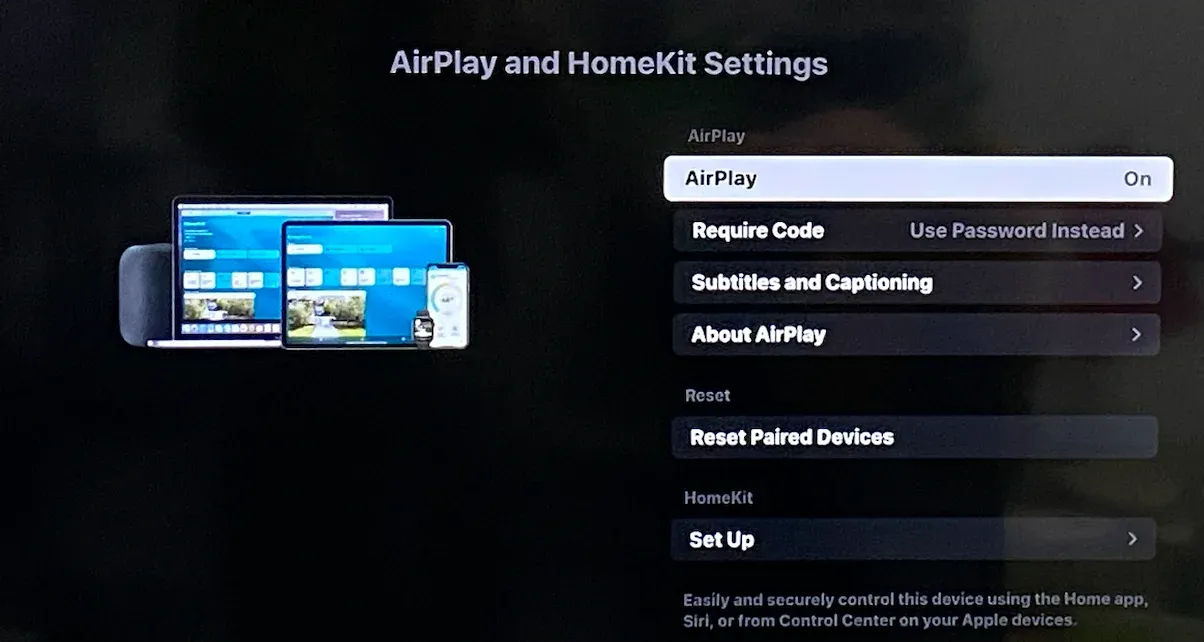
Reason 2. AirPlay Is Disabled on the TV
Even if your TV supports AirPlay, the feature may be turned off by default or accidentally disabled after a software update. When disabled, the TV won't broadcast itself as an AirPlay receiver, so your iPhone has nothing to connect to.
On many sets, AirPlay lives inside a separate menu (often under General, Network, or Apple AirPlay & HomeKit settings). For example:
- Samsung (Tizen): Settings > General > Apple AirPlay Settings.
- LG (webOS): Home Dashboard > AirPlay & HomeKit.
- Sony (Google/Android TV): Settings > System > AirPlay & HomeKit.
- Vizio (SmartCast): Extras > Apple AirPlay.
- Roku TV: Settings > Apple AirPlay and HomeKit.
Reason 3. Connect to Different Wi-Fi Networks
Why is my TV not showing up on screen mirroring? AirPlay depends on both devices being on the same Wi-Fi network. If they're on separate networks, or if the router is blocking peer-to-peer discovery, your TV won't appear.
Besides, there are a few common mistakes about network connections:
- iPhone on 5GHz WiFi while the TV is on 2.4GHz with isolation enabled (check their differences).
- One device on a guest network, which typically prevents devices from communicating with each other.
- VPN or firewall settings on your iPhone that block Bonjour/mDNS traffic.
- Public or hotel Wi-Fi networks with strict access rules.
Even a small mismatch can prevent iPhone screen mirroring from working.
Reason 4. Bluetooth or Interference Issues
Although AirPlay runs over Wi-Fi, Bluetooth sometimes plays a supporting role in device discovery and wake-up. If Bluetooth is off, discovery may take longer or fail.
Signal interference can also be a problem:
- Overcrowded Wi-Fi channels in apartments or offices.
- Other electronics near the TV (HDMI devices, baby monitors, microwaves) are generating interference.
- Distance between the iPhone and the router or TV.
In these cases, the TV might support AirPlay, but the iPhone can't "hear" its signal reliably.
Reason 5. Outdated Software
Why is your TV not appearing on iPhone screen mirroring? Both your iPhone and your TV rely on software updates to keep AirPlay compatible. Outdated firmware can cause:
- iPhones fail to recognize TVs after an iOS update.
- TVs drop AirPlay support temporarily until patched.
- Router firmware bugs block local network discovery.
Because AirPlay relies on multiple devices talking to each other in sync, all three parts (iPhone, TV, and router) need to be up to date.
Reason 6. Temporary Glitches
Sometimes, there's no deeper reason—just a glitch. iPhones, TVs, and routers all cache network sessions and may fail to refresh them properly. A frozen service on the TV, a stuck Wi-Fi process on iPhone, or an overloaded router can all cause AirPlay devices to vanish from the list.
These glitches are especially common after:
- Switch Wi-Fi networks frequently.
- Resume a TV from sleep mode.
- Install a recent update without restarting the device.
A simple reset often clears these issues immediately.
4 Solutions to TV Not Showing Up on Screen Mirroring iPhone
Now that you know the reason why your TV doesn't appear on your iPhone's Screen Mirroring window, here are the practical solutions you can follow step by step.
Solution 1. Confirm Compatibility and Enable AirPlay
Step 1. Check your TV's settings for AirPlay or Apple AirPlay & HomeKit.
Step 2. Make sure AirPlay is turned on.
Step 3. Set Require Code to First Time Only to avoid repeated pairing issues.
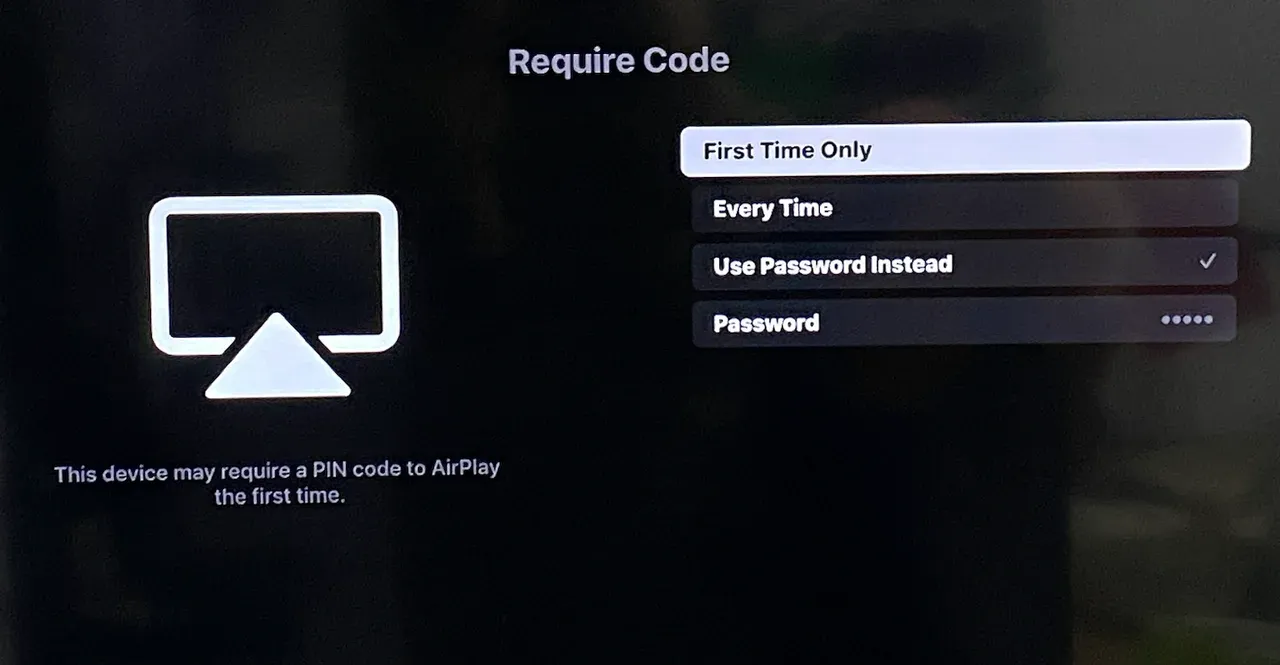
Step 4. On your iPhone, open Control Center, tap Screen Mirroring, and choose your TV.
Solution 2. Put Both Devices on the Same Wi-Fi
Step 1. Connect your iPhone to your home's primary Wi-Fi SSID.
Step 2. Connect the TV to the exact same Wi-Fi name.
Step 3. Avoid guest networks or VPNs.
Step 4. If your router splits 2.4GHz and 5GHz into separate networks, put both devices on the same band.
Step 5. Disable AP/Client Isolation or similar features in the router.
Solution 3. Reset the Network Connection
Step 1. Toggle Airplane Mode on and off on your iPhone.
Step 2. Turn Wi-Fi off and on on the TV.
Step 3. Restart both iPhone and TV.
Step 4. Power cycle the router for 30-60 seconds.
Step 5. Try screen mirroring your iPhone to your TV again.
Solution 4. Update iPhone, TV, and Router
Step 1. On your iPhone, go to Settings > General > Software Update.
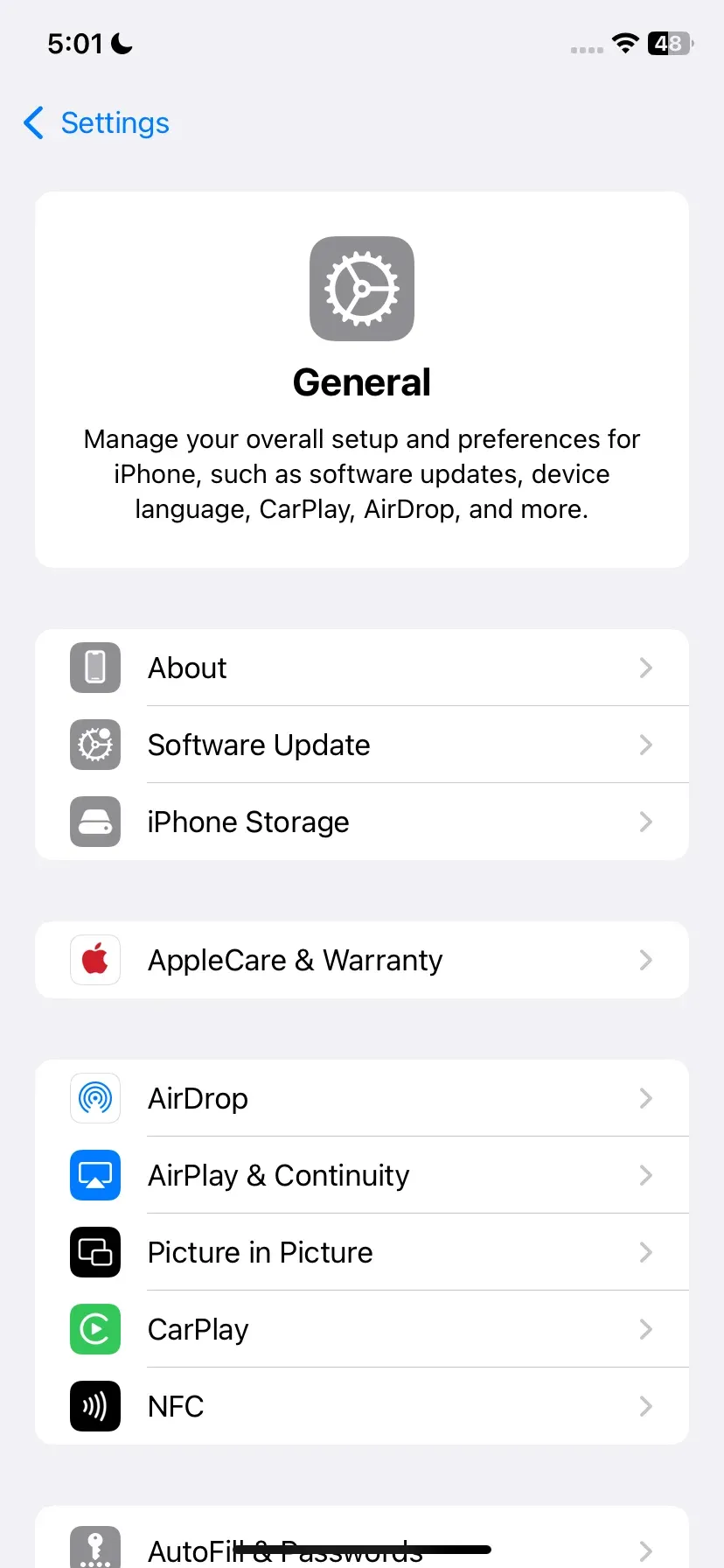
Step 2. On your TV, go to Settings > System/Support > Update.
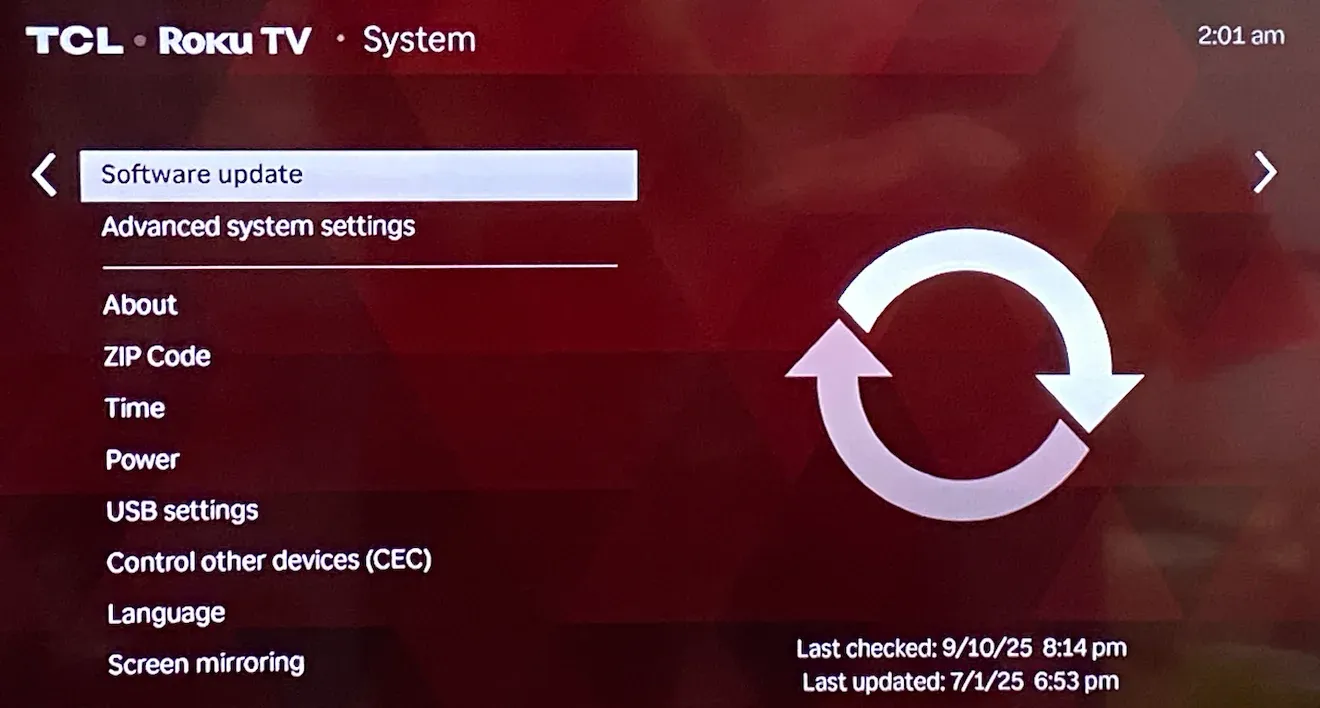 Step 3. On your router, check your admin panel for firmware updates.
3 Alternative Methods to Screen Mirror iPhone to TV
If your TV still doesn't show up under iPhone screen mirroring, don't worry; there are other ways to enjoy your content on the big screen. Even if your TV doesn't support AirPlay, you can still mirror or cast your iPhone using different tools. Below are three reliable alternatives that work with almost any modern TV.
Method 1. Use the PigeonCast for iPhone App
PigeonCast is a free third-party screen mirroring application for iPhone, Android, Windows PC, MacBook, Android TV, and Apple TV. It enables you to stream content from iPhone to Windows PC or Android TV and from Android to Mac or Apple TV, completely wireless and no external device required.

The app makes screen mirroring possible even if your TV doesn't natively support AirPlay. It works over Wi-Fi and supports a wide range of smart TVs, including older models.
See how to screen mirror iPhone to TV with PigeonCast:
Step 1. Download and install PigeonCast for iPhone from the App Store.

PigeonCast Screen Mirroring

Official Download


Step 2. Ensure that your iPhone and TV are on the same Wi-Fi network.
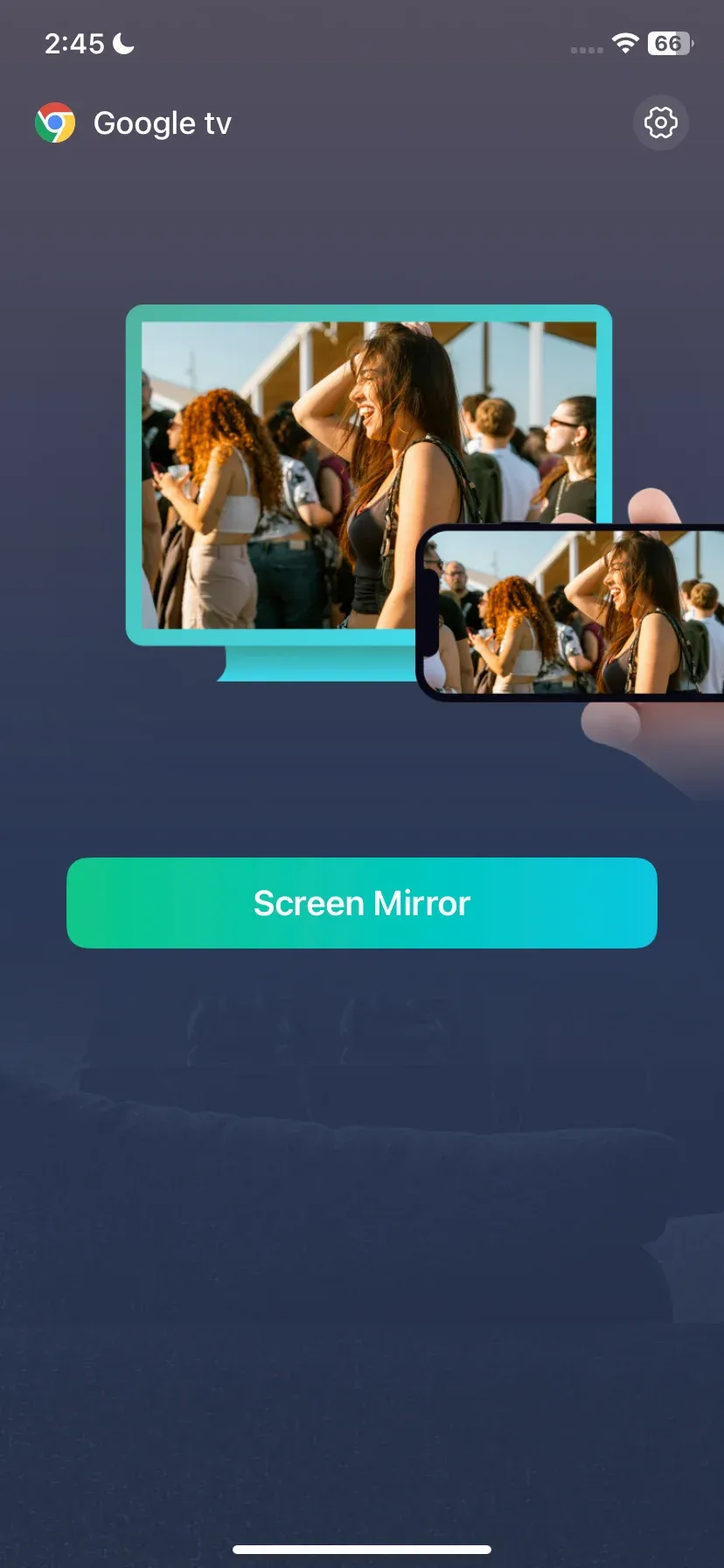
Step 3. Launch PigeonCast on your iPhone and wait for it to detect your TV.
Step 4. Tap your TV to set up a connection.
Step 5. Once connected, tap the Screen Mirror feature and follow the onscreen instructions to start screen mirroring your iPhone.
Why choose PigeonCast for screen mirroring:
- Free, easy, and safe to use
- Universal support: Android mobile devices, iPhone, iPad, Windows PC, MacBook, Android TV, and Apple TV.
- Cross-protocol compatibility: AirPlay, Google Cast, DLNA, plus own PigeonCast protocol
- Sender & receiver flexibility: Windows PCs and MacBooks can act as either, ideal for classrooms or travel
- Extra features: higher resolution, sound switch, and smoother streaming
Method 2. Use a Streaming Device
Streaming devices are the easiest way to add wireless screen mirroring support to TVs that lack built-in AirPlay. Apple TV offers the smoothest integration with iPhone, while AirPlay-enabled devices like Roku also support screen mirroring. Once connected, your iPhone can instantly cast videos, apps, and photos to the TV.
Step 1. Connect the streaming device to your TV and plug it into the power source.
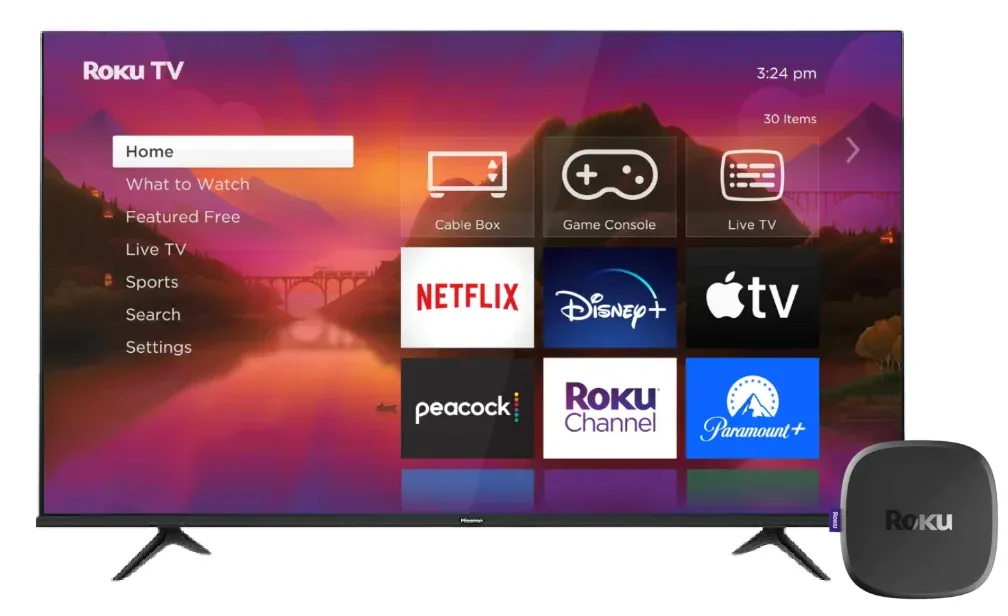
Step 2. Press the Input button on your TV remote control and set your streaming device as the input source.
Step 3. Connect the streaming device to the Wi-Fi your iPhone uses.
Step 4. On your iPhone, go to the Control Center, tap Screen Mirroring, and choose the streaming device, like Apple TV or Roku.
Step 5. Wait. Once connected, you can see your iPhone screen on the TV display.
Method 3. Use an HDMI Adapter and Cable
For a direct and stable connection, Apple's Lightning to Digital AV Adapter or USB-C to HDMI adapter lets you connect your iPhone to the TV using an HDMI cable. This method doesn't rely on Wi-Fi, making it ideal for presentations or when streaming high-resolution videos without lag. It's plug-and-play—just connect the adapter, plug in the cable, and switch your TV input to HDMI.
Conclusion
When your TV doesn't show up on iPhone Screen Mirroring, the most common culprits are lack of AirPlay support, AirPlay being disabled, mismatched Wi-Fi networks, interference, outdated software, or temporary glitches. By systematically checking compatibility, network settings, updates, and resets, you can usually solve the problem quickly.
And if your TV simply doesn't support AirPlay, don't waste time trying to force it. Use a cable, add a streaming box, or install a mirroring app like PigeonCast to make screen mirroring possible on virtually any setup.
Why Is My TV Not Showing Up on Screen Mirroring iPhone FAQs
Why is my iPhone not finding my TV for screen mirroring?
If your iPhone can't find your TV, it's usually because the devices can't detect each other on the network. The most common causes include being connected to different Wi-Fi networks, AirPlay being disabled, incompatible TV hardware, outdated software, or temporary connection glitches. Before trying advanced fixes, make sure both devices are online, updated, and connected to the same network.
How do I add a TV to Screen Mirroring on my iPhone?
You don't need to manually add a TV to your iPhone. AirPlay-compatible TVs and streaming devices are automatically discovered when they're available on the same Wi-Fi network. Open Control Center, tap Screen Mirroring, and select your TV from the list. If your TV doesn't appear, verify that AirPlay is enabled and that both devices are connected to the same network.
Do I need Bluetooth for screen mirroring?
Not usually. AirPlay screen mirroring primarily uses Wi-Fi to transfer video and audio between your iPhone and TV. However, Bluetooth can sometimes assist with device discovery and initial connections. If your TV isn't appearing in the Screen Mirroring list, enabling Bluetooth on your iPhone may help improve detection, especially on certain smart TVs and streaming devices.
Can I mirror my iPhone without AirPlay?
Yes. While AirPlay is Apple's built-in screen mirroring technology, it's not the only option. You can mirror your iPhone using an HDMI adapter, an Apple TV, compatible streaming devices, or third-party screen mirroring apps. These alternatives are especially useful when your TV doesn't support AirPlay or when AirPlay isn't working properly.
Why does my TV appear but won't connect to screen mirroring?
If your TV shows up in the Screen Mirroring menu but the connection fails, the issue is often related to network instability, outdated software, or AirPlay configuration settings. Restarting your iPhone, TV, and router can resolve many temporary connection problems. It's also worth checking for software updates, as compatibility fixes are frequently included in new firmware releases.
Why is Screen Mirroring loading or buffering constantly?
Frequent buffering during screen mirroring is usually caused by a weak Wi-Fi signal, network congestion, or large distances between devices and the router. Unlike direct video streaming, screen mirroring transmits your entire screen in real time, which requires a stable connection. Moving closer to the router or switching to a faster network often improves performance.
How do I know if my TV supports iPhone screen mirroring?
The easiest way is to check your TV's settings for options such as AirPlay, Apple AirPlay, or Screen Mirroring. You can also open Screen Mirroring from your iPhone's Control Center and see whether the TV appears in the available devices list. If it doesn't support AirPlay, you may still be able to mirror using a streaming device or a third-party solution.
Mia Clarke is a technology editor specializing in screen mirroring and casting solutions across multiple platforms. Mia provides clear, practical guides and in-depth insights to help users seamlessly connect their devices. Passionate about enhancing digital experiences, Mia is dedicated to keeping readers updated on the latest trends and tools in cross-platform screen sharing. Whether you’re looking to mirror your smartphone, laptop, or smart TV, Mia’s content delivers reliable, user-friendly advice to simplify your tech setup.