
New models of Vizio smart TVs have AirPlay built in, which allows you to cast to the TV from your iPhone wirelessly. This post walks you through how to cast to Vizio TV from iPhone whether you want to watch YouTube clips on the big screen or watch the entire iPhone screen.
Can You Cast to Vizio TV from iPhone via AirPlay
To cast an iPhone to a TV, the best solution is to use AirPlay, the proprietary technology on Apple devices. The good news is that since 2016, most Vizio TVs have come with built-in support for modern casting and mirroring standards.
Many models released from 2018 onward support Apple AirPlay 2, the enhanced version of Apple's original AirPlay technology, making it easy to mirror or stream from an iPhone, iPad, or MacBook to smart TVs. By contrast, older Vizio smart TVs (manufactured before 2015) do not include AirPlay. To mirror content on these models, you typically rely on a direct HDMI connection or an external streaming device like Roku.
So, how you cast to Vizio TV from your iPhone depends on what model you have. If you have a new model, you can cast from iPhone to Vizio TV directly; if you have an old model, you need to set up Roku on your TV and then cast via AirPlay.
Scroll down to see how to AirPlay to Vizio TV from your iPhone.
How to Cast to Vizio TV from iPhone via AirPlay
You can AirPlay YouTube or Netflix from your iPhone to a Vizio TV, and here are the steps:
Step 1. Turn on Vizio AirPlay.
- Press the V button on the remote control to access SmartCast Home.
- Choose Extras, which could be at the top or bottom left og your screen, depending on your model.
- Go into Smart Home Settings, choose AirPlay, and make sure it's set to On.
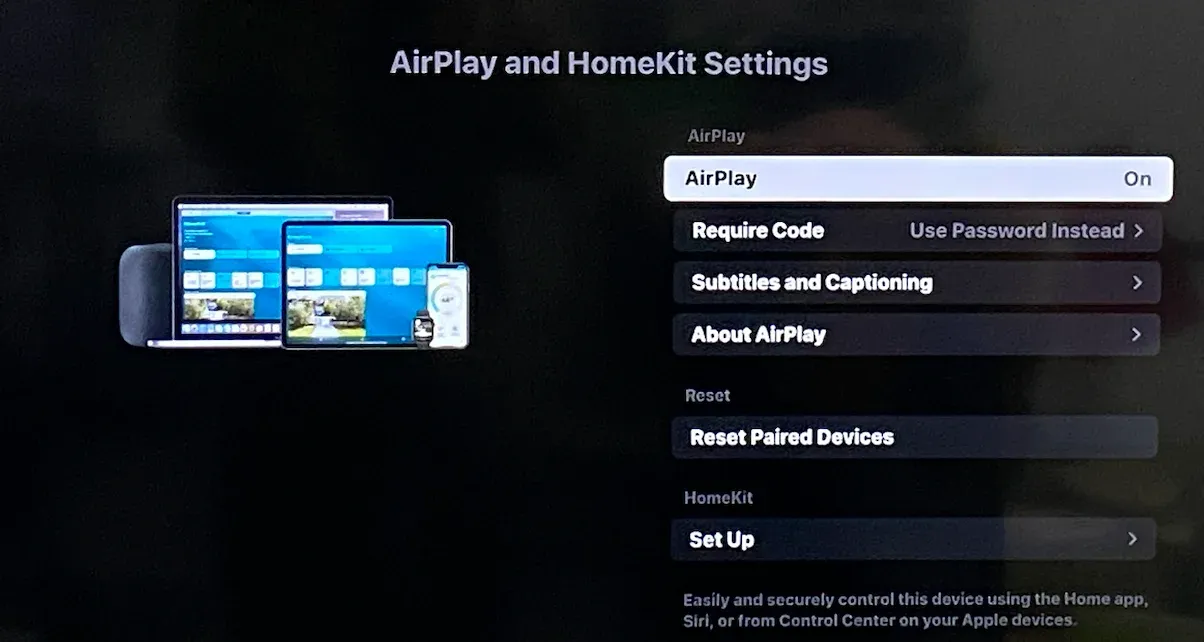
Step 2. Ensure your iPhone and Vizio SmartCast TV are connected to the same Wi-Fi network.
Step 3. Launch the streaming app, like YouTube, Netflix, or a Vizio-supported app, on your iPhone.
Step 4. Locate the Cast icon on the streaming app and tap it. For example, the Cast icon is in the top right corner on the YouTube app.
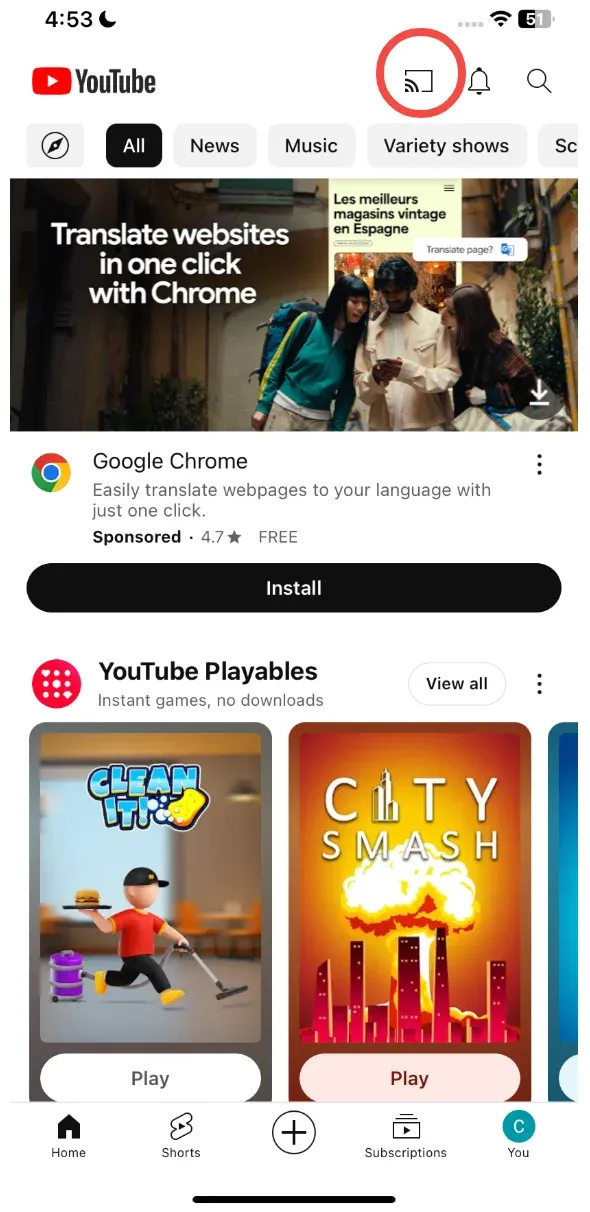
Step 5. Choose your Vizio SmartCast TV from the list of available devices and enter the passcode if asked.
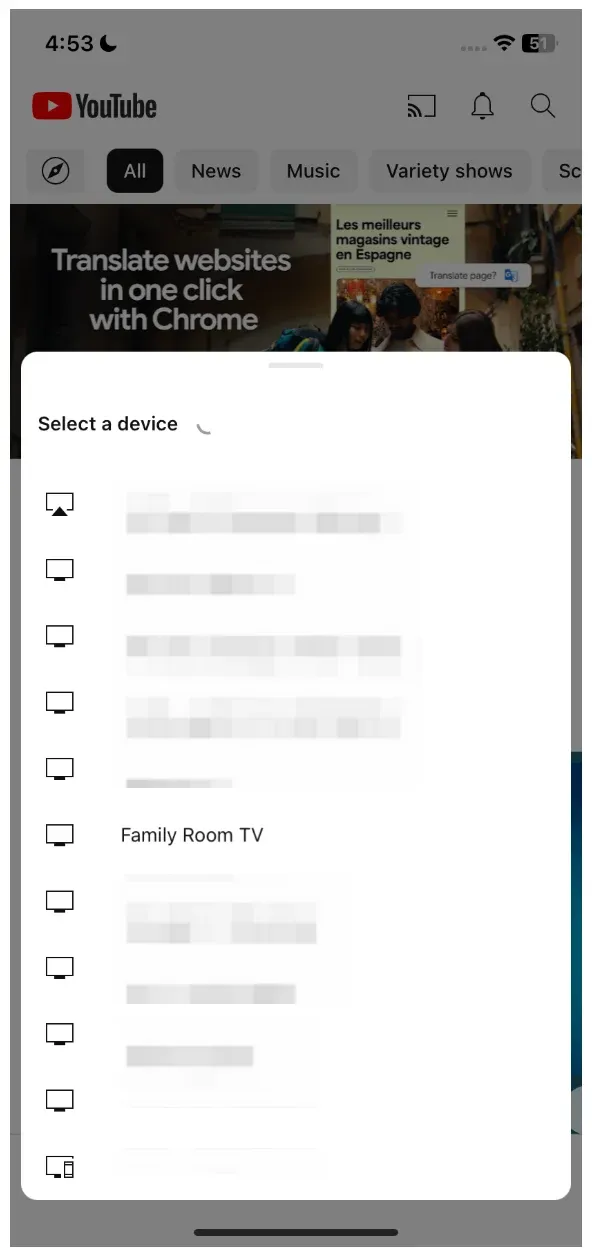
Step 6. Once connected, you can view the video on the TV screen.
Step 7. To disconnect your iPhone from Vizio, tap the Cast icon and choose your Vizio TV.
This is how to cast from iPhone to Vizio TV via AirPlay. In this way, you can still use your iPhone to play games or make a video call without interrupting the video streaming on the TV.
How to Screen Mirror iPhone to Vizio TV via AirPlay
AirPlay also enables you to watch the entire screen on your Vizio TV by enabling the Screen Mirroring feature from the Control Center. Check how to mirror iPhone to Vizio TV:
Step 1. Make sure Vizio AirPlay is enabled and the two devices are connected to the same network.
Step 2. Scroll down your iPhone screen to access the Control Center and tap the Screen Mirroring icon (two overlapping rectangles).
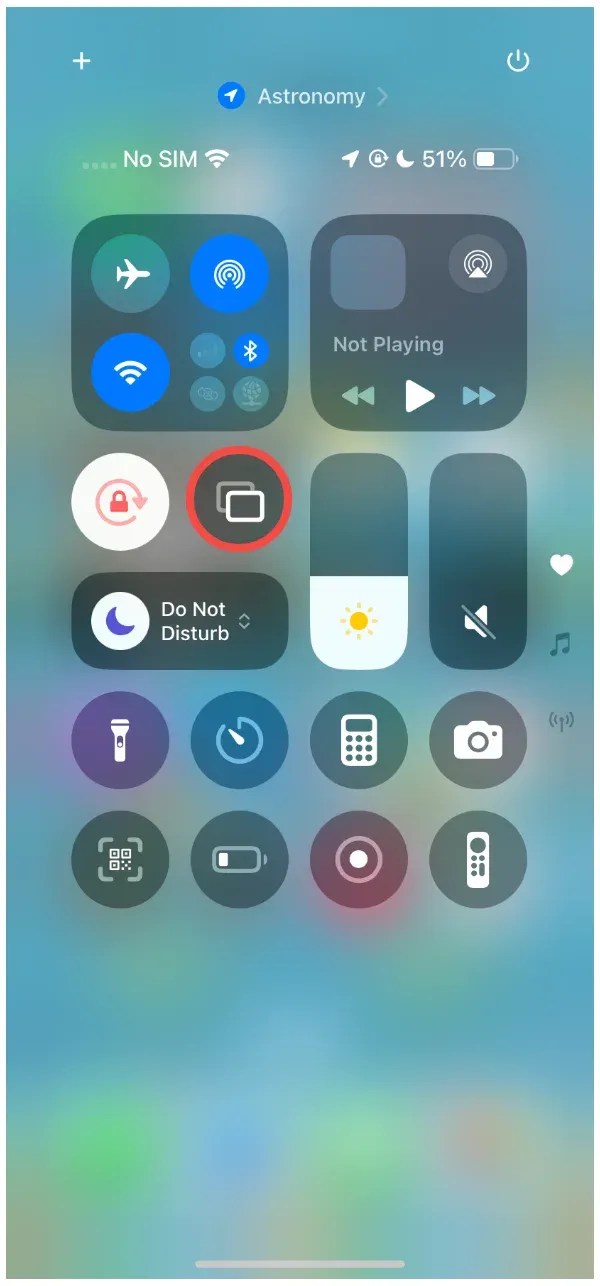
Step 3. Choose the name of your Vizio TV from the list of devices that appear in the small window.
Step 4. Enter the passcode on your iPhone to complete the connection.
Step 5. To stop mirroring iPhone to Vizio TV, go back to the Control Center, tap the Screen Mirroring icon, and choose Stop Mirroring.
How to Connect iPhone to Vizio TV via PigeonCast
Vizio TVs (2016-2017) feature Google Cast (Chromecast built-in), allowing you to stream directly from Android phones, the Chrome browser, or supported apps like YouTube, Netflix, and Disney+. In addition, some units can work with DLNA through third-party apps like Plex or PigeonCast.
If AirPlay iPhone to Vizio TV doesn't work, you can try other standards. PigeonCast for iPhone app adds Google Cast to your iPhone for 2K screen mirroring.
Step 1. Download and install the PigeonCast app on your iPhone.

PigeonCast Screen Mirroring

Official Download


Step 2. Confirm that your iPhone and Vizio TV are connected to the same Wi-Fi network.
Step 3. Launch the PigeonCast app on your iPhone and connect it to your Vizio TV.
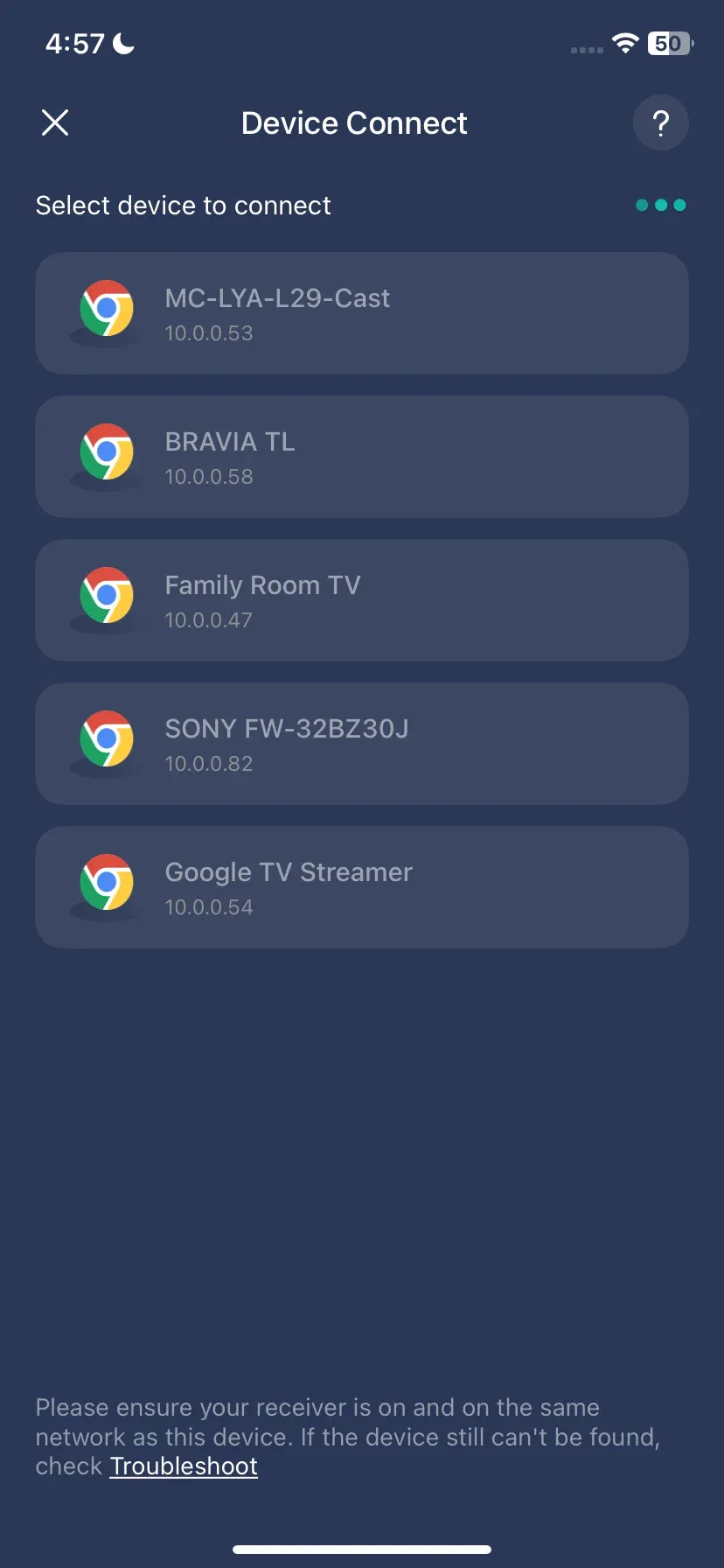
Step 4. Once connected, tap the Screen Mirror feature and follow the onscreen instructions to cast your iPhone screen to Vizio TV.
Why choose PigeonCast for Vizio TV screen mirroring iPhone:
- Free to use
- 2K screen mirroring
- Wireless, stable, and minimal lag
- Lightweight and easy to use
- Mirroring with sound or not
- No compatibility issues: you can Chromecast from iPhone easily
Learn More About Vizio TV Casting and Screen Mirroring
You've learned about how to cast iPhone to Vizio TV using AirPlay or PigeonCast. But depending on your Vizio TV model and series, the available casting and mirroring options may vary. Some models support only Google Cast, while newer SmartCast TVs can handle multiple protocols simultaneously, including AirPlay 2 and DLNA.
To make it easier to see which options are available for each Vizio TV series, refer to the table below for a clear comparison of supported screen mirroring or casting protocols:
| Vizio Series / Year | Google Cast | AirPlay 2 | DLNA | Miracast | Notes |
|---|---|---|---|---|---|
| SmartCast TVs (2016-2017) | ✅ | ❌ | ⚠️ | ❌ | Google Cast is the main protocol. |
| SmartCast TVs (2018-present) | ✅ | ✅ | ⚠️ | ❌ | Most current models support both AirPlay 2 and Google Cast. |
| E series (pre-2016) | ❌ | ❌ | ⚠️ | ❌ | Requires external devices (Chromecast, Roku, Fire TV Stick). |
| M series (pre-2016) | ❌ | ❌ | ⚠️ | ❌ | Same as the E series, HDMI/external dongles are required. |
| P series (pre-2016) | ❌ | ❌ | ⚠️ | ❌ | Premium panel but no built-in casting protocols. |
| SmartCast P/M/E Series (2016+) | ✅ | ✅ (21018+) | ⚠️ | ❌ | SmartCast rollout unified protocol support across these lines. |
Note:
- ✅ = Supported
- ❌ = Not supported
- ⚠️ = Limited, possible via third-party apps, not officially integrated
Final Words
Casting an iPhone to a Vizio TV is as easy as walking in the park, as long as you figure out what protocol your Vizio TV supports. If your Vizio TV supports AirPlay, launch YouTube on your iPhone and tap the Cast icon or tap the Screen Mirroring icon in the Control Center. If your Vizio TV only supports Google Cast, use third-party apps like PigeonCast to Chromecast from iPhone to the TV.
How to cast to Vizio TV from iPhone? With the how-to guide, you may have figured out all the steps. Now try casting your iPhone to Vizio TV using AirPlay or PigeonCast.
How to Cast to Vizio TV from iPhone FAQs
Q: How do I turn on cast on my Vizio TV?
For SmartCast TVs, casting is usually always on. Simply make sure your TV and device are connected to the same Wi-Fi network. Open a Cast-enabled app (like YouTube or Netflix) on your device, tap the Cast icon, and select your Vizio TV from the list.
Q: Why can't my iPhone find my Vizio TV?
Common reasons include: your iPhone and TV are not on the same Wi-Fi network, AirPlay is not enabled on the TV, or the TV firmware is outdated. Make sure your TV supports AirPlay 2, update to the latest software, and check that both devices are on the same network.
Q: How do I screen mirror my iPhone to my TV?
On an AirPlay 2-compatible Vizio TV, swipe down on your iPhone to open Control Center, tap Screen Mirroring, then select your Vizio TV. Your iPhone screen will appear on the TV within a few seconds. If your TV is not compatible, you can install AirPlay receiver apps on the TV, like PigeonCast or AirMirror, and enable Screen Mirroring on your iPhone.
Q: How to activate iPhone screen mirroring?
Open Control Center on your iPhone, tap Screen Mirroring, and choose a compatible TV from the list. Ensure your TV supports AirPlay or a third-party mirroring app.
Q: How to connect iPhone to TV without AirPlay?
You can use third-party apps like PigeonCast, or hardware solutions such as Chromecast, Roku, or HDMI adapters. Make sure both devices are on the same Wi-Fi network if using wireless solutions.
Q: What TV is compatible with iPhone screen mirroring?
Any TV that supports AirPlay 2 can mirror an iPhone. This includes most Vizio SmartCast TVs (2018 or later), as well as TVs from Samsung, LG, Sony, and other AirPlay 2-compatible brands. Older TVs may require a third-party app or external streaming device.
Q: Is there a free screen mirroring app?
Yes, PigeonCast is a free screen mirroring app available on many platforms, including Android, iOS, Windows, MacBook, Android TV, and Apple TV. The free screen mirroring app supports multiple protocols (like AirPlay, Google Cast, DLNA, and PigeonCast), making cross-platform mirroring wireless and convenient.
Mia Clarke is a technology editor specializing in screen mirroring and casting solutions across multiple platforms. Mia provides clear, practical guides and in-depth insights to help users seamlessly connect their devices. Passionate about enhancing digital experiences, Mia is dedicated to keeping readers updated on the latest trends and tools in cross-platform screen sharing. Whether you’re looking to mirror your smartphone, laptop, or smart TV, Mia’s content delivers reliable, user-friendly advice to simplify your tech setup.