
Streaming has become a central part of how we enjoy entertainment today. With a mix of different platforms, devices, and ecosystems, it's not always clear how they work together. One common question that arises is: Can I AirPlay to Google TV? If you've ever wondered how to AirPlay to Google TV, this guide will walk you through everything you need to know.
Can You AirPlay to Google TV
AirPlay is Apple's proprietary wireless streaming technology that allows users to share videos, music, photos, and even mirror their screens from an iPhone, iPad, or Mac to another compatible device, such as Apple TV, AirPlay-compatible smart TVs, or speakers. AirPlay 2, the updated version, also supports multi-room audio and more advanced streaming features.

While AirPlay is Apple's solution, Google TV relies on Chromecast technology for screen mirroring and casting. Chromecast, which is built directly into most Google TV devices, lets you stream media from Android devices, Chrome browsers, or apps that support the Cast function.
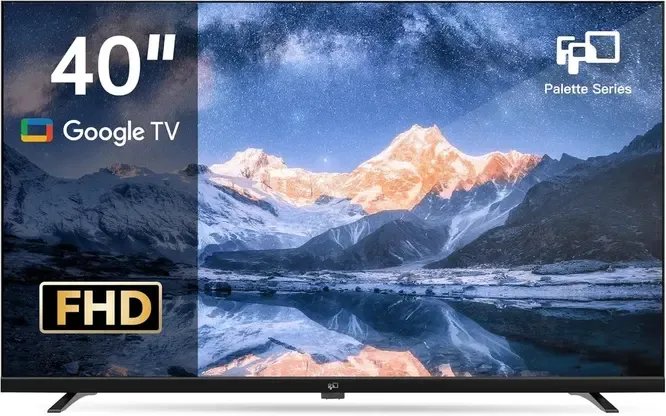
Luckily, the answer to "Can you AirPlay to a Google TV?" is yes. Many Google TV models support AirPlay 2 natively, allowing you to stream or mirror content directly from your Apple device. For models without built-in support, third-party apps, like PigeonCast can be used to connect your iPhone, iPad, or Mac. The setup and performance may vary depending on your TV model and software version, but in most cases, AirPlay works reliably with Google TV.
How to Know If Your Google TV Supports AirPlay
Before you start trying to use AirPlay, it's important to check whether your Google TV actually supports it. Not all models come with AirPlay 2 built in, and knowing this ahead of time will save you from unnecessary troubleshooting. In the next section, we'll show how to quickly determine if your Google TV can use AirPlay natively or not.
- Way 1. Check Your TV's Settings Menu
Step 1. Press the Home button on your Google TV remote and navigate to Settings (gear icon).
-
Step 2. Scroll to Accounts & Sign-In or System (varies by brand).
-
Step 3. Look for AirPlay & HomeKit. If present, your TV supports AirPlay.
- Way 2. Check Your TV's Documentation
- Look in your user manual or the manufacturer's support website for "AirPlay" or "HomeKit" support.
- Way 3. Test with an iPhone or iPad
Step 1. Open Control Center on your Apple device and tap Screen Mirroring.
- Step 2. If your Google TV appears in the list, it supports AirPlay.
How to AirPlay on Google TV
While some Google TV models come with AirPlay 2 built in, others don't support it natively and will require a third-party app to function. The setup process varies depending on the type of device you have. Here we'll go through the steps for both options to help you learn about how to AirPlay to a Google TV:
Option 1. Google TV Supports AirPlay
How to AirPlay on a Google TV? If your Google TV has built-in AirPlay 2 support, setting up streaming from your Apple device is straightforward. Here's a quick and easy guide on how to enable AirPlay on Google TV.
Step 1. Ensure your Apple device and Google TV are covered by the same wireless network.
Step 2. Press the Home button on your remote, go to Settings > System (or Accounts & Sign-In) > AirPlay & HomeKit.
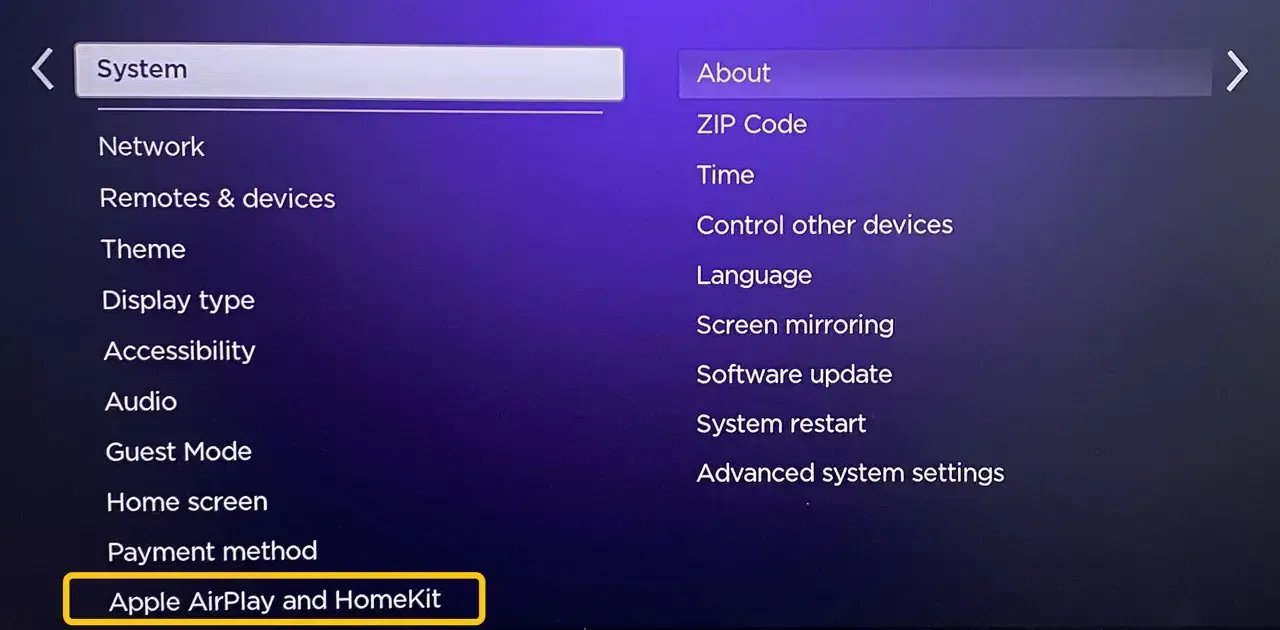
Step 3. Turn on AirPlay from the AirPlay & HomeKit Settings section.
Step 4. Open Control Center on your Apple device.
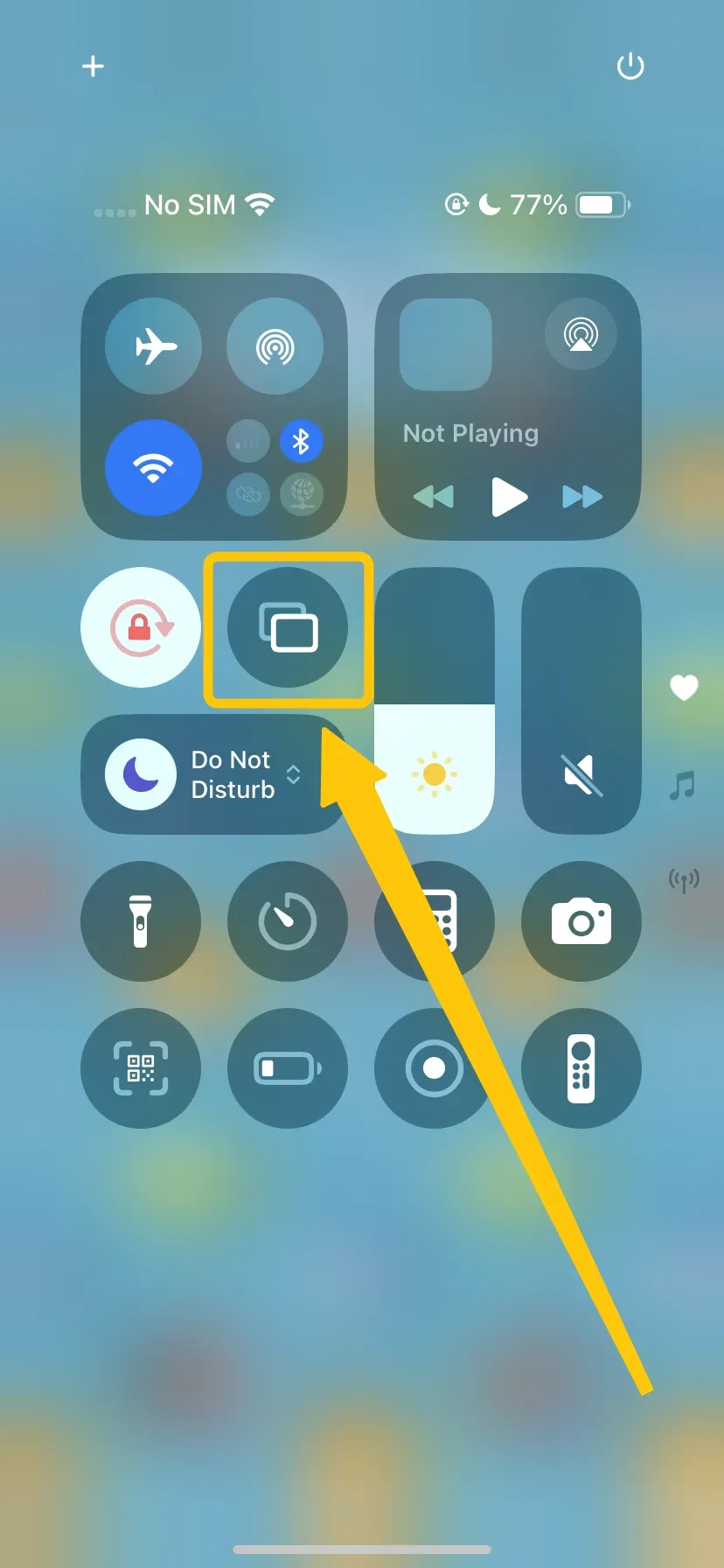
Step 5. Tap Screen Mirroring and select your Google TV from the list.
Step 6. Once connected successfully, your screen or selected media will now stream to your Google TV.
Option 2. Google TV Doesn't Support AirPlay
If your Google TV doesn't have built-in AirPlay 2 support, how to AirPlay on your Google TV? As mentioned above, you can still connect your Apple device using third-party apps as an alternative, such as the PigeonCast Android TV Screen Mirroring app. This free mirroring software supports AirPlay, Google Cast, and DLNA for easy streaming.

Step 1. Ensure your Apple device and Google TV are connected to the same wireless network.
Step 2. Install the PigeonCast Android TV Screen Mirroring app on your Android TV to turn it into an AirPlay-compatible device.

PigeonCast Screen Mirroring

Official Download


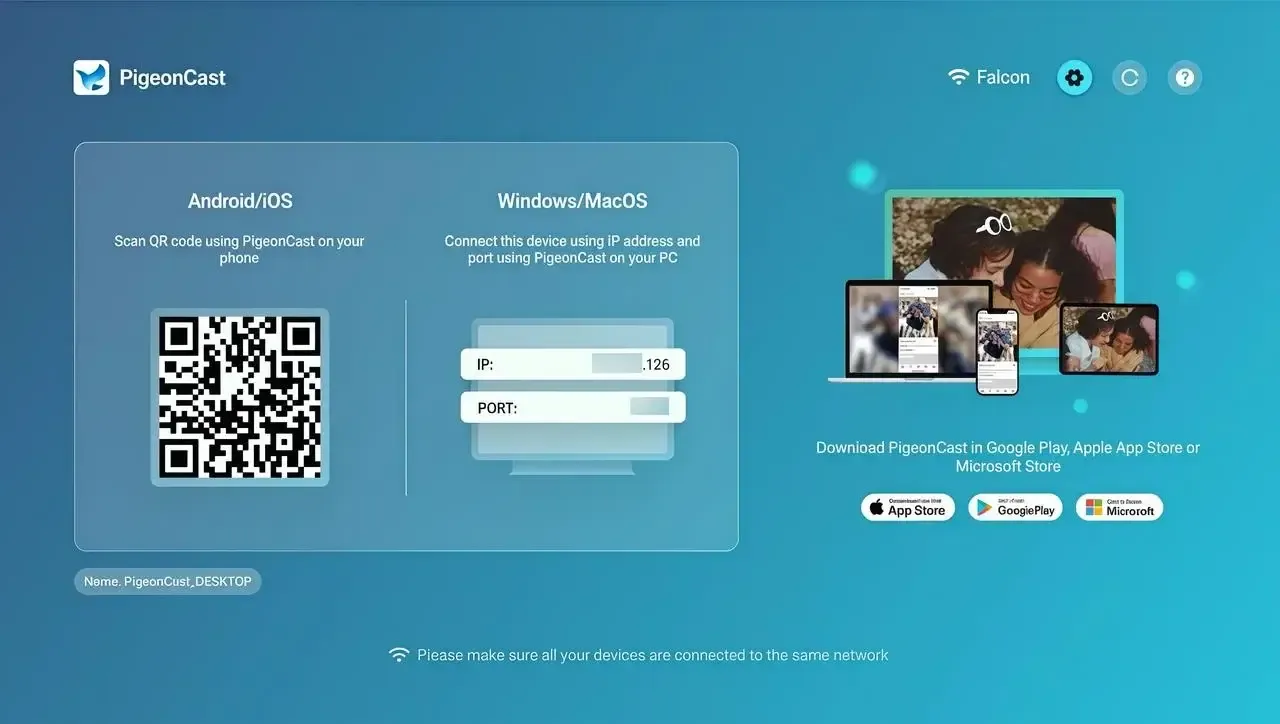
Step 3. On your Apple device, tap Screen Mirroring from Control Center to choose the PigeonCast name from the device list.

Step 4. Enter the pairing code shown on the television screen to confirm the connection behavior.
Step 5. When you finish the connection, you can start AirPlay to the Google TV from your Apple device.
Wrapping Up
How to AirPlay Google TV? AirPlay and Google TV may come from two different ecosystems, but they can still work together with the right setup. Whether your Google TV supports AirPlay natively or you use a third-party solution such as PigeonCast, streaming content from your Apple device to your TV can be smooth and convenient.
AirPlay to Google TV FAQ
Q: Why is my Google TV not connecting to AirPlay?
Your Google TV might not be connecting to AirPlay because it doesn't support AirPlay 2 natively, your devices are on different Wi-Fi networks or bands, there is network interference, or the software on either device is outdated.
Q: Does Google allow AirPlay?
Google does not natively support AirPlay on most devices, as AirPlay is an Apple protocol. However, some newer Google TV models have built-in AirPlay 2 support, allowing limited compatibility, while others require third-party apps to connect Apple devices.
Q: Can I cast from my phone to my Google TV?
Yes, you can cast from your phone to your Google TV. Android devices can use the built-in Cast feature to mirror screens or stream content, while iPhone users can use AirPlay if the Google TV model supports it or rely on third-party apps (such as the PigeonCast app) for compatibility.
Q: Is AirPlay better than Chromecast on Google TV?
AirPlay is optimized for Apple devices, allowing seamless screen mirroring and multi-room audio. Chromecast is Google's native casting method, best for Android devices and Google ecosystem apps.
Q: Can I pair my iPhone to Google TV?
Yes, you can pair your iPhone with Google TV. While iPhones don't natively support Google Cast like Android devices, you can use apps such as YouTube, Netflix, or Chromecast-enabled apps to cast content from your iPhone to Google TV. Both devices must be connected to the same Wi-Fi network, and you can initiate casting directly from the app by tapping the cast icon and selecting your Google TV device.
Q: What is the screen mirroring app for iPhone to Google TV?
You can mirror your iPhone to Google TV using either built-in AirPlay support or third-party apps. If your TV doesn't support AirPlay directly, apps like DoCast, AirBeamTV, or PigeonCast allow you to cast videos, photos, and apps from your iPhone to Google TV easily.
Q: Which Google TV models natively support AirPlay
Currently, Google TV devices do not natively support AirPlay, including Chromecast with Google TV. To mirror your iPhone or iPad, you'll need to use third-party apps like PigeonCast. AirReceiver, AirScreen, or ApowerMirror, which turn your Google TV into an AirPlay receiver.
Q: What third-party apps add AirPlay to Google TV
To enable AirPlay functionality on your Google TV, several third-party applications can serve as AirPlay receivers, allowing you to mirror content from your Apple devices. These apps facilitate seamless streaming and screen mirroring over your Wi-Fi network.
- PigeonCast
- AirReceiver
- AirScreen
- ApowerMirror
Clara Rossi is an experienced technology editor and a seasoned expert in screen mirroring and casting technologies. With a keen eye for detail and a deep understanding of how to seamlessly connect devices, Clara excels at optimizing user experiences for effortless sharing and streaming. Whether you're seeking quick fixes or advanced tips, her expertise and responsiveness ensure that every query is met with a well-informed and efficient solution.