
Want to see your phone, tablet, or laptop screen on the big screen? Whether you're sharing vacation photos, streaming apps (like Apple TV) not available on your Google TV, or playing mobile or desktop games, screen mirroring makes it all easy. How to screen mirror on Google TV? In this guide, I'll walk you through setting up Google TV screen mirroring from Android, iPhone, Windows, and Mac devices. No tech skills are needed.
Can You Screen Mirror on Google TV?
Yes, "Google TV" can mean smart TVs from Sony, TCL, or Hisense. Moreover, it refers to a Chromecast with Google TV plugged into an HDMI port. Although they are two different things, they support screen mirroring, just in slightly different ways.
How to Screen Mirror on Google TV - One-Stop Solution
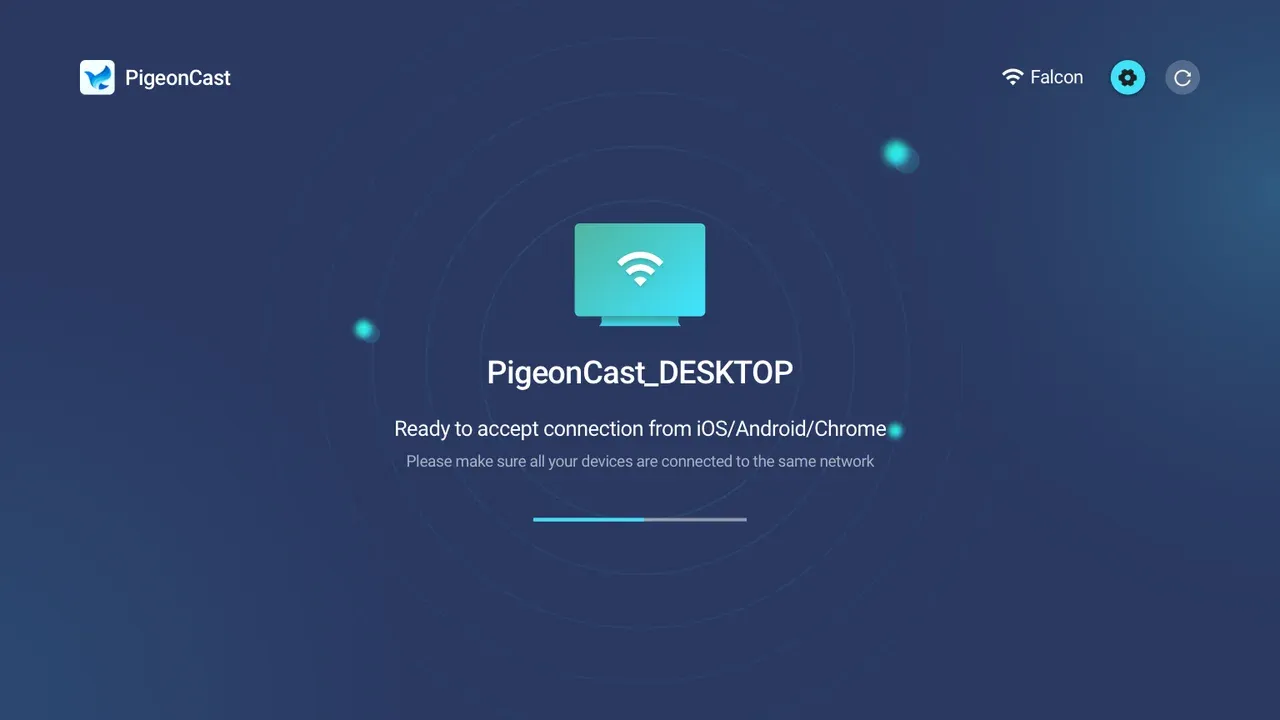
How to screen mirror on TCL Google TV? How to screen mirror on Sony Google TV? How to screen mirror on Hisense Google TV? Or how to screen mirror on Philips Google TV? Regardless of the brand of Google TV you have, you can start screen mirroring on your Google TV with the PigeonCast for Android TV app.
The free screen mirroring app is a one-stop solution for screen mirroring on Google TV. It allows you to stream content to your Google TV from Android, iPhone, or MacBook owing to the app boasts integration of AirPlay, Google Cast (Chromecast), and DLNA.
Note: Android TV and Google TV are not the same. But both run on the same core OS and support the Google Play Store and Google Assistant.
How to screen mirror on Google TV? Only a few steps are involved if you try the PigeonCast solution.
Step 1. Download the PigeonCast for Android TV app from the Google Play Store and install it on your Google TV.

PigeonCast Screen Mirroring

Official Download


Step 2. Launch the screen mirroring app on your Google TV and check the TV's new name displayed on the app interface. Now your TV is discoverable by Android, iPhone, and Mac.
Step 3. Check whether your Android, iPhone, or Mac is connected to the Wi-Fi network your Google TV is on. The same network connection is the key to this method.
Step 4. Enable the Cast feature on your Android or AirPlay on your iPhone or MacBook.
- Go to the Quick Settings on Android and tap Cast, Screen Cast, or Wireless Display.
- Go to the Control Center on iPhone or MacBook and activate AirPlay.
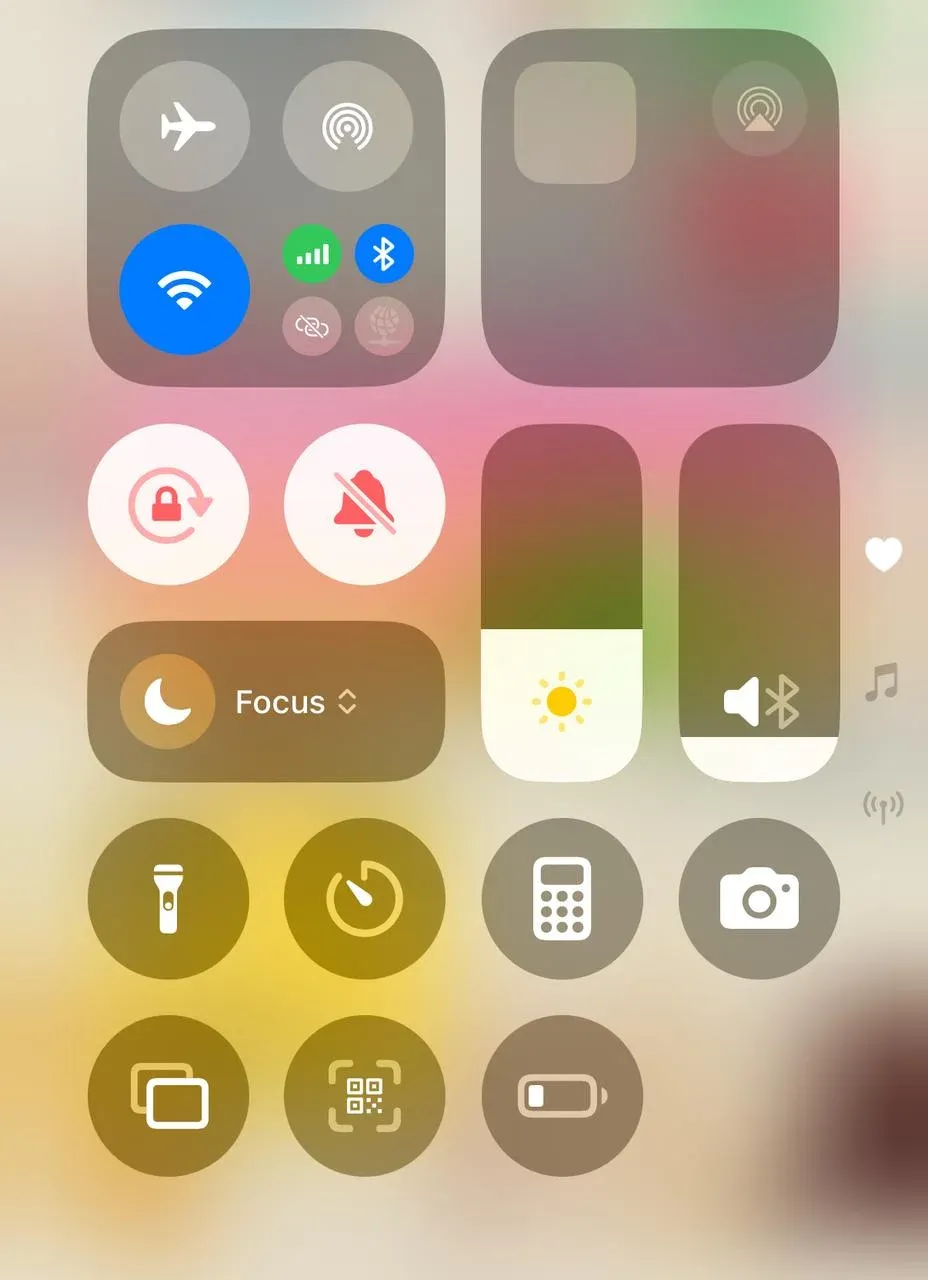
Step 5. Your phone or laptop will give a list of devices to connect to. Look for your Google TV and choose it to connect.
Step 6. Follow the on-screen instructions on your phone or laptop, like entering the PIN code to set up the connection.
Step 7. Once the two devices are connected, you can watch everything on your phone or laptop on your Google TV.
How to Screen Mirror to Google TV from Android
You can screen mirror to Google TV from Android with the other PigeonCast for Android app. The app turns your Android phone into a universal sender, connecting to Google TV or even a MacBook or Apple TV effortlessly. Alternatively, use the built-in feature on your Android or the official app.
Use the Built-in Casting Feature
Nowadays, almost all Android phones running Android 6.0 or newer support Google Cast, such as the Google Pixel series, Samsung Galaxy phones, OnePlus, Xiaomi, and so on. This makes Google TV screen mirroring for Android without an extra app doable, and no compatibility issues will arise.
Here is how to connect phone to Google TV for screen mirroring:
Step 1. Turn on your Google TV and check if it connects to the Wi-Fi network your Android is on.
Step 2. On your Android, go to Quick Settings and tap the Cast feature (the name varies on different brands).
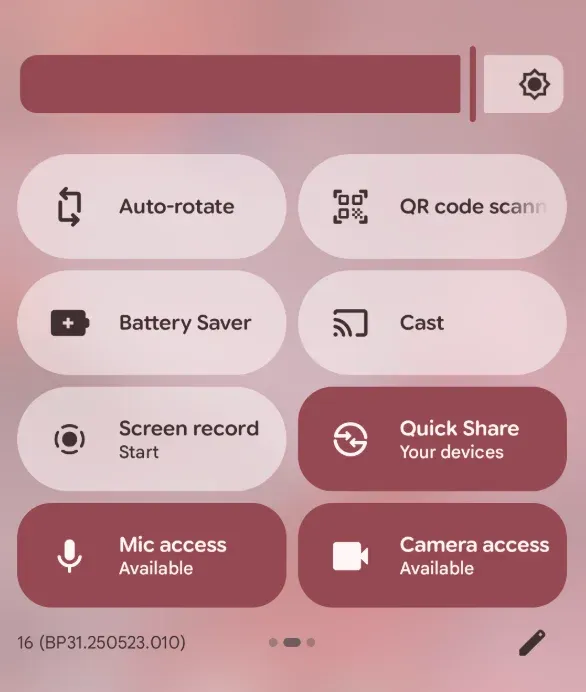
Step 3. When your Android phone shows a device list, find your Google TV and select it.
Step 4. Once the two devices are bridged over Google Cast, you can view your Android on Google TV.
Use the Google Home App
As stated above, not all Android phones support Google Cast. Many old Android phones, especially those sold in China, use Miracast, while Google TVs have abandoned the old protocol and have adopted the new protocol, Google Cast (Google stopped supporting Miracast on Android phones after Android 6.0).
If you have an old Android phone, the alternative way for screen mirroring on Google TV is using the Google Home app. This way is also good for those who are not sure about the built-in casting feature on their cell phones.
How to screen mirror on Google TV via the Google Home app? First, you need to link your Google TV to your Android through the app. Then, cast phone to Google TV. Refer to the guide below to touch on the details:
Step 1. Download and install the Google Home app on your Android phone.
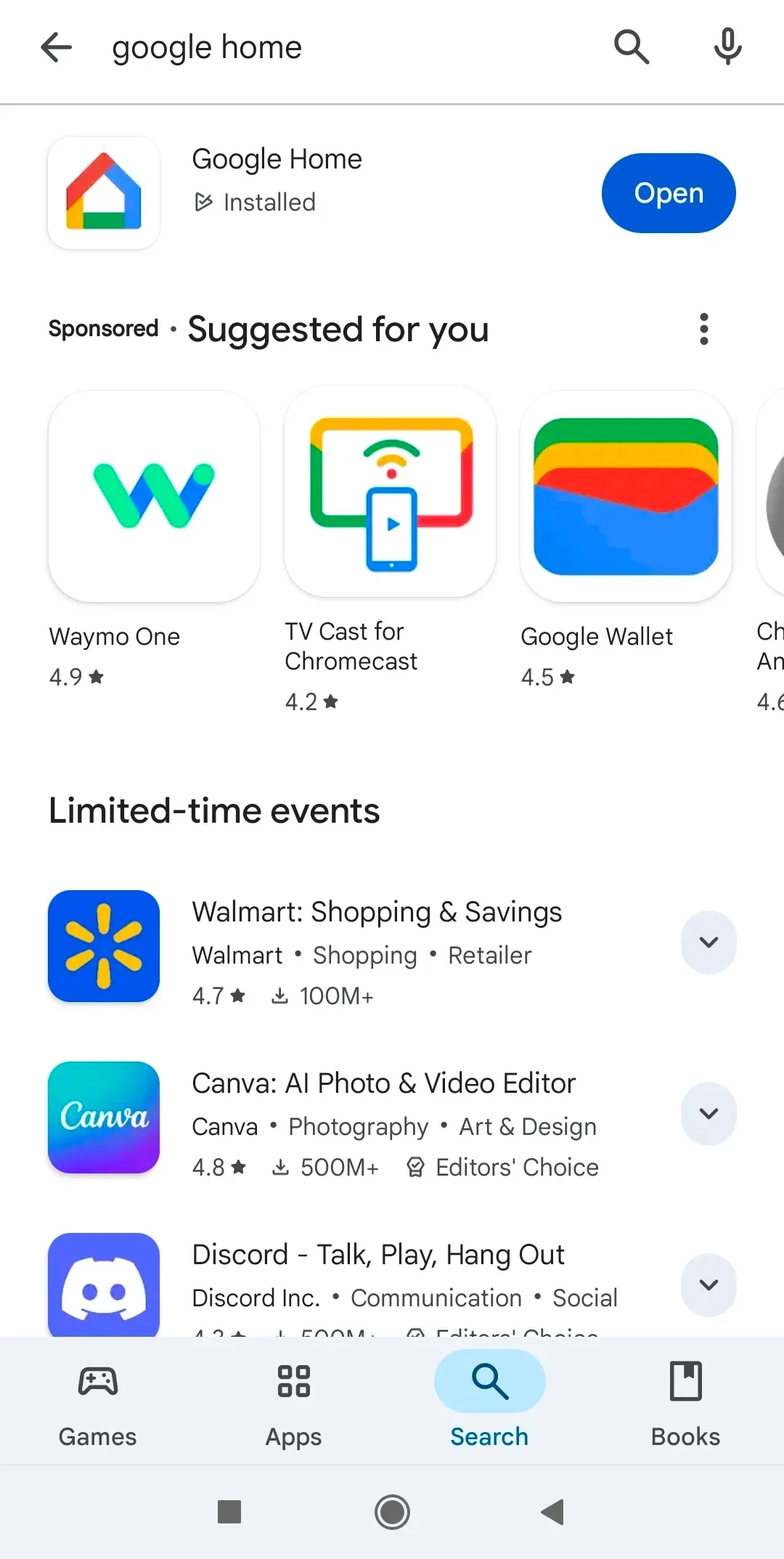
Step 2. Open the app and log in to the same Google account on your Google TV.
Step 3. Switch to the Devices tab, where you tap the + Add option.
Step 4. On the Set up a device interface, choose New device.
Step 5. On the Choose a home interface, choose Home.
Step 6. Once you see the prompt with an "Allow Nearby Devices", allow it as the app requires it to find other devices on your network.
Step 7. Wait for the app to search for your Google TV. If the app can't find your TV, you'll be redirected to a "What are you setting up?" page. Scroll down and choose Chromecast/Google TV.
Step 8. Choose your Google TV from the list.
Now that you have linked your Google TV to your Android device, you can start casting to Google TV.
Step 1. Open the Google Home app and go to the Devices tab.
Step 2. Tap and hold your Google TV tile until a pop-up menu appears.
Step 3. Tap Cast.
How to Screen Mirror to Google TV from iPhone/Mac
iPhone and MacBook have a built-in casting feature: AirPlay. Can you AirPlay your iPhone or MacBook to Google TV? The good news is yes. To cast iPhone to Google TV, the second way is to use the Google Home app.
Use Apple AirPlay
Most Google TV streaming devices, like Chromecast with Google TV, do not support AirPlay natively, but some TVs with Google TV built-in, like certain Sony or TCK models, do support AirPlay 2. If your Google TV doesn't, you can still add AirPlay support with apps like PigeonCast for Android TV or AirMirror.
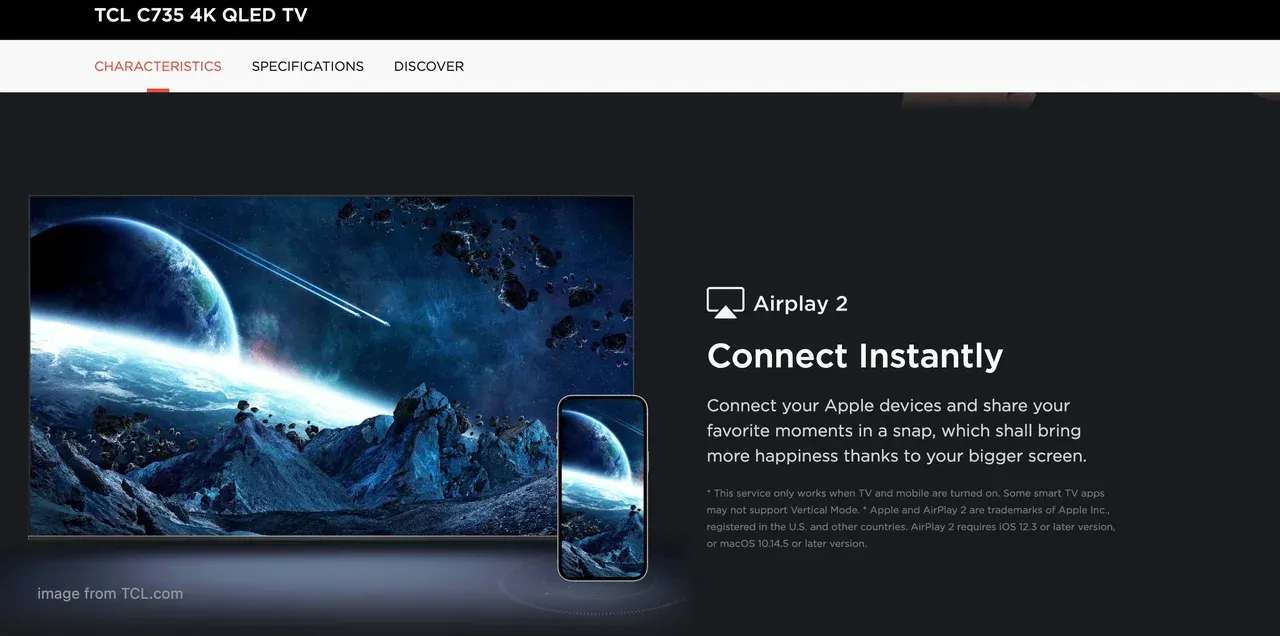
Step 1. Ensure that your Google TV is AirPlay-compatible.
- Turn on AirPlay on your Google TV by referring to the manual.
- Open the AirPlay receiver app on your Google TV.
Step 2. Ensure that your iPhone or MacBook and Google TV are connected to the same Wi-Fi network.
Step 3. On your iPhone or MacBook, go to the Control Center and enable Screen Mirroring.
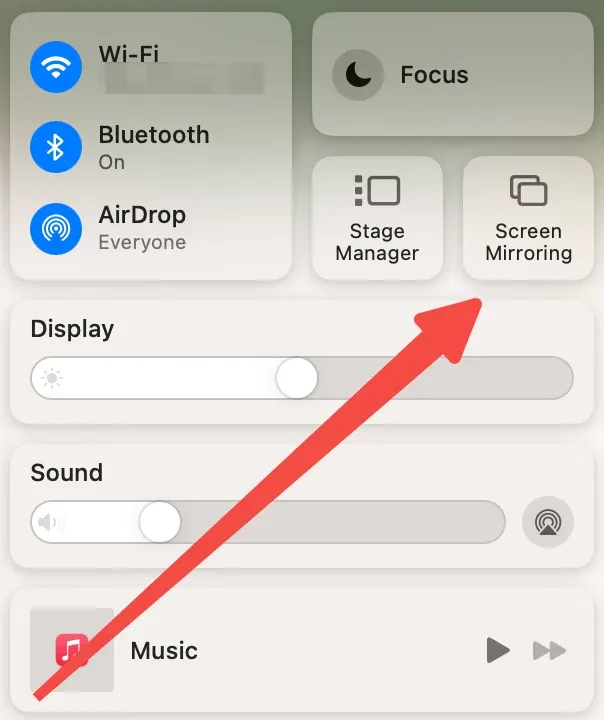
Step 4. Look for your Google TV from the screen mirroring list and tap it.
Step 5. Enter the PIN code if asked.
Step 6. View your iPhone or MacBook screen on your Google TV.
Use the Google Home App
You can also use the Google Home app to connect your iPhone to Google TV if you are not sure whether the TV is AirPlay-compatible. However, this method is not doable on a Windows PC or a MacBook as the app is designed for mobiles.
To mirror your iPhone to Google TV via the app, you need to link the two devices, then start casting. The steps are the same as those I mentioned in Android and Google TV screen mirroring. So scroll up and follow them.
How to Screen Mirror to Google TV from Windows/Mac
To connect a laptop to a TV for screen mirroring, you can use the Chrome web browser on your Windows or Mac. Google Chrome includes a built-in Cast feature that uses the Google Cast protocol. Therefore, it allows you to wirelessly stream or mirror content from your computer to a Google Cast-compatible device, like Google TV.
Before you get started, make sure your computer and Google TV use the same Wi-Fi network, and leave the TV on before connecting.
Step 1. Open the Google Chrome browser on your computer.
Step 2. Click the three-dot menu in the top-right-hand corner of the browser.
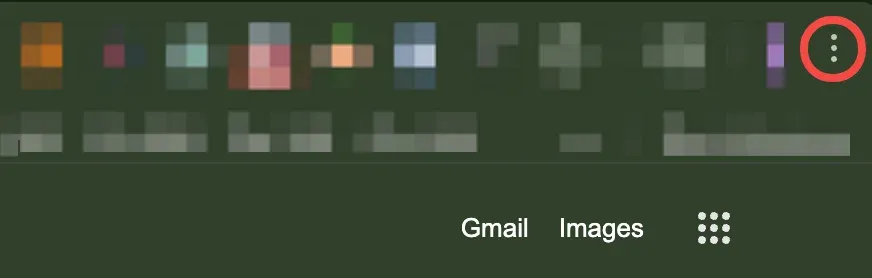
Step 3. Choose Cast, Save, and Share > Cast.
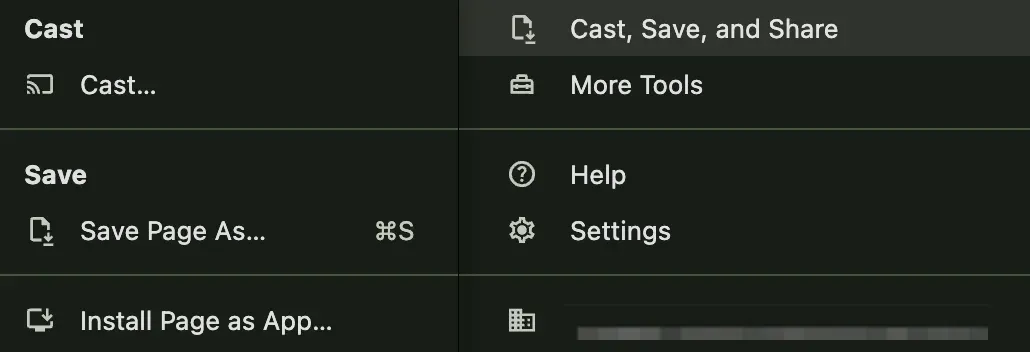
Step 4. When the Cast tab appears, click the Sources button and choose Cast screen from the dropdown menu.
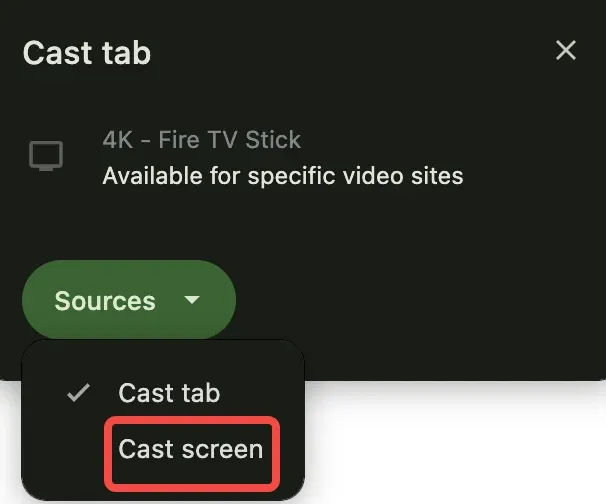
Step 5. Choose your Google TV from the list.
Step 6. View your computer screen on Google TV.
How to Cast on Google TV?
If you don't want to share the entire screen, you can opt to cast to Google TV. How to cast on Google TV? There are a few simple ways:
Use the Cast Feature
Use the PigeonCast for Android TV app so that you can cast content from Android and even iPhone or Mac.
For example, to view a photo or video on Google TV, launch the third-party app on your Google TV. Then,
Step 1. Find the media in your album, tap the Share option on the bottom left.
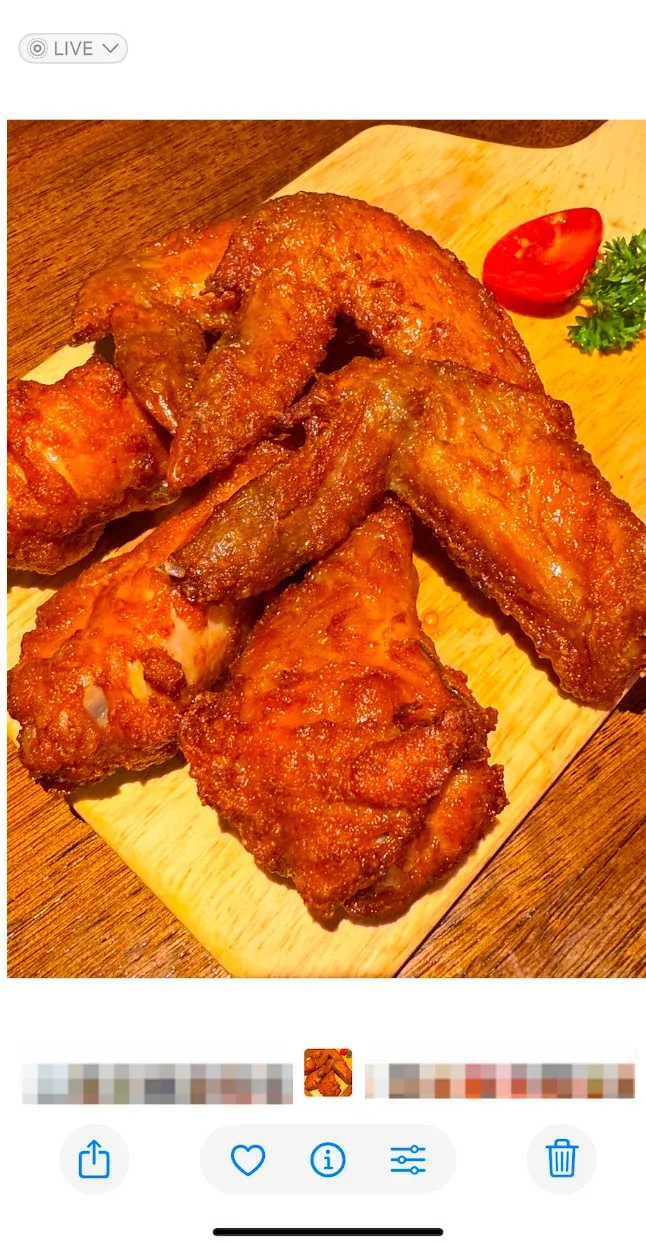
Step 2. Choose Share to or AirPlay.
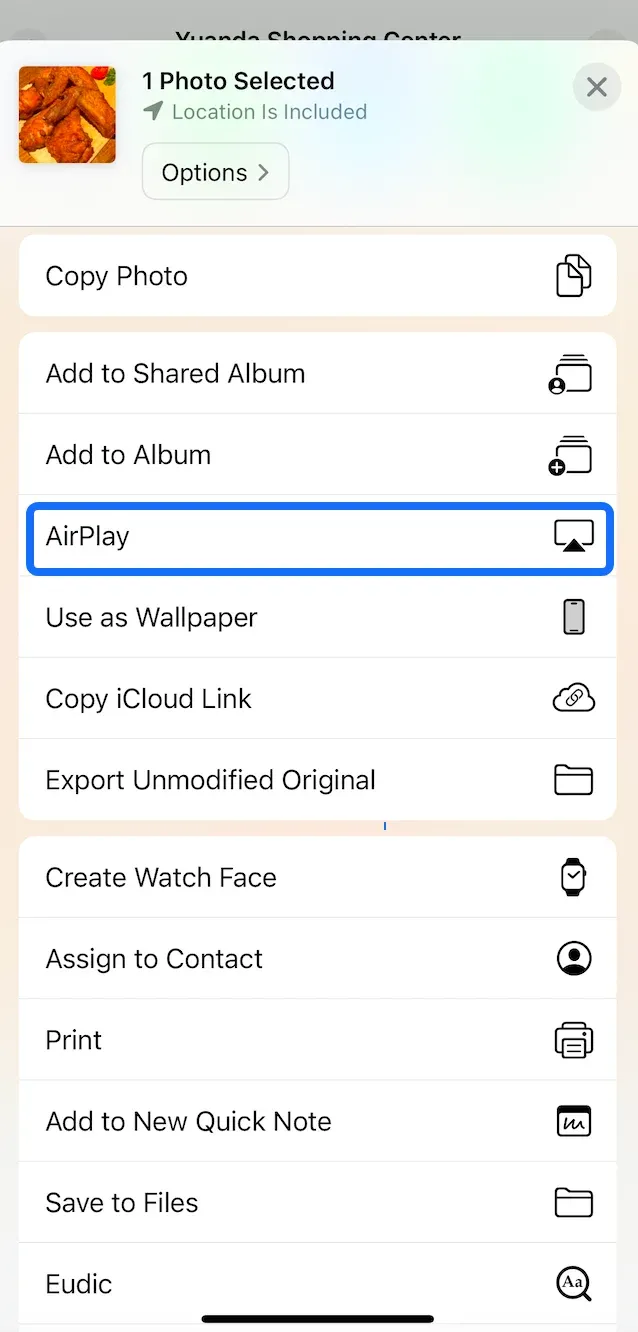
Step 3. Choose your Google TV from the device list.
Step 4. Once connected, you can view the media on the big screen.
Use Chromecast Apps
How to cast to Google TV? The next approach to cast to Google TV is using the built-in Chromecast functionality in supported apps, such as YouTube and Netflix. This way also requires the same Wi-Fi network connection on your two devices.
To ensure the process goes smoothly, make sure the app is updated to the latest version on your mobile or laptop. Here, I use YouTube as an example and offer a how-to tutorial:
Step 1. Open the YouTube app on your mobile or computer.
Step 2. Choose a video you want to view on Google TV, play it, and click the Cast button on the top or the bottom.
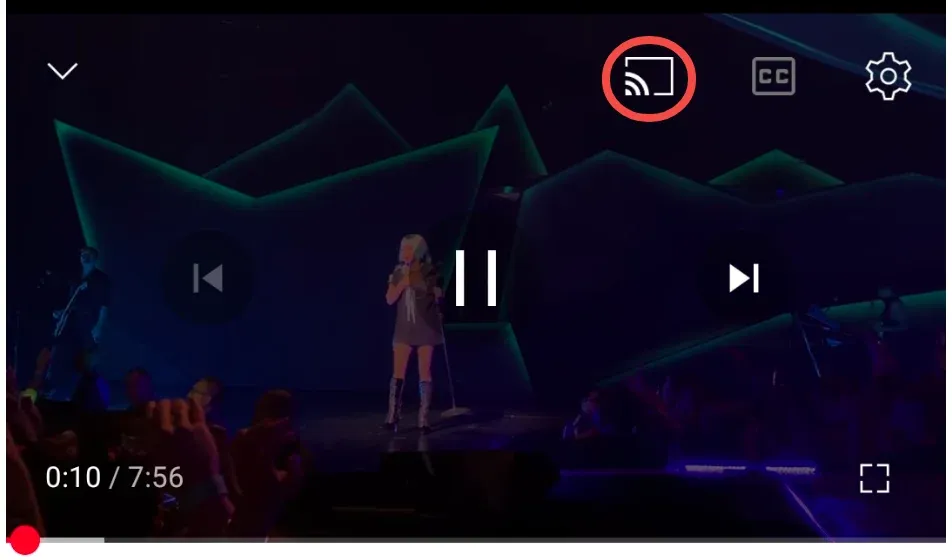
Step 3. Choose your Google TV from the list.
Step 4. Wait for the app to connect. Once connected, View YouTube on Google TV.
Which Is the Best Method to Screen Mirror on Google TV
As you see, there are multiple ways to screen mirror on Google TV from different devices, like Android, iPhone, Windows, and Mac. Which is the best way for Google TV screen mirroring? Here's a comparison table.
| Methods | Platforms | Pros | Cons | Price |
|---|---|---|---|---|
| PigeonCast App | Google TV | Support AirPlay, Google Cast, DLNAEasy setupSimple UIOne-stop solution for screen mirroring on Google TV from Android, iPhone, and Mac | Needs installation on Google TV | Free |
| Android Cast feature | Android phones with Google Cast support | No app neededSeamless with Google TVInstant casting from Quick Settings | Not available on all Android models | Free |
| Apple AirPlay | iPhone, iPad, MacBook (and supported Google TVs) | No extra app neededHigh qualitySeamless with Apple devices | Only works if Google TV supports AirPlayNot native to all models | Free |
| Google Home | Android, iOS | Easy linkingGood for older Android phonesStable casting | Not available on Windows/MacSetup process is slightly long | Free |
| Chrome Browser | Windows, macOS | No need to install extra softwareWorks for tab and desktop mirroring | Requires ChromeAudio support limited in screen mirroring | Free |
| Chromecast Apps | Android, iOS, macOS, Windows | Direct app-to-TV castingSupported by many popular apps like YouTube, Netflix | No full-screen mirroringSome apps charge for premium casting | Varies by app |
Verdict
No matter what device you're using (like Android, iPhone, Windows, or Mac), screen mirroring to Google TV is easier than ever. Whether you prefer using the built-in Cast feature, Google Home app, Chrome browser, or third-party solutions like PigeonCast, there's a method for everyone.
Just make sure your devices are on the same Wi-Fi network, and you're good to go. So the next time you want to enjoy your favorite content on a bigger screen, you'll know exactly how to do it—no muss, no fuss.
How to Screen Mirror on Google TV FAQ
Q: Does Google TV have screen mirroring?
Yes, Google TV supports screen mirroring, but the method depends on your device and the apps you use. While it doesn't offer native Miracast support, it fully supports Google Cast and can also receive AirPlay on select models (like some Sony or TCL Google TVs). You can mirror your screen using built-in casting features, the Google Home app, Chrome browser, or third-party apps like PigeonCast.
Q: How do I mirror my iPhone to Google TV?
To mirror your iPhone to Google TV, check if your TV supports AirPlay 2. If it does, simply swipe down on your iPhone to open the Control Center, tap Screen Mirroring, and select your Google TV from the list. If your Google TV doesn't support AirPlay, install an app like PigeonCast on your TV. This app enables AirPlay-like functionality so your iPhone can cast to Google TV over the same Wi-Fi network.
Q: How do I display my screen on Google TV?
To display your screen on Google TV, use PigeonCast for Google TV (a one-stop solution for Google TV screen mirroring) or use one of the following methods for a specific sender:
- Android devices: Use the Cast feature from Quick Settings or the Google Home app.
- iPhones/MacBooks: Use AirPlay if supported by the TV or a third-party app like PigeonCast.
- Windows/Mac computers: Open the Chrome browser, click the three-dot menu, choose "Cast", and select Cast screen.
As long as your devices are on the same Wi-Fi network and Google TV is discoverable, mirroring should work smoothly.
Q: Why can't I Cast to Google TV?
If you can't cast to Google TV, first ensure both your phone or computer and the TV are connected to the same Wi-Fi network. Also, verify that your Google TV is powered on and not in standby mode. Some older Android phones may rely on Miracast, which is not supported by Google TV; therefore, use the Google Home app or a compatible casting app instead. If you're using Chrome on a computer, make sure the browser is up to date and that the Cast option is enabled.
Mia Clarke is a technology editor specializing in screen mirroring and casting solutions across multiple platforms. Mia provides clear, practical guides and in-depth insights to help users seamlessly connect their devices. Passionate about enhancing digital experiences, Mia is dedicated to keeping readers updated on the latest trends and tools in cross-platform screen sharing. Whether you’re looking to mirror your smartphone, laptop, or smart TV, Mia’s content delivers reliable, user-friendly advice to simplify your tech setup.