
Wondering how to cast from Chrome? Whether you're on a laptop, Android device, or iPhone, sharing your Chrome tabs or entire screen to a TV has never been easier. Casting lets you stream movies, mirror presentations, or share content in real-time, all without complicated setups. In this guide, we'll walk through how to cast from Chrome on laptop, Android, and iPhone, including step-by-step instructions, recommended apps, and alternative solutions for smooth, reliable screen sharing.
How to Cast from Chrome on Laptop
There are two wireless ways to cast Google Chrome on your Windows PC or MacBook to a TV or Chromecast-enabled device. Both ways are ideal for streaming movies, showing presentations, or sharing content during online classes or meetings.
Method 1. Use the Built-in Cast Feature
The built-in cast feature in Google Chrome allows you to cast from Chrome to TV without installing additional software. It works on both Windows and MacBook, providing an easy way to share browser tabs or your desktop in high quality.
How to cast from Google Chrome on Windows or Mac:
Step 1. Ensure your laptop and TV are on the same Wi-Fi network and the Chrome browser is up to date.
Step 2. Launch the Chrome browser on your laptop and click the three-dot menu in the top-right corner.

Step 3. Click the Cast, Save, and Share option, then Cast....
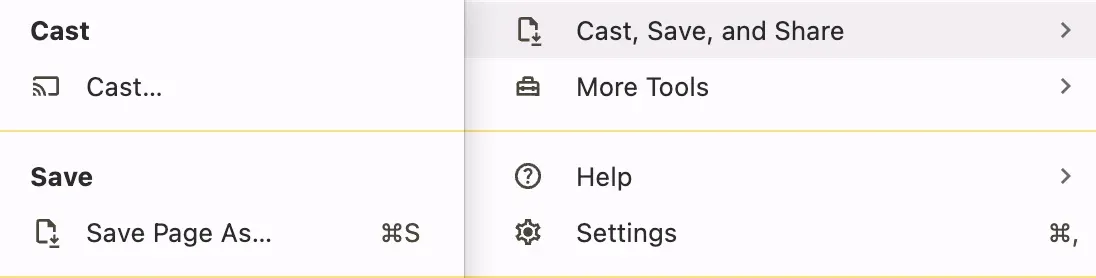
Step 4. Choose your TV or Chromecast-enabled device.
Step 5. There are three casting options, and choose the one you need.
- Cast Desktop: cast your laptop's entire screen
- Cast Tab: cast any specific tab
- Cast File: cast any specific file from your PC
Step 6. Enjoy content on another screen.
This also works with browser-based media servers. For example, you can cast Jellyfin from Chrome to Chromecast when using the Jellyfin Web client.
Method 2. Use the PigeonCast App
If you want more flexibility, PigeonCast is a great option. Unlike Chrome's built-in cast, the free third-party application supports multiple protocols, such as AirPlay, Google Cast, DLNA, as well as its own casting solution, which makes cross-platform streaming possible.

With PigeonCast on your Windows or Mac, you can easily cast the Chrome window to another device. Here's how to cast from Chrome browser:
Step 1. Download and install the PigeonCast app on your Windows or MacBook.

PigeonCast Screen Mirroring

Official Download



Step 2. Ensure your laptop and the target device, like a TV, are on the same Wi-Fi network.
Step 3. Open the PigeonCast app and click Send my screen.
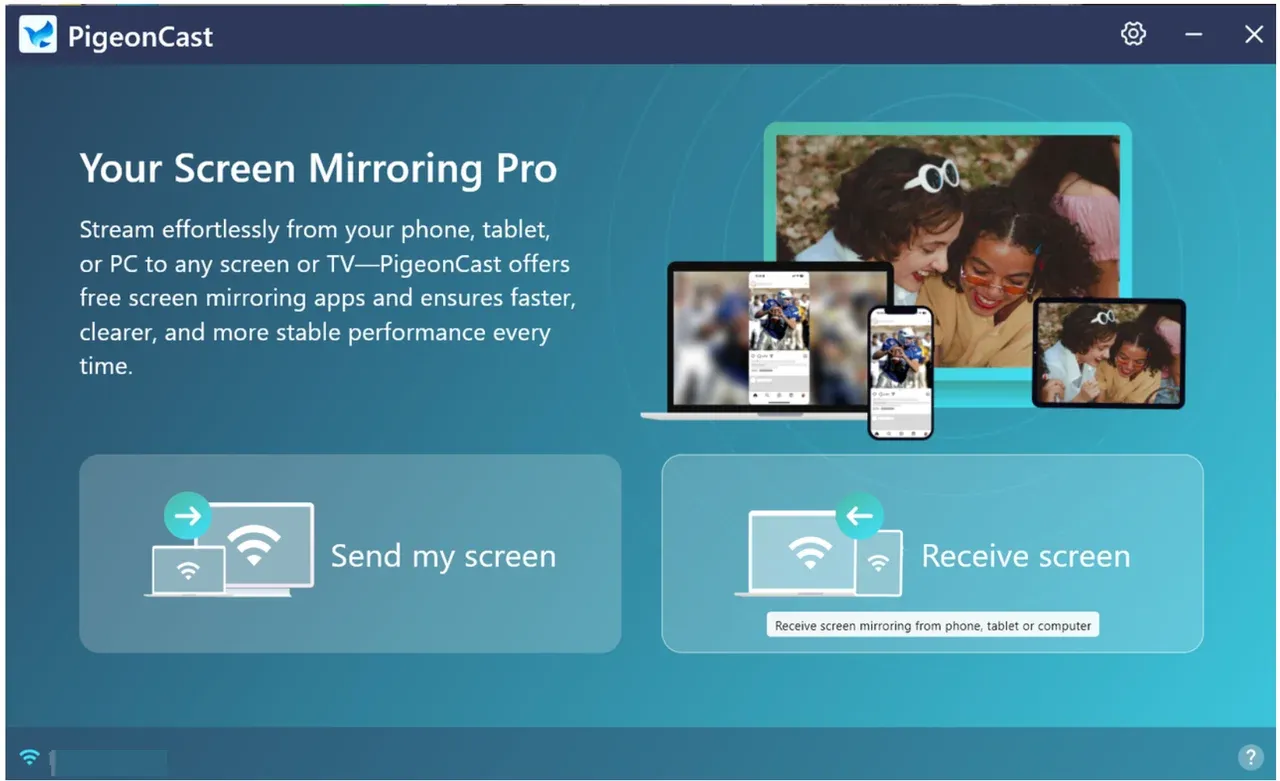
Step 4. Choose the target device from the available devices.
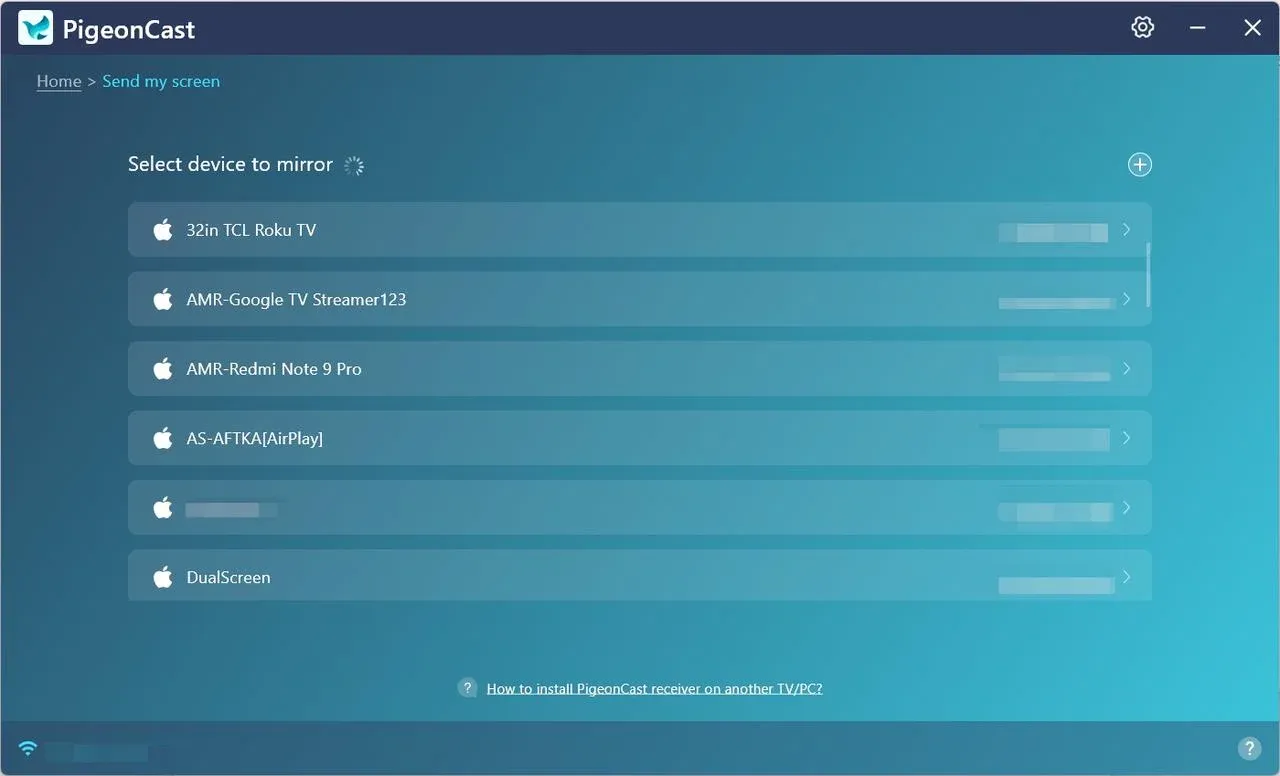
Step 5. Once connected, click Mirror app window and choose Google Chrome from the Window entry.
Note: If you can't find Google Chrome from the menu, ensure the app is open and not minimized.
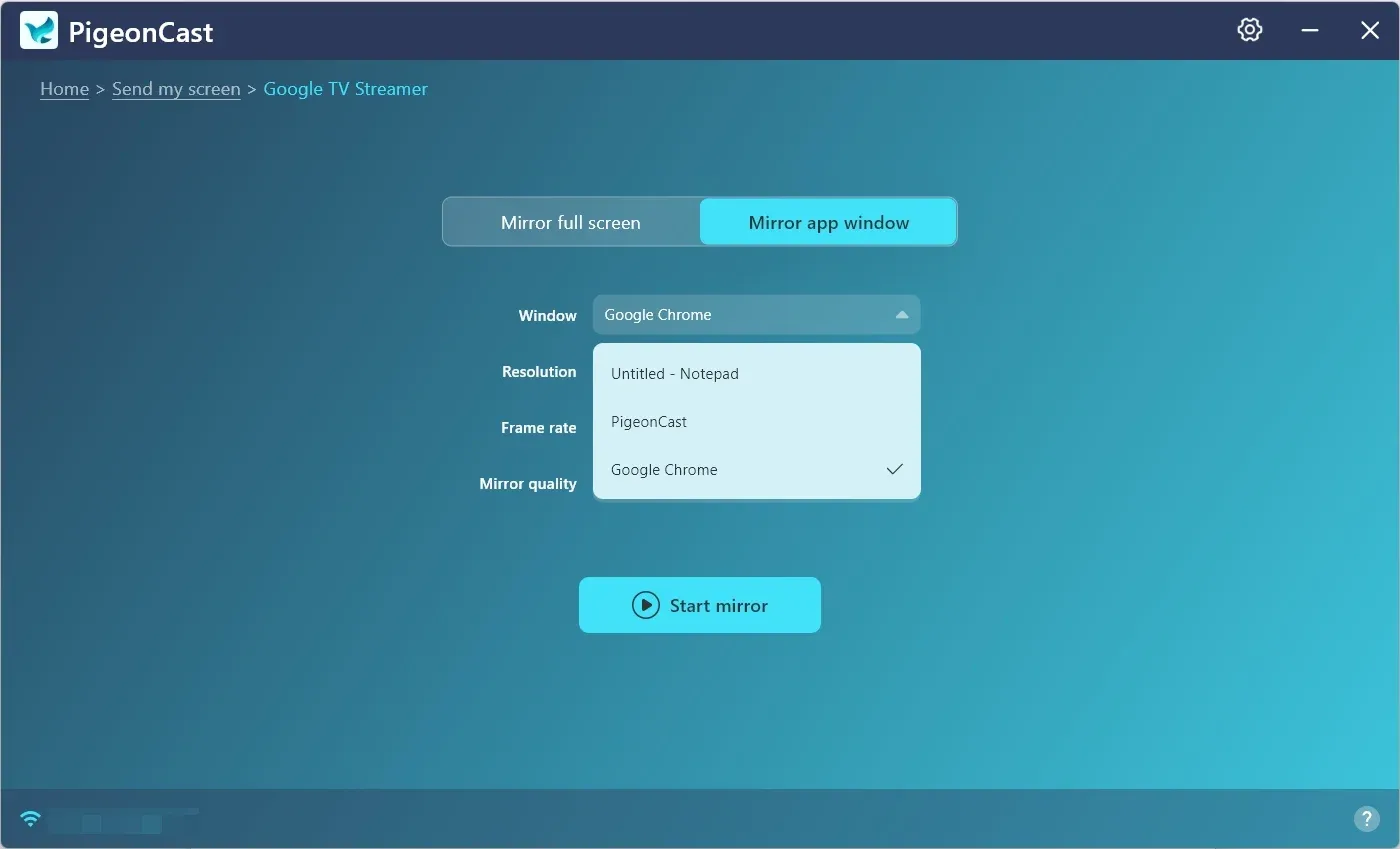
Step 6. Click the Start mirror button, and your Chrome will appear on the target device.
How to Cast from Chrome on Phone
Google Chrome on Android or iPhone doesn't have a built-in cast feature, so how to cast from Chrome Android or iPhone? The good news is that there are a few reliable methods you can use to cast Chrome content to your TV or other devices, even without native casting support.
Method 1. Use a Third-Party Casting App
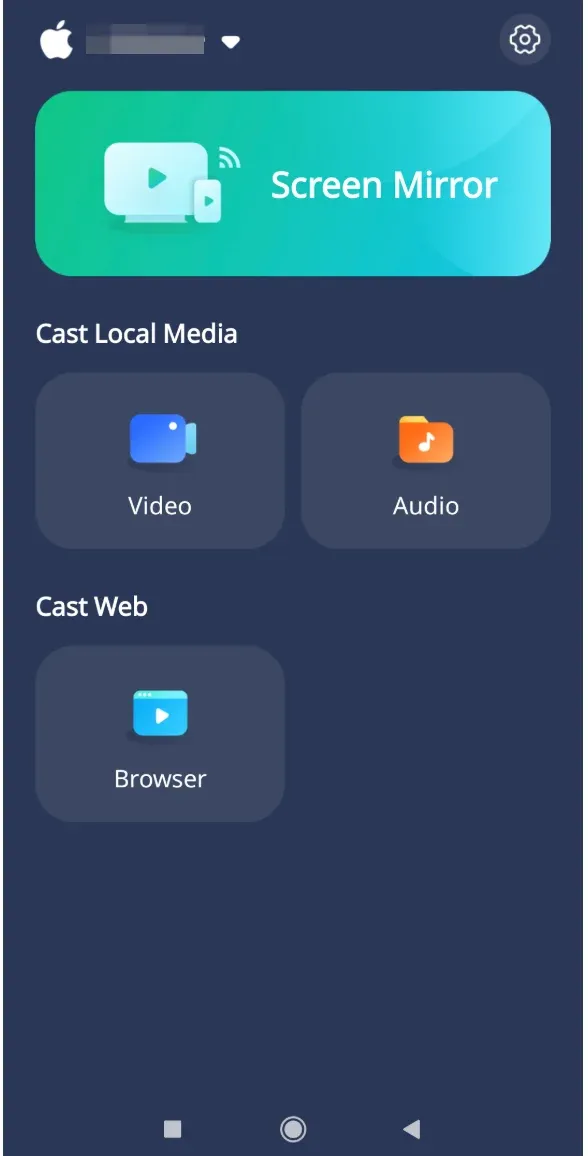
You can utilize a third-party app like PigeonCast or Screen Mirror. These apps allow you to mirror your entire screen or cast Chrome tabs directly from your Android or iPhone to a Chromecast-enabled TV, smart TV, or other devices.
Here's how to cast from Chrome mobile to TV:
Step 1. Download and install the app on your device.
PigeonCast Screen Mirroring
Official Download

Step 2. Make sure your phone and the target device are on the same Wi-Fi network.
Step 3. Launch the app and choose the target device from the device list.
Step 4. Choose Allow on the target device if prompted.
Step 5. Once connected, follow the onscreen instructions to cast Google Chrome.
Method 2. Use Android's Cast Feature
Android phones offer a built-in Cast feature that allows you to display content on compatible devices. However, this method uses screen mirroring instead of casting individual tabs, meaning that anything you do on your phone—including browsing in Chrome—will be displayed on the TV.
See how to cast Chrome browser to TV in this way:
Step 1. The Cast feature relies on a Wi-Fi network, so both devices should be connected to the same network.
Step 2. Choose the Cast feature (or something alike) from the Quick Settings on your Android phone.
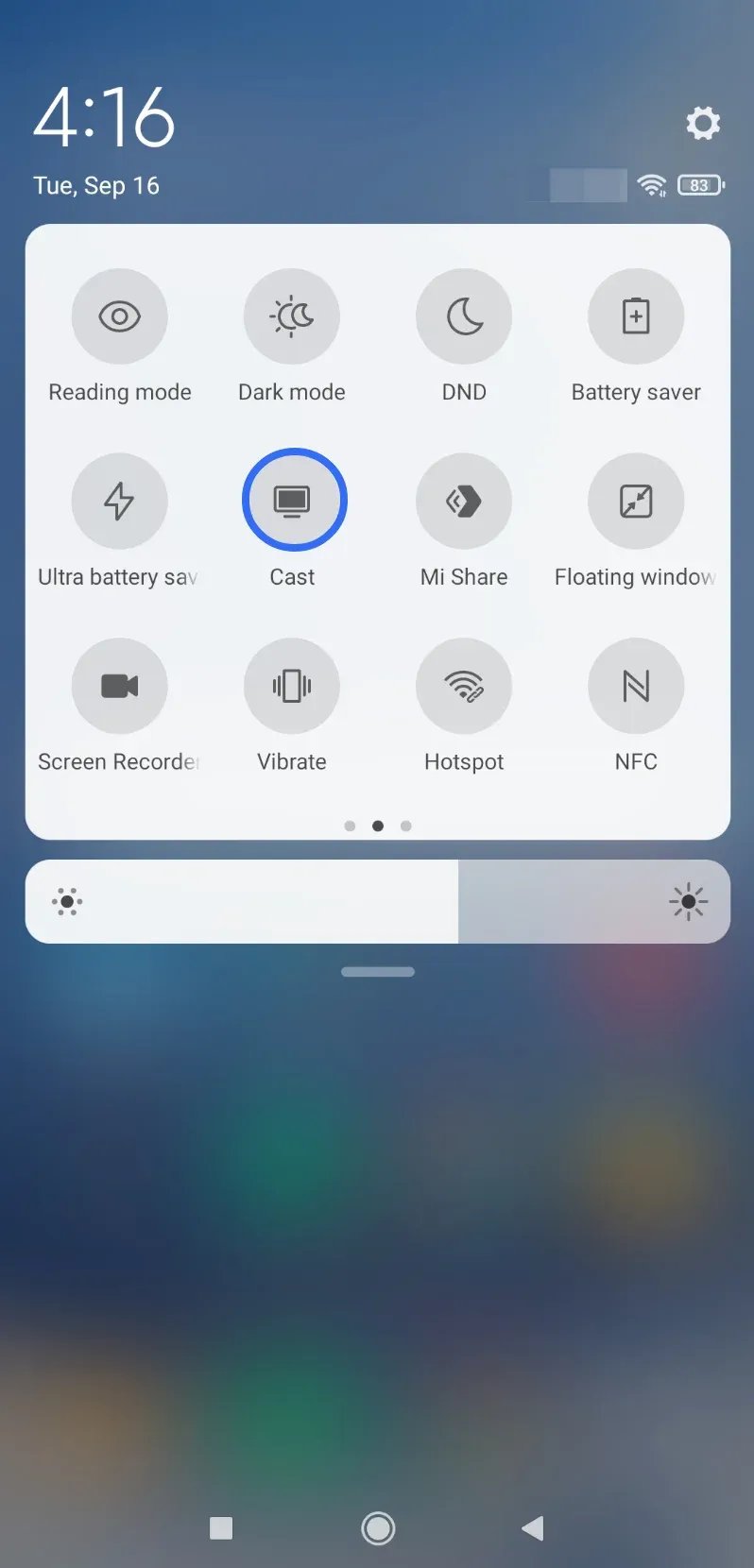
Step 3. Choose the target device from the device list.
Step 4. Once connected, your Android screen will appear on the target device.
Step 5. Open Google Chrome on your Android, find the video or website you want to browse, and start enjoying it.
Method 3. Use the iPhone's AirPlay Feature
How to cast from Chrome mobile iPhone? If you have an AirPlay-compatible TV or an Apple TV, you can AirPlay Chrome from your iPhone to the TV without any third-party apps.
Here's how to cast Google Chrome to TV over Apple AirPlay:
Step 1. Ensure your iPhone and AirPlay-compatible TV (or Apple TV) are connected to the same Wi-Fi network.
Step 2. Open Google Chrome on your iPhone and navigate to the content (such as a webpage or video) you want to cast.
Step 3. Swipe down from the top-right corner of your iPhone to open the Control Center.
Step 4. Tap the Screen Mirroring icon.
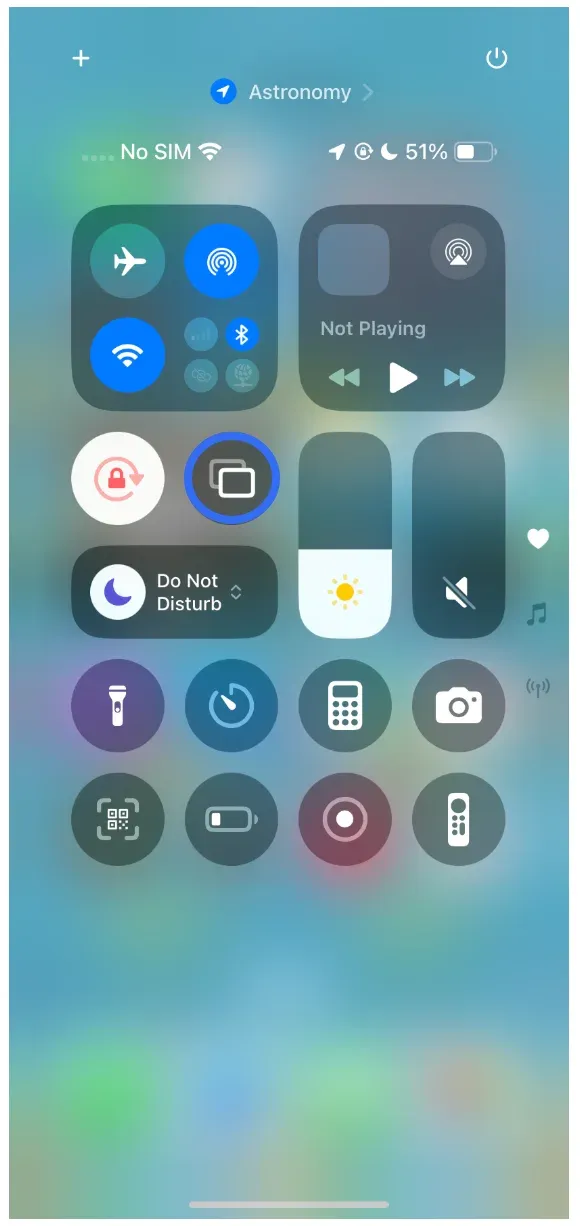
Step 5. Select your AirPlay-compatible TV or Apple TV from the list of available devices.
Step 6. Your Chrome content will now appear on the TV in real time.
Summary
Learning how to cast from Chrome to TV is easy with a variety of methods depending on your device. Laptop users can use Google Chrome's built-in casting feature or PigeonCast for more flexibility, allowing you to stream tabs, files, or your entire desktop.
On Android, you can either use the Cast feature for screen mirroring or third-party apps like PigeonCast for more control over casting. For iPhone users, AirPlay is the simplest solution for displaying Chrome content on an AirPlay-compatible TV or Apple TV. Whether you're streaming videos, browsing websites, or giving presentations, these methods ensure smooth and reliable screen sharing across devices.
How to Cast from Chrome FAQs
Can I cast Chrome from Android or iPhone to a TV?
You can cast Chrome from Android or iPhone to a TV, but not directly, as mobile Chrome lacks a built-in Cast feature. To easily cast Chrome, use a third-party app like PigeonCast or enable the Cast feature on Android or AirPlay on iPhone.
Can I cast full-screen from Chrome?
Yes, the built-in casting feature in Chrome allows you to cast your full desktop or specific tabs from Chrome to the TV.
How can I cast from Chrome without Wi-Fi?
You can use an HDMI cable to connect your device (phone or laptop) directly to the TV. Simply switch to the appropriate input on your TV, and your Chrome content will be displayed without needing Wi-Fi.
Why is my Chrome cast not working?
Make sure both your device (laptop, phone, etc.) and TV are connected to the same Wi-Fi network. Also, check that Chrome is updated, and if you're using third-party apps, ensure they are installed correctly.
Where is the cast button on Chrome?
The Cast button in Chrome is located in the three-dot menu at the top-right corner of the browser. Click the menu, select Cast, and then choose the device you want to cast to.
How do I Chromecast from my phone to my TV?
To Chromecast from your phone to your TV, ensure both devices are connected to the same Wi-Fi network. Open a Chromecast-enabled app you want to cast, tap the Cast icon (usually found in the top-right corner), and select your TV from the list of available devices. Your phone's screen or media will appear on the TV.
Mia Clarke is a technology editor specializing in screen mirroring and casting solutions across multiple platforms. Mia provides clear, practical guides and in-depth insights to help users seamlessly connect their devices. Passionate about enhancing digital experiences, Mia is dedicated to keeping readers updated on the latest trends and tools in cross-platform screen sharing. Whether you’re looking to mirror your smartphone, laptop, or smart TV, Mia’s content delivers reliable, user-friendly advice to simplify your tech setup.