
If your real goal is to watch your library on TV without random breakage, treat Chromecast Jellyfin as a workflow decision, not just a button to tap. The best setup is the one that still works on a normal weeknight, not just during first-time testing.
Most Jellyfin Chromecast setup guides explain basic casting steps, but they usually under-explain the failure points that actually waste time: client mismatch, local network isolation, hostname/certificate issues, and codec/transcode behavior. This article focuses on those decision points first.
Quick Answer: Does Jellyfin Support Chromecast?
Yes. If your question is, "Does Jellyfin support Chromecast?", the practical answer is yes, with conditions.
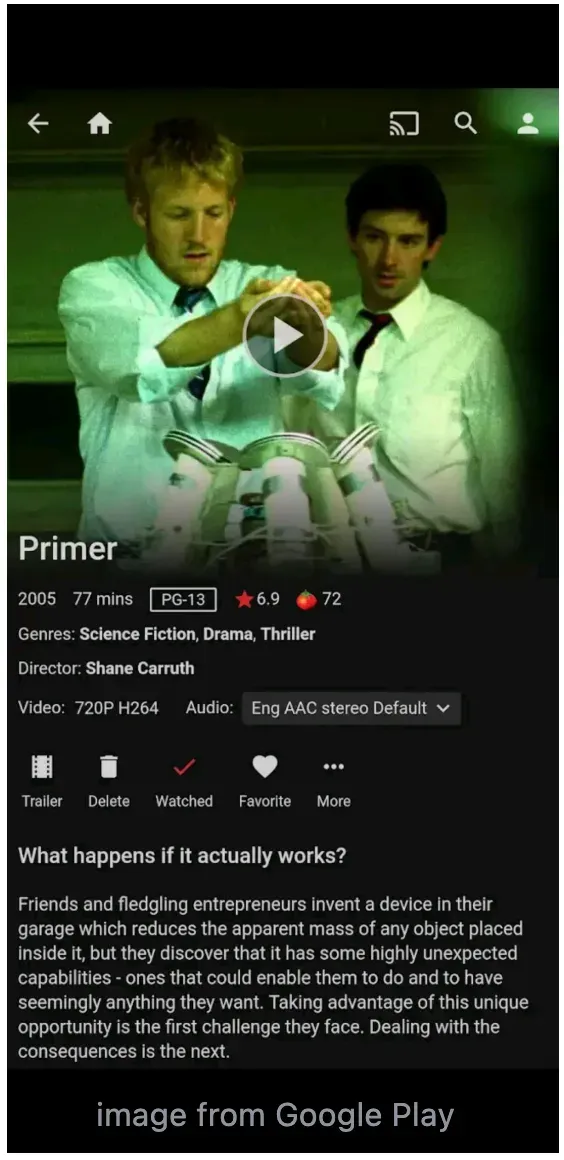
Jellyfin Chromecast support is not uniform across the ecosystem:
| Endpoint | Chromecast status | What this means for real users |
|---|---|---|
| Jellyfin Android client | Supported | Usually the cleanest native path for phone-to-TV casting |
| Jellyfin Web (Chrome) | Supported with environment requirements | Works when discovery, HTTPS/hostname, and network rules are clean |
| Official Jellyfin iOS app | Support is still limited | As of April 15, 2026, the long-running iOS Chromecast feature request is still open and marked blocked in Jellyfin's iOS repo, so it should not be treated as a stable default for iPhone households |
| TV-side Jellyfin app (for Google TV/Android TV setups) | Not a cast flow, but often a stable direct-playback option | Good when you prefer running Jellyfin directly on TV instead of casting from phone |
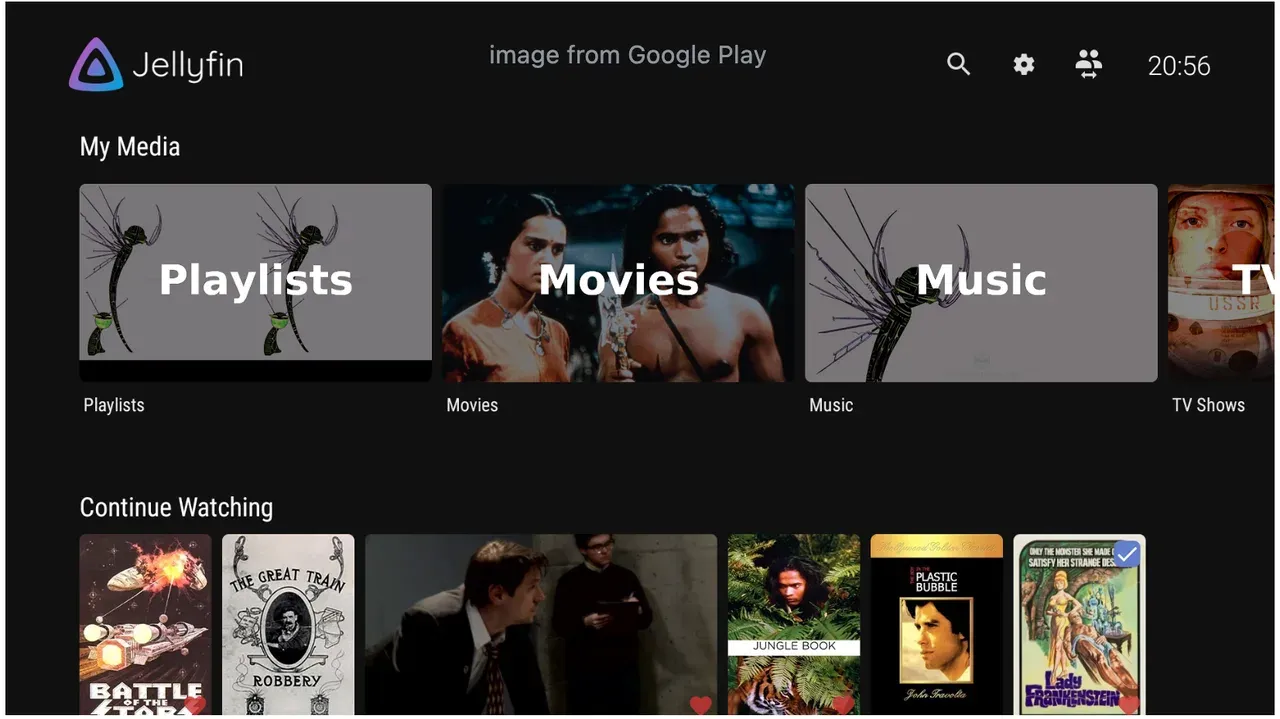
For Jellyfin iOS Chromecast readers, this is the conversion-critical takeaway: if your home is iPhone-first, do not design your default routine around uncertain native iOS cast behavior. Use a third-party casting app like PigeonCast for iPhone mirroring or Web Video Caster as the primary workflow, and treat native iOS casting as best-effort testing only.


Overall Rating:


How to Watch Jellyfin on TV: 3 Methods
There are three methods to watch Jellyfin on TV:
| Method | Best for | Setup effort | Day-to-day reliability | Recommendation |
|---|---|---|---|---|
| PigeonCast app | Users who want the most predictable and repeatable setup | Low | High | Start here if you want the simplest stable option |
| Native Jellyfin Cast (Android/Web) | Users who specifically want native Cast controls and are willing to troubleshoot environment issues | Medium | Medium | Use this when your network, discovery, and playback path are already clean |
| Watch Jellyfin on TV directly | Users who want to avoid Chromecast issues and use Jellyfin in a fixed living-room setup | Medium | High | Best long-term option if you do not want to deal with Chromecast instability |
If you want the most repeatable workflow, start with PigeonCast. If you want native cast controls, use official Jellyfin Android or Web client paths. No matter which method you prefer, ensure:
- Your sender and Chromecast are on the same Wi-Fi network
- Disable guest isolation/AP isolation for testing
- Pause VPN/private DNS while validating device discovery
Method 1: Watch Jellyfin on TV via PigeonCast
For most mixed-device homes, this is the fastest way to finish Jellyfin cast to Chromecast. You avoid repeated Cast discovery drift and keep one repeatable pairing flow.
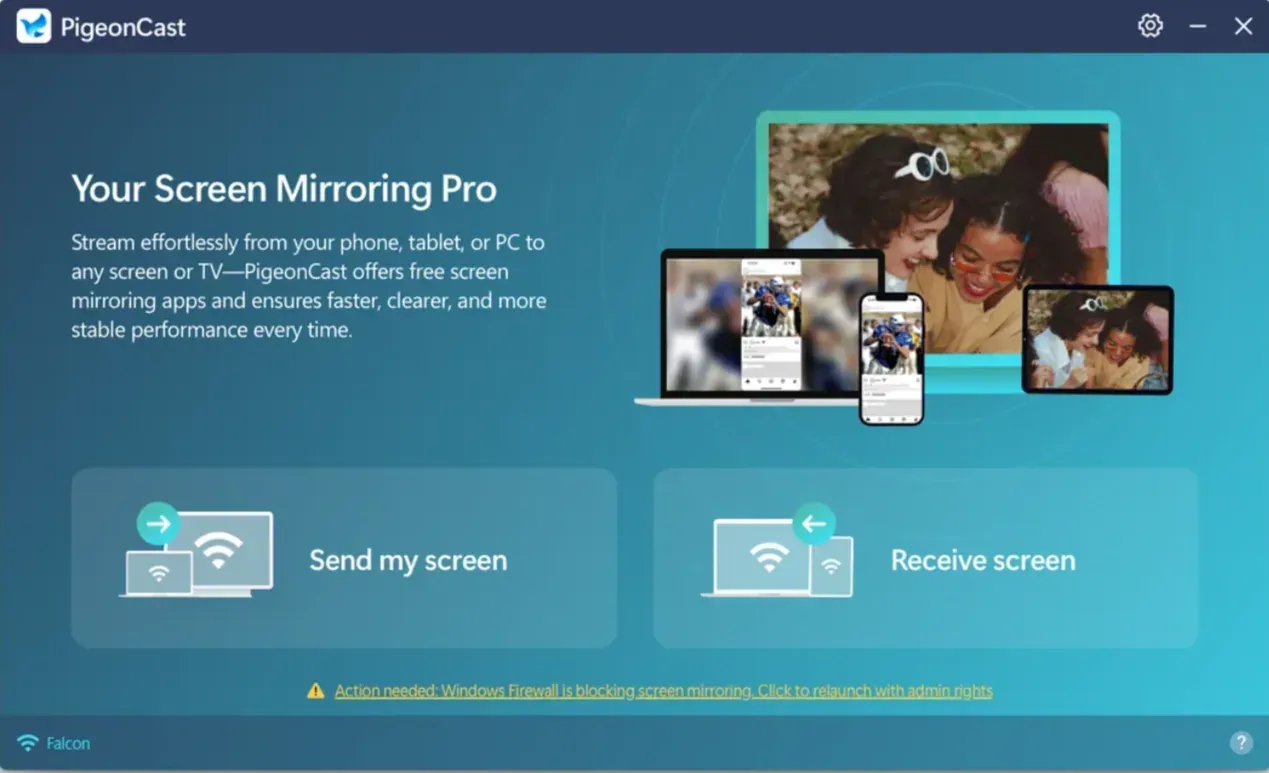
Step 1. Open PigeonCast on your phone or computer sender.
Step 2. Plug Chromecast into your TV and switch to the matched input source or enable the receiver mode on your TV.
Tip: PigeonCast also works on many smart TVs. If your TV lacks Chromecast support, go to the app store on your TV and try a screen mirroring app.
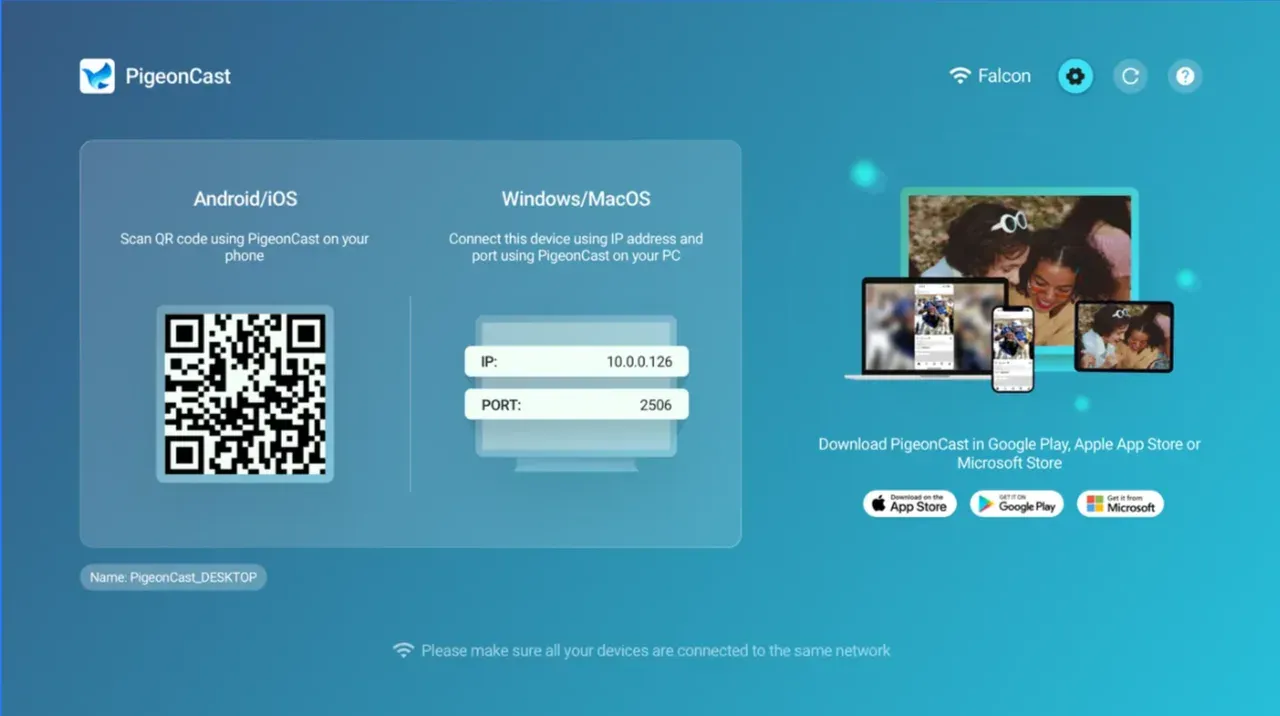
Step 3. Start screen mirroring on your phone or computer via PigeonCast:
- On your phone, tap the top menu, select your TV from the device list, and tap Screen Mirror.
- On your computer, tap Send my screen, choose your TV from the device list, and tap Start mirror.
Step 4. Play Jellyfin content on your phone or computer as usual, and it will display on your TV screen.
Method 2: Watch Jellyfin on TV via Native Cast
If you prefer to cast Jellyfin to Chromecast via native Cast, this method can work well in clean environments.
Watch Jellyfin on TV from Android
Step 1. Open Jellyfin on Android, sign in, and start playback.
Step 2. Tap Cast and choose Chromecast.
Step 3. If handoff fails, retest after confirming same-network discovery.
Watch Jellyfin on TV from Browser
Step 1. Open Jellyfin in Chrome or Edge and start a title.
Step 2. Click the Cast icon and choose your Chromecast from the list.
Step 3. Verify subtitle/audio behavior in a short test first.
Note: According to reports from GitHub users, the app can sometimes continue to display an active Chromecast connection even after playback has ended, and may need to be manually disconnected or restarted to resolve it.
Method 3: Watch Jellyfin on TV Directly
If you want to avoid Chromecast issues entirely, the most stable option is to run Jellyfin on Chromecast with Google TV or on other smart TVs instead of casting from another device.
Step 1. Go to the Play Store or other app store on your smart TV and install the official Jellyfin app.
Step 2. Open the app and connect to your server.
- Enter your Jellyfin server address (e.g., your-server-ip:8096)
- Log in with your account
Step 3. Browse your library directly on the TV and play content without needing a phone or browser.
Jellyfin Chromecast Not Working: Fix by Symptom
If Chromecast Jellyfin app isn't working, start by matching your issue to a symptom below and follow the quick fix steps first before deeper troubleshooting.
Issue One: Chromecast Not Showing Up
Try this first:
- Make sure your phone/computer and Chromecast are on the same Wi-Fi
- Turn off VPN or private DNS temporarily
- Restart the Jellyfin app
If Chromecast still doesn't appear:
-
Check if your router has AP isolation/guest mode enabled, and disable it
-
Try casting from a different client (Android app vs browser) to isolate the issue, similar to cross-device cast troubleshooting
Issue Two: Cast Starts But Buffers or Stops
Try this first:
- Play a smaller/lower-quality video to test
- Lower playback bitrate in Jellyfin settings
If only large files fail:
- This is likely a transcoding issue, not Chromecast
- Check your Jellyfin server CPU usage
- Enable hardware acceleration if available
Issue Three: Video Plays But Audio or Subtitles Are Wrong
Try this first:
- Manually switch audio track
- Turn subtitles off, then re-enable a simpler format (e.g., SRT)
If Chromecast no sound persists:
- Test the same file on another client (web vs Android)
- Some playback issues are client-specific bugs
Issue Four: Browser Casting Is Unstable
Try this first:
- Reload the page and reconnect Chromecast
- Try casting from Chrome instead of other browsers
If issues continue:
- Make sure your Jellyfin server uses a valid hostname (not raw IP), and compare with common Chromecast TV-side compatibility checks
- Check HTTPS setup and certificate validity
Conclusion
The real win for Jellyfin Chromecast is not one successful session. It is repeatable playback with low maintenance. Start with the workflow that minimizes failure points, then use native Cast where it is genuinely stable in your environment.
If your current setup feels fragile, choose reliability first. Your future self will spend more time watching and less time re-testing the same cast path.
Chromecast Jellyfin FAQ
Is Jellyfin available on Google TV?
Yes. Jellyfin is available on Google TV and Android TV via the official Jellyfin app. This allows you to run Jellyfin directly on your TV without relying on Chromecast. For many users, this is actually the more stable option compared to casting.
If you frequently run into casting issues, consider switching to direct playback on your TV instead.
Is Jellyfin legal to use?
Yes. Jellyfin itself is completely legal and open-source. However, legality depends on the content you stream:
- It is fully legal to stream your own media library
- It may be illegal to stream copyrighted content without permission, depending on your region
What should I do first when Jellyfin Chromecast is unstable?
Start with the fastest checks before deeper troubleshooting:
- Make sure both devices are on the same Wi-Fi network
- Disable VPN or private DNS
- Restart the Jellyfin app and reconnect
If the issue continues, switch to a simpler test file to determine whether the problem is network-related (discovery issues) or playback-related (transcoding/performance).
If instability keeps happening, consider using a more reliable method like screen mirroring or direct TV playback; if you hit a blank display, use this black screen fix checklist.
Is Jellyfin iOS Chromecast support good enough as a default?
No, not currently. Jellyfin iOS Chromecast support is still limited and not considered stable as of now. It should not be your primary setup if you rely on iPhone. For iOS users, a better default workflow is using screen mirroring apps (like PigeonCast).
Why does Jellyfin keep disconnecting from Chromecast?
This usually happens due to network instability or client issues. Common causes include WiFi switching between bands, router isolation settings, or background app restrictions on mobile devices.
Try keeping both devices on the same stable network, disabling power saving features, and restarting the casting session. If the problem happens frequently, using a non casting method may save time.
Do I need transcoding for Chromecast playback?
Not always, but it depends on your media format. If your video format is supported by Chromecast, it can play directly without transcoding. This is called direct play and is more stable.
If the format is not supported, Jellyfin will transcode the video. This requires server resources and may cause buffering if your server is not strong enough.
For better performance, use widely supported formats like H264 video with AAC audio.
Why is Jellyfin slower than Plex on Chromecast?
This can happen because Plex has more mature client optimization and broader format support. Jellyfin may rely more on transcoding in some cases, which increases server load and can lead to slower playback.
Improving your media format compatibility and enabling hardware acceleration on your server can help reduce the gap.
Can I use Jellyfin without Chromecast?
Yes. You do not need Chromecast to use Jellyfin. You can use Jellyfin directly on smart TVs, Android TV, or streaming devices. You can also watch content through a browser on your computer.
What apps work with Google Chromecast?
Many apps support Chromecast, including YouTube, Netflix, Spotify, Plex, Peacock and Jellyfin (with limitations depending on client).
Mia Clarke is a technology editor specializing in screen mirroring and casting solutions across multiple platforms. Mia provides clear, practical guides and in-depth insights to help users seamlessly connect their devices. Passionate about enhancing digital experiences, Mia is dedicated to keeping readers updated on the latest trends and tools in cross-platform screen sharing. Whether you’re looking to mirror your smartphone, laptop, or smart TV, Mia’s content delivers reliable, user-friendly advice to simplify your tech setup.