
If you want to know how to cast Peacock to TV, the answer depends less on Peacock alone and more on the combination of phone, TV, and receiving device in your living room. On some setups, Peacock can hand video off directly through AirPlay or Chromecast. On others, screen mirroring is the more realistic answer. And if your TV already runs Peacock well, casting may not be necessary at all.
That is why one-size-fits-all advice usually falls apart here. iPhone users often get the best results from AirPlay or Apple-style mirroring. Android users usually start with Chromecast. Households with mixed devices may prefer one app that works across everything. The goal is not to force one "correct" option, but to find the one that feels simplest on your hardware.
How Do I Cast Peacock to My TV: Quick Method Picker
Before you start tapping random icons, narrow the field first.
| Method | Best for | What to expect |
|---|---|---|
| AirPlay | iPhone or iPad with Apple TV or an AirPlay-compatible TV | Clean Apple-to-TV playback when Peacock exposes the handoff properly |
| Chromecast | Android phones, Google TV, Chromecast devices, some Cast-enabled TVs | Best when you want Peacock to stream to the TV without mirroring the full phone |
| Screen mirroring | iPhone or Android when direct casting is unavailable | More flexible, but everything on your phone screen appears on the TV |
| PigeonCast | Mixed-device households that want one repeatable setup | Helpful when you want the same casting app across different phones and TVs |
| Native TV app | Smart TVs and streaming devices that already support Peacock | Often the simplest choice if Peacock already runs smoothly on the TV |
How to Cast Peacock to TV from iPhone via AirPlay
For iPhone users, AirPlay is usually the first thing worth checking. Peacock is available across Apple-friendly viewing setups, and if your TV supports AirPlay or you use Apple TV, you may be able to send the video straight from the app to the big screen. That is usually preferable to full mirroring because playback feels cleaner and your phone remains a controller instead of acting like a second display the whole time.
This option makes the most sense if your home already leans Apple. If AirPlay appears and works properly, there is little reason to make the process more complicated.
Check how to cast from Peacock to TV from iPhone:
Step 1. Connect your iPhone and your TV or Apple TV to the same Wi-Fi network.
Step 2. Open Peacock and start the show, movie, or live event you want to watch.
Step 3. Check whether the player or iPhone playback controls show an AirPlay option.
Step 4. Tap AirPlay and choose your TV.
Step 5. Control playback from your phone while the TV handles the stream.
How to Screen Mirror Peacock from iPhone to TV
If Peacock does not show AirPlay, iPhone screen mirroring is the fallback most people end up using. It does not rely on Peacock exposing any special playback button. Instead, it sends your entire iPhone display to the TV.
That gives you a wider safety net, especially on older sets or inconsistent app sessions, but it comes with tradeoffs. Notifications can appear on screen, battery drain may be higher, and the experience feels less polished than a direct AirPlay handoff. Still, when the built-in Apple route is unavailable, mirroring is often the fastest way to keep watching.
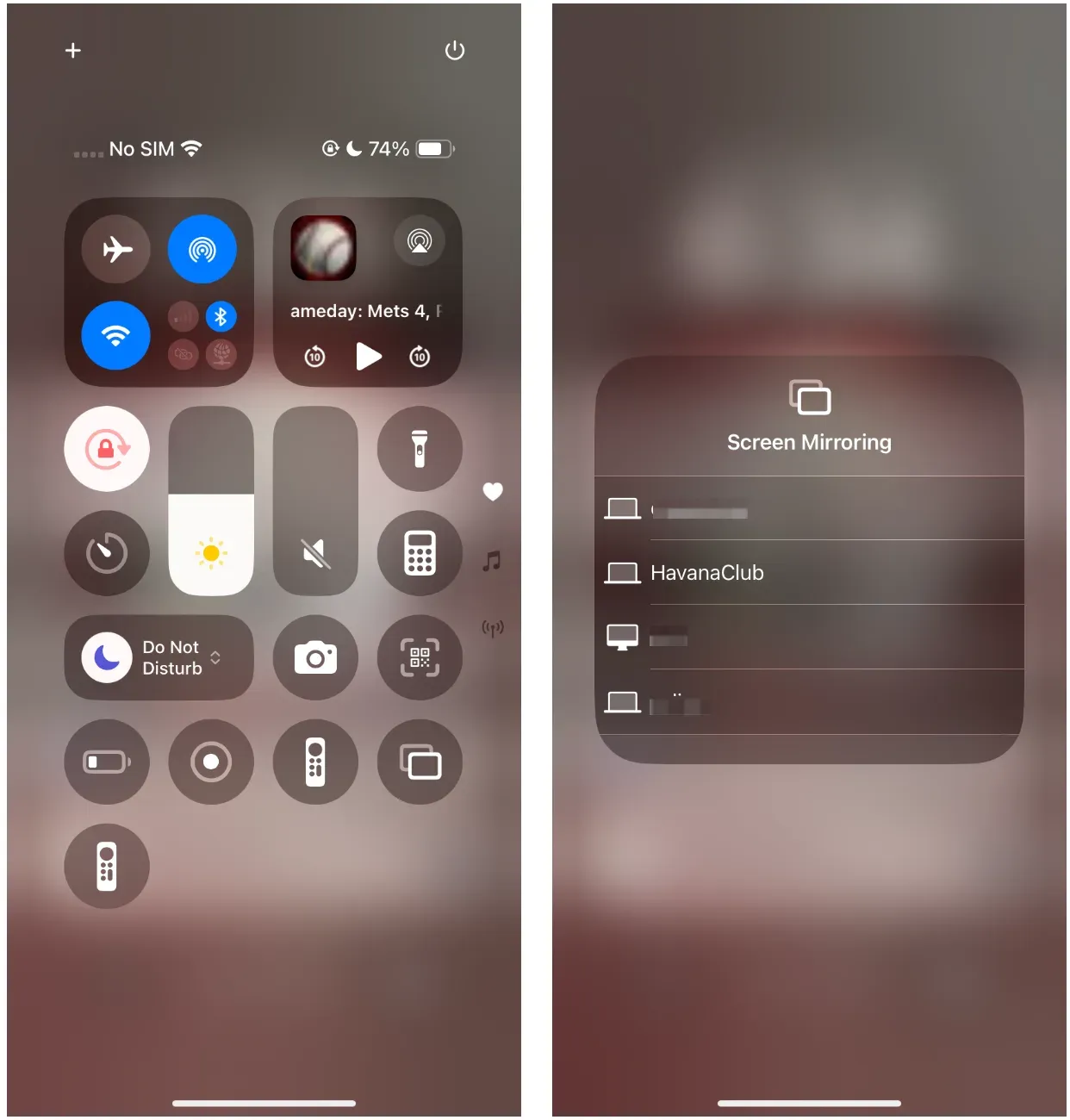
Step 1. Make sure the iPhone and TV are on the same Wi-Fi network.
Step 2. Open Control Center on your iPhone.
Step 3. Tap Screen Mirroring.
Step 4. Choose your TV or Apple TV.
Step 5. Open Peacock and start playback once mirroring is active.
It is not as tidy as AirPlay, but it is often the option that saves time when you just want Peacock on the TV and do not want to keep troubleshooting the app.
How to Cast Peacock to TV from Android Phone via Chromecast
For Android users, this is usually the most straightforward place to start. Peacock supports Google Cast on many Android-friendly setups, including Chromecast, Google TV, and TVs with Cast built in. When everything lines up, the stream plays on the TV while your phone handles pause, play, and navigation.
That is why Peacock Chromecast support matters so much. It feels closer to native TV playback and usually works better for long viewing sessions than full-screen mirroring.
Step 1. Connect your Android phone and your TV, Chromecast, or Google TV device to the same Wi-Fi network.
Step 2. Open Peacock and sign in.
Step 3. Start the movie, show, or live content you want to watch.
Step 4. Tap the Cast icon if it appears.
Step 5. Choose your TV or Chromecast receiver and let the stream move to the big screen.
If Peacock does not show a Cast icon, start with these checks:
- the phone and TV are on different Wi-Fi networks
- the TV is not actually Cast-enabled
- Peacock or the TV software needs an update
- local network discovery permissions are blocked on your phone
- the receiver is powered on but not fully connected
How to Screen Mirror Peacock from Android to TV
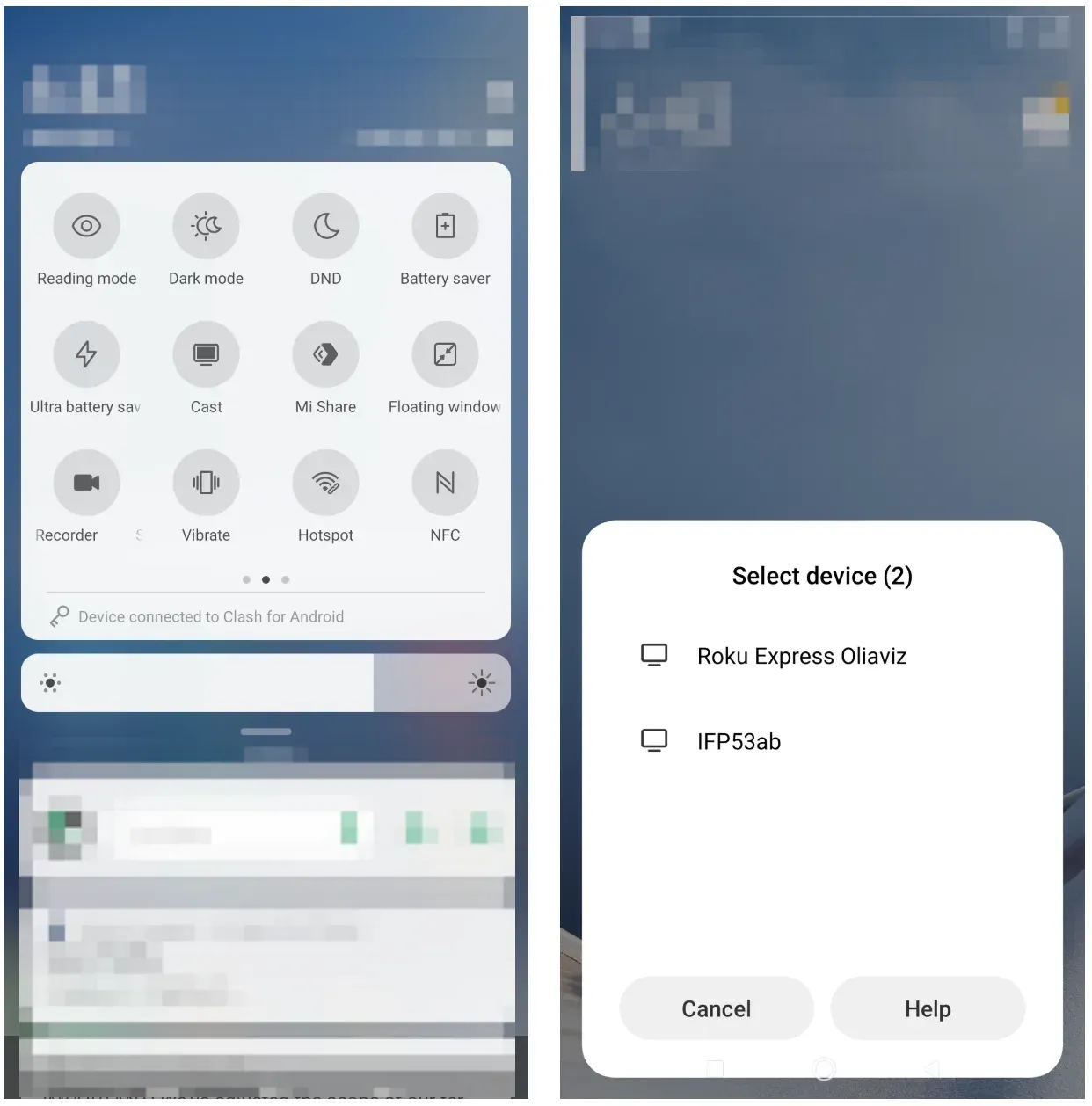
If the Cast button never shows up, Android screen mirroring is the practical backup. Brand names vary, so the setting may appear as Cast, Smart View, Screen Share, or Wireless Display, but the idea is the same: your phone screen is duplicated on the TV instead of handing the video off as a separate stream.
This can be more forgiving than native casting because it depends less on Peacock's own Cast behavior. The tradeoff is that the TV shows everything on your phone screen, not just the video player.
Alt=how to enable screen mirroring on Android
Step 1. Put the Android phone and TV on the same Wi-Fi network.
Step 2. Open Quick Settings on the phone.
Step 3. Tap Cast, Smart View, Screen Share, or the equivalent option on your device.
Step 4. Select the target TV.
Step 5. Open Peacock and start playback once mirroring begins.
How to Cast Peacock to TV from Phone via PigeonCast
PigeonCast makes the most sense when your devices do not all live in the same ecosystem. Maybe one person in the house uses iPhone, another uses Android, and the TV situation changes from room to room. In that kind of setup, constantly switching between AirPlay, Chromecast, and brand-specific mirroring menus gets old fast.
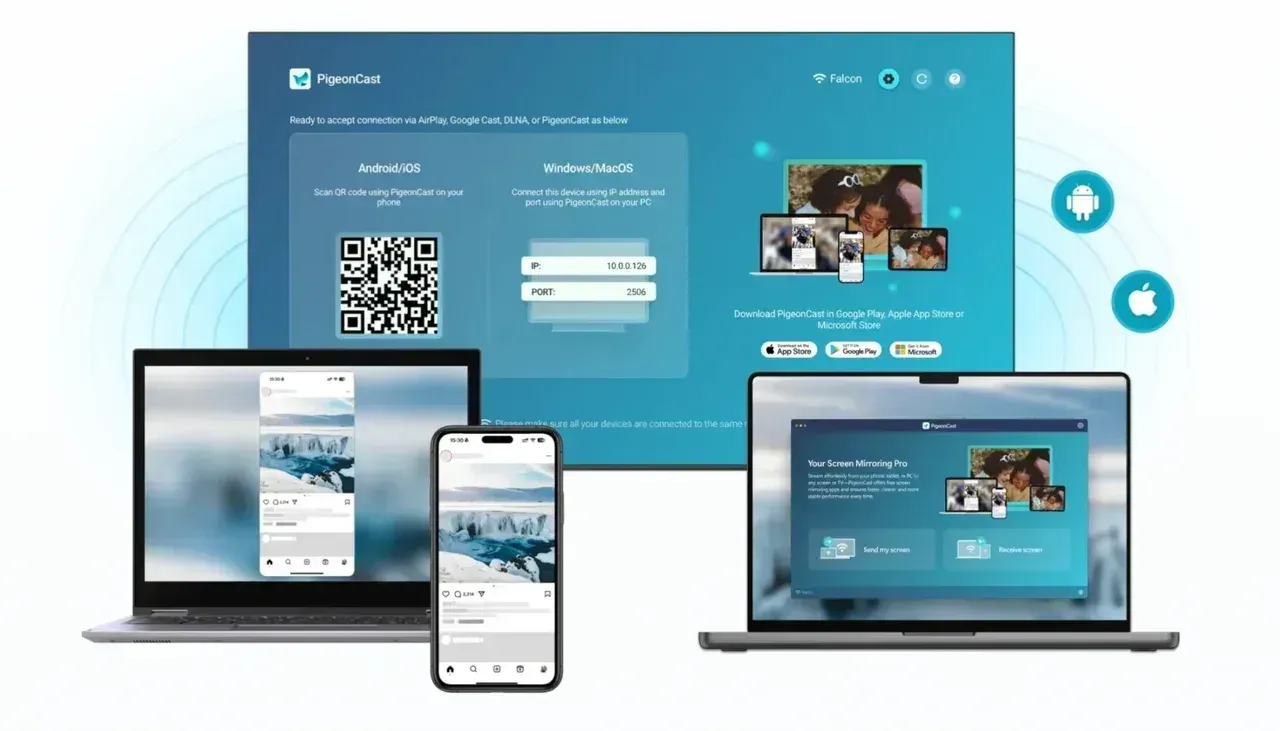
PigeonCast is also broader than a one-feature casting tool. It supports standard casting and screen mirroring with HD quality, and it works across multiple device types. That makes it useful when you want one familiar app for different phones, tablets, and TVs rather than relearning a new built-in system every time. If your priority is consistency across devices, this is where PigeonCast has a real advantage.
Step 1. Install PigeonCast on the sending device and the receiving device when your setup needs it.


Overall Rating:



Step 2. Connect both devices to the same local network.
Step 3. Open PigeonCast and choose the target TV or scan the QR code on the receiving screen.
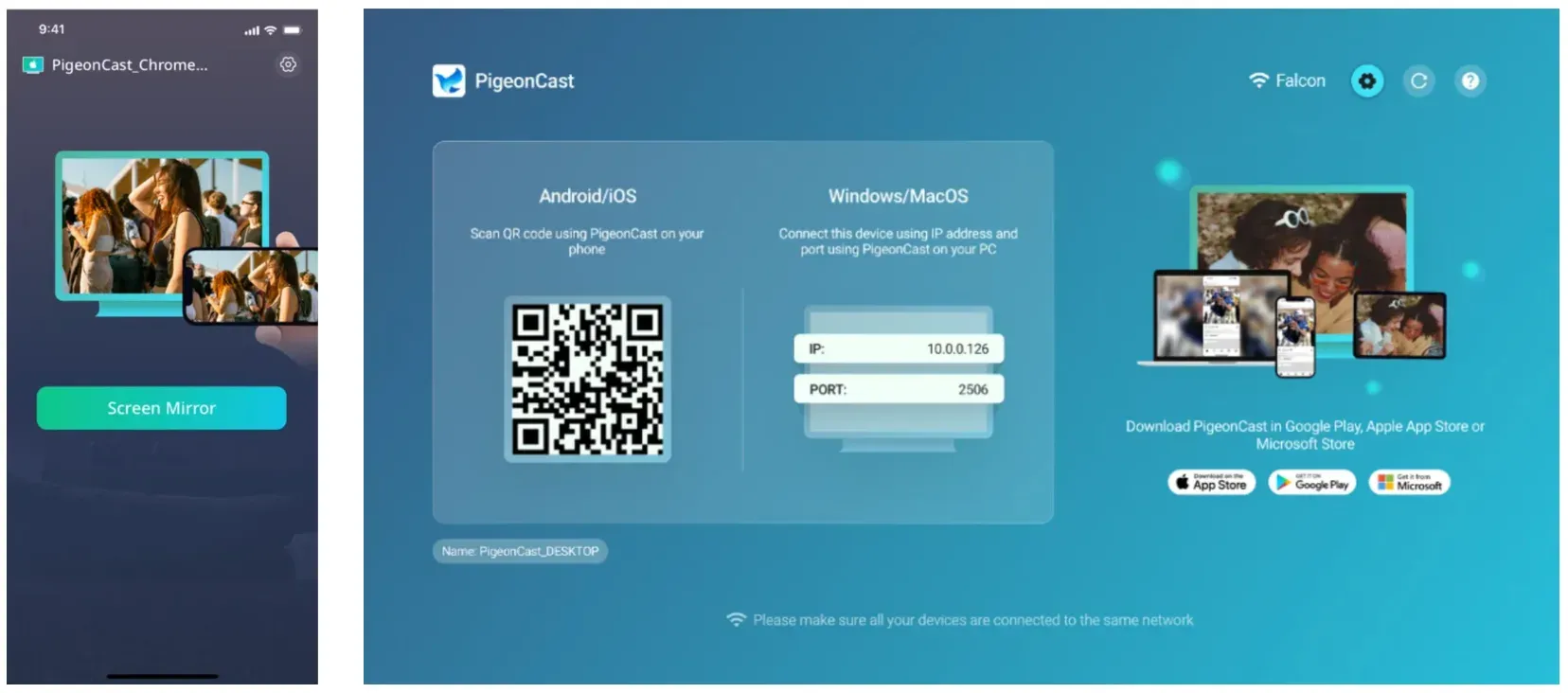
Step 4. Start screen mirroring with the onscreen instructions.
Step 5. Open Peacock on your phone and begin playback.
This is often the more practical choice in mixed-device homes. Instead of asking whether Peacock behaves one way on iPhone and another way on Android, you use the same app-driven setup across a wider range of screens.
How to Watch Peacock App on Your Smart TV
In plenty of homes, the cleanest answer is to skip casting completely. Peacock is available on many smart TVs and streaming platforms, so if the app already runs well on your television, there is a good chance the simplest move is to open it there and start watching.
That cuts out the extra handoff between phone and TV. In practice, it can mean fewer device-discovery issues, fewer Wi-Fi quirks, and less time spent troubleshooting why one button is missing.
This is usually the better choice when:
- you already have Peacock working well on the TV
- you do not need phone-led playback control
- you want the fewest setup steps
- you prefer a more standard living-room streaming experience
Phone-to-TV playback still makes sense when you start watching on mobile, prefer controlling everything from your phone, or want a solution you can reuse across other streaming apps.
Which Is the Best Way to Cast Peacock to TV?
There is no single winner for everyone. The right choice depends on what devices you already own and how you prefer to watch.
| Method | Best for | Main advantage | Main limitation |
|---|---|---|---|
| AirPlay | iPhone and Apple TV users | Native Apple casting | App behavior may vary by TV and session |
| Chromecast | Android and Google TV setups | Direct app-to-TV playback feels clean | Requires the Cast path to appear properly |
| Screen mirroring | Situations where direct casting is missing | Works across more setups | Mirrors the whole phone screen |
| PigeonCast | Homes with mixed device ecosystems | One repeatable cross-platform option | Requires app setup |
| Native TV app | TVs and streaming devices with good Peacock support | Often the fewest steps | Less useful if you prefer phone-led control |
Use AirPlay if your setup is mostly Apple. Use Chromecast if you are on Android or already rely on Google TV devices. Use screen mirroring when the direct handoff is missing. Choose PigeonCast if you want one familiar tool across different screens. And if Peacock already runs smoothly on the TV, the built-in app may be the easiest answer.
Conclusion
If you are deciding how to cast Peacock from phone to TV, start with the option that matches your devices instead of hunting for one universal fix. On iPhone, that usually means AirPlay first and screen mirroring second. On Android, try Chromecast before moving to full-screen mirroring. If your home mixes different phones and TVs, PigeonCast gives you a more uniform experience across them.
The main distinction to keep in mind is simple: direct casting sends the video to the TV, while mirroring sends your whole phone screen. Once you separate those two ideas, it becomes much easier to choose the right approach.
How to Cast Peacock to TV FAQ
Does Peacock have a cast button?
Yes. Peacock can show a Cast button on supported setups, especially on Android devices using Chromecast, Google TV, or other Cast-enabled TVs. But it does not appear on every device pair or in every session, so some users end up using screen mirroring instead.
Does Peacock do screen mirroring?
Peacock is not a separate mirroring app, but you can still watch it through your phone's built-in mirroring tools on iPhone and Android. That is often the fallback when direct AirPlay or Chromecast handoff does not show up.
Is Peacock Chromecast better than screen mirroring?
Usually, yes. Chromecast is cleaner because the TV handles the stream while your phone acts as the remote. Screen mirroring works on more setups, but it also shows the entire phone display.
Should I cast Peacock or use the Peacock TV app directly?
If Peacock already runs well on your TV or streaming device, the direct app is often easier. Casting makes more sense when you prefer starting from your phone or want something you can reuse across multiple apps.
What streaming apps block screen mirroring?
Some streaming apps restrict or behave inconsistently with screen mirroring because of DRM, licensing, or device-specific playback rules. The exact behavior can change by app, device, and update, so if one option fails, it is usually smarter to try AirPlay, Chromecast, direct TV playback, or PigeonCast before assuming the whole setup is incompatible.
Mia Clarke is a technology editor specializing in screen mirroring and casting solutions across multiple platforms. Mia provides clear, practical guides and in-depth insights to help users seamlessly connect their devices. Passionate about enhancing digital experiences, Mia is dedicated to keeping readers updated on the latest trends and tools in cross-platform screen sharing. Whether you’re looking to mirror your smartphone, laptop, or smart TV, Mia’s content delivers reliable, user-friendly advice to simplify your tech setup.