
If you are trying to figure out how to cast screen to TV without wasting time, the key is to pick the right method for your device and TV type first. This guide covers a practical workflow across iPhone, Android, Windows PC, MacBook, and Chromebook, and explains how to cast to TV reliably without trial-and-error.
How to Cast Screen to TV: Check Compatibility First
Before testing any app or method, confirm your TV type and supported protocols. Most casting failures come from mismatched standards rather than setup mistakes.
Which TVs Support Screen Casting?
-
Smart TVs (modern): Usually support AirPlay, Chromecast built-in, or Miracast. These are the easiest for screen cast to TV workflows.
-
Mid-range smart TVs (older models): May support only one protocol (e.g., Miracast or Chromecast). Compatibility depends on brand and firmware.
-
Non-smart or old TVs: Do not support wireless casting directly. You will need an external device such as Chromecast or Fire TV Stick, or a casting app receiver.
Which Method Fits Which TV?
-
AirPlay: Best for Apple devices and AirPlay-enabled TVs.
-
Google Cast (Chromecast): Best for Android, Chromebook, and Chrome browser.
-
Miracast: Best for Windows and some Android devices.
-
Casting apps (e.g., PigeonCast): Best for cross-platform or unstable native setups.
What Do I Need Before I Cast Screen to TV?
Step 1. Put both devices on the same Wi-Fi network and keep them on the same band when possible.
Step 2. Turn on receiver support on the TV, such as AirPlay, Chromecast built-in, Screen Share, or wireless display mode.
Step 3. Update your phone or computer OS and TV firmware before first pairing.
Step 4. Turn off VPN, proxy, and guest network isolation for the first test.
Step 5. Test with a local photo or local video first, then try streaming apps.
If local media works but one app fails, your cast path is usually fine and the blocker is app policy.
How to Cast Screen to TV from Any Device (PigeonCast)
When native casting behaves differently across brands, using a unified tool simplifies the process. This is especially useful when you need a consistent way to cast phone to TV or cast laptop to TV without switching between protocols.
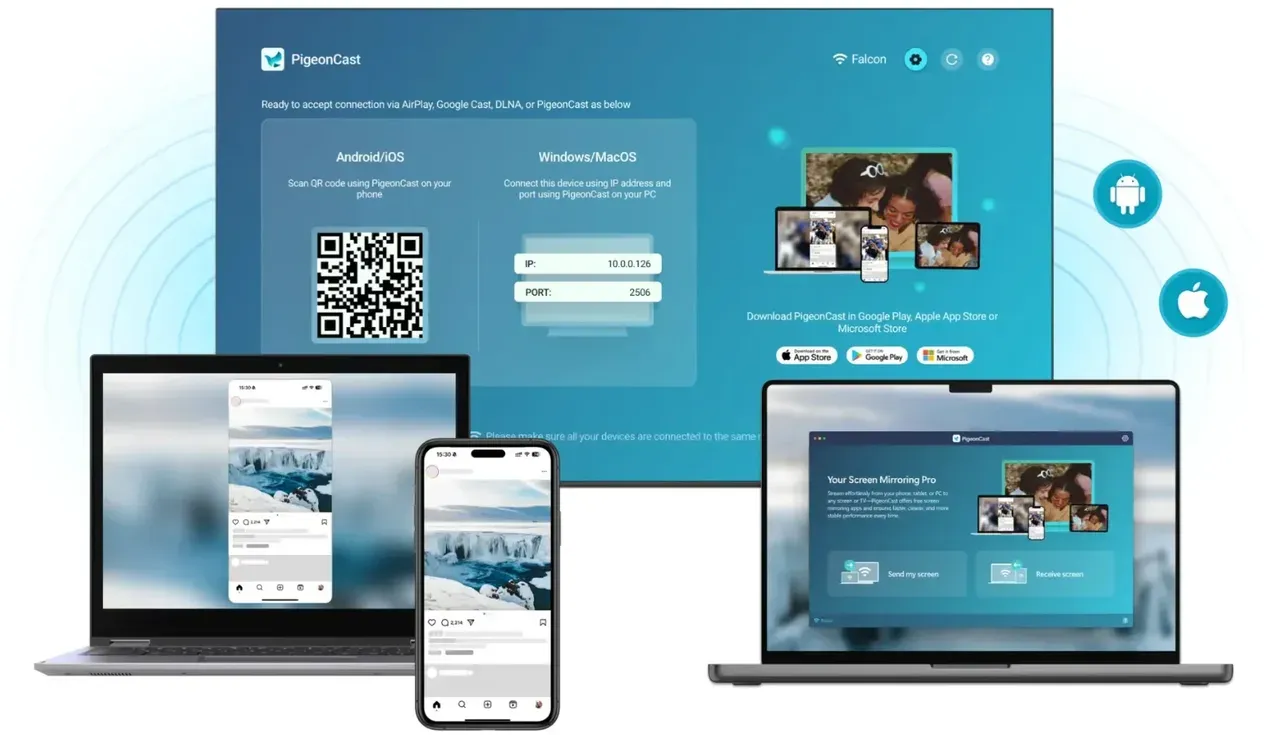
PigeonCast provides a single workflow across devices, reducing setup friction and improving reliability when native discovery fails.
Step 1. Download and install PigeonCast on your Android phone, iPhone, Windows PC, or MacBook, and your TV.


Overall Rating:



Step 2. Launch PigeonCast on both your devices.
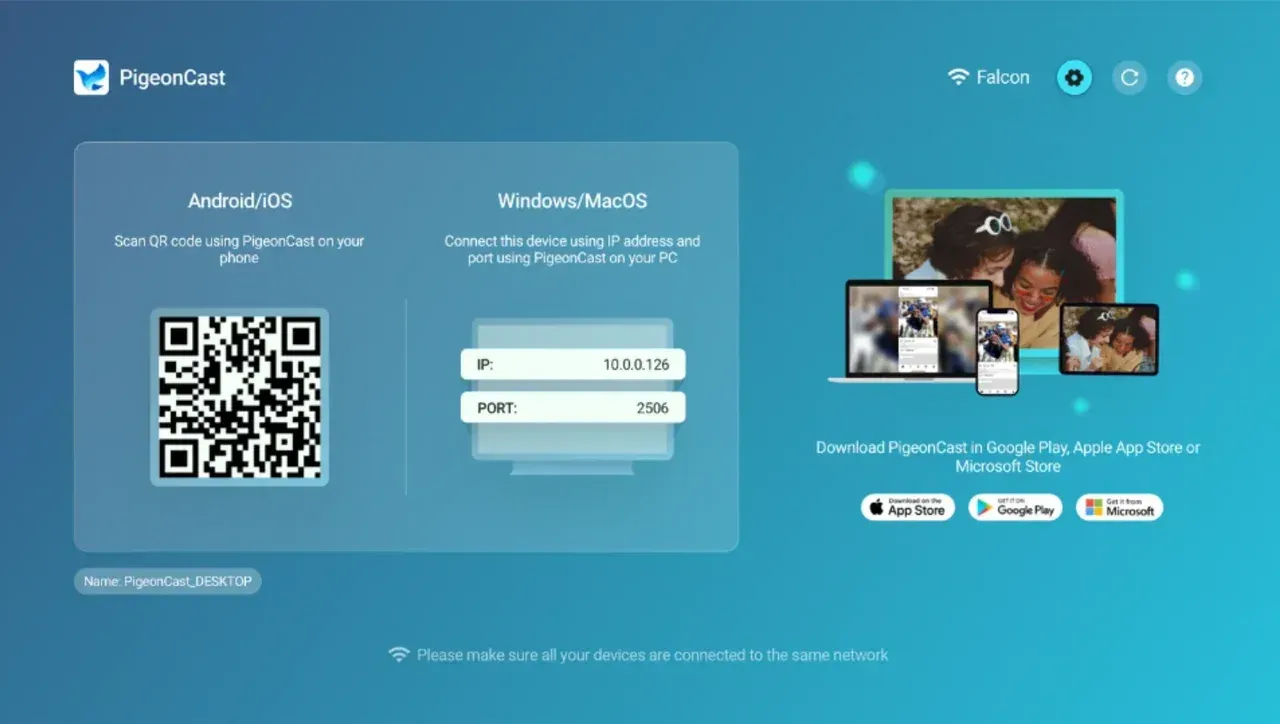
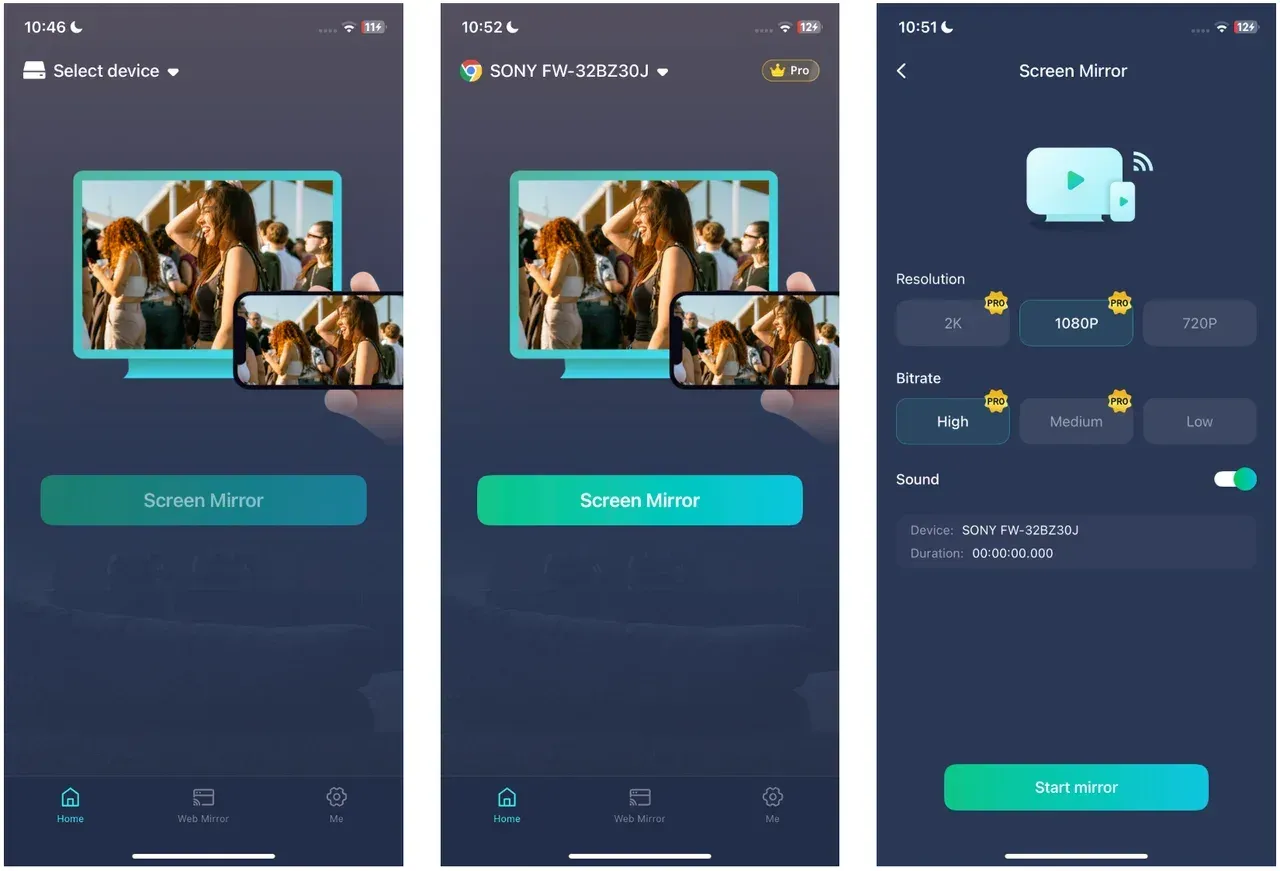
Step 3. Connect your phone or laptop to your TV via PigeonCast.
- On your phone, tap Select device, choose your target TV, and tap Screen Mirror.
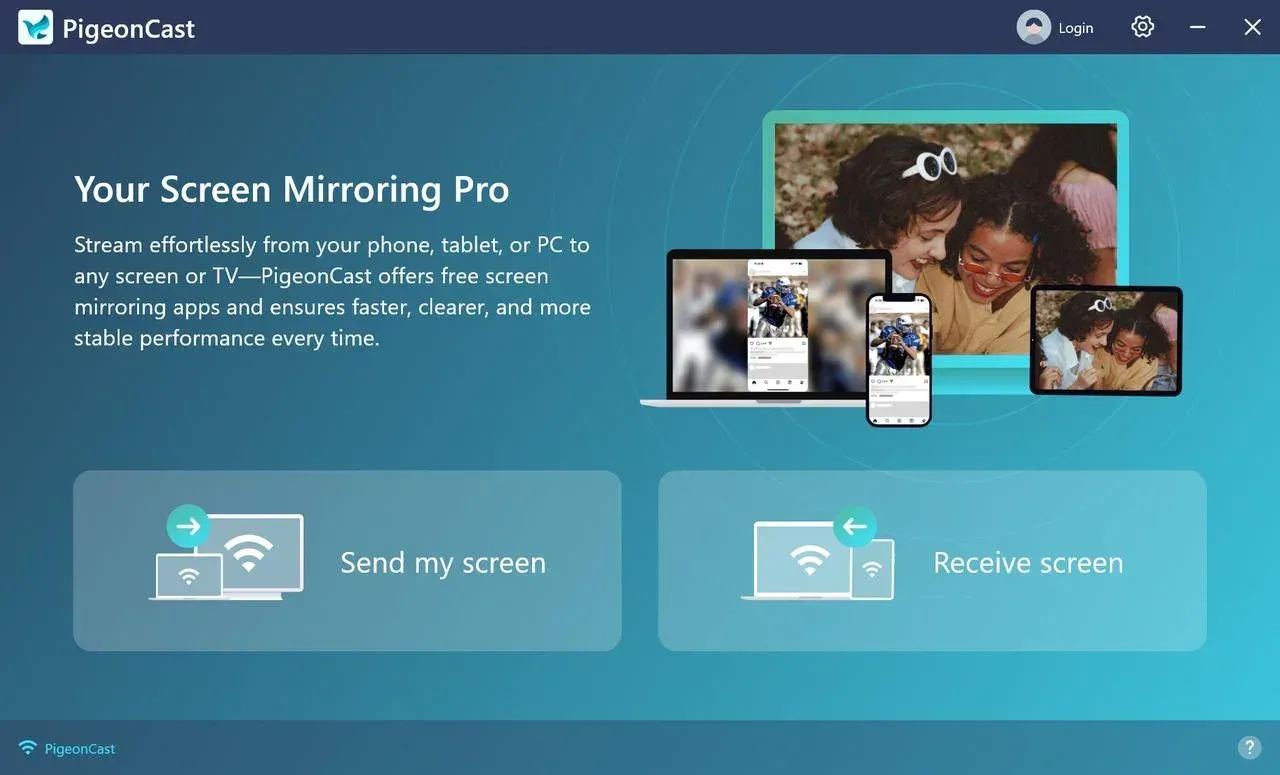
- On your laptop, tap Send my screen, choose your target TV, and tap Start mirror.
Step 4. Enjoy your HD phone screen or laptop screen on your TV.
If devices fail to detect each other or disconnect repeatedly, the main issue is usually protocol mismatch or unstable discovery. A unified app solves this by bypassing native inconsistencies.
How to Cast Screen to TV from iPhone (AirPlay)
AirPlay is the most direct way for iPhone users to cast to TV when the TV supports it. It works best in stable Wi-Fi environments and requires minimal setup.
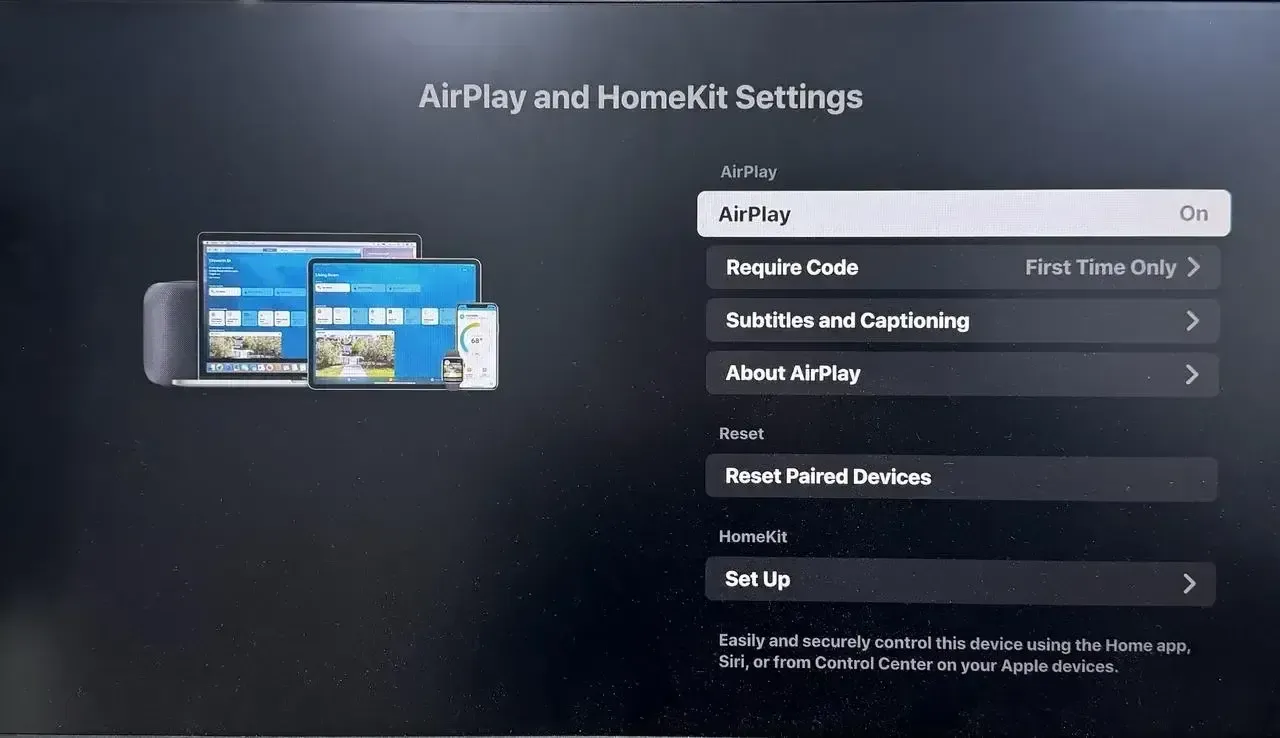
Step 1. On the TV, enable AirPlay from the Settings menu and confirm the TV is discoverable.
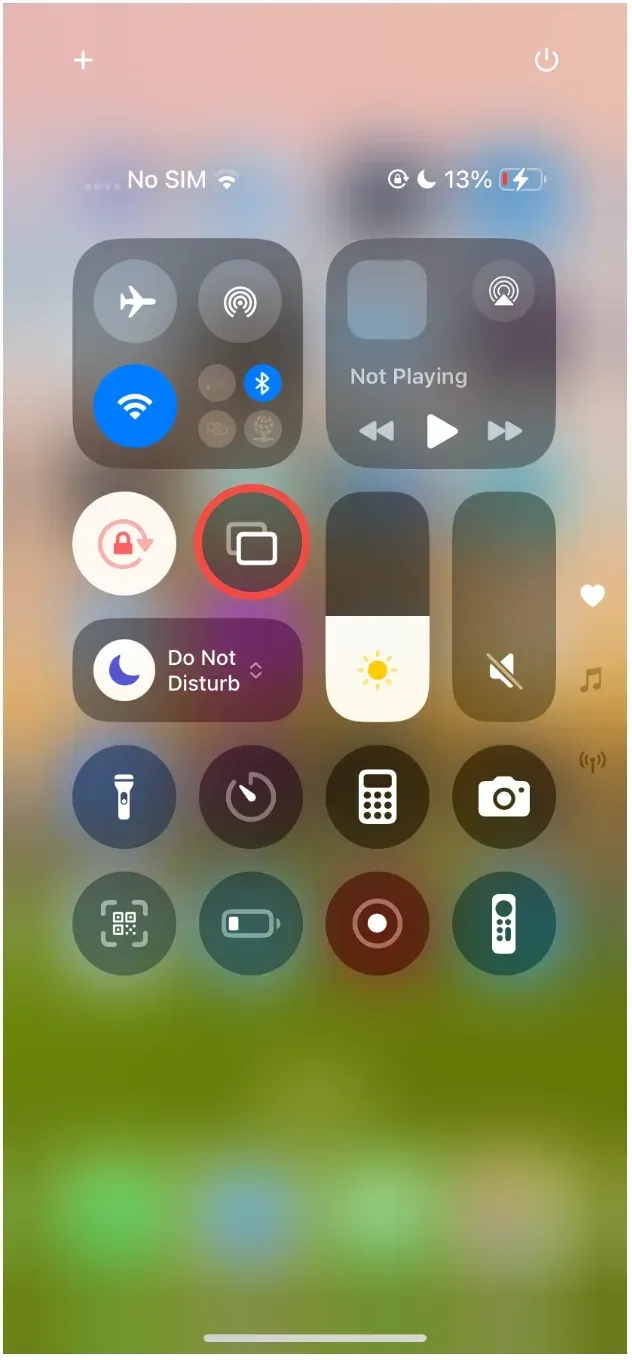
Step 2. On iPhone, open Control Center and tap Screen Mirroring.
Step 3. Select your TV and enter the on-screen code if prompted.
Step 4. Start with Photos or a local video to confirm stable mirroring.
If your TV does not appear or disconnects frequently, the issue is usually network inconsistency or AirPlay compatibility. Switching to another method is often faster than retrying.
How to Cast Screen to TV from Android (Cast or Smart View)
Android devices use different names for screen casting, including Cast, Smart View, and Wireless Display, but the basic process is similar. This method works best when your TV supports Google Cast or Miracast.
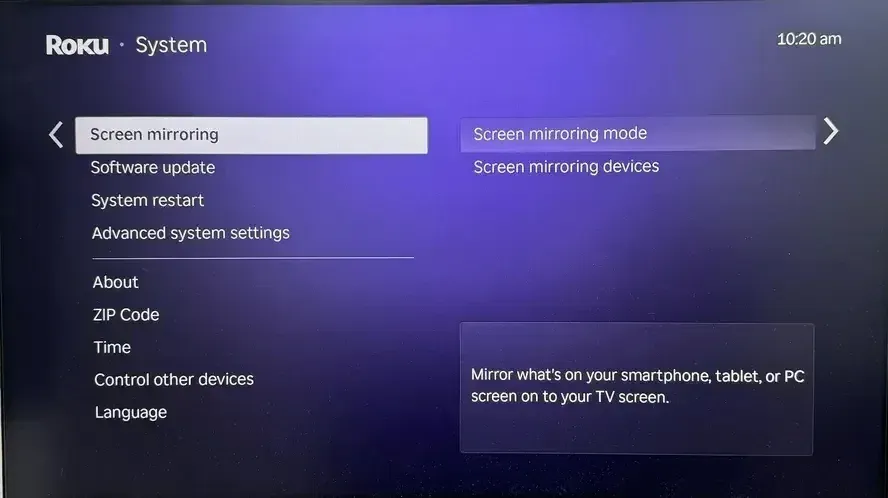
Step 1. Open the TV cast receiver mode or manufacturer mirroring mode.
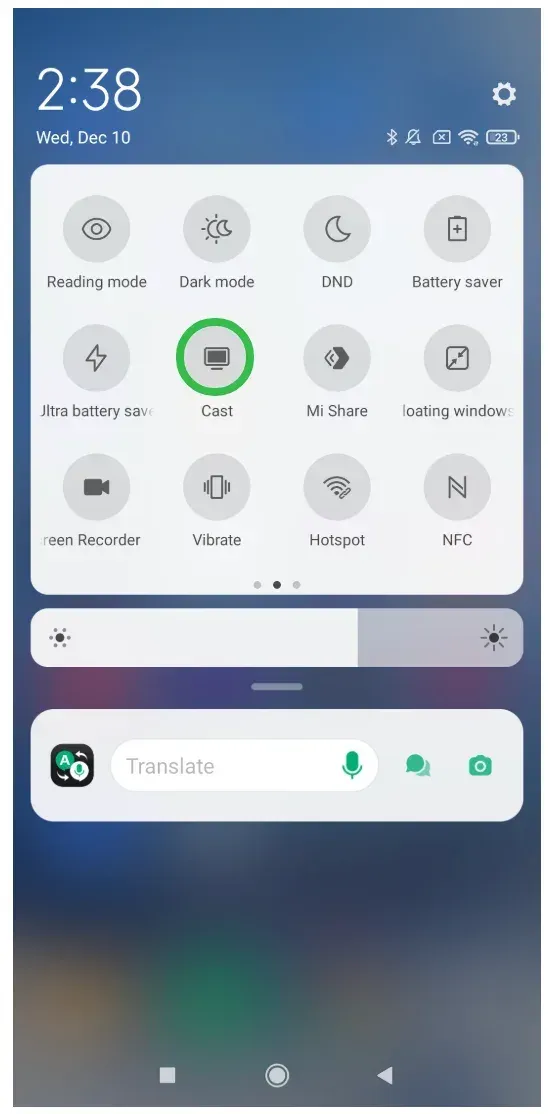
Step 2. On your Android phone, open Cast, Smart View, or the equivalent wireless display menu. On Xiaomi phones, the option is usually labeled Cast, as explained in our guide to How to screen mirror Xiaomi phone to TV.
Step 3. Select the TV and approve connection prompts on both devices.
Step 4. Verify with local playback before trying protected streaming content.
When the TV appears in the device list but fails to connect, the most common cause is a protocol mismatch. Switching to a compatible casting method is usually more effective than repeatedly retrying the same connection.
How to Cast Screen to TV from Windows PC (Miracast)
Windows uses Miracast for wireless display. This is the default way to cast laptop to TV without extra hardware when supported.
Step 1. Press Win + K and check whether your TV appears in the wireless display list.
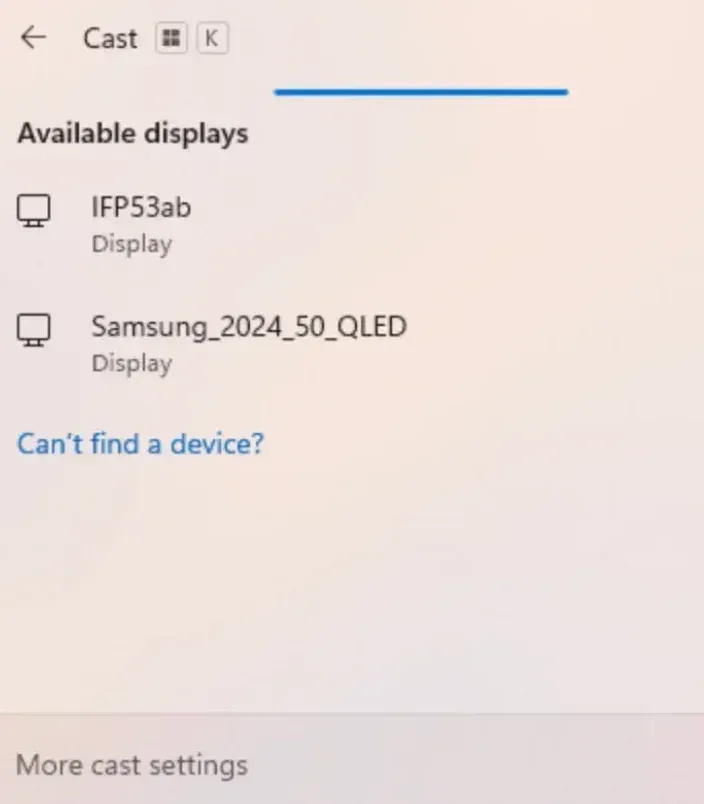
Step 2. Choose your TV from the device list.
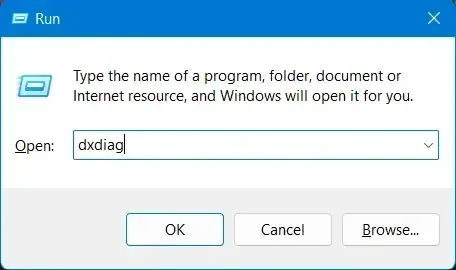
Step 3. If discovery fails, confirm Miracast support with dxdiag and update Wi-Fi and graphics drivers.
Step 4. Retest after rebooting both TV and PC once.
Miracast is the right first choice for normal home or office mirroring on Windows. But if black screen, audio-only playback, or random disconnects continue after driver and network checks, switch to a more controlled alternative instead of repeating Win + K retries.
How to Cast Screen to TV from MacBook (AirPlay)
MacBook uses AirPlay for wireless display, similar to iPhone. It is reliable when both devices are within the Apple ecosystem.
Step 1. On MacBook, open Control Center and choose Screen Mirroring.
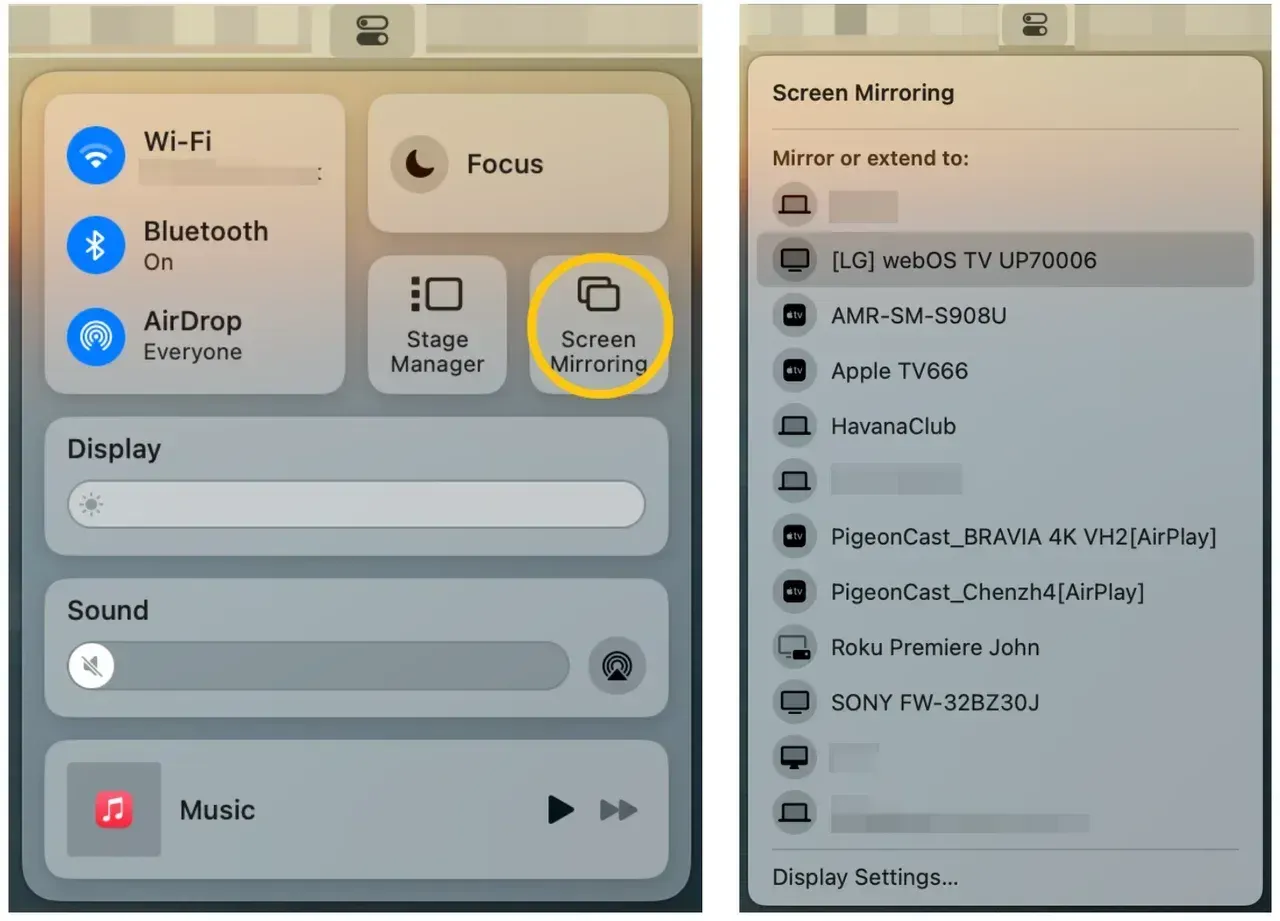
Step 2. Select the TV and choose mirror mode.
Step 3. In System Settings > Displays, verify output resolution and arrangement.
Step 4. Test with local content, then move to your target app.
This method fits Apple-to-Apple or AirPlay-compatible TV setups. If your TV appears intermittently or the stream drops under load, use a screen mirroring app when session stability matters more than pure native convenience.
How to Cast Screen to TV from Chromebook (Cast)
Chromebook casting works best with Google Cast-compatible TVs. On non-Cast receivers, you can connect a Chromecast to the TV or set up a screen mirroring receiver like PigeonCast on it.
Step 1. Open Chrome and select Cast, Save, and Share > Cast from the browser menu.
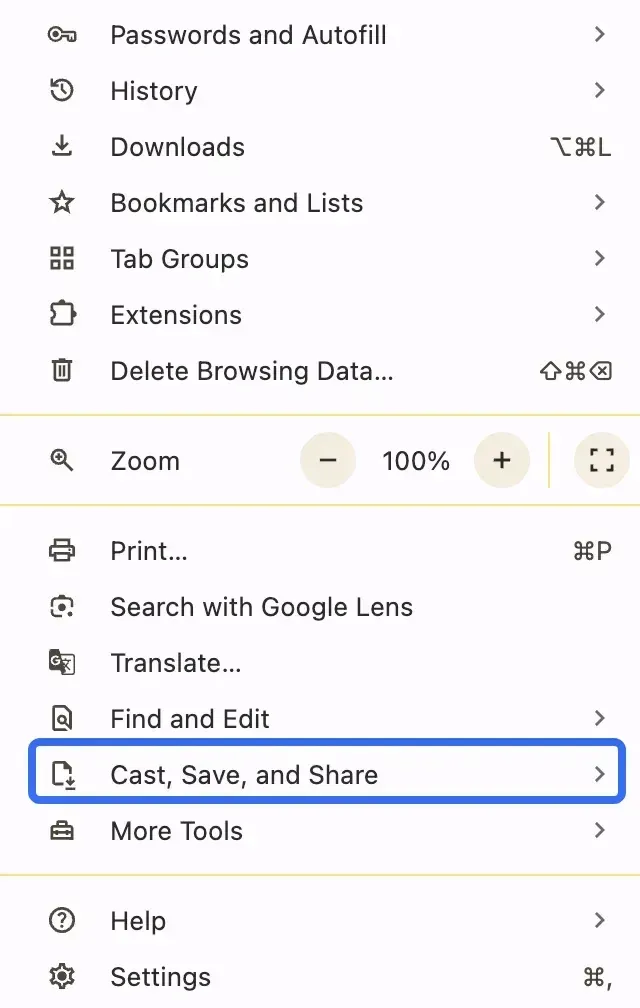
Step 2. Choose whether to cast a tab, file, or full desktop.
Step 3. Select your target TV or receiver.
Step 4. If full-screen casting fails, test tab casting first, then switch transport method.
Cast is ideal when your receiver is natively compatible, and you mainly share browser content. But if you need full desktop reliability on incompatible receivers, you should switch early to a different path rather than forcing a failing protocol.
Should I Use App Casting or Native Casting First?
In most cases, you should start with native casting because it is built into your device and requires no extra setup. Methods like AirPlay, Chromecast, or Miracast are optimized for system-level performance and usually provide better latency and quality when they work correctly. If your devices are fully compatible and the connection is stable, native casting is the fastest and simplest way to cast to TV.
However, if you encounter repeated issues such as devices not appearing, frequent disconnections, or inconsistent performance, switching to an app-based solution is often more efficient than troubleshooting endlessly. App casting tools provide a more controlled and consistent experience across different devices and TV brands, especially in mixed-device environments.
| Method | Best For | Pros | Cons | When to Use |
|---|---|---|---|---|
| Native Casting (AirPlay / Chromecast / Miracast) | Same-ecosystem or compatible devices | No installation, better performance, low latency | Compatibility issues, unstable across brands | Use first when devices support the same protocol |
| App Casting (e.g., PigeonCast) | Cross-platform or unstable setups | Consistent workflow, works across devices | Requires installation, may add slight latency | Use when native casting fails or is unreliable |
Final Words
The most reliable way to handle how to screen cast to TV is to follow a fixed sequence: validate compatibility, run the correct device method, test with local content, then switch methods quickly if the same failure repeats. Do not treat every failure as a deep technical issue. In most cases, network alignment, receiver mode, and protocol fit decide whether casting works.
If native casting is stable on your devices, keep it simple and stay native. If it is not stable after one full troubleshooting pass, move to a fallback path immediately so you can finish the task instead of repeating setup loops.
How to Cast Screen to TV FAQ
How to cast to TV if my TV is not smart?
You need an external receiver like Chromecast or Fire TV Stick. Without it, wireless casting is not possible.
How to screen cast to TV with poor Wi-Fi?
Use the same Wi-Fi band, move closer to the router, or reduce network load. Weak signals cause lag and disconnects.
Why can I cast phone to TV but not apps?
Some apps block casting due to DRM protection. This is not a device issue.
How to cast laptop to TV without Miracast?
Use HDMI cable or a casting app. Miracast is required for native wireless casting.
Why does my TV appear but cannot connect?
This usually indicates protocol mismatch. Your device and TV may support different casting standards.
Can I cast without Wi-Fi?
Only in limited cases (like direct wireless or hotspot). Most casting requires a shared network.
What is the fastest way to fix casting issues?
Stop repeating the same method. Switch protocols or tools after one full troubleshooting attempt.
Mia Clarke is a technology editor specializing in screen mirroring and casting solutions across multiple platforms. Mia provides clear, practical guides and in-depth insights to help users seamlessly connect their devices. Passionate about enhancing digital experiences, Mia is dedicated to keeping readers updated on the latest trends and tools in cross-platform screen sharing. Whether you’re looking to mirror your smartphone, laptop, or smart TV, Mia’s content delivers reliable, user-friendly advice to simplify your tech setup.