
A screen mirroring black screen problem is frustrating because it often looks like everything is connected correctly. The device shows as paired, audio may still play, but the video simply does not appear.
In most cases, nothing is actually broken. The issue usually comes from a mismatch between the device, the display, the network, or the content itself. The fastest way to fix it is not guessing randomly, but following the right order: restore playback first, then identify the root cause.
Why Is My Screen Mirroring Black Screen
A black screen when screen mirroring usually means control and discovery are partially working, but video frames are not rendering correctly on the receiver.
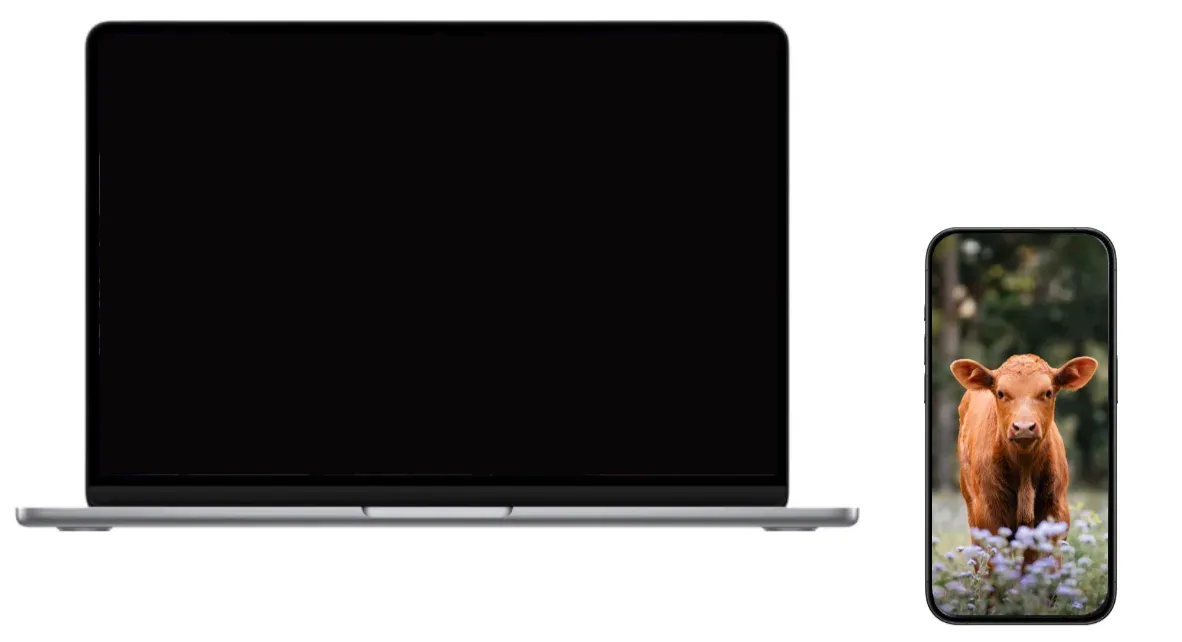
Common root causes:
-
Resolution or refresh rate mismatch between sender and display.
-
Stale pairing/session data from old connection attempts.
-
Weak or congested Wi-Fi during video transport.
-
Display mode/input mismatch on TV, monitor, or projector.
-
Content restrictions from DRM-protected apps.
This is why screen mirroring sound but no picture can look random even when the root cause is consistent.
Screen Mirroring Black Screen: Try PigeonCast
When you need casting to work right now for a meeting, class, or family playback session, use a screen mirroring application first. PigeonCast is useful here because it gives you a separate screen mirroring path while native AirPlay/Cast/Wireless Display is unstable.
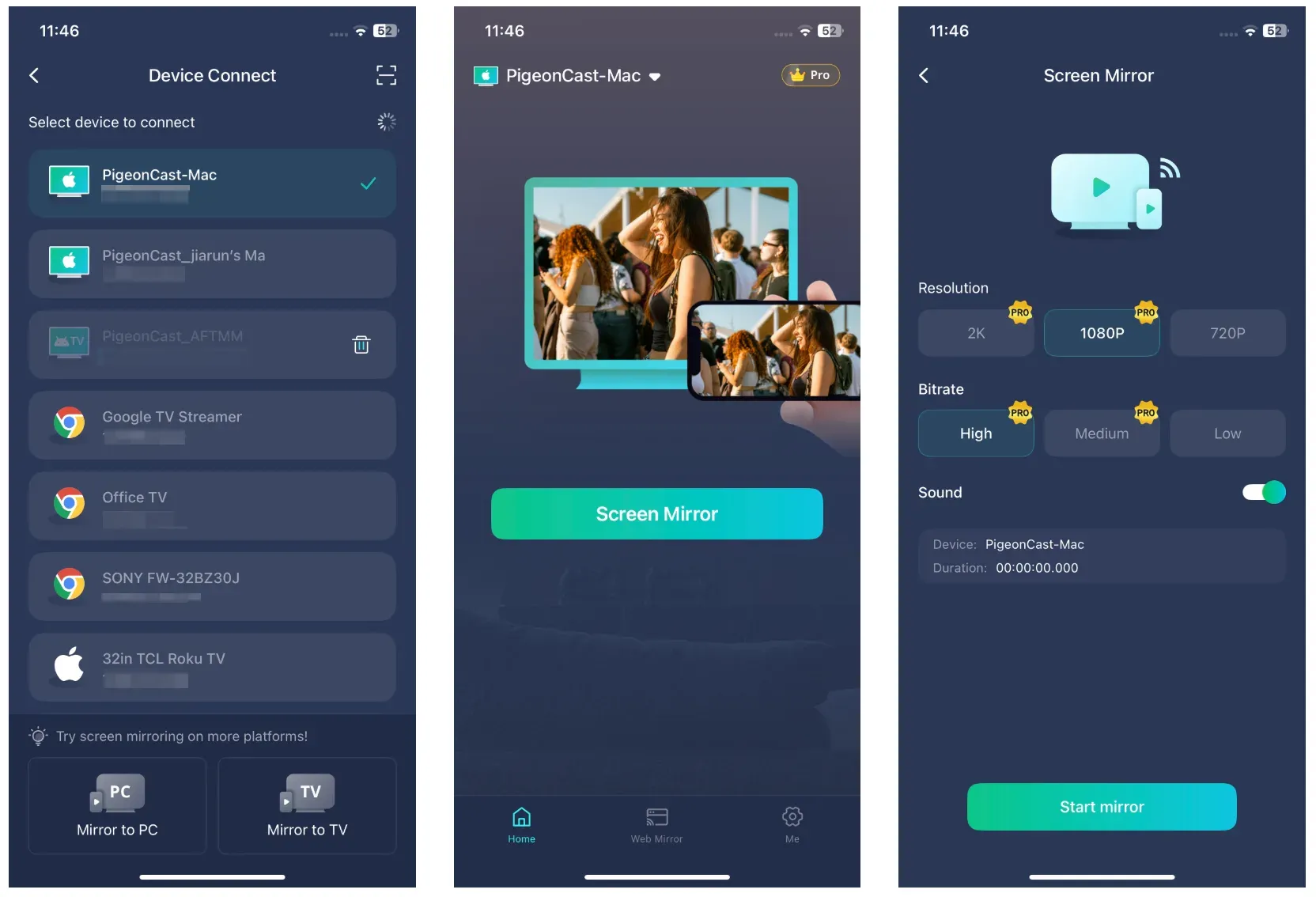
Step 1. Install and open PigeonCast on the sender and receiver sides.


Overall Rating:


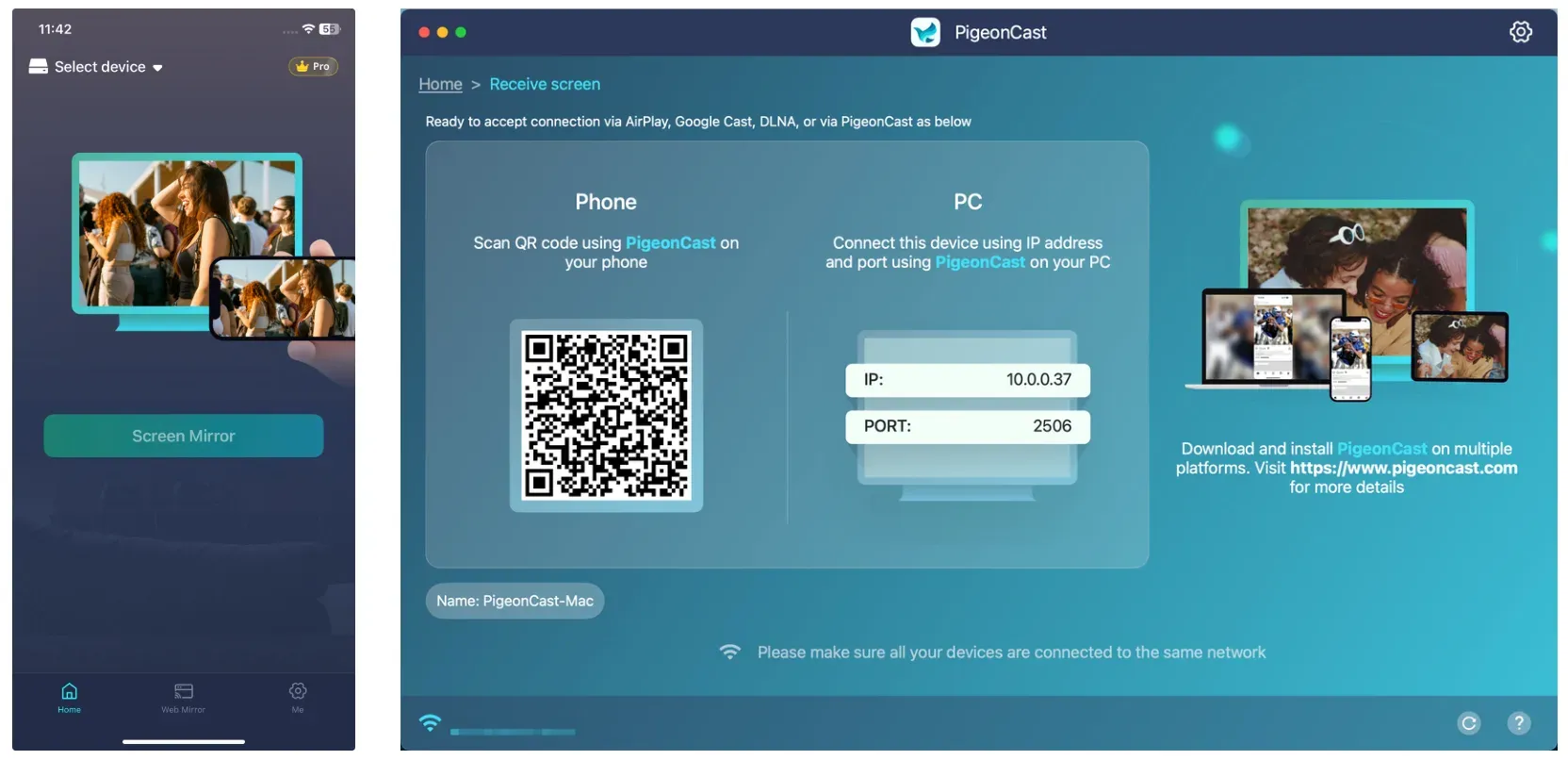
Step 2. Put both devices on the same local network.
Step 3. Follow the onscreen instructions in the app, connect your devices, and start mirroring.
Native Checks for Screen Mirroring Black Screen
How to fix screen mirroring not showing video? Before going into device-specific troubleshooting, run a clean baseline check. This resolves a large percentage of screen mirroring not working issue.
These steps focus on eliminating common system-level conflicts.
Step 1. Confirm the same network path.
-
Sender and receiver should be on the same SSID.
-
Avoid guest network mode during tests.
Step 2. Reset the connection chain once.
-
Restart sender, receiver, and router.
-
Recreate one clean mirroring session.
Step 3. Test local content first.
-
Use a photo or offline video.
-
Do not begin with DRM-heavy streaming apps, like Netflix.
Step 4. Normalize display output.
-
Lower to 1080p for testing.
-
Keep the refresh rate at a standard value.
Step 5. Disable interference layers.
- Temporarily disable VPN/private relay/custom DNS.
If the black screen persists after this pass, proceed to device-specific fixes.
Device-Specific Fixes for Screen Mirroring Black Screen
When screen mirroring no video only audio happens, different systems fail in different ways. The following fixes target the most common issues by platform.
iPhone Screen Mirroring Black Screen
iPhone mirroring relies heavily on AirPlay. Most issues come from pairing errors, system settings, or content restrictions.
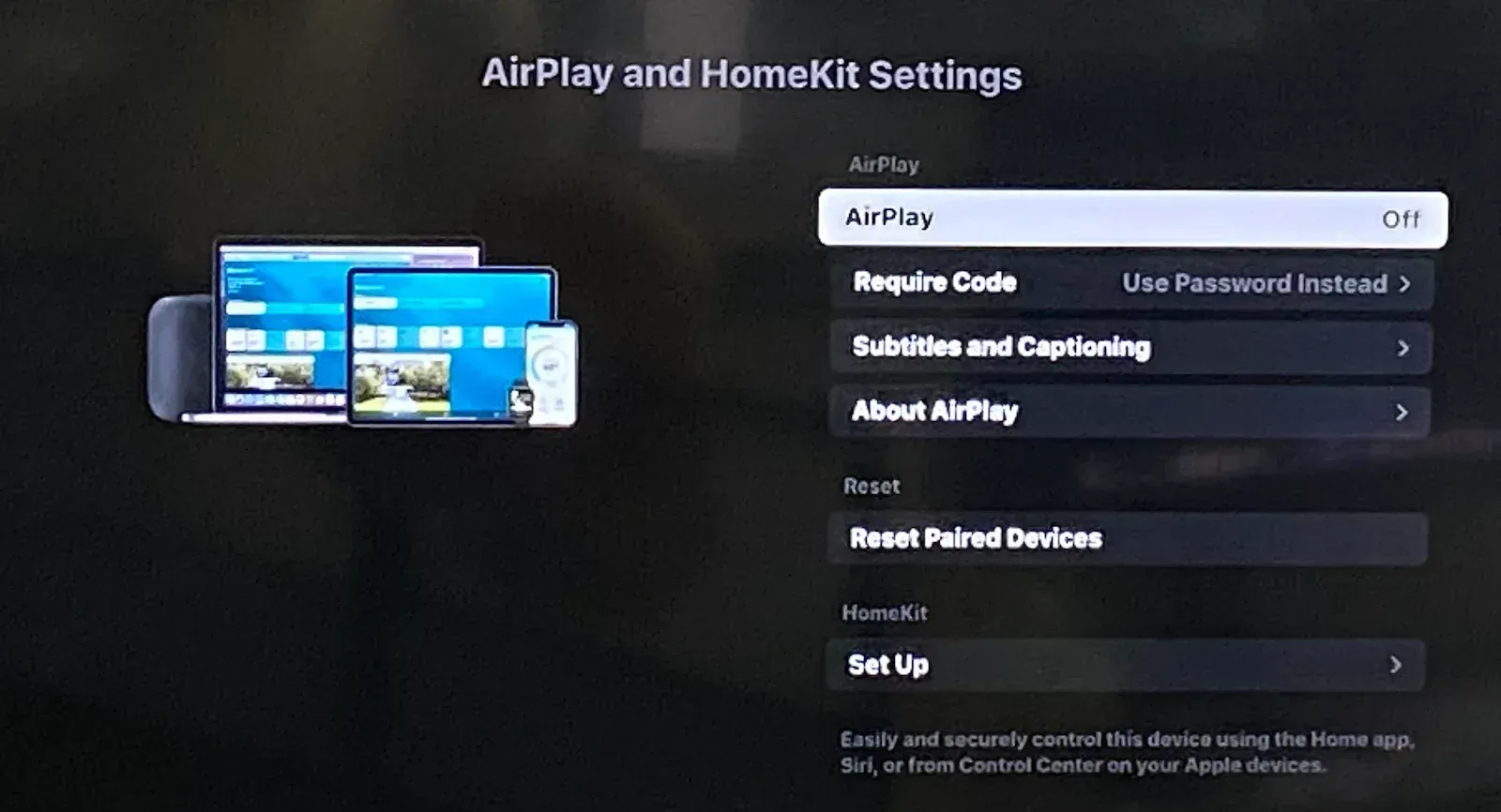
Step 1. Toggle the AirPlay receiver off and on in the settings menu on the TV.
Step 2. Forget the target device on the iPhone and reconnect.
Step 3. Update iOS and TV firmware.
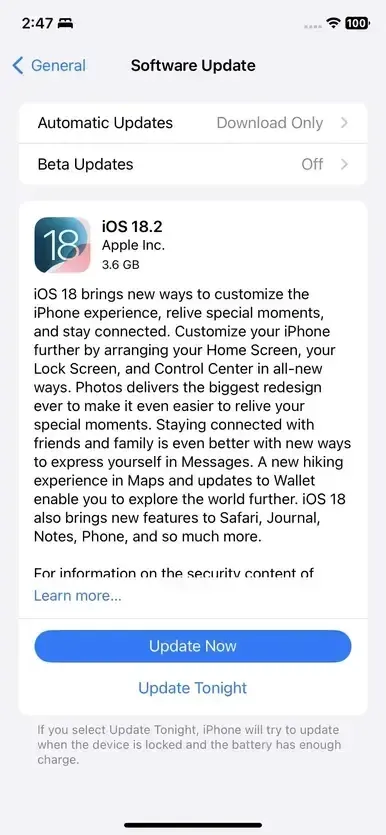
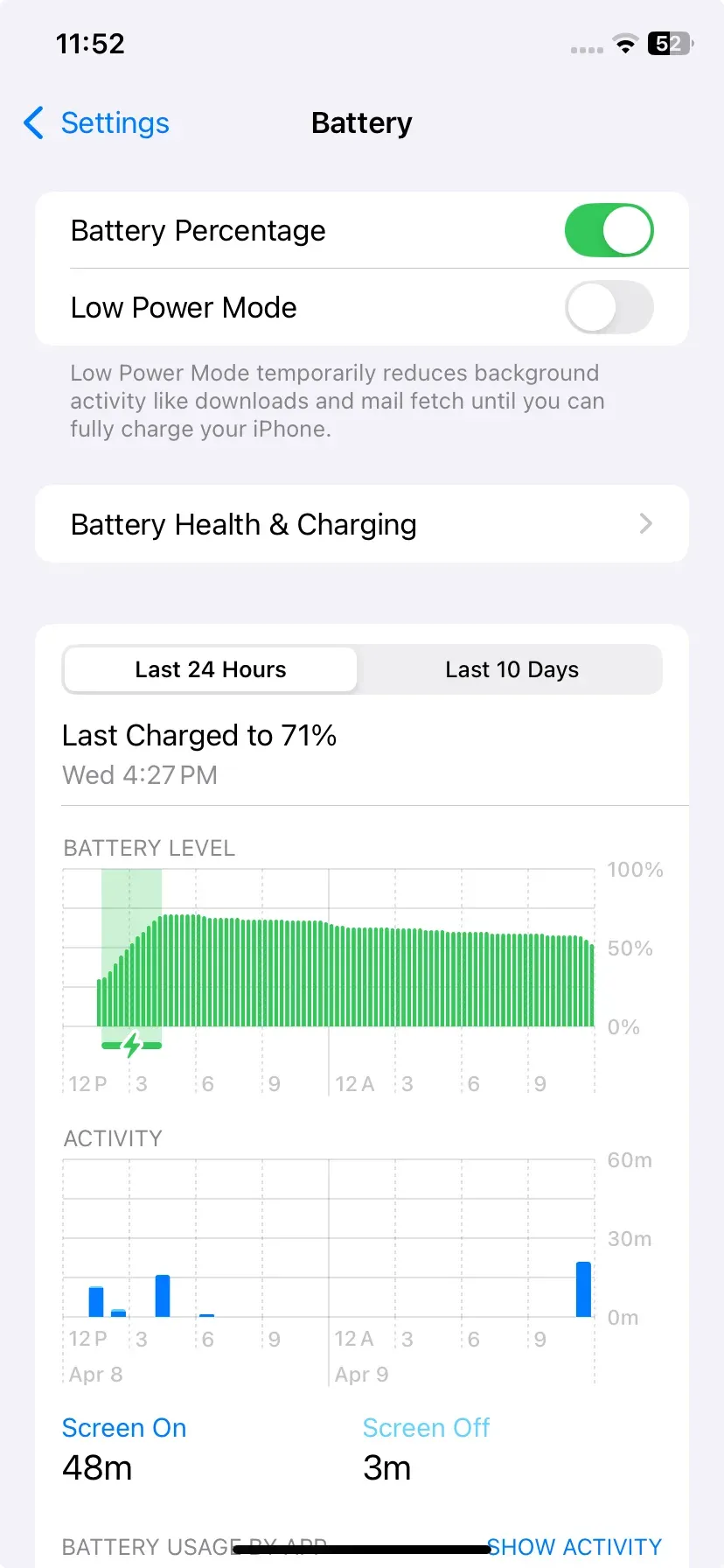
Step 4. Disable Low Power Mode while testing.
Step 5. Retry screen mirroring with Photos app before paid streaming apps.
If only one app stays black, the issue is usually content protection, not AirPlay discovery.
Android Screen Mirroring Black Screen
On Android, casting issues like cast black screen on TV, often come from system optimization or unstable connections.
Step 1. Reboot Chromecast or Android TV receiver.
Step 2. Restart the Android phone.
Step 3. Remove and re-add the cast target.
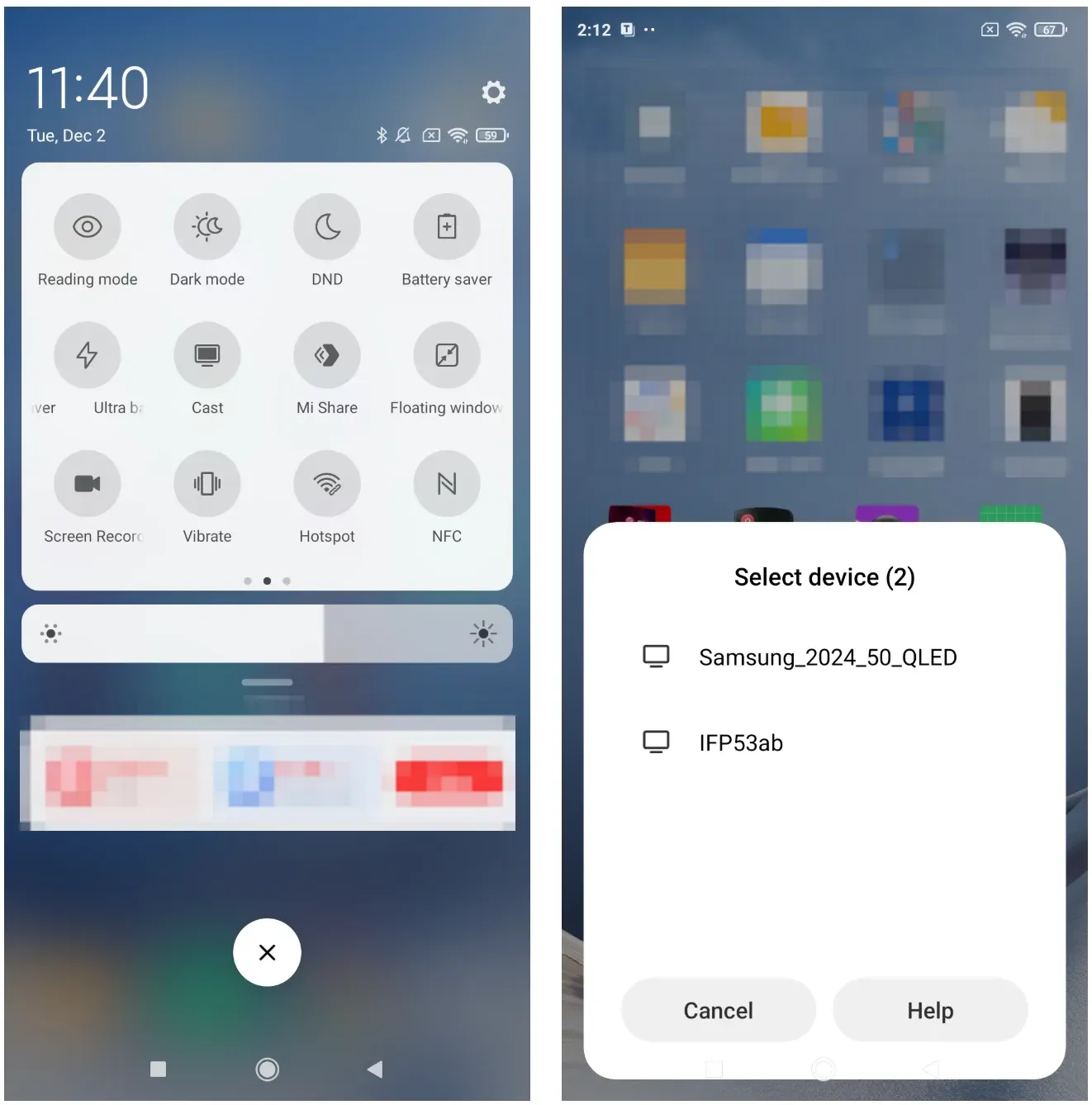
Step 4. Disable battery optimization for casting-related apps.
Step 5. Pause heavy downloads before retesting.
If Chromecast black screen appears only during one service, test a local file to separate network issues from app restrictions.
Windows Wireless Display Black Screen
Windows mirroring issues are often related to display output modes or driver conflicts.
Step 1. Press Win + P and switch to Duplicate.
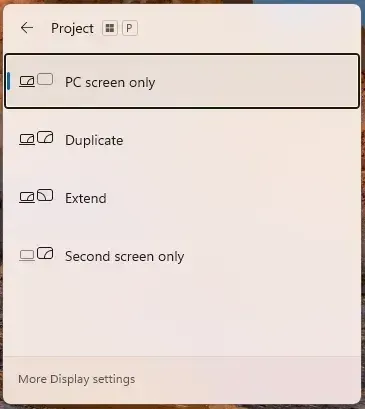
Step 2. Disconnect and reconnect from Win + K.
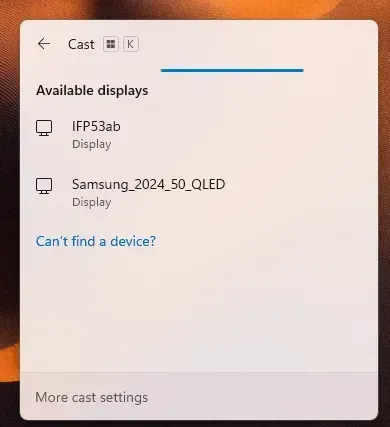
Step 3. Update GPU and Wi-Fi drivers.
Step 4. Test at 1080p first.
Step 5. Retry in another browser or source app.
This type of issue is commonly caused by output mismatch rather than connection failure.
Mac Screen Mirroring Black Screen
Mac mirroring problems usually come from display configuration or network instability.
Step 1. Reconnect from Control Center > Screen Mirroring.
Step 2. Verify output mode in System Settings > Displays.
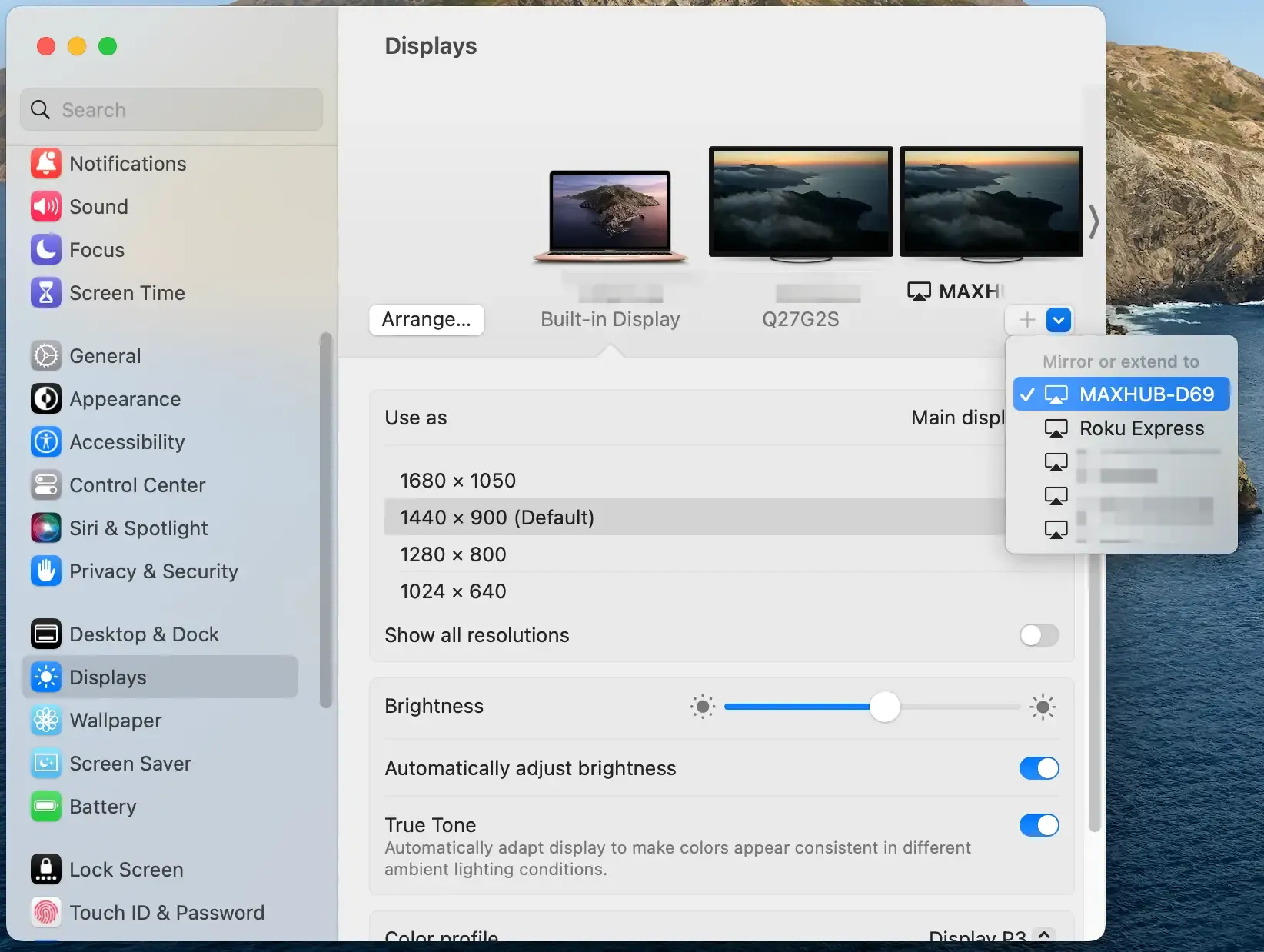
Step 3. Restart Wi-Fi on Mac and receiver.
Step 4. Reduce output resolution once.
Step 5. Close apps that may hold graphics/video layers.
When DRM Is the Real Blocker for Black Screen
Not all black screen issues are technical. In many cases, the app intentionally blocks or limits video output. Streaming platforms like Netflix or Disney+ may allow audio while mirrored video stays black, and similar playback issues can also appear when you cast the DIRECTV app to a TV.
You can confirm this quickly:
Step 1. Mirror local photo/video.
Step 2. Mirror free web video.
Step 3. Mirror paid streaming content.
Results:
-
Local works, paid fails → DRM restriction
-
Everything fails → technical issue
In DRM cases, use:
-
The app's built-in cast button
-
AirPlay-supported playback
-
Or HDMI instead of mirroring
Final Words
A screen mirroring black screen problem is rarely random. It usually comes from a clear break in the video path.
The most effective workflow is: restore playback quickly, run baseline checks, apply device-specific fixes, and identify whether DRM is involved. Instead of repeatedly reconnecting, treat the issue as a system: once you find where video stops, the solution becomes much easier.
Screen Mirroring Black Screen FAQ
Why is screen mirroring connected but black?
Because connection and video rendering are separate. The link may work while the display fails due to format, network, or DRM issues.
Why do I get sound but no picture?
This usually means video is blocked, incompatible, or not transmitted correctly, while audio still passes through.
Why does mirroring work for photos but not video?
Photos require minimal processing. Video depends on bandwidth, codecs, and DRM rules.
Is iPhone screen mirroring black screen different from Android black screen?
The symptom is similar, but troubleshooting paths differ. iPhone leans on AirPlay checks, while Android usually needs cast target reset and battery optimization checks.
How do I fix Chromecast black screen quickly?
Restart both devices, reconnect, and test local content first. This isolates whether the issue is network or app-related.
Should I factory reset my TV for screen mirroring not working?
Only as a last resort. Most issues can be resolved through network, display, or connection fixes.
Mia Clarke is a technology editor specializing in screen mirroring and casting solutions across multiple platforms. Mia provides clear, practical guides and in-depth insights to help users seamlessly connect their devices. Passionate about enhancing digital experiences, Mia is dedicated to keeping readers updated on the latest trends and tools in cross-platform screen sharing. Whether you’re looking to mirror your smartphone, laptop, or smart TV, Mia’s content delivers reliable, user-friendly advice to simplify your tech setup.