

Screen mirroring not working usually means your devices cannot discover each other, cannot use the same casting method, or cannot keep a stable connection. The problem may come from Wi-Fi, TV settings, AirPlay or Cast support, blocked devices, app restrictions, outdated software, or weak signal. This guide walks you through the fastest checks first, then shows how to fix the issue on iPhone, Android, Windows, Mac, and smart TVs.
Quick Answer: How to Fix Screen Mirroring Not Working
If screen mirroring is not working, first make sure both devices are on the same Wi-Fi network and support the same casting method. Then enable AirPlay, Cast, or screen mirroring on your TV, restart your phone and TV, check whether the TV has blocked your device, update the system and apps, and try another mirroring method if the built-in option still fails.
| Problem | What to Check First |
|---|---|
| TV does not show up | Same Wi-Fi, TV mirroring mode, blocked devices |
| Connection fails | Device compatibility, TV permission prompt, router settings |
| Black screen | App restrictions, protected video, wrong input source |
| No sound | TV volume, phone volume, Bluetooth audio output |
| Keeps disconnecting | Weak Wi-Fi, router congestion, power-saving mode |
| Lag or freezing | Distance from router, background apps, network load |
Why Is My Screen Mirroring Not Working
If you are asking “why can't I screen mirror”, the problem usually comes from connection, compatibility, or permission. Screen mirroring only works when your phone, computer, TV, or streaming device can discover each other, use a supported casting method, and keep a stable connection. The common reasons for screen mirroring failure on smart TVs and smartphones include:
- Different Wi-Fi networks: Your phone and TV may be connected to different routers, guest Wi-Fi, mobile data, or isolated network bands.
- Unsupported casting method: iPhone usually relies on AirPlay, while Android may use Cast, Smart View, Screen Cast, or other brand-specific features.
- TV mirroring feature is turned off: Some TVs require you to enable AirPlay, Cast, Screen Mirroring, or Device Connection before pairing.
- Blocked or restricted devices: Your TV may have rejected the phone before, or parental controls, Screen Time, work profiles, or access settings may limit mirroring.
- Outdated software or app versions: Old phone systems, TV firmware, or streaming apps can break device discovery or playback.
- Weak Wi-Fi or router issues: Long distance, router congestion, VPNs, or unstable signal can cause failed pairing, lag, freezing, or disconnection.
- App or content restrictions: Some video apps may show a black screen, no sound, or playback errors when mirrored.
Try a Different Mirroring Tool When Native Casting Fails
If the problem comes from device compatibility or unstable built-in casting, changing the mirroring method can be faster than repeating the same settings. For example, an iPhone may rely on AirPlay, an Android phone may use Cast or Smart View, and a Windows or Mac computer may need a different receiver on the TV side.
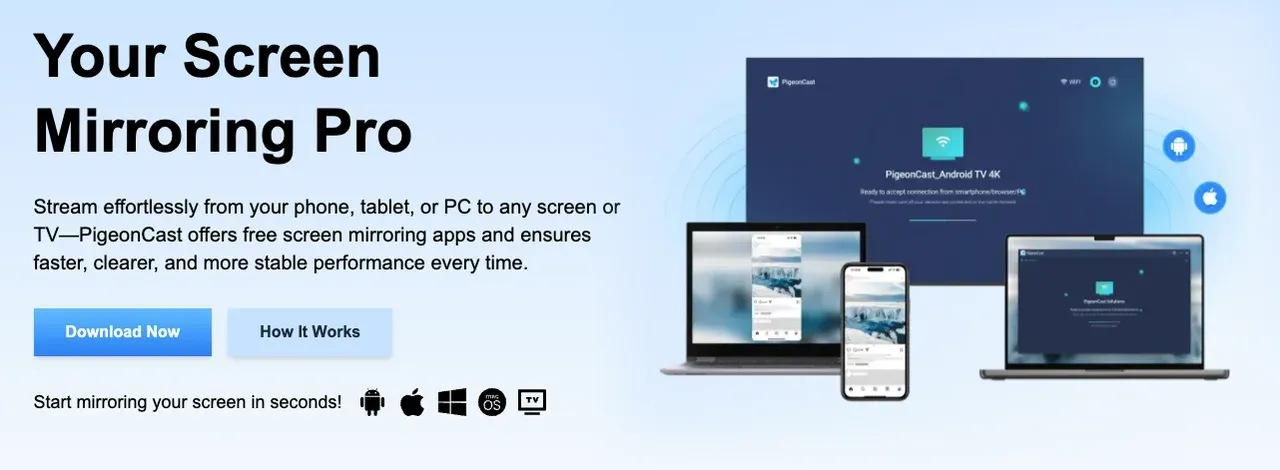
PigeonCast is a cross-platform screen mirroring tool for iPhone, Android, Windows, Mac, tvOS, and Android TV. It supports common casting options such as AirPlay, Google Cast, and DLNA, which makes it useful when your phone, computer, and TV come from different systems. Install PigeonCast on the sending and receiving devices, connect them to the same Wi-Fi network, then follow the pairing instructions to start mirroring.

PigeonCast Screen Mirroring

Official Download



Step 1. Install the PigeonCast app on your devices. Follow the devices you're supposed to connect to and download the corresponding app for free. (Note: Installing the app on both your devices ensures the best screen mirroring performance.)
Step 2. Ensure your receiver device and sender device are covered by the same wireless network.
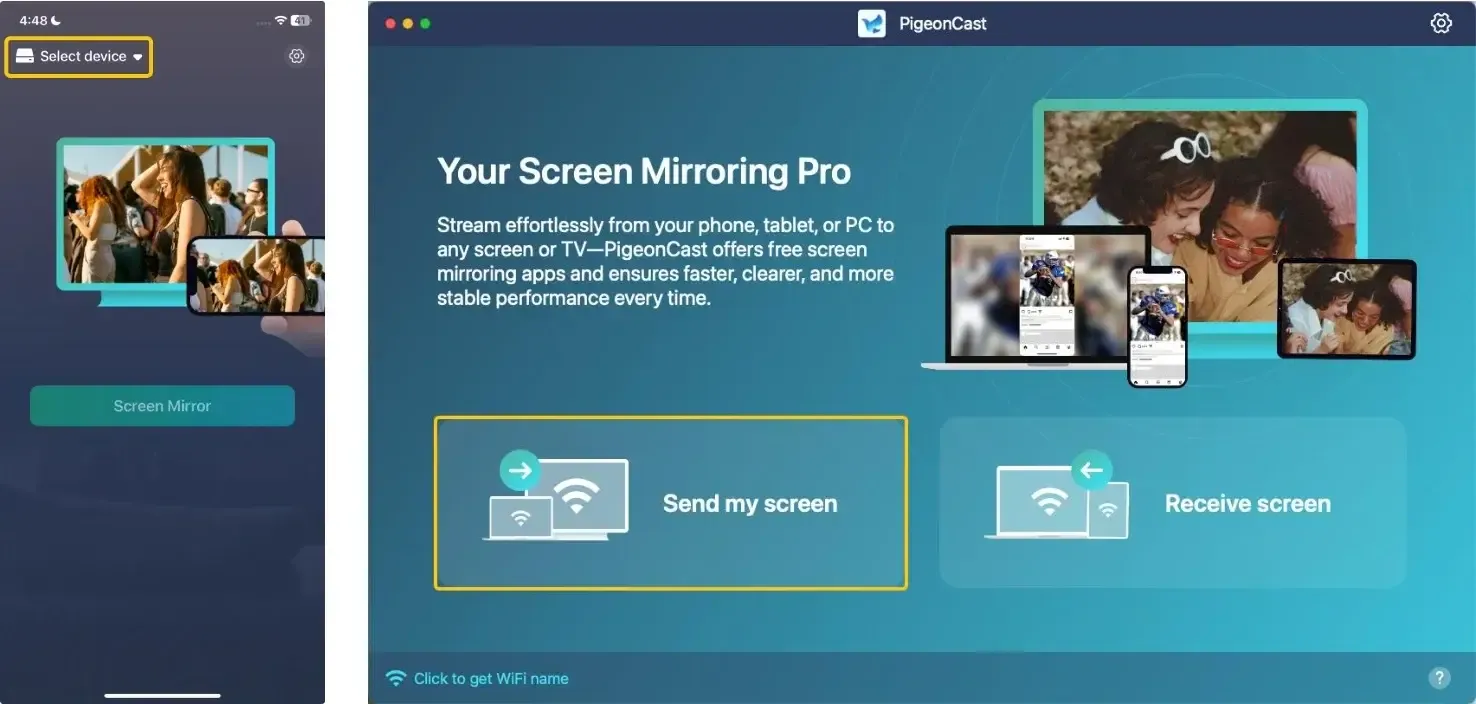
Step 3. Open the app, tap Select device or Send my screen to choose the receiver device from the available list.
Step 4. Enter the onscreen PIN code to finish the connection.
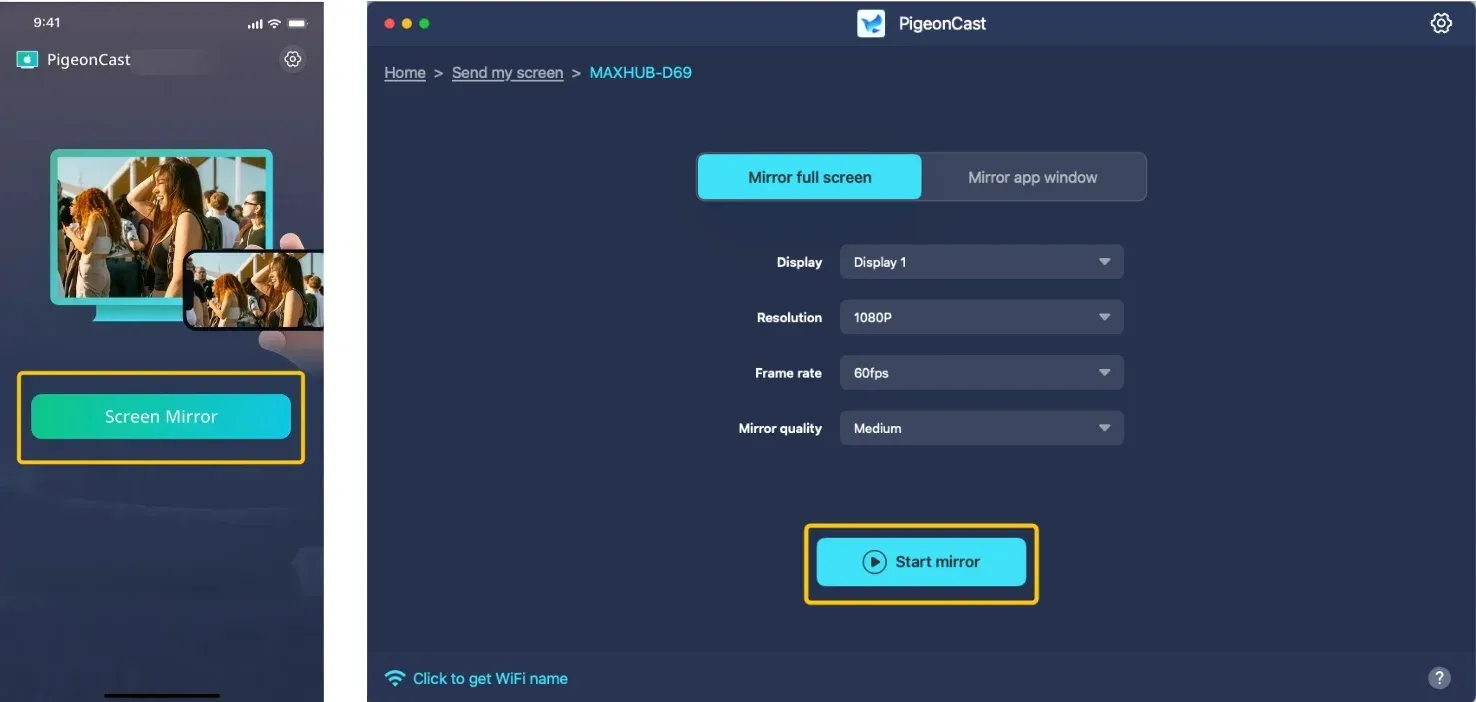
Step 5. Once paired successfully, you can tap the Screen Mirror or Start mirror option to enjoy the screen mirroring feature.
How to Fix Screen Mirroring Not Working
Use the fixes below in order instead of trying random settings. Start with the checks that apply to every device, then move to the section that matches your phone, computer, or TV. If one step does not match your setup, skip it and continue with the next one.
1. Check Device Compatibility
Before changing network or TV settings, make sure your devices support the same screen mirroring method. A phone, computer, and TV may all support screen sharing, but they may not use the same technology.
- iPhone and iPad: Usually use AirPlay, so the TV or streaming device needs AirPlay support.
- Android phones: May use Cast, Smart View, Screen Cast, Wireless Projection, or a brand-specific feature.
- Windows PCs: Usually need a compatible wireless display receiver or supported TV feature.
- Mac: Usually mirrors through AirPlay to an Apple TV or AirPlay-enabled smart TV.
- Smart TVs: Some models support AirPlay, some support Google Cast, and some only support brand-specific mirroring features.
If your TV never appears in the device list, compatibility may be the reason. Check your TV settings, device manual, or official support page to confirm which mirroring methods your devices support.
2. Connect Both Devices to the Same Wi-Fi
Screen mirroring often fails when your phone, computer, and TV are not actually on the same network. Even if both devices show a Wi-Fi icon, they may still be connected to different routers, guest networks, mobile hotspots, or separated 2.4 GHz and 5 GHz networks. Check these settings before trying to mirror again:
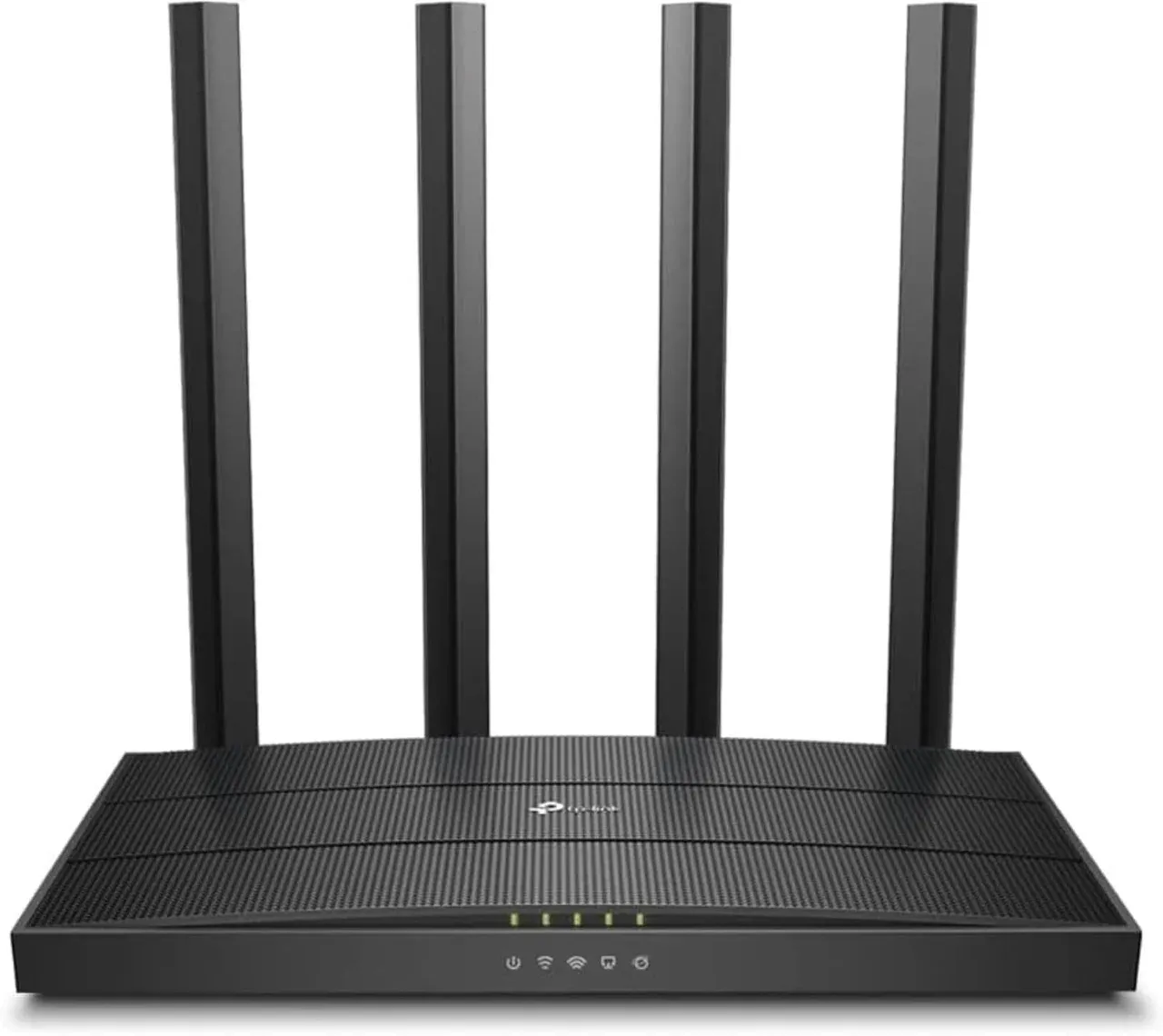
- Use the same Wi-Fi name: Connect your phone, computer, and TV to the exact same network name.
- Avoid guest Wi-Fi: Guest networks often block devices from finding each other.
- Turn off mobile data or hotspot mode: Your phone may stay online through cellular data instead of the home Wi-Fi.
- Disable VPN temporarily: A VPN can stop your phone, computer, or TV from discovering nearby devices.
- Move closer to the router: Weak signal can cause failed pairing, lag, freezing, or sudden disconnection.
- Restart the router if needed: Unplug the router for about 30 seconds, plug it back in, reconnect both devices, and try screen mirroring again.
3. Turn On AirPlay, Cast, or Screen Mirroring
Your TV may not appear on your phone or computer if the receiving feature is turned off. First make sure the TV is ready to receive a mirrored screen, then start mirroring from the device you want to cast.
-
On your TV: Use the remote to open Settings. Look for Network, Connection, General, AirPlay, Cast, Screen Mirroring, Device Connection, Wireless Display, or External Device Manager. Turn on the option that matches your device.
-
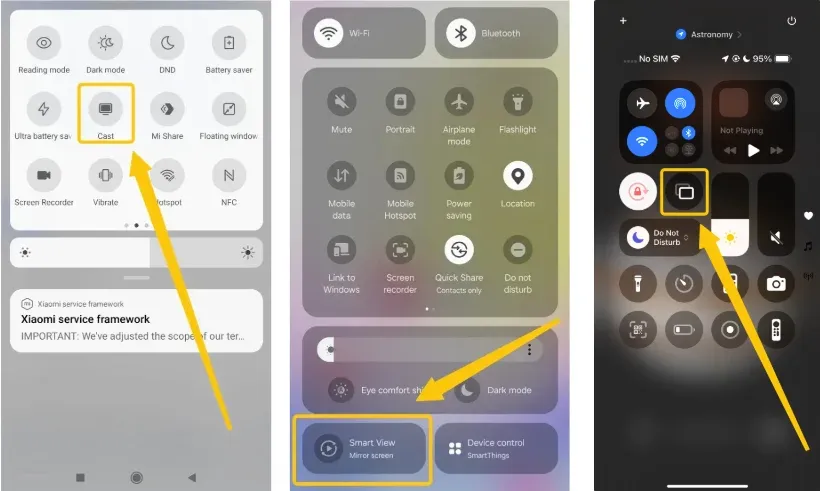
On iPhone or iPad: Open Control Center > Screen Mirroring, then choose your TV, Apple TV, or AirPlay-enabled device. If the TV does not appear, check whether AirPlay is enabled on the TV and whether both devices are on the same Wi-Fi network.
-
On Android: Swipe down from the top of the screen to open Quick Settings > Cast, Smart View, Screen Cast, Wireless Projection, or a similar option, then choose your TV. The name may vary by phone brand.
-
On Mac: Click Control Center in the menu bar, choose Screen Mirroring, then select your Apple TV or AirPlay-enabled smart TV.
-
On Windows: Press Windows + K to open the cast panel, then choose your TV or wireless display receiver. If nothing appears, your TV may not support wireless display receiving, or the feature may be turned off.
If your TV shows a permission prompt, choose Allow, Accept, or Always Allow. If you selected Deny before, open the TV's device list, access control, or blocked devices menu and remove your phone or computer from the blocked list.
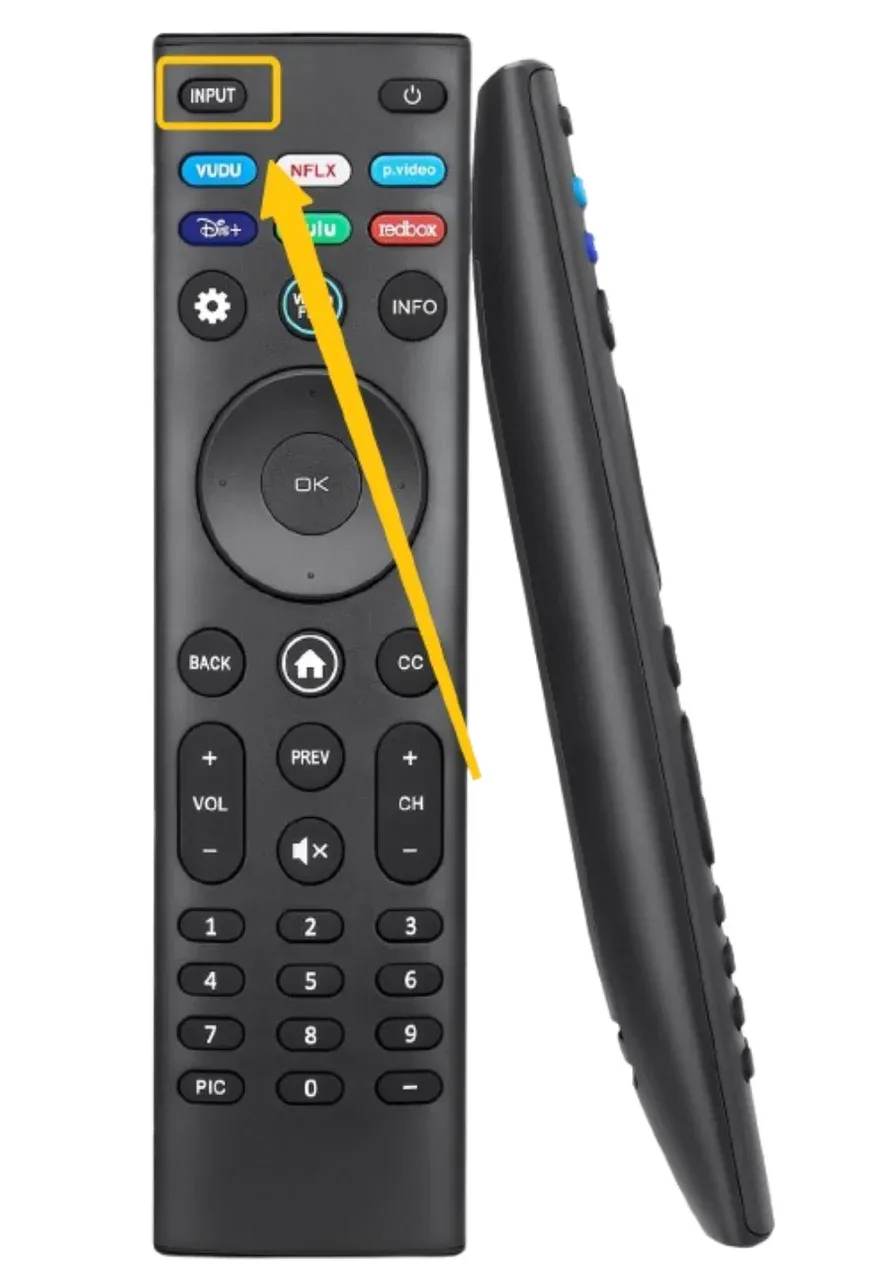
If you use Chromecast, Fire TV Stick, Roku, Apple TV, an HDMI cable, or a USB-C/Lightning to HDMI adapter, press the Input or Source button on your TV remote and select the correct HDMI port.
4. Restart Your Phone, TV, and Router
Temporary connection errors can stop your phone, computer, or TV from finding each other. A proper restart can refresh the network connection, clear failed pairing attempts, and fix screen mirroring issues that appear suddenly.
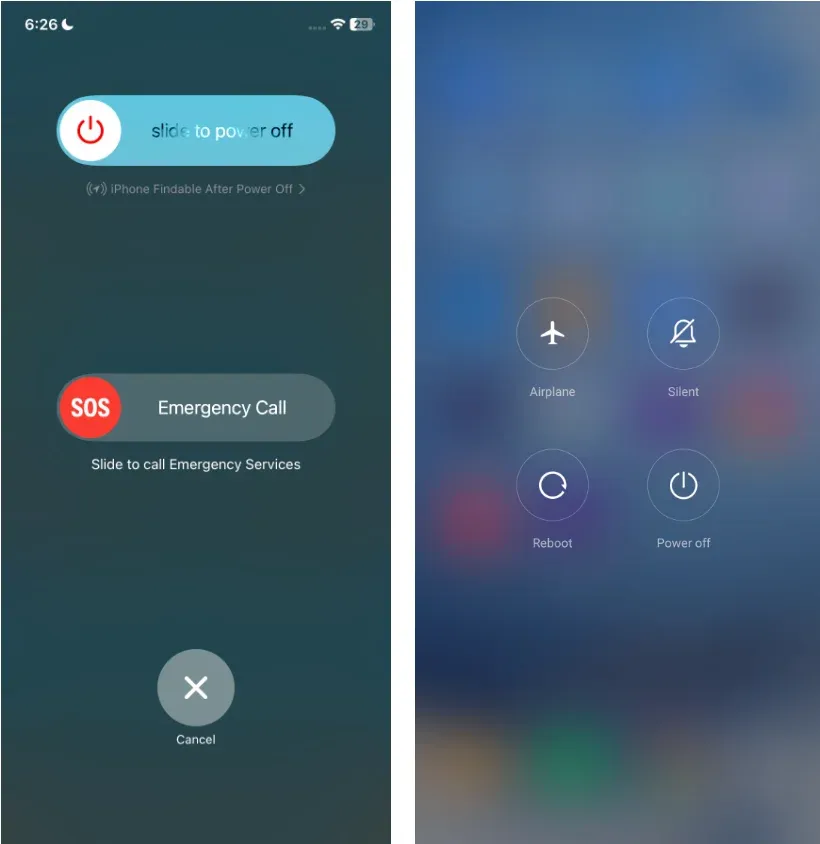
Step 1. Restart your phone or computer: Turn off the device you want to mirror from, wait about 30 seconds, then turn it back on.
Step 2. Restart your TV or streaming device: Turn off the TV, Apple TV, Roku, Fire TV, Chromecast, Android TV box, or other receiver. For a smart TV, unplug the power cable for about 30 seconds before turning it on again. This works better than only pressing the power button on the remote.
Step 3. Restart your Wi-Fi router: Unplug the router for about 30 seconds, plug it back in, and wait until the network is fully available again.
Step 4. Reconnect both devices to the same Wi-Fi: After the restart, check the Wi-Fi name on your phone, computer, and TV again. Then open Screen Mirroring, AirPlay, Cast, Smart View, or Windows + K and try to connect once more.
5. Update Your Phone, Computer, TV, and Apps
Outdated software can break device discovery, AirPlay, Cast, app playback, or TV firmware support. If screen mirroring worked before but suddenly stopped, updates are worth checking before you change more settings.
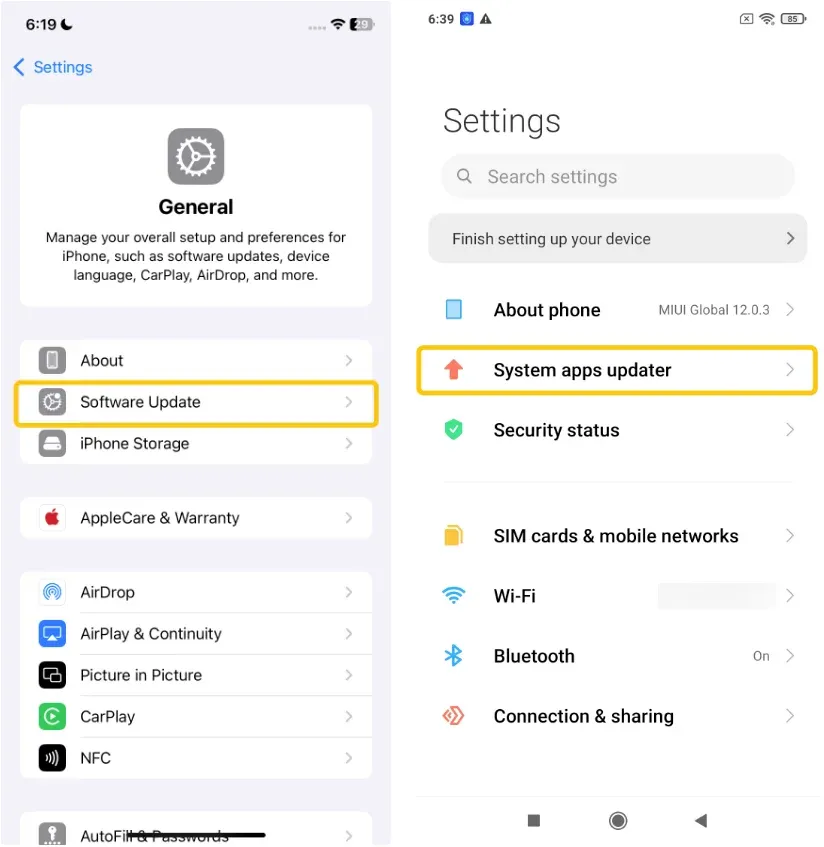
Step 1. Update your phone or tablet: On iPhone or iPad, go to Settings > General > Software Update. On Android, open Settings > System apps updater. The exact path may vary by brand, but most Android phones keep it under System, About phone, or Software update.
Step 2. Update your computer: On Mac, go to System Settings > General > Software Update. On Windows, open Settings > Windows Update and install available updates. If you use wireless display on Windows, also check display and Wi-Fi driver updates when the TV does not appear.
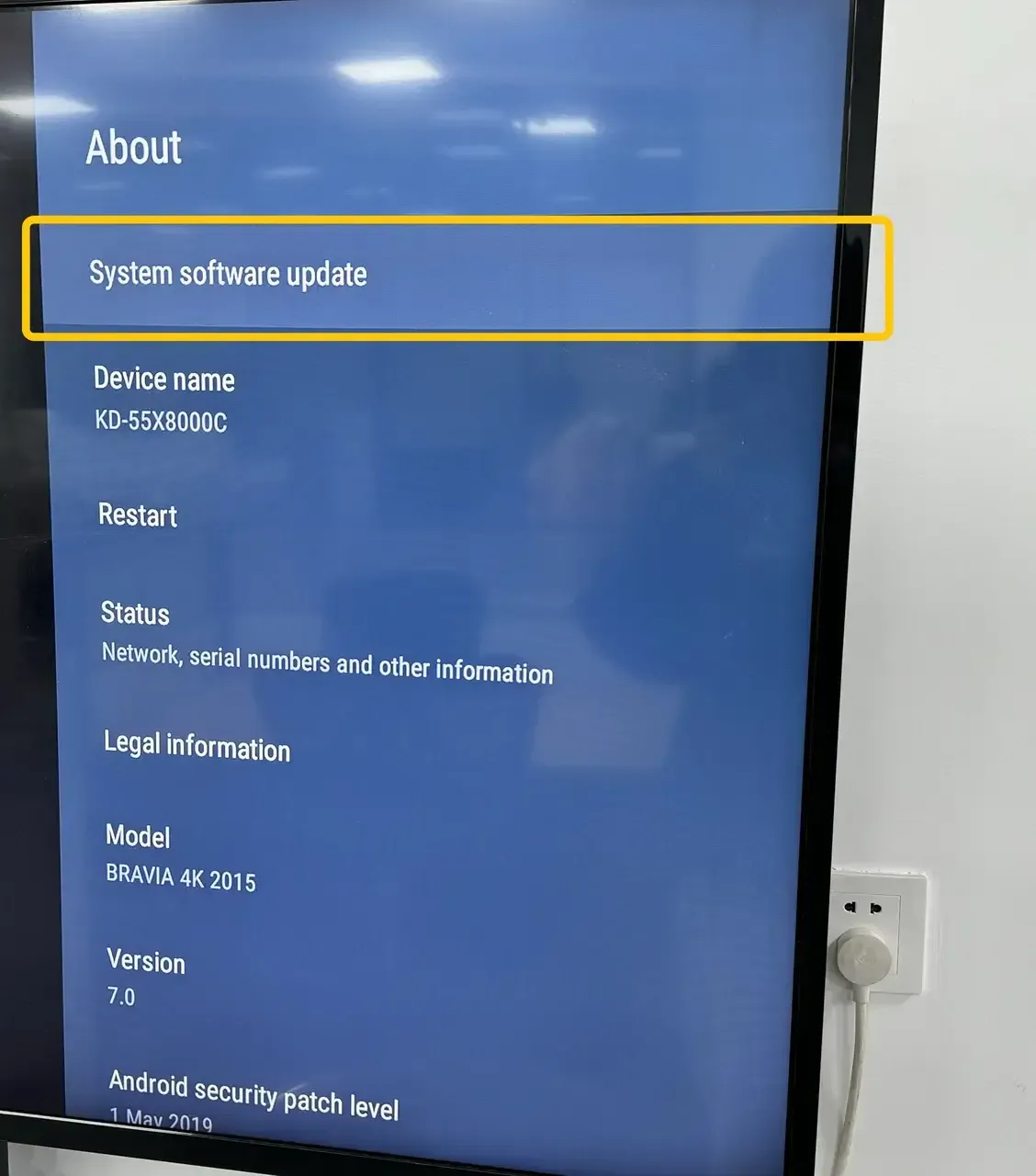
Step 3. Update your smart TV or streaming device: Open your TV settings and look for Software Update, Firmware Update, System Update, or About. If you use Apple TV, Roku, Fire TV, Chromecast, or an Android TV box, update that device as well.
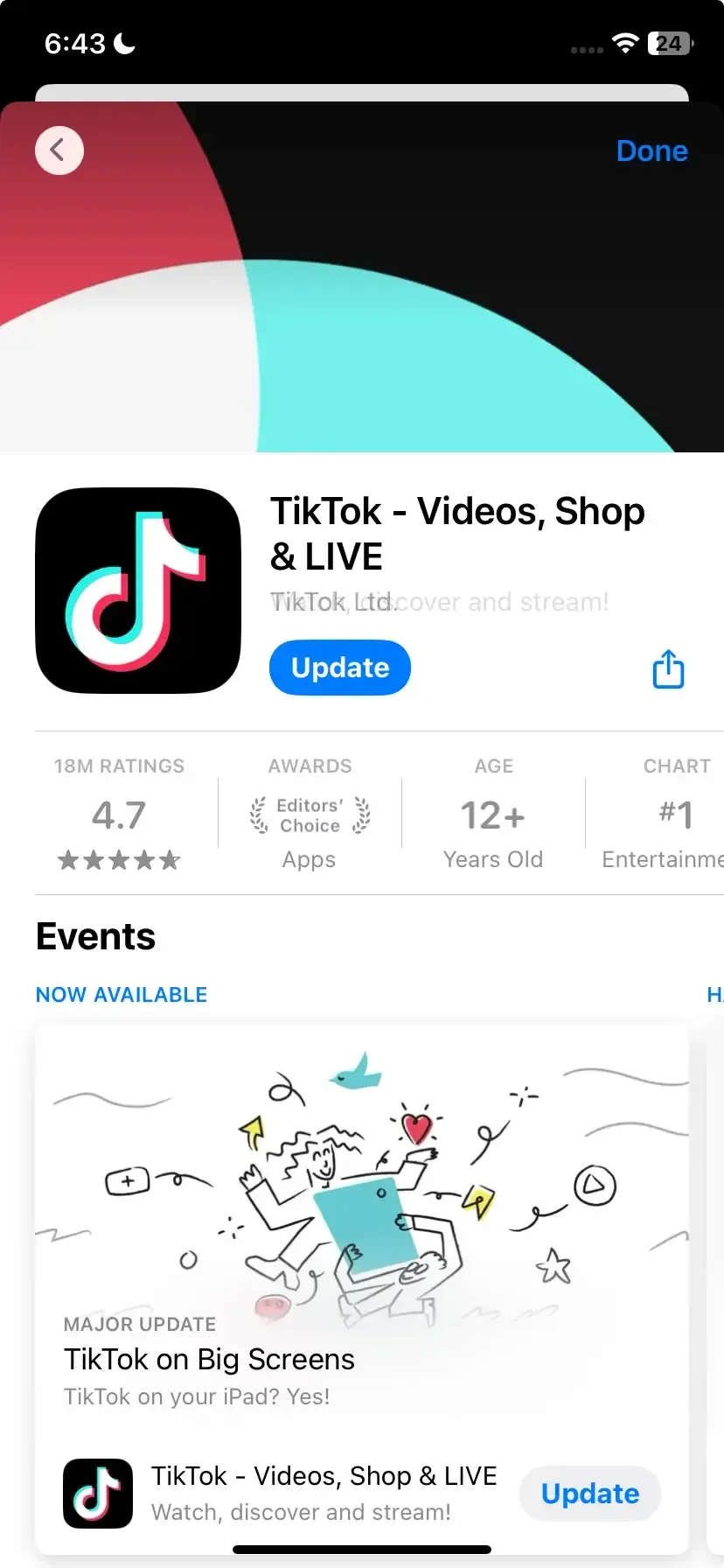
Step 4. Update the app you want to mirror: If the problem only happens in one app, update that app from the App Store, Google Play, or your TV app store. Some streaming apps may fail, show a black screen, or lose sound when the app version is outdated or does not support the current casting method.
6. Allow Your Phone or Computer to Connect
Some TVs ask for permission before they allow a phone, tablet, or computer to mirror the screen. If you missed the prompt, selected Deny before, or the TV already has another device connected, screen mirroring may fail even when Wi-Fi and compatibility are correct.
Step 1. Check the permission prompt on your TV: Start screen mirroring from your phone or computer, then look at the TV screen. If a message appears, choose Allow, Accept, Trust, or Always Allow. Do not leave the prompt unanswered, since some TVs may cancel the connection after a few seconds.
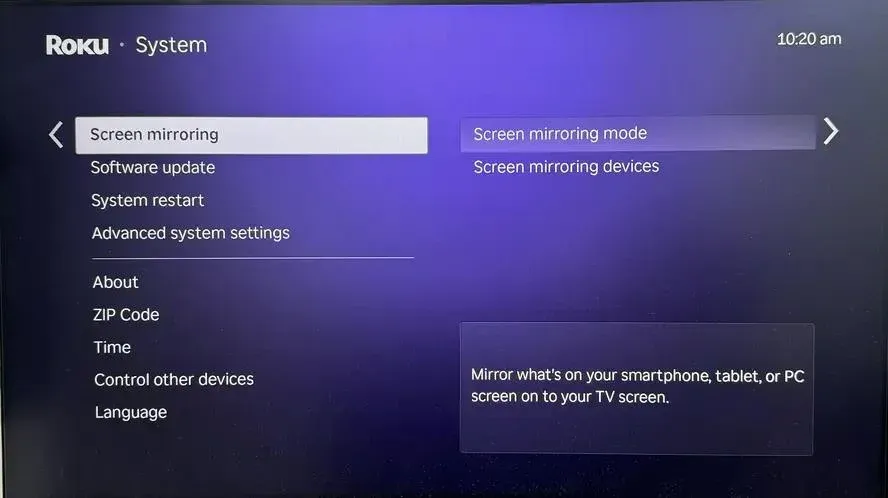
Step 2. Remove your device from the blocked list: Open your TV settings and look for Device Connection, Screen Mirroring, AirPlay, Cast, Access Control, Allowed Devices, or Blocked Devices. If your phone, tablet, or computer appears in the blocked list, remove it and try pairing again.
Step 3. Disconnect other mirrored devices: Most TVs only allow one active mirroring session at a time. Stop AirPlay, Cast, Smart View, HDMI adapter output, or screen sharing from other phones and computers before you connect a new device.
Step 4. Pair the device again: After clearing blocked devices and ending other sessions, restart screen mirroring from your phone or computer. If the TV asks for permission again, choose Allow and wait until the connection finishes.
7. Fix Screen Mirroring Not Working on iPhone or iPad
If screen mirroring is not working on your iPhone or iPad, the issue is usually related to AirPlay, Wi-Fi, TV support, or restrictions on the device. Check these iPhone-specific settings after you finish the basic fixes above.
Step 1. Open Control Center > Screen Mirroring, then choose your Apple TV or AirPlay-enabled smart TV. If your TV does not appear, make sure AirPlay is turned on in the TV settings and both devices are connected to the same Wi-Fi network.
Step 2. Not every smart TV supports AirPlay. If you are using an iPhone or iPad, your TV needs built-in AirPlay support, an Apple TV, or another compatible AirPlay receiver. If your TV does not support AirPlay, the device may not show up in the Screen Mirroring list.
Step 3. A VPN can block local device discovery, so your iPhone may fail to find the TV even when both devices are online. Turn off the VPN, reconnect to Wi-Fi, and try Screen Mirroring again.
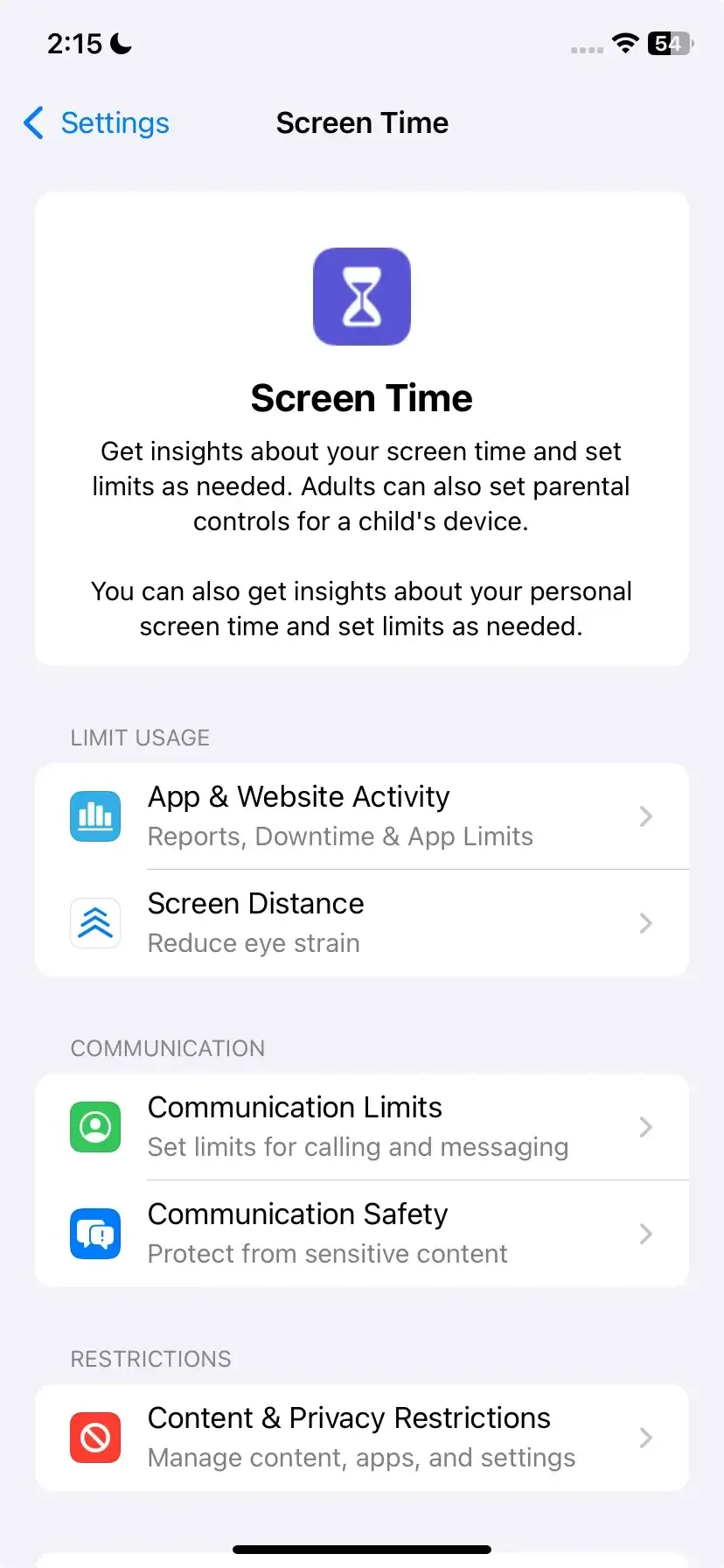
Step 4. Go to Settings > Screen Time and check whether restrictions are enabled. If needed, open Content & Privacy Restrictions and review the settings that may limit device connections, app access, or network features. You can also turn off Screen Time temporarily to test whether it is causing the problem.
Step 5. Stop screen mirroring on your iPhone, restart your iPhone and TV, then try again from Control Center > Screen Mirroring.
8. Fix Screen Mirroring Not Working on Android
If screen mirroring is not working on Android, the first thing to check is the casting name on your phone. Different brands use different labels, so you may need to look for Cast, Smart View, Screen Cast, Wireless Projection, Multi-screen, or a similar option.
Step 1. Swipe down from the top of your Android screen to open Quick Settings > Cast, Smart View, Screen Cast, Wireless Projection, or a similar icon. Tap it, then choose your TV from the device list.
Step 2. Android screen mirroring is not the same on every phone or TV. Some TVs support Google Cast, some work better with Smart View, and some only support their own screen sharing feature. If your TV never appears, open the TV settings and check whether Cast, Screen Mirroring, Wireless Display, or Device Connection is enabled.
Step 3. Some Android phones need nearby device, local network, Bluetooth, or location permission to discover TVs and casting devices. If your phone asks for permission during pairing, choose Allow. You can also check app permissions in Settings > Apps if a specific casting app is not finding your TV.
Step 4. VPNs, battery saver mode, and data saver settings can interfere with local device discovery or background connection. Turn them off temporarily, reconnect to Wi-Fi, and try casting again.
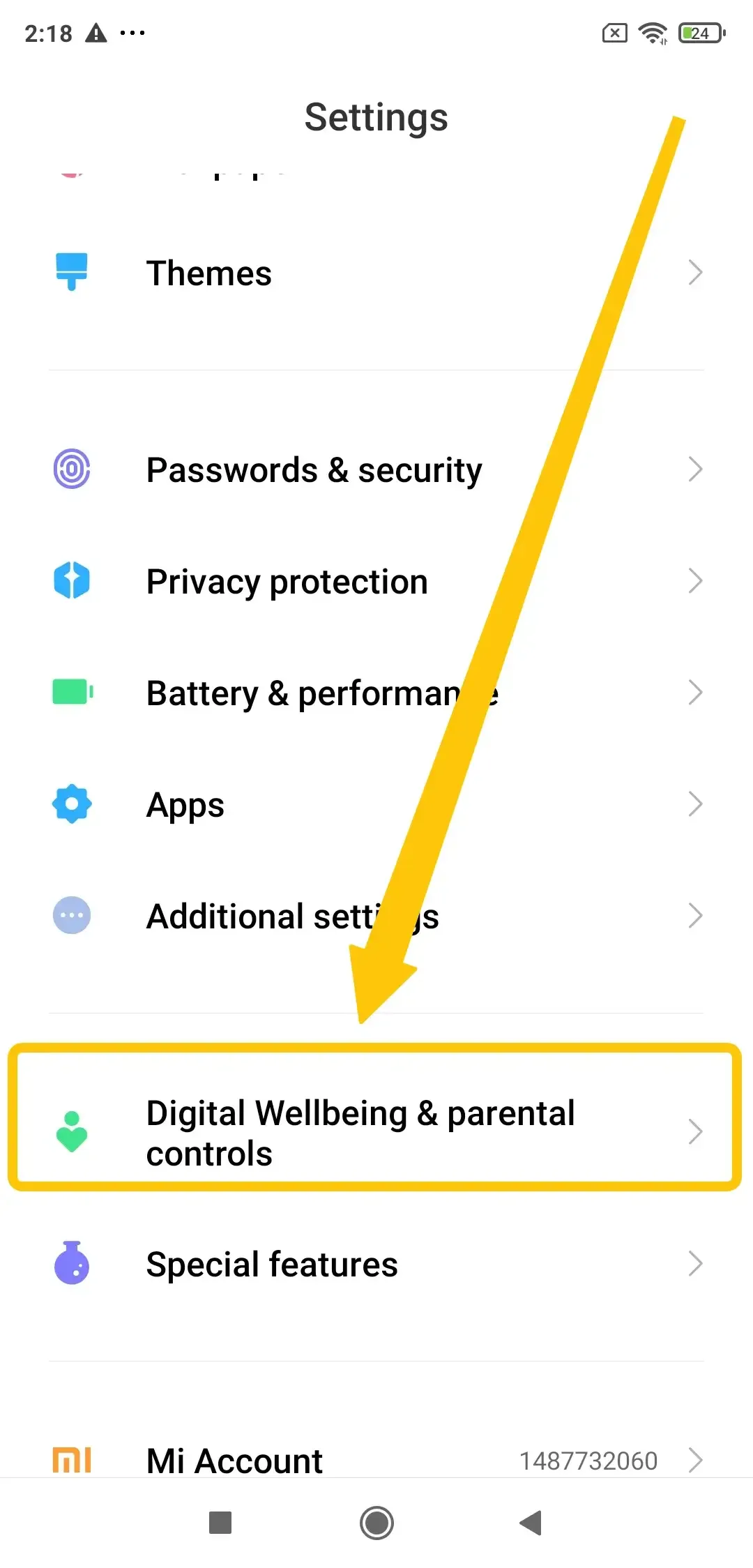
Step 5. If your Android phone is managed by a school, company, family account, or parental control app, screen mirroring may be limited. Open Settings > Digital Wellbeing & parental controls or check your work profile settings. If needed, stop supervision or ask the device administrator to allow casting.
Step 6. After changing the settings above, restart both devices, reconnect them to the same Wi-Fi network, and try Cast, Smart View, or Screen Cast again.
9. Fix Screen Mirroring Not Working on Windows or Mac
If screen mirroring is not working on your computer, check whether your computer and TV support the same casting method. Mac usually relies on AirPlay, while Windows often needs a compatible wireless display receiver, smart TV feature, or casting device.
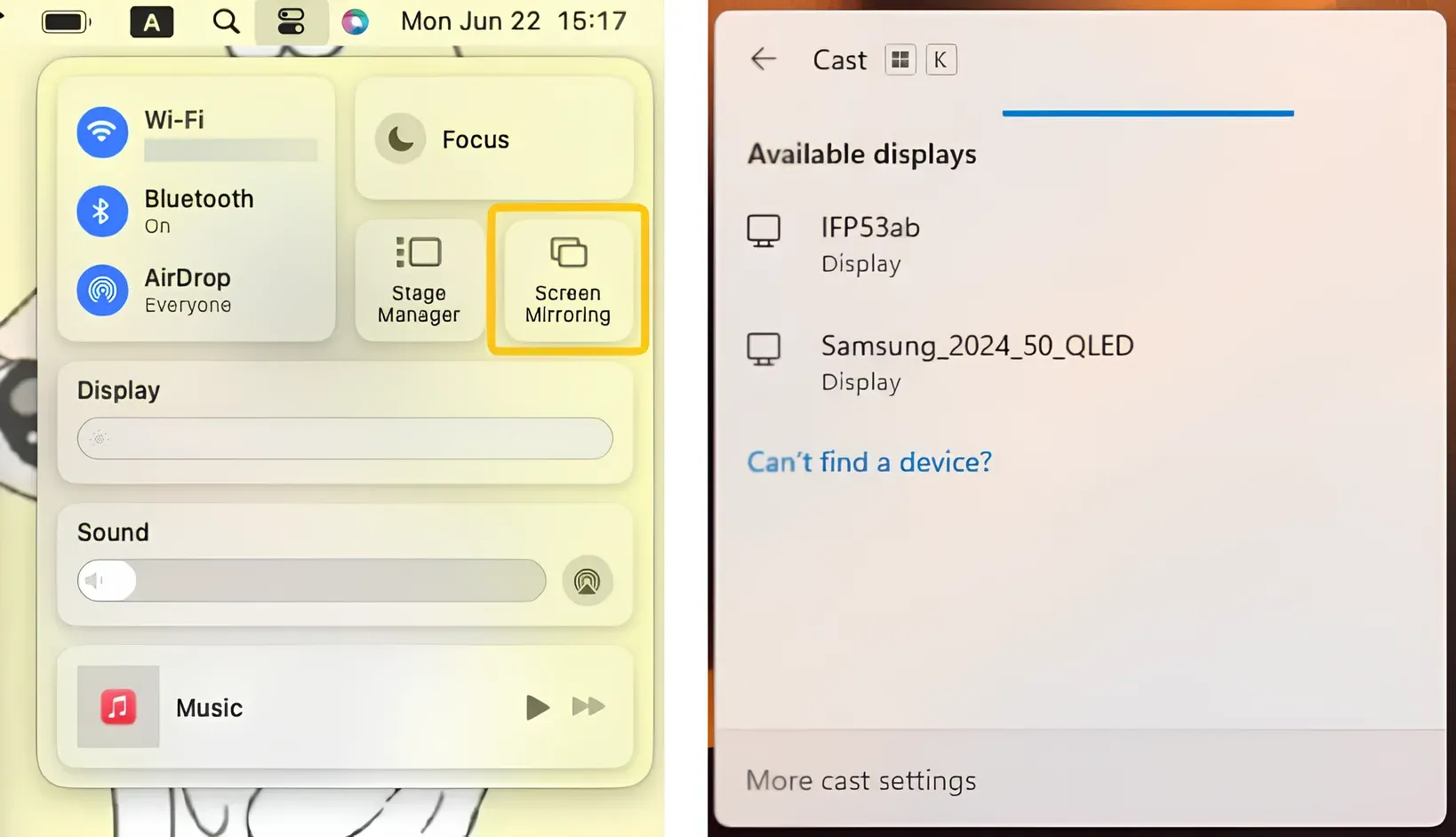
Step 1. On Mac, click Control Center in the menu bar and choose Screen Mirroring, then select your Apple TV or AirPlay-enabled smart TV. On Windows, press Windows + K to open the cast panel, then choose your TV or wireless display receiver.
Step 2. For Mac, your TV needs AirPlay support or an Apple TV. For Windows, your TV or streaming device needs to support wireless display receiving. If the TV does not appear, open the TV settings and check AirPlay, Cast, Screen Mirroring, Wireless Display, or Device Connection.
Step 3. Your Mac or Windows PC and TV should be on the same Wi-Fi network. Turn off VPN temporarily, avoid guest Wi-Fi, and make sure the computer is not using a different router or hotspot.
Step 4. On Mac, go to System Settings > General > Software Update. On Windows, open Settings > Windows Update. If Windows still cannot find the TV, update the Wi-Fi driver and display driver as well.
Step 5. If your computer and TV do not support the same wireless mirroring method, use an HDMI cable as a quick backup. Select the correct HDMI input on your TV, then choose the display mode on your computer.
10. Check Smart TV Screen Mirroring Settings
If your phone or computer looks normal but the TV still does not show up, the problem may be on the TV side. Smart TVs often have separate settings for AirPlay, Cast, screen mirroring, device access, network connection, and software updates.
Step 1. Open your TV settings and confirm that the TV is connected to the same Wi-Fi network as your phone or computer. Avoid guest Wi-Fi, hotel Wi-Fi, public Wi-Fi, or a router network that blocks devices from finding each other.
Step 2. Look for menus such as AirPlay, Cast, Screen Mirroring, Device Connection, Wireless Display, External Device Manager, or Network. Make sure the feature you need is turned on.
Step 3. Some TVs save allowed and blocked devices. Open the device list, access control, or connection history menu, then remove old phones, denied devices, or unknown entries. After that, try pairing again from your phone or computer.
Step 4. Go to Settings > Support, System, About, or Software Update. Install available updates, then restart the TV. Old TV firmware can cause AirPlay, Cast, or device discovery problems.
Step 5. If the TV still cannot be found, reset the TV's network settings, reconnect it to Wi-Fi, and try screen mirroring again. Use this before a full factory reset, since it only refreshes the connection settings.
11. Fix Black Screen, No Sound, Lag, or Disconnection
Sometimes screen mirroring connects, but the result still looks wrong. Your TV may show a black screen, play no sound, freeze during playback, or disconnect after a few minutes. In this case, the connection is partly working, so focus on the playback, audio, and signal conditions.
- Black screen: Try mirroring your phone's home screen first. If the home screen appears but one video app shows a black screen, the app may block mirrored playback or protected video content.
- No sound: Check the TV volume, phone volume, mute mode, and app volume. If your phone is connected to Bluetooth headphones or speakers, disconnect them temporarily and try again.
- Lag or freezing: Move your phone, computer, and TV closer to the router. Close unused apps, stop large downloads, and avoid mirroring high-resolution video on a weak Wi-Fi connection.
- Keeps disconnecting: Turn off battery saver, data saver, VPN, and hotspot mode. Restart the router if several devices are using the same network for streaming, gaming, or downloads.
- Wrong screen size or cut-off display: Check your TV picture settings and your phone or computer display settings. Look for options such as aspect ratio, screen fit, overscan, resolution, or display scaling.
Closing Words
A failed mirroring session does not always mean your device is broken. In many cases, the issue becomes clear once you test where the connection stops: the TV does not appear, pairing fails, the screen connects with errors, or playback becomes unstable. Work through the fixes that match your device and symptoms, then choose the method that gives you the most reliable connection for daily use.
Screen Mirroring Not Working FAQ
Where should I start if screen mirroring is not working?
Start by checking what happens before the connection fails. If your TV does not appear at all, the issue is usually device discovery or casting compatibility. If the TV appears but will not connect, the problem is more likely a permission prompt, blocked device list, or receiver setting. If it connects but shows black screen, no sound, lag, or disconnection, focus on the app, audio output, Wi-Fi stability, or playback restrictions instead of repeating the same pairing steps.
Why can't I screen mirror even when both devices are connected to Wi-Fi?
Being connected to Wi-Fi does not always mean your devices can discover each other. Your phone may be on a guest network while the TV is on the main network, or one device may be using a VPN, hotspot, or router setting that blocks local discovery. In that case, both devices can access the internet, but they cannot find each other for screen mirroring. Check whether both devices are on the same network name, then turn off VPN or hotspot mode before trying again.
What are the common reasons for screen mirroring failure on smart TVs and smartphones?
Screen mirroring failure usually happens at one of three points. Before connection, the issue may be that your TV does not support the same casting method as your phone, such as AirPlay, Cast, or Smart View. During pairing, the issue may be a missed permission prompt, a blocked device list, or another device already connected to the TV. After connection, the issue may come from app playback limits, weak Wi-Fi, Bluetooth audio output, or old TV firmware.
Why does my TV show up but screen mirroring still fails?
If your TV shows up, device discovery is already working. The failure is more likely happening during pairing, permission approval, or playback. Check the TV screen for an Allow or Accept prompt, since some TVs cancel the connection if you do not respond quickly. If you chose Deny before, the TV may remember that choice, so removing your phone or computer from the blocked devices list may help more than restarting the phone again.
Does screen mirroring need internet to work?
Screen mirroring usually needs a local connection between your device and TV, but it does not always need active internet access. For example, some casting methods can work as long as both devices are on the same local Wi-Fi network. However, streaming apps still need internet to load video content, and some TVs or casting devices may require online services for setup, account login, or app playback. If your internet is down, test with photos or your home screen first instead of a streaming app.
Is screen mirroring the same as casting?
Not exactly. Screen mirroring copies your whole phone, tablet, or computer screen to the TV, so the TV shows almost everything you do on the device. Casting usually sends media from a supported app to the TV, so the TV plays the video while your phone works more like a remote. This difference matters because an app may support casting but not full screen mirroring, or your TV may support one method better than the other.
Clara Rossi is an experienced technology editor and a seasoned expert in screen mirroring and casting technologies. With a keen eye for detail and a deep understanding of how to seamlessly connect devices, Clara excels at optimizing user experiences for effortless sharing and streaming. Whether you're seeking quick fixes or advanced tips, her expertise and responsiveness ensure that every query is met with a well-informed and efficient solution.