
Whether you're streaming videos, sharing photos, or presenting slideshows, Smart View offers effortless cross-platform connectivity. As we move into 2026, this technology continues to evolve, becoming more intuitive and compatible with a wider range of devices, enhancing both entertainment and productivity. In this guide, we'll explain how Smart View works and how to use Smart View across different devices.
What Is Smart View and How Does Smart View Work
Smart View is a screen mirroring technology that lets you wirelessly display content from your smartphone, tablet, or laptop to a larger screen, like a smart TV, using Wi-Fi or Bluetooth. It allows real-time sharing of photos, videos, games, and slideshows on a bigger display.
Primarily found on Samsung devices, Smart View is compatible with both Android and iOS systems and works with TVs from various brands, including Samsung, LG, and Sony. It typically uses Miracast (for Android) or proprietary protocols to establish a direct wireless connection between the source device and the display, often using Wi-Fi Direct to bypass the need for a router.
How to Use Smart View on TV
Your television serves as the canvas for your Smart View experience, and setting it up correctly is essential for smooth, high-quality mirroring. While Smart View is built into most modern Samsung smart TVs, many other brands offer similar features under different names, like Screen Mirroring, Cast, or Miracast.
How to Use Smart View on Android
Using Smart View on Android devices is a straightforward process. If you're using a Samsung phone or tablet, Smart View comes pre-installed, making it simple to mirror your screen. If you want to cast Samsung phone to TV in more ways, Smart View is usually the first option to try before switching to Chromecast, HDMI, or a receiver app. Here's how to use Smart View on Samsung:
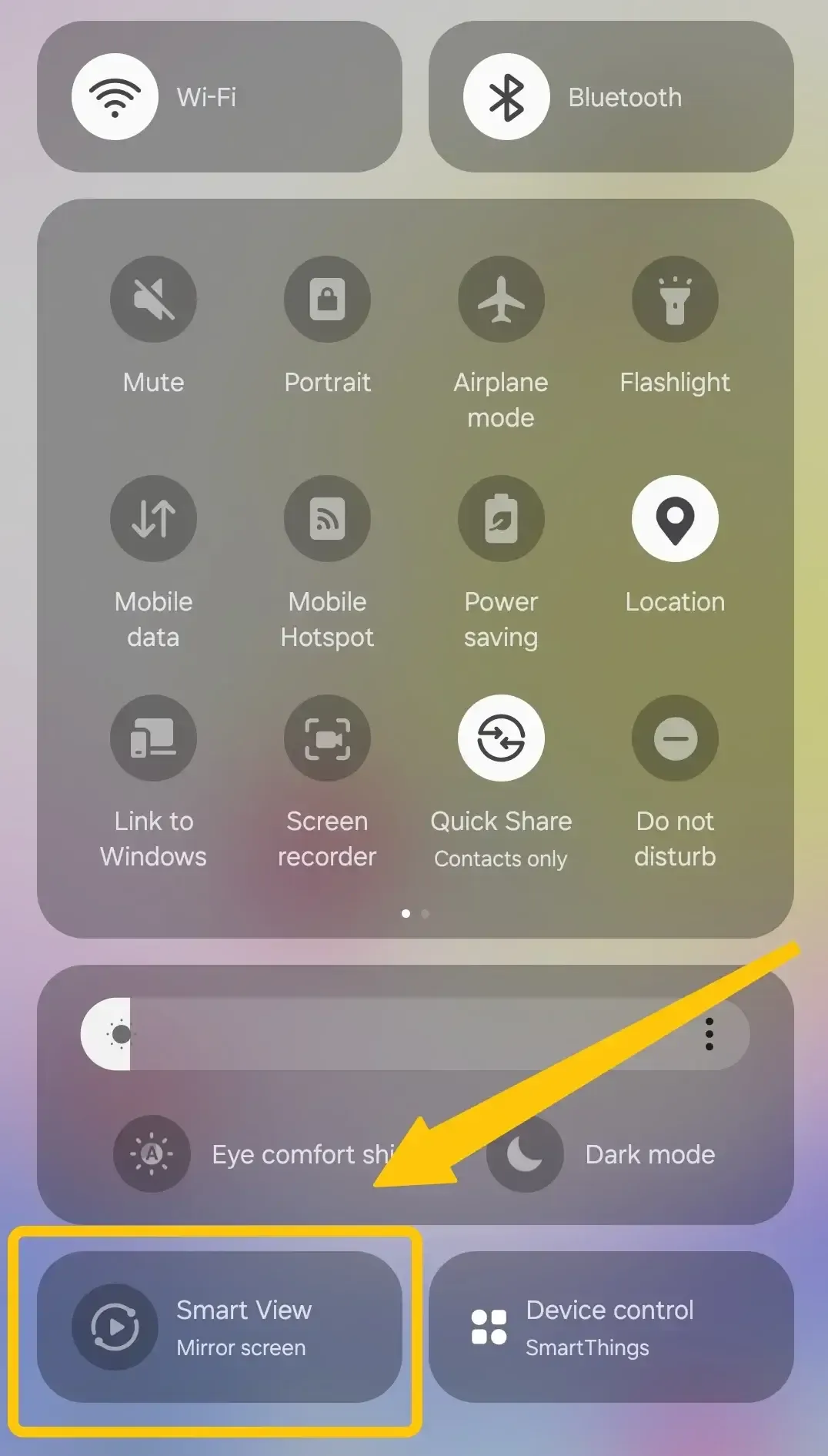
Step 1. Swipe down from the top of your screen to reveal the Quick Settings menu > Smart View.
Step 2. Select your compatible TV from the available list.
Step 3. Once connected, your Android screen will be mirrored to the TV, and you can enjoy your content on the bigger screen.
When you finish sharing your screen, you can turn off Smart View on your Samsung device.
If you don't have a Samsung phone, you can use the Samsung SmartThings app as an alternative to the built-in Smart View feature. For detailed instructions, read on to the next section to follow the specific steps.
How to Use Smart View on iPhone
While Samsung Smart View isn't available for iPhones, you can use Samsung's SmartThings app to mirror content from your iPhone to a Samsung TV. Here's how to use Smart View on smart TV from iPhone:
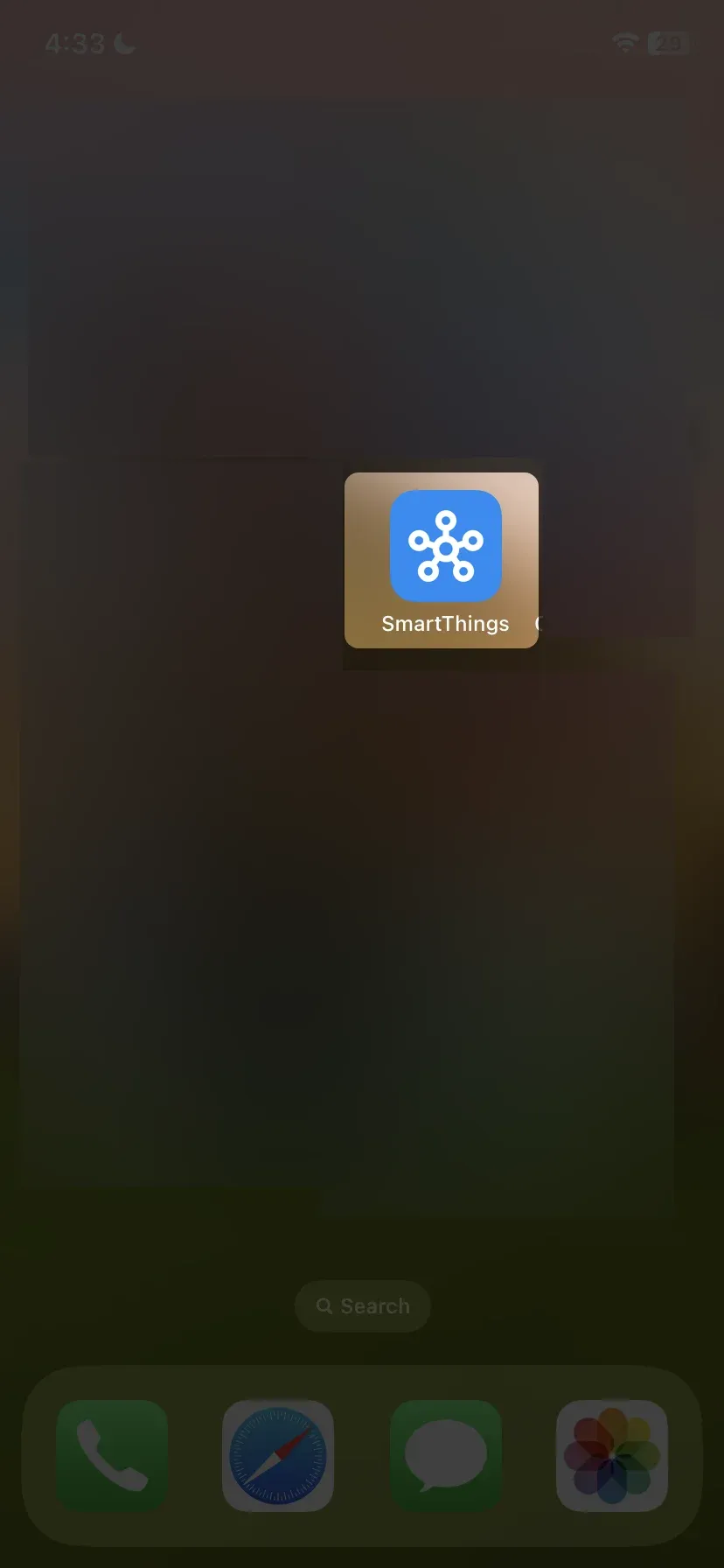
Step 1. Install the Samsung SmartThings app on your iPhone or iPad from the App Store.
Step 2. Connect your iPhone or iPad to the same Wi-Fi network as your Samsung TV.
Step 3. Open the SmartThings app on your iPhone and log in to your Samsung account.
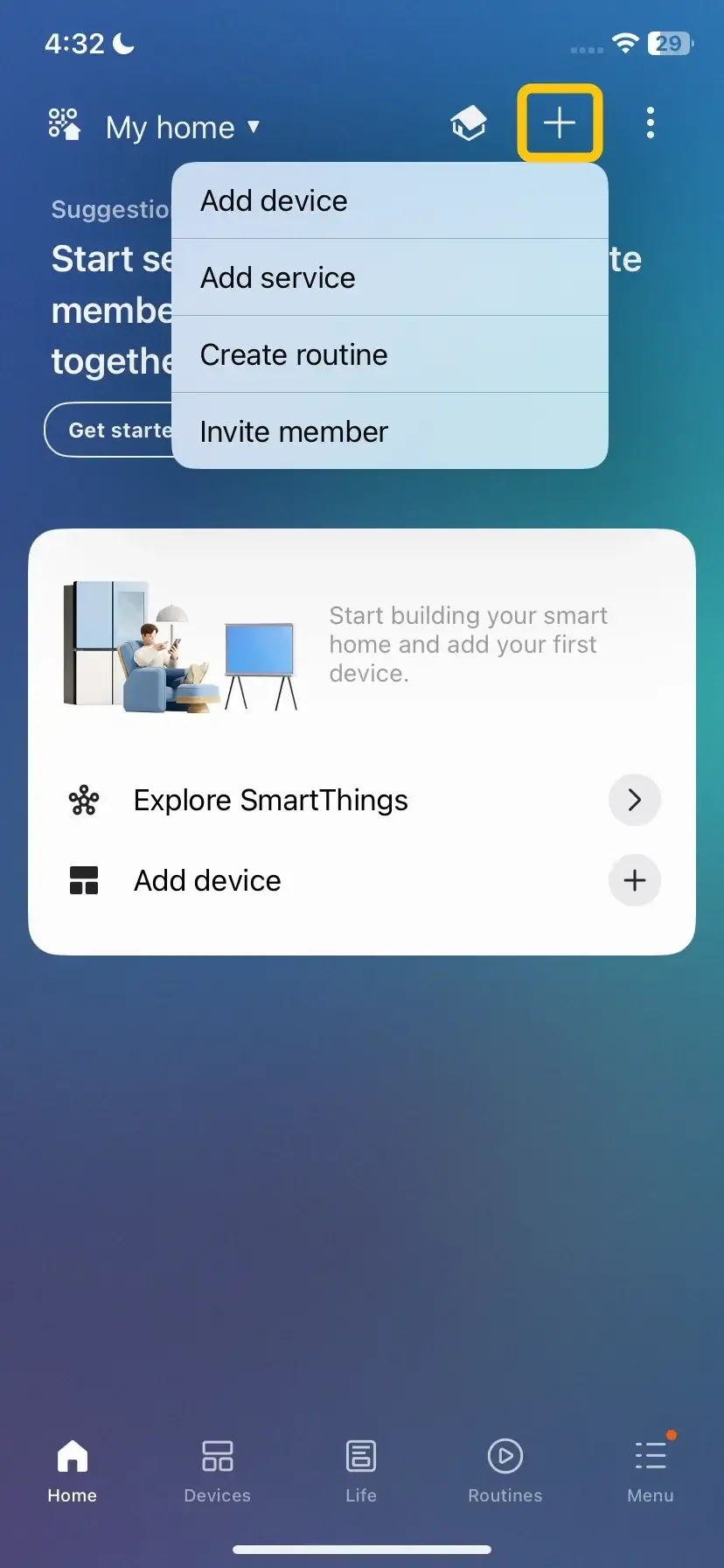
Step 4. Tap on Add Device and select your Samsung TV from the list of available devices.
Step 5. Tap the three dots in the top-right corner and Mirror screen (Smart View) to start mirroring your screen.
2026 Best Mirroring Tool: PigeonCast
After learning how to use Smart View on Samsung TV, you might be looking for a more versatile mirroring tool that works across multiple platforms. That's where PigeonCast comes in. This free, ad-free app supports Android, iOS, Windows, macOS, and smart TVs, with no need for cables or adapters. Plus, its end-to-end encryption keeps your content private while streaming.
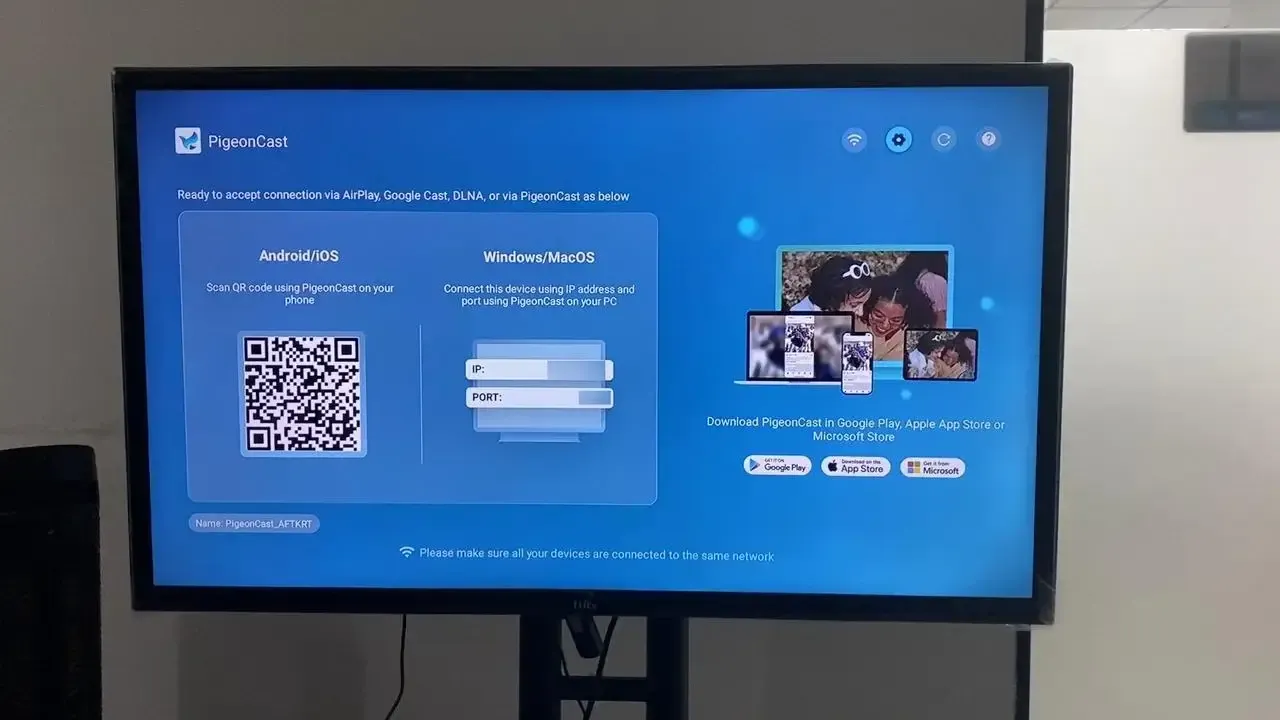
Step 1. Ensure your devices are connected to the same wireless network.


Overall Rating:



Step 2. Install PigeonCast on your mobile device and TV from the app store.
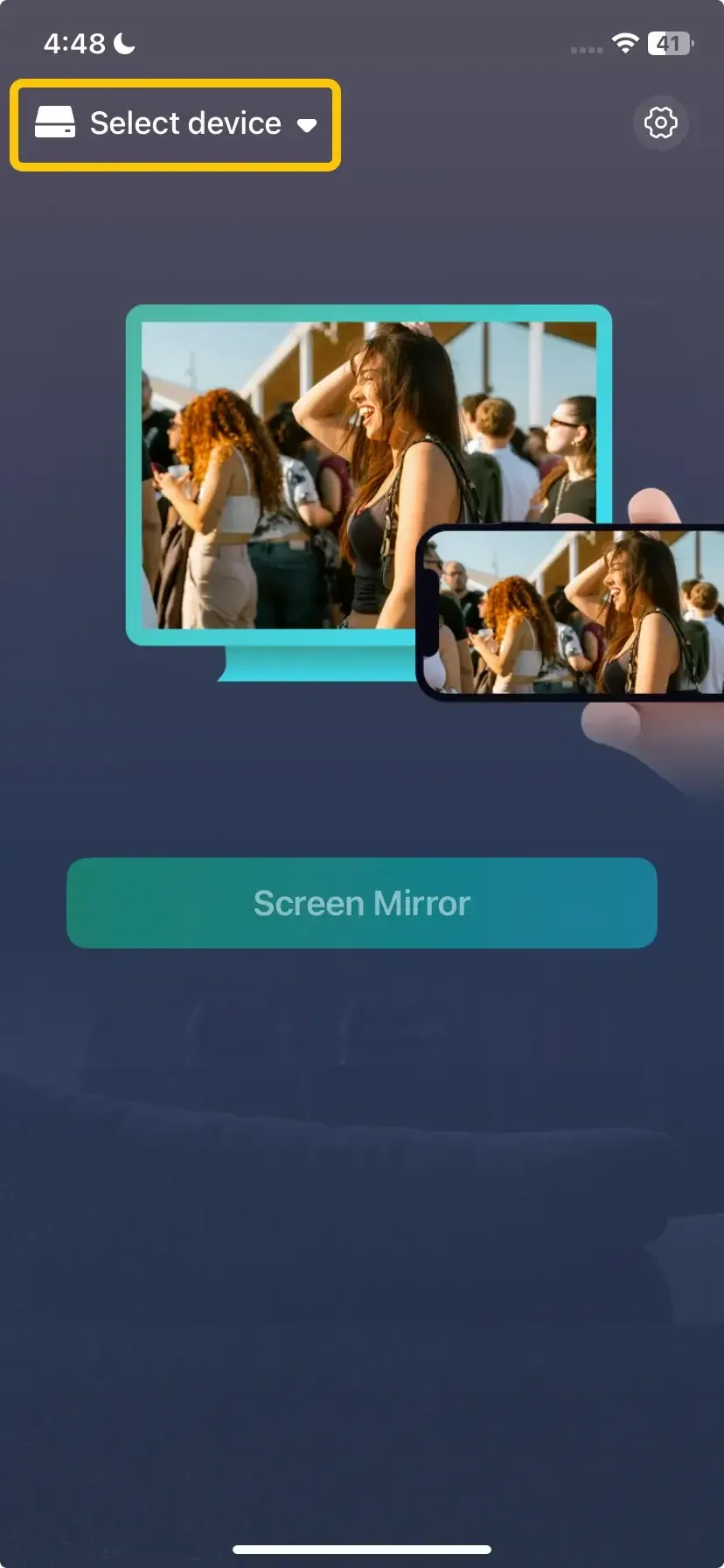
Step 3. Launch the app, tap Select device to choose your TV from the available list.
Step 4. Enter the onscreen PIN code to confirm your pairing requisition, or you can scan the QR Code shown on the television screen to build the connection.
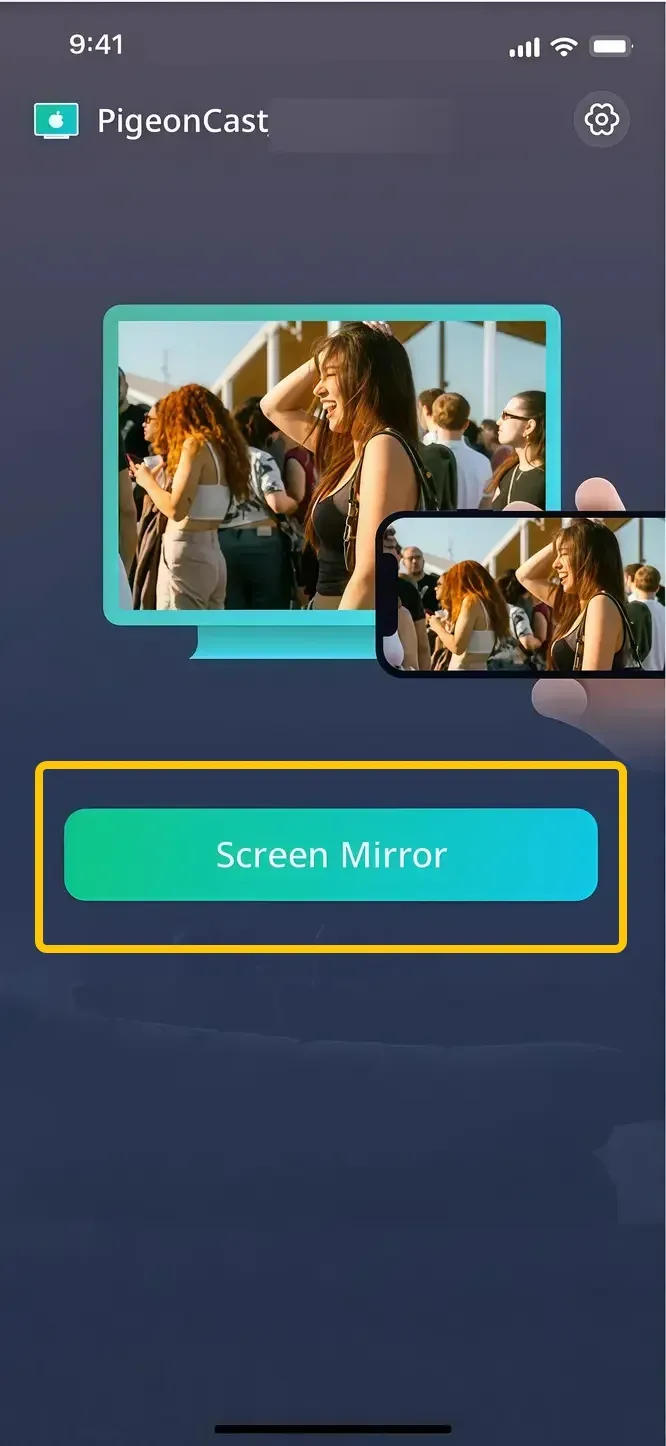
Step 5. When you succeed, you can then tap Screen Mirror to start the mirroring activities on your smart television from your mobile device.
Conclusion
How to use Smart View to connect to TV? Whether you're using it on a Samsung device, an Android, or an iPhone, setting it up correctly allows you to share content seamlessly on a bigger screen. If you're looking for a more versatile solution, PigeonCast offers an excellent alternative for cross-platform mirroring, providing an easy and secure way to cast your content.
How to Use Smart View FAQ
How to use Smart View without WiFi?
To use Smart View without Wi-Fi, you can use Wi-Fi Direct. This feature allows devices to connect directly to each other without needing a router. Here's how to do it:
- On your smartphone or tablet, go to Settings and enable Wi-Fi Direct.
- On your TV, go to Settings > Network and select Wi-Fi Direct to make it discoverable.
- On your device, select the TV from the list of available devices.
- Once connected, you can start mirroring content without needing a Wi-Fi network.
How to use Smart View on a laptop?
To use Smart View on a laptop, follow these steps:
- Your laptop should support Miracast (for Windows 10/11), and your TV must be compatible with Smart View or similar screen mirroring technologies (e.g., Samsung TV, LG, Sony).
- Ensure that both your laptop and TV are connected to the same Wi-Fi network.
- On your TV, enable the screen mirroring feature (e.g., Smart View, Screen Mirroring, or Miracast).
- Press the Windows + A keys to open the Action Center > Click on Connect.
- In the Connect menu, your TV should appear as an available device. Click on your TV name to start the connection.
- Once connected, your laptop's screen will be mirrored to the TV, and you can now display content like videos, presentations, or images on the larger screen.
How to use Smart View on Hisense TV?
To use Samsung Smart View on a Hisense TV, follow these steps:
- Make sure both your Samsung device (phone, tablet, or laptop) and Hisense TV are connected to the same Wi-Fi network.
- Enable Screen Mirroring on Hisense TV from Settings > Network > Screen Mirroring.
- On your Samsung device, swipe down from the top to open the Quick Settings menu, tap Smart View, and your Hisense TV should appear in the list of available devices.
- Select your Hisense TV from the list, and once connected, your device's screen will be mirrored onto your Hisense TV.
How do I start casting with Smart View?
To start casting with Smart View, follow these steps:
- Ensure both your mobile device and Smart TV are connected to the same Wi-Fi network.
- Use your TV remote to navigate to the Screen Mirroring option in the TV settings.
- On your smartphone, swipe down to access the quick settings menu, and tap the Smart View option.
- From the list of available devices, choose your TV to begin casting.
- Once connected, you can select the content you want to display on your TV.
Clara Rossi is an experienced technology editor and a seasoned expert in screen mirroring and casting technologies. With a keen eye for detail and a deep understanding of how to seamlessly connect devices, Clara excels at optimizing user experiences for effortless sharing and streaming. Whether you're seeking quick fixes or advanced tips, her expertise and responsiveness ensure that every query is met with a well-informed and efficient solution.