
Smart View not working? Samsung's screen mirroring and casting technology, Smart View, is a fantastic way to share content from your phone, tablet, or PC to your Samsung TV. However, when it suddenly stops working, it can be incredibly frustrating. Luckily, this guide will walk you through a systematic approach to diagnose and fix the Smart View Samsung not working issue, getting your connection back up and running smoothly.
Why Is My Smart View Not Working
Before diving into specific fixes, it's helpful to understand the common culprits behind Smart View failures. Identifying the root cause can save you time and lead you to the right solution faster. The most frequent reasons for the Smart View mirror screen not working include:
- Network Inconsistency: Smart View needs both your phone and TV to be connected to the same Wi-Fi network. If they're on different networks or your connection is unstable, the devices won't detect each other properly.
- Outdated Software: Bugs in older versions of the Smart View app, your phone's operating system, or your TV's firmware can break compatibility.
- Temporary Glitches: Cached data can become corrupted, or background processes can hang, causing a temporary communication failure.
- Hardware Limitations: Older TV models or phones may not support the latest mirroring protocols, leading to instability.
- App & DRM Restrictions: Some video streaming apps (like Netflix, Disney+) intentionally block screen mirroring to protect copyrighted content.
- Firewall or VPN Interference: A VPN on your phone or advanced router security settings can block the local network communication needed for Smart View.
How to Fix Smart View Not Working on Samsung TV
Now that we know the common reasons why Smart View might not be working, let's go through some practical fixes. We'll start with the simplest solutions and move to the more detailed ones. Follow these steps in order. In most cases, the problem is solved within the first few methods.
Solution 1. Perform Essential Quick Checks
Before moving on to more detailed fixes, it's best to start with the essentials. Performing a few quick checks can often solve Smart View issues instantly and save you time.
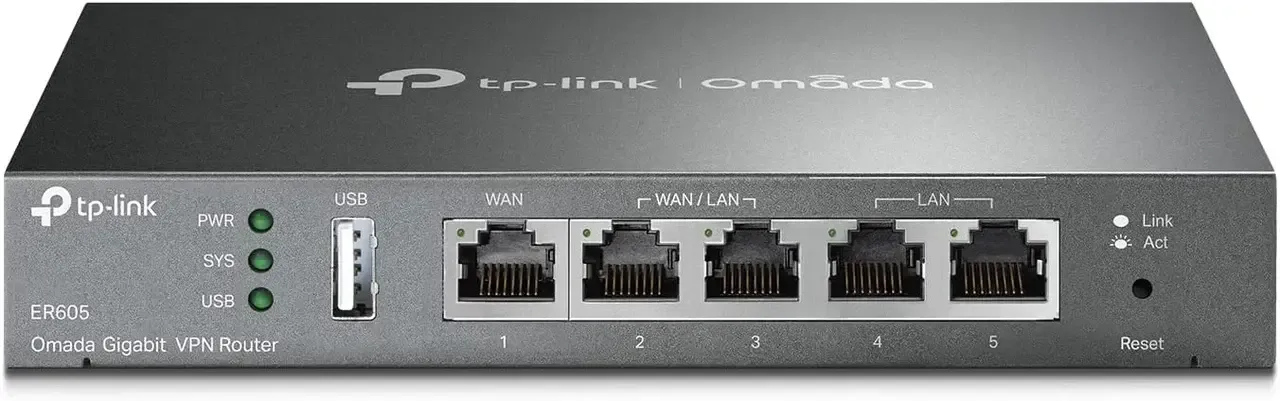
- Verify WiFi Network: Go to the WiFi settings on both your phone and your Samsung TV. Ensure they are connected to the same 2.4GHz or 5GHz Wi-Fi network. Do not use a guest network.
- Restart Your Devices: Power off both your TV and your phone/tablet. Unplug the TV from the wall for 30 seconds. Then, plug the TV back in, turn it on, and restart your mobile device. This clears temporary glitches.
- Check TV Source: On your Samsung TV remote, press the Source button and ensure the input is set to "Screen Mirroring" or a similar option, not an HDMI port.
Solution 2. Update Your Software and Apps
Now that we have a general idea of what can go wrong, let's move through a series of targeted fixes, starting with the simplest and most effective solutions. Follow these troubleshooting steps in order. Most issues are resolved within the first few methods.
- On a Samsung phone:
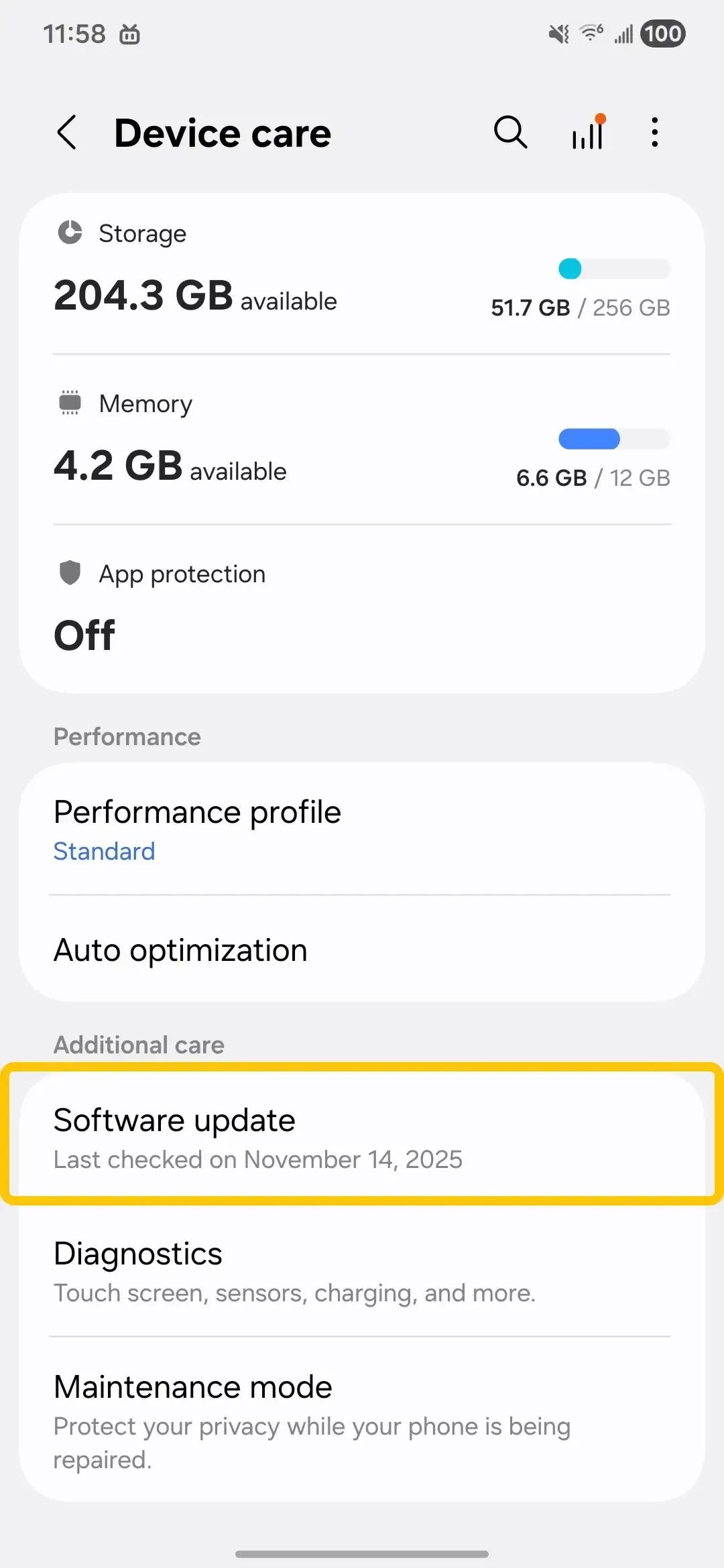
Step 1. Go to Settings on your Samsung phone > tap Software Update.
Step 2. Click Download and Install.
Step 3. When an available software update is found, you can choose to install it by clicking on Install now, Schedule install, or later.
- On Samsung TV:
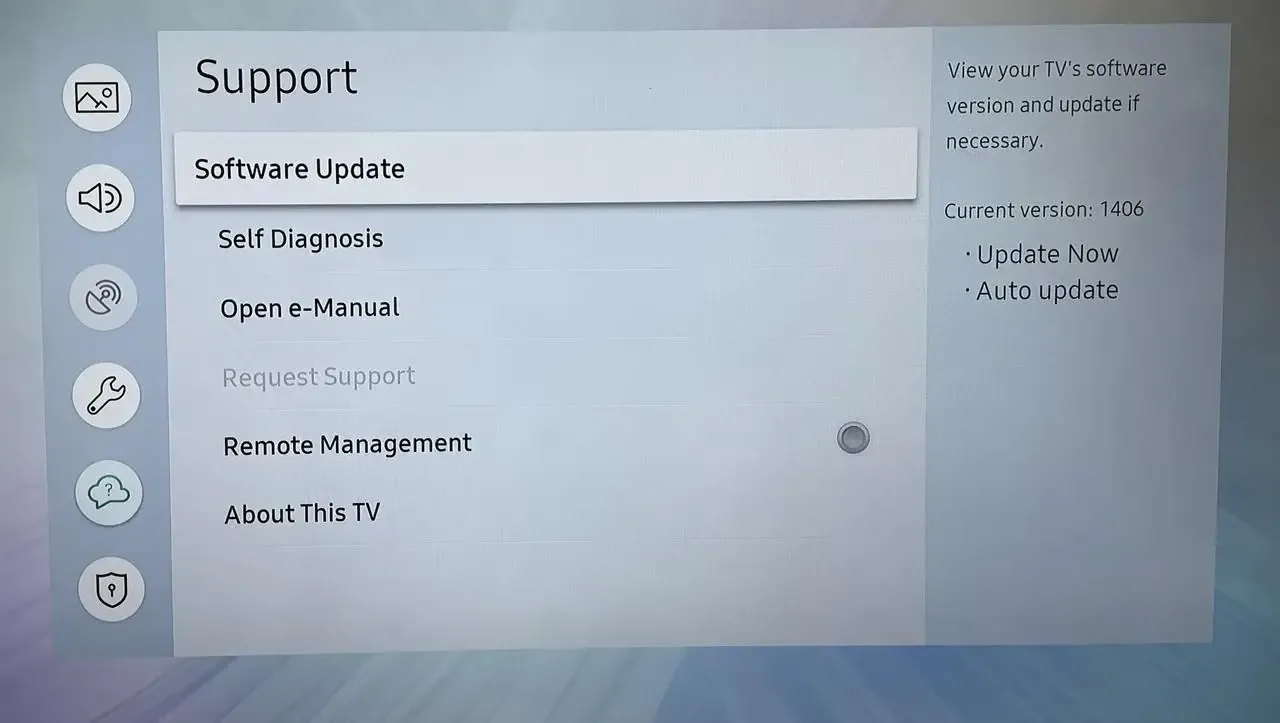
Step 1. From Support, choose Software update.
Step 2. Select Update Now.
Step 3. The updates will be downloaded and installed on your TV if there are new updates. When you have no new updates, click OK to exit.
Solution 3. Clear Cache and Data
If Samsung TV Smart View not working persists, corrupted cache data could be the reason. Clearing the cache gives the app a fresh start and often resolves connection or performance issues.
Step 1. On some Samsung TVs, navigate to Settings > Support or Self Diagnosis > Device Care > Manage Storage, and then clear the cache for Smart Hub or Mirroring.
Step 2. Remove old or unused devices from the TV's list of connected devices (sometimes old devices block new connections).
Step 3. Restart the TV and try the connection again.
Solution 4. Review Your Network and Router Settings
When the Smart View connected but not working, the problem is often due to network settings or security features designed to protect your privacy, which can block proper communication between your devices.
- Disable Mobile Data: While trying to connect, turn off Mobile Data on your phone to force all communication through Wi-Fi.
- Check Router AP Isolation: This is a router setting (sometimes called "Client Isolation" or "Guest Mode") that prevents devices on the same Wi-Fi from communicating with each other. You must log into your router's admin settings and disable this feature.
- Turn off VPN: If you are using a VPN on your phone, disconnect it completely before trying to use Smart View.
Solution 5. Adjust the Screen Ratio on Your Phone
If Smart View is still acting up, the issue might be as simple as a mismatch in screen ratios. Adjusting the screen ratio on your phone can help ensure that content displays correctly on your Samsung TV.
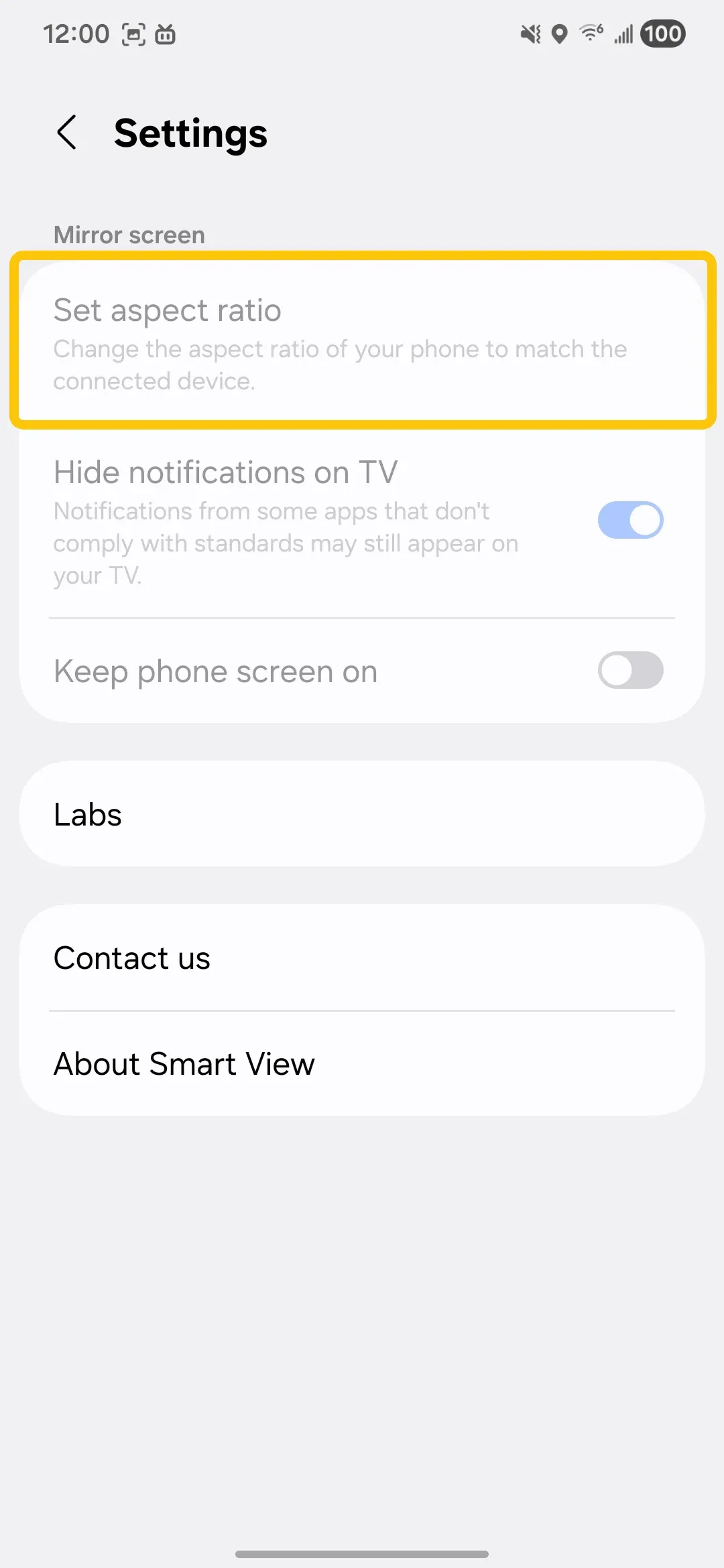
Step 1. On your phone, tap the blue Smart View icon, then tap the Phone aspect ratio.
Step 2. You can choose the settings you want here.
Solution 6. Factory Reset Your Smart TV
How to fix my Smart View is not working? If all else fails, resetting your TV's smart hub can resolve deep-seated software conflicts without performing a full factory reset, which would erase all your settings and logins.
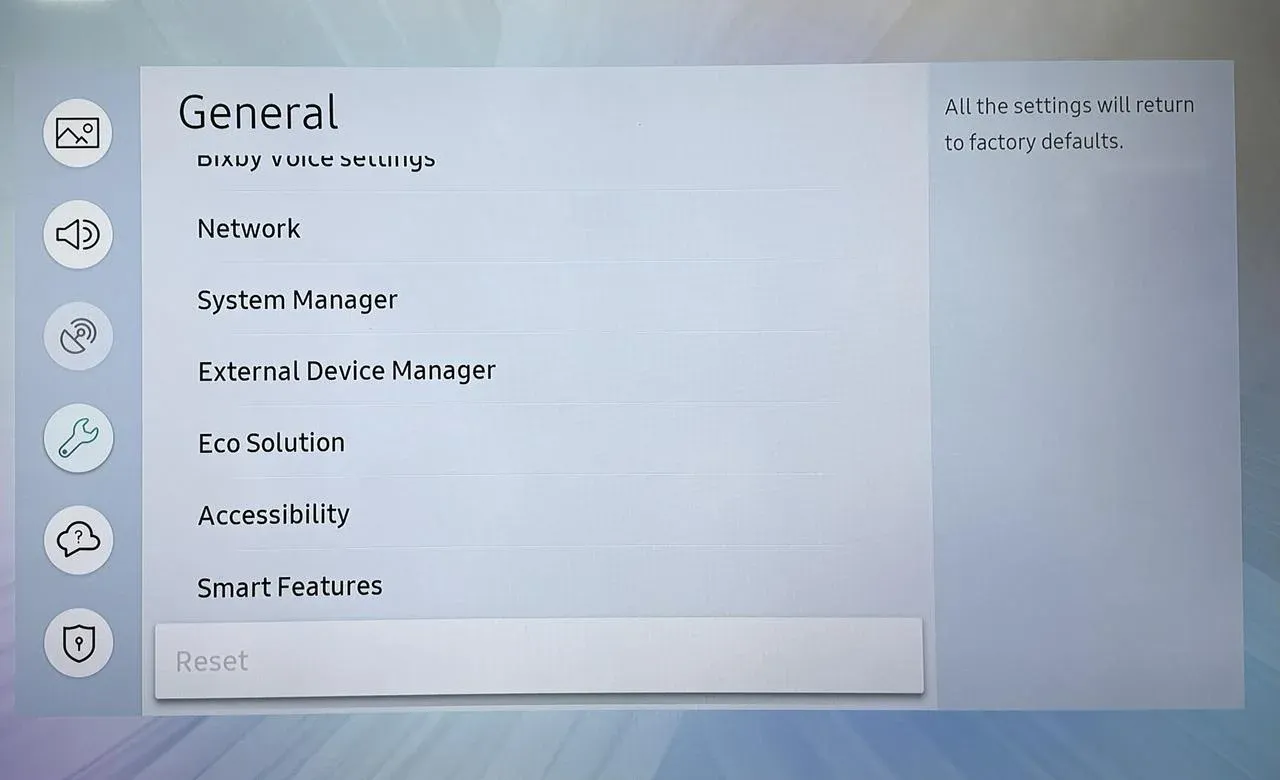
Step 1. Turn on your Samsung TV and make sure you're on the Home screen.
Step 2. Press the Home button on your remote control, and scroll to and select the Settings icon (gear icon) on the bottom left of the screen.
Step 3. Select General and Reset. If you've set a PIN on your TV, you will be prompted to enter it. The default PIN is usually 0000 unless you've changed it.
Note: When performing a reset on a Samsung TV, keep in mind that it will erase all personalized settings, save Wi-Fi networks, and install apps. Make sure to note any important configurations or passwords beforehand, and ensure the TV remains powered on during the process to avoid issues.
Solution 7. Use an Alternative Casting App: PigeonCast
Once Smart View screen mirroring not working appears, PigeonCast can be a reliable workaround. This free app runs smoothly on Android, iOS, Windows, Mac, and most smart TVs, including tvOS and Android TV. It also supports AirPlay, DLNA, and Google Cast, giving you more flexibility when Smart View cannot find your TV or keeps disconnecting. If you still want to cast Samsung phone to TV, your next option may depend on whether your TV supports Google Cast, HDMI, or a receiver app.

Note: To mirror your Samsung TV from a Samsung phone using PigeonCast, you'll need a Chromecast.
Step 1. Install the PigeonCast on your mobile device.

PigeonCast Screen Mirroring

Official Download



Step 2. Ensure your devices are connected to the same WiFi network.
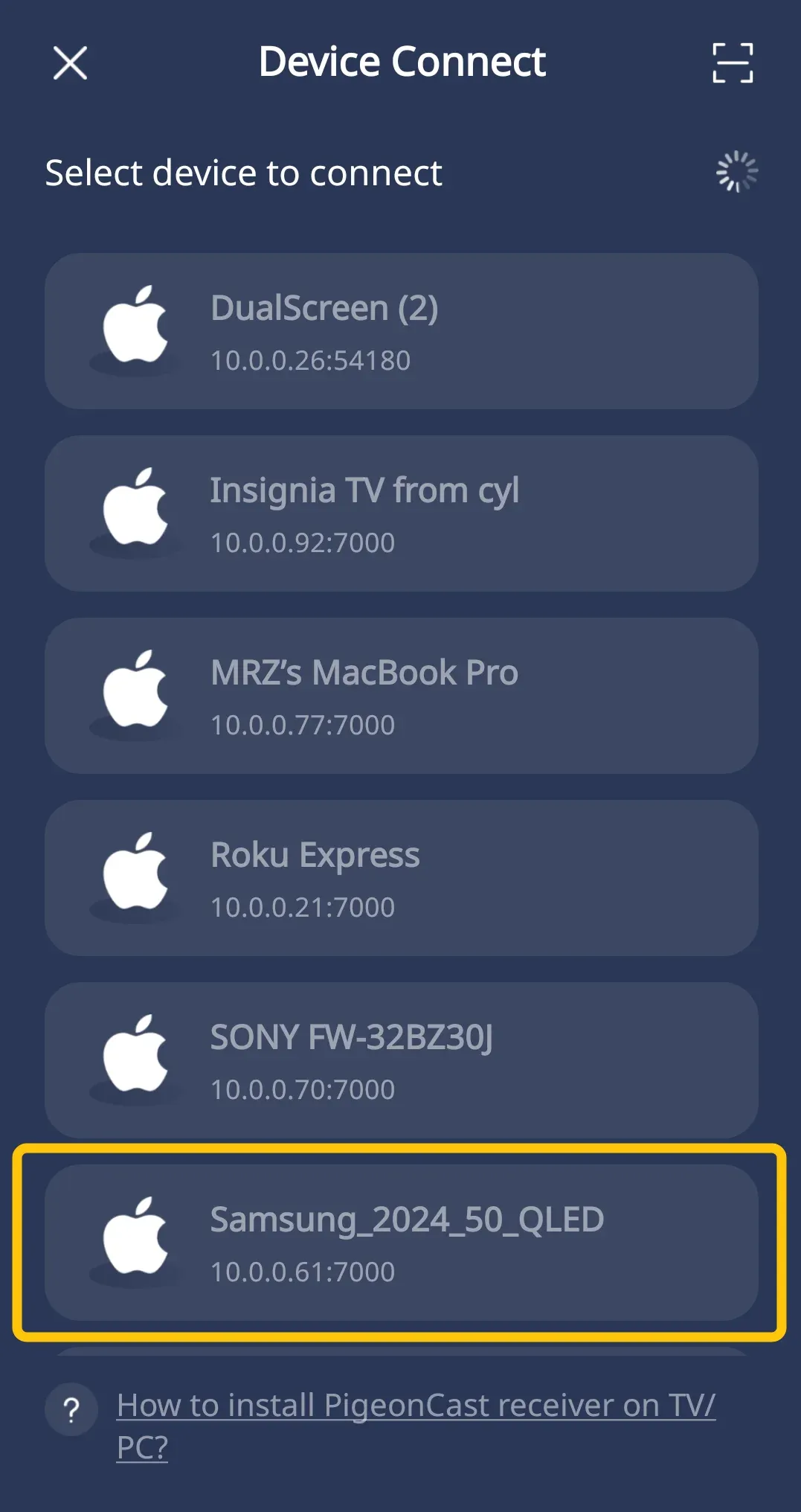
Step 3. Launch the app on your mobile phone and allow its permissions, then tap Select device to choose your Samsung TV from the device list to connect.
Step 4. If prompted, enter the onscreen PIN code to confirm the pairing performance.
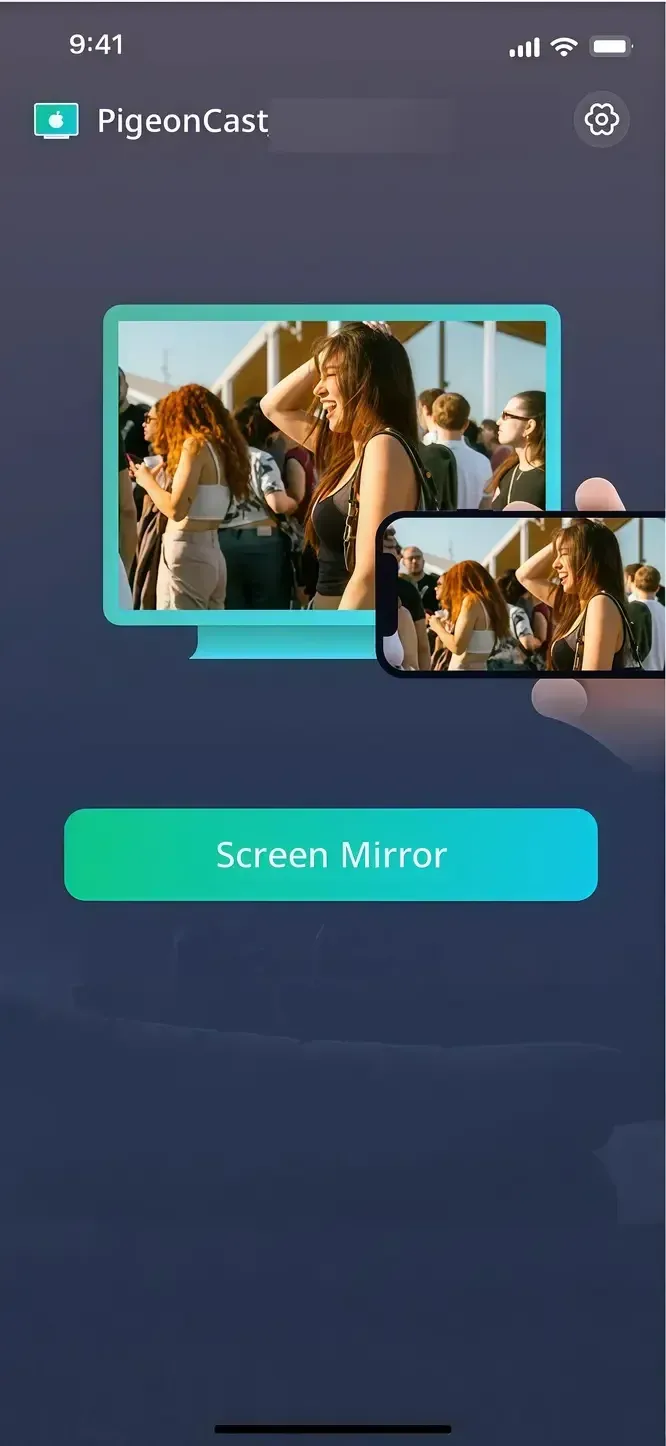
Step 5. Once you're successful, you can tap Screen Mirror to begin your mirroring activities on Samsung TV.
Final Verdict
If Samsung Smart View not working, there's no need to worry. By following the steps in this guide, from quick network checks and software updates to clearing cache, adjusting settings, or using alternatives like PigeonCast, you can troubleshoot and restore your Smart View connection. These solutions will help you get back to seamless screen mirroring on your Samsung TV quickly and easily.
Smart View Not Working FAQ
Why won't my screen mirroring work anymore?
Screen mirroring may stop working due to:
- Network inconsistencies
- Outdated software or apps
- Temporary system glitches
- Device hardware limitations
- App or content restrictions (DRM)
- Firewall or VPN interference
How to get Smartview to work?
To get Smart View to work, ensure both your Samsung TV and device are connected to the same Wi-Fi network, update your TV and device software, and check that screen mirroring is enabled on your TV. Clearing the temporary cache or restarting your devices can also help resolve connection issues.
What apps block screen mirroring?
Some apps block screen mirroring to protect copyrighted content. These apps use DRM (Digital Rights Management) restrictions that prevent casting or mirroring to TVs. Common examples include:
- Netflix
- Disney+
- Amazon Prime Video
- Hulu
- HBO Max
Did Samsung discontinue Smart View?
Yes, in effect, Samsung Smart View has been discontinued as a standalone app. However, the screen‑mirroring service, that is, mirroring your phone to a TV, is still available; it has just been moved into the SmartThings app on Samsung devices.
Clara Rossi is an experienced technology editor and a seasoned expert in screen mirroring and casting technologies. With a keen eye for detail and a deep understanding of how to seamlessly connect devices, Clara excels at optimizing user experiences for effortless sharing and streaming. Whether you're seeking quick fixes or advanced tips, her expertise and responsiveness ensure that every query is met with a well-informed and efficient solution.