
If you own a Samsung TV and an iPhone, you might wonder how to connect them seamlessly. That's where Smart View comes in. With Smart View iPhone support, you can turn your phone into a wireless bridge for entertainment. Many users search for Smart View on iPhone or Samsung Smart View iPhone because they want the same smooth TV experience that Android users enjoy. The good news is—it's possible, and it's simpler than you think.
What Is Smart View on iPhone
Samsung Smart View is a screen mirroring and media sharing feature created for Samsung TVs. It lets you cast photos, videos, and music or mirror your entire screen for a bigger and more immersive viewing experience.
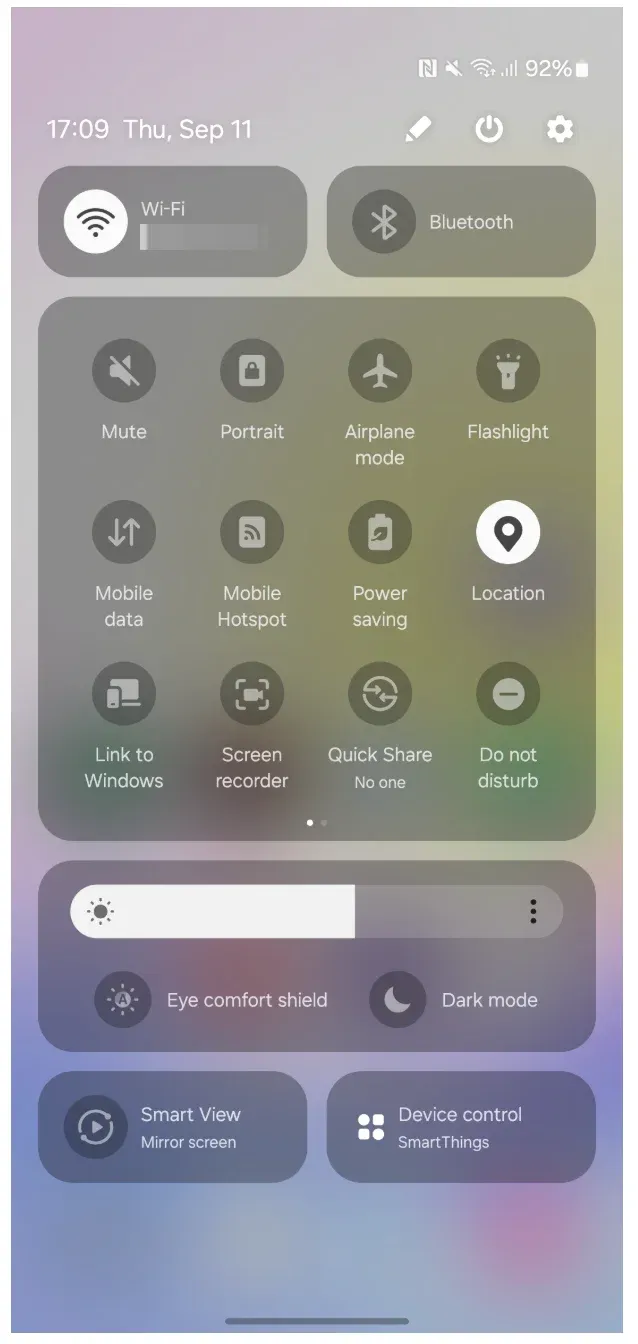
On iPhone, Smart View functions through Samsung's SmartThings app. Once both devices are connected to the same Wi-Fi network, you can mirror your screen or stream content directly to your Samsung TV.
Samsung originally launched Smart View as a simple way to extend mobile content onto the TV. With Samsung Smart View 2.0 iPhone, the company improved integration by moving Smart View features into the broader SmartThings ecosystem.
This brought better stability, support for voice assistants, and enhanced remote-control options. Over time, Smart View has become part of a more powerful platform that manages not only TVs but also a wide range of Samsung smart home devices
Why Use Smart View on iPhone
iPhones already include Apple's AirPlay, so why use Samsung Smart View instead? The answer lies in the way each technology is designed.
- Smart View advantages:
- Built specifically for Samsung TVs, so it offers deeper integration.
- Access to Samsung-specific features, such as remote control through the SmartThings app.
- Stable performance with Samsung's own ecosystem, especially after the Smart View 2.0 update.
- Control not just your TV but also other Samsung smart home devices from one app.
- AirPlay advantages:
- Navigate to iOS, requiring no extra apps for basic screen mirroring
- Work across multiple brands of devices and TVs that support AirPlay
- Very convenient if you use a mix of Apple devices, from iPhone, iPad, Mac, to Apple TV
- Smart View vs. AirPlay at a glance:
| Feature | Smart View on iPhone | AirPlay on iPhone |
|---|---|---|
| Best For | Samsung TV owners | Multi-band TV/device users |
| Integration | Deep Samsung TV & SmartThings integration | Seamless Apple ecosystem integration |
| Extra controls | Remote control, device management in an app | Limited to basic mirroring/streaming |
| Stability | Optimized for Samsung TVs, improved in 2.0 | Generally stable across Apple devices |
| Setup | Requires SmartThings app | Built into iOS, no extra app needed |
In short, if you mainly use a Samsung TV, Smart View on iPhone delivers richer controls and smoother performance. If you own multiple brands or rely heavily on the Apple ecosystem, AirPlay may still be the quicker option.
How to Use Smart View on iPhone
Using Samsung Smart View iPhone is simple, but you'll need to prepare a few things first. Make sure your Samsung TV supports screen mirroring, and that both your iPhone and TV are connected to the same Wi-Fi network.
You'll also need the SmartThings app, which acts as the bridge between your iPhone and TV. Once set up, you can start mirroring or casting content in just a few taps.
How to connect iPhone to Samsung TV via Smart View:
Step 1. Go to the App Store and download and install the SmartThings app on your iPhone.

Step 2. Open the SmartThings app on your iPhone and sign in to your account.
Step 3. Tap Devices > Add Device, and select your Samsung TV from the list.
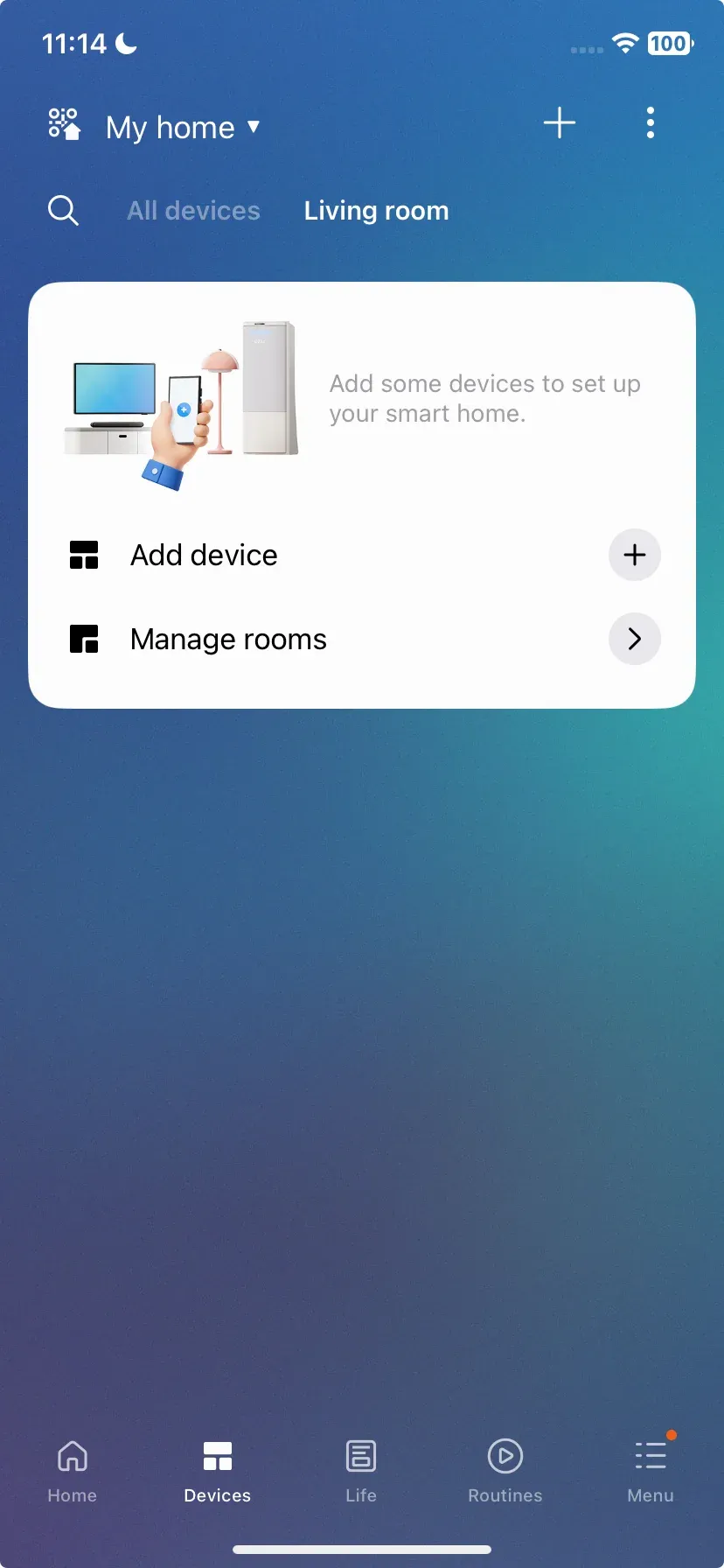
Tips:
- If your Samsung TV doesn't show up in the list of devices, tap Scan for Nearby Devices, and grant any additional permissions requested.
- If the TV is not found in the scan, tap Add next to Samsung devices, choose TV, and then choose your TV from the list.
Step 3. If a PIN appears on your TV, enter it on your iPhone to confirm pairing.
Step 4. Once connected, tap your Samsung TV in the app. Then, you can:
- Use your iPhone as a remote for your Samsung TV
- Launch apps and media from your iPhone
- Mirror your iPhone to TV by tapping the three dots at the top-right corner > Mirror screen (Smart View).
Alternatives to Samsung Smart View for iPhone
While iPhone Smart View is the most seamless option for Samsung TV owners, it's not the only way to mirror your iPhone to the big screen. Depending on your setup, these alternatives may suit you better:
#1. AirPlay
Many Samsung Smart TVs (2018 models and newer) now come with AirPlay 2 compatibility, which means you can mirror or cast directly from your iPhone without extra apps. This makes it a universal and convenient option for Apple users.
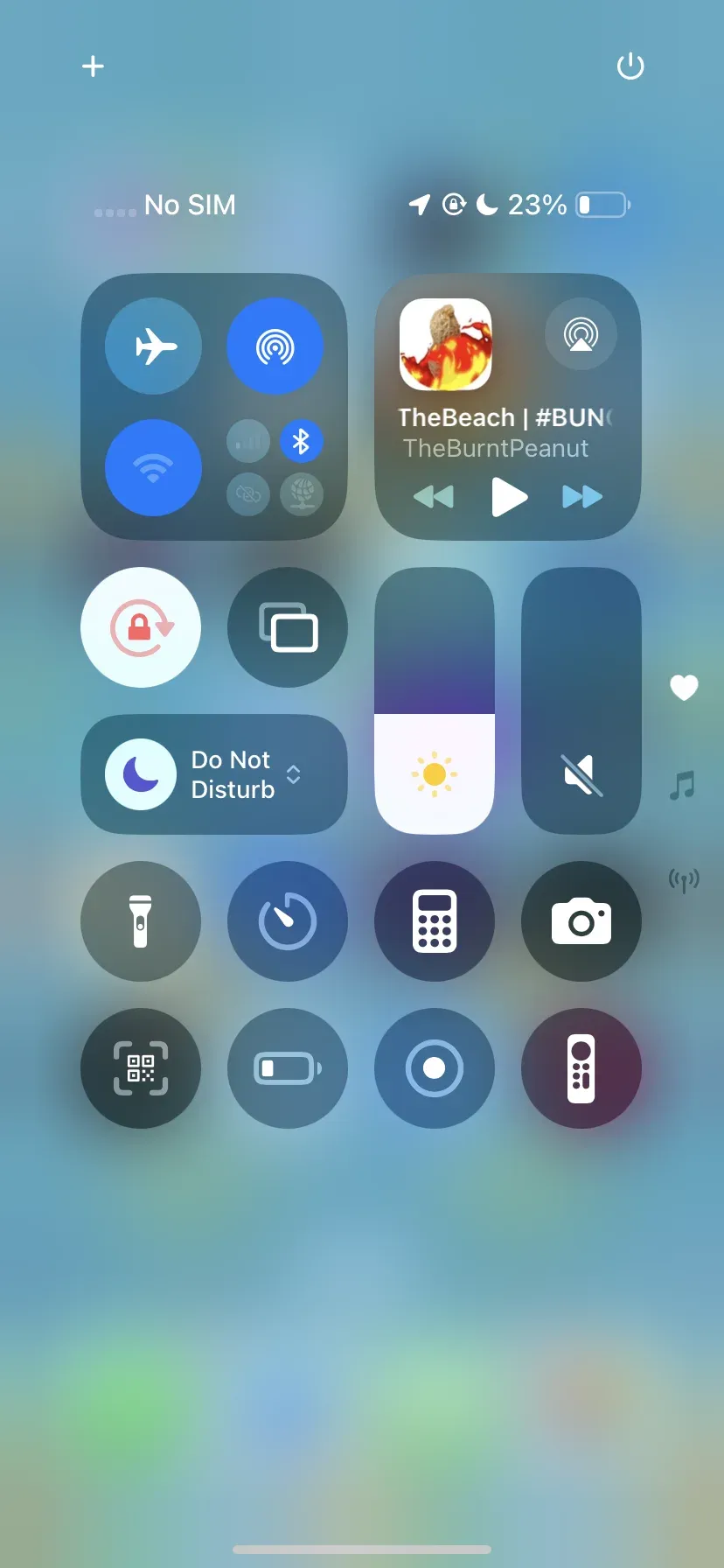
Step 1. Ensure your Samsung TV supports AirPlay and both devices are on the same Wi-Fi network.
Step 2. On your iPhone, swipe down to open Control Center and tap Screen Mirroring.
Step 3. Select your Samsung TV from the list to start streaming your screen or media.
#2. PigeonCast
PigeonCast is a free screen mirroring solution that gives iPhone users more flexibility when connecting to a TV. Unlike built-in features such as AirPlay or Smart View, it works across a wider range of TVs and streaming devices.
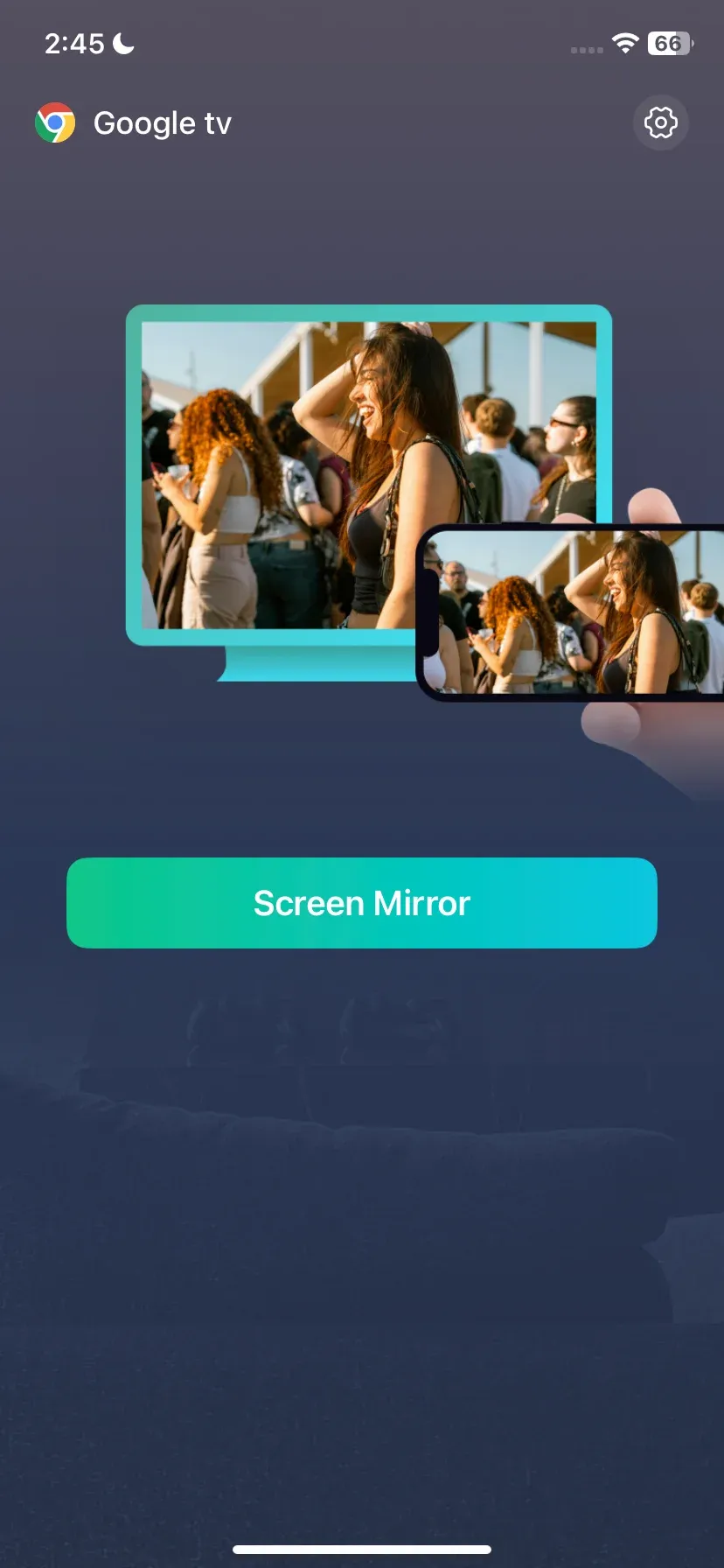
Step 1. Set up PigeonCast on your iPhone and ensure your devices are on the same Wi-Fi network.

PigeonCast Screen Mirroring

Official Download


Step 2. Open the app and connect to your TV via Wi-Fi.
Step 3. Once connected, tap Screen Mirror.
#3. Chromcast-Enabled Apps
Many streaming apps, like YouTube or Netflix, include their own Cast button. This avoids compatibility issues with DRM and often provides smoother playback.
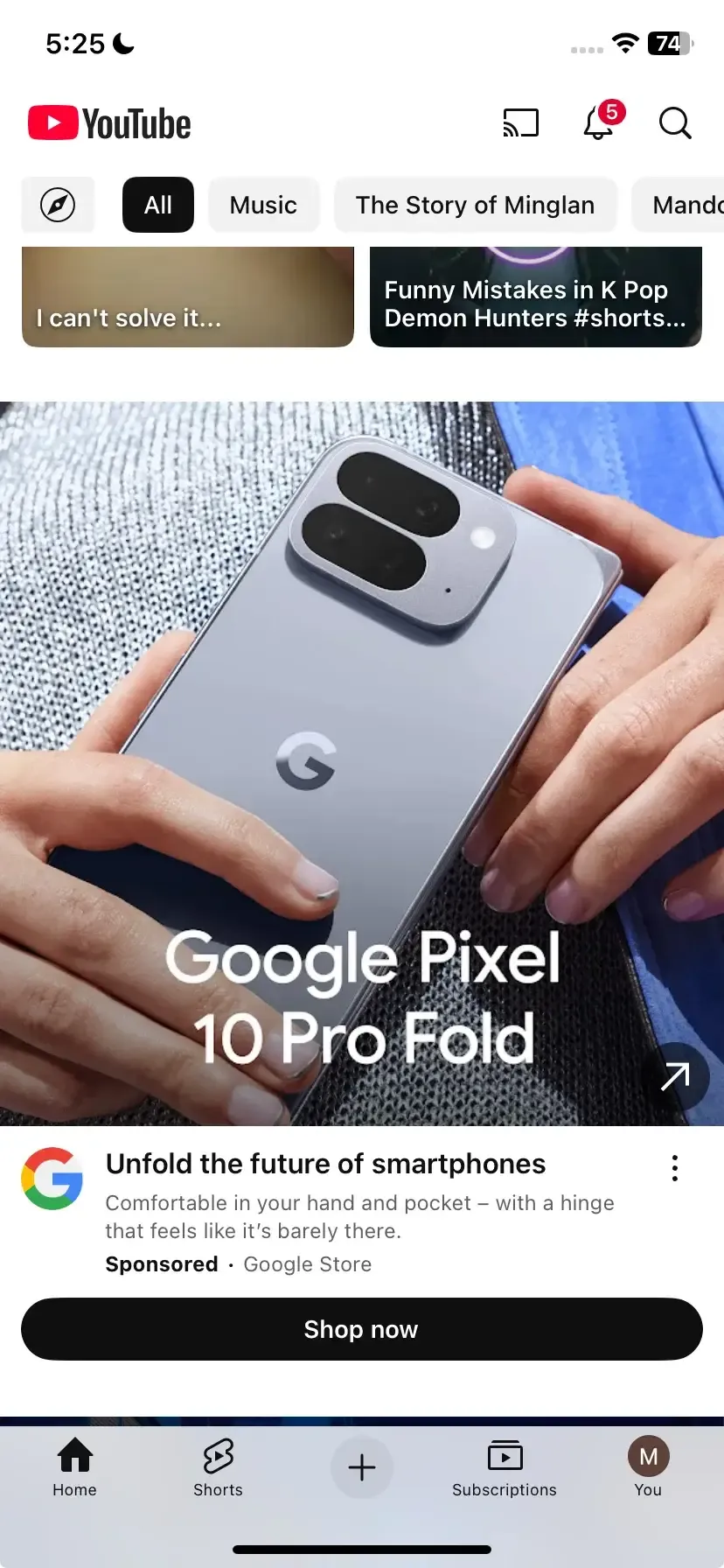
Step 1. Open the app (e.g., YouTube) on your iPhone.
Step 2. Tap the Cast icon (usually in the corner of the video player).
Step 3. Select your Samsung TV from the list of available devices.
#4. HDMI Adapter
If wireless methods aren't stable, a wired connection is the most reliable way to mirror your iPhone. An HDMI adapter bypasses Wi-Fi completely.
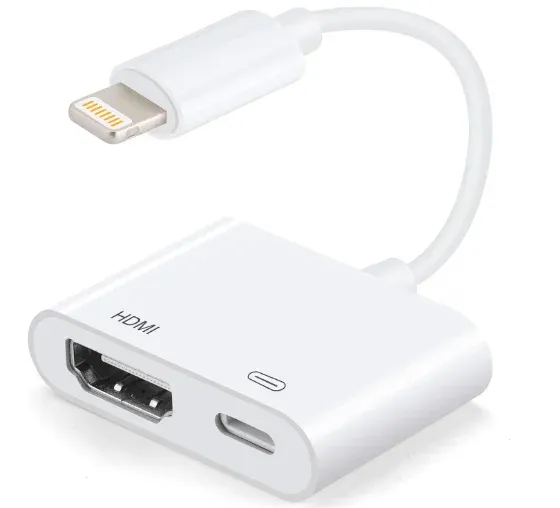
Step 1. Purchase a compatible HDMI adapter.
Step 2. Plug the adapter into your iPhone and connect it to your TV via an HDMI cable.
Step 3. Switch your TV input to the corresponding HDMI port, and your iPhone screen will appear instantly.
Final Thoughts
Samsung Smart View iPhone functionality gives Apple users a powerful way to enjoy their media on a Samsung TV. By connecting through SmartThings, you can mirror your screen, stream content, and even control your TV from your iPhone. Whether you stick with Smart View, use AirPlay, or try an alternative like PigeonCast, your iPhone can easily become the center of your living room experience. If you own a Samsung TV, Smart View remains one of the best ways to unlock its full potential.
Smart View iPhone FAQs
Does iPhone have Smart View?
iPhone does not include a built-in Samsung Smart View feature. However, iPhone users can mirror their screen or cast content to Samsung TVs using the SmartThings app, AirPlay, or compatible screen mirroring apps.
Is Samsung Smart View available on iPhone?
Samsung discontinued the standalone Smart View app and integrated its features into the SmartThings app. iPhone users can now use SmartThings to connect and mirror content to Samsung Smart TVs over Wi-Fi.
How do I use Smart View on iPhone?
To use Samsung Smart View functionality on iPhone:
- Install the SmartThings app from the App Store
- Connect your iPhone and Samsung TV to the same Wi-Fi network
- Open SmartThings and select your Samsung TV
- Tap Mirror Screen or use AirPlay if supported
This allows you to mirror your iPhone screen, stream videos, display photos, and cast media wirelessly to the TV.
What is the iPhone equivalent of Smart View?
Apple’s equivalent of Samsung Smart View is AirPlay. AirPlay lets iPhone and iPad users wirelessly mirror screens or cast videos, music, and photos to compatible smart TVs and streaming devices.
Can I mirror my iPhone to a Samsung TV without Smart View?
Yes. You can mirror your iPhone to a Samsung TV without Smart View using:
- Apple AirPlay
- Samsung SmartThings
- Chromecast-compatible apps
- Third-party casting apps like PigeonCast
- An HDMI adapter and Lightning cable
Most modern Samsung Smart TVs support AirPlay 2 for direct wireless screen mirroring.
Why can't my iPhone find my Samsung TV?
If your iPhone cannot detect your Samsung TV:
- Make sure both devices use the same Wi-Fi network
- Enable AirPlay on the Samsung TV
- Restart both devices
- Update iOS and Samsung TV firmware
- Disable VPNs or guest network isolation
Network restrictions are one of the most common causes of screen mirroring problems.
Does Samsung TV support AirPlay?
Many Samsung Smart TVs released after 2018 support Apple AirPlay 2. This allows iPhone users to mirror screens, stream videos, and share content directly from iPhone, iPad, or Mac devices.
Is Smart View free on iPhone?
Yes. Samsung SmartThings is free to download and use on iPhone. AirPlay is also built into iOS and does not require additional payment.
Mia Clarke is a technology editor specializing in screen mirroring and casting solutions across multiple platforms. Mia provides clear, practical guides and in-depth insights to help users seamlessly connect their devices. Passionate about enhancing digital experiences, Mia is dedicated to keeping readers updated on the latest trends and tools in cross-platform screen sharing. Whether you’re looking to mirror your smartphone, laptop, or smart TV, Mia’s content delivers reliable, user-friendly advice to simplify your tech setup.